100% Security Verified | No Subscription Required | No Malware


 ChatGPT
 Perplexity
 Gemini
 Claude
 Grok
Grok
In this article
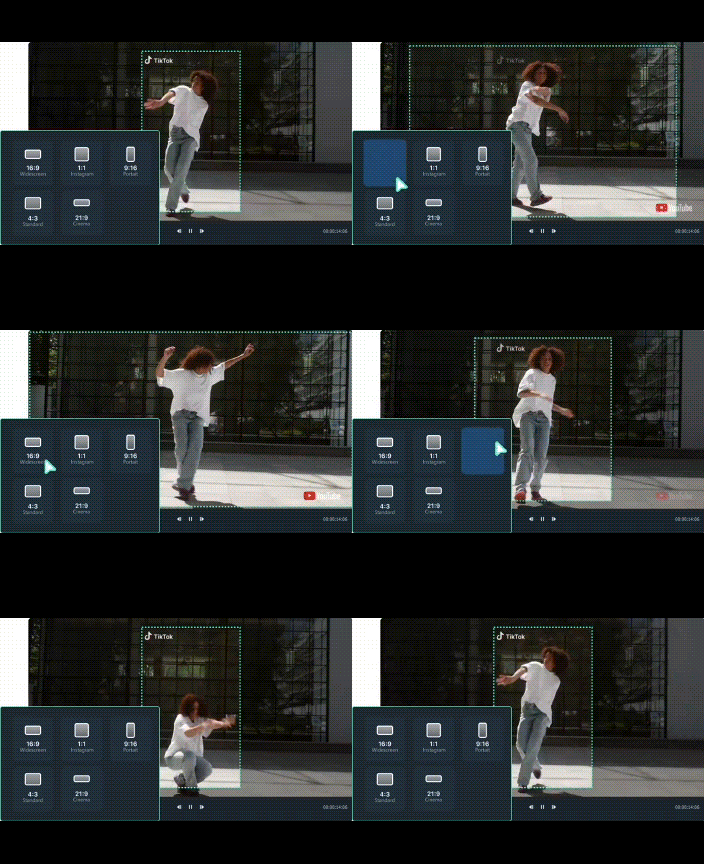
Auto Reframe, also known as AI video cropping, is a tool that automatically adjusts a video’s framing to match different aspect ratios. A video recorded in horizontal format can quickly be reframed into vertical or square formats without losing focus on the main subject.
Among the most popular tools for this task are Adobe Premiere Pro Auto Reframe and Wondershare Filmora Auto Reframe. Both use artificial intelligence to track movement and center the subject, but they serve different types of users.
This article breaks down their features, ease of use, and pricing. Also, provides practical tips for creating vertical or horizontal videos effectively.
Part 1. Auto Reframe in Adobe Premiere Pro
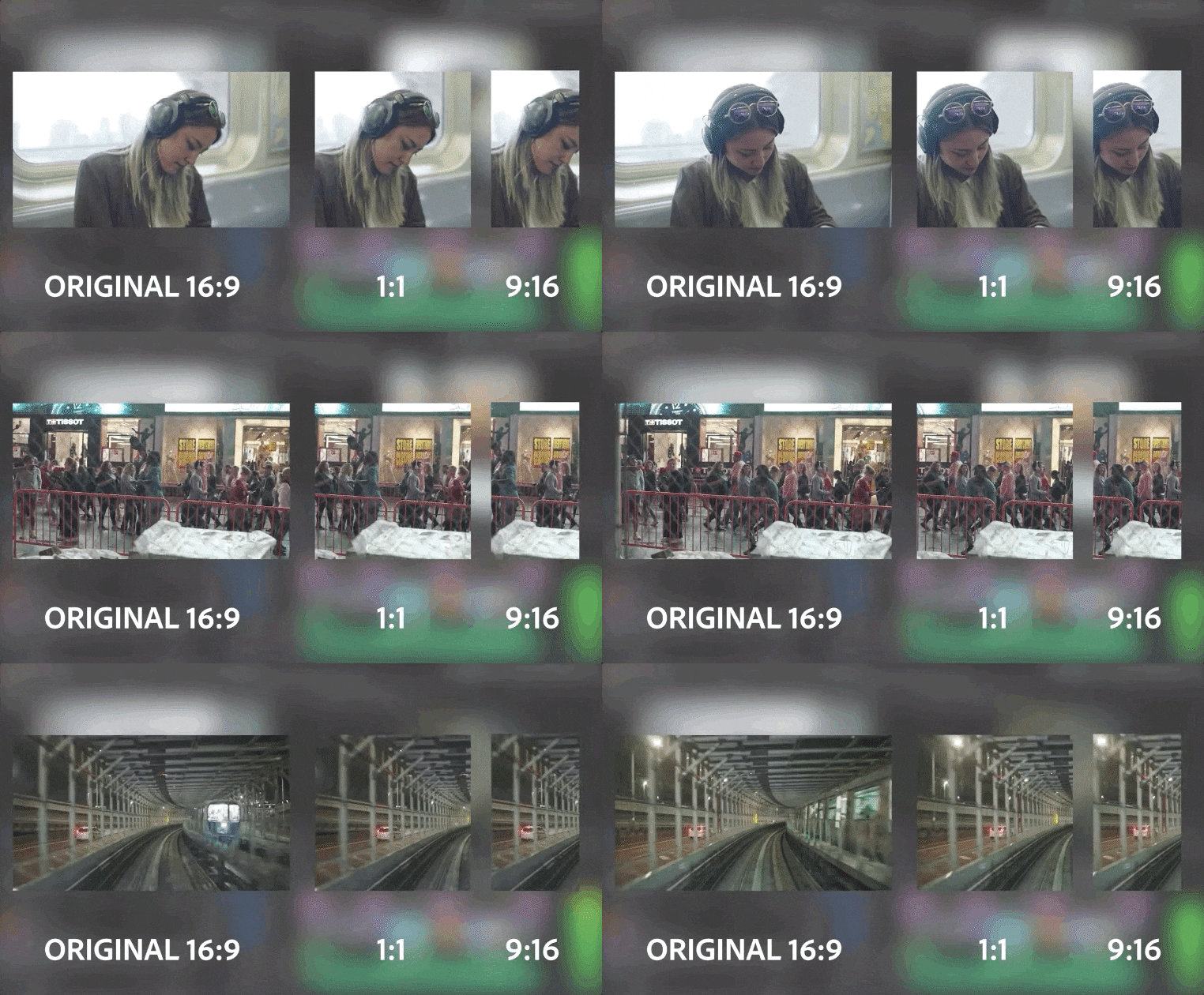
The Auto Reframe Premiere Pro feature uses artificial intelligence to detect movement in a video and automatically crop it to fit a new aspect ratio. This is especially useful for editors who need to create vertical videos for TikTok or Instagram, horizontal videos for YouTube, or square formats for Facebook. By focusing on the main subject, Adobe Premiere Pro Auto Reframe saves time and reduces the need for manual keyframing.
How to use
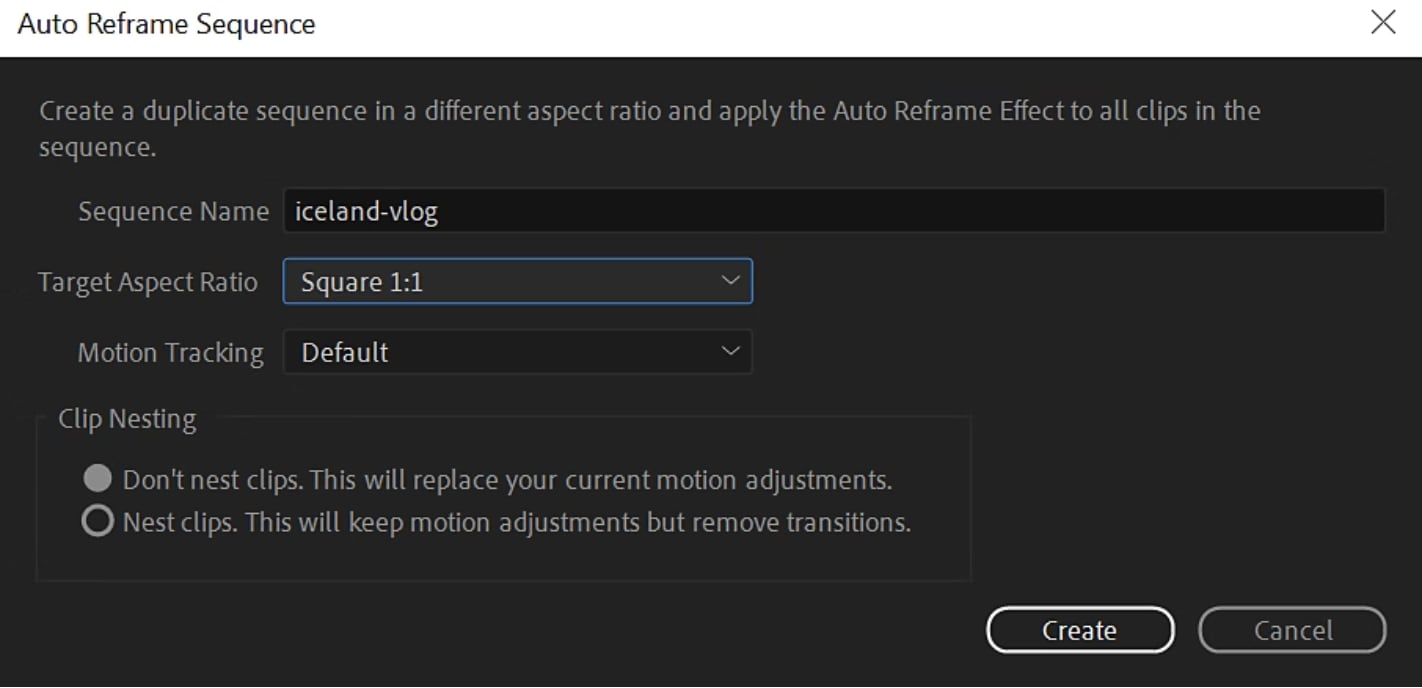
- Use Auto Reframe Sequence if you want to reframe an entire project into a new aspect ratio. This option creates a duplicate sequence with the chosen format.
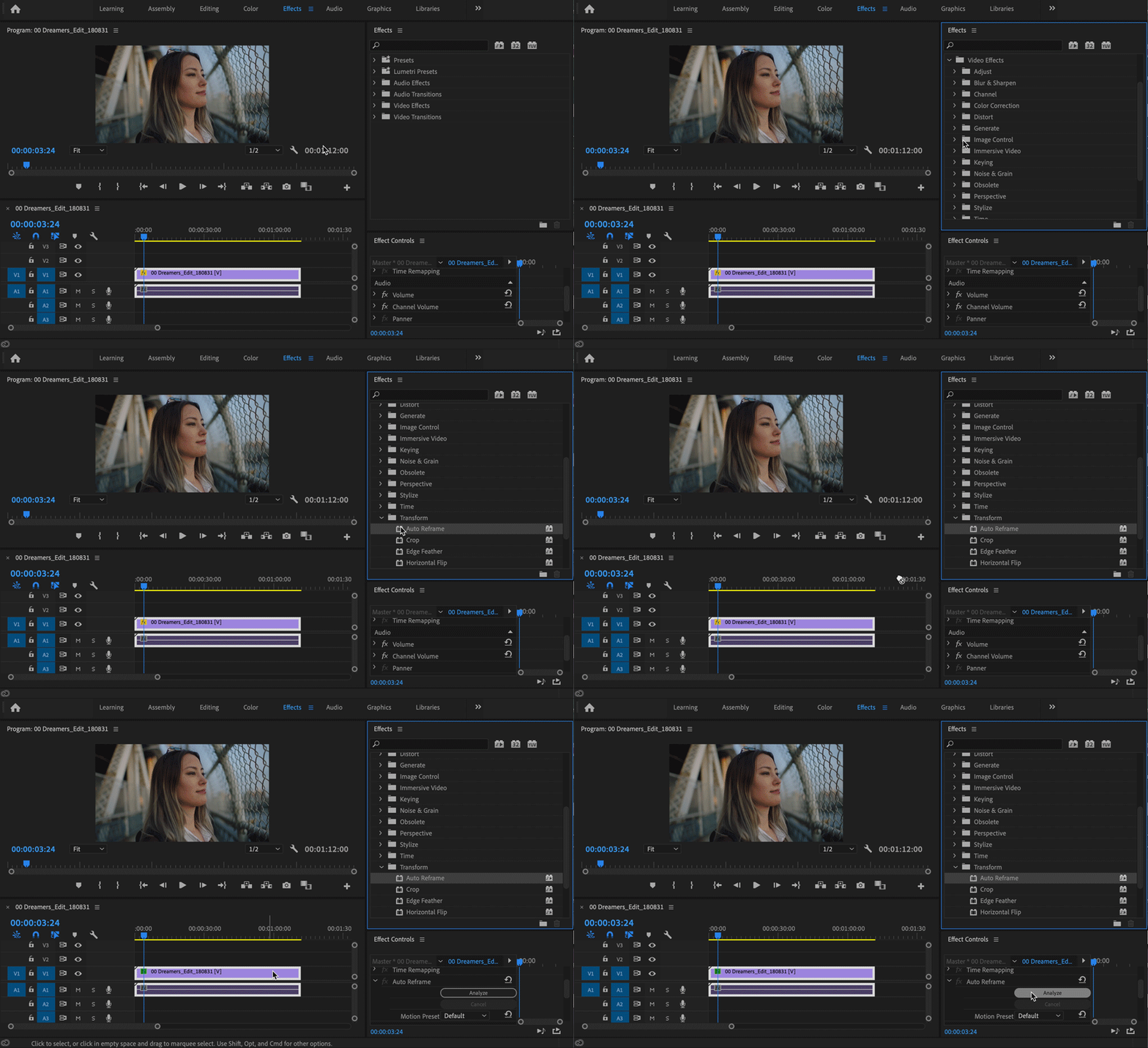
- Use the Auto Reframe Effect if you only need to adjust individual clips inside an existing sequence. This gives more control over specific parts of your video.
Customization options
Editors can fine-tune results by selecting from three motion speed presets: Slower, Default, or Faster. These settings guide how aggressively the AI tracks movement. For example, Slower is suited to interviews or static content, Default works for typical motion, and Faster helps with action-heavy clips such as sports. After the initial analysis, adjustments can be made manually using keyframes for precise control.
Limitations
While Premiere Auto Reframe is powerful and versatile, it does have drawbacks. The AI may misalign on-screen elements like text, graphics, or logos, especially in busy frames. The process can also be demanding on hardware, requiring a capable CPU and GPU for smooth performance. Finally, because auto reframe in Premiere Pro is part of a professional editing suite, new users may find the workflow complex compared to simpler editors.
Part 2. Auto Reframe in Filmora
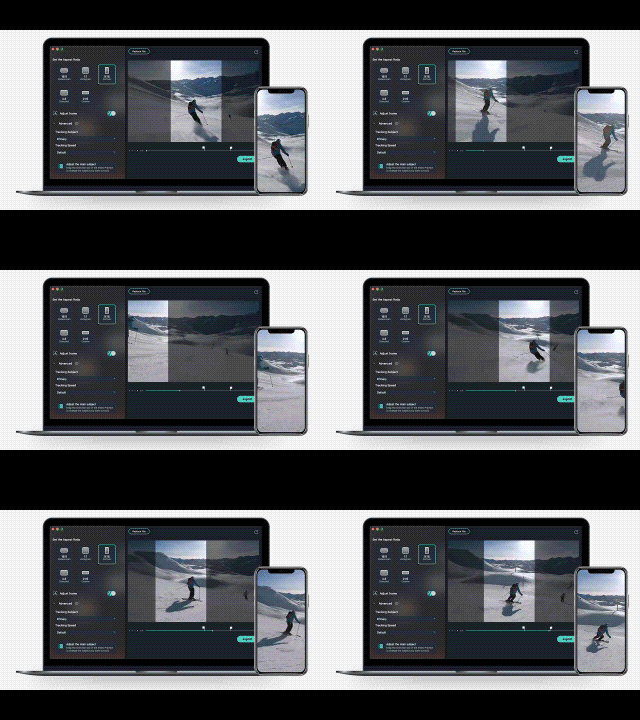
The Filmora Auto Reframe feature streamlines the task of adapting videos for multiple formats. It uses AI video cropping to detect the subject and adjust framing automatically. So, it is easy to repurpose content without manual keyframing. The tool supports various aspect ratios that are helpful for creators to prepare content for different platforms with minimal effort.
 secure download

How to use
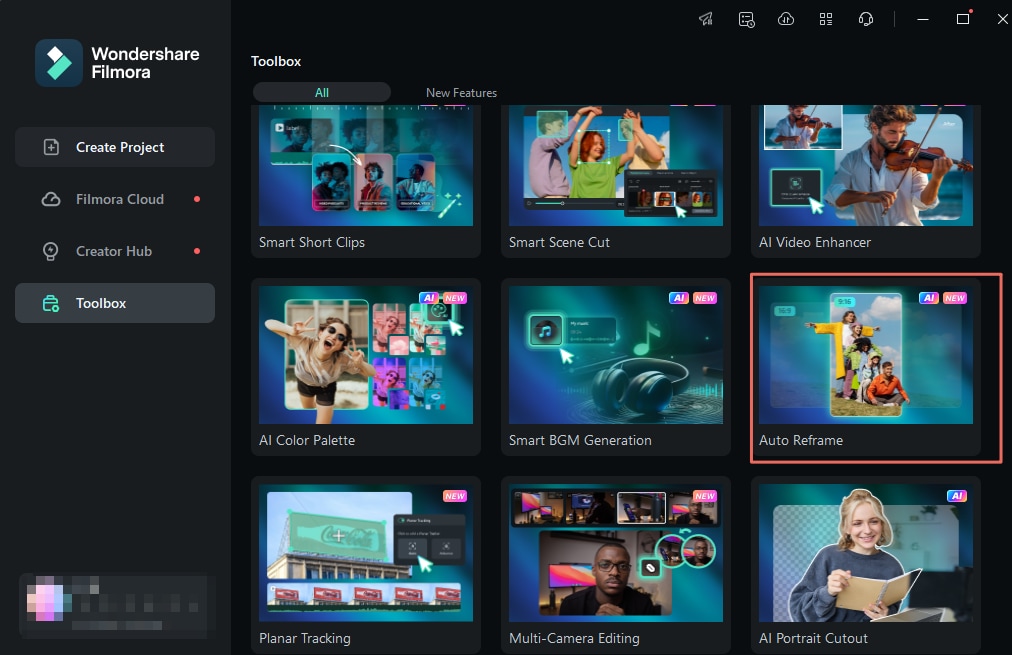
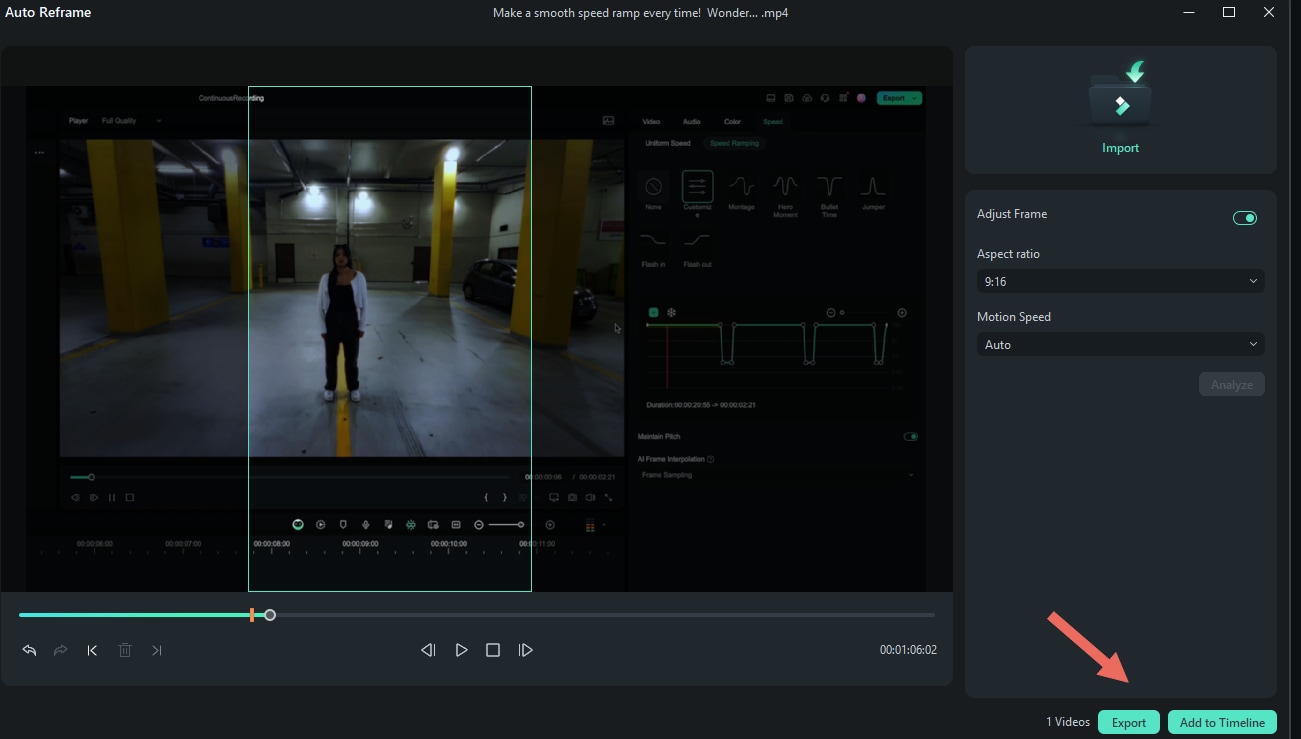
Step 1. Launch Filmora and access Auto Reframe from the AI Toolbox, the Tools menu, by right-clicking on a video, or directly during export.
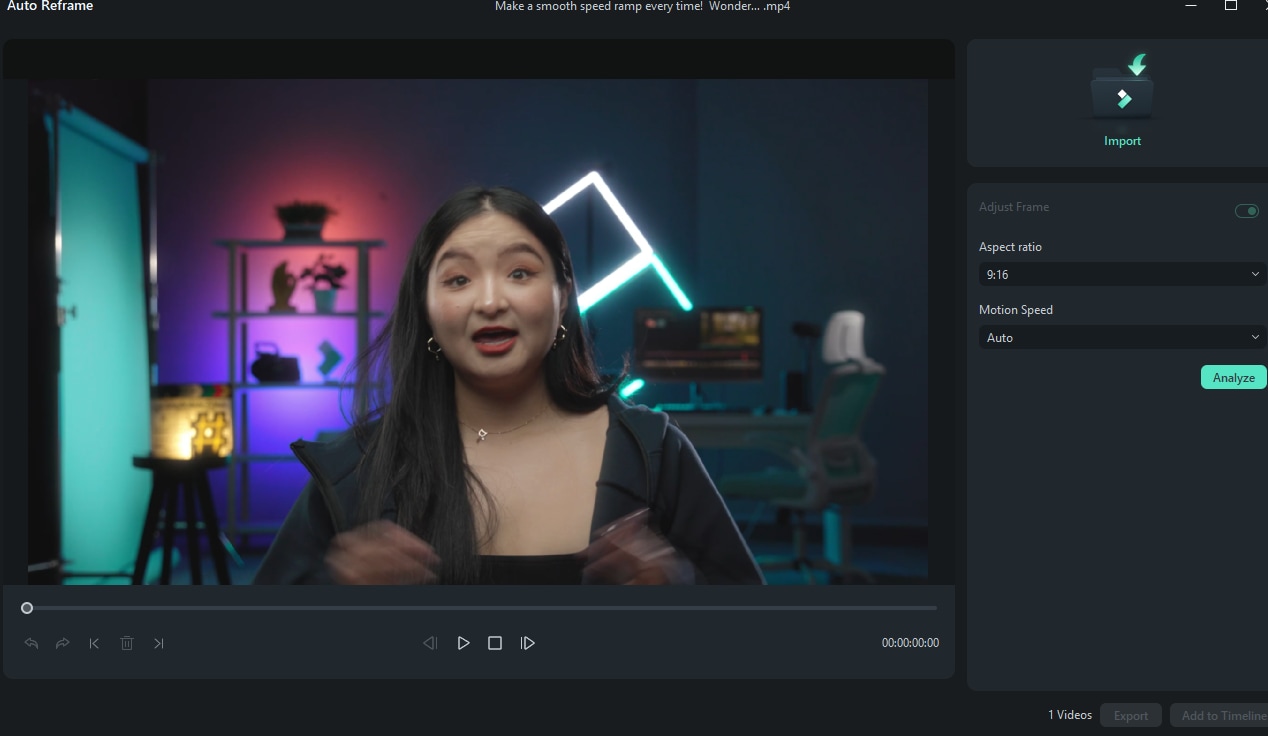
Step 2. Import your video and choose the aspect ratio you need, such as vertical, square, or widescreen.
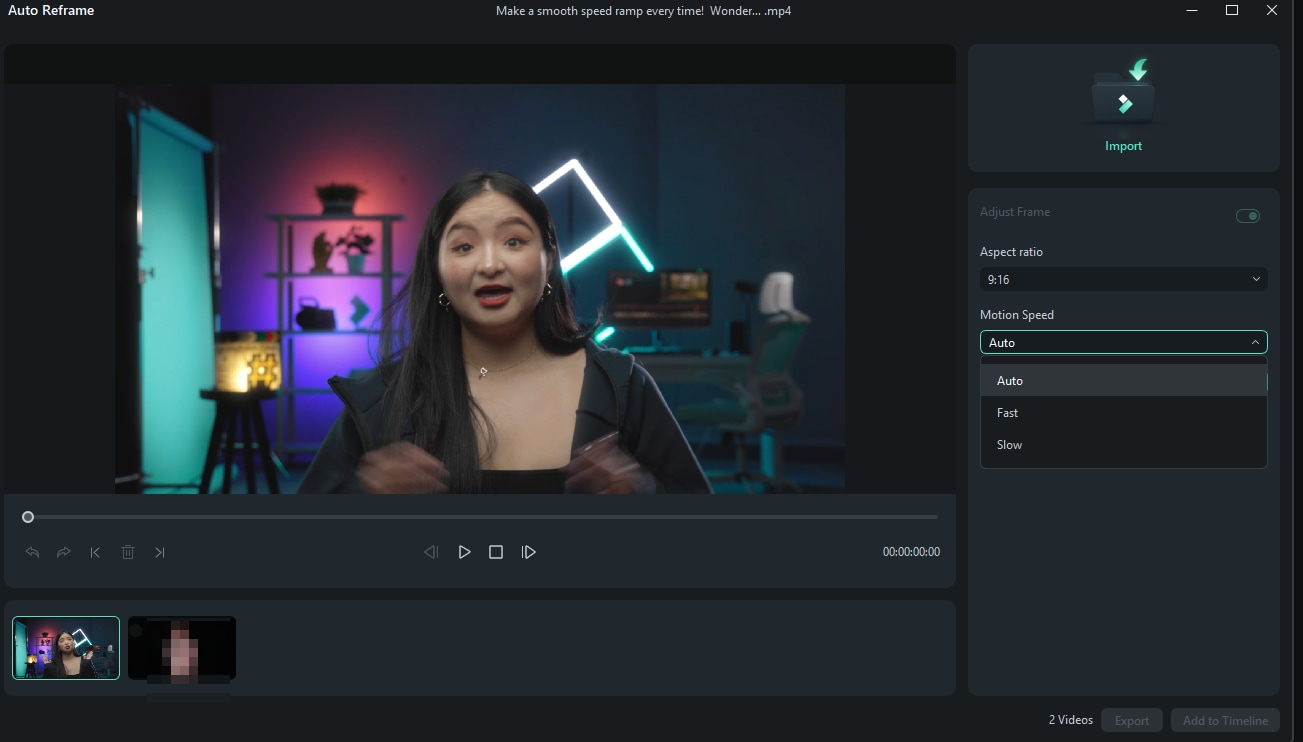
Step 3. Select the motion speed option: Auto for general clips, Fast for high-action footage, or Slow for steady or minimal movement. Click Analyze to let the AI process your video.
Step 4. Preview the reframed video, make manual adjustments to the focus box if necessary, and export the final version in MP4 format.
Customization options
Filmora provides straightforward customization that balances automation with user control. The motion speed setting helps the AI adjust tracking sensitivity to match the pace of the video. After analysis, the editor can fine-tune results by dragging the subject box to reposition framing. This ensures elements like faces, text, or logos remain within view, even in dynamic scenes.
Limitations
- Although Auto Reframe Filmora offers speed and simplicity, it lacks the depth of customization found in Adobe Premiere Pro.
- In complex or crowded scenes, the AI may fail to maintain perfect framing, requiring manual corrections.
- The free version of Filmora places a watermark on exported videos, which limits its use for professional publishing unless upgraded to a paid plan.
Part 3. Premiere Pro vs Filmora Auto Reframe: Direct Comparison Table
Both Premiere Auto Reframe and Filmora Auto Reframe use AI video cropping to simplify the process of adapting videos for multiple platforms. However, the way they handle accuracy, usability, and performance differs. The table below highlights the key comparisons between Adobe Premiere Pro Auto Reframe and Filmora Auto Reframe:
| Aspect | Premiere Pro Auto Reframe | Filmora Auto Reframe |
|---|---|---|
| AI Accuracy | Advanced motion tracking, reliable with complex footage | Effective for simple scenes, less precise in busy frames |
| Ease of Use | Multi-step setup, requires editing experience | One-click access, beginner-friendly workflow |
| Customization | Motion presets plus manual keyframe adjustments | Motion speed presets with basic manual tweaks |
| Processing Speed | Slower on long clips, requires a strong CPU/GPU | Fast analysis, works well on mid-range PCs |
| Output Formats | Professional export support, including HDR and 4K | Preset templates for social media platforms |
| Pricing | Subscription through Adobe Creative Cloud | One-time license or lower annual plan |
| Best Suited For | Professionals, advanced editing projects | Social media creators, quick content editing |
Which Tool Should You Choose?
Choosing between Premiere Auto Reframe and Filmora Auto Reframe depends on your editing needs.
- You should use Adobe Premiere Pro Auto Reframe if you are a professional editor or already work within the Adobe ecosystem. It is designed for complex projects where precision and professional export formats are required. The integration with other Adobe apps is also essential.
- On the other hand, Filmora Auto Reframe is the better option if you want quick results, a simpler workflow, or a more affordable solution for social media editing. It is ideal for creators who regularly post vertical videos or casual projects that benefit from fast AI video cropping without the steep learning curve.
Part 4. Practical Applications of Auto Reframe
Auto Reframe is more than a time-saving feature; it directly supports the growing need to reformat content for multiple platforms. By using AI video cropping, editors can quickly adapt videos from one aspect ratio to another without starting over.

Create vertical videos
One of the most common applications is turning standard horizontal clips into vertical videos. With Premiere Auto Reframe or Filmora Auto Reframe, you can generate 9:16 content for TikTok, Instagram Reels, or YouTube Shorts while keeping the subject centered. This allows you to reuse existing footage instead of recording separate versions for each platform.
Convert vertical to horizontal
Another frequent need is adjusting portrait content for widescreen platforms such as YouTube. Auto Reframe helps by re-cropping vertical footage into 16:9 while maintaining focus on the subject.
If you are wondering how to make a vertical video horizontal, this feature offers a fast solution that minimizes quality loss.
Conclusion
Both Premiere Pro and Filmora Auto Reframe make it easier to adapt videos for multiple platforms. Adobe Premiere Pro Auto Reframe is ideal for professionals who need precise control, advanced export formats, and integration with other Adobe apps.
Meanwhile, Filmora Auto Reframe works best for creators who want quick results, a straightforward workflow, and affordable pricing. If your goal is to create vertical videos for TikTok or convert existing clips, these tools provide reliable solutions while saving valuable editing time.
Frequently Asked Questions
-
Is Auto Reframe in Premiere Pro free?
No, Auto Reframe in Adobe Premiere Pro is not free. The feature is included with Premiere Pro, which requires an Adobe Creative Cloud subscription. Adobe does provide a free trial, but long-term use requires a paid plan.No, Auto Reframe in Adobe Premiere Pro is not free. The feature is included with Premiere Pro, which requires an Adobe Creative Cloud subscription. Adobe does provide a free trial, but long-term use requires a paid plan.Which software works better on low-spec computers?Which software works better on low-spec computers? -
Which software works better on low-spec computers?
Filmora Auto Reframe works better on mid to low-spec computers because it is optimized for lighter performance and faster rendering. Premiere Auto Reframe can handle more complex edits, but it requires stronger hardware, especially for 4K and HDR projects.Filmora Auto Reframe works better on mid to low-spec computers because it is optimized for lighter performance and faster rendering. Premiere Auto Reframe can handle more complex edits, but it requires stronger hardware, especially for 4K and HDR projects.Can Auto Reframe make vertical videos horizontal?Can Auto Reframe make vertical videos horizontal? -
Can Auto Reframe make vertical videos horizontal?
Yes, both Filmora and Premiere Auto Reframe can convert vertical clips into horizontal format. This is useful when you need to know how to make a vertical video horizontal for platforms like YouTube, while still keeping the subject centered.Yes, both Filmora and Premiere Auto Reframe can convert vertical clips into horizontal format. This is useful when you need to know how to make a vertical video horizontal for platforms like YouTube, while still keeping the subject centered.How will AI video cropping evolve in the future?How will AI video cropping evolve in the future? -
How will AI video cropping evolve in the future?
AI video cropping will continue to improve with more accurate subject tracking and smarter automation. Tools like Premiere Pro Auto Reframe and Filmora Auto Reframe are expected to expand with features such as AI-driven captions, background removal, and automatic adjustments for complex scenes, making the editing process even faster.AI video cropping will continue to improve with more accurate subject tracking and smarter automation. Tools like Premiere Pro Auto Reframe and Filmora Auto Reframe are expected to expand with features such as AI-driven captions, background removal, and automatic adjustments for complex scenes, making the editing process even faster.