

 TL;DR:
Selecting the right mask animation tool depends on your project requirements: Wondershare Filmora offers versatile cross-platform editing for all skill levels, Adobe After Effects provides advanced VFX control for professionals, Final Cut Pro delivers efficient timeline masking for macOS and iPad users, and Adobe Animate specializes in custom 2D vector graphics.
● Adobe After Effects (starting at $34.99/month) and Adobe Animate ($13.79/month) require Creative Cloud subscriptions and higher-spec hardware on Windows or macOS, whereas Final Cut Pro is a $299.99 one-time purchase exclusive to Apple ecosystems, and Filmora provides a watermarked free tier across iOS, Android, Windows, and macOS.
● For masking execution, After Effects and Final Cut Pro utilize motion tracking to keep masks attached to moving subjects, Filmora relies on automatic keyframe generation and preset text masks to speed up general editing, and Adobe Animate uses timeline-based tweening specifically for scalable vector illustrations rather than standard video files.
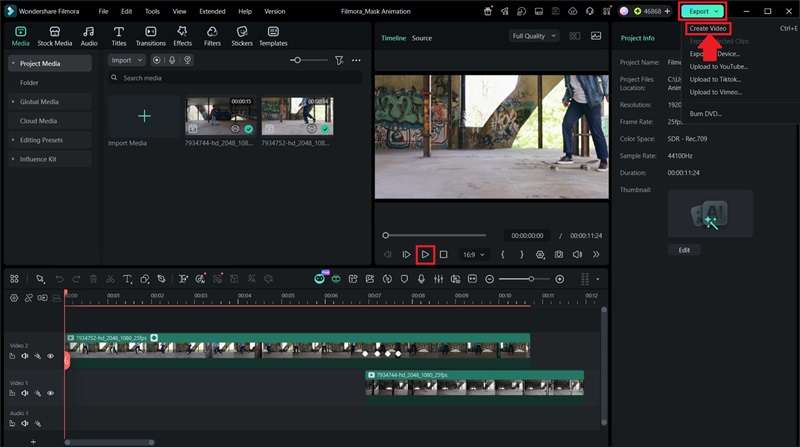
● When animating a custom mask transition between two clips, place the initial footage on the upper video track, apply your chosen mask shape to that top clip, and sequentially plot positional keyframes along the timeline to move the mask until the underlying video track is completely revealed.
Ask AI for a summary
 ChatGPT
 Perplexity
 Gemini
 Claude
 Grok
Grok
According to Wyzowl, 91% of businesses now use video as a marketing tool. As video content becomes more competitive, techniques like mask animation help videos look cleaner and more professional. It's commonly used to create seamless transitions, reveal subjects, and add cinematic visual effects. In simple terms, mask animation works by showing or hiding specific parts of a video over time, allowing you to control exactly what your audience sees.
Fortunately, you don't have to build these effects from scratch anymore. Many video editors include it as a built-in feature, making the process more accessible. To help you choose the right one, we've compared the best tools based on their features and overall editing experience.
Part 1. Best 4 Tools for Mask Animation
The right video editor can make mask animation much simpler. Different tools offer different levels of control, flexibility, and ease of use. Let's take a look at the best options and see what makes each one stand out.
1. Wondershare Filmora
We'll start with one of the most popular video editors in the market, Wondershare Filmora. If you're new to mask animation or need a quick way to create effects, Filmora offers various preset mask shapes to get started. For more experienced editors, Filmora also lets you import shapes or design custom masks. This allows you to create mask animations that better match your desired style and visual goals.
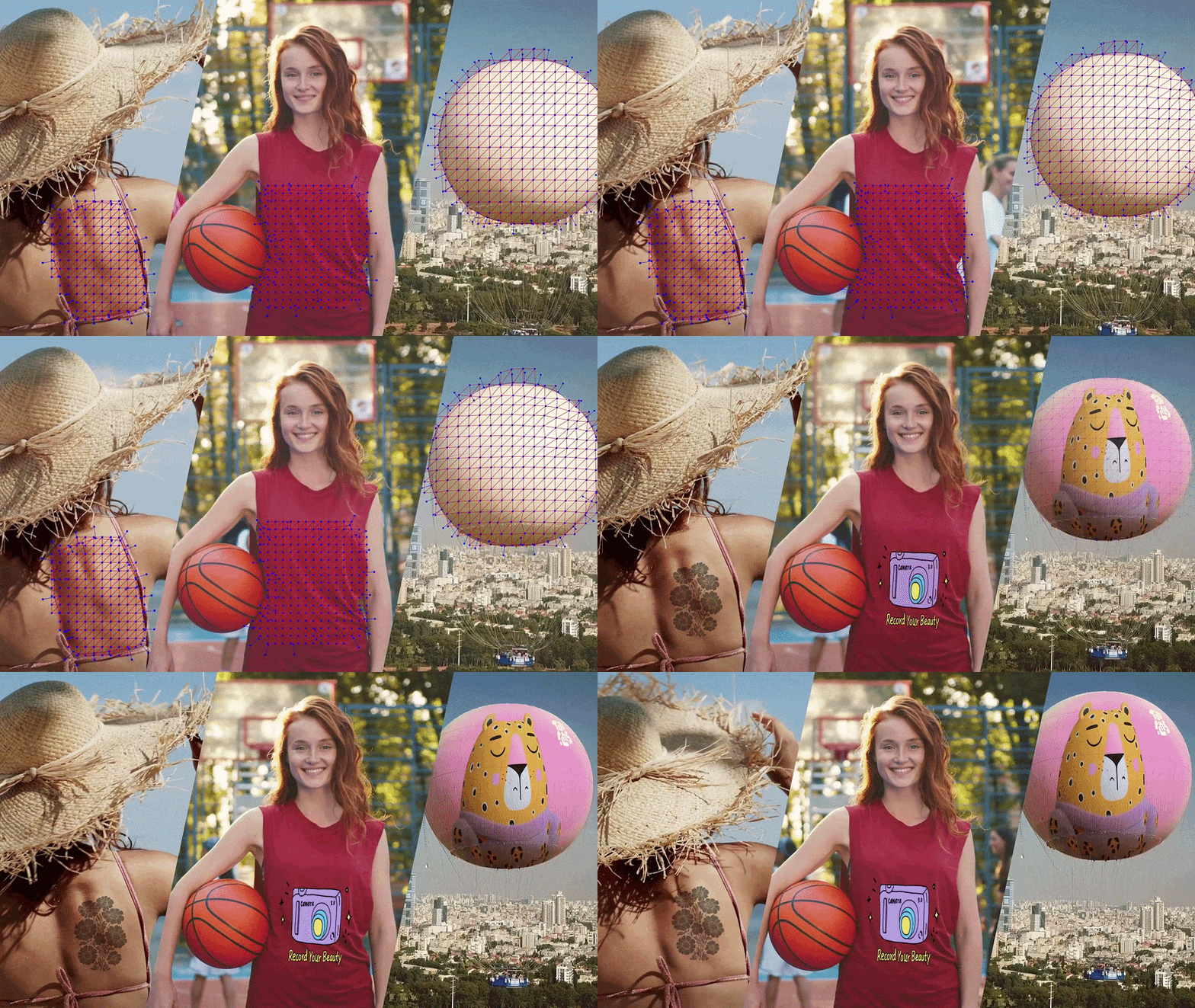
- Animate masks using keyframes for smooth and dynamic effects.
- Customize mask properties such as feathering, opacity, expansion, stroke, and shadow effects.
- Use preset text masks with customizable fonts, sizes, colors, positions, outlines, and shadows.
- Add multiple masks to a single video clip for more complex editing effects.
Available on iOS, Android, Windows, and macOS.
A free version is available for trying out Filmora's features. To remove watermarks and unlock more features, you can choose from Filmora's paid plans.
- Automatic keyframe generation helps speed up the masking animation process.
- The text mask feature offers a wide range of font options from both local and cloud libraries.
- Filmora includes various AI features that support the editing process and polish the final video.
- The free version adds a watermark to exported videos.
Vlogs, tutorials, educational videos, promotional content, social media videos, and professional projects.

2. Adobe After Effects
Next is Adobe After Effects, a specialized tool for motion graphics and visual effects. It offers advanced masking animation controls that allow you to create precise movements using keyframes. Adobe After Effects gives you the flexibility to build detailed visual compositions. You can use it for object reveals, scene compositing, and cinematic effects.
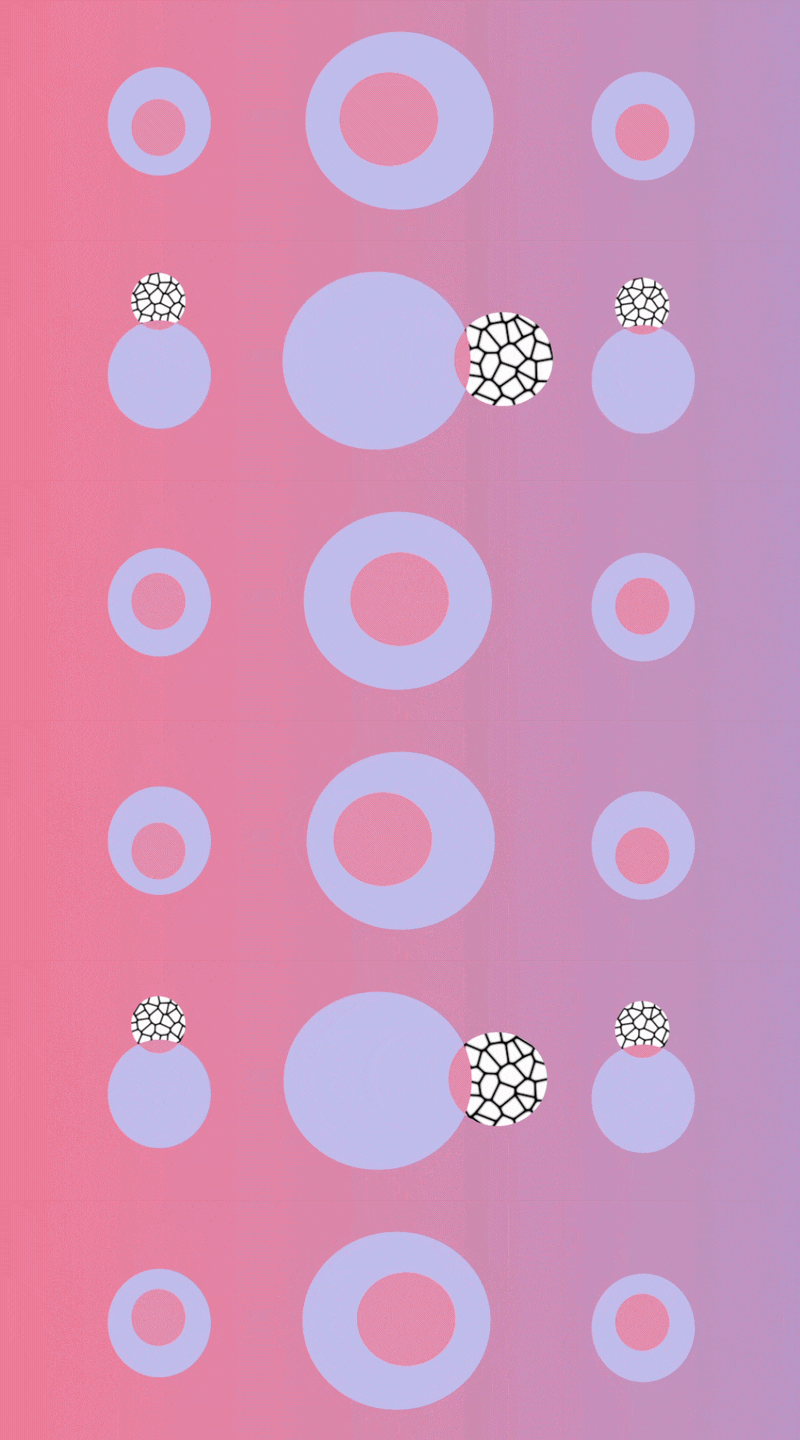
- Create detailed mask animations with precise keyframe adjustments.
- Use different mask modes, such as adding, subtracting, or intersecting masks.
- Motion tracking to attach an animated mask to moving subjects.
- Combine multiple layers, footage, and effects to build complex compositions.
Windows and macOS.
Free trial available. Paid plans start at $34.99/month.
- Fine-tune every aspect of your mask for high precision.
- Equipped with extensive effects, plugins, and customization settings.
- Works seamlessly with other Adobe tools.
- Can feel overwhelming for beginners.
- Requires a more powerful computer for complex effects.
- Requires a Creative Cloud subscription.
Motion graphics, VFX, commercials, films, and professional video production.
3. Adobe Animate
If you're creating 2D animations, Adobe Animate is another option worth considering. While it's primarily designed for character animation rather than traditional video editing, it includes tools to animate masks for interactive animations and motion-based projects.
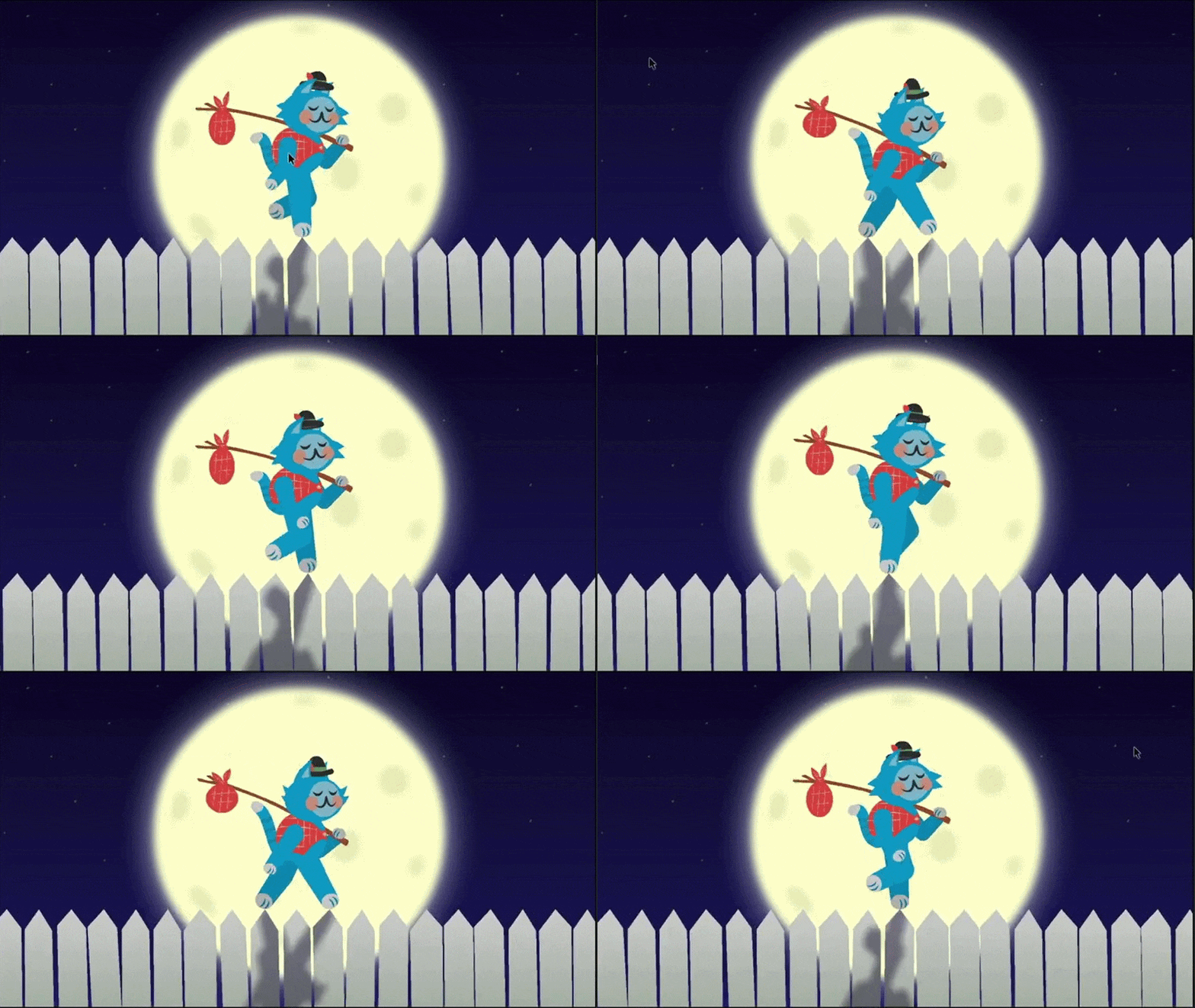
- Create animated masks using timeline-based animation.
- Animate mask movements with frame-by-frame and tween animation tools.
- Customize object movements and layer animations for more precise masking effects.
- Organize animations with layers and symbols for more complex masking projects.
Windows and macOS.
Free trial available. Paid plans start at $13.79/month.
- Uses vector graphics, so elements can be resized without losing quality.
- Ideal for creating complex and highly customized mask animations.
- Works seamlessly with other Adobe Creative Cloud applications.
- Requires more manual adjustments than traditional video editors.
- Performance may slow down on lower-spec devices.
- Not ideal for users who only need simple video masking.
2D animations, educational content, web animations, and interactive projects.
4. Final Cut Pro
Final Cut Pro is Apple's professional video editor with a clean interface and powerful editing tools. It includes masking animation features that allow you to create animated masks, isolate subjects, and build smooth transitions directly on the timeline.
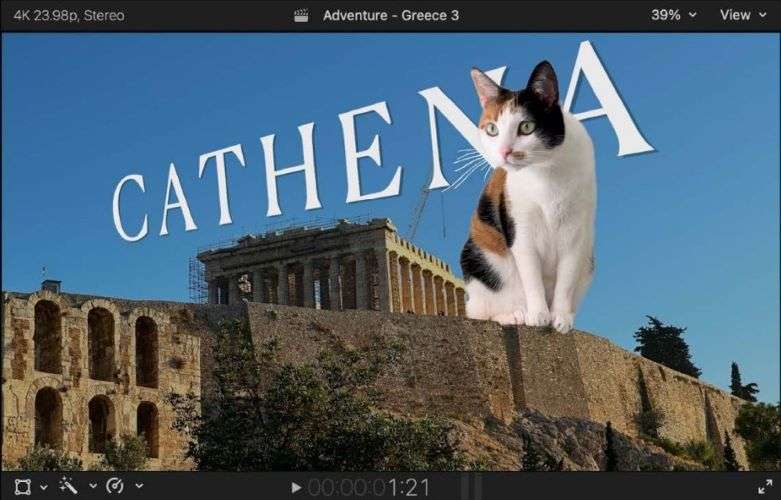
- Animate masks using keyframes.
- Object tracking to keep an animated mask attached to moving subjects.
- Customize mask shapes and settings for precise control.
- Combine multiple masks for more complex effects.
iPad and macOS.
One-time purchase for $299.99.
- Apply effects and color adjustments within masked areas.
- Tracking feature helps masks follow moving subjects accurately.
- Mask adjustments are smooth and fast with no lag.
- Masking tools can feel limiting for complex designs.
- More complex mask animations may take longer to refine.
- Occasional unexpected mask movement during playback.
Social media videos and commercial projects.
Part 2. Mask Animation Tools Comparison: Which One Should You Choose?
After looking at the top mask animation tools, it's clear that each one has its own strengths. Some tools focus on creative control, while others offer a faster and more practical editing experience.
Check out a quick comparison to help you choose the right tool for your needs.
| Tool | Best For | Editing Level | Recommended For |
| Wondershare Filmora | All-Purpose Video Editing | Beginner to Advanced | If you want a versatile editor that can handle both simple and more customized mask animations |
| Adobe After Effects | Motion Graphics & VFX | Advanced | If you need more control over complex mask animations, compositions, and effects |
| Adobe Animate | 2D Animation | Intermediate to Advanced | If you're working on character animations, illustrations, or projects that use custom 2D designs. |
| Final Cut Pro | General Video Editing | Beginner to Intermediate | If you want to create mask animations quickly while keeping your editing process efficient |
You May Also Like
Part 3. How to Animate a Mask in Filmora
Now that we've explored the best tools for mask animation, let's see how the feature works in practice. In this tutorial, we'll use Wondershare Filmora to create a simple mask animation step by step.
Using Filmora's Enhanced Mask Feature
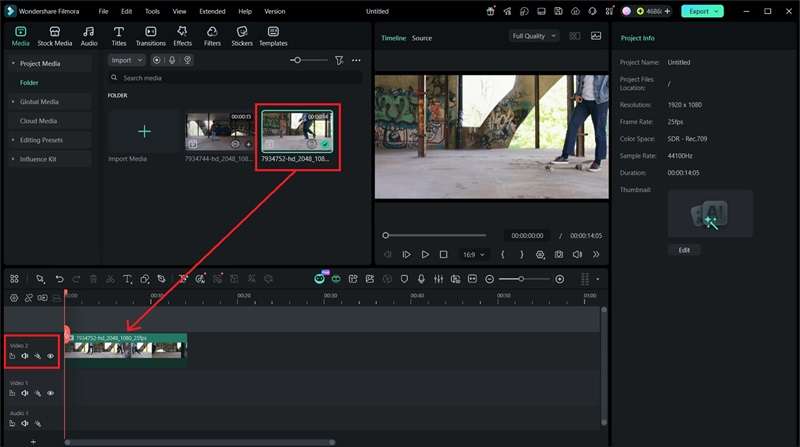
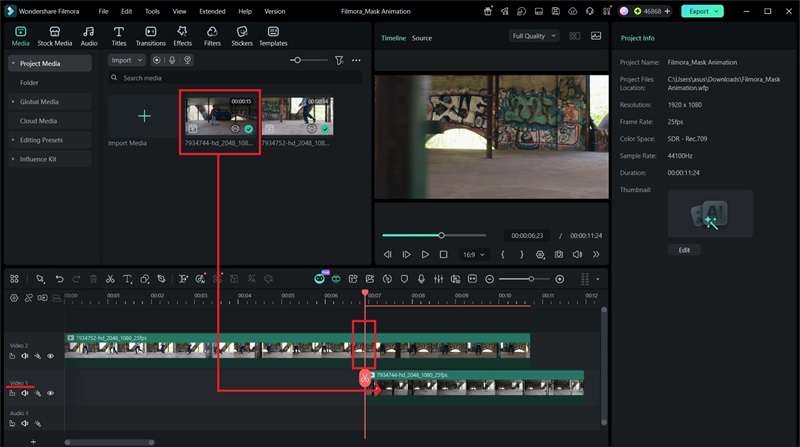
Create the Mask Transition
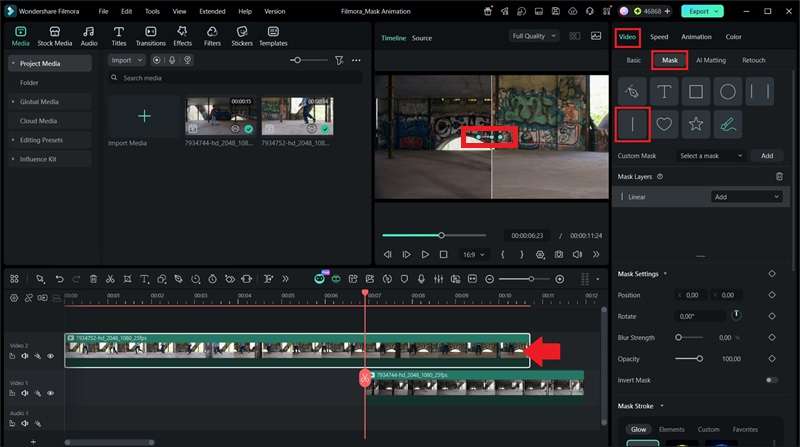
Add Keyframes to Animate the Mask
To create a smooth left-to-right transition, you'll need to animate the mask using keyframes. The more keyframes you add, the more control you have over the movement. For this tutorial, we'll use four keyframes.
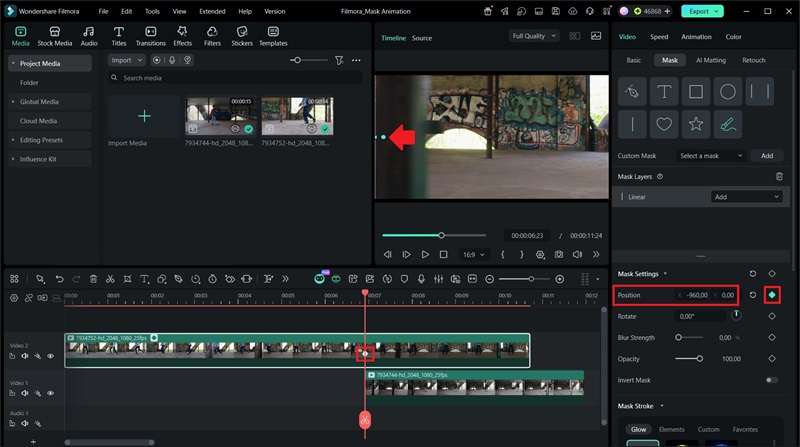
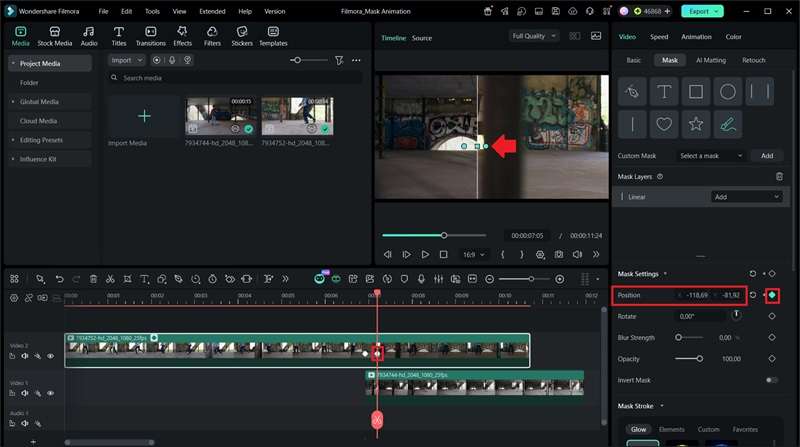
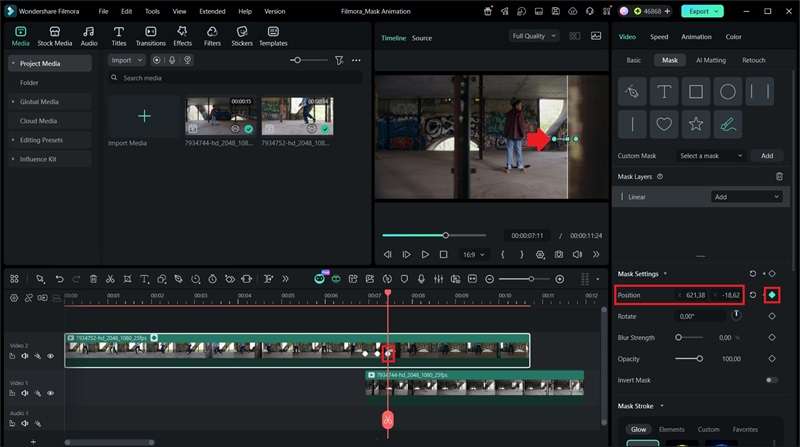
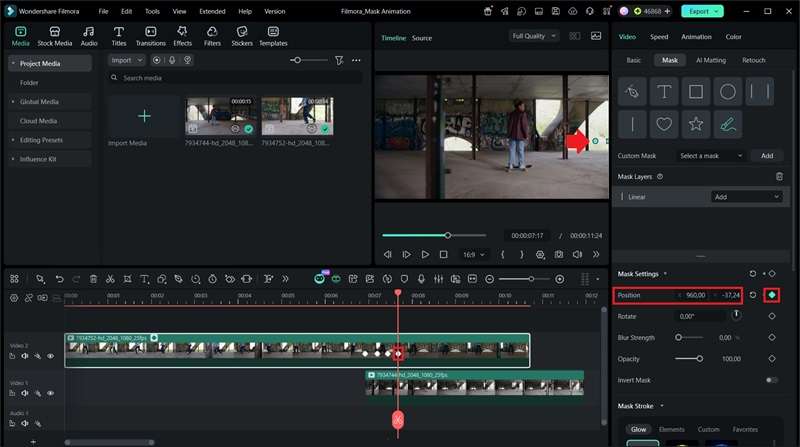
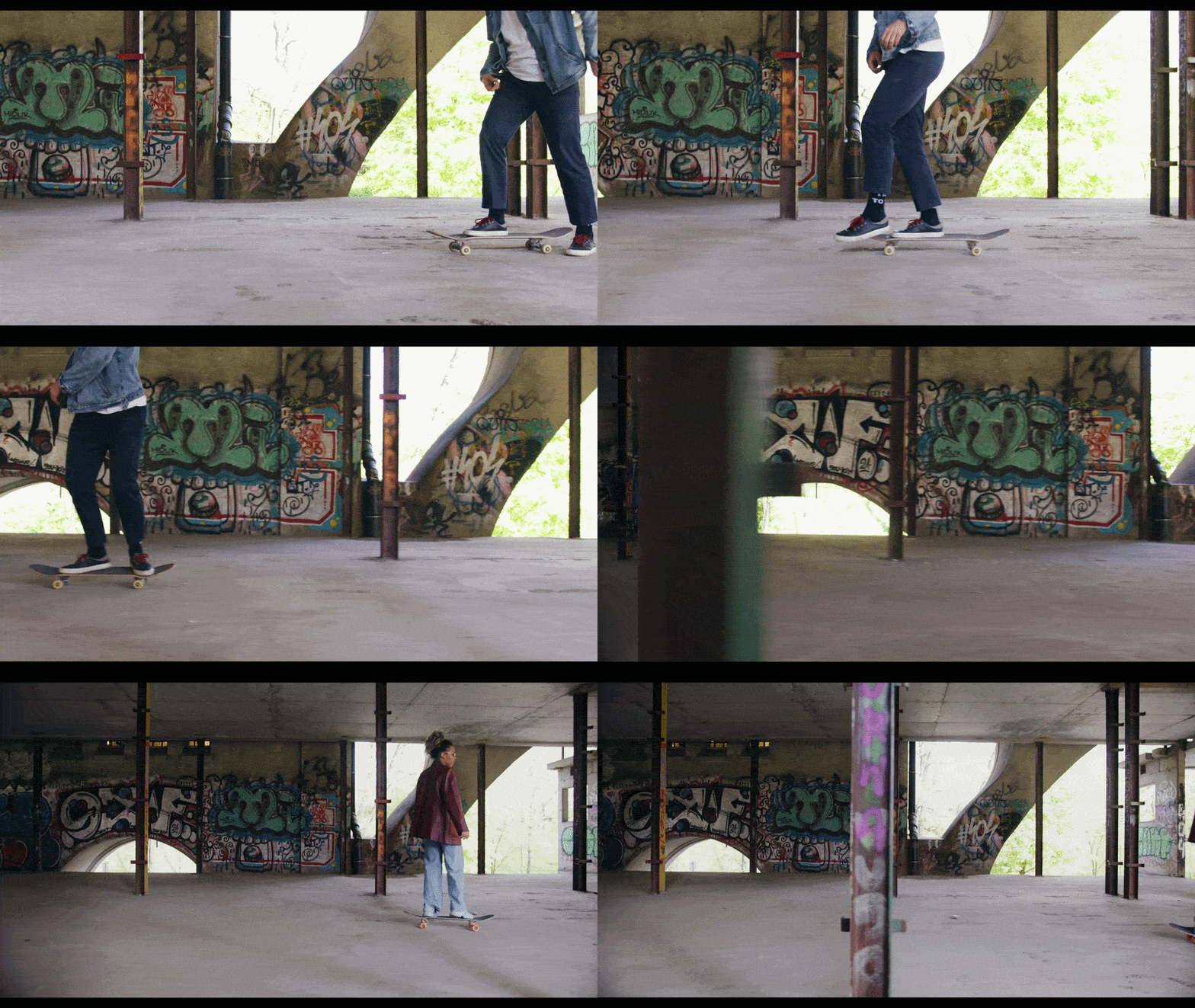
Below is the final mask animation created in Filmora. The mask animation creates a smooth transition between the close-up shot and the full-body skateboarding clip. As the mask moves across the frame, the second clip is gradually revealed, making the transition feel more natural.
 Secure Download
Conclusion
From simple video transitions to advanced visual effects, mask animation opens up many creative possibilities for video editors. However, each tool offers different levels of control, flexibility, and workflow options. The best choice depends on the type of project you want to create.
For a versatile option that works across different editing needs, Wondershare Filmora is a solid choice. The masking tools work well for different experience levels, so try the presets or create your own designs. You can customize mask settings to achieve different visual styles. It is suitable for creating various types of videos, from short social media content to professional projects.
FAQs
-
1. Why does my mask animation look unnatural?
A mask animation may look unnatural if the movement is too fast, the keyframes are poorly timed, or the mask edges do not blend well with the footage. -
2. Can mask animation work with images and graphics?
Yes. Masks can be applied to videos, images, text, and graphic elements to create different animation effects. -
3. Is mask animation only used for professional videos?
No. Mask animation can be used for everything from social media clips and YouTube videos to commercials, tutorials, and creative projects. -
4. What is the difference between masking and transitions?
A transition controls how one clip changes into another using a predefined effect, while masking gives you more control over which parts of a clip appear or disappear. Mask animation can be used to create custom transitions that are more flexible than standard transition effects. -
5. Do I need a powerful computer for mask animation?
It depends on the complexity of your project. Simple mask animations usually work well on standard computers. However, projects with high-resolution footage, multiple layers, and advanced effects may require stronger hardware for smoother performance.
