


Finding the right AI tool for each part of a creative project can be complicated. For that reason, GizAI gives you all the access to AI models for chat, research, image generation, video creation, and audio. In just one platform, you can develop an idea, research a topic, create visuals, and turn those visuals into videos.
But is GizAI's AI video generator good enough for real work? How well does it handle different video generation tasks and output options? This review looks at its features, video models, free access, pricing, and overall value.
Part 1. How Does GizAI Work?
GizAI doesn’t lock you into one AI model. It lets you choose from a variety of available models, with the right options depending on the task and the model's current availability.
1. Choose a Model Yourself
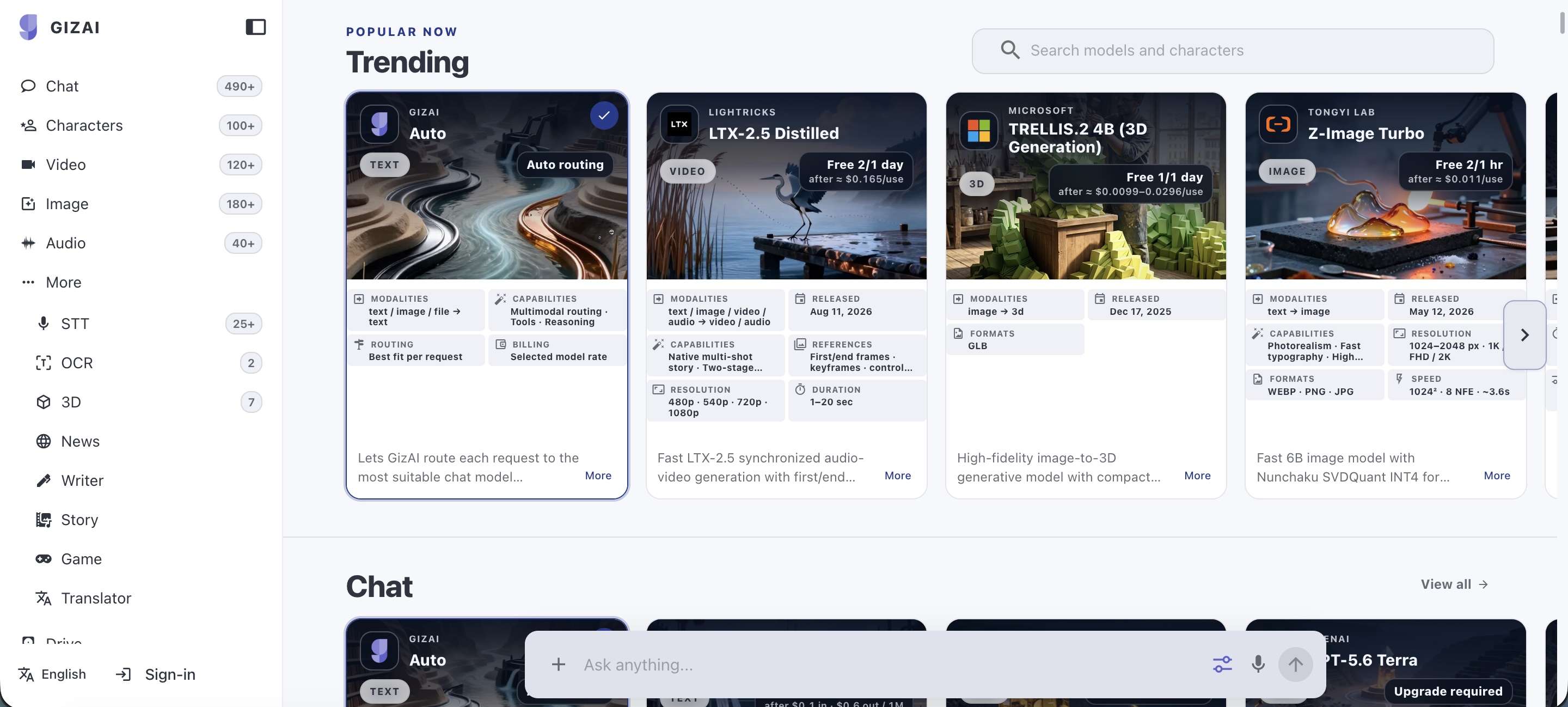
When using AI chat, you can select a specific model from the available list. This works well when you already know which model you want or need consistent behavior across several prompts. GizAI also supports multimodal inputs on supported models, including text, images, and files. The available inputs and limits depend on the model you select.
2. Let GizAI Auto Handle Model Selection
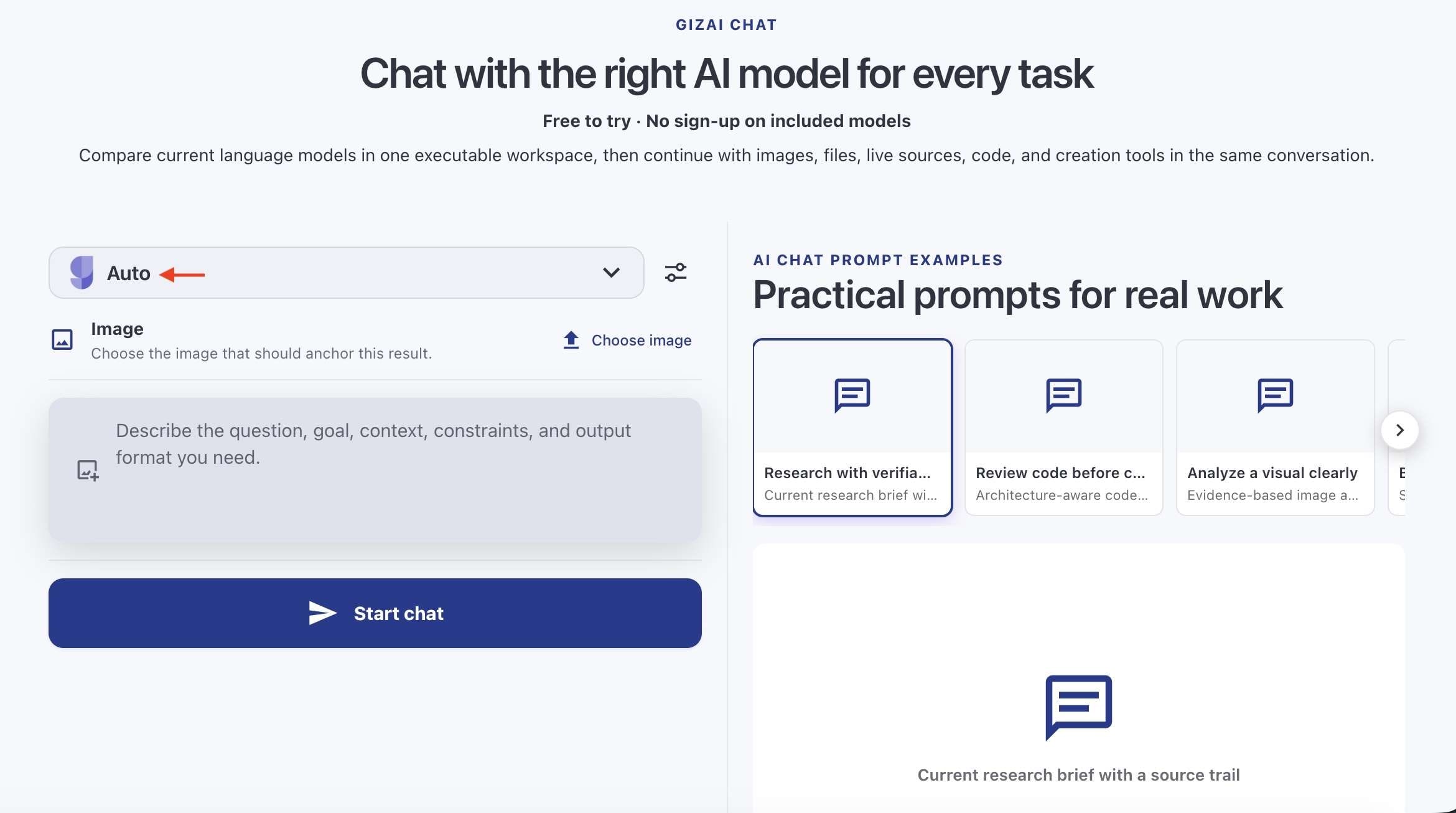
GizAI Auto works differently from choosing a fixed model selection. It routes each request to a suitable available chat model based on the prompt. As a result, the model may vary between requests. GizAI recommends using a fixed model when you need more predictable, repeatable behavior. Auto's current listing describes its billing as the selected model rate, so the model ultimately used determines the applicable rate.
How Access and Usage Work
GizAI has two main ways to access models:
- Included models: Some models come with renewing allowances. Their limits vary by model and plan.
- Usage-based models: Other models are charged according to their listed rate and may use credits.
- Free access: Selected included models can be used without signing up, although anonymous usage is limited.
- Paid plans: Higher plans increase the allowances for included models and add monthly credits. For example, the current Pro plan includes 59 models, 4× the model allowance of Go, and $10 in monthly credits.
Keep in mind that not all GizAI models work the same way. Limits, supported inputs, and costs depend on the model you choose.
Part 2. What Can You Do With GizAI?
GizAI covers several AI workflows beyond video generation. Its tools range from chat and research to image, video, audio, writing, and other creative tasks. Available features and inputs may vary by model.
AI Chat & Research
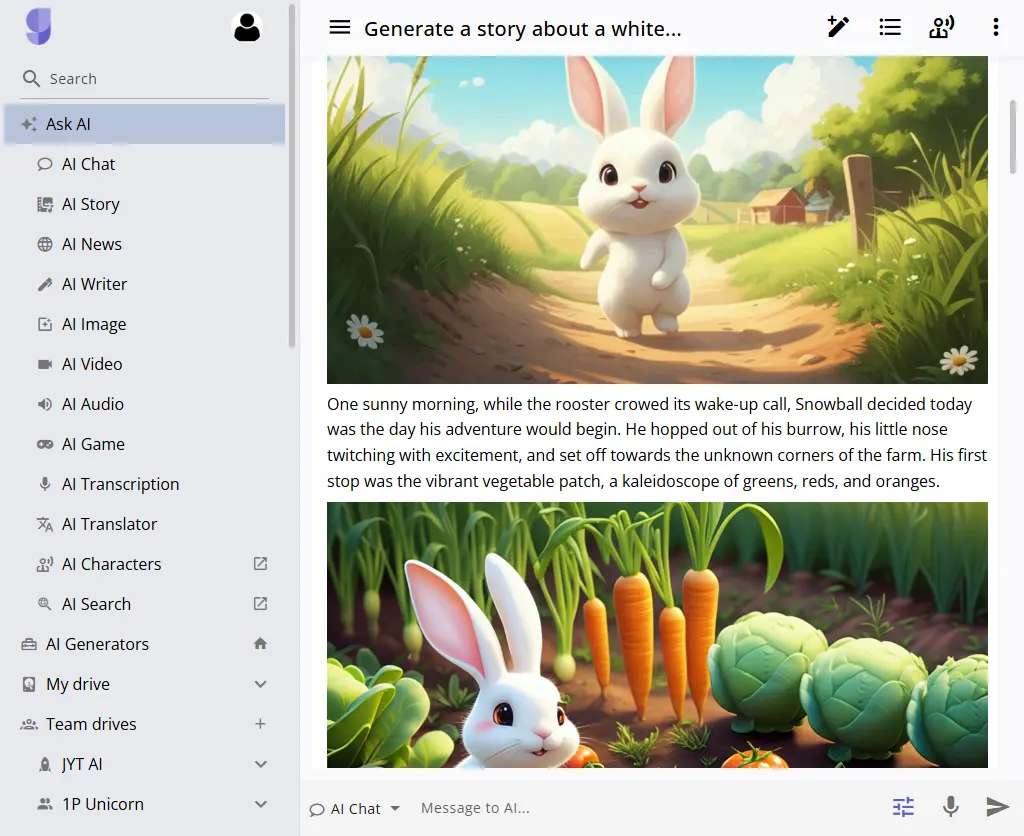
GizAI's chat tools give you access to different language models, with support for tasks that go beyond basic text conversation. Some models can also work with files and other media, while separate tools handle research and information gathering:
- AI Chat: Choose from different chat models or use GizAI Auto to route your request to a suitable model.
- Files and PDFs: Work with uploaded documents and other supported file types.
- Web research: Search for information across web sources.
- News and papers: Access tools designed for finding current news and research material.
- Multimodal input: Supported models can work with inputs such as images, files, and other media.
AI Image
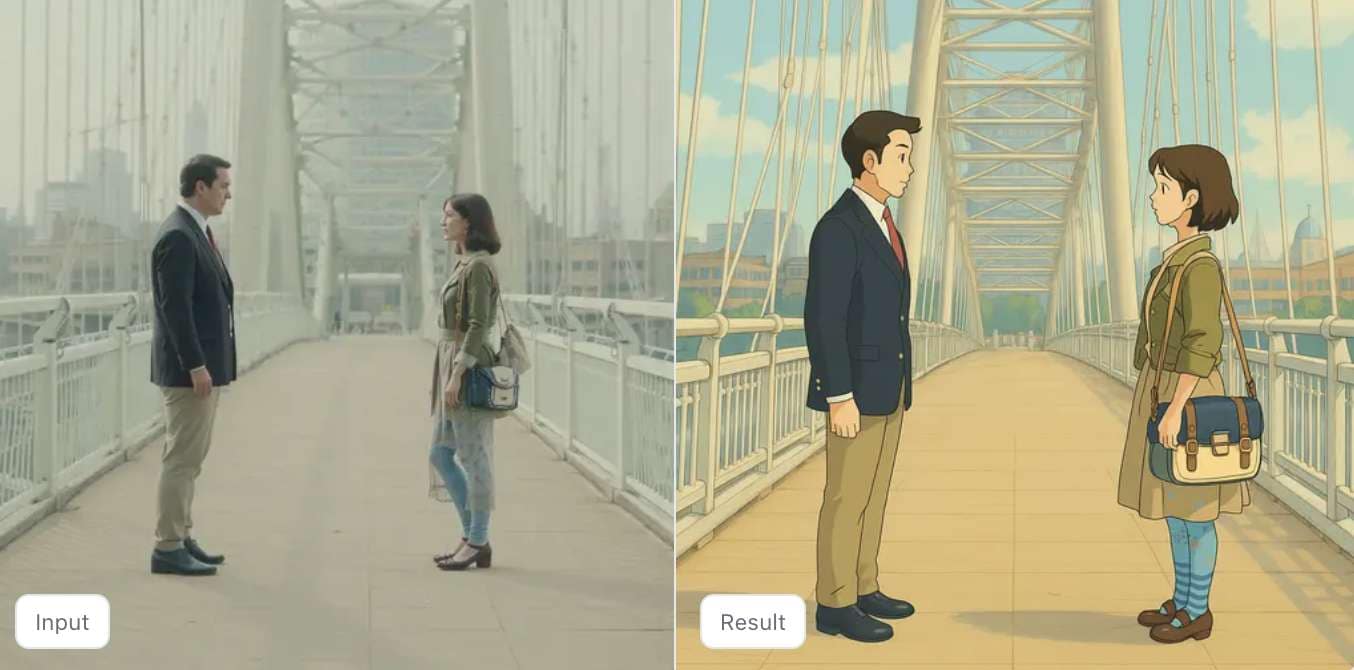
Image tools include image creation and editing, so you can generate a new visual or modify an existing one. The available controls depend on the model you select:
- Text-to-image: Generate images from written prompts.
- Image editing: Modify existing images with supported models.
- Reference images: Use an image to guide the look or content of a generation.
- Inpainting and outpainting: Edit selected areas or extend an image beyond its original frame.
- Upscaling: Increase image resolution with supported models.
- Background removal: Remove backgrounds from images where the selected tool supports it.
AI Video
GizAI's video generator section includes both video generation and post-generation tools. It’s more comprehensive than a basic text-to-video generator, with different models handling different production needs.
- Text-to-video: Generate video from a written prompt.
- Image-to-video: Animate a still image into a video.
- Video enhancement: Upscale, denoise, or deblur existing footage.
- Frame interpolation: Add frames to create smoother motion.
- Talking heads: Create talking-head videos with supported models.
- Lip sync: Match spoken audio to a character's mouth movements.
- 3D generation: Create 3D assets from supported image inputs.
AI Audio & Speech
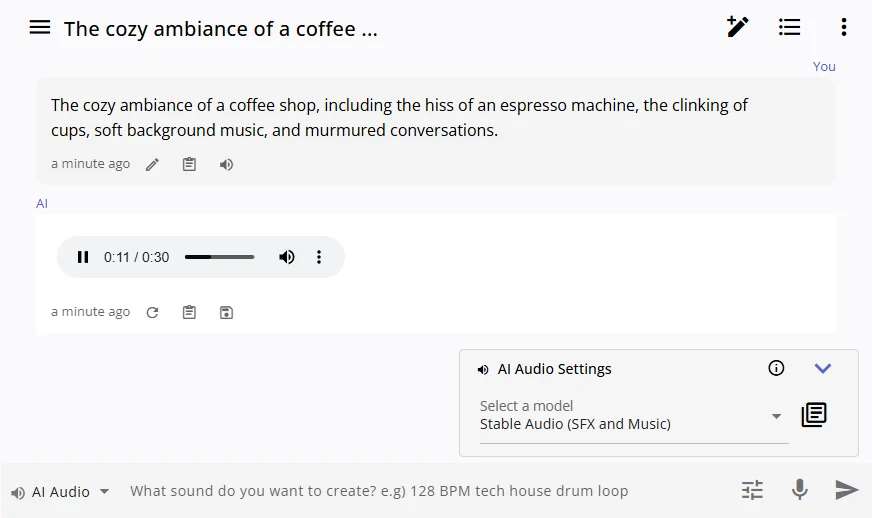
GizAI also provides models for creating and processing audio. Options range from creative audio generation to speech-focused tools.
- Music generation: Create music with supported AI models.
- Sound effects: Generate sound effects for creative projects.
- Text-to-speech: Turn written text into spoken audio.
- Voice cloning: Recreate a voice with models that support the feature.
- Speech tools: Some models combine speech generation with video features such as talking heads and lip sync.
AI Writing & Other Tools
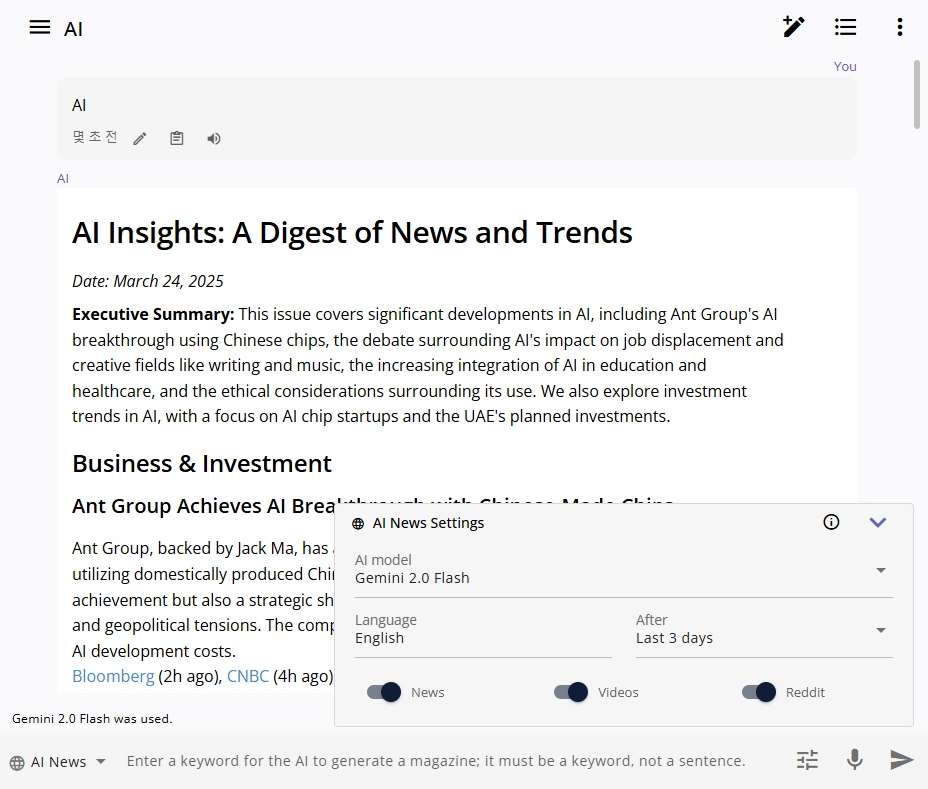
GizAI app also offers tools for workflows not directly related to image, video, or audio creation. These tools can help with content development, language tasks, and information processing.
- AI Writer: Help with writing and content creation.
- Story: Develop stories and other narrative content.
- Characters: Create and work with AI characters.
- Transcription: Convert supported audio or video into text.
- Translator: Translate content between languages.
- OCR: Extract text from images and documents.
- News: Find and work with news-related information.
- Game: Tools for AI-assisted game creation and related workflows.
Part 3. GizAI AI Video Generator Review
GizAI's AI video tools cover several ways to create and refine footage. You can generate a clip from text or an image, choose from a variety of models designed for different video styles, and then refine the results with specialized editing tools.
How Does GizAI's AI Video Generator Work?
Video creation follows a simple workflow from prompt to final result, though the available controls depend on the model you use.
- Choose a video model. Open the video generator and select a model based on the type of output you need.
- Add your input. Depending on the model, you can start with text, an image, video, audio, or reference material.
- Set the available options. Adjust settings such as duration, resolution, aspect ratio, or other model-specific controls.
- Generate the clip. GizAI processes the request and adds the resulting video to your workspace.
- Review the result. You can generate another version or proceed to the refinement and editing tools.
What AI Video Models Does GizAI Support?
GizAI's video library includes models designed for different production needs, from general video generation to talking heads and lip sync.
| Model | Best for | Features |
| LTX-2.5 Distilled | General video creation | Text/image-to-video, native audio, keyframes, first/end frames, video extension |
| MiniMax H3 Turbo | Video with audio | Text/image/video/audio input, stereo audio, keyframes, continuation |
| Grok Imagine Video 1.5 | Reference-driven clips | Up to 7 image references, up to 1080p |
| SoulX FlashHead | Talking-head content | Face animation, lip sync, voice cloning |
| MuseTalk 1.5 | Lip-sync videos | Video and audio input, speech synthesis, voice cloning |
|
Show More
Show Less
|
||
GizAI also lists other video models for more specialized generation and editing workflows. The library changes over time, so the available models and their access terms can change as well.
Video Quality and Generation Options
Output quality depends heavily on the model. GizAI doesn’t set a fixed resolution or clip duration for all its video tools.
- Resolution: Supported models can generate outputs from 480p up to 1080p, with some tools supporting higher resolutions.
- Duration: Clip length varies by model. For example, LTX-2.5 Distilled supports clips from 1 to 20 seconds, while Grok Imagine Video 1.5 supports 1 to 15 seconds.
- Audio: Some models generate synchronized audio, while others focus on video only.
- Aspect ratio: Available ratios depend on the selected model and generation mode.
- Control: Advanced models can provide keyframes, reference images, pose or depth guidance, and other controls.
For quality, the results can produce polished-looking short clips, but consistency can still vary. GizAI itself notes that physics, timing, identity, and audio quality are not guaranteed, so review before using for final production.
AI Video Editing Tools
GizAI also includes tools to refine recordings after the production process. These tools focus more on technical cleanup than creative editing.
- Video Upscale & Enhance: Improves resolution while offering denoising and deblurring. It supports HD, FHD, 2K, and 4K output.
- Video Interpolate: Creates additional frames to make motion appear smoother, with 2x, 3x, and 4x options.
- Enhancement controls: Interpolation includes Fast, Balanced, and Quality modes, letting you choose between processing speed and output quality.
These tools are useful when a generated clip has blurry details, visible noise, or uneven motion. They don’t replace a full editor for tasks like cutting scenes, adding subtitles, transitions, effects, or mixing audio.
Part 4. GizAI Free and Pricing
GizAI lets you try selected models for free, while paid plans increase usage limits and add monthly credits. The current pricing page lists Go, Pro, Max, and Ultra plans.
What Can You Use for Free?
Free access is available on selected included models, each with its own rolling usage limit. For example, current limits include:
- LTX-2.5 Distilled: 8 generations/20 min
- MiniMax H3 Turbo: 5 generations/hour
- Product Ads Video: 2 generations/day
Limits vary by model and can change over time. GizAI also offers purchased credits for models that are not covered by included usage.
GizAI Pricing Plans
| Plan | Price | Included model allowance | Monthly credits | Parallel generations | Storage / Features |
| Go | $10/month | 1x | $0 | 1 | 57 included models; 100GB cloud storage |
| Pro | $29/month | 4x Go | $10 | 3 | 59 included models; premium models and higher usage |
| Max | $79/month | 12x Go | $35 | 8 | 59 included models; designed for higher-volume image/video work |
| Ultra | $149/month | 24x Go | $80 | 16 | 59 included models; built for professional and agency-level volume |
|
Show More
Show Less
|
|||||
Go suits lighter use, while Pro and above suit frequent AI content generation. The higher tiers mainly increase model allowances, concurrent generations, and monthly credits.
Part 5. GizAI Pros and Cons
GizAI stands out for the number of AI models and creative tools available in one platform. However, its drawbacks are that its many models, limits, and credit options can take some time to understand.
- GizAI gives you access to AI models for chat, images, video, audio, research, and more.
- You can choose a specific model or let GizAI automatically route your chat requests.
- Its video tools support both generation and tasks such as upscaling and frame interpolation.
- Selected models are available for free, with usage limits that apply to each model.
- Paid plans increase model allowances and add monthly credits for additional usage.
- Model limits vary, so usage can be harder to track across different tools.
- Some models require credits beyond the included allowances.
- The large model selection can make choosing the right option less straightforward.
- Creators focused on one type of work may find a dedicated AI tool more suitable.
Is GizAI Worth It?
- GizAI is a good fit for creators who regularly use different AI models for content, research, images, video, and audio.
- It can be good value if you would otherwise pay for several separate AI services to access different models.
- It is less compelling for single-purpose workflows where you mainly need one specialized tool with deeper controls.
- Your usage matters most. The higher plans offer much larger model allowances and monthly credits, but they only make sense if you use them enough.
Part 6. Filmora: The Best Alternative for Editing GizAI-Generated Videos
GizAI works well for generating the initial footage, but the resulting clips may still need trimming, sequencing, captions, effects, and audio work to shape them into a finished video. In that case, Wondershare Filmora can be a good next step for editing your generated clips, and a handy alternative if you want to generate and edit in one place.
Filmora is a full video editor first, with AI generation tools on top of its editing features. It saves the most time during editing and export. You can put your clips, captions, and audio in one project, and finish the whole video without moving files between apps.
What Can You Do With Filmora?
- Generate video clips from text prompts or still images with AI video tools.
- Write scripts, titles, and captions faster with AI Copywriting.
- Edit AI-generated clips by trimming, splitting, rearranging, and syncing footage on the timeline.
- Add subtitles and captions with Speech-to-Text and dynamic caption tools.
- Create a consistent visual style with effects, transitions, filters, titles, animations, and keyframes.
- Polish the audio with AI Denoise, Audio Stretch, Audio Ducking, voice enhancement, and other audio tools.
- Fix or enhance footage with tools such as AI Video Enhancer, Smart Cutout, object removal, and AI Color Palette.
For creators using GizAI mainly to generate footage, Filmora lets you refine those clips with better pacing, structure, subtitles, effects, and audio.
 Secure Download
Conclusion
GizAI can be a good option if you want to compare different AI models and find the right one for a specific creative task. You can test several options for the same idea, switch models as your project progresses, and avoid paying for multiple services just to access different models. The main drawback is monitoring model usage limits and credit costs.
If you regularly use AI for writing, images, video, audio, or research, GizAI gives you plenty of room to experiment. And if your work centers on turning that AI output into finished content, Filmora brings editing tools, captions, audio controls, and AI features together in one workspace.
FAQs
-
Is GizAI free to use?
Yes. GizAI lets you use selected AI models for free without signing up, although each model has its own usage limit. Paid plans add higher allowances and monthly credits. -
Does GizAI have an AI video generator?
Yes. GizAI supports text-to-video and image-to-video generation, and tools for video enhancement, frame interpolation, talking-head videos, and other video tasks. -
What AI video models does GizAI support?
GizAI supports a wide range of video models, including LTX-2.5 Distilled, MiniMax H3 Turbo, Grok Imagine Video 1.5, Wan3.0, Seedance, Kling, Luma Ray, and Runway models. Available models and features can change over time.
