


 TL;DR:
Since the Haiper AI consumer web app officially shut down in February 2025 to pivot toward enterprise services, creators must migrate their text-to-video workflows to active alternatives like Wondershare Filmora, Runway, or Luma Dream Machine.
● Former users have permanently lost access to unsaved cloud projects via the original Haiper AI login, and any unofficial downloads promoted as Haiper AI mod apk or Haiper exe are dangerous malware baits that must be avoided.
● For cloud-based replacements, choose Runway for all-in-one creative control using its 125 one-time free credits, Luma Dream Machine for realistic cinematic motion limited to 8 free watermarked videos, Pika for rapid social media clips, HeyGen for talking-head business templates, or Kling AI for generating sequence extensions.
● Wondershare Filmora serves as a stable long-term alternative that mitigates the risk of cloud generator downtime by integrating AI creation directly into a full desktop editor, allowing users to immediately refine AI drafts on separate video, audio, and caption tracks.
Ask AI for a summary
 ChatGPT
 Perplexity
 Gemini
 Claude
 Grok
Grok
Haiper AI used to be the go-to shortcut when you needed a clip fast. Type a prompt, hit generate, and you had something shareable in minutes. So it’s frustrating to come back now, try a Haiper AI login at https://haiper.ai/, and realize the consumer app is gone.
This review recaps what the Haiper AI video generator did best (text to video, Haiper AI image-to-video, and the early Haiper AI beta feel), then explains what changed after the shutdown. You’ll also get a quick look at Haiper AI pricing history and the best Haiper AI alternative picks to use in 2026.
Part 1. What Happened to Haiper AI? (Status & Access)
Current status: Haiper AI shut down
If you remember Haiper as the fast, creator-first tool you used in your browser, that version is discontinued. Reporting in early 2025 described Haiper shutting down its consumer business and pivoting toward B2B and enterprise-style delivery instead.
Quick timeline
- 2024: Haiper AI (often labeled as a Haiper AI beta) grows fast as a web-based text-to-video and image-to-video tool.
- February 2025: The consumer web app is shut down, and public access to the original Haiper AI video generator experience ends.
- March 2025: Coverage notes key Haiper leadership joining Microsoft AI while the remaining team pivots.
What this means for users
- Haiper AI login: If your goal is to sign in and open your old projects, the shutdown means the original login flow and project library are no longer reliable for that use case. In practice, visiting the "https://haiper.ai" website no longer works as the same consumer product people used before.
- Old projects and exports: When a cloud tool sunsets, the biggest pain is losing access to saved generations, project files, and any in-progress work tied to that account. If you do not already have local exports, recovery is usually limited. (And that’s the real cost of a shutdown, not just losing a feature.)
So what is Haiper today?
Haiper’s public documentation still shows metered pricing and API-style pricing, which fits the "pivot to enterprise" story. You’ll see credit-based pricing for "Haiper Web App & iOS App" and usage-based rates in the API docs (for example, pricing listed per second for video generation).
In other words, Haiper as a company may still exist in some form, but the original creator-friendly Haiper AI text-to-video and Haiper AI image-to-video playground most people mean is the part that went away.
Tip: If you’re searching and run into "Haiper AI mod apk" or "Haiper exe", treat them as red flags. Those are common bait terms when an official consumer app is gone. The safer move is to switch to a current Haiper AI alternative, which we’ll cover next.
Part 2. Remembering Haiper AI: What Made It Special?
Before the Haiper AI shut down news started circulating, Haiper felt built for one thing: generate a short, clean clip fast. The Haiper AI video generator experience was simple, prompt-first, and very "creator-friendly," with big buttons and a clear flow that did not require technical setup.
Haiper AI text-to-video
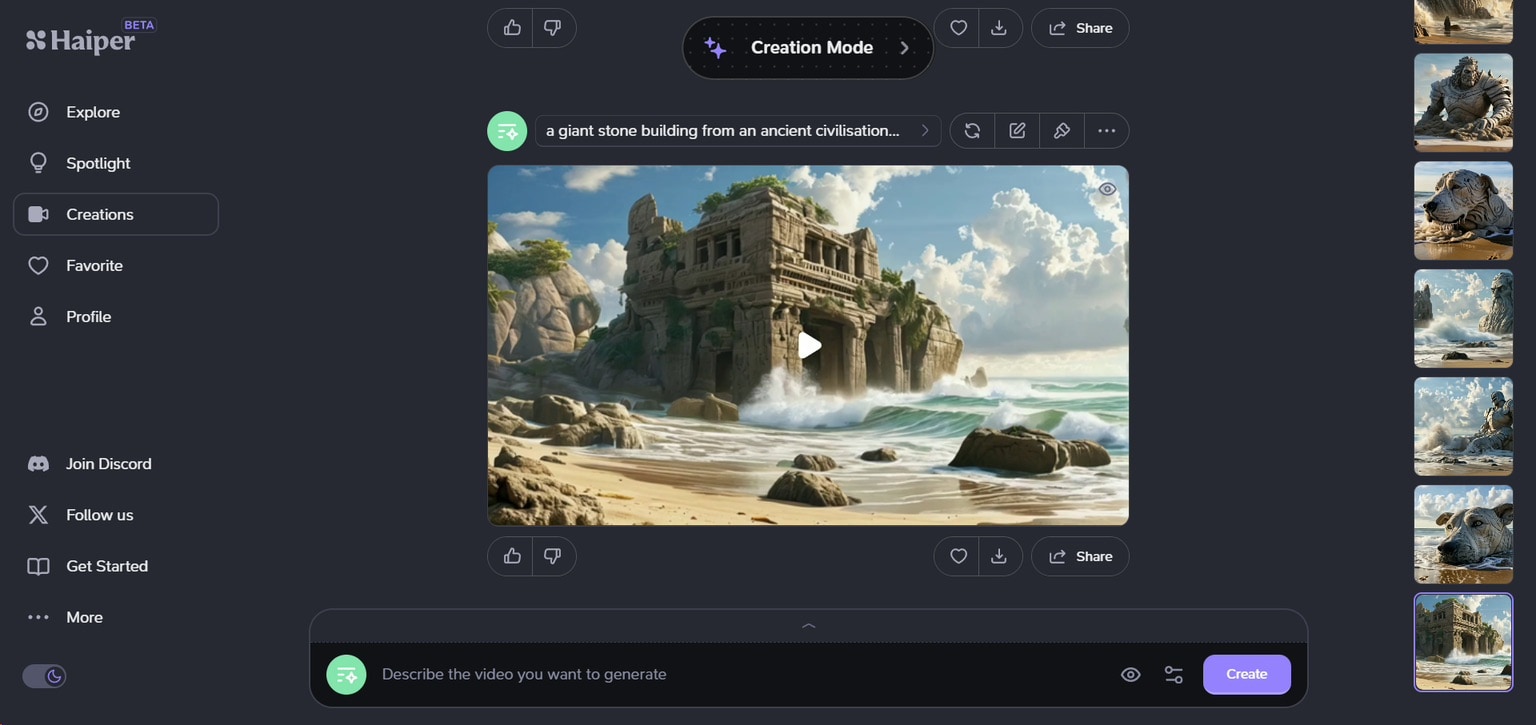
Haiper AI text-to-video was basically: write a prompt, tap Create, then iterate. You could regenerate motion, vary the prompt, and keep rolling through variations without rebuilding your setup every time.
A lot of people also liked the small but useful controls:
- Duration: commonly 2s or 4s for quick iterations
- Aspect ratio presets: including vertical formats like 9:16 for social
- Seed controls: to help repeat a result when a style finally clicked
Haiper AI image-to-video

Haiper AI image-to-video, shown in the UI as "Animate Your Image," was great for turning a single visual into motion, concept shots, product-style loops, or quick social posts. Haiper’s own guide explains that image-to-video handled sizing based on the input image, so you did not pick an aspect ratio the same way you would in text-to-video.
The "editing-style" features people talked about: Extend + Repaint

Haiper was not just generating from scratch. It also leaned into lightweight editing moves that felt ahead of its time for a web tool:
- Repaint your video (video-to-video): Haiper described this as changing the style, color, or subject using prompts. The workflow included a "Vary Region" step, where you highlighted an area in the first frame and regenerated just that part.
- Extend your video: Haiper positioned this as uploading a clip and prompting what should happen next.
You can even see "Extension" listed as a priced function in Haiper’s official docs, which matches how central "extend" became in user expectations.
Haiper AI free vs paid (and why the "beta" label mattered)
A lot of users first came across Haiper during its beta phase. The Haiper AI beta moved quickly, with frequent updates, changing limits, and pricing plans that were still being adjusted. Based on review articles like Futurepedia, Haiper pricing plans start from $10 to $30/month.
If you came here hoping to find the same Haiper AI video workflow again, that’s the catch. The original consumer experience is no longer the safe bet. If you want tools with similar text-to-video and image-to-video strengths, keep reading. The next section will cover all Haiper AI alternative options for 2026.
Part 3. Best Haiper AI Alternatives (2026)
When people search for Haiper AI alternatives, they usually want the same two things Haiper did well: fast text-to-video and easy image-to-video that turns a still into motion.
How to choose a replacement (quick checklist)
- Text-to-video vs. image-to-video: Some tools feel stronger in one lane.
- Clip limits: Check default seconds per generation and how "extend" works.
- Resolution and export rules: Watermarks, 1080p/4K, and commercial rights can vary by plan.
- Speed and queue priority: Paid tiers often matter more than model names.
- Pricing clarity: Credits can be fine, as long as you can predict the cost per clip.
Below are the most common replacements creators use in 2026, with a simple breakdown.
1. Runway (best for creative control)
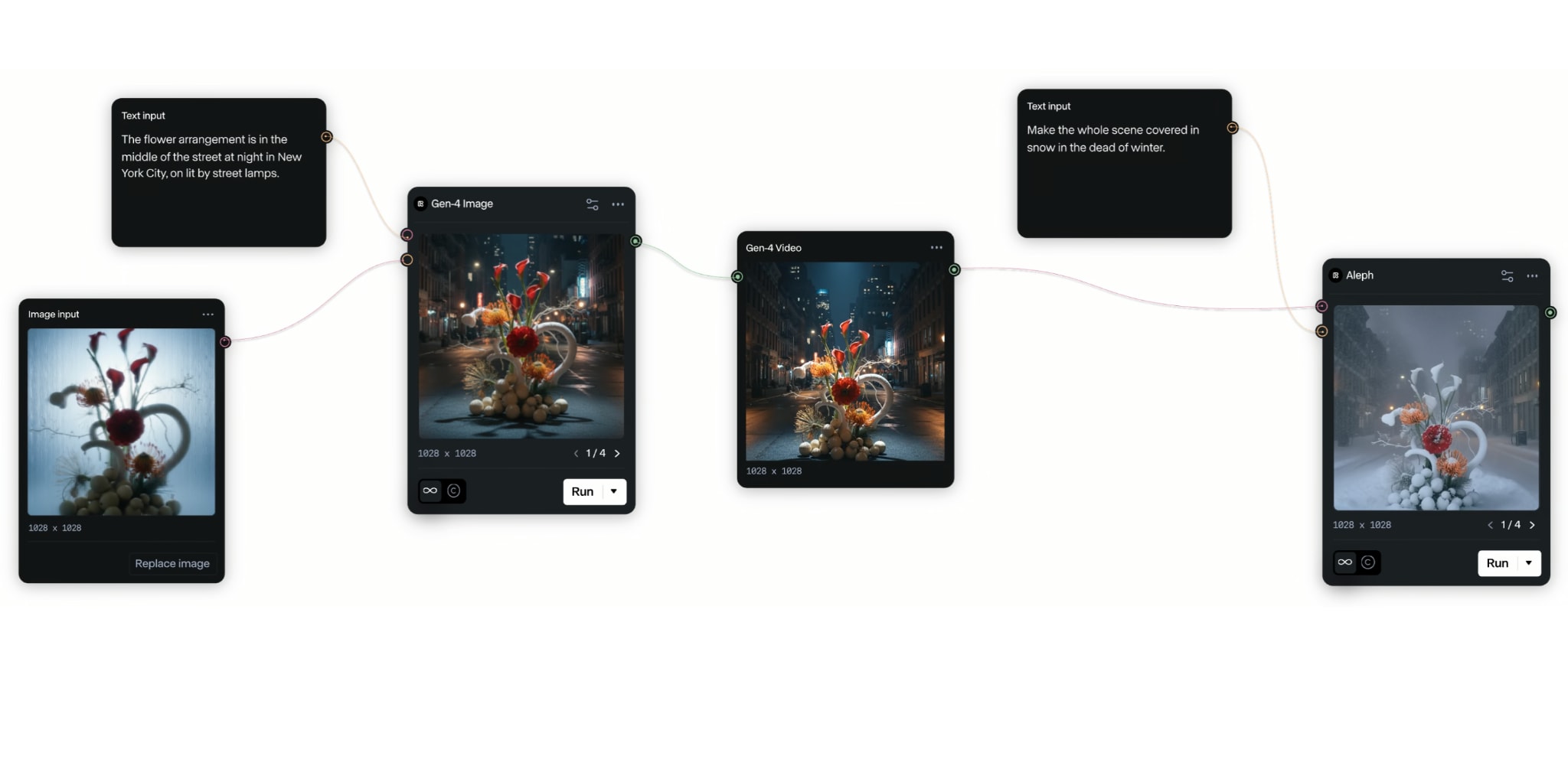
Runway is the closest "all-in-one" replacement if you liked Haiper’s fast iterations, but you also want more control after generation. It blends generation with editing tools so you can keep working without exporting to five different apps.
- Strong all-around toolkit for generating and then refining inside one workspace.
- Solid starting point if you used Haiper AI text-to-video and wanted more control over the result.
- Credit math can be confusing at first.
- The free plan is mainly for testing, not consistent production output.
Runway’s Free plan includes 125 one-time credits, and the pricing page explicitly notes this equals about 25 seconds of Gen-4 Turbo or Gen-3 Alpha Turbo. Paid plans start from $12 with benefits that vary.
- Creators who want generation plus stronger creative control for finishing.
- Teams who need a repeatable workflow, not just a one-off Haiper-style clip.
2. Luma Dream Machine (best for cinematic motion)
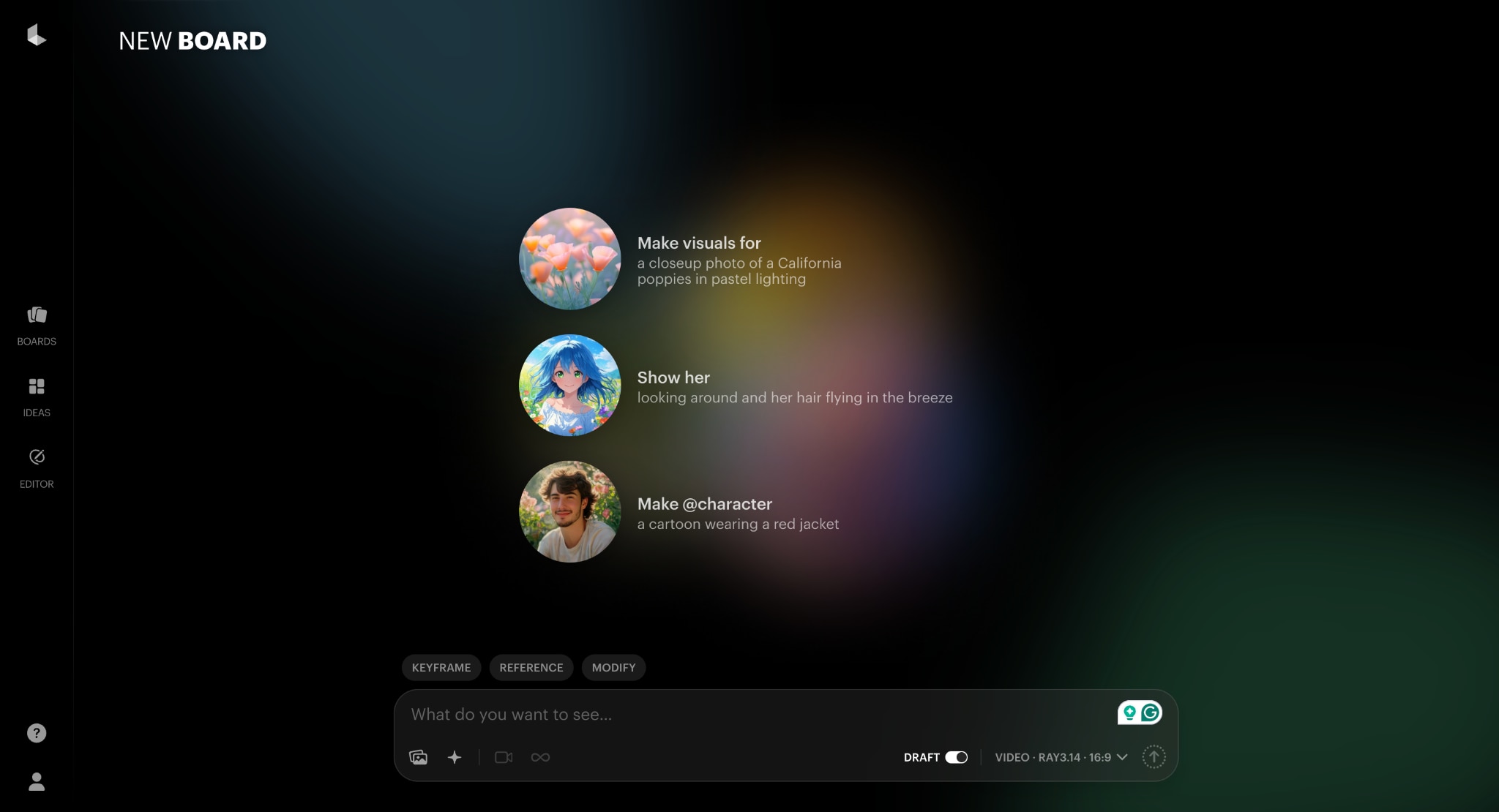
Dream Machine is popular when you care about motion feel and realism. If your Haiper AI image-to-video use case was animating concept frames into cinematic shots, Luma often lands well.
- Good at realistic motion and camera-like results.
- Clear credit system, with detailed credit costs by model and resolution in the official support docs.
- Like most cloud models, results vary by prompt style and scene complexity.
- Monthly caps can be restrictive if you generate a lot.
The free plan includes 8 videos limit and a watermark. The paid plan without a watermark starts from $23/99.
- Cinematic b-roll concepts, realistic scenes, product-style shots.
- Creators who want fewer, higher-quality attempts instead of endless quick drafts.
3. Pika (best for fast social content)
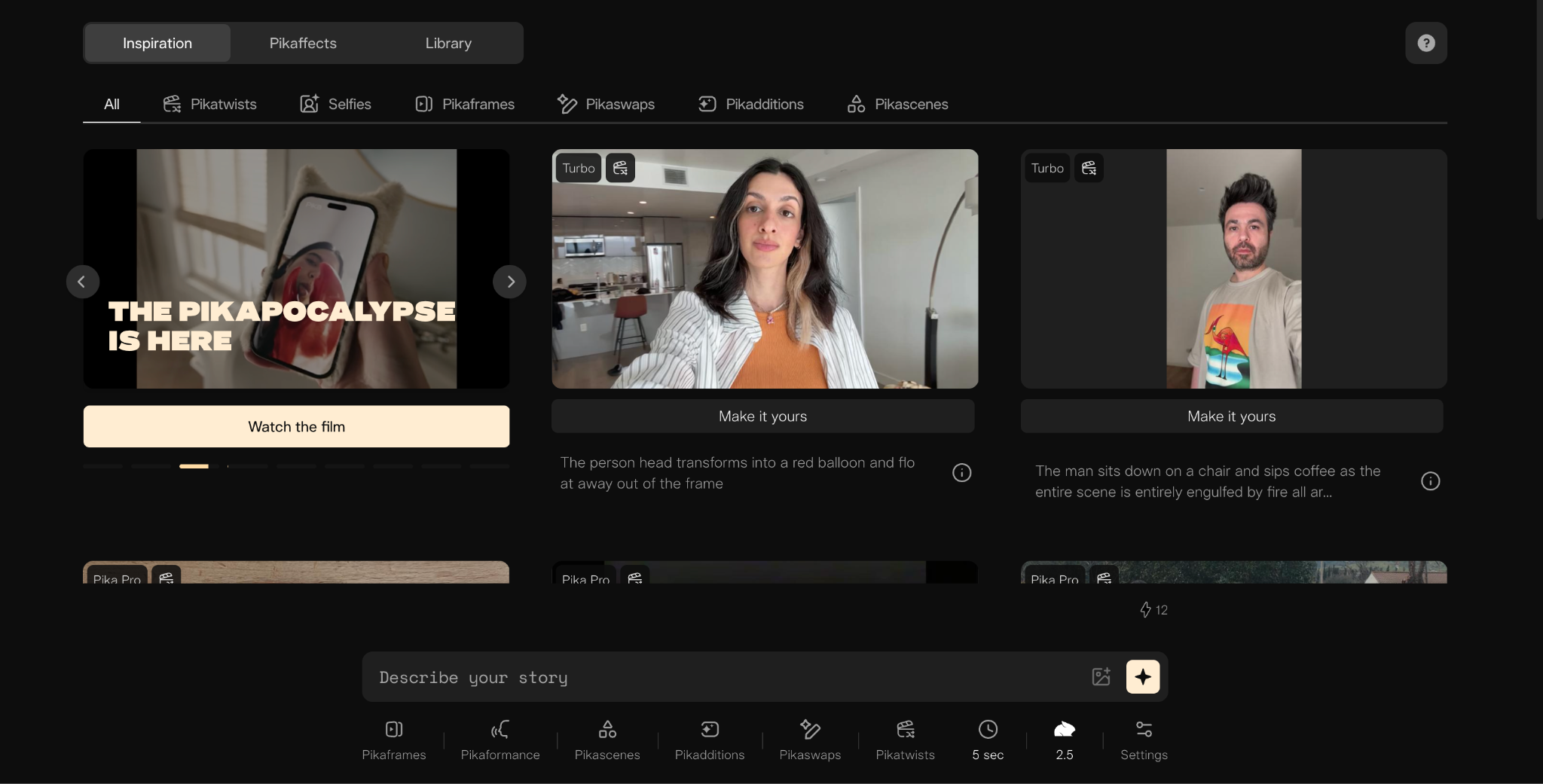
Pika is a strong pick if your Haiper workflow was all about speed, memes, and quick short-form experiments. It’s built to iterate quickly and lean into social-friendly effects.
- The editing tools are great for rapid iterations and short-form ideas.
- It offers a simple entry point. So it is easy to test, even if you are a beginner editor.
- Consistency can be hit-or-miss for complex scenes.
- Like other tools, plan limits can matter a lot for export quality and speed.
The basic plan is free, but it only includes 80 monthly video credits and is not eligible for commercial use. If you want a more flexible credit and license for commercials, you can subscribe to its paid plan that starts from $28.
- TikTok, Reels, Shorts, punchy visual ideas.
- Creators who want "good enough fast" more than cinematic polish.
4. Kling AI (best for longer generations in some workflows)
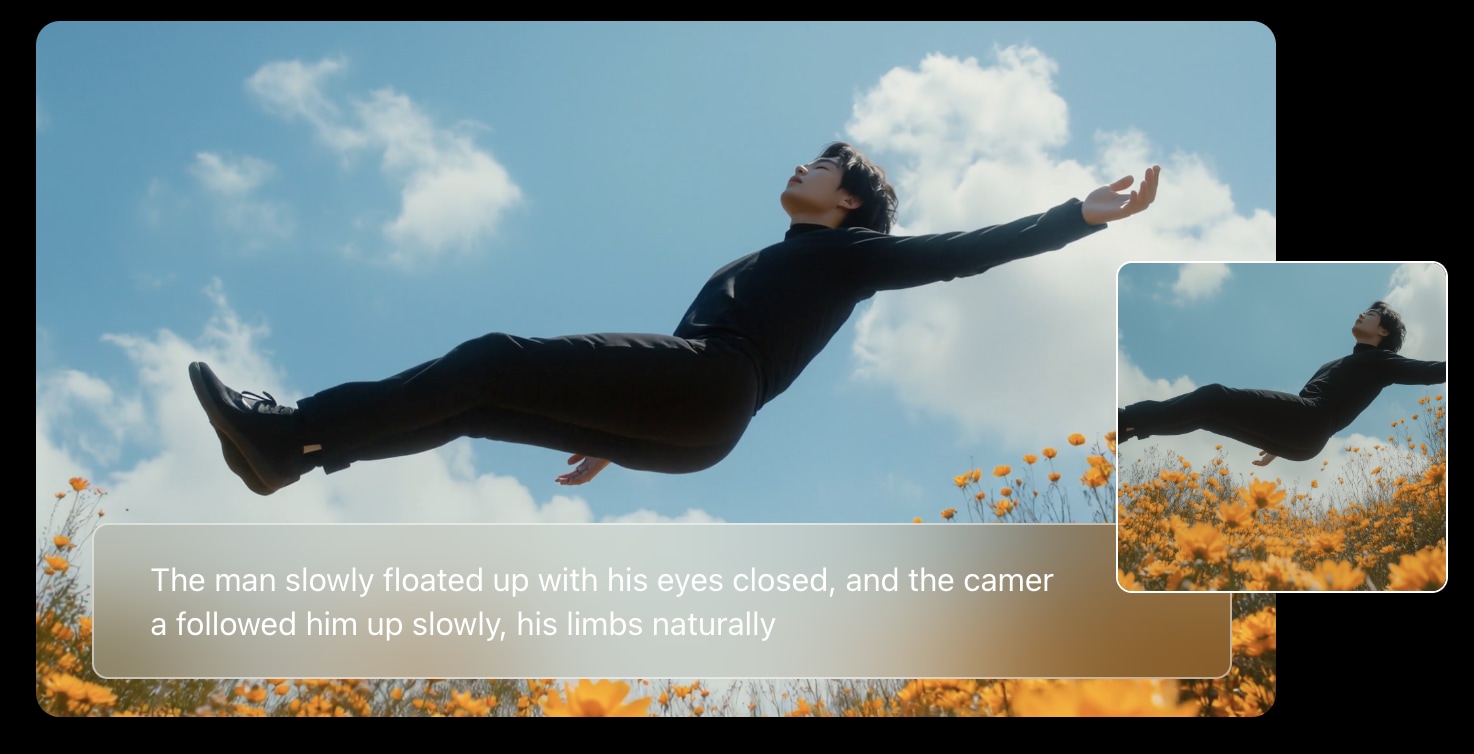
Kling is often used when you want to push longer sequences via extension-style workflows. If "extend" was one of the Haiper features you liked, Kling is worth testing.
- Good option when you want to stretch a scene and keep a sequence going.
- Often used for more ambitious story beats, not just micro-clips.
- Credits and plan tiers can be confusing if you only generate occasionally.
- Availability, queues, and features can shift quickly.
It offers a basic plan without cost, but you will get no monthly credits. The paid plan starts from $79.2 per year. Kling states a baseline conversion like $1 USD = 100 Credits (with possible promos).
- Creators are trying to build longer-ish sequences through extensions.
- People who want to experiment beyond 4 to 6-second clips.
5. HeyGen (best for talking-head business video)
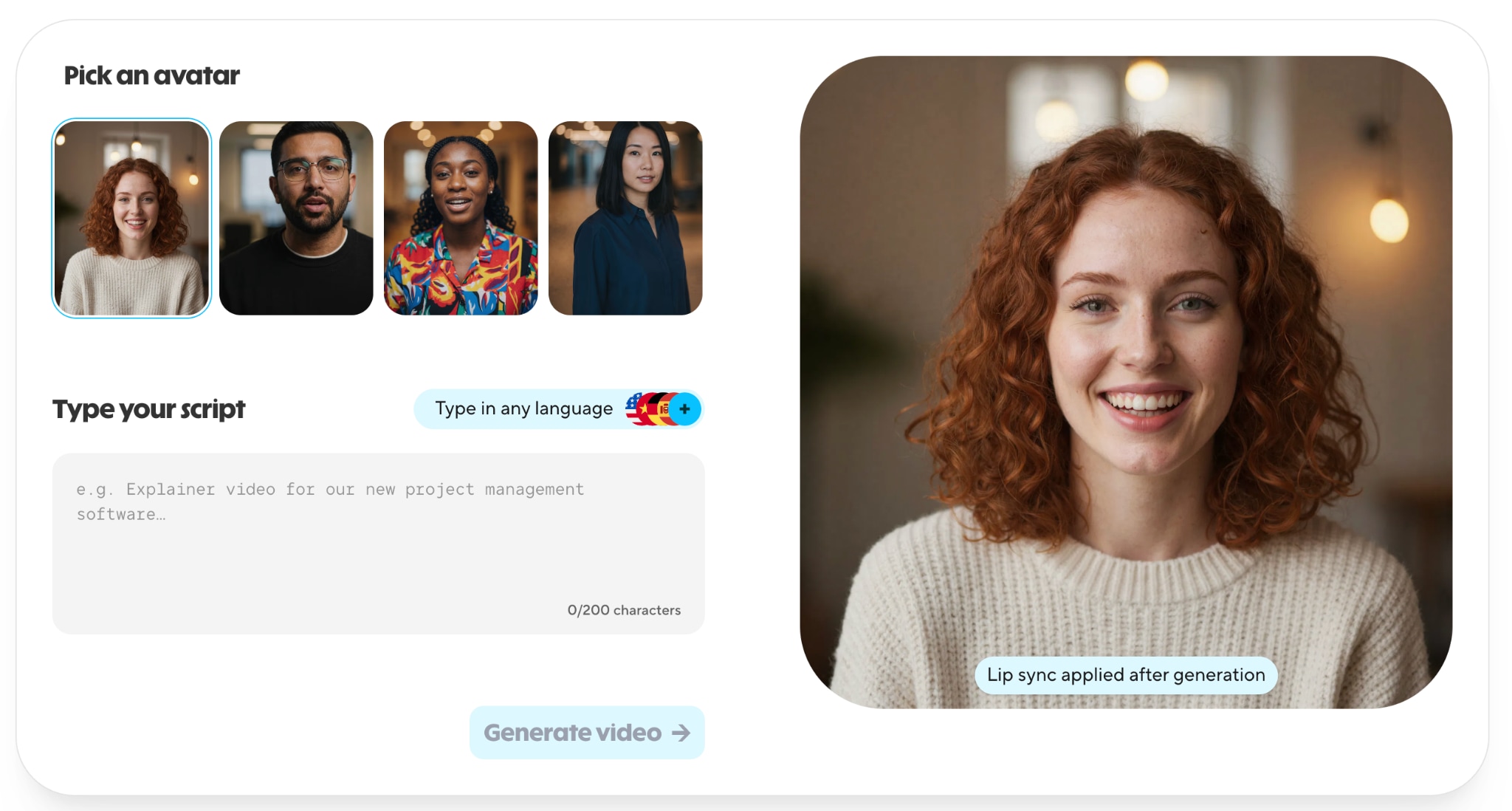
If you used Haiper AI video for marketing or explainers, but what you really need is a presenter video (training, onboarding, sales enablement), avatar tools like HeyGen can be a better "move on" option.
- Built for presenter videos and business-friendly templates.
- Clear free-plan limits listed in HeyGen's help docs.
- Not the same creative lane as Haiper-style cinematic generations.
- Best results come from structured scripts, not vibe prompts.
HeyGen's Free plan limits video count, duration, and export resolution. You can get unlimited avatar videos and advanced editing tools for $29 per month, and so on (the higher plans, the more benefits you can get).
- Training, internal comms, product explainers, sales videos.
Part 4. The Ultimate Professional Alternative: Wondershare Filmora
Haiper was generation-first. You typed a prompt, got a short clip, then hoped the platform stayed online long enough for your next project. After the Haiper AI shut down situation, a safer long-term setup is a tool that can generate, edit, and finish in one place. That’s where Wondershare Filmora works well as a practical Haiper AI alternative.
Filmora is a full video editor first, so you are not stuck with "whatever the generator spits out." You can cut, mix audio, add titles, and export like normal. Then you layer AI generation on top when you need it. Filmora also positions its AI video generator output for real editing flexibility, including separate tracks you can fine-tune.
 Secure Download
Filmora AI highlights
- AI Text-to-Video: If you liked Haiper AI text-to-video for fast drafts, Filmora’s AI Text to Video is built around three entry points: start from an idea, paste a script, or write a prompt. That makes it easy to go from "rough concept" to a first cut without overthinking structure.
- AI Image-to-Video: If your favorite part of Haiper AI image-to-video was animating a still into motion, Filmora leans into effect-driven templates designed for social content. It’s more "pick an effect, generate, then edit," which is great when you want something eye-catching fast.
- AI Video Editor: Filmora currently promotes the idea of "edit as an expert," focusing on giving you clearer control over your project. You can separate your video, audio, and captions into different tracks, so you can tweak one element without messing up the others.
Filmora pricing
Filmora generally offers a free way to try the software, but paid plans remove the watermark on exports and provide more AI credits. For the latest details on plans, billing options, and feature differences, check the full pricing breakdown on the official Filmora website.
Secure DownloadPart 5. Comparison Table: Moving On From Haiper
Haiper AI shut down means the original Haiper AI login experience and cloud project access are no longer dependable. Filmora is a safer long-term Haiper AI alternative because it’s a full editor first, with AI tools added on top.
| Feature | Haiper AI | Filmora |
| Stability | Discontinued/offline for the consumer app | Active desktop editor, workflow stays usable |
| Video Length | Short clips, extension dependent on service access | Standard editing timeline, no "generator-only" limit |
| Resolution | Depended on plan and availability | Depends on the plan, designed for full exports |
| Editing Tools | Light, generation-focused | Full editing suite plus AI generation features |
| Pricing | Not applicable for the discontinued consumer app | Free to try, paid plans for watermark-free export, include subscription and perpetual options |
Author’s note
Treat Haiper as discontinued/offline for individuals; the real impact is losing reliable access to Haiper AI login, projects, and exports.
Filmora is a safer "move on" pick because it combines generation with a normal editor workflow, and it explicitly positions AI output with separate tracks so you can keep editing instead of restarting.
Secure DownloadFAQs
-
Can I recover my old Haiper AI videos?
If you already downloaded exports, you can keep using those files. If your projects only lived in the cloud and you lost access after the Haiper AI shut down, recovery is usually unlikely. Try any official support channel you still have access to, but plan to rebuild using a Haiper AI alternative.
-
Is Haiper AI mod apk safe?
No. Haiper AI mod apk is a common bait keyword after a product disappears. Modded APKs often bundle malware, steal logins, or inject ads. If you need a mobile tool, use official app stores or well-known platforms with clear pricing and policies.
-
Where can I download Haiper AI APK or Haiper exe?
Be careful with "Haiper AI apk download" and "Haiper exe" pages. After a shutdown, unofficial installers spread fast and are hard to verify. If there is no official download on https haiper ai or trusted stores, skip it and switch tools instead.
Conclusion
Haiper AI was a fast, creator-friendly way to generate short clips, but the consumer product is no longer a reliable option after the shutdown. If you need the same text-to-video or Haiper AI image-to-video workflow, move to a tool that fits your output goals.
For a safer long-term setup, Filmora is the practical pick because it combines AI generation with full editing, so your projects stay editable and export-ready even when platforms change.
