

 TL;DR:
MAGI-1 by Sand AI is fully free for commercial use when self-hosted locally under the Apache 2.0 license, whereas its official web interface operates exclusively on paid subscriptions starting at $29.99 per month with no free tier.
● Local execution demands substantial hardware capabilities, requiring a GPU with a minimum of 24GB VRAM to run the smaller 4.5B model, while the larger 24B version necessitates significantly more capacity or reliance on paid cloud GPU services.
● Unlike competitors such as Sora or Google Veo, MAGI utilizes an autoregressive diffusion transformer that generates 10-second, 720p videos in 24-frame chunks, providing creators with high editability to adjust or regenerate specific segments without rebuilding the entire file.
● Because raw generated clips cap at 720p resolution and frequently contain visual artifacts, the workflow requires secondary post-production software like Wondershare Filmora's AI Video Enhancer to upscale details, stabilize unnatural motion, and integrate audio.
Ask AI for a summary
 ChatGPT
 Perplexity
 Gemini
 Claude
 Grok
Grok
Turning a single image into a full, endlessly flowing video is no longer science fiction. The MAGI AI video generator (officially MAGI-1) by Sand AI makes this a reality by offering an open-source autoregressive diffusion model. Whether you're looking for a free AI video generator for local hosting or a powerful tool for high-quality animation, here is a complete breakdown of MAGI-1 in 2026.
Part 1. What is MAGI AI Video Generator?
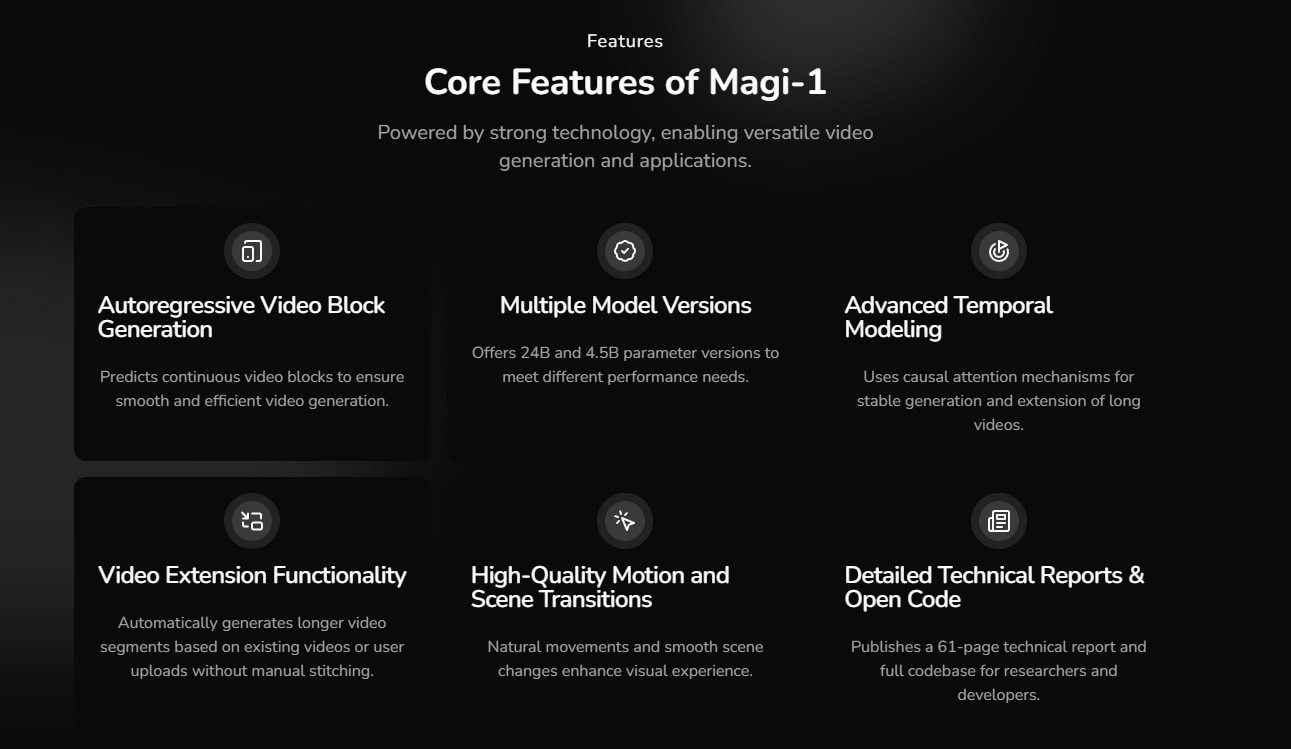
The MAGI AI generator (officially MAGI-1) is an advanced, open-source AI video generation model developed by SandAI. It excels in text-to-video and image-to-video workflows, allowing creators to transform static assets into high-quality, dynamic video content in seconds.
So MAGI does it another way: it generates videos in blocks of 24 frames and stitches them together seamlessly. Think of it like stop-motion animation, but with the chunks connected so seamlessly you never notice the seams.
What makes the technology truly special?
- Transformer-based architecture: MAGI use advanced diffusion mechanisms combined with variational autoencoders (VAEs) to compress and generate video data efficiently.
- Chunk-wise prompting: Users can modify parameters at each segment, enabling fine-grained control over motion, style, and scene transitions.
- Physical behavior prediction: The model excels at understanding how objects should move, interact, and respond to forces.
- Multiple generation modes: It handles text-to-video, image-to-video, and even video-to-video workflows.
The result reaches up to 720p resolution at 24fps and can extend to 10 seconds per generation in the current implementation. For an open-source model, that's genuinely impressive.
Now, you might be thinking: "ten seconds doesn't sound like much." And you'd be right, if we were talking about finished products. But for raw contents of something larger? Thirty seconds is plenty. Which brings us to the practical part.
Part 2. How to Use MAGI AI for Video Creation: A Step-by-step Guide
MAGI AI generator is powerful, but it's not exactly plug-and-play. Unlike commercial tools with polished interfaces, MAGI is currently available through GitHub. It requires some technical comfort to get running. But understanding the workflow is going to get you there.
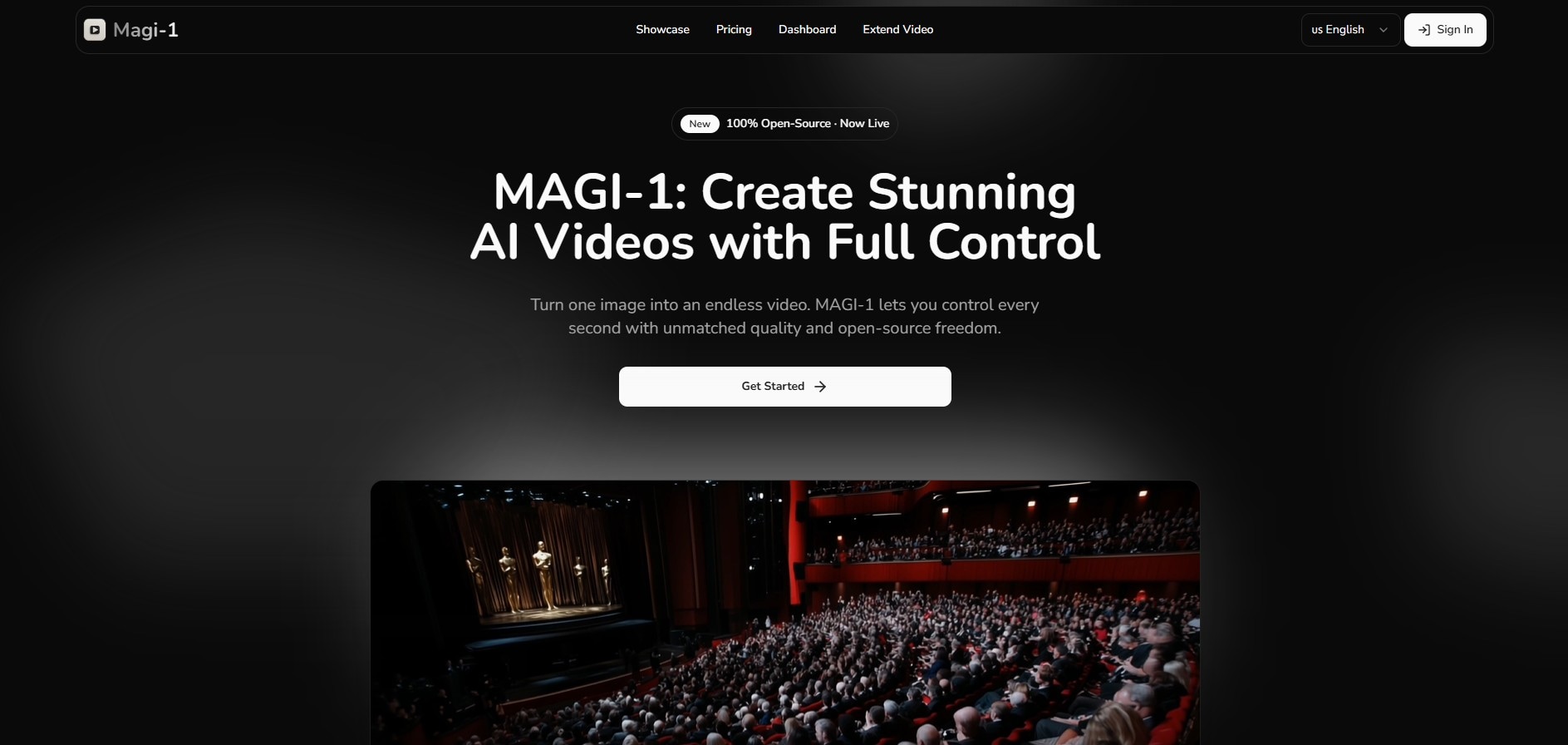
For users who prefer not to dive into code, you can also access it on its official web interface at magi-1.ai, though these may have usage limits or subscription costs.
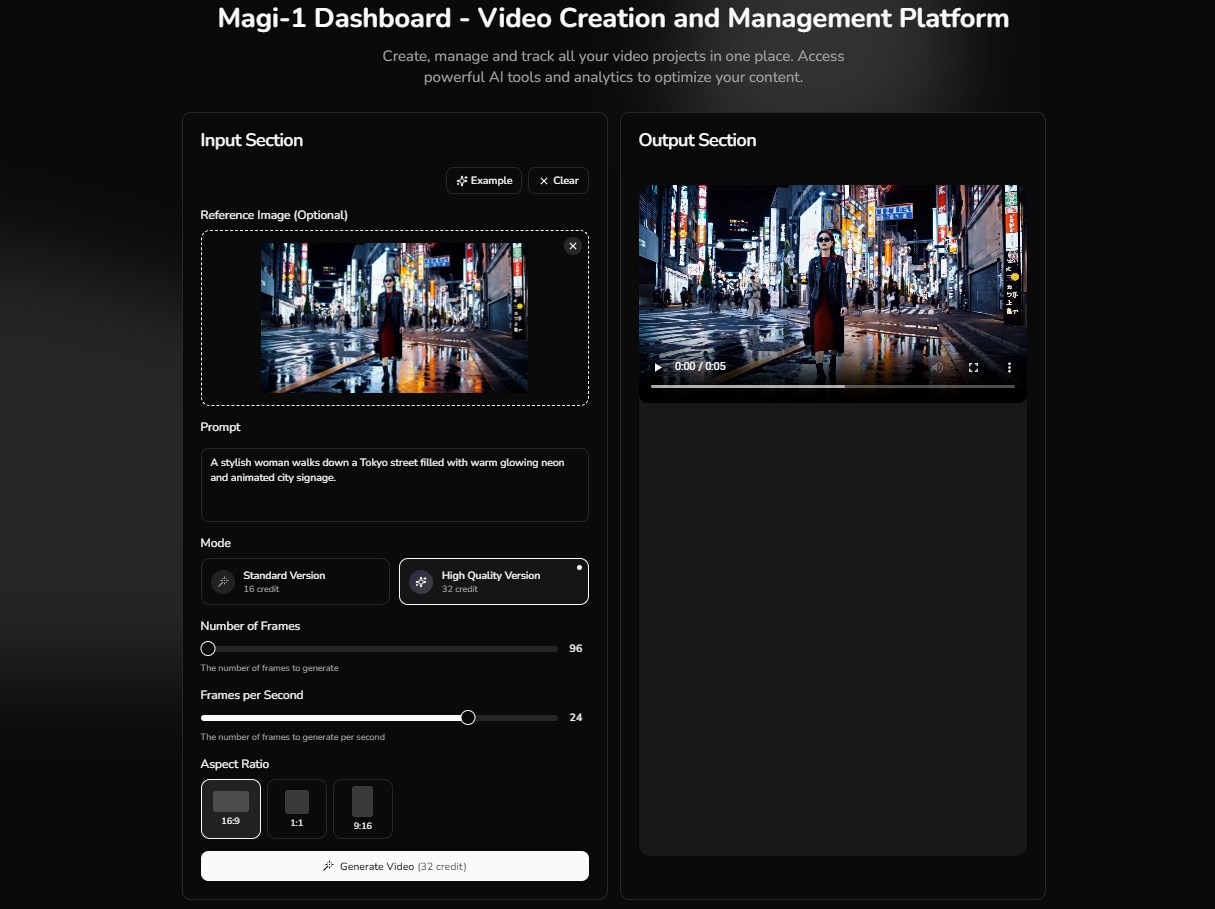
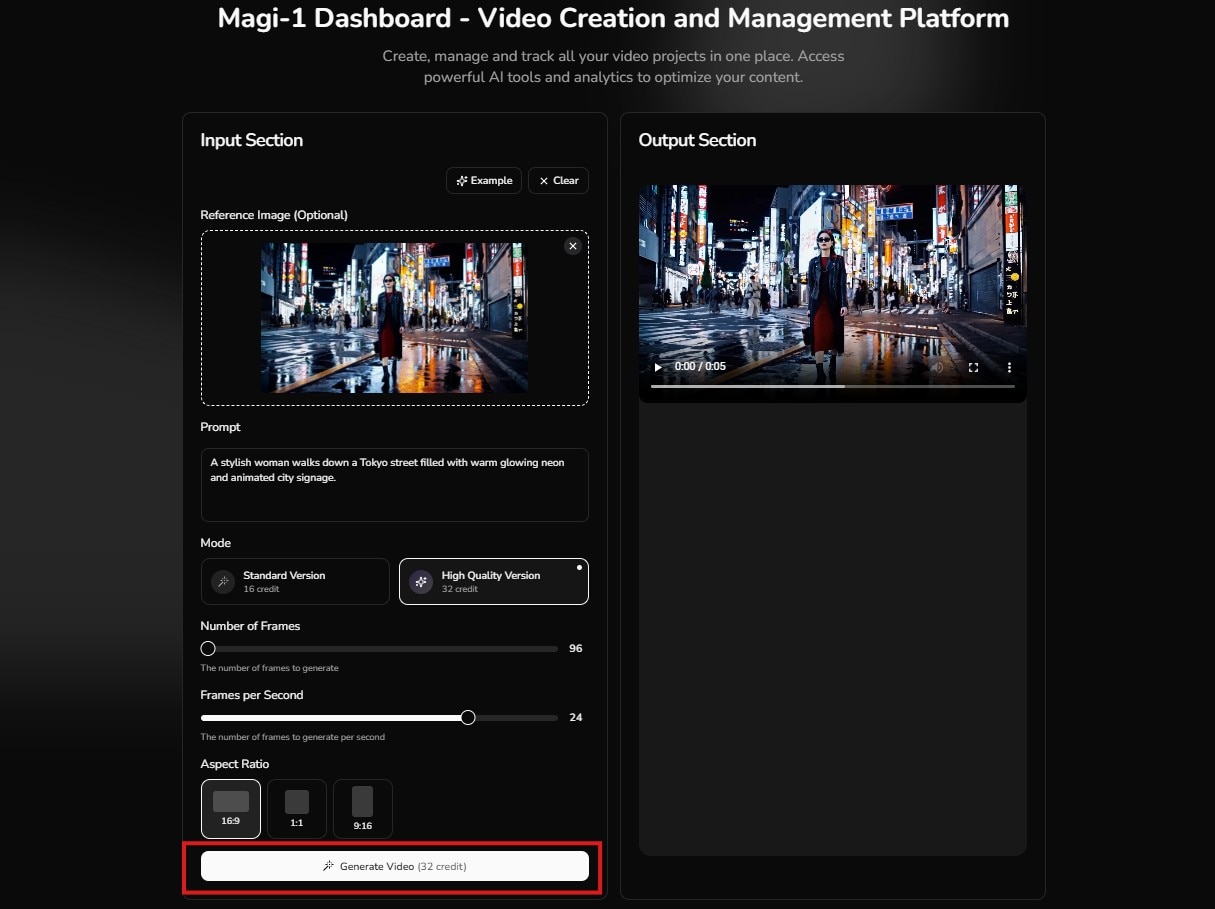
- Text prompts: Be descriptive. The model responds to details.
- Images: Upload a static image, and MAGI will animate it. For best results, use high-contrast images with clear subjects.
Part 3. MAGI AI Pricing: Is MAGI-1 Video Generator Free to Use?
The MAGI AI video generator itself is free to self-host. The model weights, source code, and research documentation are all publicly available under the Apache 2.0 license, which also permits commercial use.
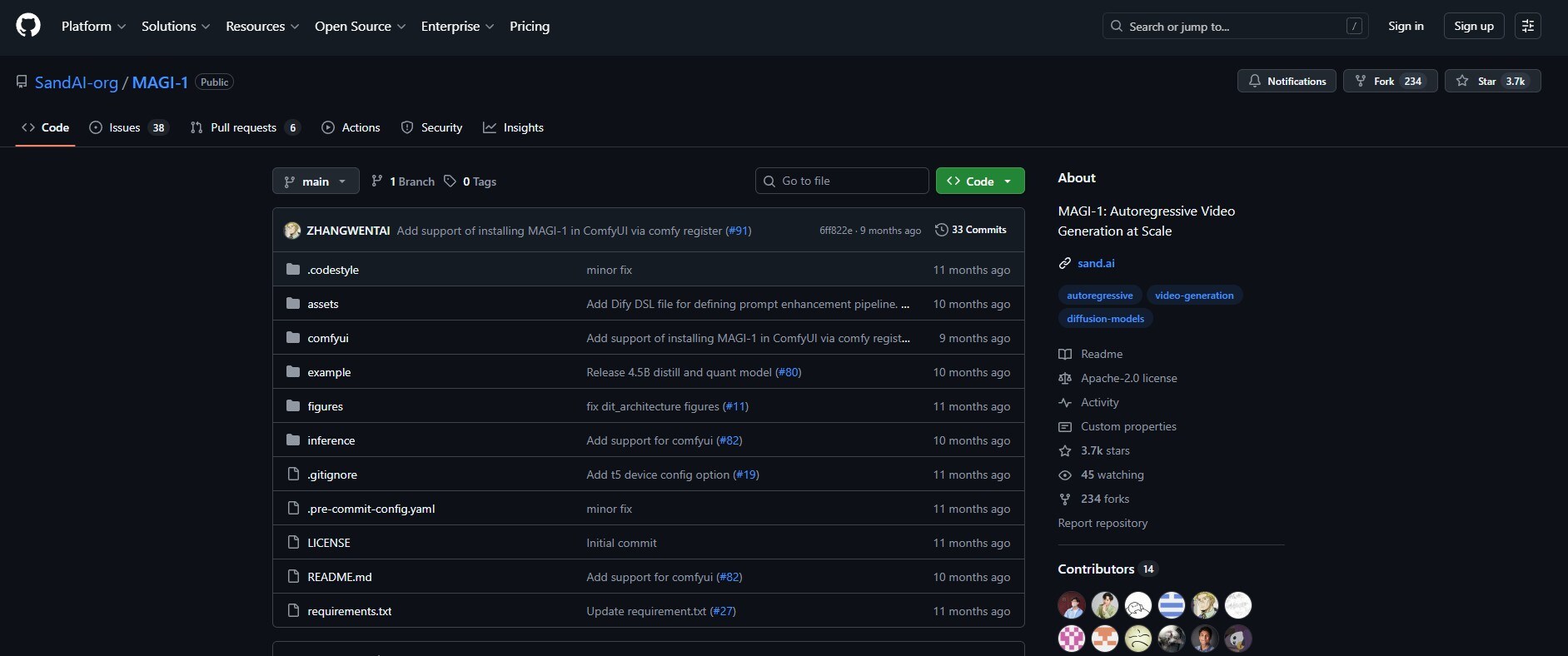
However, accessing it and using it to generate videos depends on which route you take:
- Self-hosting (Free): Running Magi locally via GitHub or Hugging Face costs nothing. The trade-off is hardware. You need a GPU with at least 24GB of VRAM for the 4.5B model, or significantly more for the 24B model. If your machine isn't powerful enough, cloud GPU rental is a viable but paid alternative.
- Official Web Interface (Paid): The hosted web app at magi-1.ai, for example, requires a subscription with no free tier available. Plans range from $29.99/month (Basic: 1,000 credits, up to 5-second videos) to $ to $99.99/month (Pro: 4,500 credits, up to 10-second videos).
For creators comfortable with technical setup, MAGI AI tool is an incredible resource. For those who want a polished interface and instant results, commercial tools may still be worth the subscription.
Note on Hardware: MAGI requires decent GPU power for smooth local execution. If your machine struggles, cloud GPU services are a viable alternative.
Part 4. MAGI AI vs Leading Video Generators: 2026 Comparison Table
How does the MAGI AI tool stack up against the big players in 2026? Here's a side-by-side look focusing on what matters most to creators. You can look closer, especially editability, since raw AI outputs almost always need refinement.
| Feature | MAGI AI | Google Veo | Kling | Sora |
| Platform | Open-source + Cloud | Cloud & API | Cloud & API | Cloud |
| Pricing | Free (self-host); Web app $29.99–$99.99/mo | $7.99/mo - $249.99/mo; API from $0.15/sec | $6.99/mo - $64.99/mo | Via ChatGPT Plus($20/mo) or Pro ($200/mo; API from $0.10/sec |
| Max Resolution | Up to 720p | Up to 4K | Up to 4K (Kling 3.0) | Up to 1080p |
| Max Duration | 10s per clip | 8s per clip | 10s per clip | Up to 25s (Pro) |
| Generation Approach | Autoregressive chunk-based (Diffusion Transformer) | Diffusion Transformer | Diffusion Transformer | Diffusion Transformer |
| Physical Accuracy | 4/5 | 4/5 | 3/5 | 4/5 |
| Temporal Consistency | 5/5 | 4/5 | 3/5 | 4/5 |
| Input Types | Text and Image | Text and Image | Text and Image | Text and Image |
| Editability | High | Limited | Limited | Limited |
| Technical Skill Required | Moderate | Low | Low | Low |
|
Show More
Show Less
|
||||
MAGI AI's autoregressive chunk-based generation using a Diffusion Transformer approach gives you an editability advantage. Because videos are generated as connected segments, creators can replace, adjust, or regenerate specific chunks without rebuilding everything from scratch.
Part 5. Why is Filmora Your Best Partner for AI-Generated Video?
Generated video is rarely finished video. Raw MAGI AI generator clips almost always need refinement: color correction, stabilization, audio integration, trimming, transitions, and often re-cutting to fit longer narratives.
To take your AI creations further, Wondershare Filmora serves as the perfect AI video editor and post-production partner. While MAGI-1 generates raw footage, Filmora provides the tools to refine, upscale, and polish your content for a professional finish.
 Secure Download
Here’s the AI tools specifically designed to enhance AI-generated content:
- AI Video Enhancer: Upscale resolution, reduce noise, and sharpen details—perfect for improving MAGI's HD outputs
- AI Extend: Seamlessly stretch your clips beyond their original length without re-generating.
- AI Object Remover: Eliminate unwanted artifacts or glitches that sometimes appear in AI generations
- AI Text to Video & Image to Video: Generate additional footage directly in Filmora using Sora 2 and Veo 3.1 integration
- AI Music Generator: Create custom soundtracks that match your video's mood
- AI Sound Effects: Add ambient audio that syncs perfectly with on-screen action
This is the workflow that smart creators are using in 2026. Not choosing one tool over another, but combining tools strategically. MAGI for generation, Filmora for finishing.
Part 6. How to Edit MAGI AI Clips in Filmora for Pro Results
Let's walk through a practical workflow that turns raw MAGI AI tool outputs into polished content with AI Video Enhancer.
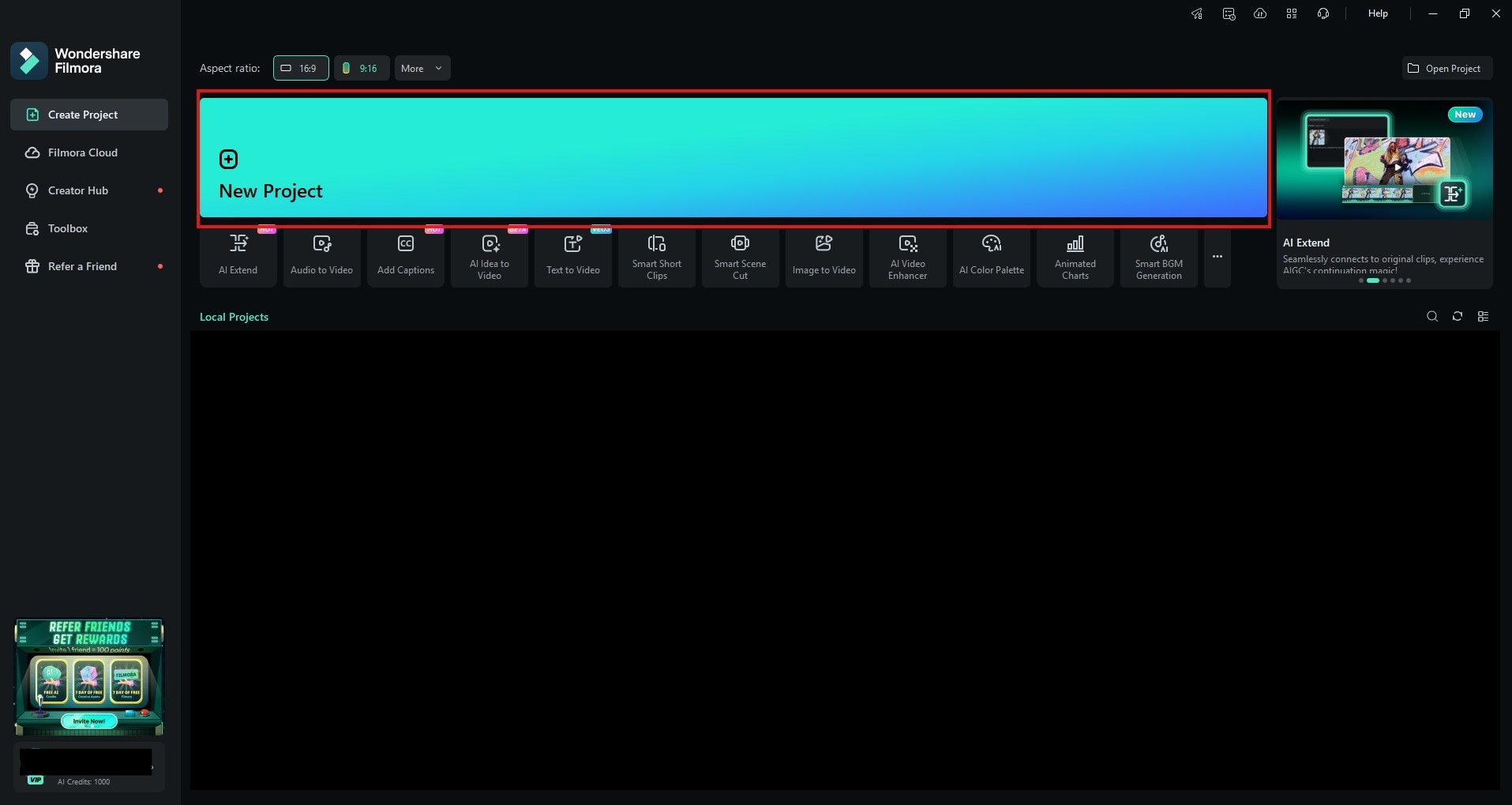
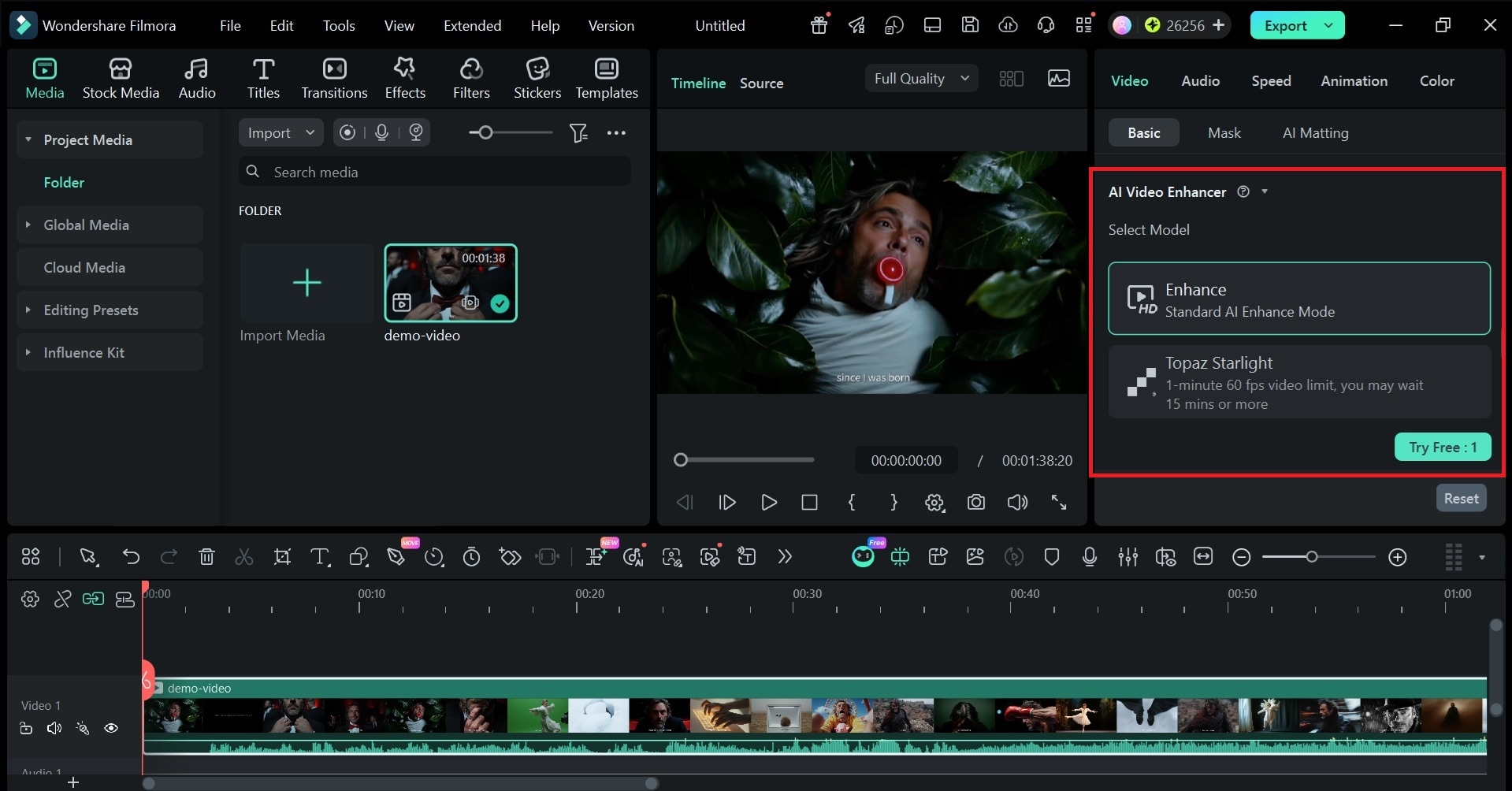
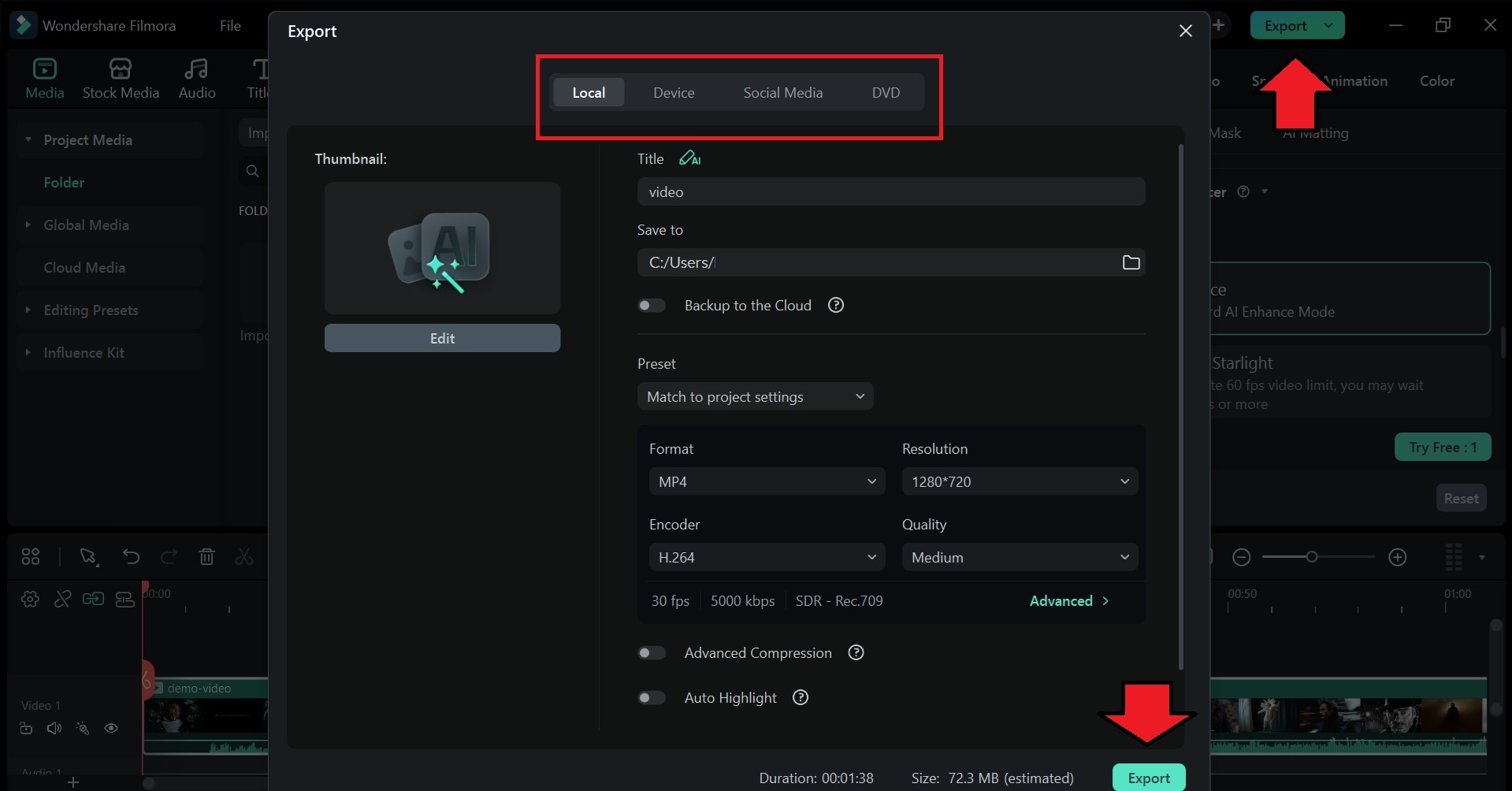
You can spend hours color grading. You can layer in perfect audio. You can add transitions and effects until your timeline looks like a control panel. But if the core footage looks amateur, none of that polish hides the foundation.
AI Video Enhancer fixes the foundation. It takes what MAGI gives you and removes the noisy "this was AI generated" shouts. After enhancement, your audience just sees beautiful videos. They can just engage.
Conclusion
If you value technical innovation and open-source freedom MAGI-1 delivers. The accuracy and consistency make it a legitimate tool for high-quality AI video.
But when your raw MAGI footage still needs some work, Filmora fills the gap. In 2026, the smartest creators aren't chasing one perfect tool. They're combining the right ones. MAGI AI tool for generation, Filmora for post-production, and their own creative vision holding it all together.

FAQ
-
What model versions are available on MAGI AI?
Sand AI provides pre-trained weights for multiple versions of MAGI-1, including 24B and 4.5B models, as well as corresponding distilled and quantized models. The smaller 4.5B model is better suited for users with limited GPU resources. -
What GPU do I need to run MAGI AI locally?
For the 4.5B model, any machine with at least 24GB of GPU memory is sufficient. The larger 24B model requires significantly more VRAM, making cloud GPU services a practical alternative for most users. -
Can I use MAGI AI for commercial projects?
Yes. The model is fully open-source under the Apache 2.0 license, which explicitly permits commercial use. You own and retain full rights to any videos you generate.
