


 TL;DR:
Pixwith AI is a browser-based aggregator that lets you generate and test short-form videos and images across multiple AI models, including Wan, Kling, and Hailuo, from a single interface without requiring separate platform accounts.
● Operates on a monthly credit system where generation costs range drastically from 7 to 140 credits per output, meaning the trial-and-error process required to fix inconsistent AI results can quickly drain the $29/month Creator plan's 500 credits.
● Best suited for beginners and marketers needing rapid visual variations using specialized tools like Infinite Talk for speaking avatars or Wan 2.7 for video extensions, rather than creators producing long-form storytelling.
● Users requiring precise timeline cuts, text overlays, and audio syncing must export their clips into traditional editors like Wondershare Filmora, which provides manual control alongside its own built-in generation models like Veo 3.1 and Seedance 2.0.
Ask AI for a summary
 ChatGPT
 Perplexity
 Gemini
 Claude
 Grok
Grok
If you've tried AI video tools and found the output too generic, the model selection is usually why. Pixwith AI addresses that by giving you several models to choose from inside one platform.
Core features like Pixwith AI Text-to-Video and Pixwith AI Image-to-Video drive most of the experience. But it also has other AI tools, like AI Text-to-Image and Image-to-Image, that support content creation.
We tried to explore its features, pricing, pros and cons, and the overall value of using Pixwith AI today, and put everything in our review below.
Part 1. What Is Pixwith AI?
You've probably heard of Wan, Kling, and Hailuo. Pixwith AI is a platform that gives you access to several of these models in one place. It has its own generation engine too, but the bigger draw is having multiple models available without needing separate accounts or tools.
Pixwith AI runs entirely in the browser with no software to install. You start with a text prompt, an image, or both, and the AI handles the rest. The output is a short video that you can use as a base for a bigger project, like ads, social media content, and explainer videos where you need to produce and test multiple variations quickly.
Part 2. Pixwith AI Key Features and What It Actually Does
Pixwith AI runs on a multi-model system, meaning different AI engines handle different types of generation. You choose the model based on what you want, and the platform handles the rest. Resolution, duration, and aspect ratio options vary by model.

AI Video Tools
Like most AI video platforms, the two main tools in Pixwith AI video generator are Text-to-Video and Image-to-Video. Supported models include: Pixwith, Wan, Kling, Hailuo, HappyHorse, Seedance, Veo 3.1, Luma Ray, RunWay, Pika, Grok, LTX.
Pixwith AI Text to Video
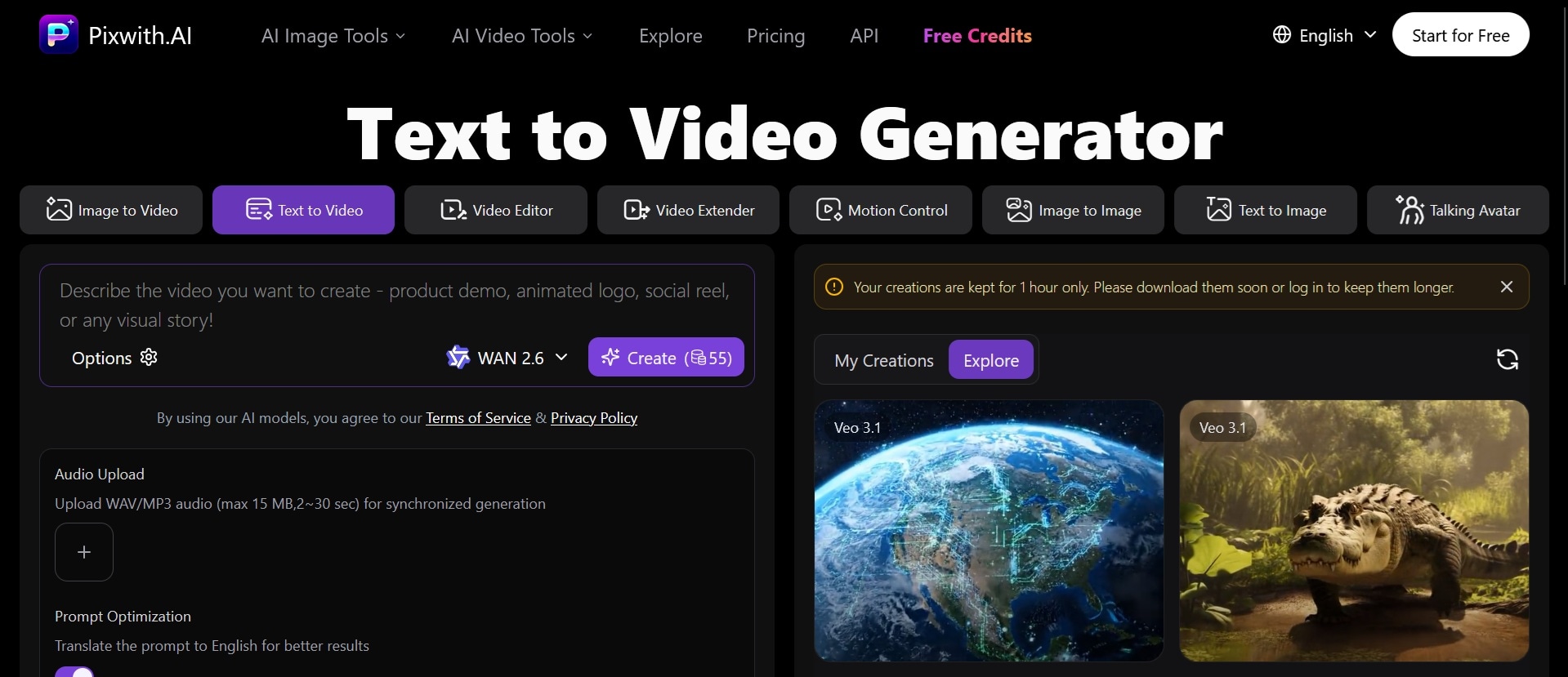
Pixwith AI text-to-video is one of the main entry points. You write a prompt, and the system generates a short video with motion, camera effects, and scene composition. There’s a prompt optimization option, which can help if you know the idea you want but are not sure how to describe the scene clearly.
Pixwith AI Image to Video
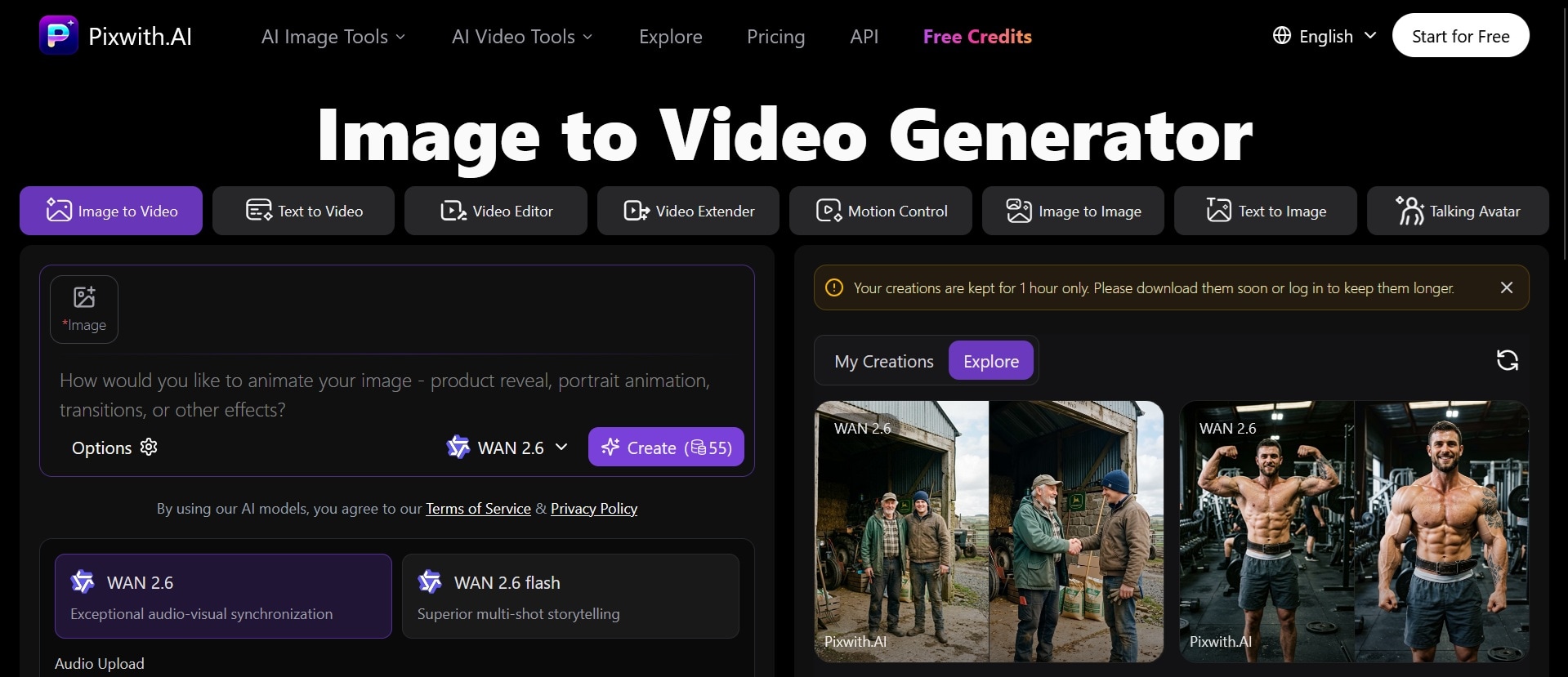
Upload a static image, and Pixwith AI image-to-video will animate it into a short video clip. You can add a text prompt to guide the motion direction and style. Like text-to-video, the result varies by model, so the same image can produce noticeably different output depending on which engine you pick.
Other Video Tools
Beyond the two main features, Pixwith AI includes more specialized tools for advanced use cases:
- Motion Control (powered by Kling 3.0) lets you set camera direction, zoom, and rotation before generating instead of leaving it to the AI.
- Video Editor (powered by Wan 2.7 Editor and HappyHorse) handles basic trimming and clip adjustments without leaving the platform.
- Talking Avatar (powered by Infinite Talk) syncs a speaking character to your script or audio, useful for explainers and spokesperson-style content.
- Video Extender (powered by Wan 2.7 Extender) continues an existing clip by adding more footage from where it left off.
AI Image Tools
Pixwith AI also includes image generation and text-based image editing tools that you can use to create visual assets or standalone graphics.
Pixwith AI Text-to-Image
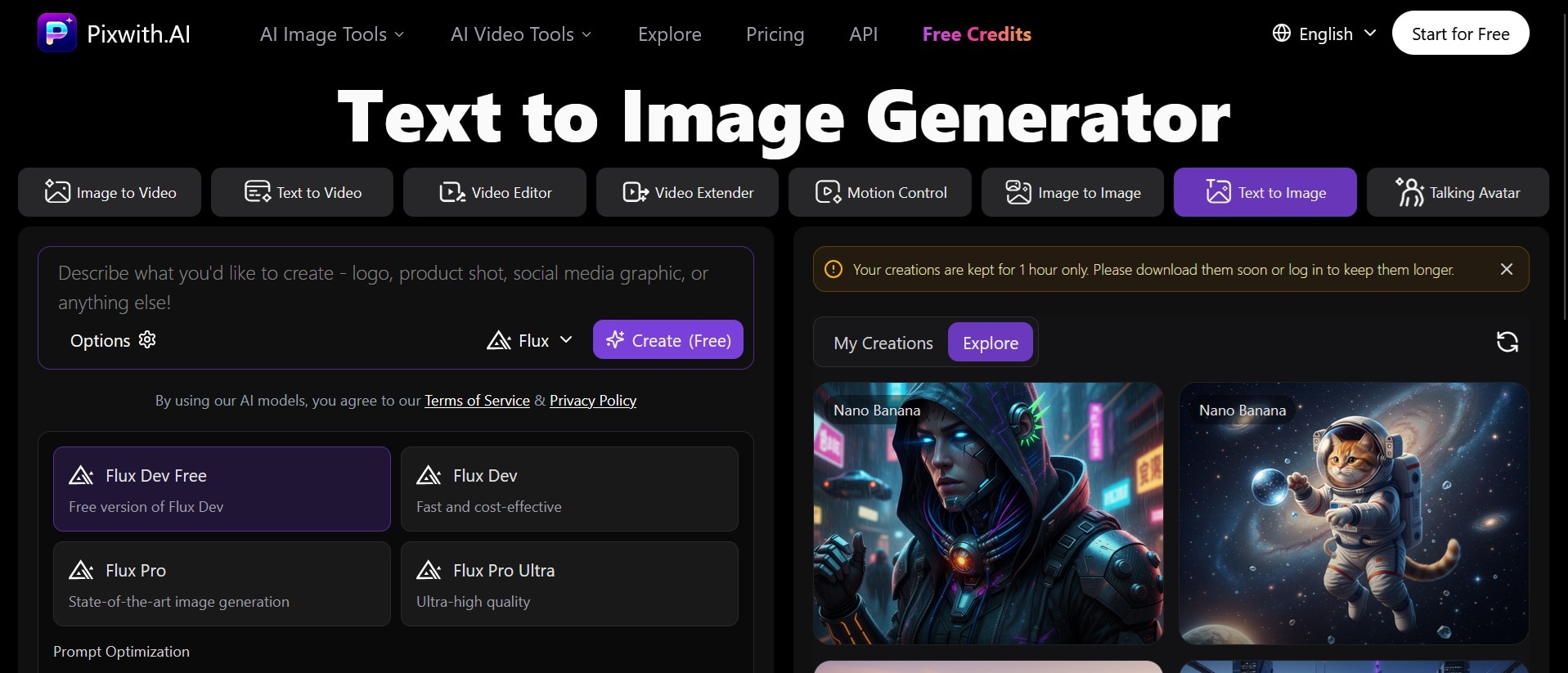
Type a prompt, and Pixwith AI generates a static image based on your description. It supports multiple aspect ratios, and you can select how many images you want to generate.
Supported models: Flux, ChatGPT Image, Nano Banana, Wan 2.7 Image, Kling O1 Image, Seedream, Grok, Qwen Image, Midjourney, Ideogram, Imagen 4.
Pixwith AI Image-to-Image
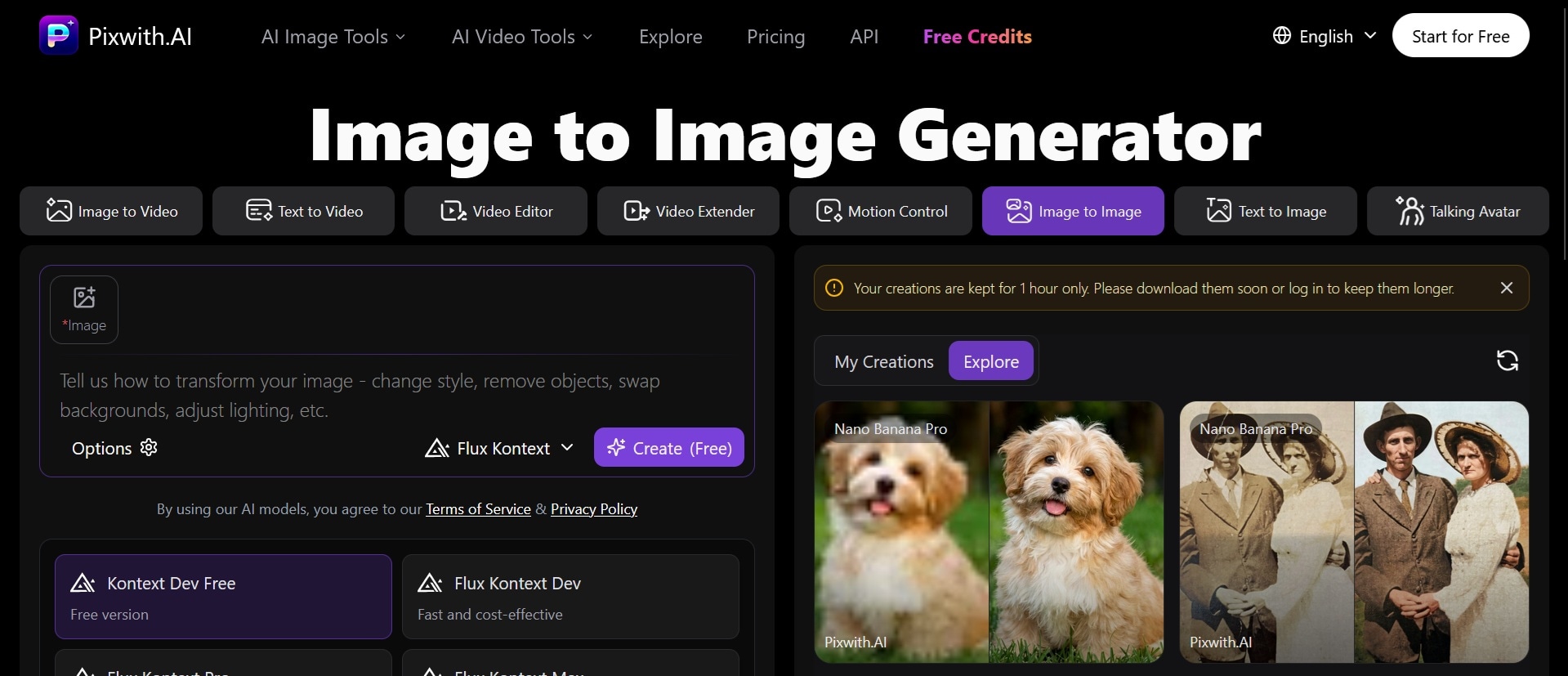
Upload an existing image and use a prompt to transform it into something new. You can change the style, enhance blurry images, restore details, or rework the composition while keeping the general structure of the original.
Supported models: Flux, ChatGPT Image, Nano Banana, Wan 2.7 Image, Kling O1 Image, Seedream, Grok, Qwen Image.
Image Extender
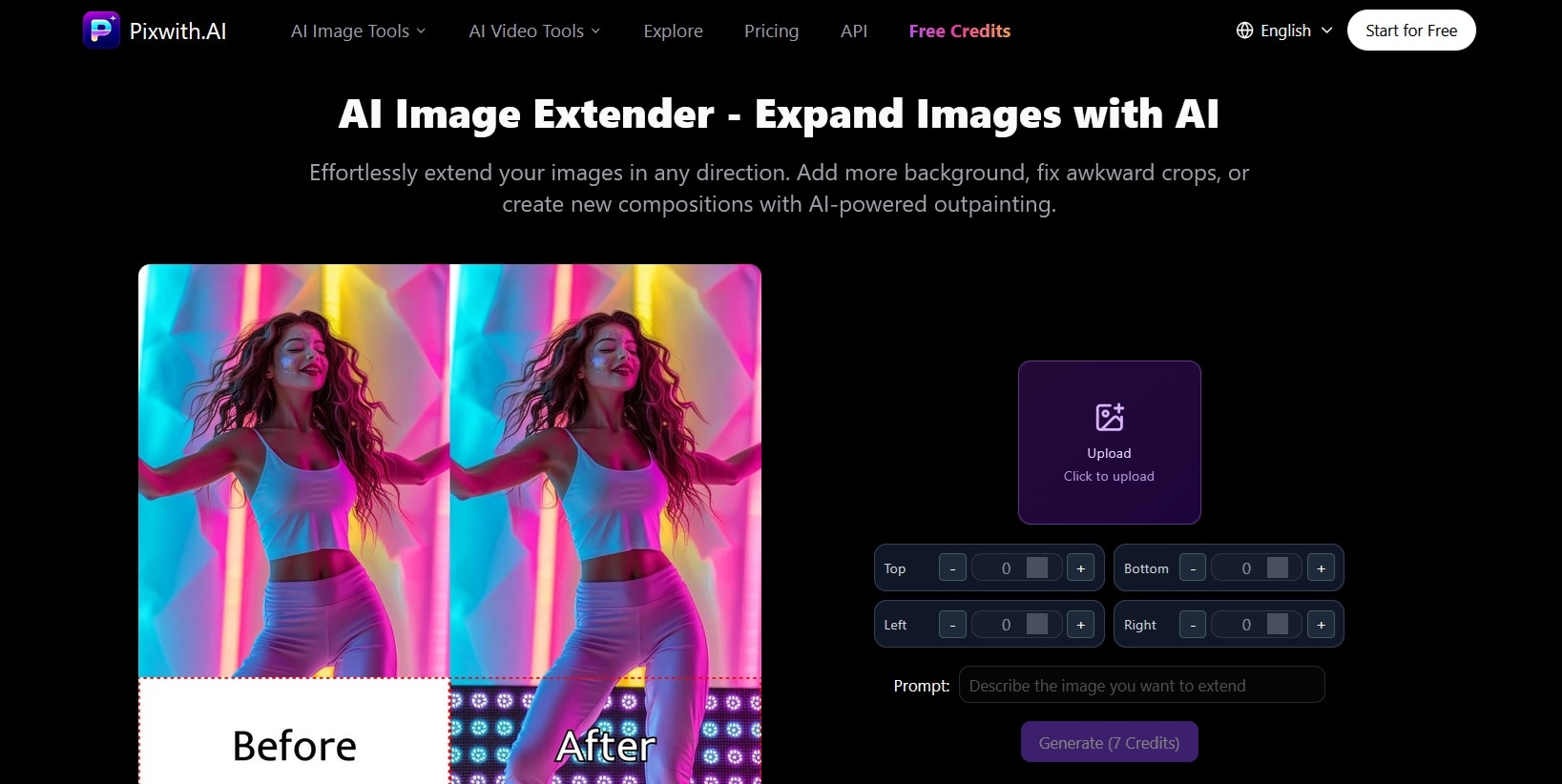
Image Extender expands the canvas of an existing image by generating new content around the edges. If your image is too tightly cropped for a specific format, this fills in the surrounding area to match the existing style and lighting.
Part 3. How Pixwith AI Works (Real Workflow)
After exploring its features, the actual workflow is straightforward. To show how it works, we'll walk through the Pixwith AI Image-to-Video feature, but the steps are nearly identical across other tools on the platform.
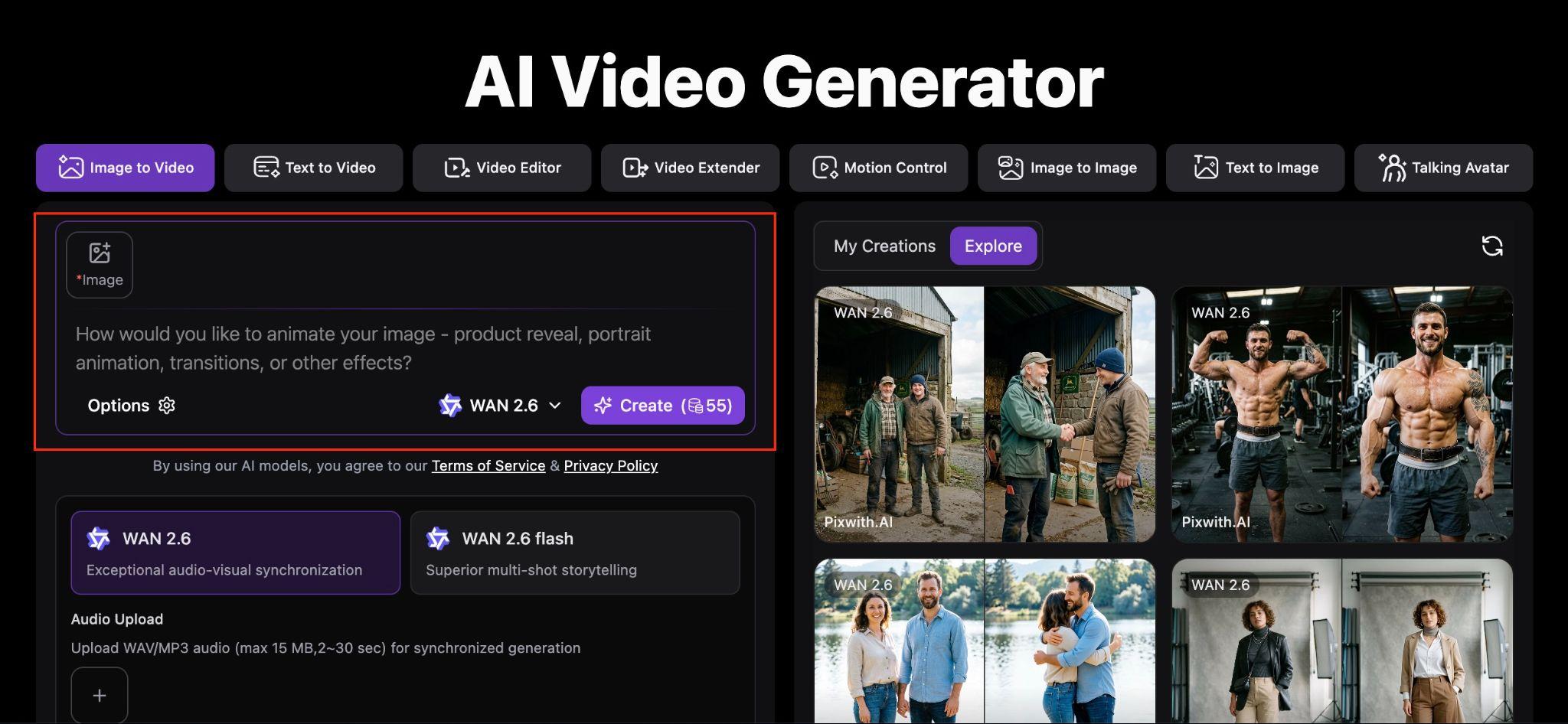
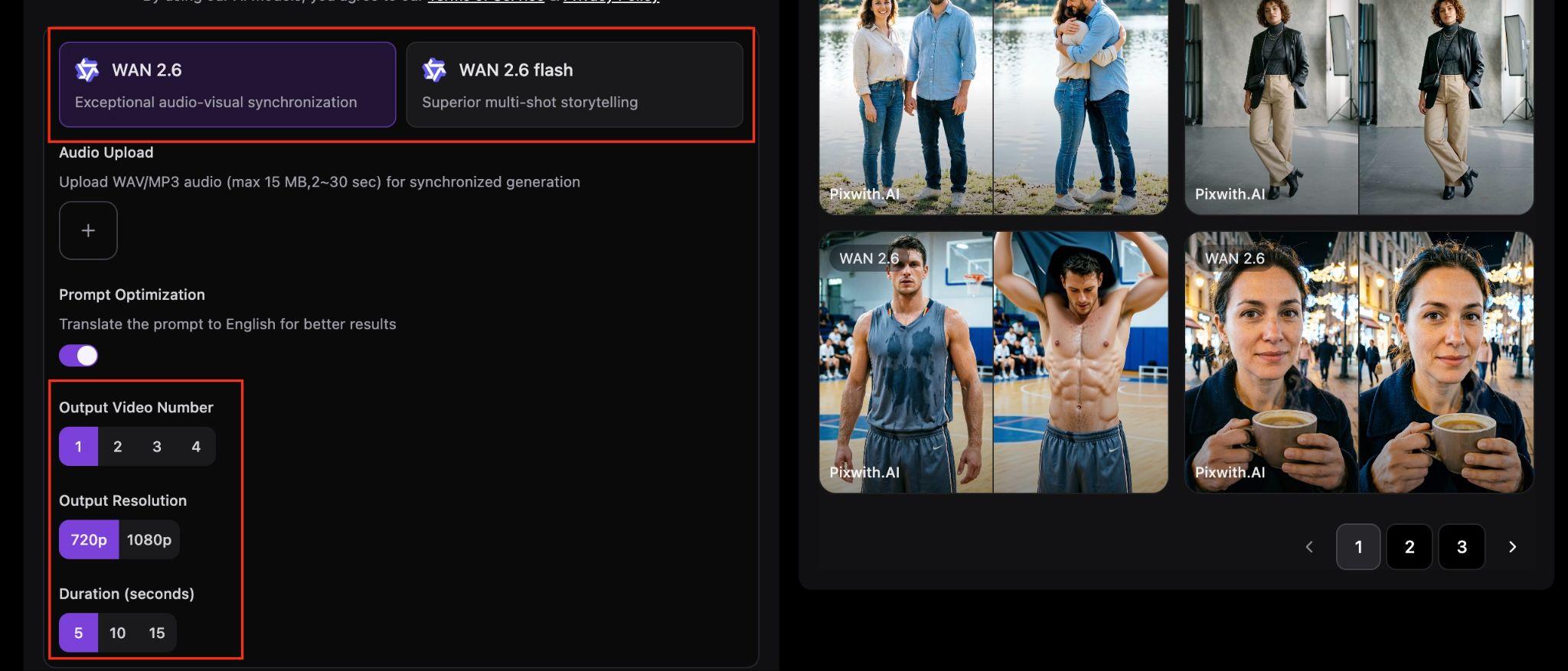
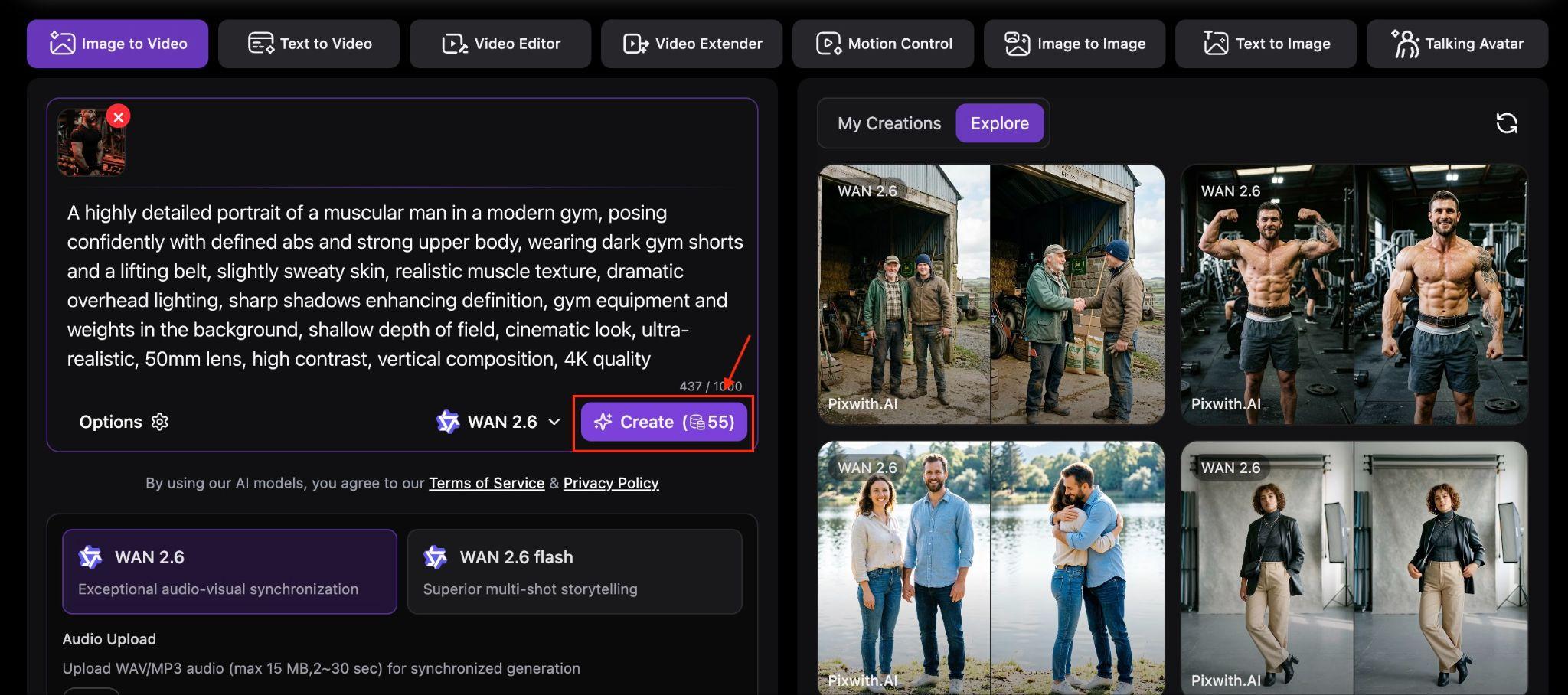
The credit cost varies by model. Some generations run as low as 7 credits; others go up to 140 credits. More on that in the pricing section.
Part 4. Pixwith Pricing and Credit System
Pixwith AI uses a monthly subscription system with included credits. These credits are used to generate images and videos, and the amount deducted depends on the model, output quality, and generation settings you choose.
| Free | Creator | Studio | Enterprise | |
| Pricing | $0 | $29/month | $89/month | Custom |
| Credits | 25 credits/day | 500 credits/month | 2,000 credits/month | Custom credits |
| Key Features | Up to 720p, core models, prompt library, watermark on exports | Up to 1080p, no watermark, commercial license, 6+ AI models, faster generation | Up to 4K, private mode, batch export, team access (5 seats), API (beta) | Dedicated GPU, SLA, API, white-label, advanced security |
| Best For | Testing the platform | Regular creators | Teams & advanced users | Agencies & large-scale use |
The free plan is good for testing, while paid plans give you more credits, better quality, and access to more features. Credits reset every month, with some plans allowing limited rollover.
Get Free Credits
Pixwith AI offers daily check-in rewards that give you free credits just for logging in. The amount increases the longer you check in consecutively.
Part 5. Pixwith Reviews: Pros, Cons, and User Feedback
User feedback on Pixwith AI varies, but there is a consistent focus on certain aspects. Many users appreciate how fast and easy the platform is to use, especially for creating short videos from prompts or images without requiring editing skills.
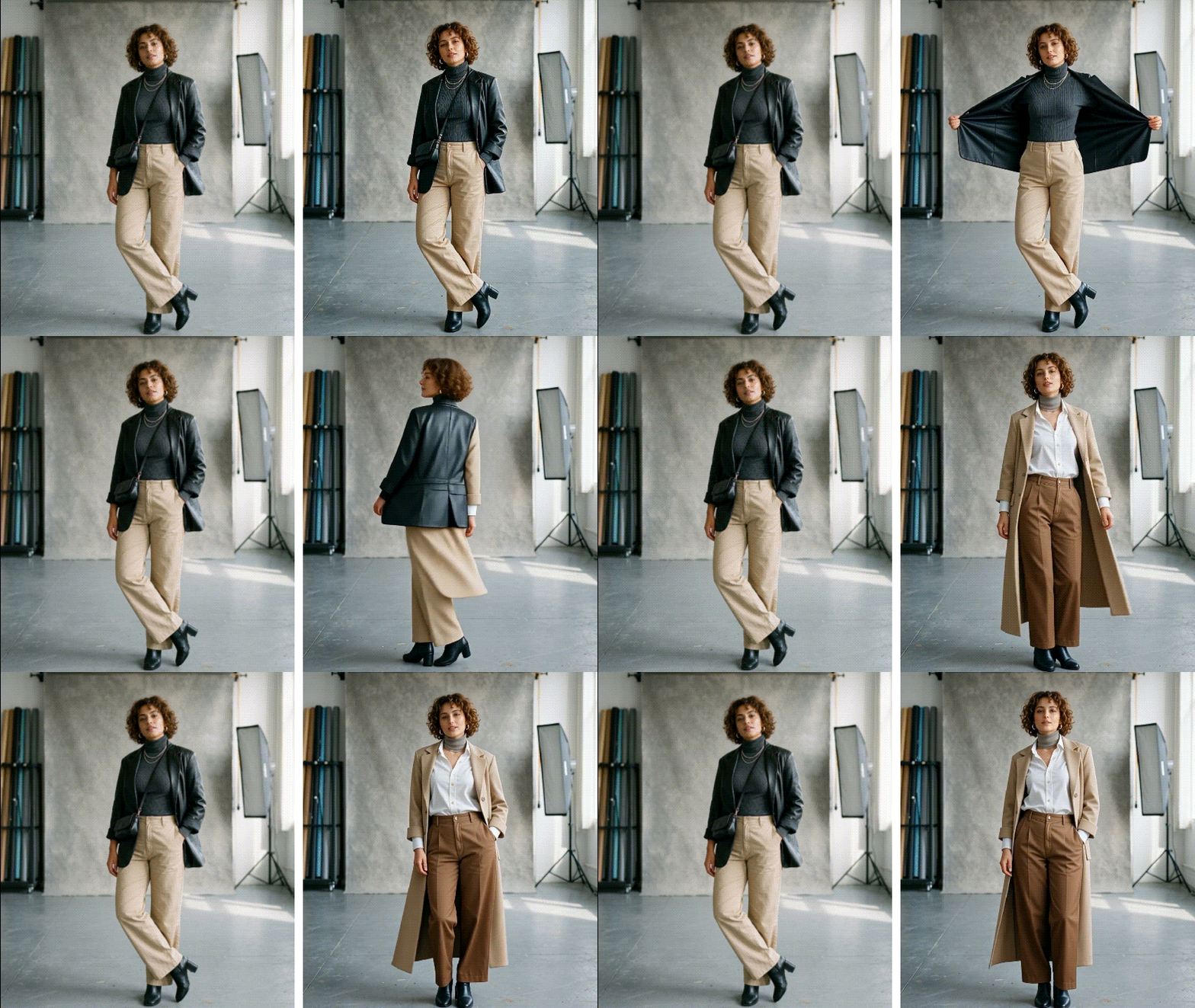
The variety of AI models is also seen as a strength, since users have the flexibility to experiment with different styles all within a single platform. However, feedback often mentions that results can be inconsistent, meaning it may take several attempts to get usable results.
Since everything is driven by text prompts, what you get is limited by how well you can describe it. There's no manual control over individual elements. If the output is close but not quite right, your only option is to refine the prompt and regenerate. That process alone can burn credits very quickly. Tasks like adding VFX are still better done by a proper video editor.

There are also some concerns regarding trust and reliability worth noting. Security checks show no significant malware or blacklist issues, but the platform is still relatively new, so users are advised to remain cautious when using credits or sharing data.
Pros and Cons of Pixwith AI
Before deciding if Pixwith AI fits your workflow, it’s a good idea to weigh its pros and cons. The platform is built for speed and convenience, but that comes at the cost of control and consistency.
- Fast video generation from text and images
- Simple, beginner-friendly interface
- Access to multiple AI models depending on plan
- Higher resolution options (up to 4K on Studio)
- Suitable for short-form content and quick experiments
- Output quality can be inconsistent
- Requires multiple attempts for better results
- Credits reset monthly (limited rollover)
- Limited control compared to traditional editing tools
- Mixed reviews due to the relatively new platform
Who Should Use Pixwith AI
Pixwith AI works best for users who prioritize speed and simplicity over detailed control. It’s designed for quick content generation, not full video production.
✅ Good fit:
- Beginners who want fast video creation without editing skills
- Marketers producing quick ad variations
- Content creators testing ideas or short-form videos
- E-commerce brands needing simple product visuals
❌ Not ideal for:
- Users who need precise control over timing and scenes
- Long-form video production or storytelling
- Projects that require polished, high-quality editing
Bonus: Make Your AI Videos More Complete with Filmora
Pixwith AI is designed for fast video creation, but it doesn’t offer much control when it comes to refining or editing the final result. For finishing and improving your content, a tool like Wondershare Filmora offers a more complete editing environment.
 Secure Download
Filmora also includes built-in image-to-video, text-to-video, and AI image generator features, with support for models like Veo 3.1, Seedance 2.0, and ToMoviee directly inside the editor, so you can continue generating and improving content in one place.
With Filmora, you get:
- Timeline Editing: Full control over clips, cuts, transitions, and pacing. You can trim frames precisely, layer multiple tracks, sync audio, and fine-tune every detail that AI-generated videos often miss.
- AI-Powered Tools Built In: Features like AI text-to-video, image-to-video, auto captions, AI copywriting, and smart cut tools help speed up editing while still giving you control over the final output.
- Templates & Motion Graphics: Access to ready-to-use templates, effects, transitions, and motion elements that make videos look more polished without starting from scratch.
- Text, Subtitles & Overlays: Add animated titles, subtitles, stickers, and visual overlays to improve clarity, branding, and engagement.
- Export for Any Platform: Easily export videos in different formats, resolutions, and aspect ratios optimized for platforms like YouTube, TikTok, and Instagram.
- Cross-Platform: Available on Windows, Mac, and mobile, letting you start a project on one device and continue it on another.
Secure DownloadConclusion
Pixwith AI delivers a fast and flexible way to turn ideas into short videos using text, images, or scripts. Its multi-model approach and credit-based system let users experiment without a long-term commitment. The trade-off is control. Results can vary, and fine-tuning is limited compared to traditional editing tools.
For quick content, ads, or creative testing, it does the job well. For more polished output, combining it with Wondershare Filmora is a great way to add structure and polish. Overall, Pixwith AI works best as a starting point, not the final step in your video workflow.
FAQs
-
1. Does Pixwith AI create full videos automatically?
Yes. Pixwith AI can generate short videos from text prompts, images, or scripts without manual editing. The output is usually ready to download, though results may vary depending on the model and input. -
2. Is Pixwith AI free?
Pixwith AI offers a free plan for basic testing, with limited daily credits and core features. For full access, it uses a monthly subscription with included credits. Paid plans unlock more credits, higher-quality output, and additional models. Credits refresh each month, and advanced video models consume more credits per generation. -
3. What is Pixwith AI best for?
Pixwith AI works best for short-form content like ads, social media clips, and quick visual ideas. It’s most useful when speed is prioritized over detailed editing. -
4. Is Pixwith AI safe to use?
There are no major malware or blacklist issues reported, but it’s still a relatively new platform. It’s a good idea to use it with standard caution, especially when purchasing credits or uploading content.
