


 TL;DR:
Viggle AI is a streamlined image-to-video platform ideal for rapidly animating single characters into short social media clips, though creators requiring precise timeline control should opt for a full video editor like Wondershare Filmora.
● Free tier usage is strictly for personal projects and is capped at three 720p, 15-second watermarked clips per day, requiring a Pro subscription at $9.99 per month to unlock 1080p resolution and commercial usage rights.
● Animation output is consistently smooth for standalone subjects using models like Nano Banana and Kling, but the beta Multi-Track tool frequently struggles with stiff motion and unrealistic body clipping during complex interactions involving multiple characters.
● Viggle AI is optimal for generating quick memes directly on the web, iOS 15.6+, or Android 7+ via official apps to avoid Mod APK malware risks, whereas Wondershare Filmora is recommended when a project requires keyframe adjustments, multi-clip assembly, and resolutions higher than 1080p.
Ask AI for a summary
 ChatGPT
 Perplexity
 Gemini
 Claude
 Grok
Grok
If you like making entertaining, funny, stylish, or meme-worthy content for social media, Viggle AI might be worth checking out. It allows you to turn still photos into animated videos easily.
Viggle AI and Viggle App have become very popular among content creators, with their community reaching 40 million members. In 2024, Business Wire also reported that Viggle AI secured $19 million in funding to further develop its AI video generator. But can you already see the results?
This guide walks you through everything you need to know about Viggle AI, from features and pricing to tutorials, the strengths, and drawbacks.
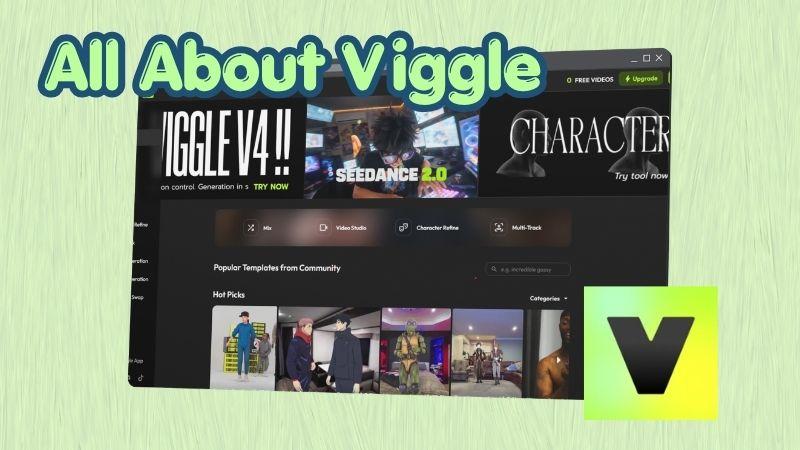
Part 1. What You Need to Know About Viggle AI
Viggle AI, or simply Viggle as many users call it, is a platform that lets you turn static images into moving clips in just a few steps. Its popularity comes from how simple it is to use, as you can create content with just a prompt, an image, or a video, depending on the animation you want to apply.
Let’s take a closer look at what Viggle AI has to offer.
Create Moving Characters Easily
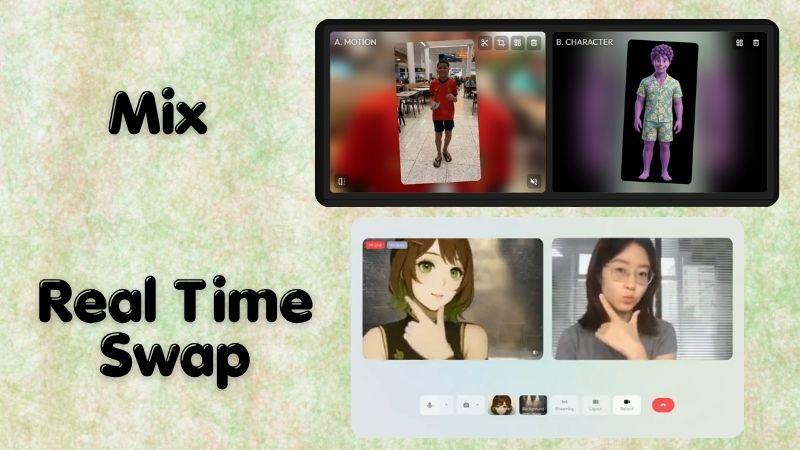
To create a Viggle AI dance video, use the Mix tool: upload a motion video and a character photo, and the AI will map the movement onto your image. So, it looks like you are the one dancing.
There’s also Real Time Swap. Choose a character, turn on your camera, and it replaces you live while copying your movements, similar to Snapchat-style filters but built into Viggle.
Refine and Swap Characters
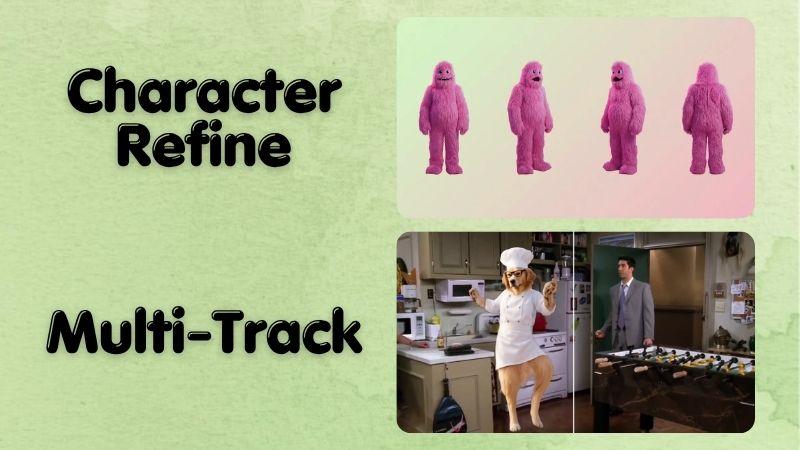
With Character Refine, you can create a high-quality version of a character. Simply upload your image and type a prompt in Viggle AI describing your desired clothes, hair, or style to create a consistent 3D-ready character.
Meanwhile, Multi-Track (Beta) allows you to track and replace multiple people in a single video with new characters, such as cartoons or animals. However, since this feature is still in testing, you may encounter occasional glitches compared to standard tools.
Make AI Images and Videos
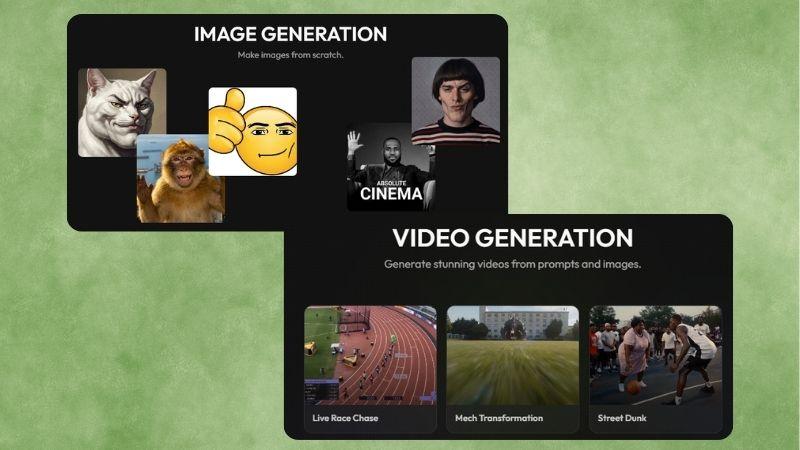
Viggle AI also lets you generate images from prompts or use ready-made memes. It supports models like Nano Banana 2, Nano Banana Pro, Seedream 4.0, and Seedream 5.0 Lite. For generating video, you can use models like Seedance, Kling, and Veo. Clips are usually 4 to 15 seconds, and you can add reference videos or set start and end frames for better results.
Create Voice and Music Content
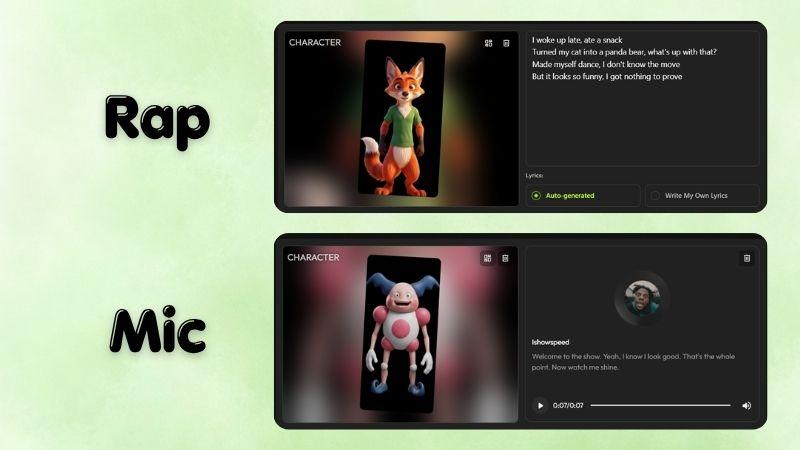
The Rap tool lets you turn a photo into a rap video. Just upload a photo and write a prompt describing how you want it to turn out. You can also provide your own lyrics or let Viggle AI write the lyrics for you.
If you just need voice, use the Mic tool. Add text-to-speech, upload a recording, or even clone a voice from various styles and characters.
Part 2. How Much Does Viggle AI Cost?
Next comes one of the biggest questions many users ask: Is Viggle AI free? The answer is yes. You can use Viggle AI for free, but with several limitations. That includes;
- Only three video generations per day.
- Limited access to the editor and live sessions.
- Storage that lasts for seven days.
- Longer queue times.
- Exported videos include watermarks.
So, if you create content regularly and prefer faster access with cleaner exports, upgrading could be worth considering. Viggle AI offers three subscription options: Pro, Live, and Max. You can find the details of each plan below.
| Feature | Pro | Live | Max |
| Price | $9.99 per month | $19.99 per month | $79.99 per month |
| Credits per Month | 80 | 200 | 800 |
| Video Generation | Unlimited | Unlimited | Unlimited |
| Active Generations at Once | 4 | 6 | 10 |
| Editor Tracks | Unlimited | Unlimited | Unlimited |
| Video Quality and Watermark | 1080p with no watermark | 1080p with no watermark | 1080p with no watermark |
| Custom Voices | Yes | Yes | Yes |
| Asset Storage | Permanent | Permanent | Permanent |
| Live Session | Limited | 6 hours | Unlimited |
As you can see, all Viggle AI paid plans include unlimited video generation, exports in up to 1080p without watermarks, and permanent storage access.
The main differences between the plans are the number of monthly credits, how many generations you can run at the same time, and live session hours. In the end, the best option depends on how heavily you plan to use Viggle AI.
Part 3. Where to Use Viggle AI?
We walked through the features and pricing, so the next thing to know is where you can actually use and download Viggle. Viggle AI is available on the web, iOS, and Android.
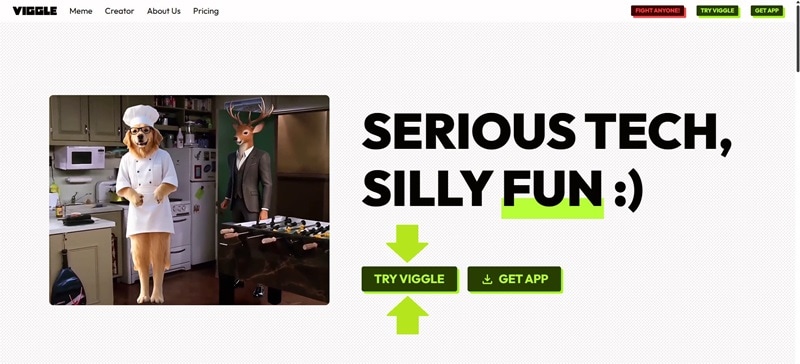
To use Viggle AI online, visit the official https://viggle.ai/ website and click Try Viggle. You will be taken to the main page, where you can access its tools and features. Signing up for Viggle is required before using the creative tools.
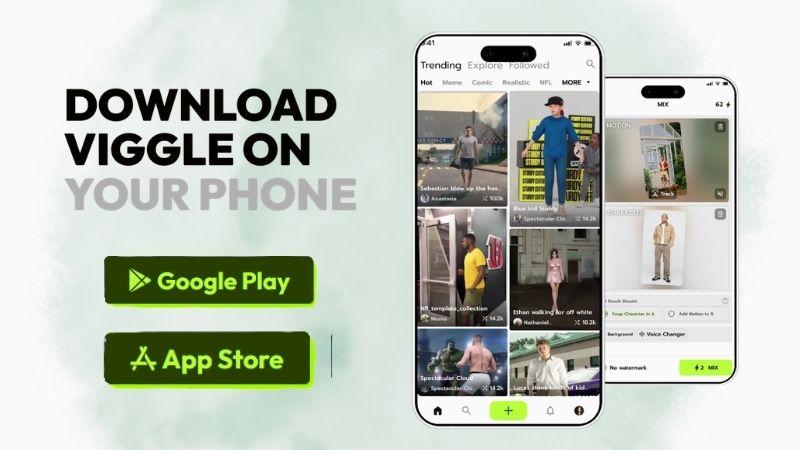
You can still enjoy animating images on the go by downloading the Viggle app to your device. For Android users, the app is available on the Google Play Store, with support for Android 7 or newer.
To get Viggle on iOS, download it from the Apple App Store. Make sure your device is running iOS 15.6 or later. Viggle AI also integrates with iMessage. You can send memes or images created in Viggleapp directly in your chats without switching apps.
Pro Tip: Beware of Viggle AI Mod APK
When searching for Viggle apps online, you may run into results such as Viggle AI APK or Viggle App APK. Those are unofficial versions of the Viggle apps. It is highly recommended that you don’t click, install, or download the Viggle APK.
Many mod APKs claim to offer free premium access, unlocked features, or lifetime subscriptions. In reality, they may expose your device to viruses, malware, or privacy risks. It is better to stick with the official version, the Viggle app on iOS and Android, rather than risk your privacy for temporary perks.
Part 4. Trying Out Viggle AI Features
Talking about features alone is not enough. To complete this review, an important step is testing Viggle AI in a real workflow. Through these tests, we can see how Viggle AI image-to-video tools actually perform. Let’s dive right in.
Test 1: Make Your Image Move
We all know that Viggle AI dance videos have become a big trend online, so let’s try making our own using the Mix tool.
Step 1: Locate the Mix Feature
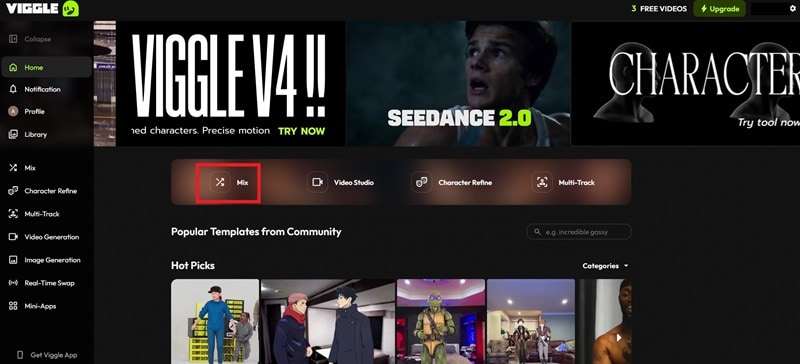
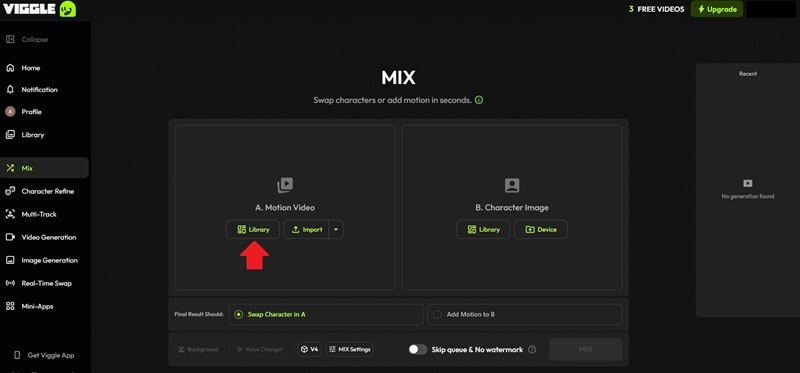
Sign in to Viggle AI and click Mix located in the center of the page.
Step 2: Choose Your Video Source
Under Motion Video, select a clip from the library or upload one from your device. For this example, let’s check what the Viggle AI library offers.
Step 3: Select a Motion Video
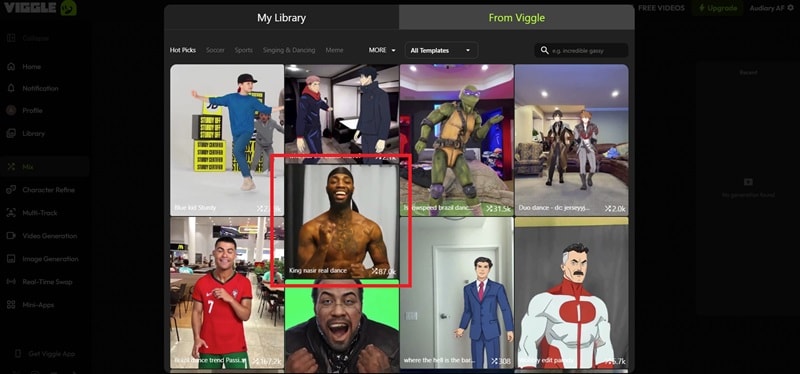
In the library, you will find several categories to choose from. For this example, we selected King Nassar Real Dance, as it is one of the trending options and has reached 87K users.
Step 4: Upload a Character
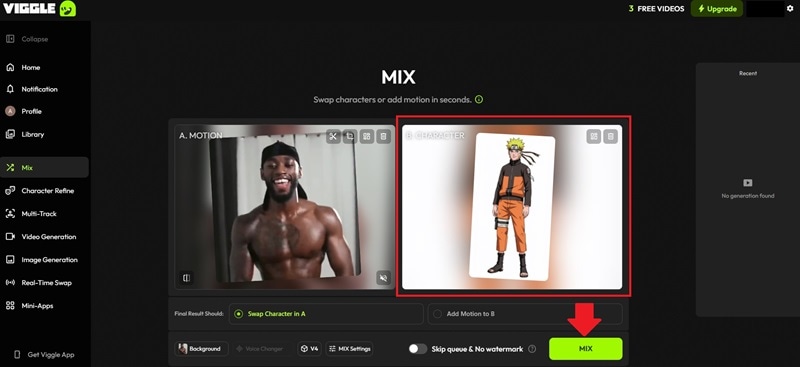
You can either upload your own character or select one from the built-in library. This example uses a character named Naruto from the Viggle AI library. Click Mix to start the generation process.
Check out the final result.
The Viggle AI image-to-video did a solid job changing the person into Naruto while making the final animation look fairly natural. Although the motion looks slightly stiff at times, Naruto still follows the dance moves closely. No obvious glitches or awkward movement issues. Facial expressions also followed the source clip nicely. Overall, the result is pretty solid.
Test 2: Try Character Swap
In this test, we will replace three basketball players on a court with anime characters. The reference video is a short clip from The Karate Kid. It is a longer clip with plenty of movement and frequent contact between the characters, making it more challenging.
Let’s see how Viggle AI image-to-video handles it.
Step 1: Upload a Video
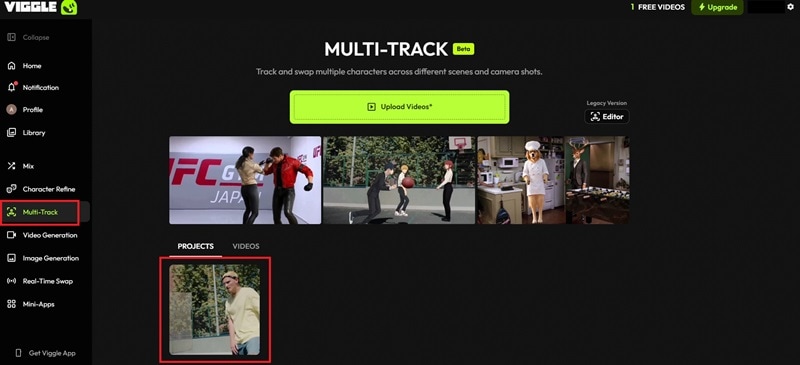
Log in to Viggle AI and open Multi-Track from the left menu. Upload a video from your device and click it once the upload is complete.
Step 2: Identify the People to Swap
On the Track page, click the people you want to replace with characters. Tap Add Another Character to add more people. Make sure each person is clearly visible so the AI can recognize them properly.
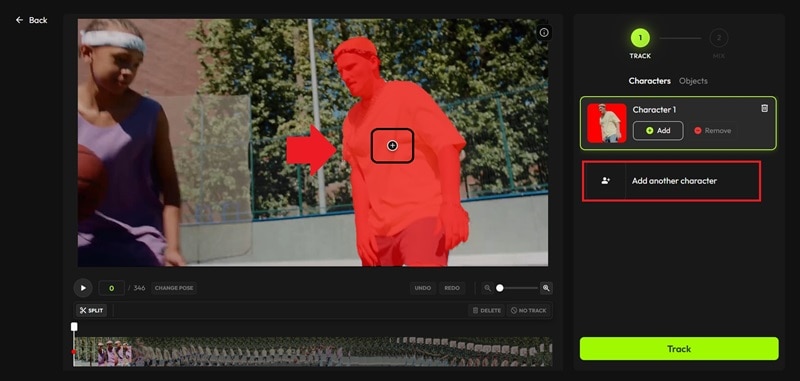
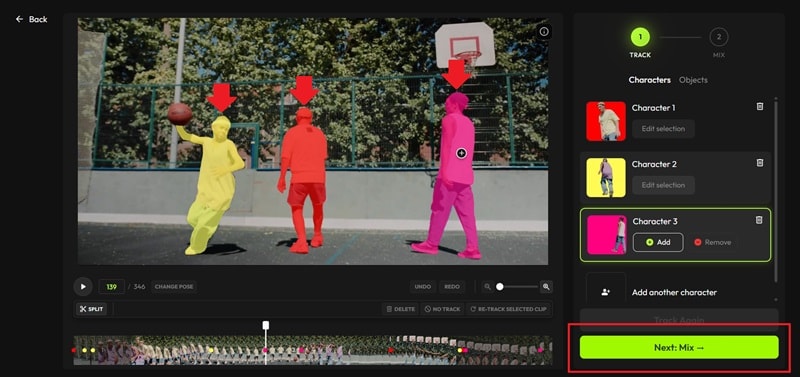
Step 3: Mark All Subjects
Repeat the same steps for everyone in the video. When all subjects are selected, click Mix.
Step 4: Assign Characters
Select a character for each person. In this example, we selected Naruto, Sasuke, and Kakashi from the anime Naruto. Click Instant Mix to start the swap.
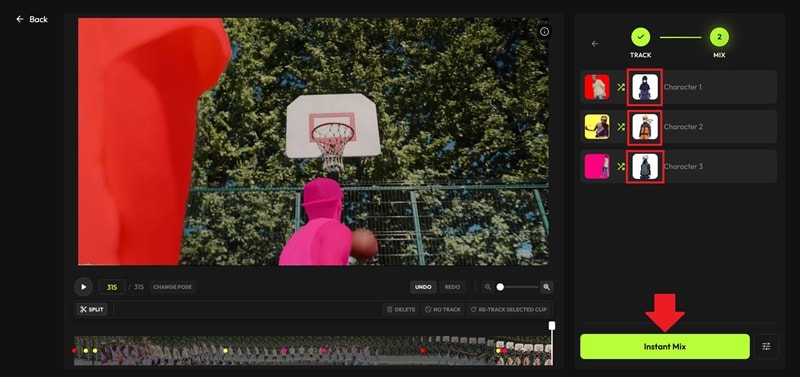
Here is the final result.
The character swap itself works quite well, as each person is transformed into the selected anime characters clearly. That said, the movement still needs work. Some motions look stiff, and close interactions between characters can create clipping issues where body parts overlap unrealistically. As a result, the animation is not fully smooth.
Overall, scenes with multiple characters and heavy movement are more challenging, so Viggle AI performs reasonably well, though there is clearly room for improvement.
Test 3: Create a Rap Video Without Recording
For the final test, we will see how Viggle AI can create a music video using only a character image. Can it deliver a good result? Let’s find out.
Step 1: Upload a Character
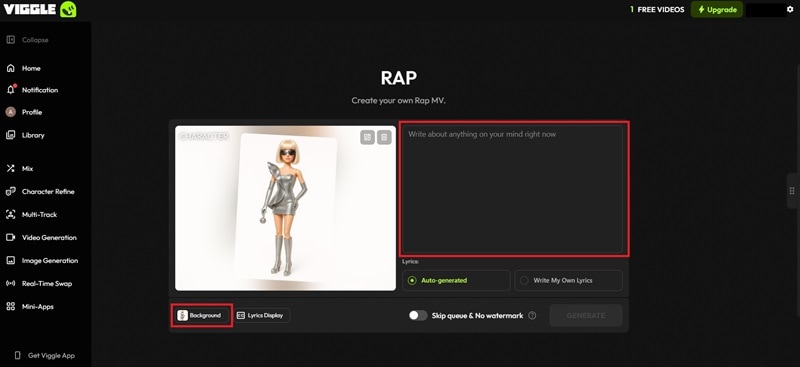
Log in to Viggle and locate the Rap tool under the Mini-Apps section. Upload your own image or choose any character you want. For this example, we chose Barbie Lady Gaga.
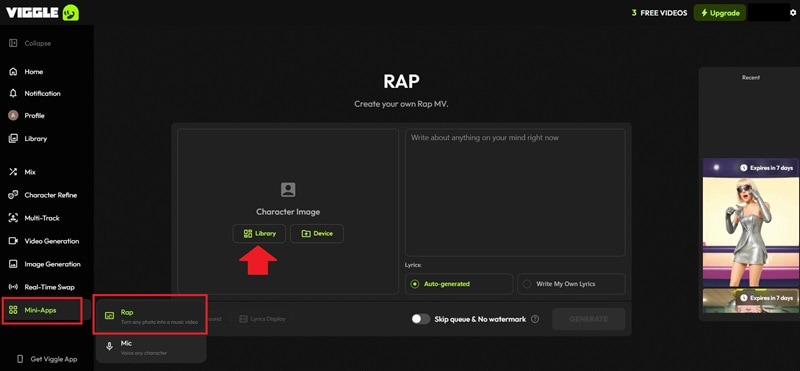
Step 2: Add Lyrics and Select a Background
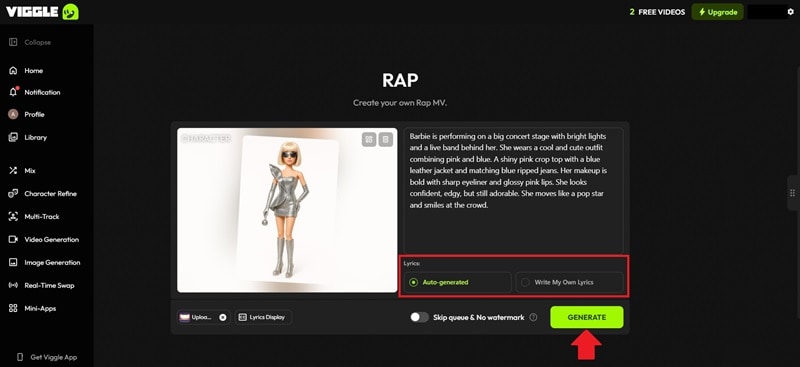
You can choose automatic lyrics from the AI or write your own lines. In this example, we added lyrics about an edgy pop star, Barbie Lady Gaga, who is confident and shines on stage.
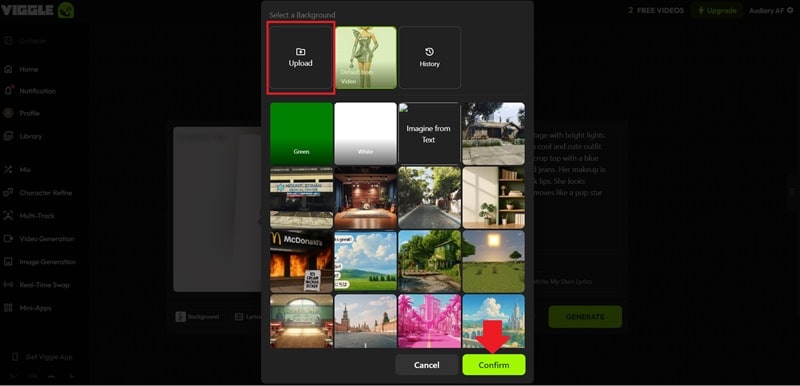
Next, you can keep the default background or change it by choosing one from the library or uploading your own.
Step 3: Upload a Background
The Viggle AI library offers many background options to choose from. You can also generate one using a prompt. For this example, we uploaded a music stage as the background.
Step 4: Generate the Rap Music Video
Before generating, choose whether the lyrics should appear as captions. Then click Generate to start.
Let’s see how it turned out after downloading the Viggle AI video.
Viggle AI generated a 45-second vertical Barbie rap music video with satisfying results. The lyrics were adjusted by the AI to fit the song more naturally. While the mouth movements and speaking expressions were limited, the singing timing matched the beat nicely. Body motion was smooth, and the camera movement gave it a more realistic performance feel. It is definitely a fun tool to try.
Our Verdict on Viggle AI
Based on our hands-on test of the web version, Viggle AI performs well and delivers satisfying results in most cases. While not every output is perfect, the overall experience is positive. See our quick review below.
| Category | What We Think |
| Interface | The interface is easy to figure out. Features are neatly organized in the left-side menu. |
| Ease of Use | Suitable for beginners. The platform gives clear guidance, making it easy to learn as you go. |
| Performance | The web version ran smoothly during testing, with no lag, crashes, or major loading problems. |
| Processing Time | Mix and Multi-Track usually took up to 2 minutes to process, while Rap could take up to 5 minutes. Queue times may increase during busy periods. |
| Output Quality | Overall results are quite good, especially for animating one character. With more complex movement or multiple characters, some glitches may still appear, and motion can feel less smooth. |
Part 5. Viggle AI: Strengths and Weaknesses
Viggle AI is a reliable tool for animating characters, but there are still limitations. After trying Viggle AI image-to-video tools in actual workflow tests, we got a clearer picture of where it performs well and where it still falls short. Let’s review both sides.
- Consistent Characters with Natural Motion: Viggle AI keeps your character recognizable throughout the animation. Movements usually look natural, especially on body parts like arms, legs, and shoulders. Clear images and reference videos give the best results.
- Extensive Template Library: Viggle provides more than 8,000 free templates, including viral dances and popular social media trends.
- Active Community: Viggle AI has a large and engaged community, especially on Discord, where people regularly share prompts, templates, and helpful tips.
- Resolution Options Are Limited: The Viggle free version only supports 720p output, and paid plans stop at 1080p. There is no support for 2K or 4K exports.
- Limited to Short Videos: Most outputs are short clips of around 15 seconds. Viggle AI video downloads are not suitable for longer or more complex projects.
- Basic Customization Options: Inside Viggle, there are no keyframes, frame-by-frame tools, or precise motion edits. If results are off, you usually need to prompt again.
Part 6. A More Complete Alternative: Wondershare Filmora
Viggle AI is great for short videos, but it doesn’t come with a built-in video editor. That means when the result isn’t perfect or doesn’t match what you want, you often need to generate it again.
If you are looking for an app like Viggle AI with a built-in video editor, Wondershare Filmora is a strong option worth considering. Alongside its full editing tools, Filmora also includes a wide range of AI features that can help you animate photos and create videos more easily.
Let’s see why Filmora is worth checking out.
1. Intuitive Editing Timeline
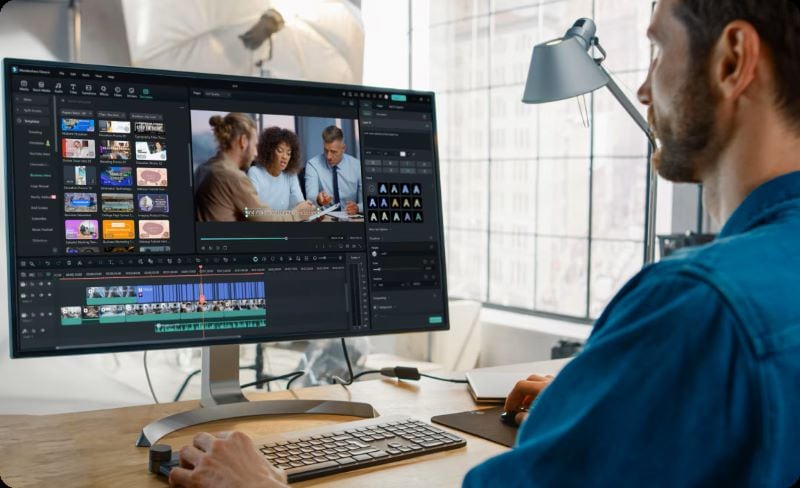
Filmora’s timeline editor lets you place video, audio, text, transitions, and effects in one workspace. You can easily add, trim, and arrange clips while building your video. Clips automatically snap into place, so there are no gaps or overlaps. You have full control to tweak each scene exactly how you want.
2. Add Motion to Any Picture
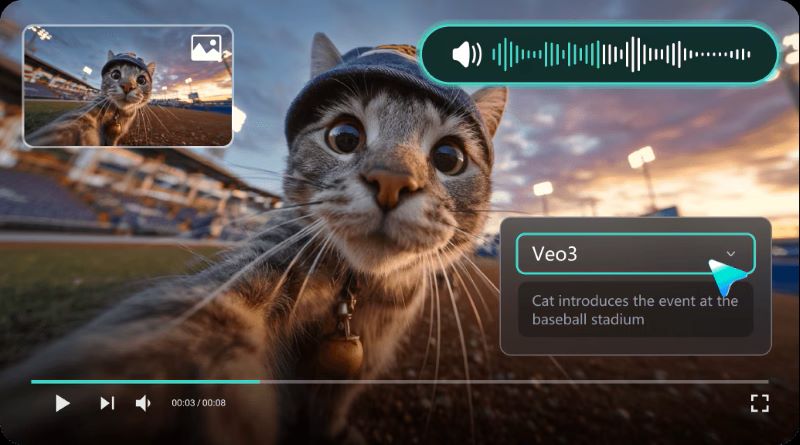
Similar to Viggle AI, Filmora also comes with AI Image to Video, powered by multiple AI models. It integrates with Seedance 2.0, Sora 2, and Google's Veo 3.1 to generate high-quality video from your images. This way, you can bring impossible scenes to life without complicated editing.
3. Powerful AI Tools for Video Creation
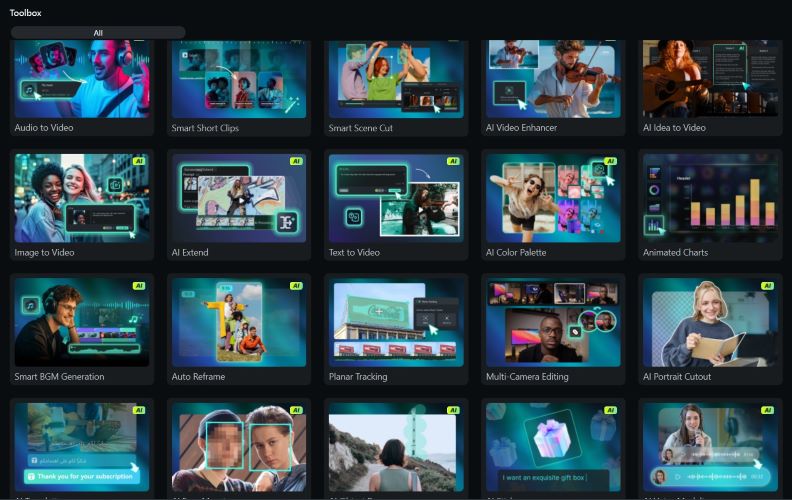
Beyond image to video, Filmora lets you generate videos from text prompts. You can also create matching music or sound effects for your project. On top of that, Filmora is packed with many other useful AI tools that make video creation faster and easier.
4. Improve Videos with Effects and Filters
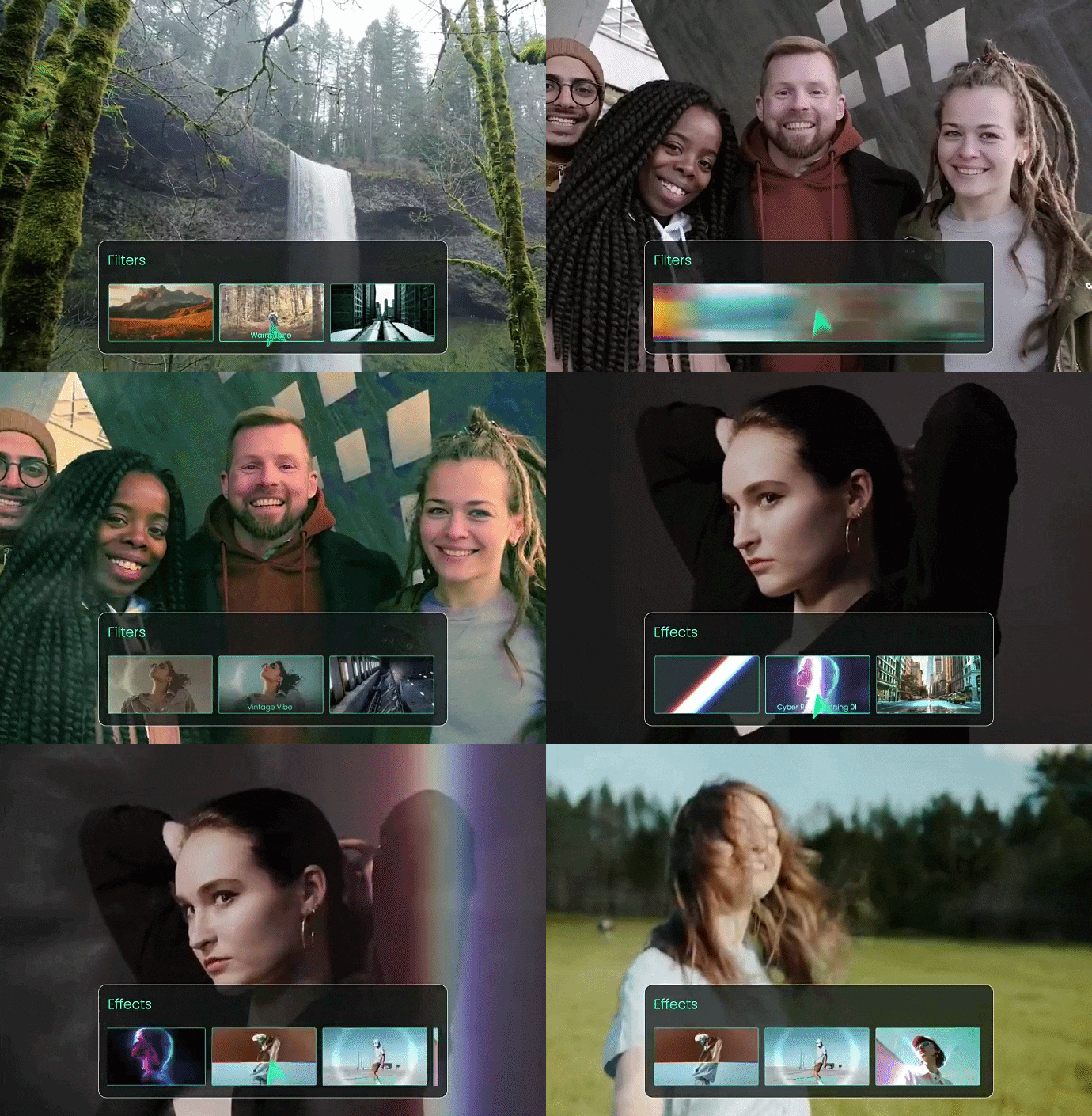
One of the easiest ways to make a video more interesting is by adding effects and filters. Filmora offers thousands of effects, transitions, and filters that you can use to make your videos look more polished and visually appealing.
5. Switch Between Devices Easily
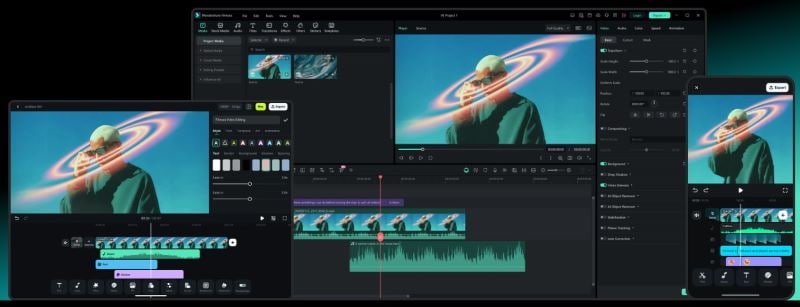
Whether you are editing on the go or prefer working on a bigger screen, Filmora supports multiple devices. It is available on Windows and Mac for desktop users, as well as iOS and Android for mobile users. Your editing progress can also sync across devices, so you can continue where you left off.
How Viggle AI and Filmora Compare
We put together a quick comparison below so you can easily see the key differences between Viggle AI and Filmora.
| Aspect | Viggle AI | Wondershare Filmora |
| Platform | Web, iOS, Android | Windows, Mac, iOS, Android |
| Price | A free version is available, and paid plans begin at $9.99 per month | Free plan available with paid plans starting at $8.99/month |
| Core Focus | AI character animation and motion transfer | Full video editor with powerful AI tools |
| AI Image to Video | Yes | Yes |
| Supported Formats | JPG, PNG, MP4, MOV | Works with a wide variety of video, audio, and image formats |
| Best Use | Memes, TikTok, Reels, Shorts | YouTube videos, tutorials, vlogs, social media content |
 Secure Download
Viggle AI or Filmora: Choose Based on Your Needs
We have explored both Viggle AI and Filmora in detail. Each tool has its own strengths and works best for different purposes. So which one wins? That's up to you and what you need.
Choose Viggle AI if you:
- Prefer quick results without complex editing.
- Want to create, swap, or animate characters.
- Mainly create content for memes, TikTok, Reels, and Shorts.
Choose Filmora if you:
- Prefer full editing tools and combining multiple clips into one video.
- Want full control over your video with text, effects, music, or transitions.
- Mainly create content for various social media platforms.
Secure DownloadConclusion
It is easy to see why many people enjoy using Viggle AI. The platform is reliable for making memes, trending videos, and animating characters quickly with very little effort. It's also accessible to all users from the very first try. Although the output quality is not always perfect, it works well for TikTok, Instagram Reels, and YouTube Shorts.
If you want an app like Viggle AI but with more editing control, Filmora is a strong option. It combines AI Image to Video features with a complete editor, along with extra templates, assets, and tools to make your videos look better.
FAQs
-
1. What’s the difference between Viggle AI and Viggle APK?
Viggle AI is the official version of Viggle, a platform to animate photos. Viggle AI Mod APKs, on the other hand, are unofficial versions spread by third parties. They are unsafe and unreliable.
-
2. Does Viggle AI allow usage for commercial projects?
Yes, but it depends on your plan. The Viggle free version is only for personal use and cannot be used for commercial projects. However, if you subscribe to Pro, Live, or Max, you get commercial use rights.
-
3. Can I use the Viggle app to earn money?
There is no direct payment from the app. That said, Viggle allows you to earn money via the Viggler Network. Members get cash prizes from weekly challenges, free credits, early access, and promotions.
-
4. Is Viggle TV the same as Viggle AI?
No, they are completely different. Viggle TV was a rewards app that gave you points for watching TV, but it is no longer available. Meanwhile, Viggle AI is an AI video generator that animates your photos.
