


 TL;DR:
Wave.video is a browser-based, all-in-one platform combining template-driven video editing, hosting, and live multistreaming, making it best suited for social media marketers and small businesses prioritizing fast content creation over complex post-production.
● The Free plan strictly restricts usage with mandatory watermarks, a maximum video length of around 15 seconds, and 720p export quality, requiring an upgrade to the Creator plan at $24 per month to remove constraints and access core features.
● The web-only editor lacks a standalone mobile app and is restricted to simple cuts and overlays, meaning performance slows down on longer projects and lacks advanced controls like multi-track layering, masking, or precise keyframes.
● Wondershare Filmora serves as a necessary alternative for creators handling long-form storytelling or YouTube content, as it provides the dedicated desktop performance, multi-track timeline editing, and advanced color correction that Wave.video lacks.
Ask AI for a summary
 ChatGPT
 Perplexity
 Gemini
 Claude
 Grok
Grok
If creating videos feels like juggling multiple tools at once, Wave.video aims to simplify the process. It’s an all-in-one platform that combines video editing, hosting, and live streaming in a single browser-based workspace. You can create, publish, and stream videos without switching apps or downloading software.
It’s also well-rated, with an average score of 4.6/5 on platforms like Software Advice, Capterra, and GetApp. Still, with newer AI video tools and more advanced editors available in 2026, the real question is: does it still hold up? Well, this review breaks down everything you need to know.
Part 1. Wave Video Key Features
Wave.video aims to simplify the entire video workflow in one place. It’s not just about editing. The platform not only offers editing features but also includes hosting and streaming services, which set it apart from typical video tools.
Here’s how its key features work:
Online Video Editor
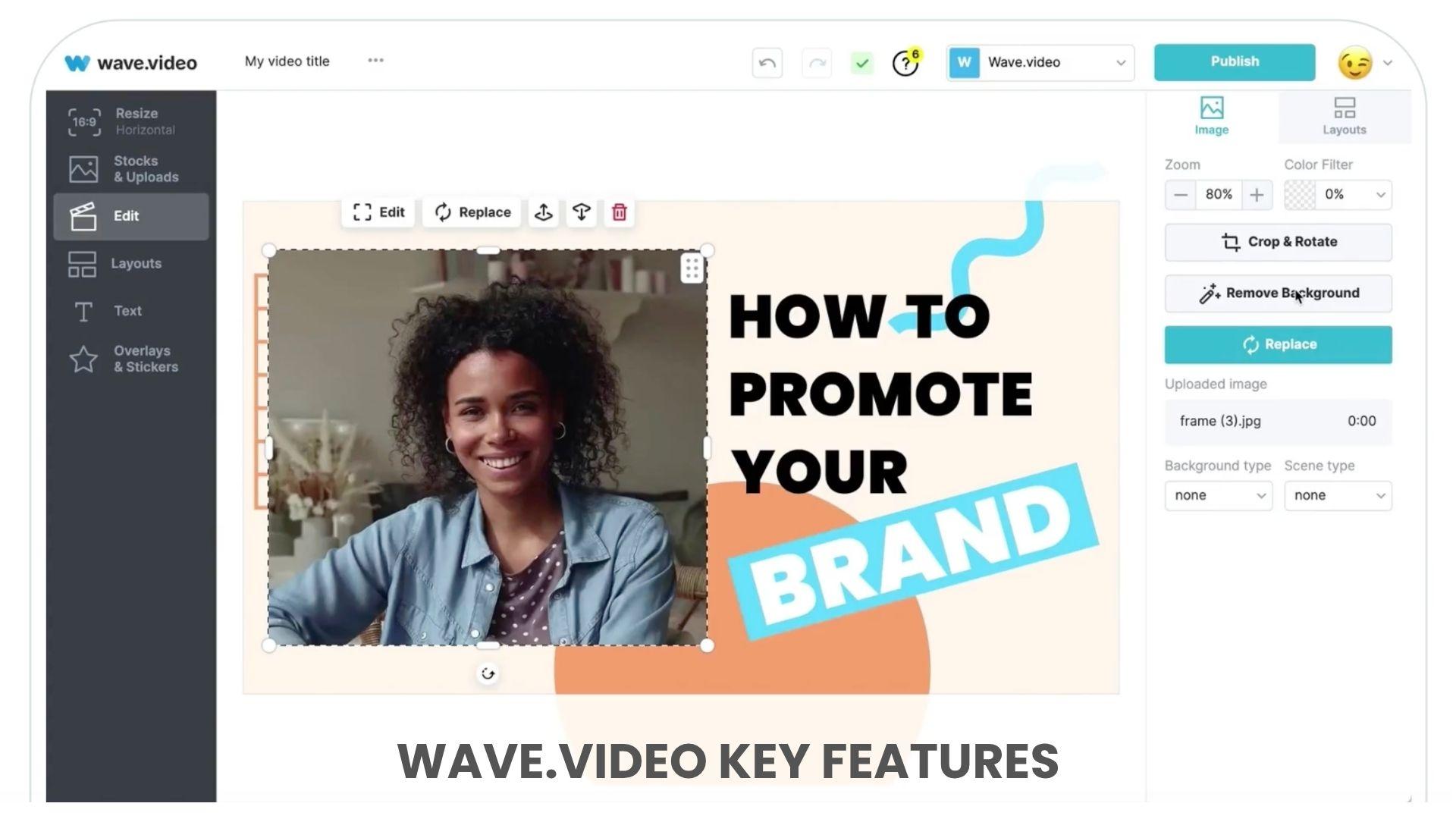
The built-in editor is designed for quick, browser-based editing with minimal setup.
Key Features:
- Drag-and-drop interface with ready-made templates.
- Resize videos for different platforms in a few clicks.
- Add text, animations, transitions, and captions.
- Access to stock videos, images, and audio.
- Just need to do Wave.video login to open the editor. No software Wave.video download required.
Video Hosting & Landing Pages

Wave.video includes hosting tools that integrate seamlessly with your content workflow.
Key Features:
- Upload and store videos in one place.
- Create customizable video landing pages.
- Embed videos on websites without third-party tools.
- Basic analytics to track views and engagement.
Live Streaming Tools
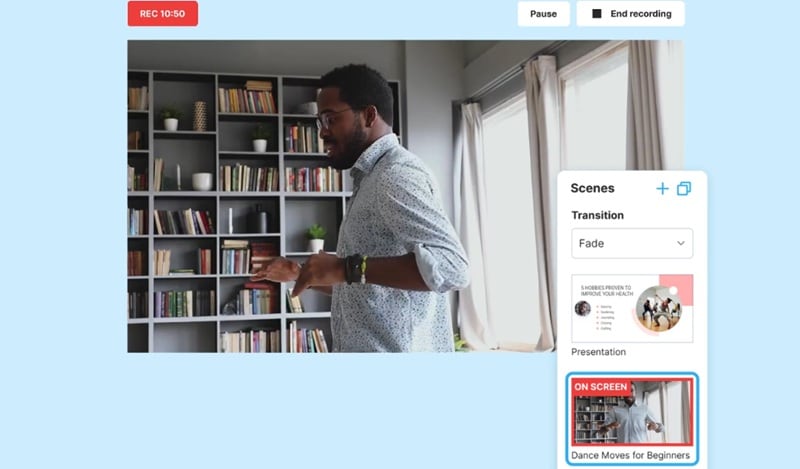
The platform also serves as a live streaming studio for real-time content.
Key Features:
- Multistream to platforms such as YouTube and Facebook.
- Invite guests into live sessions.
- Customize layouts during broadcasts.
- Stream pre-recorded videos as live events.
Part 2. Wave Video Pricing (2026): Free vs Pro
Wave.video pricing uses a relatively simple structure, with four main plans that scale based on how much you create, stream, and export. The platform offers a free plan to get started, but most core features are only available on paid plans.
| Plan | Price (Monthly) | Best For | Key Access |
| Free | $0 | Beginners testing the platform | Basic editing, hosting, streaming (with limits) |
| Streamer | $16/month | Live stream-focused users | Multistreaming, longer streams |
| Creator | $24/month | Content creators | Full editor + more export flexibility |
| Business | $48/month | Teams & advanced users | Advanced features, higher limits |
Key Limitations to Know
The free plan is available, but it has some significant limitations:
- Watermark on videos and streams.
- Very short video length (around 15 seconds).
- Limited export quality (typically 720p).
- Restricted hosting and embed options.
- Smaller stock library access.
Even on paid plans, there are still some constraints:
- Export/download limits depending on plan.
- Editing duration limits on lower tiers.
- Advanced features like auto captions and team access are only available on higher tiers.
Pricing Insight
Wave.video pricing reflects its all-in-one positioning. You’re not just paying for a video editor, but also for hosting and streaming on the same platform.
For casual use, the free plan works as a trial. For consistent content creation or marketing use, users will eventually need at least the Creator plan to remove limitations and access core features.
Part 3. Wave Video Pros and Cons
After reviewing the features, pricing, and real user feedback, the strengths and weaknesses of Wave.video maker becomes clearer. It performs well as a complete video workflow tool, but the trade-offs depend on how you plan to use it.
- Easy to use, even for beginners with no editing experience.
- All-in-one platform (editing, hosting, streaming in one place).
- Large library of templates and stock assets for quick content creation.
- Built-in live streaming tools with multistream support.
- Saves time by combining multiple tools into one workflow.
- Editing tools feel limited for complex or professional projects.
- AI features are slower and less advanced compared to dedicated tools.
- Performance can slow down with longer or more complex videos.
- The free plan includes a watermark and strict usage limits.
- There is no Wave.video app available for a more flexible workflow.
Part 4. Wave Video Editor Review (Real Performance)
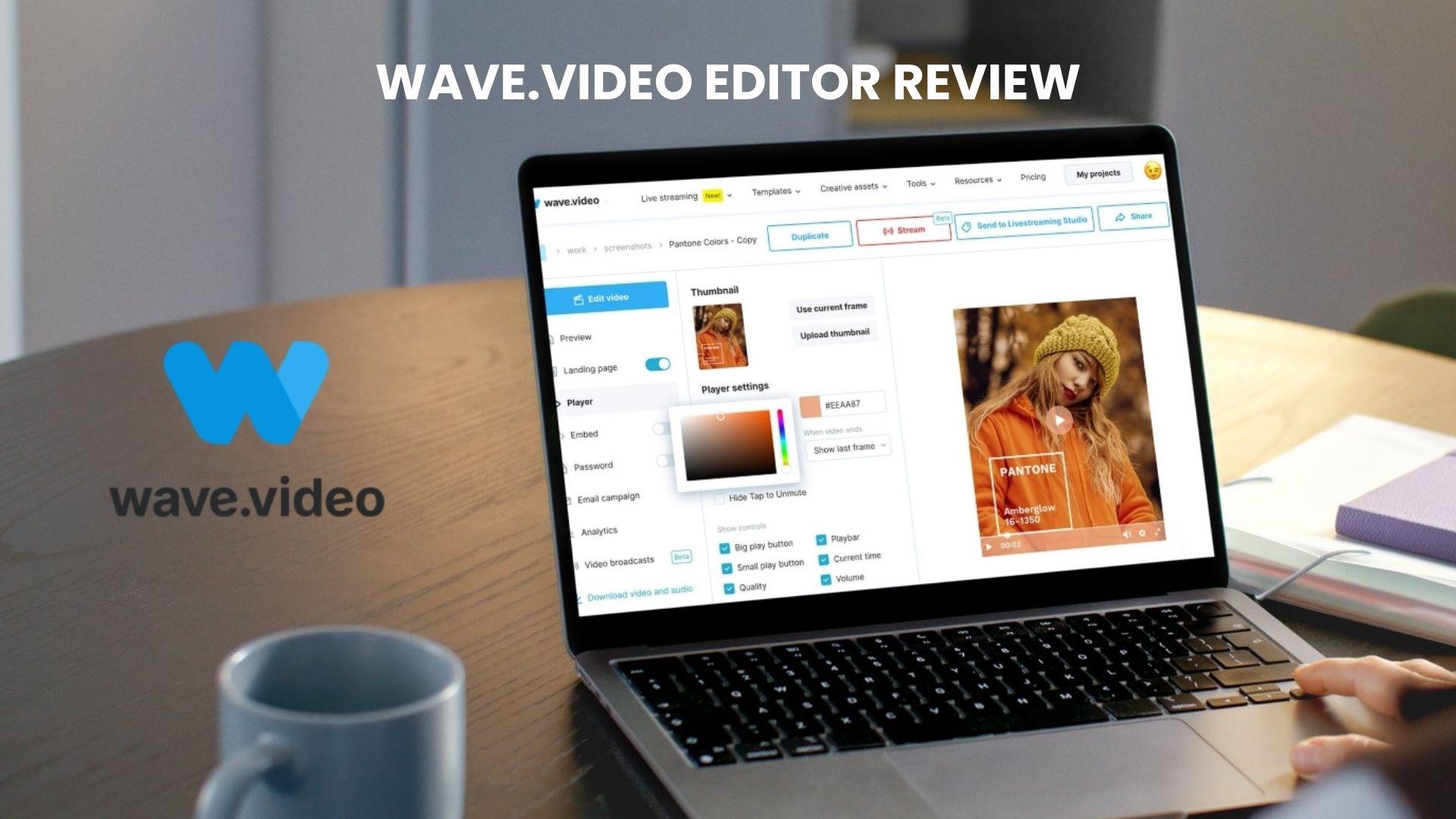
The editor is one of the most important parts of Wave.video, and it’s where the platform shows both its strengths and limitations. It handles quick content well, but the experience changes once you move beyond basic edits.
Ease of Use
The editor is built for accessibility, especially for beginners and non-editors.
- A clean drag-and-drop interface with minimal setup.
- Template-based workflow makes it easy to start projects.
- Pre-sized formats for social media save time.
- Most tools are easy to find, even on first use.
Timeline Editing Limitations
The timeline works for simple edits, but feels restrictive for more detailed work.
- Limited multi-track editing and layering options.
- Precise trimming and clip control can require extra steps.
- Fewer advanced tools, like keyframes, masking, or detailed effects.
- Some workflows feel slower compared to dedicated editors.
Overall, this feature is designed for quick cuts and overlays, not complex post-production.
Templates vs Customization
Templates are one of the strongest parts of the editor, but they shape how you work.
- A large library of ready-made templates and stock assets.
- Quick content creation for ads, social posts, and promos.
- Easy to maintain consistent branding.
At the same time:
- Customization can feel limited once you move away from templates.
- Less flexibility for unique layouts or advanced visual styles.
Performance & Workflow
In real use, performance depends on the type of content you’re creating.
- Works smoothly for short, simple videos.
- Slower when handling longer or more complex projects.
- AI-assisted features still require manual adjustments and time.
Overall Editor Verdict
The Wave.video editor is best suited for a fast-paced content workflow. It helps you produce videos quickly using templates and simple tools, especially for marketing or social media.
Once you need precise control, layered editing, or more advanced effects, the limitations become more noticeable.
Part 5. Who Should Use Wave Video
Once we've looked at the editor's features and performance, it becomes easier to understand where Wave.video is best suited and where its limitations lie. The platform is built around speed, simplicity, and convenience, making it a strong choice for certain workflows.
Best Suited For
Wave.video works well in situations where speed and consistency matter more than deep editing control.
- Social media marketers creating ads, promos, and short-form content.
- Content creators who need quick, repeatable video formats.
- Small businesses managing video, hosting, and publishing in one place.
- Teams running campaigns that require fast turnaround and simple branding.
- Live streamers who want built-in multistreaming without extra tools.
Not Ideal For
Limitations become more noticeable in workflows that require precision or advanced production.
- Professional editors working on complex or cinematic projects.
- Users needing advanced timeline control (multi-layer edits, effects, keyframes).
- AI-first creators looking for fully automated video generation.
- Mobile-first users who prefer editing on dedicated apps.
Part 6. Best Wave Video Alternative with Advanced Timeline Editing
Wave.video is built for quick and simple video creation. As projects become more detailed, their editing capabilities can feel limited, especially when precise control is needed.
At that point, it’s worth considering other alternatives based on how you prefer to create videos.
 Secure Download
AI Video Tools (Faster Automation)
These tools focus on generating videos quickly with minimal manual work.
Advantages:
- Create videos from text prompts or scripts.
- Automatically generate scenes, visuals, and voiceovers.
- Minimal timeline editing required.
- Best for fast content production and ideation.
However, they often lack control over fine details, transitions, and storytelling.
Full Video Editors (More Control)
This category focuses on timeline-based editing, where you manually build videos. A strong example is Wondershare Filmora, which sits in the middle between beginner-friendly tools and advanced editors.
- Multi-track timeline editing for precise control.
- Keyframe animations, effects, and transitions.
- Color correction, audio editing, and layering tools.
- Built-in AI features (auto captions, AI tools) combined with manual control.
This approach gives you more flexibility, especially for longer or more complex videos.
Wave.video vs Filmora (Key Differences)
| Feature | Wave.video | Wondershare Filmora |
| Editing Style | Template-based, browser editor | Full timeline-based editing |
| Ease of Use | Very beginner-friendly | Beginner to intermediate |
| AI Features | Basic (captions, text-to-video) | More integrated AI tools |
| Customization | Limited | High (effects, layers, keyframes) |
| Performance | Best for short/simple videos | Handles longer, complex projects |
| Use Case | Marketing, social media | YouTube, storytelling, advanced editing |
| Platform | Web-based | Desktop + mobile |
Secure DownloadConclusion
Wave.video stands out as a convenient all-in-one platform for creating, hosting, and streaming videos without switching tools. It works especially well for marketers and creators who need to produce content quickly and consistently. Its template-based editor and built-in features help speed up production, though editing flexibility can feel limited on more detailed projects.
For users who prioritize efficiency and simplicity, it remains a practical choice in 2026. If your workflow involves more complex edits or storytelling, combining it with a full editor like Wondershare Filmora can give you greater creative control.
FAQs
-
1. Do I need to download Wave.video?
No, Wave.video runs entirely in your browser. You can create, edit, and export videos online without installing any software, which makes it accessible across different devices. -
2. Does Wave.video have an app?
Wave.video is primarily designed as a web-based platform. While you can access it on mobile browsers, there isn’t a fully featured standalone app like typical mobile video editors. -
3. Does Wave.video have AI features?
Yes, Wave.video includes AI tools such as auto captions, text-to-speech, and basic text-to-video creation. These features help speed up content production, though they still require some manual editing for the best results. -
4. Does Wave.video add a watermark?
Yes, the free plan of Wave.video includes a watermark on videos, streams, and hosted content. Upgrading to a paid plan removes the watermark and unlocks higher limits and export options.
