Remember those photo booth pictures with fun, unexpected effects that made every shot feel a little different? Webcam Toy Camera brings that same playful experience to your browser, with over 80 filters you can try before taking a photo. You can experiment with vintage tones, mirror effects, and quirky distortions without installing any software.
But how good are the results, and does the tool offer more than a few fun camera tricks? We'll test its photo features, explore what you get for free, and see how well Webcam Toy works across desktop and mobile devices.
Part 1. Webcam Toy at a Glance
Once you open the Webcam Toy website, you'll find a camera interface with a live preview and a collection of effects to explore. These effects appear side by side with the camera feed, so you can switch between looks and see changes instantly on screen. You can compare several styles before choosing one for your photo, without navigating complicated menus.
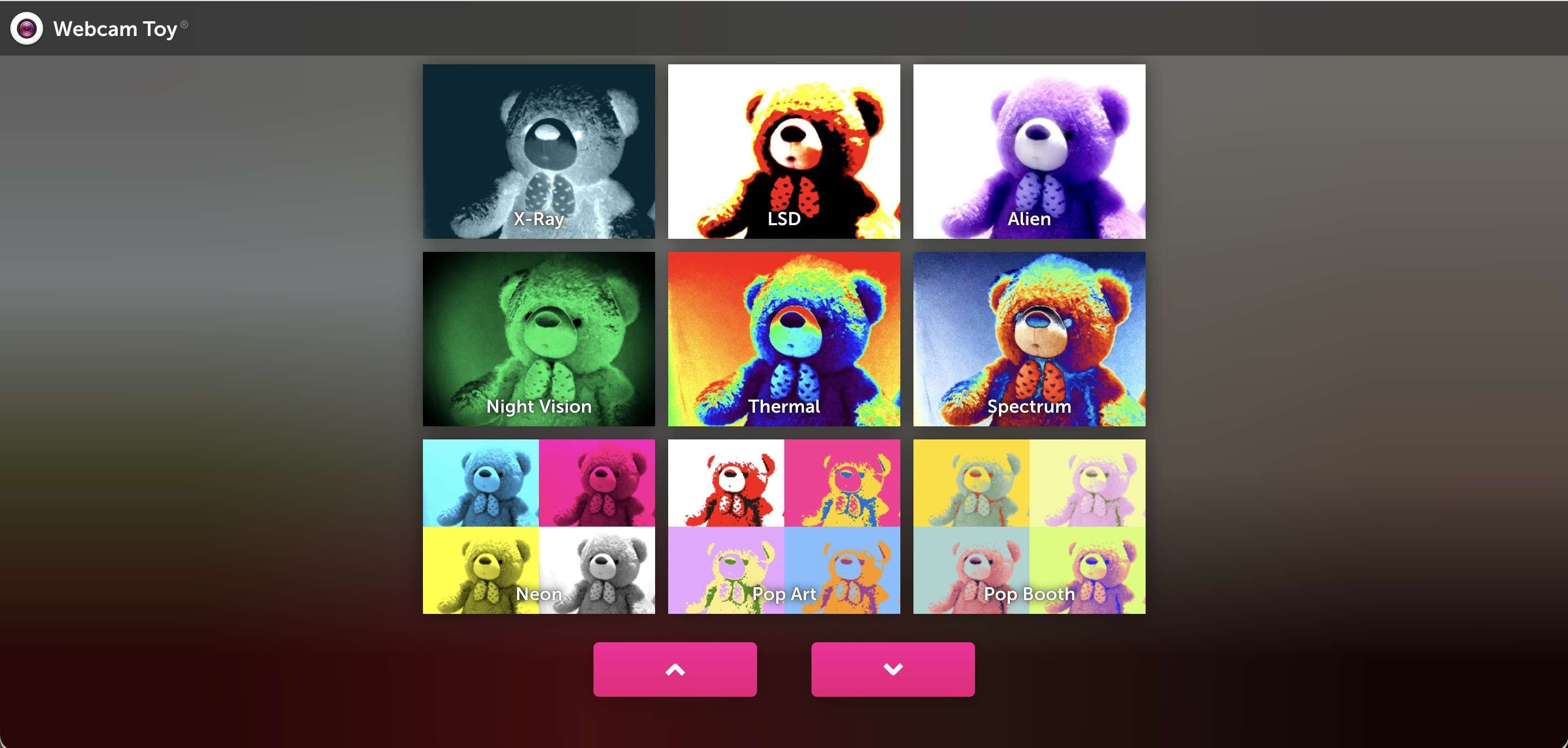
The website focuses on a few core features:
- 80+ Filters and Effects: Browse a wide variety of visual styles, including vintage, black-and-white, mirror, fisheye, cartoon, and artistic effects.
- Live Camera Preview: See the selected effect applied to your webcam feed in real time.
- Photo Capture Options: Choose between taking a single photo or four-photo mode for a photo booth-style sequence.
- Photo Saving and Sharing: Save your captured images to your computer or share them with others.
Webcam Toy filter is primarily designed for taking photos, which means you won't find advanced image adjustments or a full editing workspace. The website also notes that it doesn’t store photos online unless you choose to share them.
Part 2. Webcam Toy Features Reviewed
With over 80 effects to choose from, Webcam Toy photo camera offers plenty of ways to change the look of a webcam photo. You can turn an ordinary selfie into a fisheye portrait, experiment with mirror effects, or add a vintage touch. But how different do these effects look, and how well do the camera and photo tools work? Let's take a closer look at each feature.
Webcam Toy's 80+ Filters and Effects
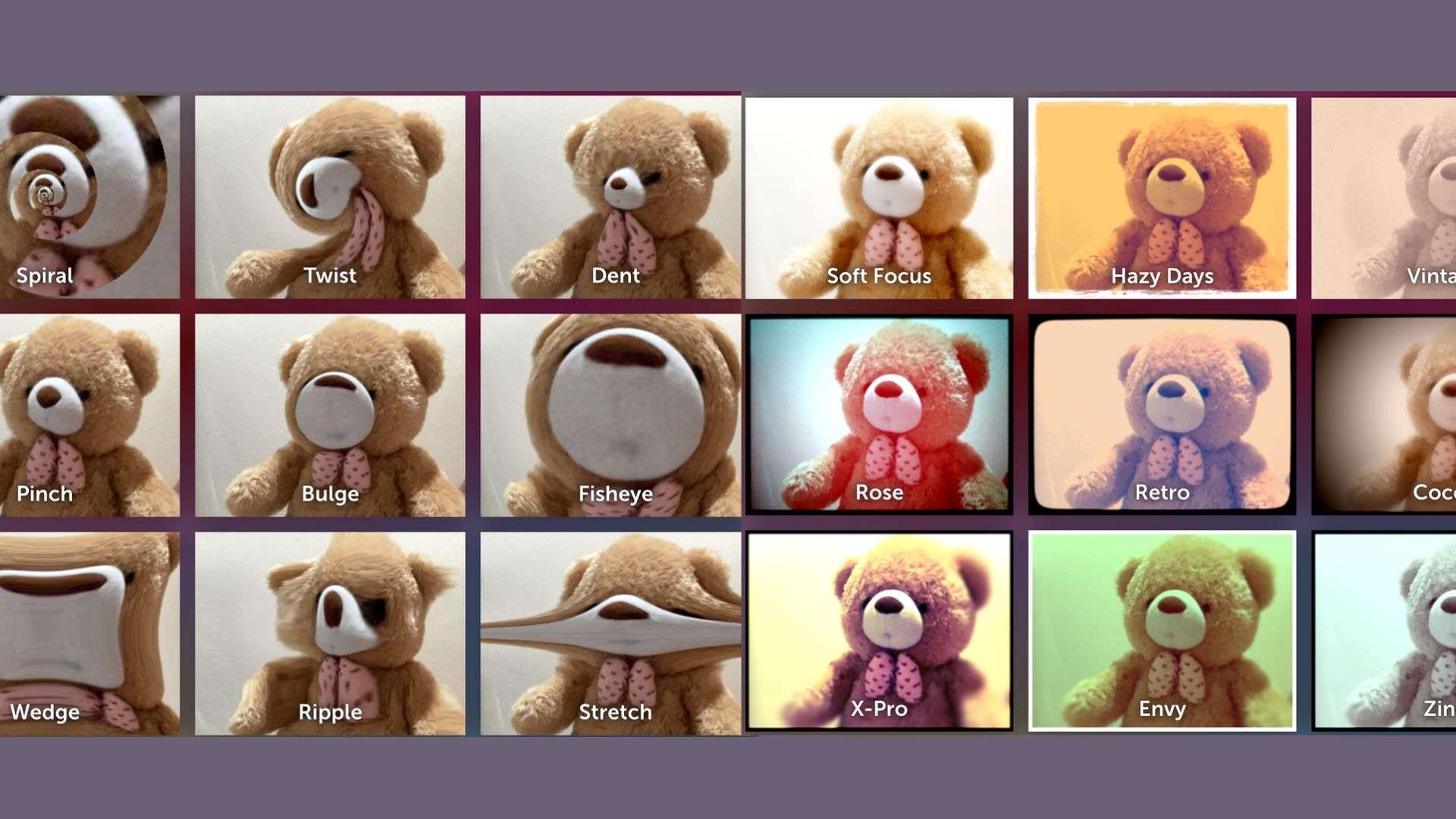
Webcam Toy has plenty of effects to try, from familiar photo styles to more unusual options. You can give your selfie an older look with Vintage or Old Movie, switch to Black & White, or change your appearance with Alien, Fisheye, Cartoon, and Kaleidoscope effects.
The effects fall into several categories:
- Vintage and Retro: Give photos an older look with different color tones.
- Mirror Effects: Reflect or repeat parts of the camera image to create symmetrical patterns.
- Distortion Effects: Stretch or reshape facial features using Fisheye, Bulge, and Twist.
- Artistic Effects: Apply illustrated or textured looks with Cartoon, Sketch, and Watercolor.
- Color and Lighting Effects: Change your image's appearance with Neon, Thermal, and Night Vision.
Webcam Toy filters offer plenty of variety for casual selfies, though some effects are more entertaining than useful for everyday photos. If you want more options after you take pictures, Wondershare Filmora has a larger library of filters and effects.
Filmora offers over 1,000 video filters and 13,000 effects. You can apply them while editing photos and video clips, giving you more ways to change their appearance after capturing the original content.
Live Camera Preview and Photo Capture
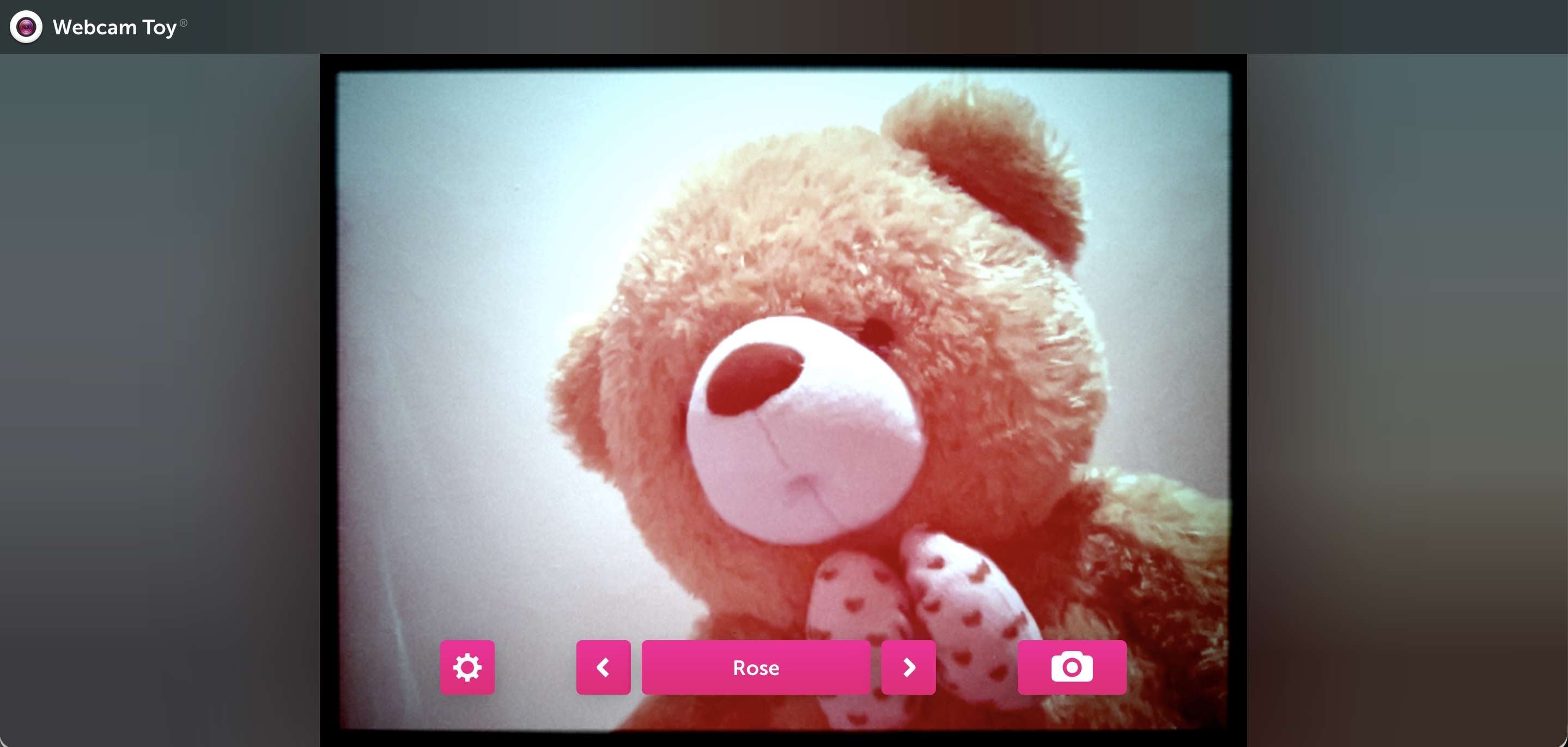
Webcam Toy displays selected effects directly in the live webcam preview, so you can see how each filter changes your appearance before you take a photo. Switch between effects and adjust your pose or framing without capturing a new photo each time.
The capture and review process includes several useful options:
- Take a Photo: Shoot a photo with your selected effect. The camera also offers a four-photo mode for a photo booth-style result.
- Save Photo: Download the captured image to your computer or save it through the available sharing option.
- Retake or Discard: Return to the camera for another shot or remove the current result if you're not happy with it.
Saving and Sharing Photos
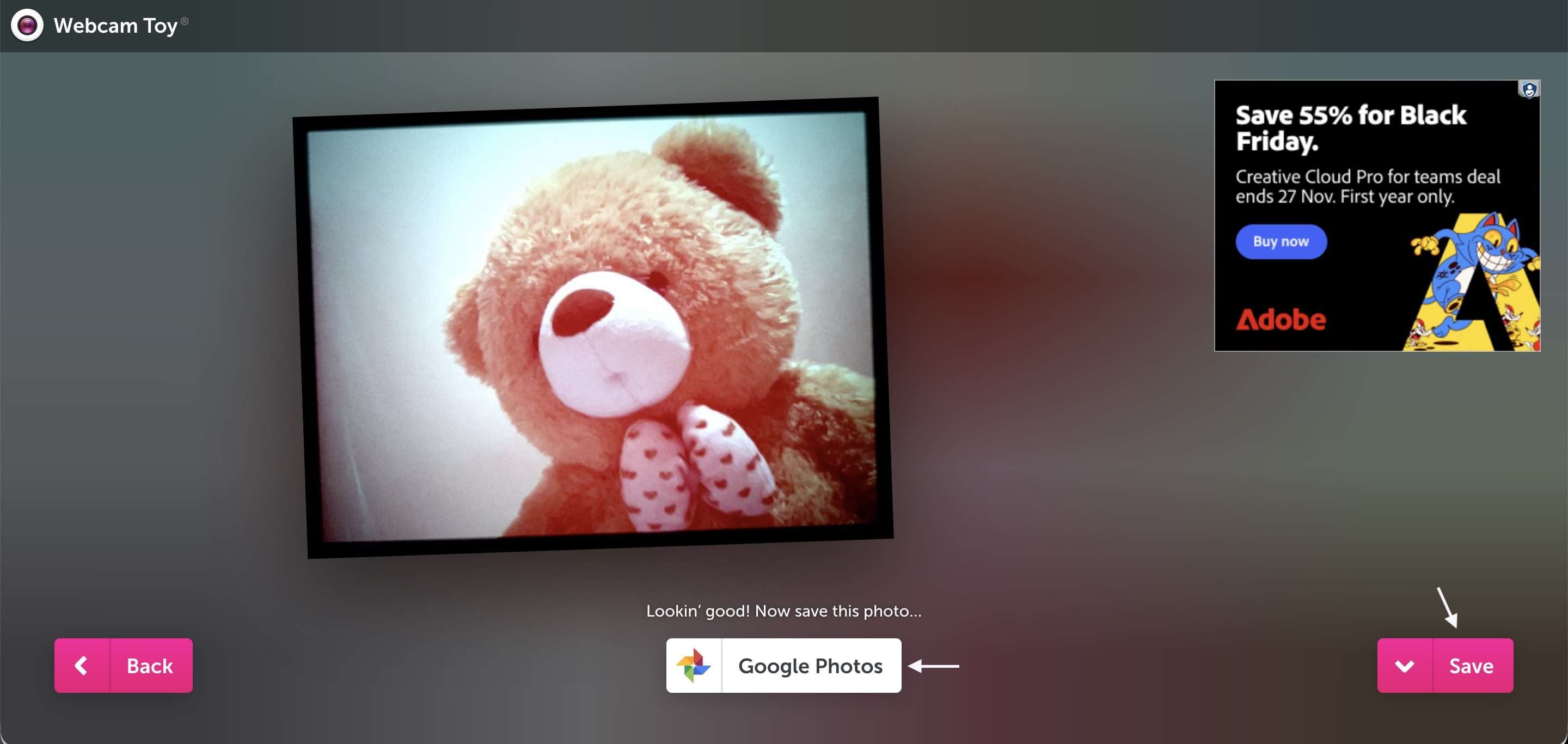
After you take a photo, Webcam Toy gives you two ways to keep it. You can download the image directly to your computer or upload it to your Google Photos library.
- Save to Computer: Download the captured photo to your device for offline access or later use.
- Google Photos: Save the image to your Google Photos library so you can access it through your account.
After downloading, check whether the selected effect appears correctly. The Google Photos option may also require you to sign in or grant access to your account.
Interface and Ease of Use
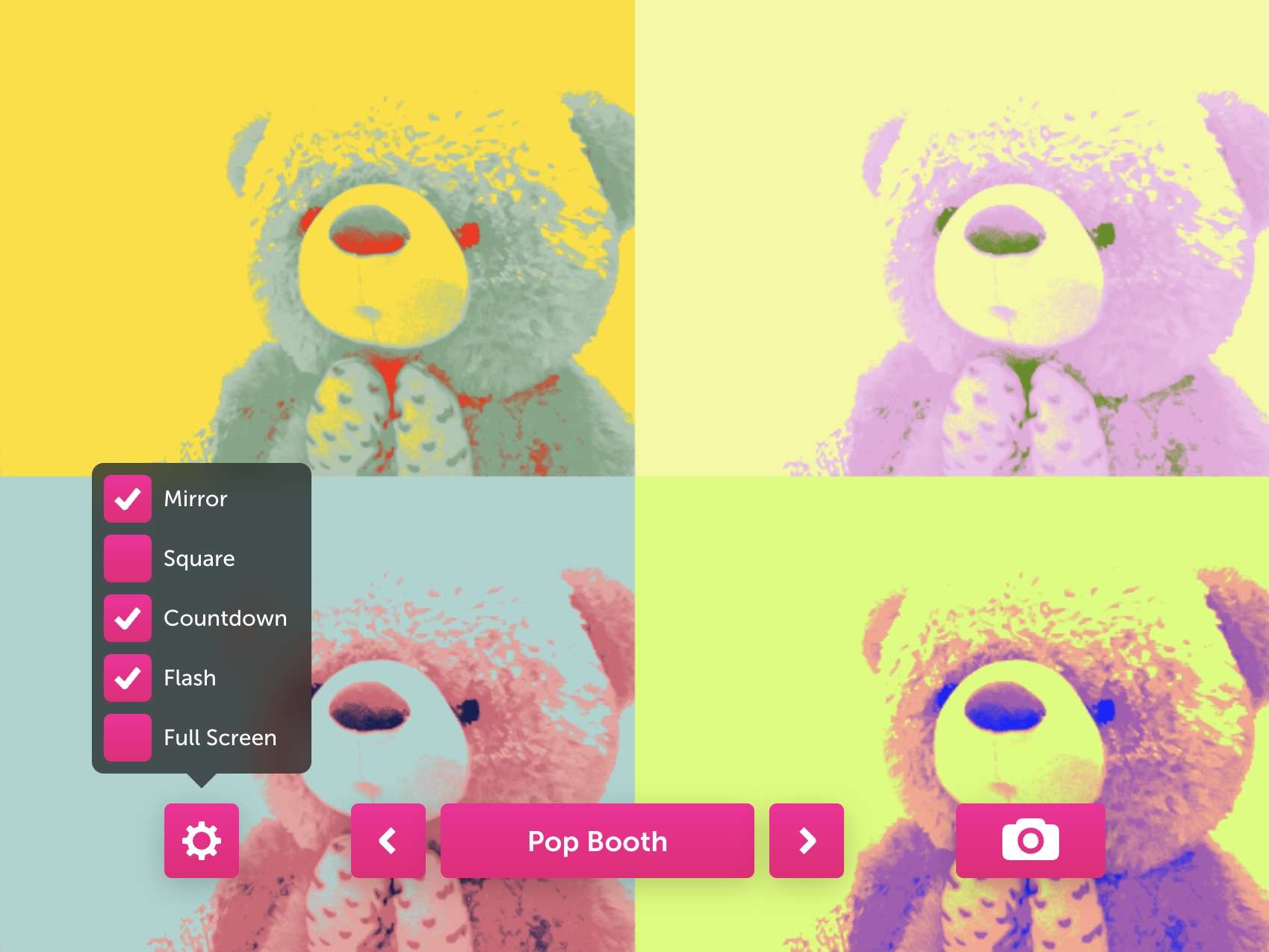
When you open the website, the camera preview is the first thing you see, with the filters and photo controls nearby. You can browse the effects, switch between them, and take a picture from the same screen. You don’t have to navigate multiple menus to find its main features.
A few parts of the interface stand out during use:
- Effect Navigation: The filters are accessible from the main camera interface, making it easy to browse the collection and switch between different effects.
- Camera Permissions: When you open the website for the first time, your browser asks for permission to access the webcam. Once granted, the camera feed appears on screen. If it doesn't, check your browser's site permissions or close another application using the camera.
- Capture Controls: The Take a photo button is easy to access from the camera interface. After capturing a photo, the app lets you save, retake, or discard it.
- Browser Compatibility: Webcam Toy runs through a web browser, so there's no separate desktop installation. However, camera access and preview performance may vary depending on the browser, device, and webcam being used.
Part 3. Is Webcam Toy Free?
All 80+ Webcam Toy filters are free, with both photo capture options: single shots and the four-photo mode. No subscription fees, paid feature upgrades, or premium effects require additional purchases.
Getting started is also simple. Open WebcamToy.com in your browser, allow camera access, and you can start taking photos. You don’t need to register an account to use it. Since Webcam Toy runs entirely online, you don't need a Webcam Toy APK for Android or a separate desktop download for your PC or laptop, either. Avoid downloading APK files from third-party websites, as you can use the official Webcam Toy service directly in your browser.
Part 4. How to Use Webcam Toy on Different Devices
You can use Webcam Toy online through a browser on your computer or phone. The setup and screen layout may differ slightly between desktop and mobile devices.
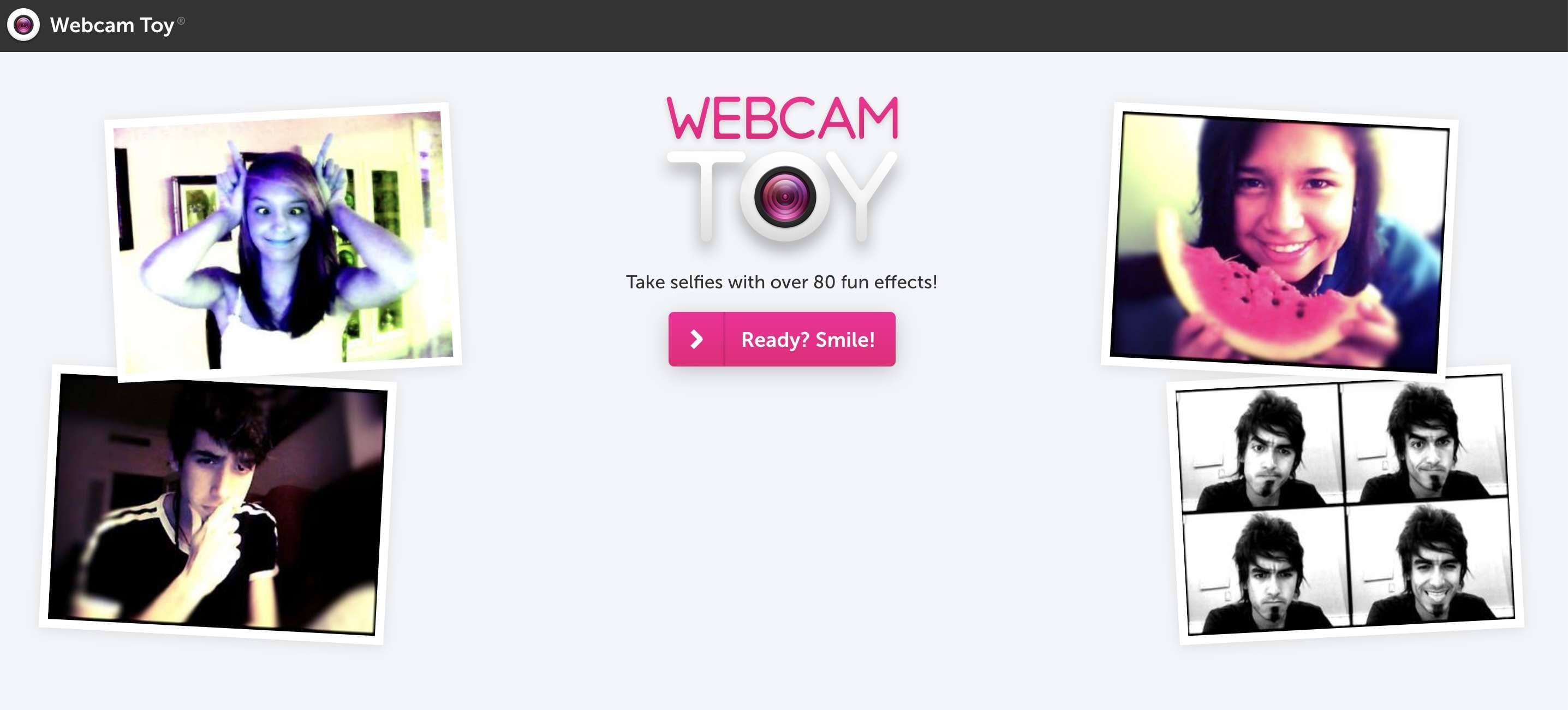
How to Use Webcam Toy on PC or Laptop
If you're using a laptop or PC, follow these steps to take photos through your browser:
- Open WebcamToy.com in Google Chrome or another supported desktop browser.
- Click Ready? Smile! and allow the browser to access your webcam.
- Browse the available filters and select a Webcam Toy effect to see it on your live camera preview.
- Click Take a photo to capture an image. You can also use the four-photo mode to create a photo booth-style sequence.
- Select the save option to download your picture to your computer.
If your camera isn't detected, check your browser's camera permissions and close other applications that may be using it. You can use Webcam Toy on Google Chrome directly without installing a separate extension.
How to Use Webcam Toy on Android and iPhone
For Webcam Toy Android access, open the website in Chrome. iPhone users can try it through Safari. The mobile interface may look different from the desktop version, and compatibility can vary by device and browser.
- Open Chrome on your Android phone or Safari on your iPhone.
- Visit WebcamToy.com and allow camera access when requested.
- Browse the available filters and select one for your selfie.
- Tap the photo capture button to take a picture.
- Use the available save option to keep the image on your phone.
Part 5. Webcam Toy Strengths & Limitations Reviewed
Webcam Toy is fun for quick selfies, especially if you like experimenting with different filters before taking a picture. Its effects add variety to casual photos, and the browser-based setup makes it easy to get started. However, the experience is mostly limited to taking and saving photos. You'll need other tools for more detailed edits or video projects.
- 80+ free filters and effects, including vintage styles, mirror effects, cartoon looks, and other visual distortions.
- Live camera preview so you can see how each effect looks before taking a picture.
- No installation required, as you can access the camera directly through a browser.
- Simple photo capture and saving with options to retake pictures, download them, or save them to Google Photos.
- No video recording for users who want to capture webcam footage.
- Limited photo editing with no advanced options for retouching, cropping, or fine-tuning image details.
- No full editing workspace to combine photos, video clips, text, and audio into a finished project.
- Website ads may interrupt your browsing experience as you explore filters and take photos.
Bonus: Editing Webcam Toy Photos and Videos Further with Filmora
A funny selfie with a fisheye effect or a set of four photo booth shots can be fun to share as-is. But you might want to do a little more with them, such as adding captions, combining several pictures, or turning webcam footage into a short video.
Since Webcam Toy focuses on photo capture, you'll need another tool to make these kinds of edits. Wondershare Filmora offers more editing options for the photos and videos you've saved.
After saving your Webcam Toy photos to your computer, you can import them into Filmora and explore features such as:
- Filters and Effects: Browse different visual styles with Filmora's collection of filters, overlays, and effects. Use them to give selfies a new look or create a consistent style across your video.
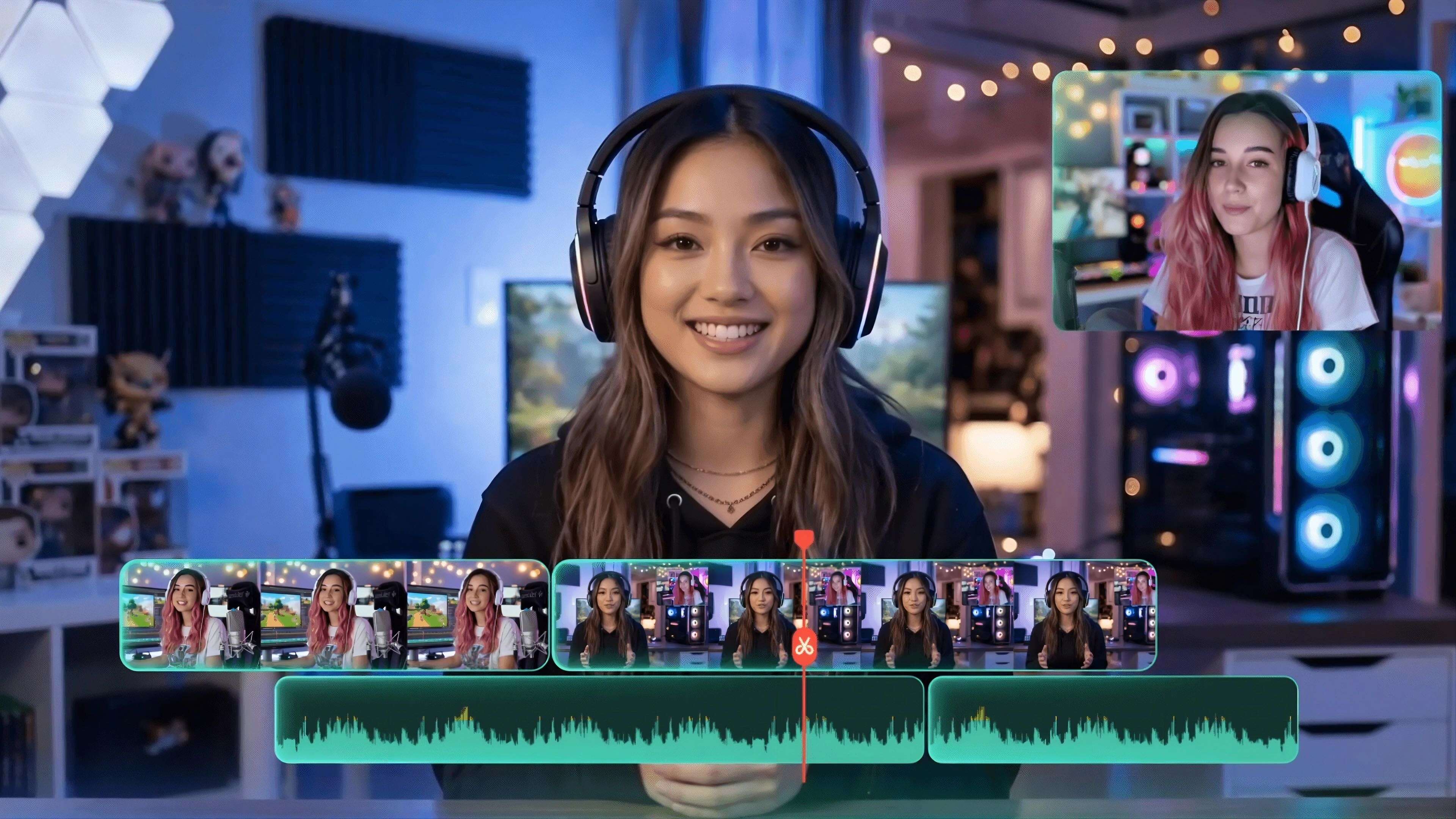
- Video Editing: Arrange photos and clips on a multitrack timeline, add transitions, insert titles and text, and include background music.
- AI Tools: Use features such as AI Image and Text-to-Video to generate visual content, or AI Auto Captions to create subtitles for your videos.
For example, you can turn your Webcam Toy selfies into a short photo montage or combine webcam recordings into a video with titles, transitions, and music.
 Secure Download
Conclusion
If you enjoy experimenting with webcam effects or want to take fun selfies without installing extra software, Webcam Toy is worth a try. Its 80+ free filters give you plenty of looks to play with, and the live preview makes it easy to find an effect you like before snapping your photo. It's best suited to casual selfies and photo booth-style shots. Its main limitation is that it focuses on capturing photos rather than editing them. You can't record webcam videos or make detailed adjustments to your pictures after capture. If you want to do more with your saved photos or footage, Wondershare Filmora offers additional editing tools to explore.
FAQs
-
What is Webcam Toy used for?
Webcam Toy is a browser-based photo booth for taking selfies with fun filters and effects. You can capture pictures directly through your webcam without installing extra software. -
Is Webcam Toy free to use online?
Yes. All its available filters are free, with no subscription or account required. Just visit WebcamToy.com and allow camera access to get started. -
How many filters does Webcam Toy have?
Webcam Toy offers over 80 effects, including Vintage, Black & White, Fisheye, Cartoon, and Kaleidoscope. -
Does Webcam Toy have an APK or a mobile app?
There’s no Webcam Toy app available for download. You can access Webcam Toy through a mobile browser on your phone, as long as your browser and device support its camera features.