

 TL;DR:
To create realistic, emotionally resonant AI videos from images in 2026, you must utilize physics-aware models like Sora 2 or Veo 3.1 alongside native audio synchronization and precise text-to-speech punctuation.
● Adobe Firefly provides copyright-cleared generation for enterprise users but frequently blocks outputs based on real people, while Kling 3.0 focuses on 15-second cinematic sequences by allowing up to seven reference images for exact character locking.
● Wondershare Filmora integrates these advanced models directly into a traditional editing timeline for manual refinement of micro-expressions, though accessing these AI tools requires consuming system credits.
● To prevent facial melting and a disconnected viewer experience, always upload high-resolution source images to avoid muddy textures and build a layered audio foundation of ambience, foley, and music to ground the generated physics.
Ask AI for a summary
 ChatGPT
 Perplexity
 Gemini
 Claude
 Grok
Grok
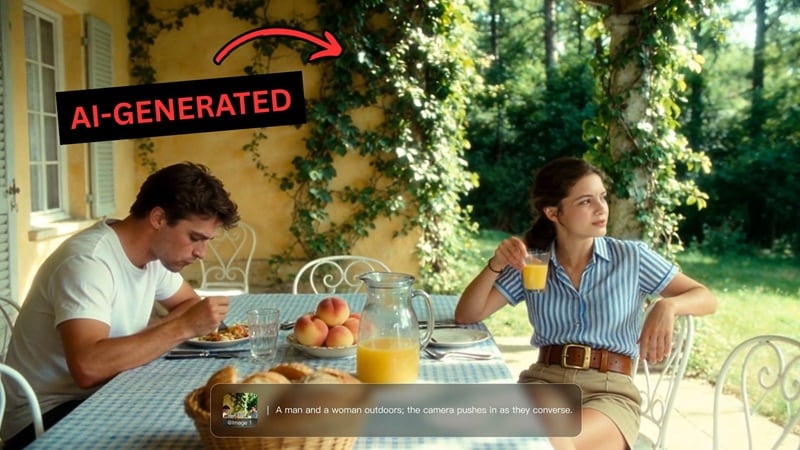
AI video generation has evolved from glitchy experiments into hyper-realistic cinema. In 2026, the demand for AI image to video with audio and emotions has skyrocketed as creators seek to add "soul" to digital content. Whether you're using Sora 2 or Veo 3.1, learning how to animate images with AI while maintaining facial expressions and synchronized sound is the new industry standard.
Part 1. What Makes an AI Video "Emotional"?
Before we dive into the "how," let's define what makes a video feel emotional.
AI videos are basically math-based renders, so of course, they tend to look stiff. However, with how far technology has come, especially features like native audio-to-video synchronization, creating AI video content that feels emotional is no longer impossible.
In the context of AI video, building a "soul" comes down to syncing a few key elements:
- Facial Micro-Expressions: The most convincing emotional AI videos nail the small stuff. A slight eyebrow raise, a twitch at the corner of the mouth, the way eyes crinkle when someone smiles are micro-expressions that happen in milliseconds in real life. When these tiny movements are present, your brain naturally reads the face as alive.
- Audio-Visual Sync (Tone Matching): Emotion isn't just visual. It's the combination of what you see and what you hear. If the video has a matching vocal tone, pacing, and inflection to the facial animation, it creates emotional alignment that feels natural and convincing.
- Physical Weight and Presence: A "soulful" video should respect the laws of physics, which is something that AI tools have historically struggled with. But most AI models are now built with physics-aware engines so that your character doesn't just float through the scene but feels anchored in it.
- A Clear Narrative with a Story: Your video should have a story that pulls the viewer in from the first frame. It could be a moment, a reaction, or an emotion in motion, so that by the time the clip ends, they feel like they witnessed something real.
Why Does It Matter?
Having a strong emotional foundation will make your AI videos feel more believable and harder to dismiss as "just AI." When your AI video carries genuine emotional weight, viewers usually stay longer and engage deeper.
Part 2. 6 Best AI Image to Video Tools with Audio and Emotions (2026 Reviews)
One thing that can greatly affect how realistic your AI videos are is the tool you choose to create an AI Image to Video with audio and emotions. Check out the table below for a quick comparison before we explore each tool in more detail.
Top AI Image-to-Video Tools Comparison (2026)
| Tool | Best Features | Pricing | Applicable Scenarios |
| Filmora | All-in-one timeline editing, including AI Image-to-Video, Text-to-Video, AI Extend, and native sound design tools | Free version available; Includes subscription and perpetual license; Uses AI Credits. | Social media managers and YouTubers needing a platform to generate and edit. |
| HeyGen | Lip-sync, AI Avatars, and language localization | Free (3 mins/mo); Creator $29/mo; Pro $99/mo | Corporate training, personalized sales outreach, and "faceless" brand ambassadors. |
| Zoice | Unified dashboard for images, voices, and avatars | Free version available. Starter $7.99/mo; Creator $49.99/mo; Agency $89.99/mo | Small businesses or creators needing quick marketing clips. |
| Kling 3.0 | Multi-shot scene sequencing, "Element Locking" for consistency, and native audio | Standard $6.99/mo; Pro $25.99/mo | Filmmakers and advanced marketers creating high-fidelity, story-driven sequences. |
| Adobe Firefly | Commercially safe (licensed data), "Generative Extend," and Adobe apps integration | Standard $9.99/mo | Enterprise teams and professional designers requiring copyright-cleared assets. |
| Artlist | Unified credit system for multiple AI models, and massive library of 8K stock, music, and SFX | AI Suite from $11.99/mo (annual); Max Plan (Full Stock) $39.99/mo. | YouTubers and production houses who want a single hub for visuals, audio, and music. |
|
Show More
Show Less
|
|||
Some tools excel at cinematic world-building, while others are great at capturing the nuances of human speech and expression. We have reviewed the top platforms currently leading the industry in transforming your static image into lifelike videos.
1. Wondershare Filmora – The All-in-One Creative Hub
Best for: Creators and social media managers who want to generate, edit, and polish emotional AI videos in a single workflow.
 Secure Download
Wondershare Filmora stands out as the premier AI image to video generator for creators who prioritize emotional depth. By leveraging the latest Veo 3.1 and Sora 2 models, Filmora allows users to transform static portraits into expressive AI videos with flawless audio-visual sync. Unlike standalone generators, it provides a full timeline to refine micro-expressions and background foley.
Since the AI is integrated natively, you don't have to stick with just the first result the model gives you. You can still refine the output and make manual adjustments to perfect it in an editing timeline.
- Multi-Model Choice: Switch between specialized AI engines like Sora 2 and Veo 3.1 on the same workspace.
- AI Video Extend: Uses generative AI to create additional frames and extend a clip by a few seconds.
- Text to Speech: Turn scripts into natural-sounding voiceovers with multiple languages, accents, and voice styles.
- Voice Cloning: Generate a custom AI voice based on your own voice.
- Pro Editing Tools: Full timeline editing with transitions, effects, color grading tools, keyframes, templates, and more.
- Lets you generate and edit videos in one place.
- Works on both desktop and mobile devices with cloud syncing.
- Large library of effects, music, and templates.
- Includes AI Image generator, powered by Nano Banana Pro, that can be used as a base for image-to-video generation.
- Accessing the AI features require AI Credits.
Free version is available. Paid options include subscription plans and a perpetual license available on the official website.
2. HeyGen – Turn Scripts into Talking AI Avatars
Best for: Corporate training, "faceless" social media accounts, and personalized sales outreach.
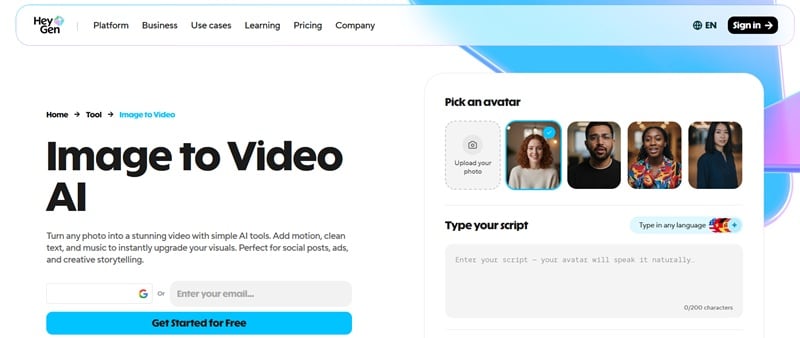
HeyGen is the gold standard for corporate presentations and "faceless" social media accounts. It transforms static portraits, whether they are professional headshots, historical photos, or AI-generated characters, into digital spokespeople that look and sound real in minutes.
- Integrated Video Generator: Incorporates B-roll and backgrounds from models like Sora 2 and Veo 3.1 to create ultra-realistic environments for your avatars.
- Multi Language Support: Localize your content into different languages and dialects with automatic lip-syncing that adjusts the avatar's mouth movements.
- AI Studio: A web-based editor that allows you to direct your avatar, swap backgrounds, and add text overlays or transitions without external editing software.
- Auto Caption: Instantly generates perfectly timed, customizable subtitles for your videos to boost accessibility and engagement.
- Edit and choose layouts in AI Studio where you can overlay your avatar with other media.
- Eliminates the need for expensive filming, 3D rigging, or hiring professional actors.
- Access to 700+ stock avatars and over 1,000+ AI voices to fit any brand personality.
- On the free plan, Image-to-Video generations are limited to 3 mins per clip.
- Advanced features like 4K export and Avatar IV models require Premium plans.
- Some AI voices can still sound slightly robotic.
- The free version adds a watermark to exported content.
Free plan is available. Subscription plans start from $29 - $99/mo.
3. Zoice – One Tool for AI Video, Voice, and Avatars
Best for: Small businesses, marketers, and solo creators who want an all-in-one AI content platform without a big budget.
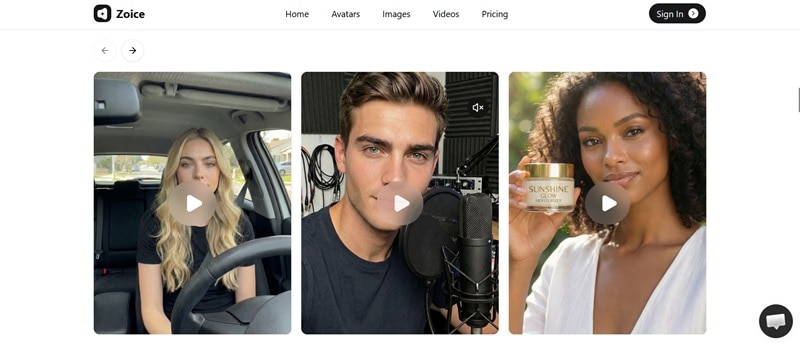
Zoice is an AI-powered content creation platform that integrates multiple generation tools in one interface, covering AI Video, AI Images, Custom Avatar Creation, and Voice Generation. It's designed for people who need professional results but don't have the time to master complex software.
- AI Videos: Generate short videos from prompts or scripts using built-in AI video models.
- Avatar Videos: Create talking avatar videos for presentations, marketing content, or social media.
- Transcribe Files: Automatically convert audio or video files into editable text for subtitles, scripts, or repurposed content.
- Supports exports of up to 4K resolution.
- Lets you design your own avatar from a prompt or choose from an existing library.
- Smooth switching between tools helps maintain a consistent workflow.
- While you get 50 credits daily for free, video generation usually requires more than that.
- Limited manual editing compared to full video editors.
- Access to the AI video generator and AI avatar features requires a paid plan.
Free plan is available. Subscription plans start from $7.99 - $89.99/mo
4. Kling 3.0 – Multi-Shot AI Videos with Built-In Audio
Best for: Content creators, marketers, and filmmakers who want cinematic, multi-shot video sequences with native audio generated.
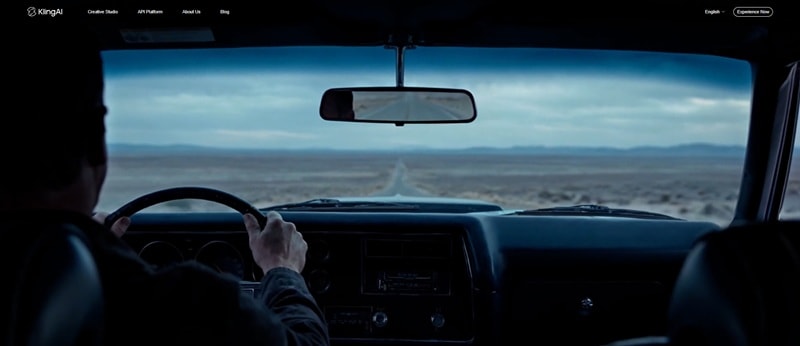
If you are someone who's been frustrated by AI tools that generate beautiful but disconnected visuals, Kling 3.0 fixes that for you. Kling 3.0 is a cinematic powerhouse built on an upgraded architecture that integrates deep multimodal instruction parsing with native audio-visual synchronization.
With VIDEO 3.0 Omni, you can create up to 15-second multi-shot videos and even guide camera movements in one generation. Kling 3.0 also introduces an All-in-One Reference system that keeps characters consistent using short video clips or images, plus improved lip-sync that works with different accents.
- Multi-Shot Scene Sequencing: Direct full cinematic sequences with consistent characters across multiple camera cuts.
- Kling 3.0 Omni (Element Locking): Upload up to 7 reference images (people or objects) to ensure they stay exactly the same throughout your video.
- Advanced Motion Control: Precise "brushes" that let you tell the AI exactly where and how much an object should move.
- Excellent at producing highly realistic, photographic-style footage
- Best-in-class for scene structure and character continuity across shots
- High-quality generations can consume credits fast
- Less effective for visuals that lean toward illustration styles
Starts from $6.99/month (with monthly 660 credits allowance).
5. Adobe Firefly – Professional Designer's Choice
Best for: Designers, marketers, and video creators already inside the Adobe ecosystem who want commercially safe AI video generation.
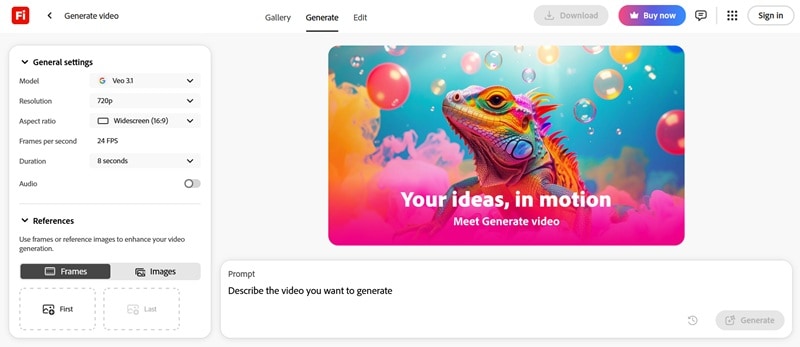
Adobe's goal with Firefly is to give you one place where you can choose the right industry-leading model to generate assets for your project, then get exactly what you want by editing those assets with the creative tools Firefly offers.
Adobe has also trained the Firefly video model on a dataset of licensed video content, so you don't have to worry about copyright issues.
- Generative Extend: Lengthen existing footage by a few seconds to fix awkward timing or cover a gap in the edit.
- Quick Cut: An AI assistant that takes your raw footage and automatically assembles a "first draft" based on your description.
- Firefly Boards: A collaborative space where teams can brainstorm and generate video concepts together.
- Camera Motion Reference Control: Upload a start frame and a reference video to recreate a specific camera movement in your generated clip.
- The safest choice for big brands and corporate clients.
- Integrates with models like Veo 3.1, Runway Gen-4.5, Sora 2, Pika 2.2, and more.
- Good at handling the "unpredictable" stuff, like animal movements or particle effects.
- Sometimes leans toward a perfect digital look that lacks gritty realism.
- Strict content safeguards, which often refuses to generate videos from images featuring a person.
Starts from $9.99/mo (with monthly 2,000 credits allowance).
6. Artlist – AI Video, Music, and Assets in One Platform
Best for: YouTubers, filmmakers, and content teams who want AI video generation and a massive library of royalty-free music, SFX, and stock footage.
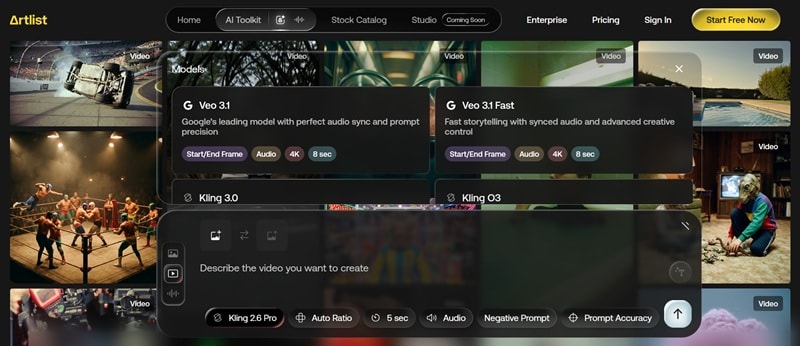
Artlist has evolved from a stock site into an AI hub for creators who are tired of switching between different tools. Instead of having one subscription for music and another for AI video, the Artlist Max plan brings everything under one roof.
With its AI Toolkit, you can generate cinematic B-roll, realistic voiceovers, and high-quality images that you can instantly pair with their world-class library of music and SFX.
- Multi-Model Integration: Access industry-leading third-party models like Kling 3.0, Sora 2, Grok Imagine, Veo 3.1, and more within the same dashboard, using a unified credit system.
- AI Voiceover: Generate natural narration in 70+ languages using models like ElevenLabs,
- Stock & Templates Library: Complete your AI scenes with over 900,000 professional assets, including 8K footage, LUTs, music, and templates.
- Can generate videos in resolutions up to 4K.
- Offers dedicated negative prompt options to help avoid unwanted elements.
- Offers prompt accuracy controls to guide how the AI follows your instructions.
- Covers your entire production workflow (visuals, audio, and music).
- Monthly AI credits expire if you don't use them.
- High-end models consume credits much faster than standard models.
Pricing: Artlist offers two main plans: AI Suite and Stock Catalogue.
- AI Suite focuses on AI creation tools only, starting at $19.99/month (or $11.99/month, billed annually).
- Stock Catalogue plan also includes access to Artlist's music, sound effects, and stock footage library, starting at $39.99 per month, billed annually (Max Plan).
Part 3. Step-by-Step Guide: How to Animate Images with AI
Next, we'll show you how to put these AI Image-to-Video tools into practice. Since Filmora offers the most balance between AI power and manual creative control, it is our top recommendation for creators who want to refine their videos after they are generated.
Secure DownloadHence, the tutorial below will focus on using Filmora's AI Image to Video. Other platforms may have different user interfaces or layouts, but the core principles should be pretty much similar.
How to Create AI Image to Video with Audio and Emotions
To get started, make sure you have installed Filmora to the latest version to ensure you have access to the feature. Then, follow the steps below.
Open the Filmora home screen and locate the "Image to Video" feature.
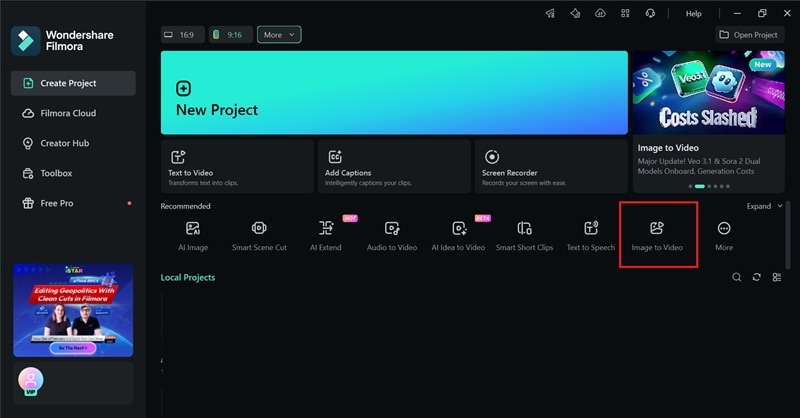
Once inside, upload the photo you wish to animate, type in your prompt, and adjust these settings:
- Set the model to Veo 3.1 or Sora 2 for high quality.
- Set your preferred Resolution and Clip Duration.
- Accept the AIGC terms to remove the AI watermark.
Click Generate to begin the rendering process.
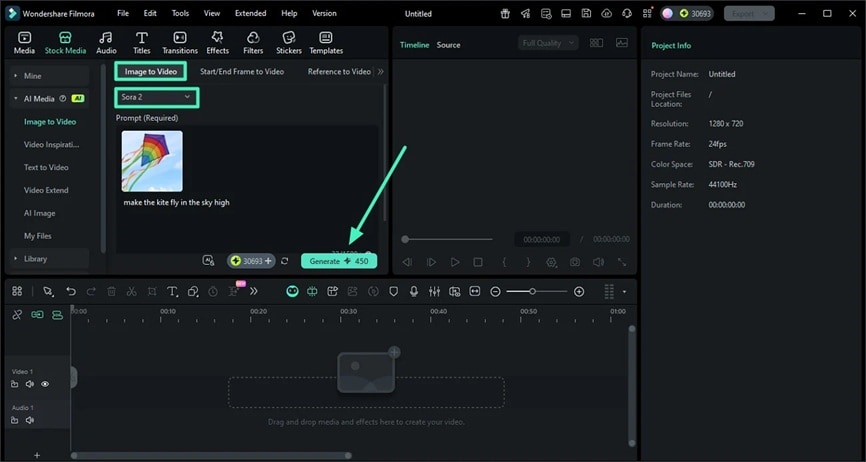
After the AI has finished creating your video, you can find the completed file under the "My Files" section. Drag the clip onto your editing timeline to review the motion and sound.
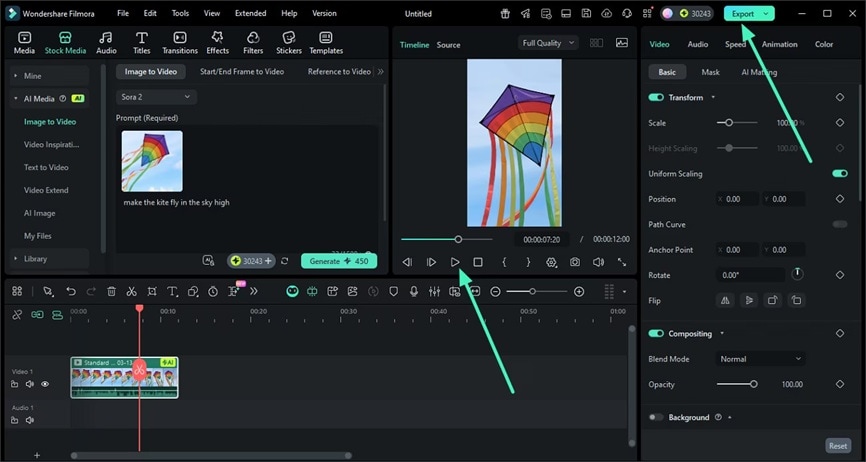
If you are satisfied with the emotional depth and realism, click the Export button to save the final clip to your device.
Part 4. Pro Tips for High-Quality AI Video Generation
If the results you're getting are not meeting your expectations, you may not yet know how to direct the AI properly. The tool is only as good as the person using it. Making a video that shows emotion and authentic movement requires a strategic approach to "prompting."
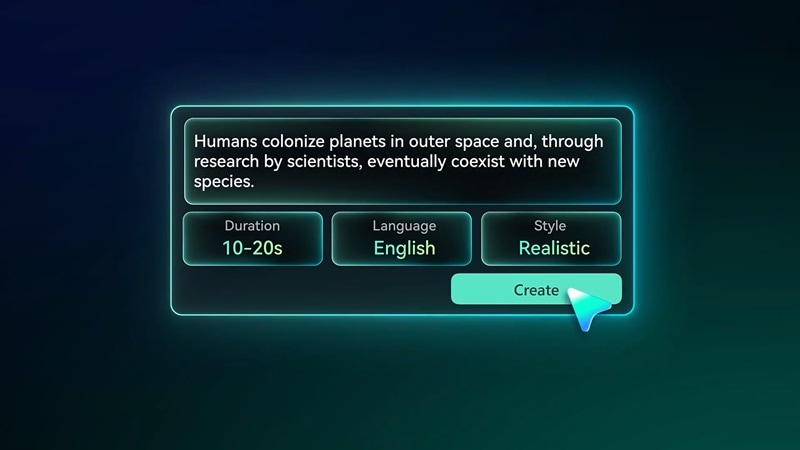
There are a few key techniques that can dramatically improve your output. Once you know them, you'll never go back to basic prompting again.
1. Be Specific With Your Emotions in the Prompt
Vague prompts get vague results. Don't write something like "a woman talking." Change it to "a woman speaking softly with a warm smile, eyes slightly crinkled, nodding gently as she finishes her sentence."
2. Use Punctuation to Direct Your AI Voice
If you're using a text-to-speech tool, your punctuation is your direction tool. Commas create natural micro-pauses. Ellipses add hesitation. Em dashes (—) create a beat before something lands. A question mark doesn't just signal a question, it lifts the tone of the voice.
3. Incorporate Environmental Physics
To make a scene feel grounded, describe how the subject interacts with their surroundings. If your character is outside, mention the "soft wind catching their clothes" or "dappled sunlight shifting across their face." These physical interactions are key to making your video look natural.
4. Make Use of Reference Images and Style Clips
Most AI tools now provide a visual anchor, especially through their Image-to-Video feature. So, make use of this tool by uploading a reference image for the AI to build from. Interpreting a text description could go a hundred different directions. A visual reference will get you closer to your intended result.
Part 5. Common Mistakes to Avoid When Generating AI Videos
Even with the best tools, your AI videos can still suck if you still make these common mistakes.
1. Using Low-Resolution Source Images
Always start with a high-resolution file. AI is a "garbage in, garbage out" system. If you upload a blurry or pixelated photo, the AI has to "guess" at the facial details, which usually results in muddy textures.
2. Ignoring the 60% Rule
Audio accounts for more than half of the video's experience. If a viewer sees a rainy street but doesn't hear rain, the brain immediately flags it as fake. To fix this, build a triple-layer audio foundation:
- Start with ambience (background atmosphere).
- Add foley (real-world sound effects like footsteps to ground the scene in reality).
- Finish with a musical score to drive the emotional tone.
3. Overlooking Visual Inconsistency
Clips from different prompts often look like they were shot on different cameras. Use Color Grading in post-production to unify colors. You can also add a subtle layer of Film Grain across all clips to help mask the "plastic" AI look and bind the scenes together.
Conclusion
Videos we've seen circulating on social media are getting harder to tell which were shot on a camera and which were generated by an AI. The secret behind these convincing, emotional results has been covered throughout this article, from crafting proper prompts to choosing the right tool for your workflow.
If you're just getting started, Filmora is a great place to land. Its native AI Image-to-Video feature, paired with a full editing timeline, means you can actively shape the final result after the generation. All that's left is for you to try it!

FAQ
-
Can I use these AI videos for commercial ads or my business?
It depends on the tool. Adobe Firefly is the safest for commercial use because it's trained on licensed content. For others like Kling 3.0 or Filmora, you usually need a paid subscription to own the commercial rights.
-
How do I fix "melting" or distorted faces in the middle of a clip?
The tool you are choosing matters a lot in how it handles movement. If you're seeing faces warp or "melt," try simplifying your prompt or lowering the clip duration first.
If that's not working, it's better to change to a tool that allows uploading references, like Kling 3.0 or Filmora. These platforms let you use an "Image Reference" or "Element Locking" feature so that the AI has a visual anchor to follow.
-
Do I need a powerful computer to generate AI videos?
No. Many of the AI Image to Video generator tools are cloud-based, meaning their servers do the heavy lifting. You just need a stable internet connection. Even desktop software like Filmora is designed to be accessible, so you don't need a high-end PC to take full advantage of its AI video features.
