

 100% Security Verified | No Subscription Required | No Malware


 ChatGPT
 Perplexity
 Gemini
 Claude
 Grok
Grok
While Google DeepMind's powerful Veo 3 AI is often desktop-focused, millions of creators are searching for a way to use Veo 3 on iPhone and Android. The good news is, you can! This guide details exactly how to use Veo 3 on your phone using the built-in AI features of Filmora Mobile.
In this article
Part 1. What is Veo 3 AI and Why It's a Game-Changer for Video Editing
Creating a video just from a text is not something we can only dream of anymore. With AI technology, it's already become our reality, one that reshapes how we create content online.
But Google DeepMind's Veo 3 is not like your regular AI generator. It's a major step forward from the previous model, Veo 2, which is powered by stronger training data and an improved generative architecture.
Veo 3 focuses on three main upgrades:
- Enhanced realism with sharper visuals and smoother, more natural motion.
- Stronger prompt response, capable of 4K rendering, realistic physics, and built-in audio.
- New tools that give users more consistency and flexibility in their projects.
Compared to other AI text-to-video generators, few models reach the same quality as Veo 3. Some of them even lack features like built-in audio support.
Part 2. Filmora Mobile: The Best App to Use Veo 3 AI on Your Phone
Google's Veo 3 runs online through Gemini in a web browser. However, you can also use Veo 3 on your phone using a dedicated video editing app like Filmora for Mobile.
Filmora is integrated with the Veo 3 model for its AI text-to-video generator. You are not limited to only generating videos from a prompt, but it also gives you several advantages, such as:
 secure download

- Generate, edit, and share your video in one place. You can manage your entire project without switching tools every time.
- Personalize your input to ensure the result matches your vision. Add characters, including their voice line, background music, style, and motion with dedicated options, instead of placing everything in a single prompt.
- Save time with templates. Choose from sample clips and apply their style to create similar results quickly.
Filmora is available for download on both iOS and Android. Its Veo 3 text-to-video generator is only one of many AI-powered tools in the app. You can also find plenty of AI tools in there that can help speed up your content creation.
Part 3: Step-by-Step Guide: How to Generate Veo 3 Videos on iOS & Android
The steps for using Veo 3 on iPhone and Android in Filmora are pretty much the same. You can follow the same method on both devices.
secure download
Method 1: Generating Veo 3 Videos on Your Phone Using Filmora (Custom Prompt)
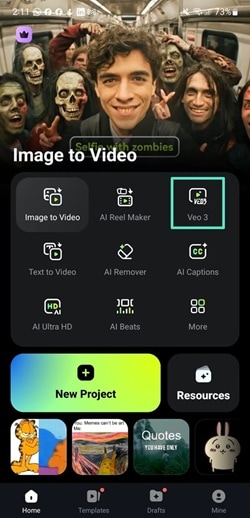
Step 1: Open the Veo 3 Tool
Launch the Filmora app on your phone and tap the Veo 3 option from the main screen.
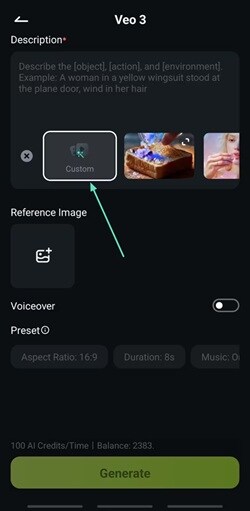
Step 2: Start a Custom Project With a Reference Image
On the next page, select Custom and go to the Reference Image section. From here, upload a photo from your device that you'd like to use.
Step 3: Enter Your Prompt
Type your prompt into the text box. It's recommended to include the object/subject description, action, and the environment. Then, you will also get to customize different aspects of the video.
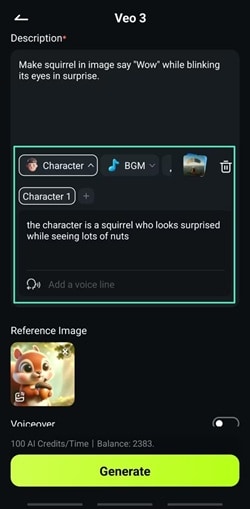
- Characters: Select the Character setting to describe the character in your image. You can even add multiple characters for the same video and input the voice line of the character for voiceover.
- Background Music (BGM): Switch on the BGM option and enter the music style you prefer in the box provided. You can also pick from the app's built-in presets.
- Video Style: Choose a visual style you are after from the available templates. Some options include Cyberpunk, ink wash painting style, cartoon animation, and more.
- Motion: Describe the type of camera movement you'd like or choose from available presets, such as a slow pan, push-in, handheld shot, or aerial wide shot.
With everything set, tap Generate to start creating your video based on your input.
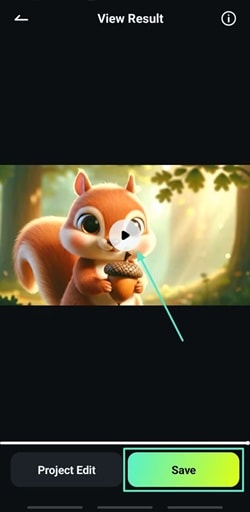
Step 4. Preview and Save Your Video
When the video finishes rendering, tap Play to watch the preview. If you're happy with it, hit Save to download the final video to your device. Or, select Project Edit to continue editing the video with Filmora's editing tools.
Part 4. How to Use Veo 3 Templates on Mobile for Quick Video Creation
When using any AI tools, prompts strongly influence the final output, so they need to be written carefully and with enough detail. If you'd rather skip this step, you can quickly create videos using Veo 3 video templates in the Filmora mobile app.
The Veo 3 templates in Filmora are updated regularly to follow the latest trends. If any of them caught your eye, you will get to apply the same style to your project. The prompt will be automatically generated, though you can still edit and adjust it to fit your needs.
How to Use Veo 3 on Your Phone Using Templates
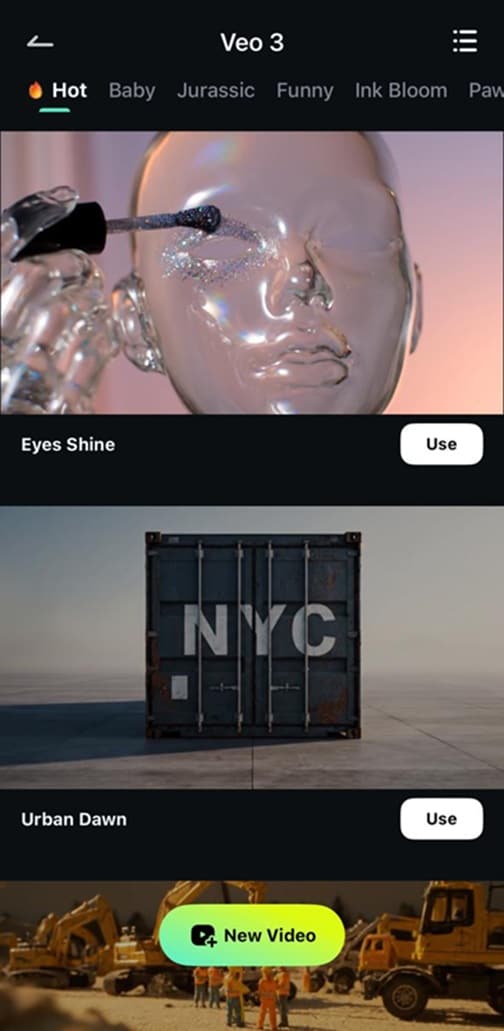
Step 1. Pick a Template
From the Filmora Mobile homepage, open the Veo 3 feature and browse through the available templates. Choose one that fits your idea.
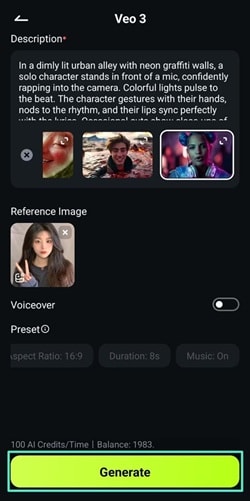
Step 2. Add a Reference Image
A text prompt will be filled in, and you can edit it if needed. Upload a reference image, then set details like aspect ratio, video length, and background music. When ready, tap Generate to start creating your video.
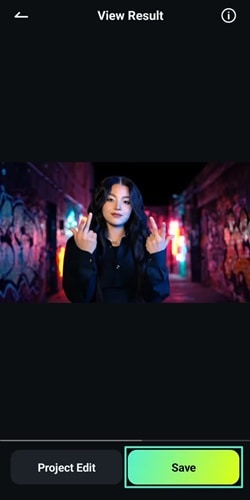
Step 2. Save the Finished Video
After the video is generated, review it in the preview window. If it looks good, tap Save to download it to your device.
Conclusion
You can bring the power of Veo 3 AI text-to-video right to your mobile phone with Filmora. The app lets you generate, edit, and save videos all in one place, so you don't have to switch between different tools just to refine your project.
With its intuitive design, learning how to use Veo 3 on iPhone or Android in Filmora feels simple. It's practically easy to figure out, so anyone can start creating high-quality videos anywhere without waiting until you're back at your desktop!
 secure download
Frequently Asked Questions
-
Does CapCut support Veo 3?
No, CapCut mobile version does not support Veo 3. If you want to use Veo 3 on mobile, Filmora is one of the few apps integrated with the model. -
What video formats can I export from Veo 3 on mobile?
The final videos are usually exported as MP4, which is a widely supported standard for most use cases. MP4 also works well on social media platforms like TikTok, Instagram, and YouTube. -
Does Filmora Mobile require a Google account to access Veo 3?
No, a Google account isn't required. You only need a Filmora account to use the app and access Veo 3 features. Once logged in, you can generate and edit videos directly from your phone. -
Are Veo 3 mobile features the same as on desktop?
The core features are similar, but the workflow is a bit different. On Filmora desktop, you generate videos by entering a prompt, and use Image-to-Video (still supported by Veo 3) when you want to add a reference image. And unlike the mobile app, there aren't separate options to define characters, motions, or other details.
