

 100% Security Verified | No Subscription Required | No Malware


 ChatGPT
 Perplexity
 Gemini
 Claude
 Grok
Grok
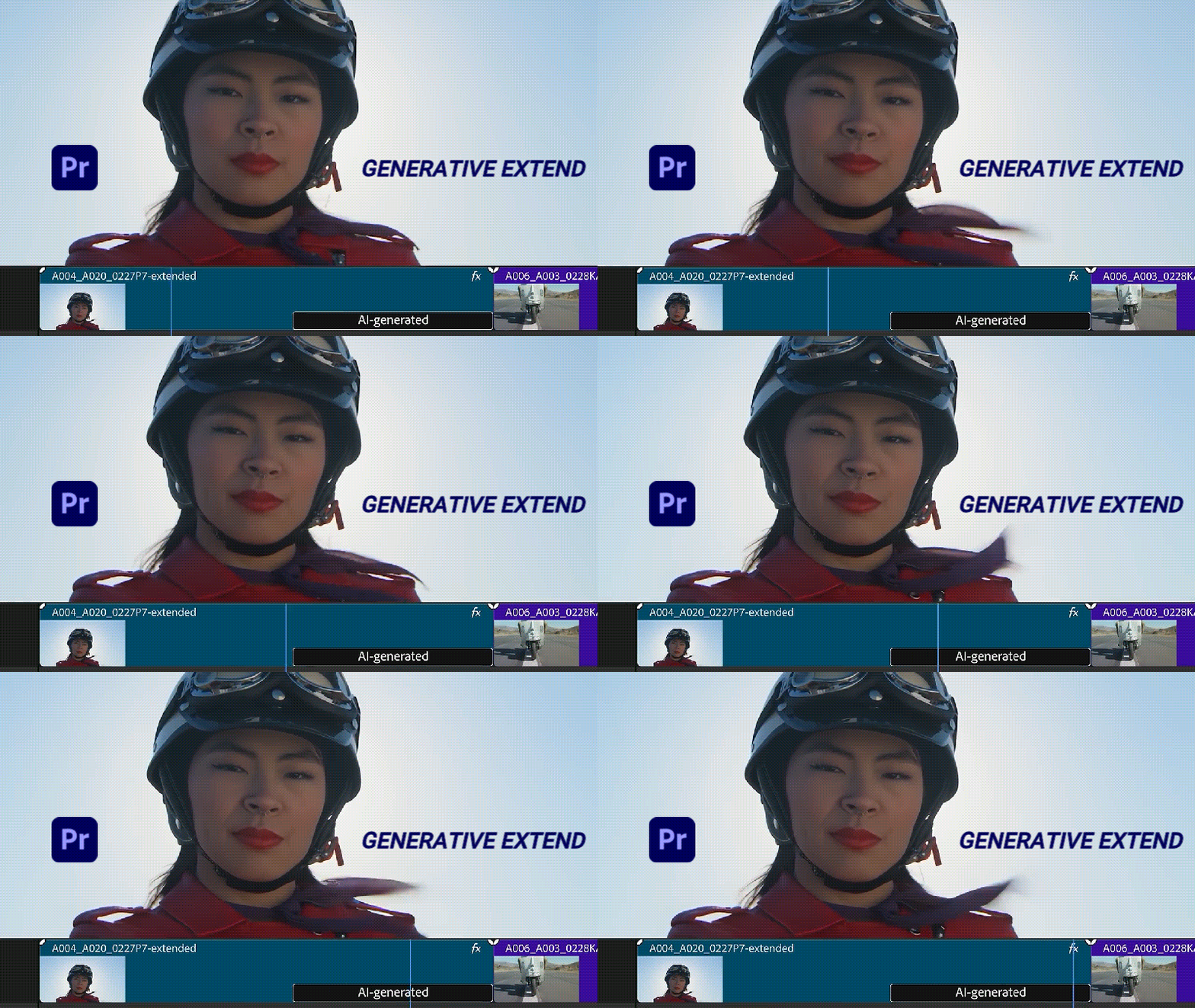
Have you ever wished your clip could be just a little bit longer? Premiere Pro brings in a new smart tool called Generative Extend that makes it possible.
Few things are more frustrating for an editor than a clip that ends too early to their liking, and Premiere Pro’s Generative Extend comes just as the right solution to this kind of problem.
If you’ve been curious about trying this tool yourself, this article will guide you on how to use the Premiere Pro Generative Extend tool, what you can do with it, and how to extend your clips with more control to get the exact result you want.
In this article
Part 1. How Does Premiere Pro Generative Extend Work
Premiere Pro’s Generative Extend feature is designed to help editors add just a few extra frames to keep a moment alive a little longer. It’s especially useful when the video you have is slightly too short for an edit, has an awkward ending, or you need to extend a scene to better match the pacing.
Since reshooting or filming additional footage isn’t always possible, Generative Extend can help you add those missing moments. It’s powered by Adobe Firefly, which works by analyzing the frames around the cut and generating new visuals that blend with your original clip.
You can use it to:
- Hold on to a subject’s reaction a little longer.
- Smooth a transition between shots.
- Extend background footage to adjust timing.
- Hide small camera bumps or unwanted movements.
Video Requirements
| Category | Details |
| Min. Video Duration | 2 seconds |
| Min. Audio Duration | 3 seconds |
| Aspect Ratio | 16:9 (landscape), 9:16 (vertical) |
| Min. Resolution | 360p |
| Max. Resolution | 4K UHD or Cinema |
| Frame Rate | 12–60 fps |
| Bit Depth | 8-bit, 10-bit, or 16-bit source |
| Color Space | SDR and HDR sources supported |
Note: Extension cips are generated at 30 fps by default (if above 30 fps), in 8-bit color depth, and in SDR format, while the original files remain in their native format. If the clip resolution doesn’t match a supported one, the AI generates at the nearest higher supported resolution while keeping the original clip unchanged.
Part 2. How to Use the Generative Extend Tool in Premiere Pro
Because the Generative Extend tool in Premiere Pro runs on Adobe’s cloud-based AI, you’ll need an internet connection to use it.
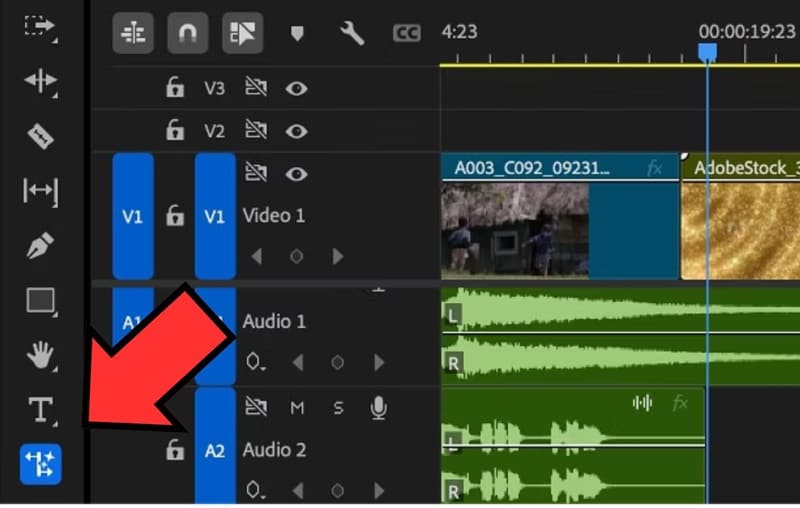
- Step 1. Choose the clip you want to extend. Select the Generative Extend Tool from the Toolbar.
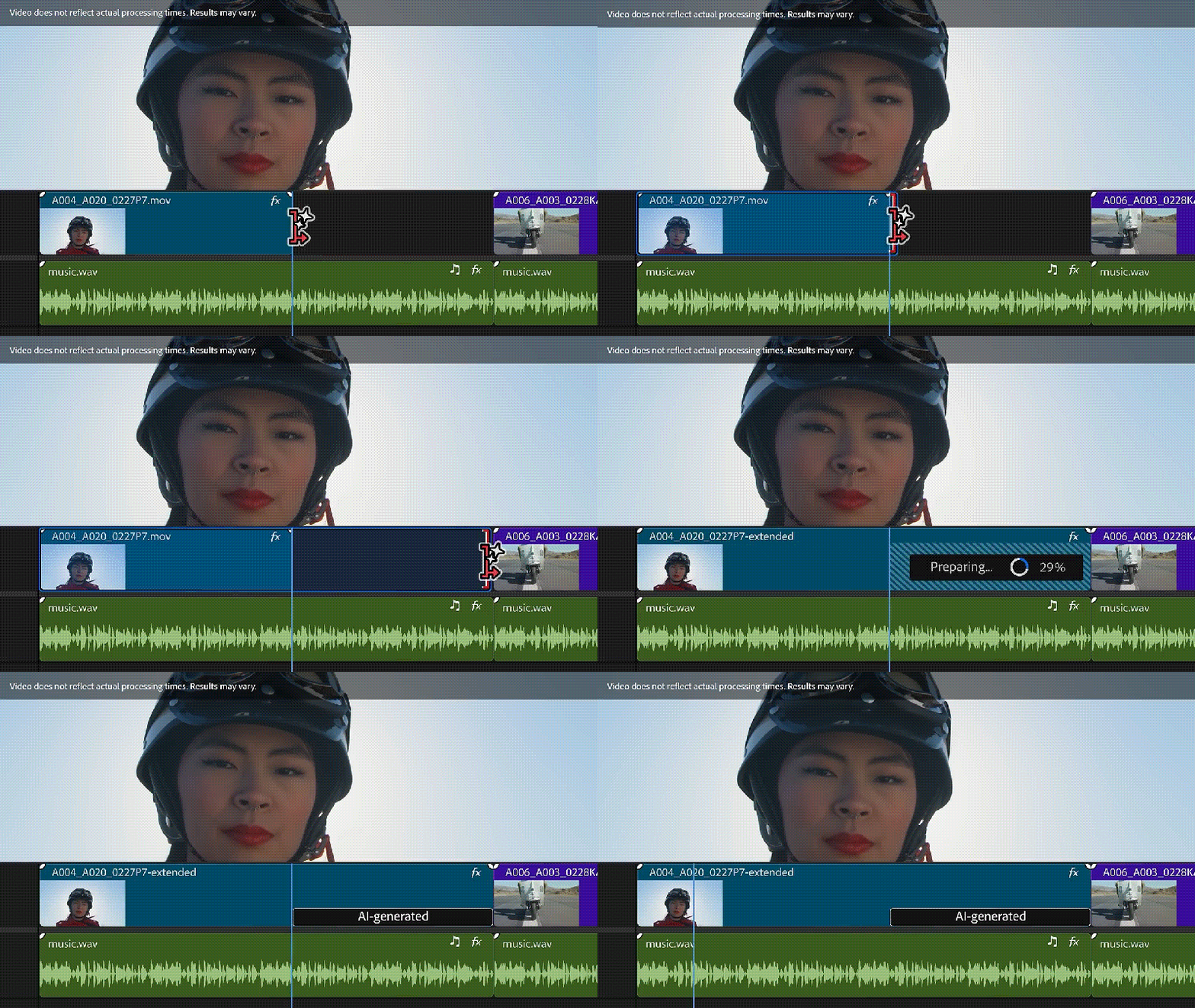
- Step 2. Drag the clip’s edge (video or audio) to the length you want to extend. Premiere Pro will automatically generate new frames up to 2 seconds to fill the extended section.
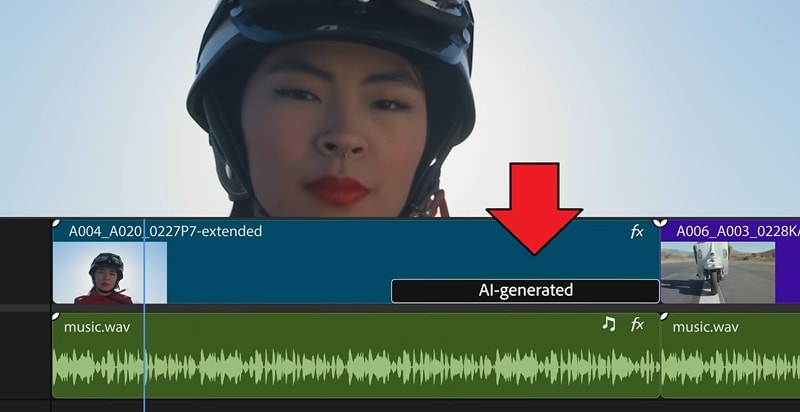
- Step 3. Review the result in the Timeline. The newly created frames will appear with an AI-generated label.
- Step 4. If you’re not happy with the first result, right-click the AI label and choose Generate Again or Regenerate to create a different version.
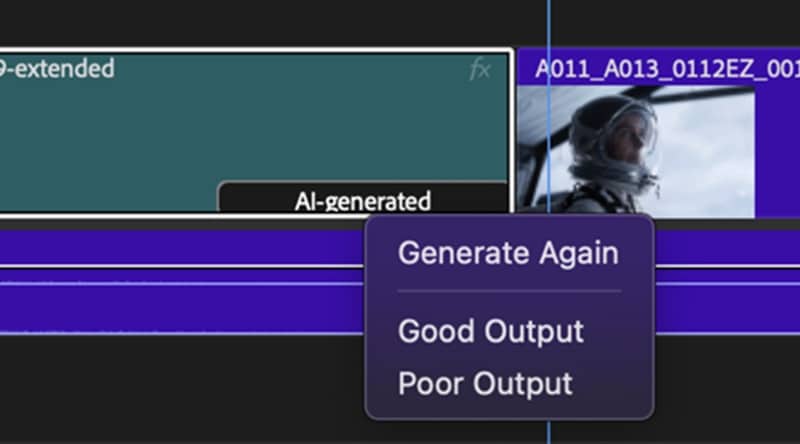
Note: When you use this Premiere Pro’s AI extend clip, the AI-generated media is combined with your original clip to create a new clip in the Project panel. Each extension is saved as an H.264 MP4 or .wav file in the Captured and Generated scratch disk assigned in your project settings.
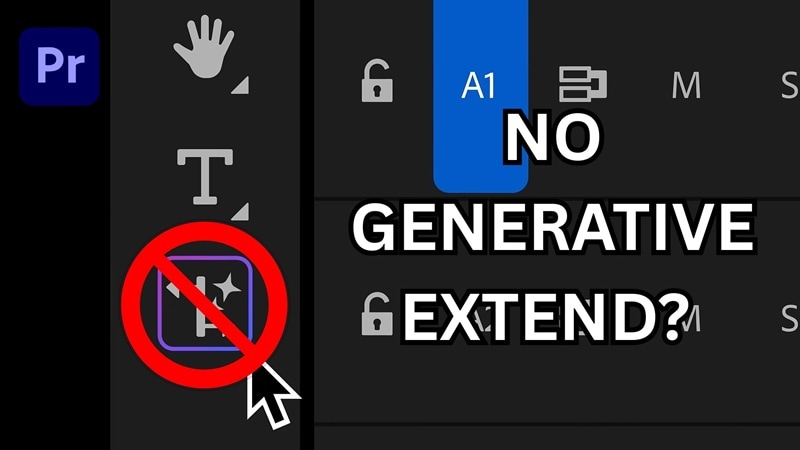
Why Can’t I See the Generative Extend Tool in Premiere Pro?
If the Premiere Pro Generative Extend isn’t showing up in your workspace, it may be due to regional or account restrictions.
Since this feature runs on Adobe Firefly, it’s unavailable in certain countries, specifically Russia, Belarus, and China. Users in these regions won’t be able to use any Firefly-powered tools, including Generative Extend in Premiere Pro.
Availability also depends on the type of Adobe account you’re using:
- Educational and K–12 accounts often have limited access to Firefly features.
- Enterprise users with CCE v3 licenses may not have Firefly services activated, which disables Generative Extend.
If your account and region support Firefly, but the tool still doesn’t appear, open Window > Tools and check that the Generative Extend panel is turned on. Otherwise, you can try using another option explained in the latter part of the article.
Part 3. Limitations of Premiere Pro Generative Extend Tool
Generative Extend is an impressive feature in Premiere Pro. But since it’s still in the development process, there are a few important limitations to keep in mind before using it:
- No Dialog Extension: The Generative Extend tool in Premiere Pro can’t generate or extend spoken dialogue. Any existing dialogue in the section being extended will be muted to maintain the authenticity of the original audio.
- Music Restrictions: Clips containing background music can’t be extended, due to the complexity of musical timing and copyright considerations.
- Limited Audio Support: Currently, Generative Extend only supports mono and stereo audio formats. 5.1 surround sound and other multichannel formats are not compatible.
- One-Side Only: You can only apply Generative Extend to either the beginning or the end of a clip, not both at once.

As of today, Generative Extend also doesn’t support certain features and workflows in Premiere Pro, including:
- Speech to Text transcription, Text-Based Editing, and Captioning
- Media Intelligence
- Markers
- Clip modifications such as Audio Channels, Color settings, Interpret Footage, or Timecode adjustments
- Timecode and user-entered metadata
- Interchange formats (XML, AAF, EDL, OMF)
- Replace with After Effects Composition or Edit in Audition workflows
- Multicam Source Sequences
- Productions
Part 4. Extend Your Clip with More Control Using Text Prompts
Given how Premiere Pro handles the process of extending your clip automatically, there’s another great option if you want more control: Wondershare Filmora.
Using Filmora’s AI Video Extend, you get to provide text prompts to guide how your clip is extended, rather than relying on automatic generation like in Premiere Pro Generative Extend. You can describe exactly what you want to see, instead of letting the AI decide for you.
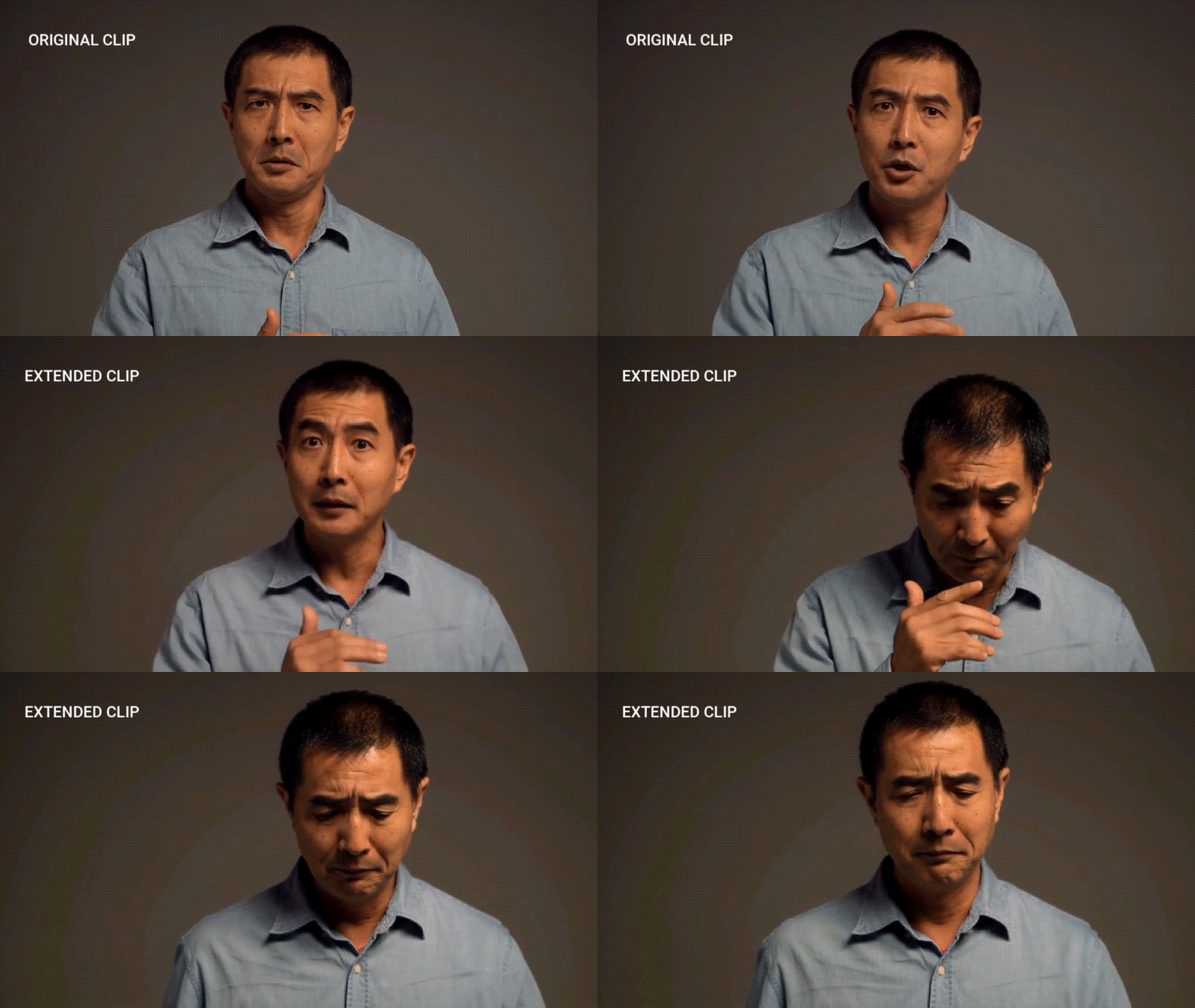
In the clip above, we ask Filmora’s AI Video Extend to continue the video by changing the expression of the man from shocked to sadness. The AI then generates additional frames where his hand lowers and his face gradually softens into a sorrowful expression.
Benefits of Using Filmora’s AI Video Extend
- Describe It Your Way: Use custom text prompts to tell the AI exactly how you want your scene to continue.
- Keep the Sound Intact: Your original audio stays perfectly synced as the video extends.
- Flexible Direction: Choose to extend forward or backward, whichever suits your needs best.
- More Extension Duration: Generate up to 5 seconds of additional footage per extension.
- Control the Camera Movement: Select and decide how you want the shot to flow, whether to keep it static or add gentle motion.

 secure download

How to Extend Your Clip Using Filmora
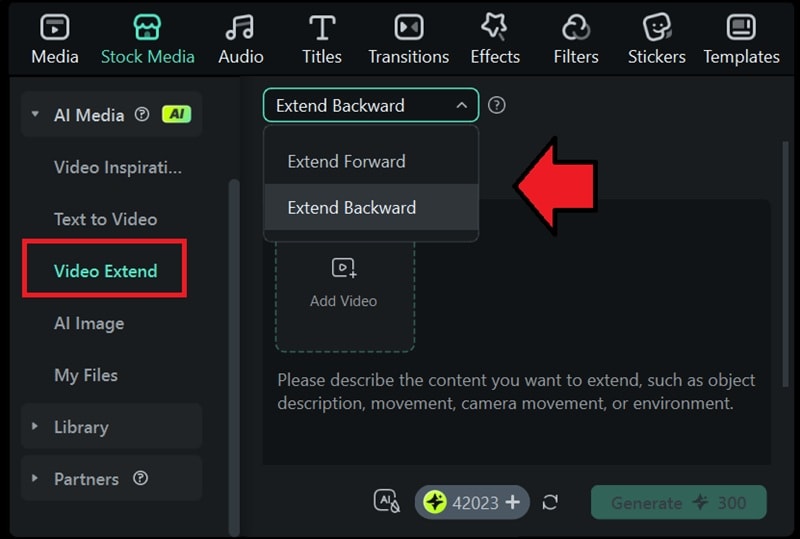
- Step 1. Make sure you have updated Filmora to the latest version. Then, create a new project and head to Stock Media > AI Media to select Video Extend. At the top menu, select between Extend Forward and Extend Backward:
- Choose Extend Forward to add frames before your clip.
- Choose Extend Backward to continue the action after it ends.
 secure download
 - Step 2. Click the upload box to import the video you want to extend. Then, describe what you want to happen in the text prompt.
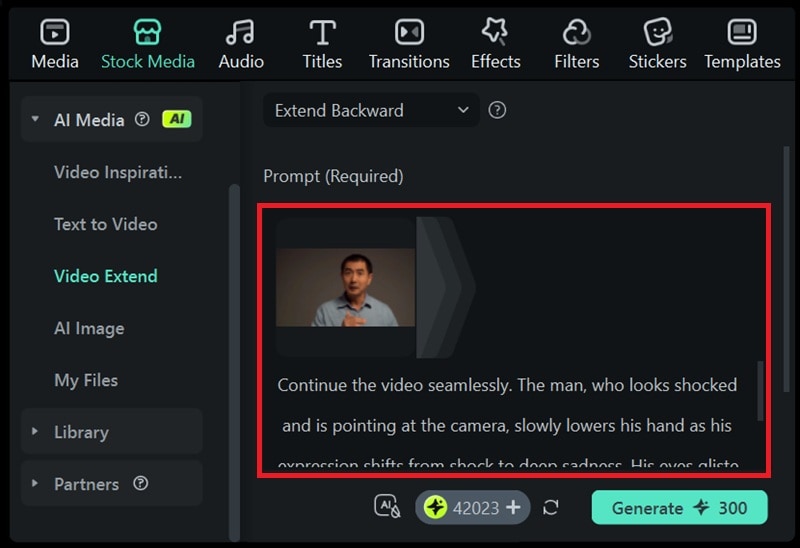
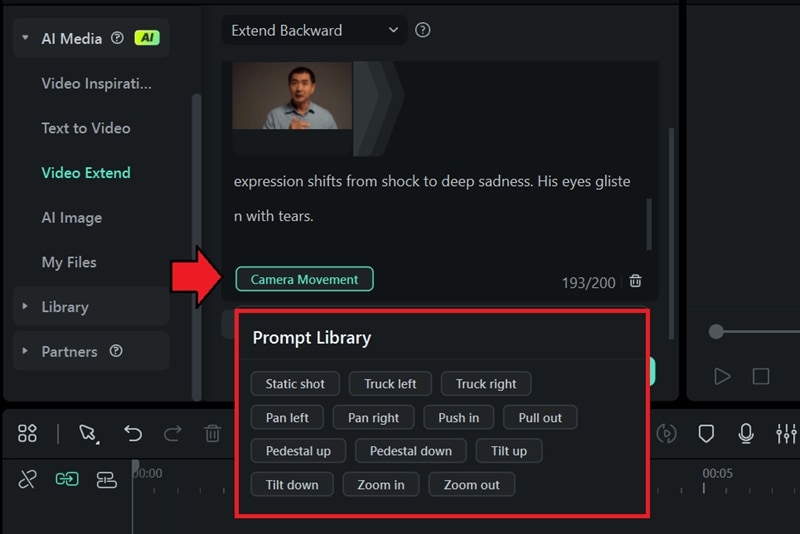
- Step 3. You can also refine the look by selecting the camera movement option, like static shot, zoom in/out, truck left/right, and more. Click Generate to proceed.
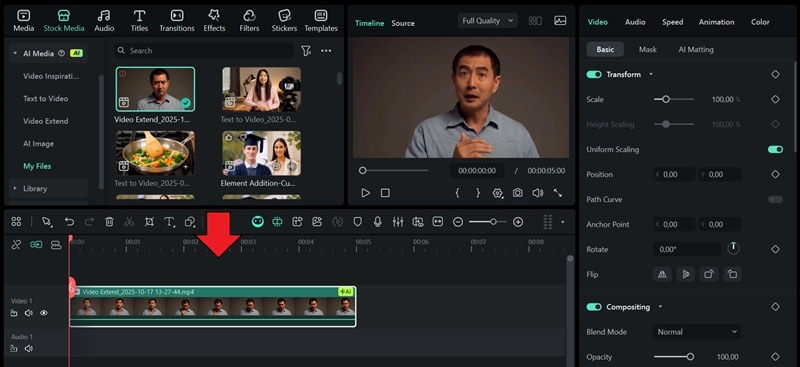
- Step 4. After a few moments, your extended clip will appear under My Files. You can preview the result first. Then, drag it to the timeline to continue editing.
Conclusion
Many editors now include AI features to help us overcome common editing struggles and make editing more intuitive. One of these tools is Premiere Pro’s Generative Extend, which gives you an easy way to make a clip last longer without reshooting. It’s a quick fix for those awkwardly cut moments that just need a few extra frames to feel complete.
Besides Premiere Pro, AI video editor Filmora also brings a similar feature called AI Video Extend if you need more control over the result. You can describe how you want your clip to continue, and the AI will generate new frames that match your prompt without compromising the flow or quality of your footage.
