

 100% Security Verified | No Subscription Required | No Malware


 ChatGPT
 Perplexity
 Gemini
 Claude
 Grok
Grok
Need to move a Final Cut Pro timeline to another editor? FCPXML lets you transfer the project structure without rendering the edit into a single video file. The XML can carry details such as clips, timelines, media references, and edit decisions that a compatible application can interpret.
Today, you’ll learn how to export XML from Final Cut Pro, what the file includes, and how to import it into Wondershare Filmora to keep editing.
In this article
Part 1. Why Export XML from Final Cut Pro?
FCPXML is a structured file format that describes a Final Cut Pro project and its editing data. When you export XML from Final Cut Pro, you’re not exporting the actual video. Instead, you create a file another compatible application can use to interpret the project’s structure, like its timeline, clips, and media references.
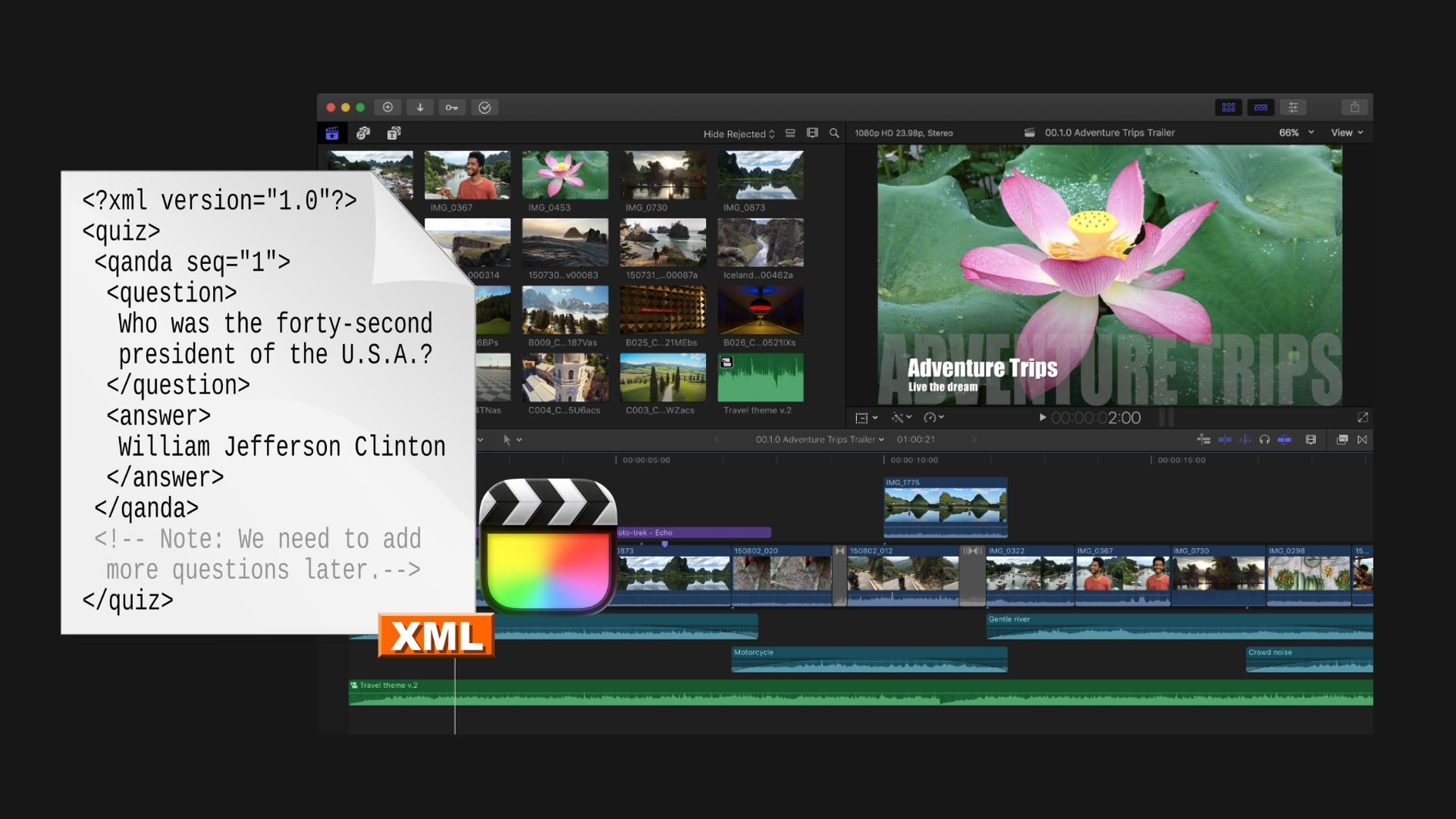
Editors commonly use Final Cut Pro XML export when they need to:
- Move a project to another editing application. The transfer supports edit information without manually recreating the entire timeline.
- Hand off a project to another editor or workflow. The file provides project data that compatible post-production software can import.
- Retain editable project information. Unlike a rendered MP4 or MOV, XML keeps edit decisions and project metadata in a structured format that other applications can interpret.
However, an XML transfer may not reproduce everything exactly. Effects, transitions, generators, plugins, titles, and other features specific to Final Cut Pro may need to be recreated or adjusted after import.
Part 2. How to Export XML from Final Cut Pro (Simple Steps)
Exporting an XML from a Final Cut Pro file takes just a few clicks, but it's worth checking a few settings before you save it. Apple currently lets you export a library, event, project, or clip as XML, then choose which metadata and XML version to include.
Step 1. Open and select your project
Open your project in Final Cut Pro and select the project you want to transfer. If the project is already open in the timeline, click inside the timeline to make it active.
Step 2. Choose File > Export XML
From the menu bar, go to File > Export XML. Final Cut Pro will open the export window where you can name the XML file and choose where to save it.
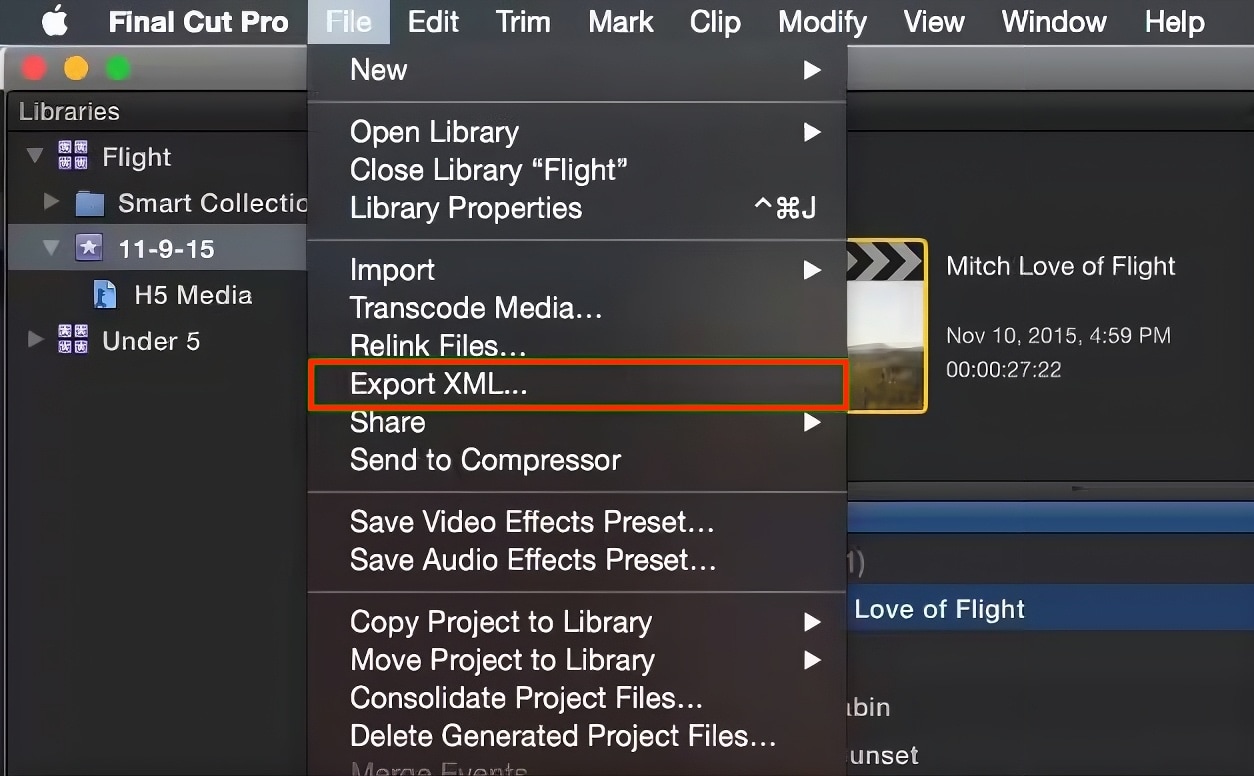
Step 3. Choose a Metadata View
Use the Metadata View menu to select which metadata information should be included and how it is organized in the XML file. Available options may vary depending on your Final Cut Pro setup.
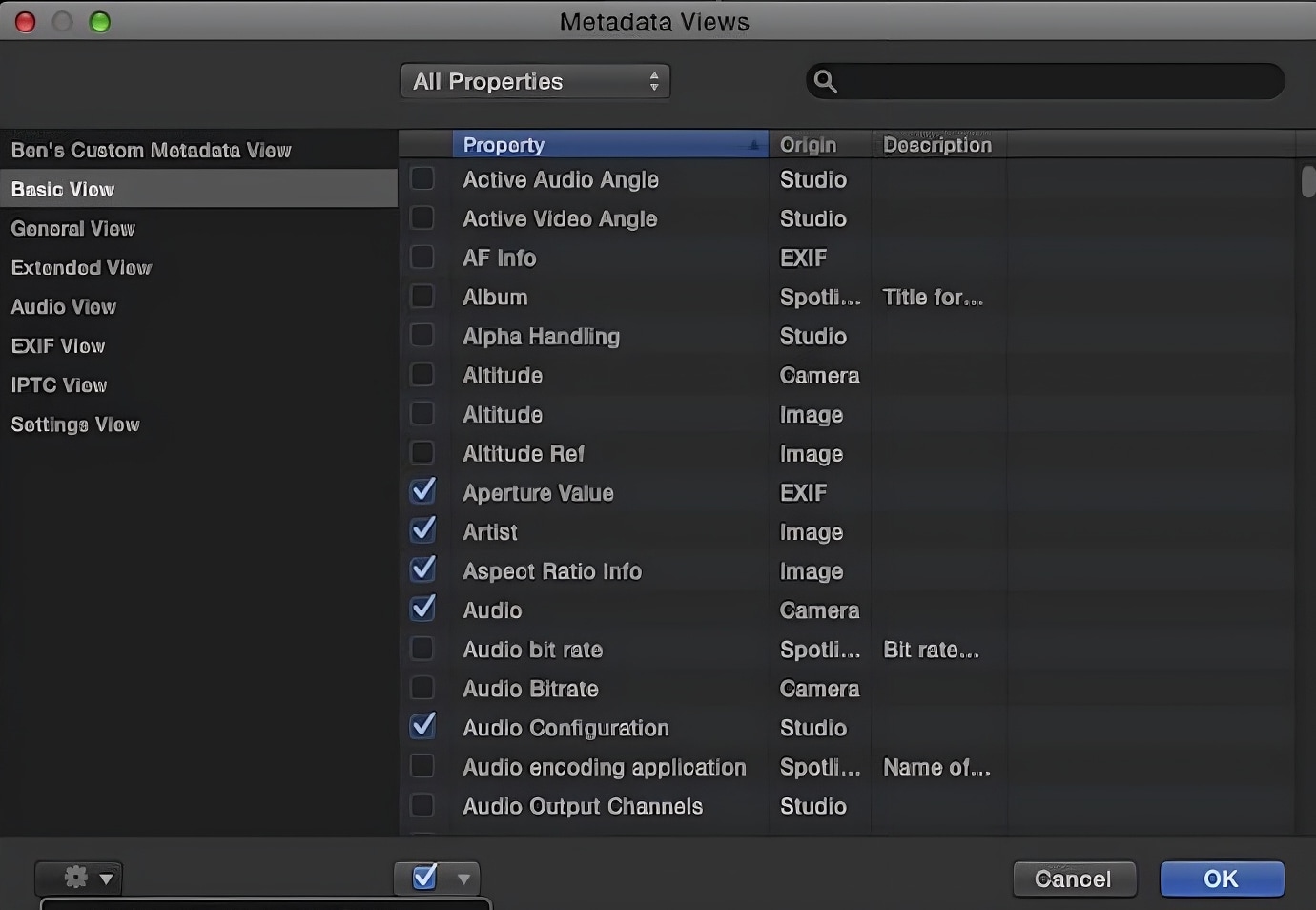
Step 4. Choose the XML version and save
Select the current XML version unless the application receiving the file requires an older version. Final Cut Pro also provides two previous XML versions for compatibility with older third-party workflows. Then click Save.
Note: If you're transferring the project to another editing application, check which FCPXML version it supports before exporting. Newer Final Cut Pro features may require a newer XML version.
Part 3. What’s Included in a Final Cut Pro XML File
An FCPXML export provides another application with the information it needs to understand your Final Cut Pro edit. It can describe the project structure, media used, clip placement, and selected metadata, depending on what you export and the metadata view you choose.
Key information can include:
- Media references: Details that identify the source media used by clips.
- Timeline and edit data: Information about clip placement and other supported editing decisions.
- Projects, events, and libraries: FCPXML can represent these elements when they are included in the export.
- Metadata: Selected metadata can be included based on the Metadata View used during export.
What XML Does Not Do
FCPXML is designed to describe an edit, so there are some important limits:
- It does not create a finished video. You still need to export a video separately if you want an MP4, MOV, or other rendered file.
- It does not automatically include your original media. Media files remain separate from the XML project data.
- It does not guarantee a perfect transfer. Effects, transitions, titles, generators, plugins, and other Final Cut Pro-specific elements may not have an equivalent in the receiving application.
- Compatibility depends on the receiving application. The software importing the XML must support the relevant FCPXML version and data.
For newer workflows, Final Cut Pro can also create .fcpxmld bundles as an alternative to traditional .fcpxml files when specific data, such as object tracking or Cinematic mode information, is included.
Part 4. Import and Continue Editing XML Projects in Filmora
Moving a timeline to another editor is easier when the receiving app can handle compatibility issues during the process. After you export XML from Final Cut Pro, you can bring it to Wondershare Filmora to continue the edit.
Filmora supports FCP7 XML/XMEML import, with built-in checks and media relinking to help turn an XML timeline into an editable project.
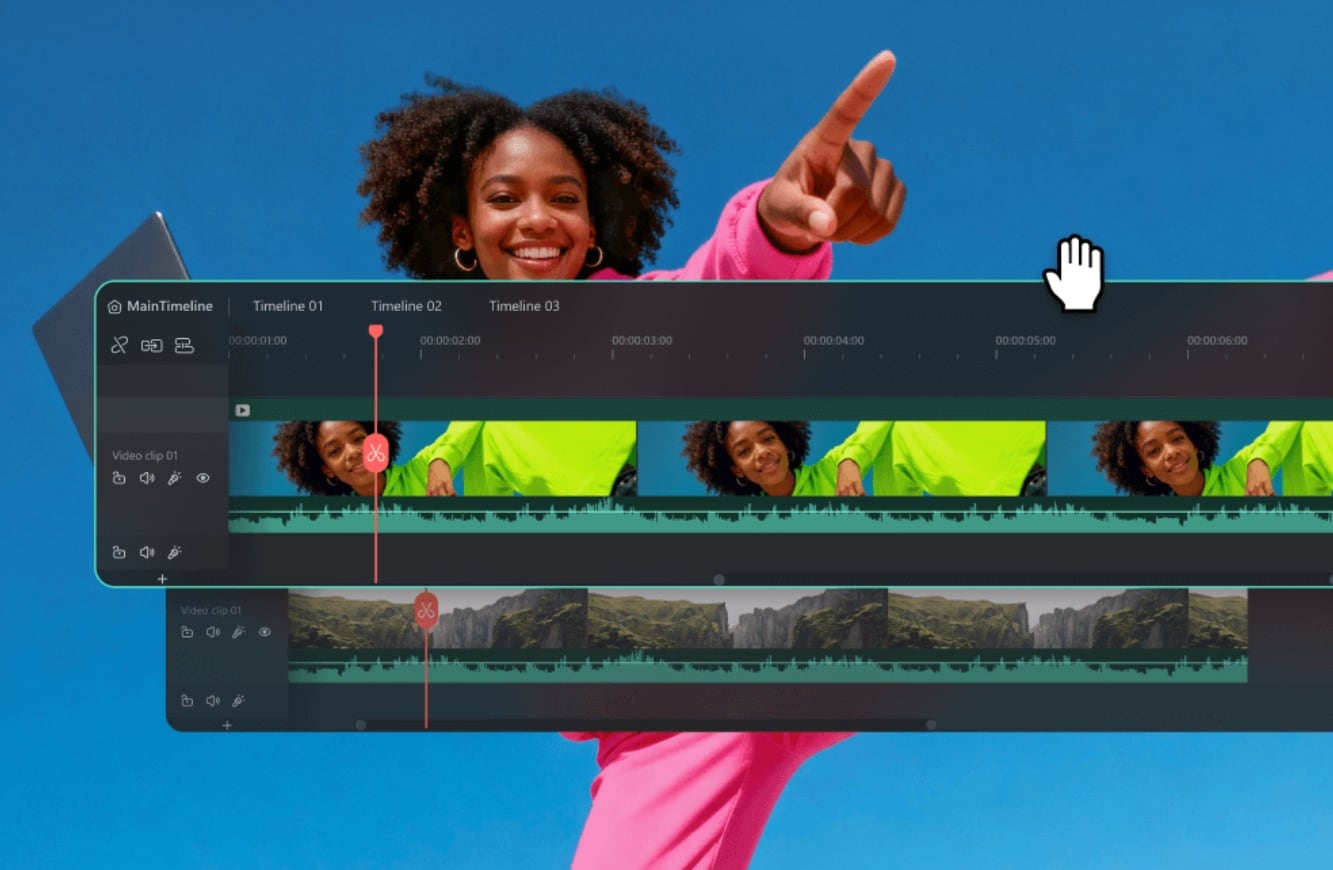
Why We Recommend Filmora
Filmora is a good alternative to FCP when you want to continue editing in a simpler, more accessible interface. Reasons it stands out are:
- Easier learning curve. Filmora has a more approachable interface than professional NLEs like FCP.
- Full editing toolkit. Despite the simpler interface, you can refine cuts, add transitions and effects, and adjust color and audio.
- Built-in AI tools. Filmora includes AI tools that speed up common edits without extra plugins or setup.
- Smoother import process. Filmora's automatic compatibility checks flag transfer problems before you start editing.
- Vast video/audio effects and creative assets.
- Powerful AI for effortless content creation.
- Intuitive, professional yet beginner-friendly.
- Works on Mac, Windows, iOS, and Android.


How to Import XML in Filmora
Step 1. Open Timeline Exchange Format XML
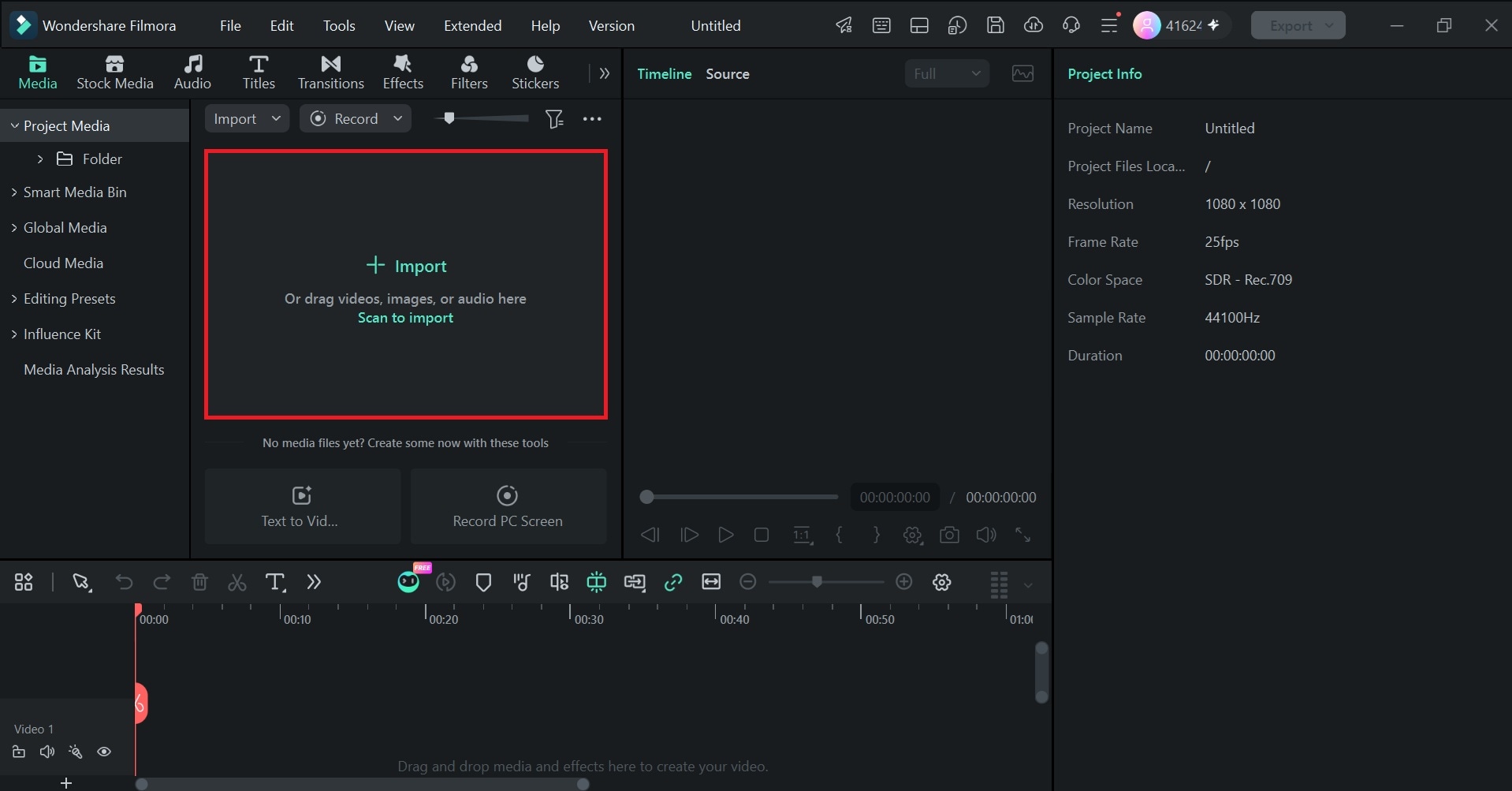
Open Filmora and click Import to add your XML file. You can also double-click the blank area in the media panel.
 secure download
 Step 2. Select your XML file
Select Timeline Exchange Format XML. to filter for .xml or .fcpxml files, then select your XML file.

Step 3. Relink missing media
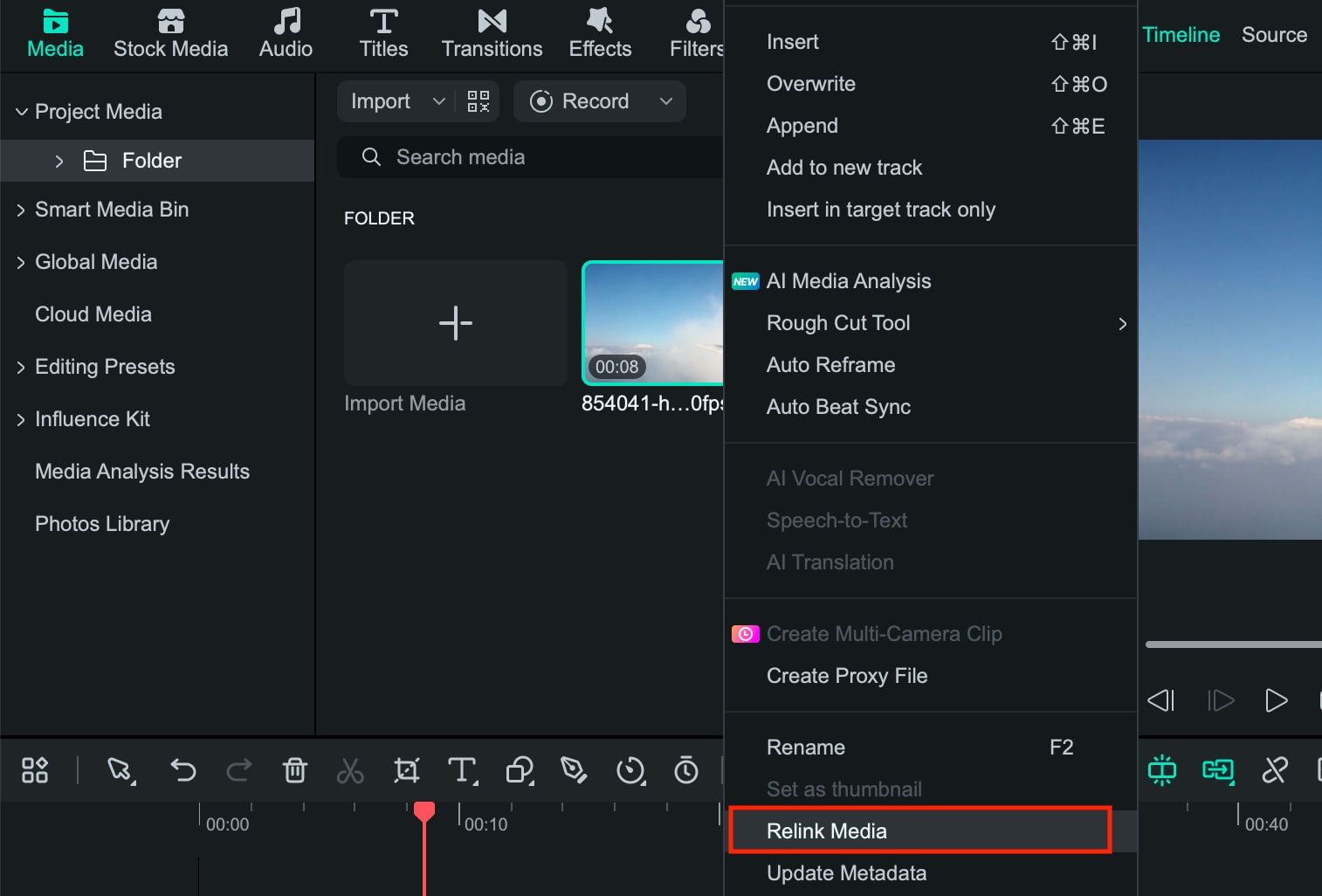
Filmora automatically checks the file and flags potential compatibility issues. If Filmora can’t find the source files, select the media and click Relink Media.
Step 4. Review the timeline
Check the clips, timing, audio, transitions, and effects. Some Final Cut Pro-specific elements may need adjustment after the transfer.
Part 5. Tips for a Smoother FCPXML Transfer
FCPXML transfers project information between editing applications, but the timeline view may not match exactly after import. A quick check before exporting XML from Final Cut Pro can help you identify missing media, changed effects, or other compatibility issues.
- Export a reference video: Save a video of the original timeline so you can compare the transferred version for changes in timing, effects, transitions, or audio.
- Organize your media: Keep footage, audio, and graphics in clearly named folders. Avoid moving or renaming files during the transfer to make relinking easier.
- Keep the original project: Keep your Final Cut Pro project as a backup until you've confirmed the new version is complete.
- Review the entire timeline: Check the edit from beginning to end, including cuts, sync, audio, titles, transitions, and effects.
- Keep third-party assets available: Have any plugins, fonts, LUTs, graphics, or other external assets ready in case you need to replace or recreate them.
Conclusion
When you export XML from Final Cut Pro, you can move a timeline to another editing workflow while keeping its edit information. It’s different from exporting a video because the XML file describes the project rather than rendering the footage. Before transferring, organize your source files and save a reference export so you can review the results later.
When moving the timeline into Filmora, its Timeline Exchange Format XML workflow can check compatibility, help relink missing media, and generate a sub-draft. From there, review the timeline and adjust any Final Cut Pro-specific elements that didn’t transfer.
