

 100% Security Verified | No Subscription Required | No Malware


 ChatGPT
 Perplexity
 Gemini
 Claude
 Grok
Grok
As powerful as DaVinci Resolve is, there are times when you need or want to finish a project somewhere else. However, moving a project out of Resolve doesn’t mean starting from scratch. You can export XML from DaVinci for compatible video editing applications, or use AAF for projects that require it, to transfer key timeline information to another application.
To help you get it right the first time, we have laid out the difference between the two formats, how to export each one from Resolve, and where to take the file once it's out.
In this article
Part 1. XML vs AAF: What is the Difference?
If you're working with video editing software at any professional level, you’ve likely run into XML and AAF at some point. Both are interchange formats used in post-production to hand off project and timeline information between different applications.
However, they aren’t interchangeable, as each format is designed for different post-production workflows and handles project data differently. Let's break down what sets them apart before we get into how to export AAF or XML from DaVinci Resolve:
- XML (Extensible Markup Language) is commonly used to move video editing projects between compatible applications. It describes the edit, including clips, timeline positions, and edit points, which another application can use to recreate the sequence.
- AAF (Advanced Authoring Format) is also used to transfer project information, but it’s more common with Avid Media Composer and audio post-production applications. Depending on the export settings, it can carry details such as clips, tracks, timing, and other sequence data.
|
XML |
AAF |
|
|
Typical Use |
Commonly used for video editing timeline transfers |
Commonly used for professional video and audio post-production |
|
Strongest at |
Cuts, clip order, basic timeline structure |
Audio handles, mix-ready audio data |
|
Common Apps |
DaVinci Resolve, Final Cut Pro, Premiere Pro, Filmora |
Avid Media Composer, Pro Tools |
Part 2. How to Export XML from DaVinci Resolve
The steps to export XML from DaVinci Resolve or export an AAF file are similar, as both options are available from the same menu. The basic process also remains the same across Resolve versions.
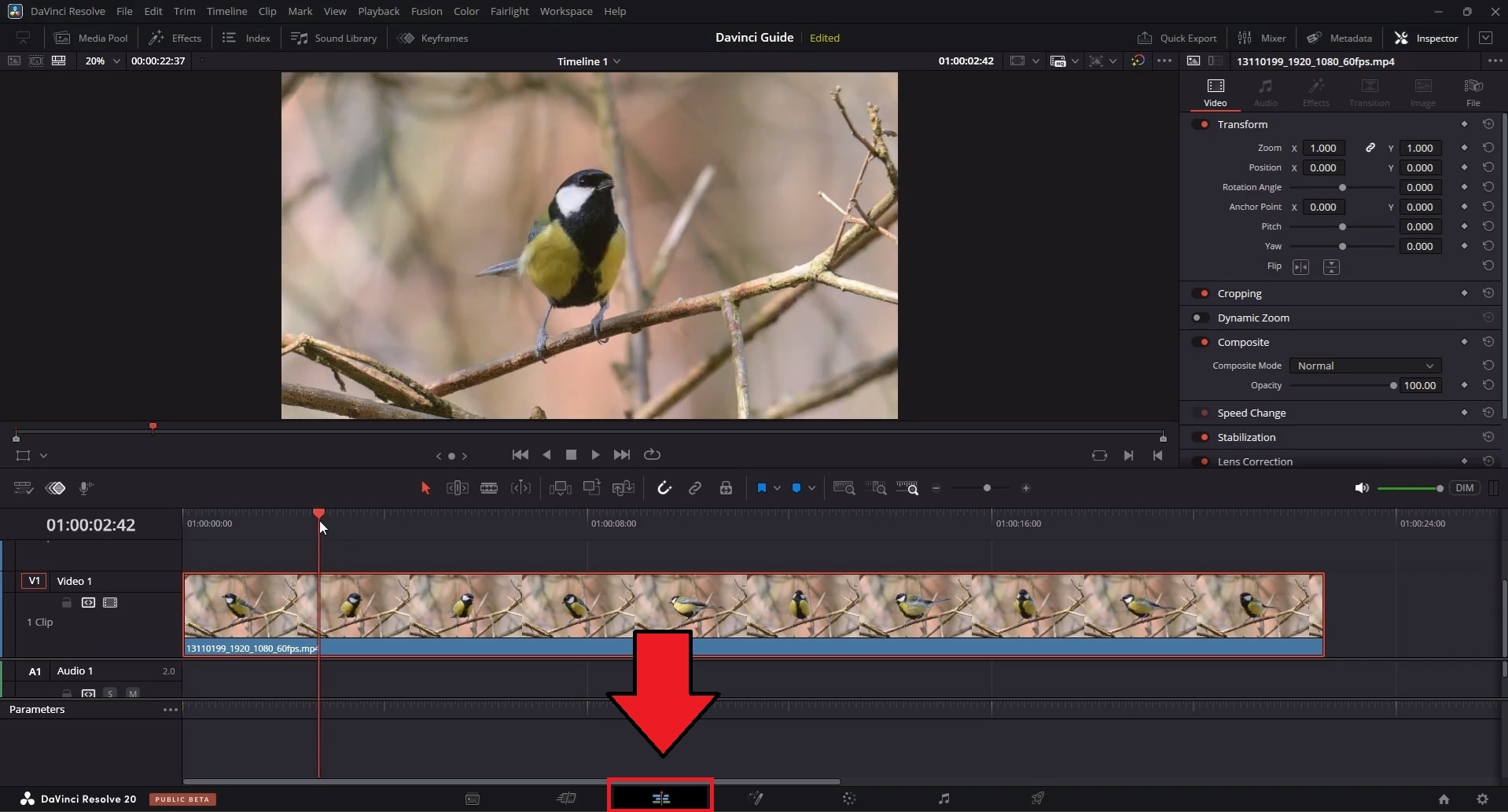
Step 1. Open your project and go to the Edit page. The export uses the timeline that you have open there.
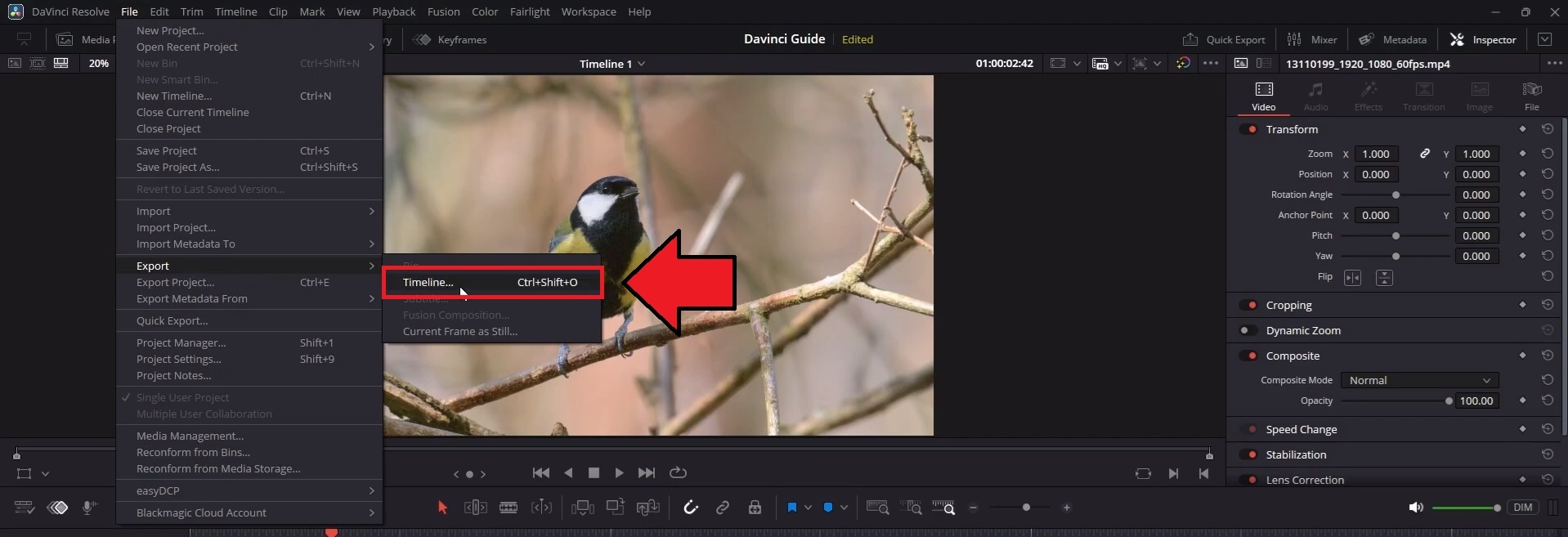
Step 2. Find the timeline you want to export in the Media Pool or the timeline bin at the bottom of the interface. Then, go to File > Export > Timeline.
Step 3. From the menu, select your XML format from the dropdown:
- FCP 7 XML tends to be the safest bet for compatibility across older and newer apps alike.
- FCPXML works better if you know the destination app supports the newer version specifically.
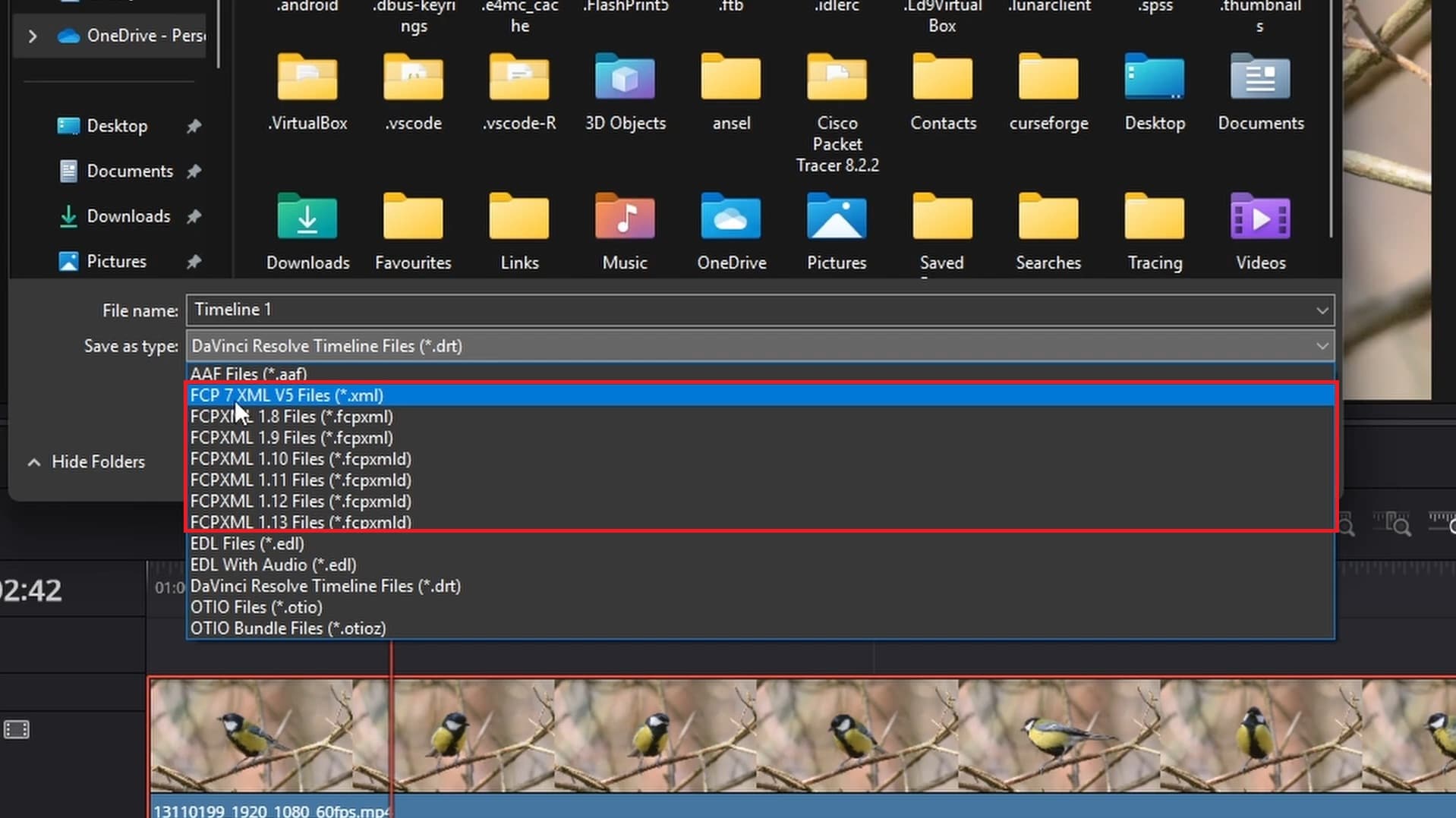
If you want to export AAF from DaVinci Resolve, select AAF. Then, click Export (or Save, depending on your version) to generate the file.
Part 3. Things to Note About DaVinci Resolve XML/AAF Export
DaVinci Resolve's XML and AAF exports are useful for moving a project along more easily, but they’re not a perfect copy-paste of your project. There are some things worth knowing before you send a file off.
1. The exported file doesn’t carry all the original media
XML and AAF files are different from a standard project backup or archive. They reference your footage by file path and name rather than embedding the actual media inside the file. That means the app on the receiving end needs access to those same source files, or you’ll be relinking everything by hand once it's imported.
2. Effects and transitions may not transfer
Anything built specifically in DaVinci Resolve, like Fusion effects or certain OFX plugins, usually doesn’t have a match in the app you’re exporting to. Basic cuts and dissolves tend to transfer well, but more advanced effects, transitions, and other Resolve-specific elements may not transfer correctly and may need to be recreated after import.
3. Audio settings can vary
How much the audio settings survive depends on which format you used. XML tends to lose volume automation, fades, and plugin settings along the way. You may need to listen back to a few sections after import rather than assuming the mix landed the way you left it.
AAF generally holds up better on audio since it's built to carry clip gain and handles, though plugin-specific settings can still get dropped depending on the app you're importing into.
4. Always keep a reference export
Before handing a project off, you need to export a quick reference video of the finished timeline alongside the XML or AAF file. It gives you something concrete to compare against if the rebuilt timeline looks or sounds different once it's imported elsewhere.
Part 4. Where to Import DaVinci Resolve XML and AAF
Now, where do you take the DaVinci Resolve XML export? XML and AAF have different levels of compatibility. Below are some popular video editing applications that support these formats and can be used to continue working on the transferred project.
For XML
1. Wondershare Filmora: For Easier Continued Editing

If you want to keep editing in something more intuitive than Resolve, you can bring your project over to Wondershare Filmora. Filmora supports XML timeline exchange through the FCP7 XML/XMEML format, which lines up with what DaVinci Resolve exports.
It's built around a more approachable interface, with many AI tools built in that speed up the parts of editing that usually eat up the most time. To bring an XML file from DaVinci into Filmora:
- Vast video/audio effects and creative assets.
- Powerful AI for effortless content creation.
- Intuitive, professional yet beginner-friendly.
- Works on Mac, Windows, iOS, and Android.


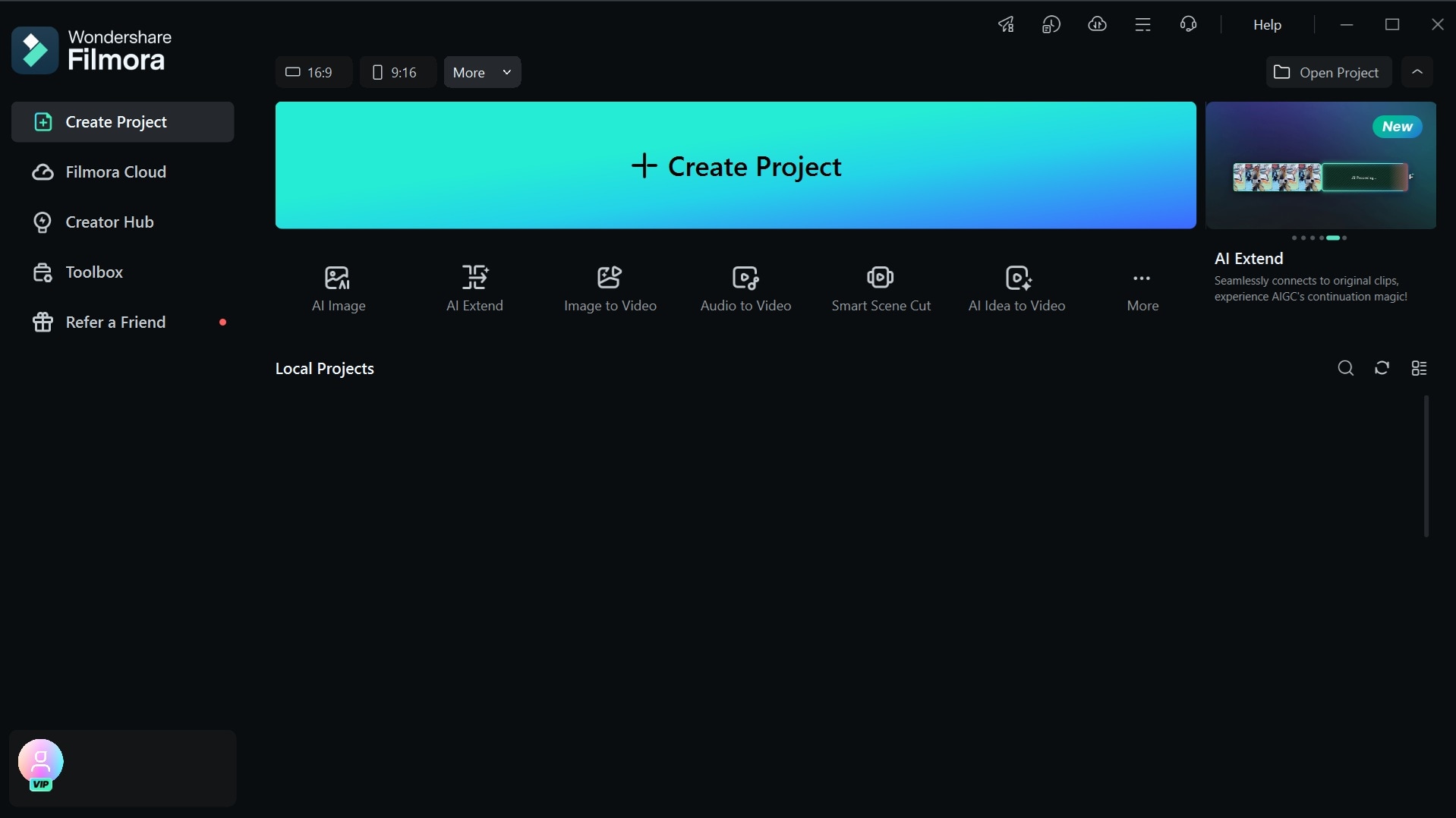
Step 1. Open Filmora and create a new project.
 secure download
 Step 2. Click Import to open the import options, or double-click the blank area in the timeline.
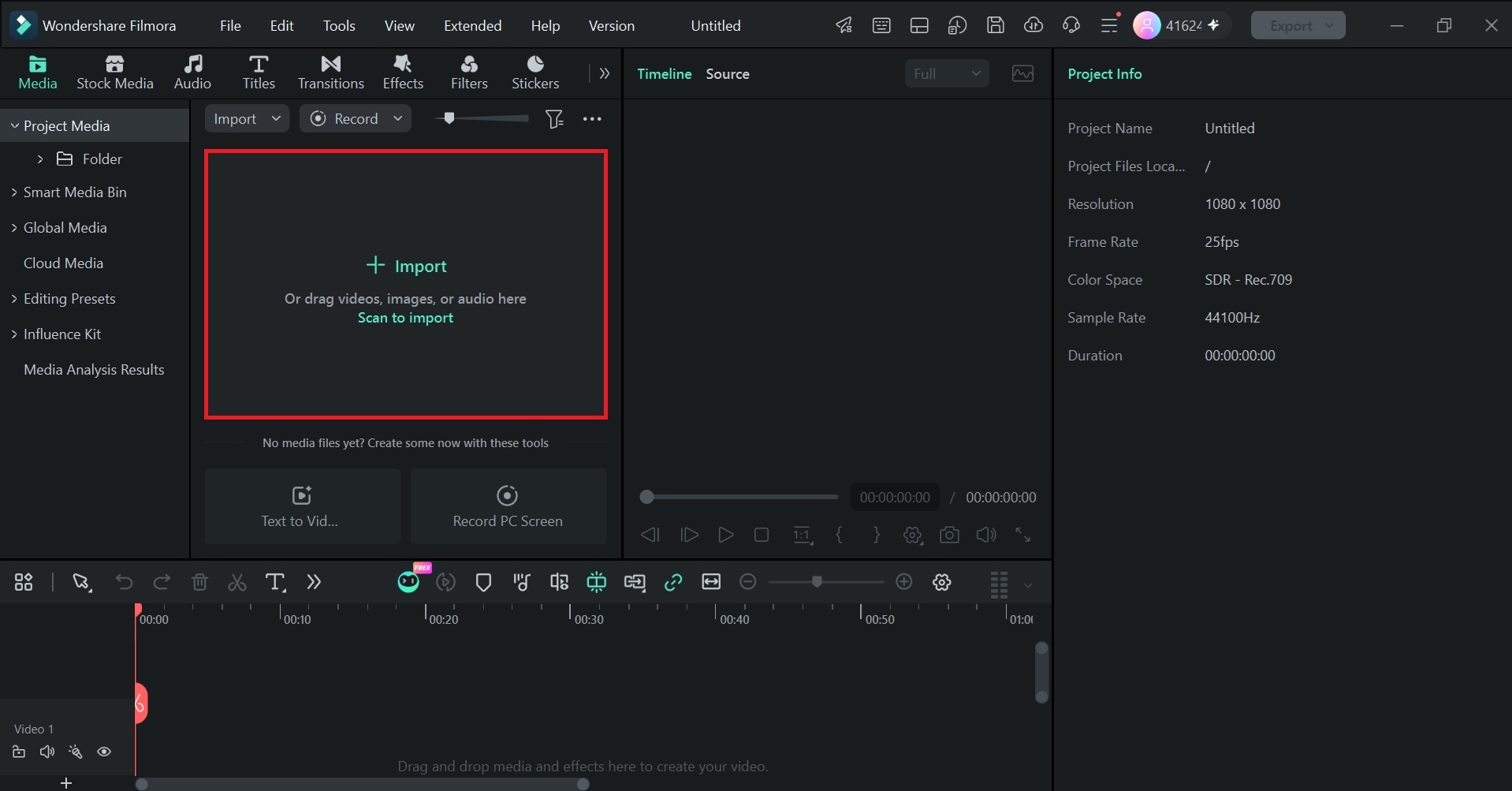
Step 3. Select Timeline Exchange Format XML from the options that appear, then choose your .xml or .fcpxml file.
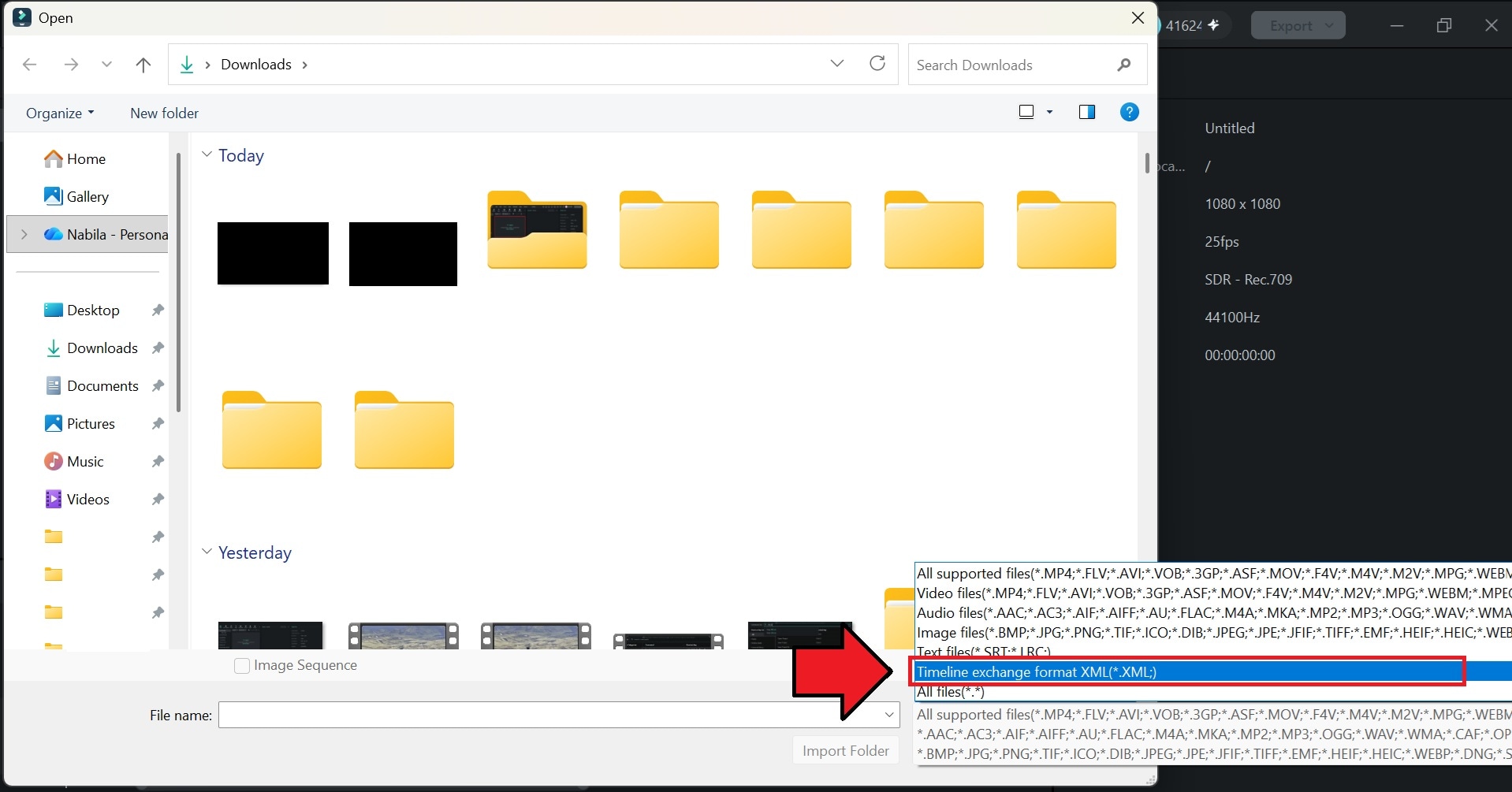
Filmora runs a compatibility check automatically and flags any media it can't find, so you can relink it.
2. Final Cut Pro: For Editing on macOS
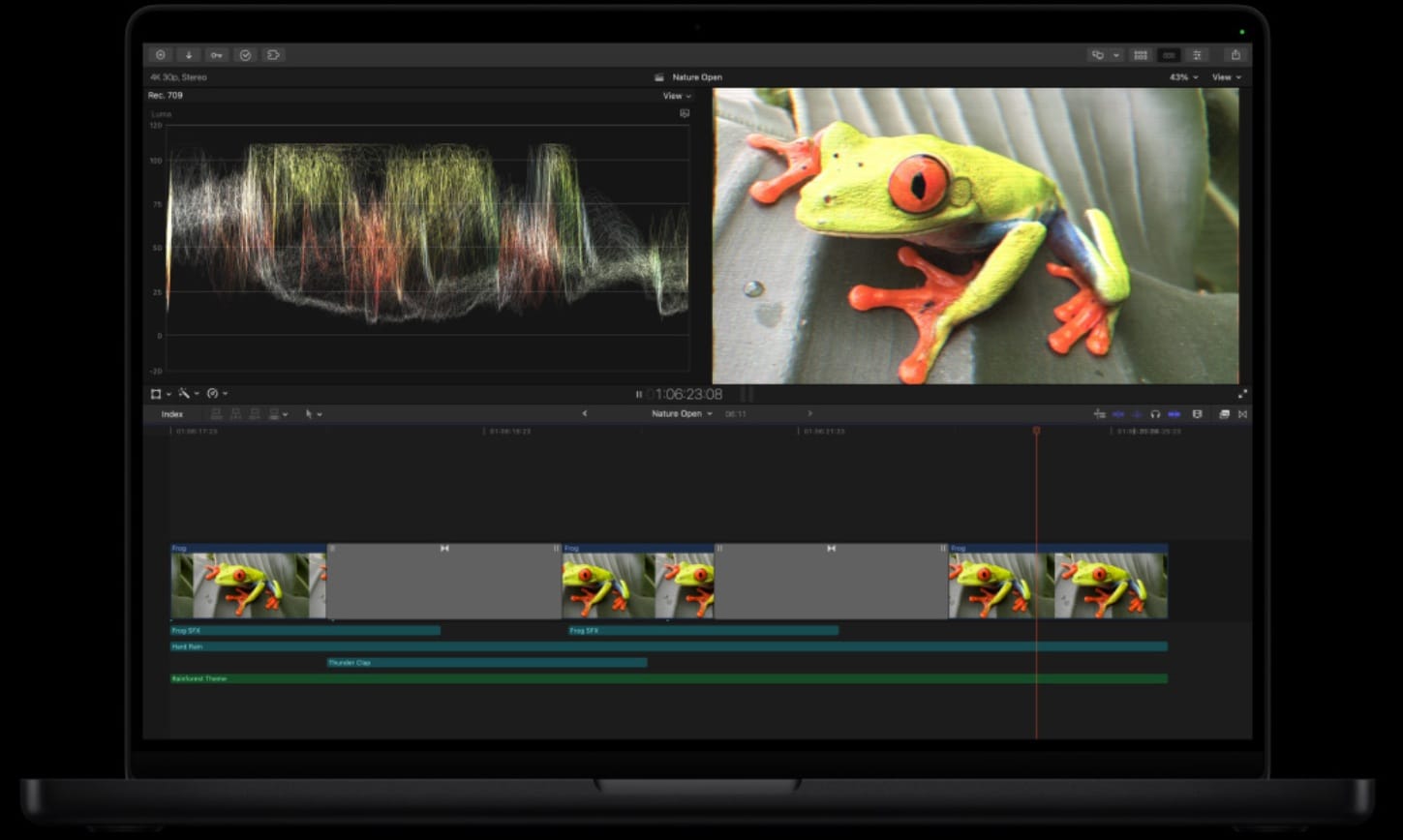
Final Cut Pro is Apple’s professional editor designed for Mac computers. XML has long served as a format for Final Cut Pro project exchange, so it is a common choice for project transfer between compatible editing applications.
After you export XML from DaVinci Resolve, you can import the supported XML format into Final Cut Pro and continue work on the transferred timeline.
For AAF
3. Avid Media Composer
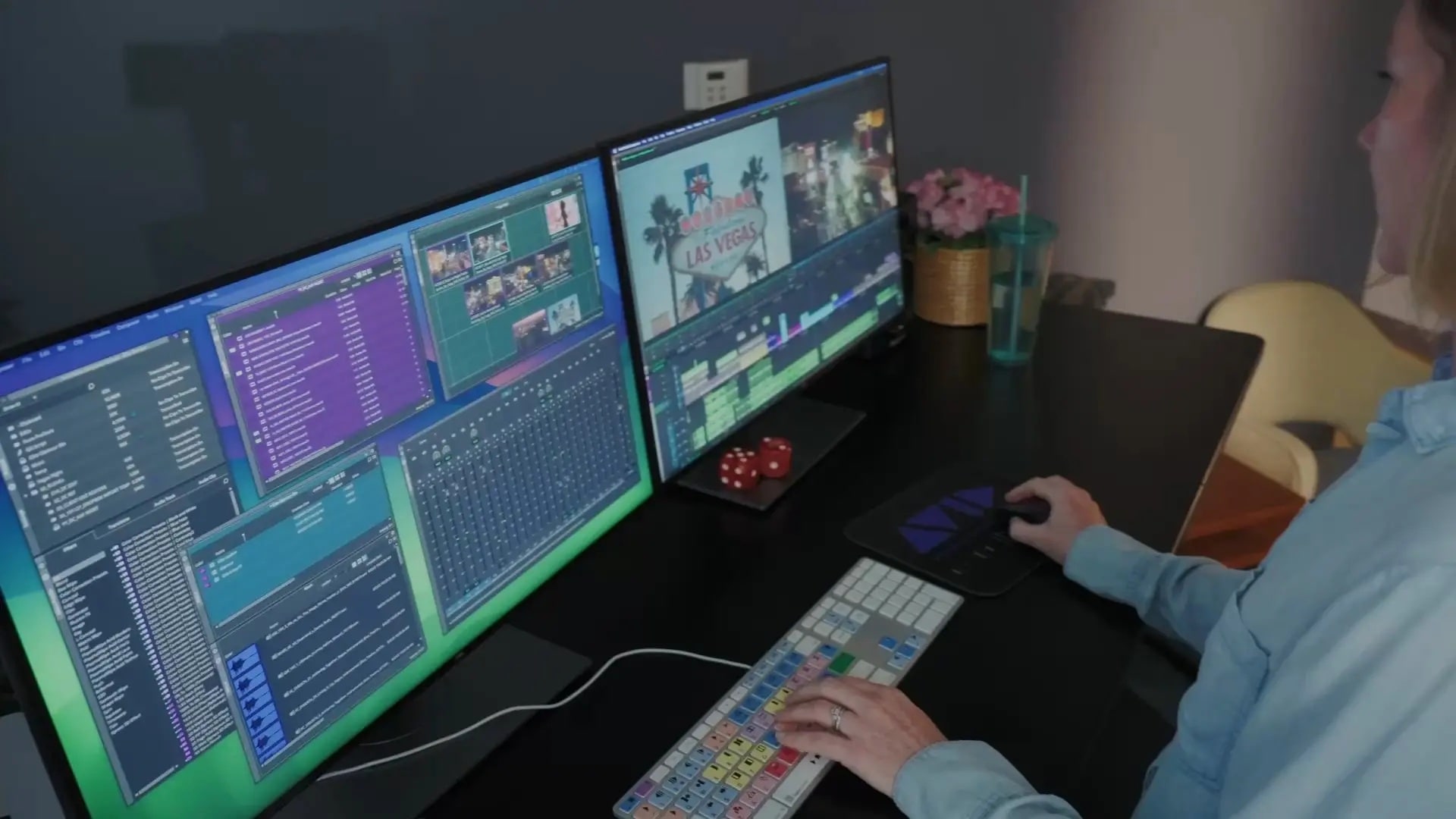
Avid Media Composer is generally the best match for a DaVinci AAF export, since AAF was built with Avid-style workflows in mind. DaVinci may still handle the picture edit and color grade well on its own, but you can use an AAF export to hand off the audio side to Avid. It provides better support for detailed audio data, like clip gain and handles.
Conclusion
Exporting XML from DaVinci, as well as AAF, is a practical way to continue a project elsewhere without redoing all your work. XML covers most timeline handoffs, especially for cuts and basic structure, while AAF works better when audio detail matters more.
After exporting, you can pick up the edit in whichever app fits your needs. Filmora is the easier route if you want a simpler interface, while FCP can be another option if you're staying inside the Apple ecosystem. For AAF DaVinci export, you can continue editing in Avid.
