

 TL;DR:
You can convert incompatible DVD VOB files into universally playable MP4s using video editors like Wondershare Filmora, free desktop software like VLC Media Player and HandBrake, or web-based tools for short clips.
● Wondershare Filmora is designed for users who need to trim footage or adjust resolution before exporting, while VLC and HandBrake serve as direct, open-source solutions for modifying specific codecs and framerates.
● Browser-based options like CloudConvert and FreeConvert bypass software installation but impose strict file size limits and slow upload speeds, limiting their use to small video files rather than full DVD backups.
● Copy-protected VOB files will fail to import unless processed through a separate DVD decrypter first, and if the output MP4 lacks sound, you must reconvert the file while manually setting the audio codec to AAC or MP3.
Ask AI for a summary
 ChatGPT
 Perplexity
 Gemini
 Claude
 Grok
Grok
Do you need a fast, reliable VOB to MP4 converter? You're in the right place. Converting VOB to MP4 is the essential solution for universal playback on modern devices. VOB files from old DVDs are often incompatible, so this guide provides the answer to how to convert VOB to MP4 without losing quality and get a smaller file size for easy sharing. We'll show you four clear methods, from the versatile Filmora video editor (great for conversion and editing) to free VOB to MP4 converter tools like VLC and HandBrake. Stop searching "how do I convert a VOB file to MP4"—let's get your videos playing smoothly now!

Part 1. What is a VOB File and Why Convert VOB to MP4 for Universal Playback? (VOB vs MP4 Comparison)
Before diving into how to convert a VOB file into MP4, let's find out what a VOB file actually is. It's a type of file found inside a DVD's VIDEO_TS folder that holds your main video, sound, menus, and subtitles. It works fine on DVD players, but newer devices usually can't open it.

Here's what often makes VOB files tricky to use:
- They don't play on mobile devices.
- Some players don't support the older video format.
- File sizes are large and take up space.
- Sharing or uploading takes longer.
Using MP4 can help solve these issues. MP4 works on almost every device, compresses video without huge quality loss, and moves faster when you upload or send it. Converting VOB to MP4 keeps the video easier to store, edit, and play across different platforms.
VOB vs MP4 Quick Comparison Table
To help you see the difference at a glance, here's a breakdown of both formats:
| Feature | VOB | MP4 |
| Compatibility | Works on DVD players. | Works on phones, browsers, and laptops. |
| File Size | Large | Smaller with efficient compression. |
| Editing Support | Limited | Supported in most editors. |
| Sharing | Hard to send or upload. | Easy to share across platforms. |
| Codec | MPEG-2 | H.264 or H.265 |
|
Show More
Show Less
|
||
Part 2. How to Convert VOB Files to MP4 on Mac & Windows (4 Simple Methods)
If you want to know how to convert VOB to MP4, several tools are available to help you do it without confusion. Some programs focus on fast conversion, while others include video editing options to adjust the video before exporting.
Method 1. Wondershare Filmora (Best for Fast VOB to MP4 Conversion & Editing)
Wondershare Filmora (Best VOB to MP4 Converter for Quality Editing). Unlike most simple VOB conversion tools, Filmora is a complete video editor that guarantees you can convert VOB to MP4 without losing quality while also improving your video. It's the best choice for users who want to not only convert VOB files but also trim, stabilize shaky footage, or enhance the DVD video quality using AI tools before exporting to MP4.

 Secure Download
Key Features
- Simple drag-and-drop interface: Import your VOB files and start working right away without complex setup.
- Trim and cut tools: Remove unwanted intros, black frames, or extra scenes before exporting to MP4.
- MP4 export with flexible quality settings: Pick resolution, bitrate, and codec to control size and quality during conversion.
- Support for many formats: Besides MP4, you can convert VOB files to MOV, MKV, AVI, and other formats when needed.
How to Convert VOB to MP4 Using Filmora
Follow this guide to learn how to convert VOB files to MP4:
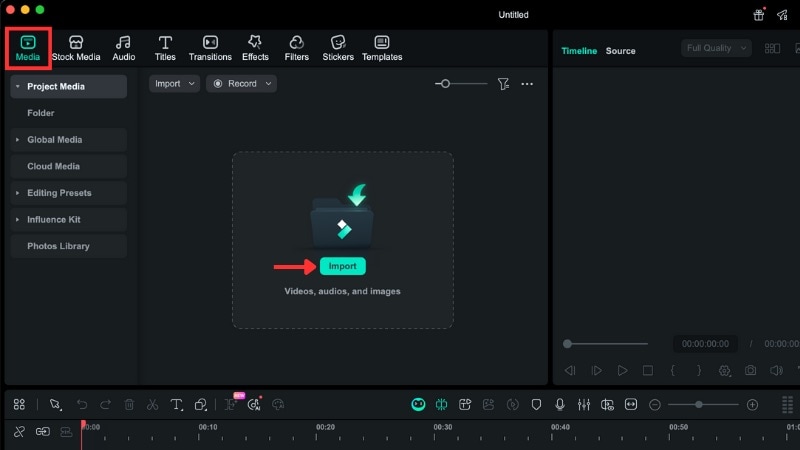
Head to the Media tab > Project Media and click the Import button to load your VOB file.

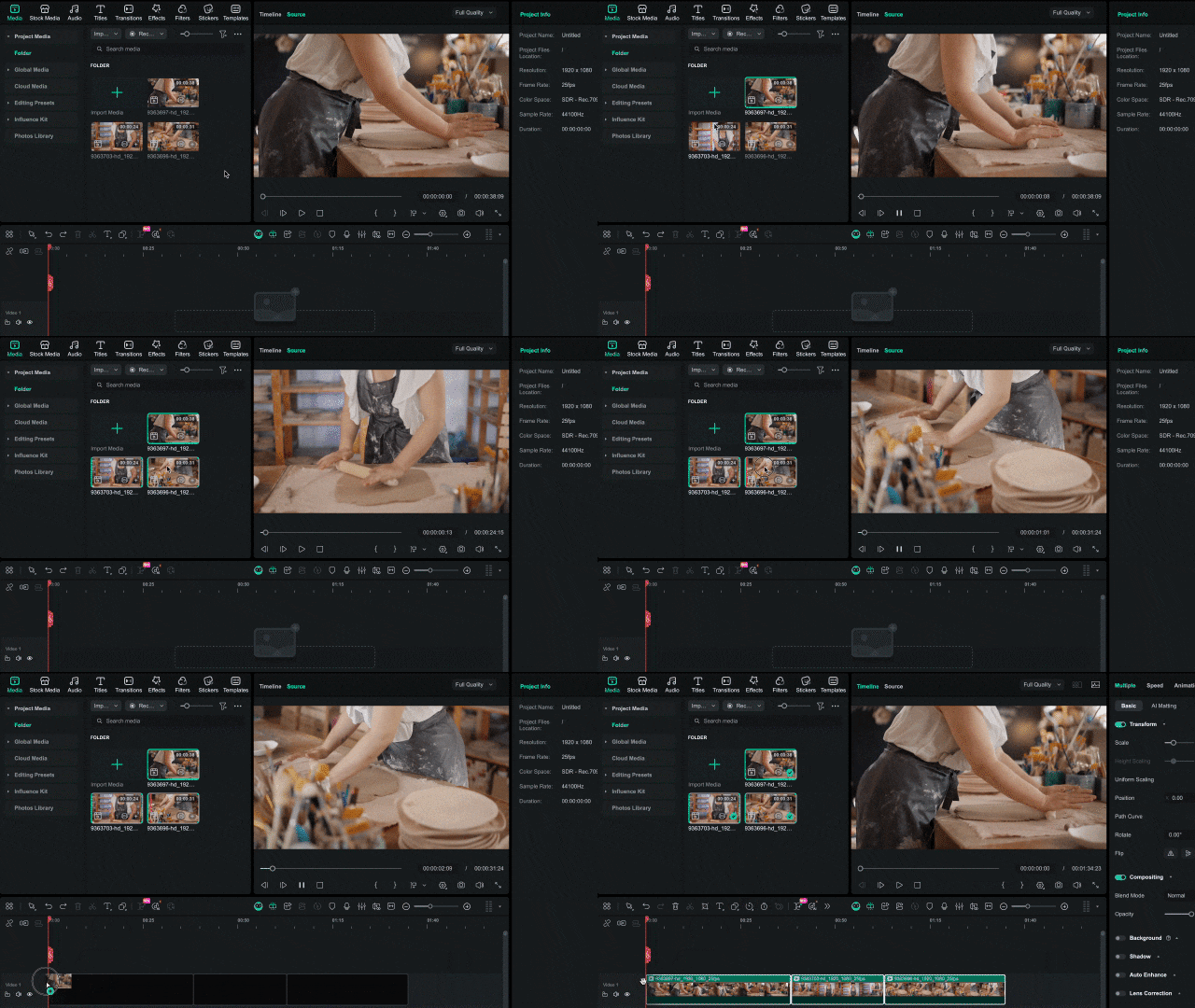
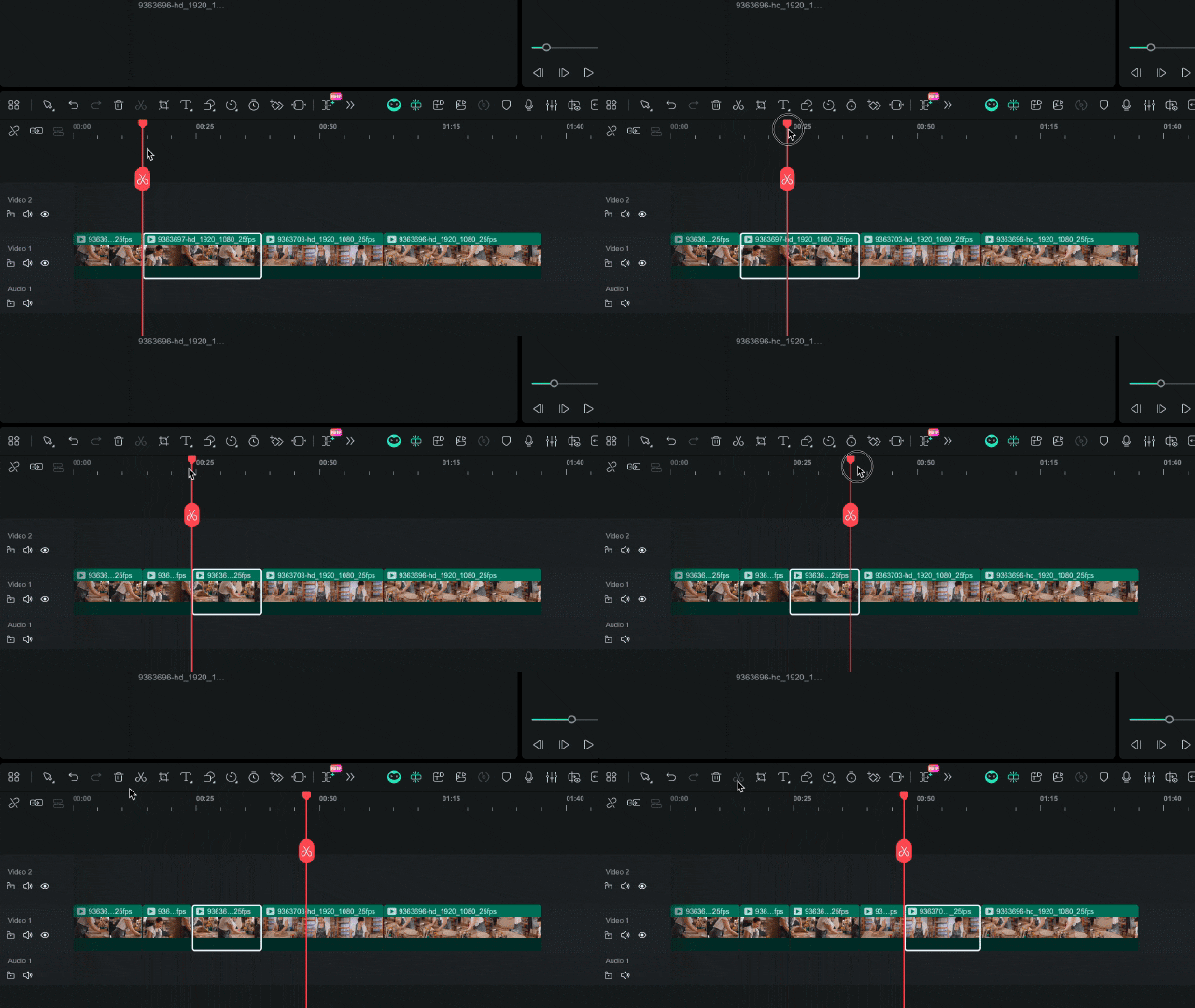
Split a clip: Place the playhead at the cut point and click the Scissors icon.
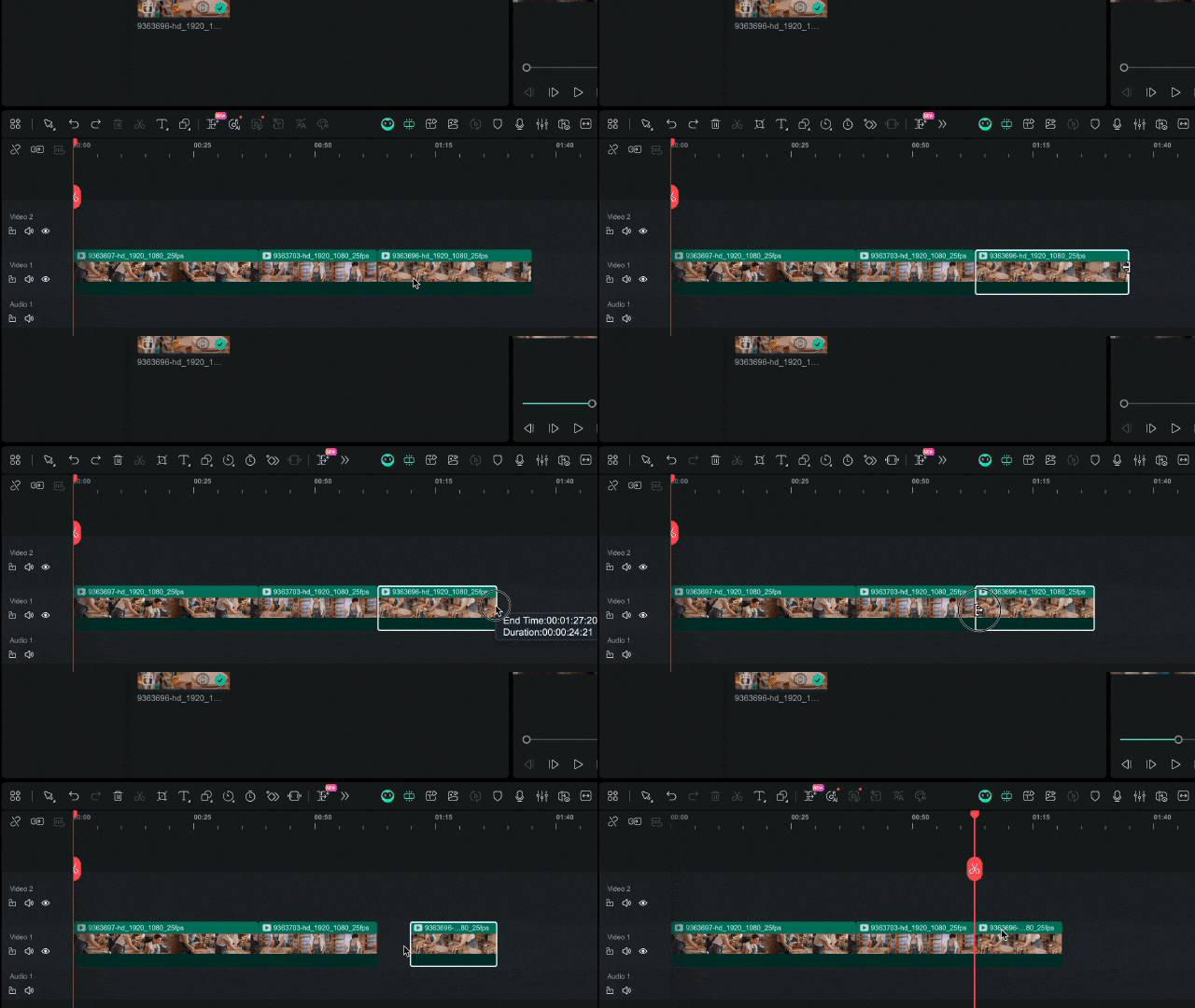
Trim a clip: Hover over the start or end of the clip and drag inward/outward to remove sections.
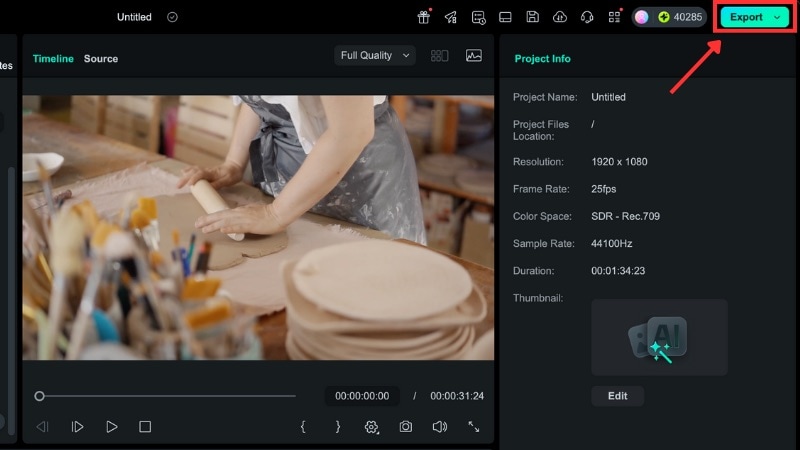
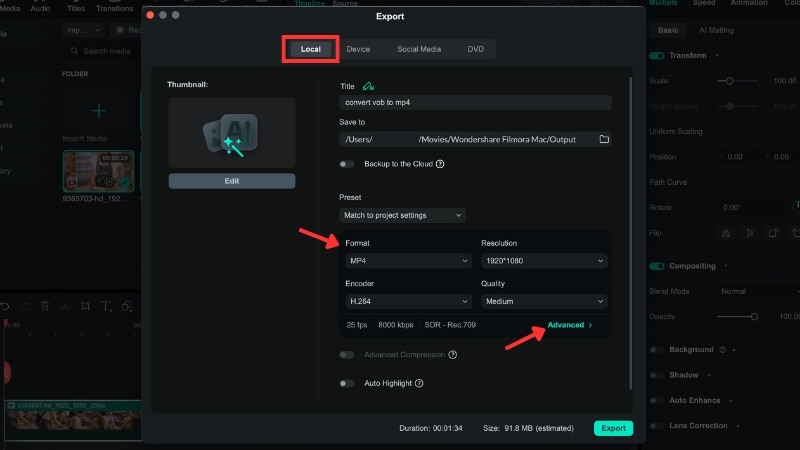
Choose Local, set Format to MP4, and customize resolution, encoder, and quality.
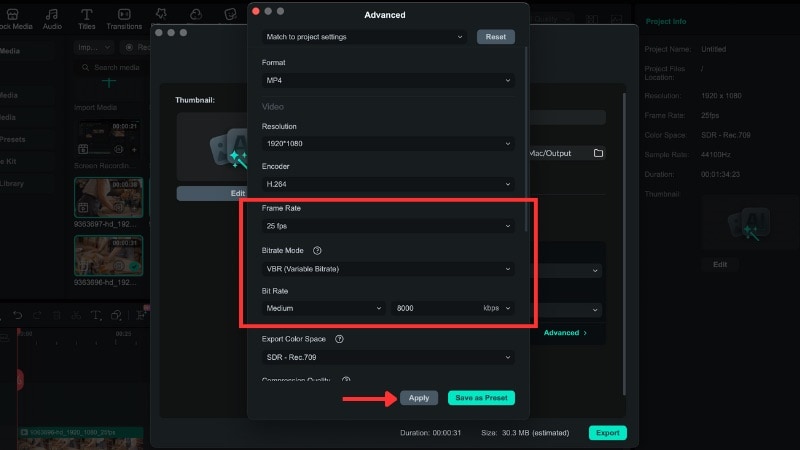
Open Advanced settings to modify bitrate or frame rate. Then click Export again to save your MP4 video.
Method 2. Convert VOB to MP4 Free with VLC Media Player
When looking for a solution how to convert VOB to MP4 for free, VLC Media Player is one of the most reliable and easiest tools you can use. Many users specifically search how to convert VOB to MP4 using VLC because it's available on all major platforms (Windows, Mac, Linux). You can convert VOB files to MP4 quickly in VLC without needing extra plugins or complicated setup steps. This makes VLC an ideal free VOB to MP4 converter for users trying to convert DVD VOB to MP4 format.

How to Convert VOB to MP4 in VLC (The Free Method)
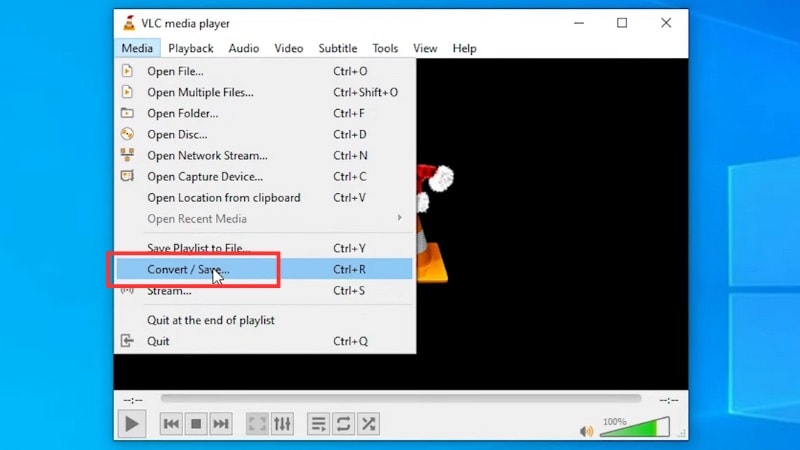
Follow these steps to learn how to convert VOB to MP4 for free in VLC Media Player:
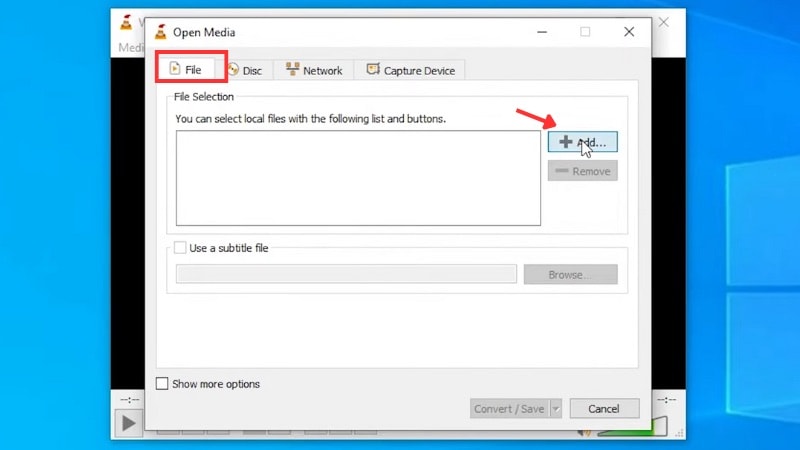
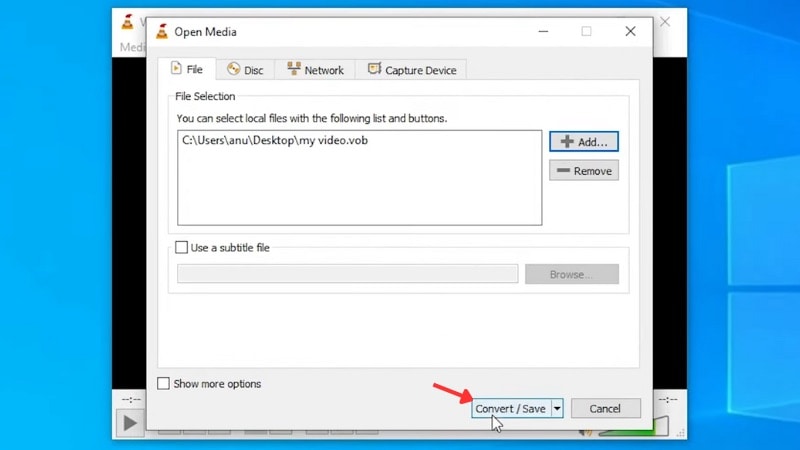
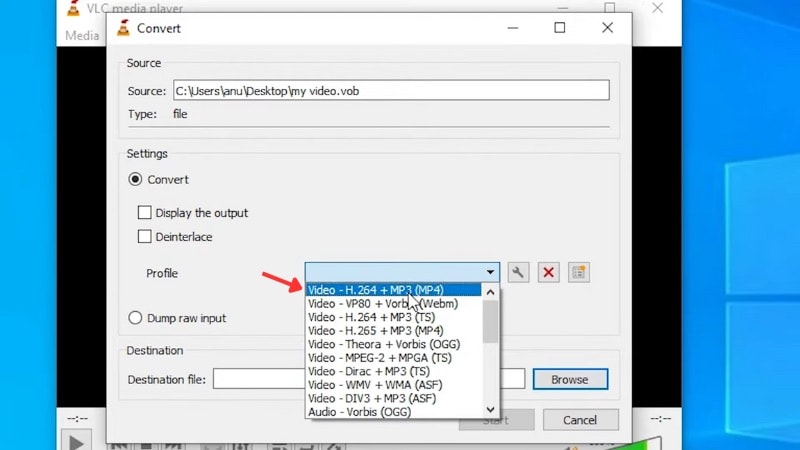
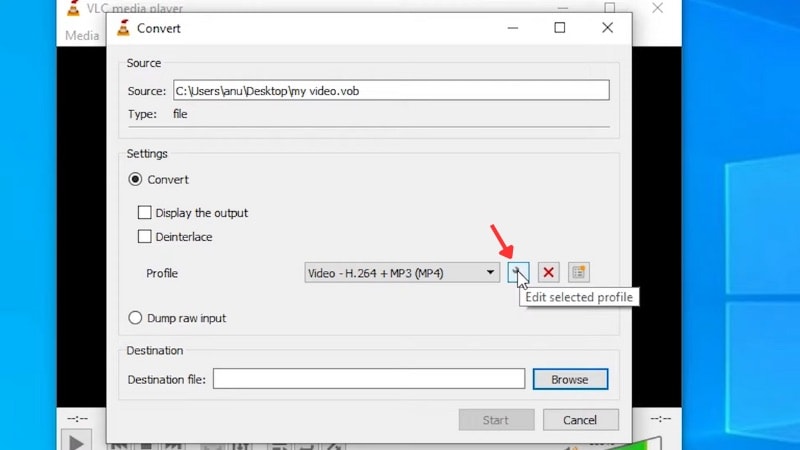
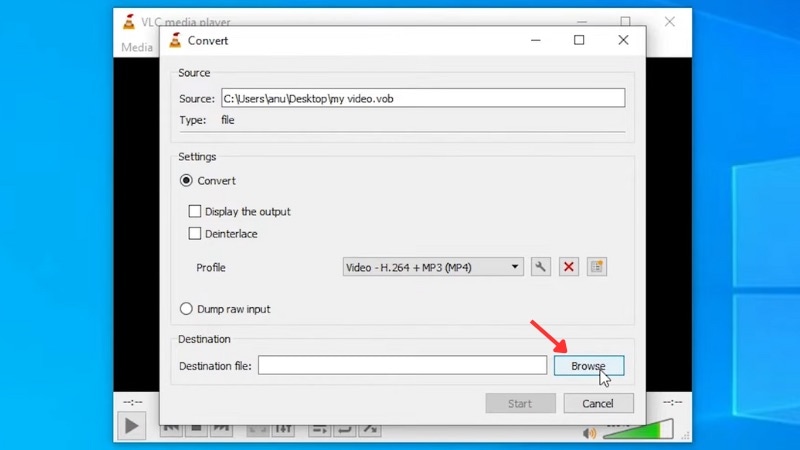
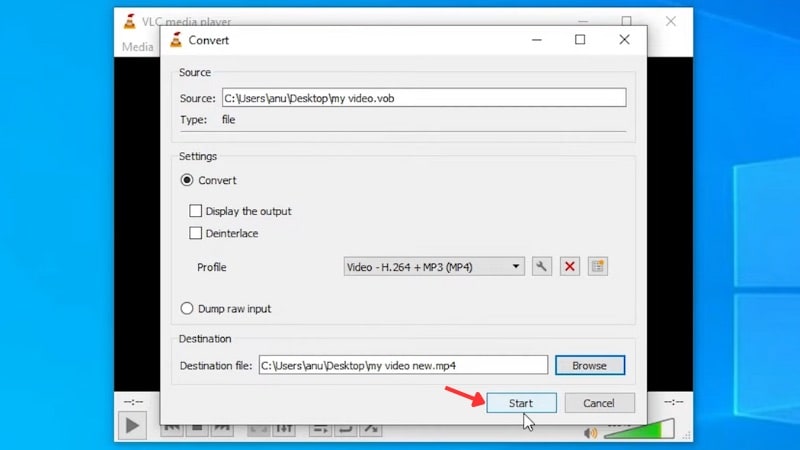
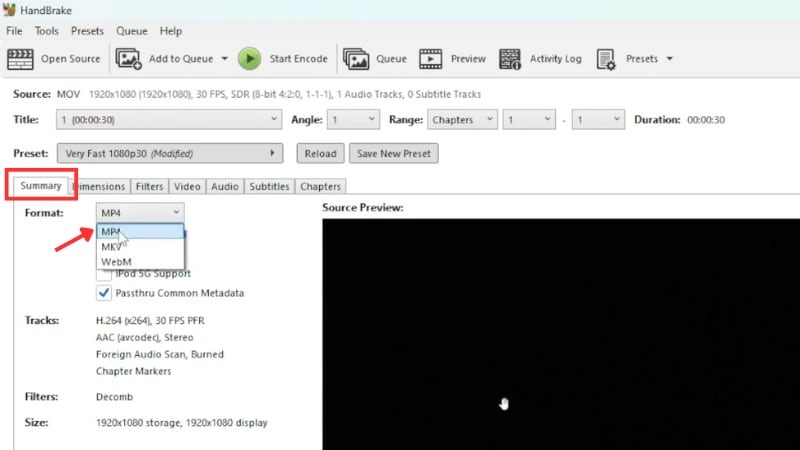
Method 3. Convert VOB Files to MP4 Using HandBrake
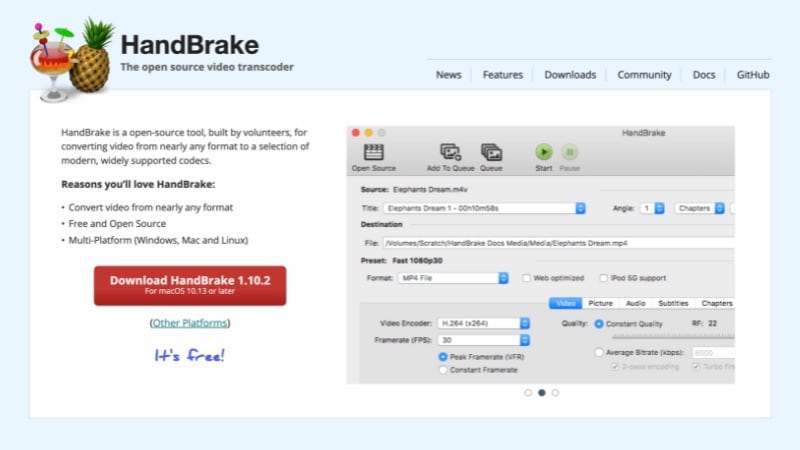
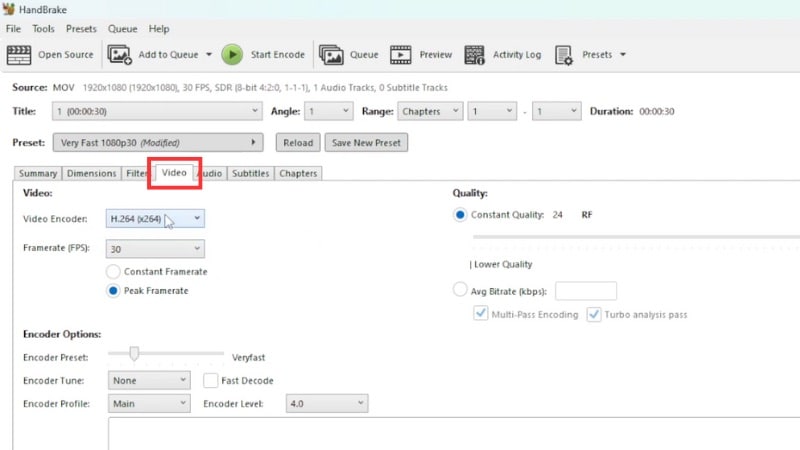
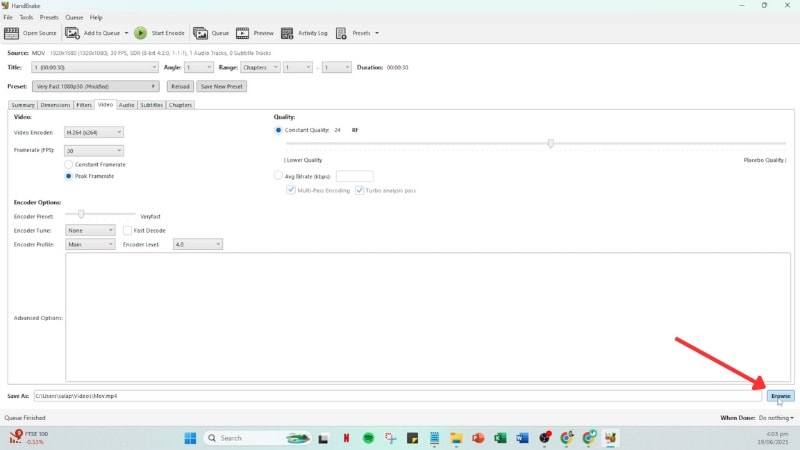
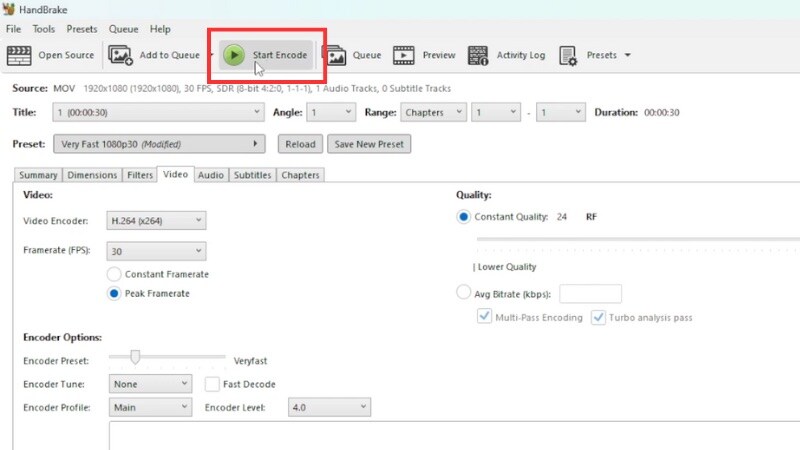
If you're asking, "Can I convert VOB files to MP4?", HandBrake is an open-source tool that gives you a free way to do it. The app focuses on conversion and offers control over video quality, resolution, and codec settings. It works on Windows, macOS, and Linux.
How to Convert VOB to MP4 Using HandBrake
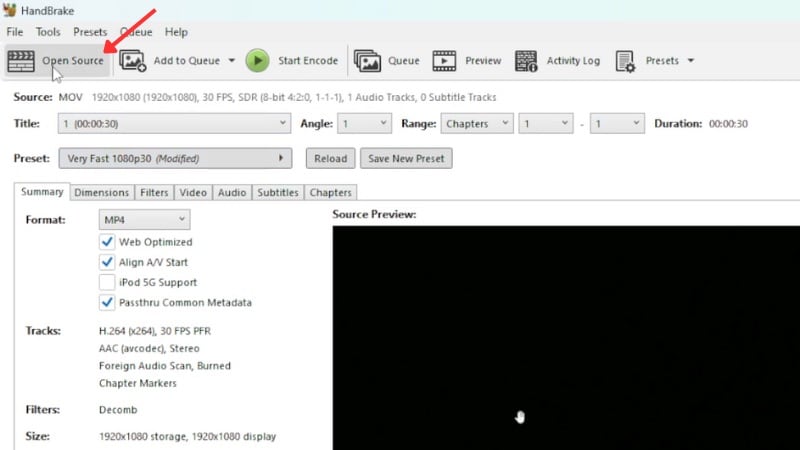
Here are the steps on how to convert VOB to MP4 using HandBrake:
Method 4. Convert VOB File Into MP4 Online (For Small Clips)
If you want a quick way to learn how to convert VOB file to MP4 online without installing programs, use dedicated online converters. Sites such as CloudConvert and FreeConvert accept VOB files and can turn them into MP4 through a simple upload and convert flow in your browser. This is the best method if you need to know how to convert VOB to MP4 free online and are dealing with small clips. (Note: Converting large VOB files or trying to convert VOB to MP4 in Android is better handled by desktop or dedicated mobile apps).
- No need to install any program.
- Simple interface for quick conversions.
- Works on different devices through the browser.
- File size limits for larger VOB videos.
- Slow upload and download for long clips.
- Privacy risk when you upload personal content.
- Not ideal for full DVD backups or bigger projects.
Online tools work well as a backup option when you only need to convert a short VOB file and don't want to set up desktop software.
Part 3. Troubleshooting: Common VOB to MP4 Conversion Issues and Fixes
Even after learning how to convert VOB files to MP4, you may still run into a few problems along the way. Issues like files won't import, lose audio after conversion, or the video refuses to open are common with DVD-based formats. But you can fix them once you know what causes them.

Here are a few of the common VOB to MP4 conversion issues with their fixes.
1. How to Fix Encrypted VOB Files That Won't Convert (Common VOB Converter Error)
Some VOB files come from DVDs with copy protection. When you load them into VLC, HandBrake, or Filmora, the tools may refuse to open the file or stop during conversion.
- Fix: Use a DVD decrypter to remove the protection before you convert the file. After that, reload the VOB file into your converter and try again.
2. VOB File Won't Import Into Your Converter
Sometimes, the converter doesn't recognize the VOB file even though it's valid. This situation often happens when the file name or path is too long.
- Fix: Rename the file using simple letters and move it to a different folder on your desktop.
3. Converted MP4 Has No Audio
If your converted MP4 has no sound, the issue usually lies in the audio codec. Some VOB files use formats that certain converters skip during processing.
- Fix: Reconvert the file and select AAC or MP3 as the audio codec. HandBrake and Filmora both let you set the audio track manually before exporting.
4. The VOB File Is Too Large
VOB files can easily reach several gigabytes, making them hard to upload or convert on low-end systems.
- Fix: Split the file into smaller parts or lower the output bitrate before converting. In Filmora or HandBrake, you can set a custom bitrate to reduce size without losing much visual quality.
Conclusion
Learning how to convert VOB to MP4 helps you keep old DVD videos playable on modern devices. The tools in this guide can help you keep your clips organized, smaller in size, and ready for sharing. If you wonder, "How do I convert a VOB file to MP4 without losing quality?" You can use Filmora for fast conversion and editing, VLC or HandBrake for free options, or an online converter for short clips. After learning how to convert VOB files to MP4, start turning your old DVD videos into MP4 files. Play them on your phone, tablet, or laptop without problem.

FAQs
-
Why are VOB files split into multiple, numbered parts (VOB, VOB1, etc.) within the VIDEO_TS folder?
DVDs break videos into several VOB parts to manage size limits and menu structure. Each part stores a section of the movie, and the DVD player stitches them together during playback. -
I converted VOB to MP4, but the audio is missing. Why does VOB audio often disappear?
The audio track may use a codec your converter didn't select or support. Choose the correct audio track and set AAC or MP3 as the codec before converting again. -
Can my converted MP4 file be larger than the original VOB file, and why?
Yes. MP4 can grow bigger if you use higher bitrate, resolution, or encoder settings than the original file. Lower the bitrate or pick a lighter preset to reduce the size. -
Is it legal to convert a protected DVD's VOB files to MP4 format for personal use?
It depends on local law. Some places allow personal backups, while others restrict copying protected discs. Check the rules in your region to stay safe.
