Awards Video Examples & Ceremony Guides
Discover the best awards video templates for galas, festivals, and corporate honors
Loading more awards video templates...
 Category:
 Duration:
 Aspect Ratio:
Everything You Need to Create High-End Awards Videos
Elevating a winner's announcement requires more than just text; it needs atmosphere. Filmora provides a vast collection of awards video templates featuring high-definition particle effects and golden light leaks.
Whether you are producing a corporate recognition ceremony or an independent film festival, our tools simplify the process of adding text overlays for nominees and syncing them with grandiose Sound Effects.
Prestigious Golden Assets — Ready for the Big Stage
Prestigious Golden Assets — Ready for the Big Stage
Achieve the "Oscar-look" without a Hollywood budget. Our awards video templates come pre-loaded with shimmering backgrounds, bokeh overlays, and elegant transitions. These assets are specifically designed to highlight achievements and build anticipation before the big reveal.
- Luxury Backgrounds - Access high-quality bokeh backgrounds and velvet-textured canvases.
- Nominee Grid Layouts - Display multiple finalists simultaneously with organized, stylish split-screen templates.
- Grand Transitions - Smooth, light-sweeping transitions that keep the ceremony flowing seamlessly.
Dynamic Typography for Winner Announcements
Dynamic Typography for Winner Announcements
The climax of any awards ceremony is the name on the screen. Use our specialized title templates to add drama and flair. Apply glow effects to text to make it pop against dark backgrounds, ensuring every winner feels like a star.
- 🏆 Award-Specific Fonts - Curated selection of elegant serif and modern sans-serif fonts for a premium feel.
- ✨ Customizable Sparkle - Adjust the intensity and color of golden dust and lens flares surrounding your text.
- ⏱️ Perfect Pacing - Easy-to-adjust animation curves to control exactly when a name is revealed for maximum suspense.
- 🎨 Cinematic Look - Use professional color grading to give your footage a cohesive, expensive appearance.
AI-Powered Ceremony Efficiency
AI-Powered Ceremony Efficiency
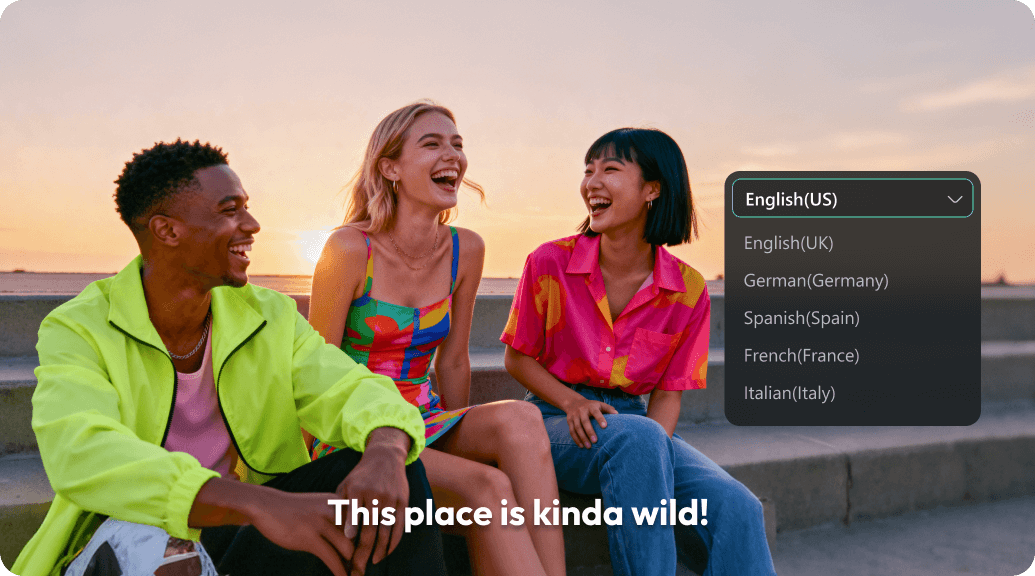
Managing dozens of nominee clips can be time-consuming. Filmora's AI video generator helps you compile highlights quickly. You can even use Celebration Overlays to add confetti and festive bursts automatically during the applause segments.
- Instant Photo Animation - Use One-Tap Photo Animation to turn static nominee portraits into dynamic video clips.
- Smart Audio Sync - Automatically align transition sounds and fanfares with on-screen name reveals.
- Bulk Text Editing - Quickly update multiple title cards for different categories without starting from scratch.
- Optimized Exports - Save your project in the best resolution for grand ballroom projection or vertical mobile viewing.
Frequently Asked Questions About Awards Video Templates
How to Use Awards Video Templates in Filmora
Transform your event footage into a professional ceremony in three easy steps. Follow this guide to select, customize, and produce high-impact award videos.
Step 1 Select Your Awards Template
Step 2 Customize Nominees and Details
Step 3 Export Your Ceremony Video
-
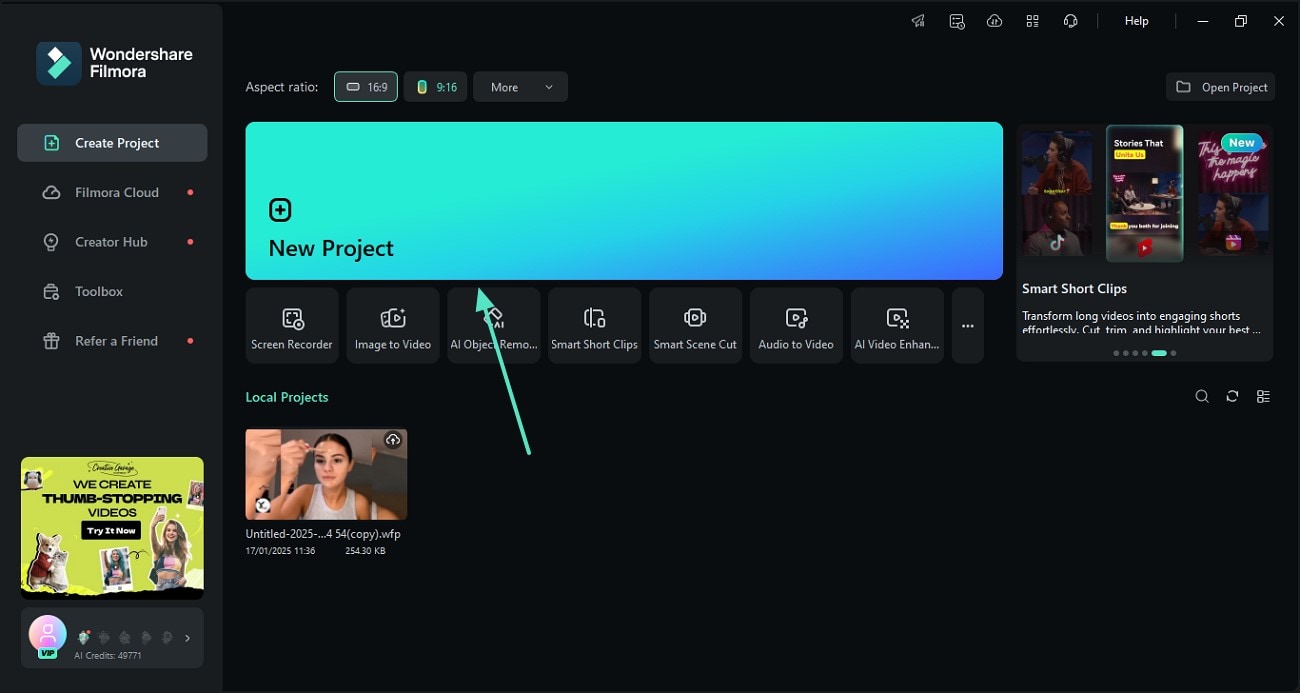
1:Select Your Awards Template
Launch Filmora and go to the "Templates" or "Titles" tab. Search for "Awards" to find glitzy, cinematic styles. Drag your chosen template onto the timeline above your nominee clips. -
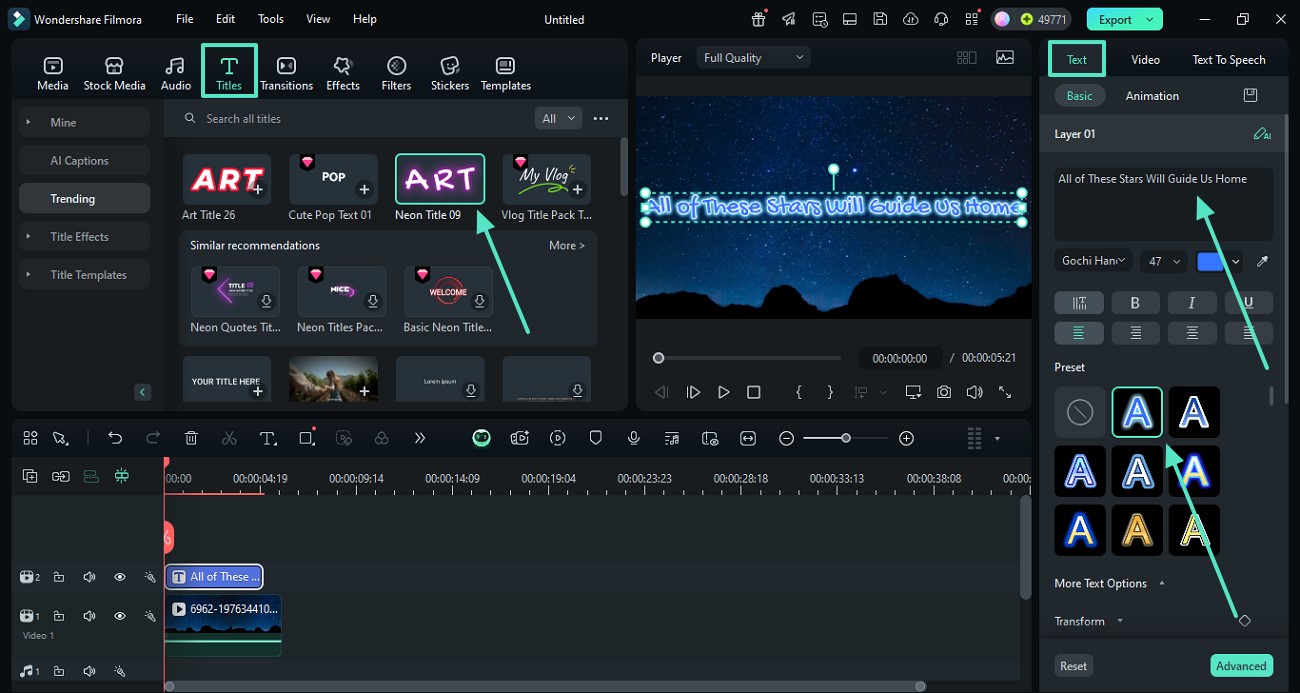
2:Customize Nominees and Details
Double-click the template on your timeline to open the editor. Update the names, award categories, and descriptions. You can also adjust colors and font sizes to match your event's branding. -
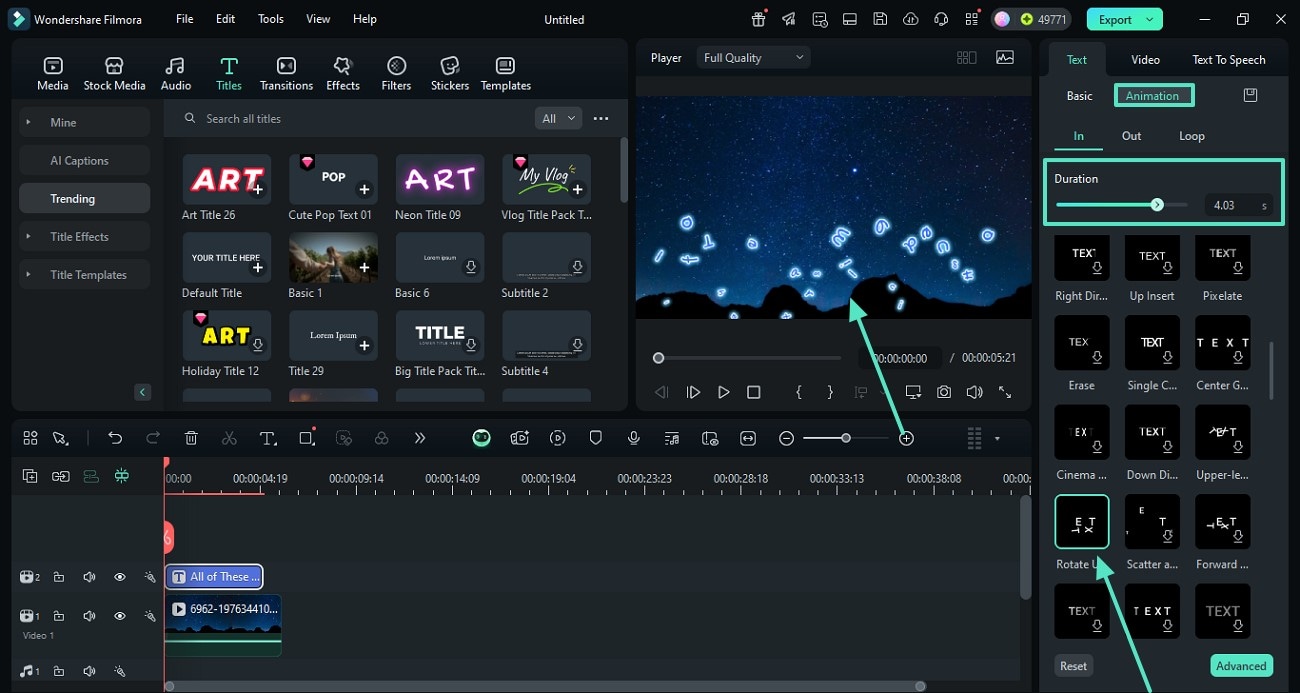
3:Export Your Ceremony Video
Review the timing to ensure transitions sync with the music. Click "Export" and choose a high bitrate to ensure the golden particles and effects look crisp on big screens or social media.
Explore More Professional Video Templates
Find the perfect visual style for every celebratory event and professional presentation