Trending Clone Effect Templates:
Shadow Clones, Phantoms & Twin Duplicates
From anime-inspired shadow clone transformations to cinematic phantom duplicates, these clone effect templates let you multiply yourself in a video with zero editing experience. Simply pick a clone video template, replace with your own footage, and export a scroll-stopping duplication video ready for TikTok, Instagram Reels, and YouTube Shorts.
Loading more templates...
 Category:
 Duration:
 Aspect Ratio:
Clone Yourself in Videos
with AI-Powered Duplication Effects
Traditional clone video effects require a locked-down tripod, multiple takes, and hours of manual masking. Filmora changes the game with AI Portrait Cutout, pre-built clone effect templates, and flexible split-screen layouts — so you can duplicate yourself in a video in minutes, not hours, and add stylized energy bursts, shadow trails, and phantom effects that make your clones look cinematic.
One-Tap Clone Templates: Shadow Clones, Phantoms & Twin Effects
One-Tap Clone Templates: Shadow Clones, Phantoms & Twin Effects
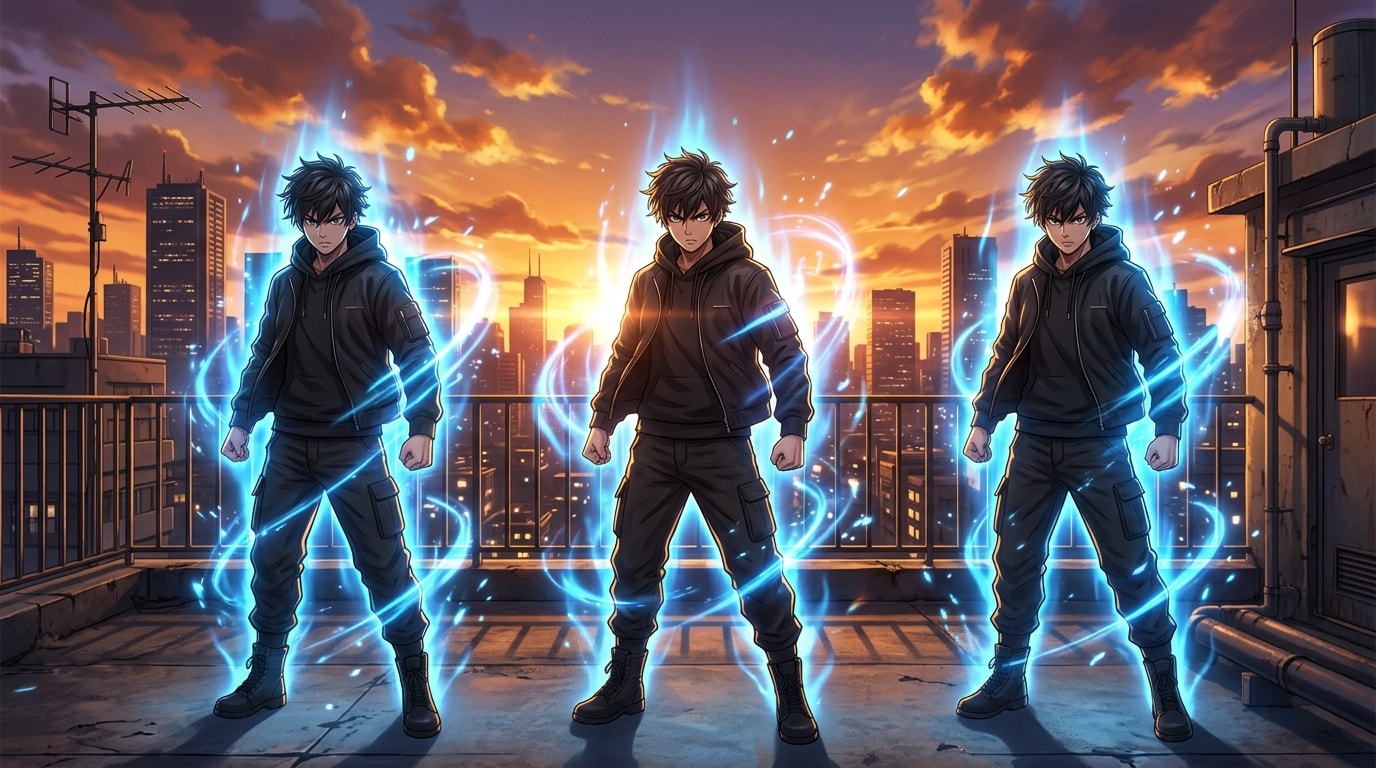
Skip the complex editing workflow. Filmora's clone effect templates come pre-built with energy bursts, light trails, and phantom duplication animations — so your clones don't just appear, they make an entrance. Simply swap in your footage and the template handles the compositing, timing, and visual effects automatically.
- Shadow Clone FX – Anime-inspired duplication effects with energy auras, light explosions, and synchronized movement across multiple clones.
- Phantom Clone Styles – Cinematic ghost-trail and dimensional-break effects that give your duplicates a supernatural edge.
- Twin & Mirror Effects – Clean side-by-side or conversation-style cloning templates perfect for outfit comparisons, skits, and reaction content.
AI Portrait Cutout: Clone Yourself Without a Green Screen

AI Portrait Cutout: Clone Yourself Without a Green Screen
The traditional way to clone yourself requires a green screen, a locked tripod, and careful masking. Filmora's AI Portrait Cutout removes the background from your footage with one click — so you can layer multiple versions of yourself into any scene, any background, with clean hair-level edge detection.
- One-Click Background Removal – AI instantly detects your body and makes the background transparent, no green screen or manual masking required.
- Hair-Level Edge Precision – Advanced keying preserves fine details like hair strands and hand-held objects for natural-looking composites.
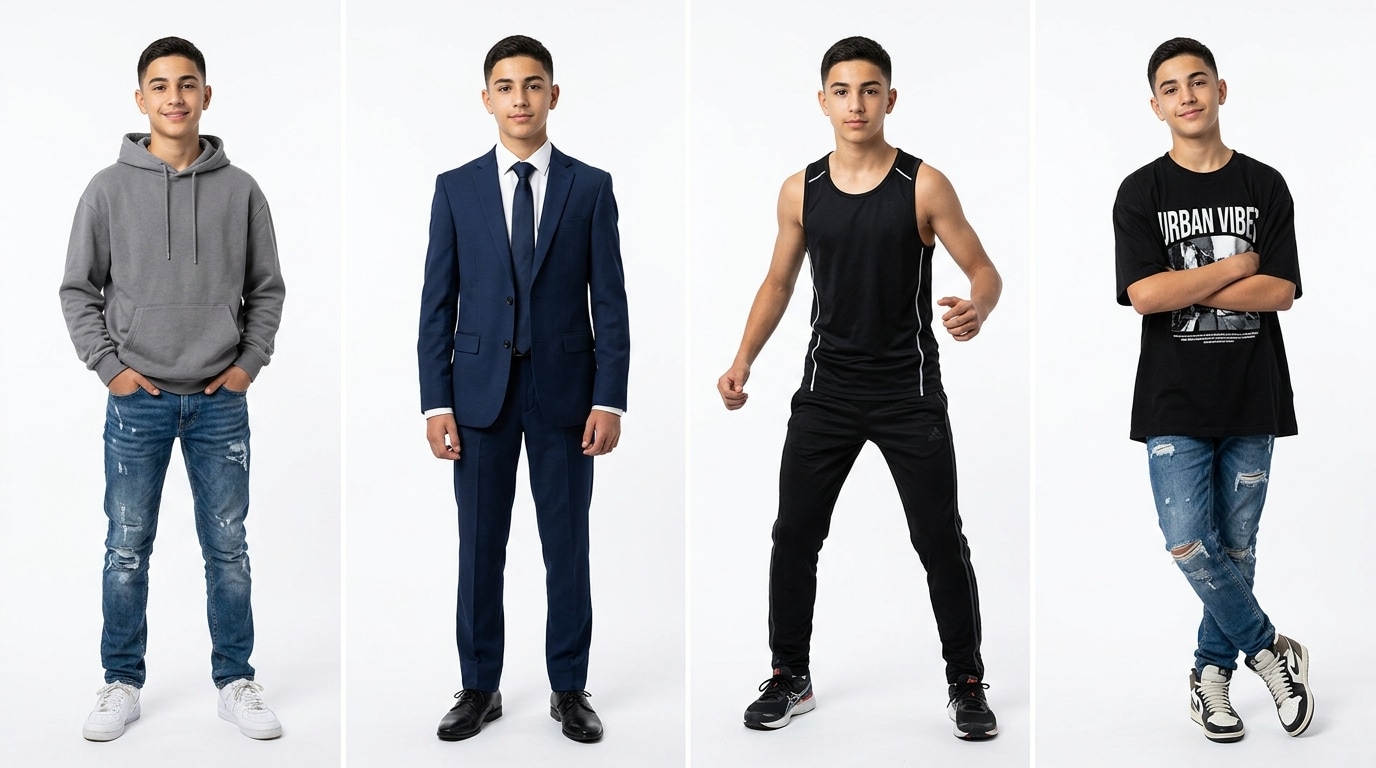
- Layer Multiple Clones – Stack multiple cutout layers on the same timeline to place 2, 3, or even 6 versions of yourself in the same frame.
3 Ways to Clone: Split-Screen, PIP & Chroma Key Compositing
3 Ways to Clone: Split-Screen, PIP & Chroma Key Compositing
Beyond templates, Filmora gives you full creative control with three proven cloning methods — each suited to different content styles and skill levels. Whether you want a quick twin effect or a Hollywood-grade multi-clone scene, there's a workflow for you.
- 🎬 30+ Split-Screen Layouts – Pre-built layouts let you place up to 6 videos simultaneously, so you can show 6 different versions of yourself in one frame.
- 🖼️ Picture-in-Picture (PIP) – Overlay your footage side by side with precise positioning and sizing for talk-to-yourself skits and reaction content.
- 🟢 Chroma Key Compositing – For maximum control, use green screen footage with Filmora's chroma key tool to seamlessly blend multiple takes into one scene.
FAQs About Clone Video Effects
How to Create a Clone Effect Video with Filmora
Whether you're making a viral shadow clone transformation or a simple talk-to-yourself skit, this step-by-step guide shows you how to duplicate yourself in a video with Filmora — no advanced editing skills required.
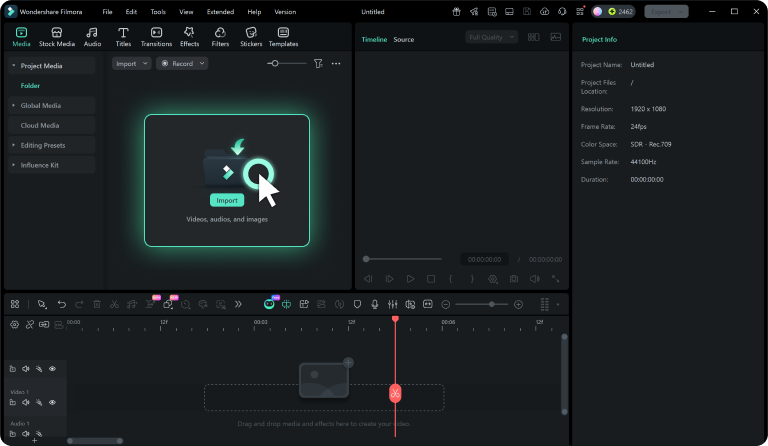
Step 1 Choose a Clone Template or Import Footage
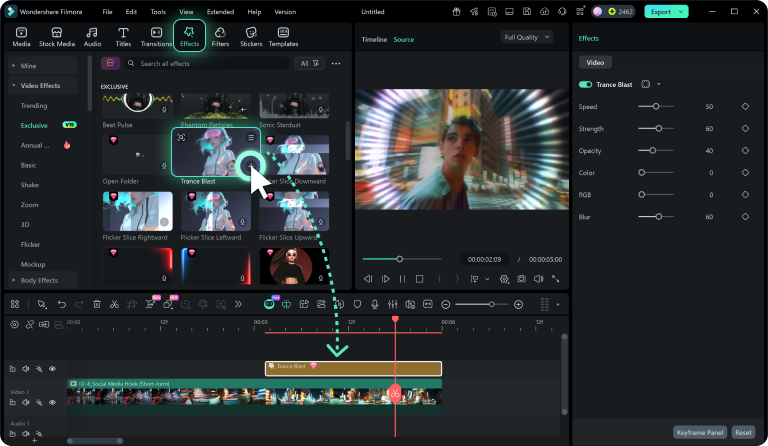
Step 2 Apply Clone Effect & Position Your Duplicates
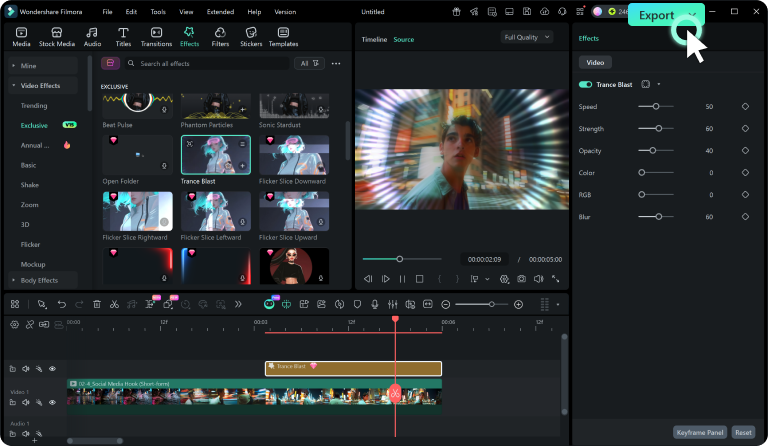
Step 3 Export & Share Your Clone Video
-
1:Choose a Clone Template or Import Footage
Open Filmora and browse the clone effect templates — pick a shadow clone, phantom, or twin style. Or start from scratch by importing your own video clips filmed from the same angle. -
2:Apply Clone Effect & Position Your Duplicates
If using a template, swap in your media and let the effects auto-apply. For manual cloning, use AI Portrait Cutout to remove backgrounds, then layer clips on the timeline and position each clone in the frame. -
3:Export & Share Your Clone Video
Preview your multi-clone scene, fine-tune timing and effects, then hit Export. Choose 9:16 for TikTok and Reels or 16:9 for YouTube — and share your clone creation with the world.
Explore More Video Effects & Templates
From clone transformations to cinematic intros — explore Filmora's full library of effects, templates, and AI-powered creative tools.