Diwali Video Sticker Examples and Guides
Explore festive sticker ideas and practical guides for creating brighter Diwali videos in Filmora.
Loading more Diwali sticker examples...
 Category:
 Duration:
 Aspect Ratio:
Create Brighter Diwali Videos with Filmora Stickers
A well-placed Diwali sticker can highlight a greeting, frame a family moment, or add movement to an invitation. Filmora brings festive stickers, titles, transitions, music, and other creative assets into one editing workspace.
Whether you're decorating a family montage, building a festive greeting, or adding stylized filters to celebration footage, Filmora lets you refine timing, framing, color, and audio in the same timeline. Preview each overlay carefully so the decoration supports the story without hiding faces or important text.
Add Festive Diwali Stickers to Any Scene
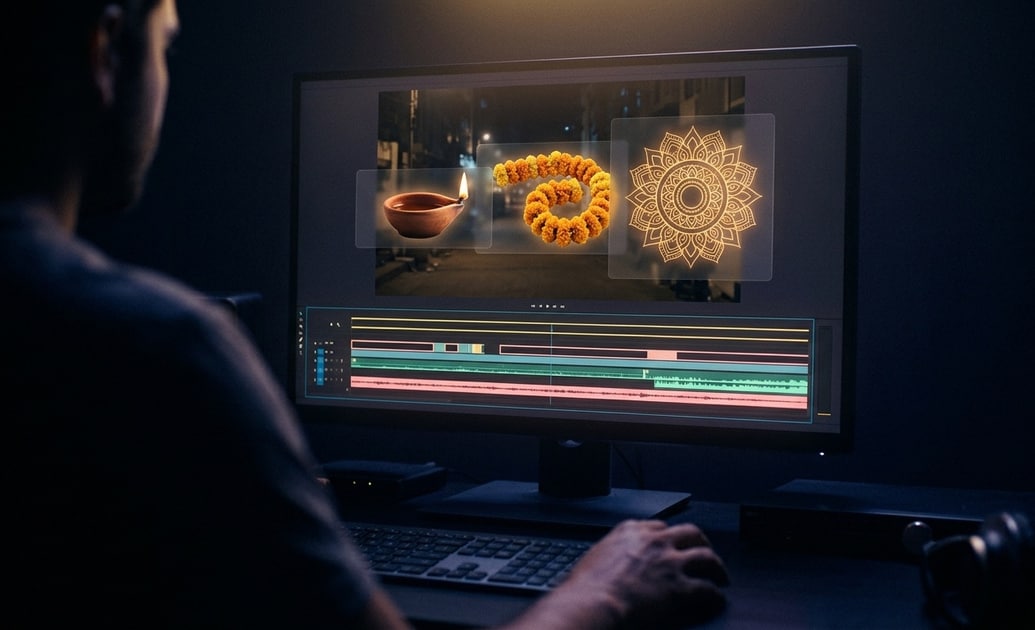
Add Festive Diwali Stickers to Any Scene
Filmora's visual effects and sticker assets make it easy to decorate footage with diyas, lanterns, rangoli patterns, sparkles, fireworks, and celebration icons. Place a suitable asset above the footage, trim it to the right duration, and keep the main subject visible.
- Use glowing overlays to emphasize greetings, entrances, transitions, and memorable family moments.
- Adjust the available size, position, rotation, opacity, and duration controls to fit each shot.
- Layer decorative elements carefully so faces, captions, and important background details remain clear.
Generate Custom Diwali Graphics with AI
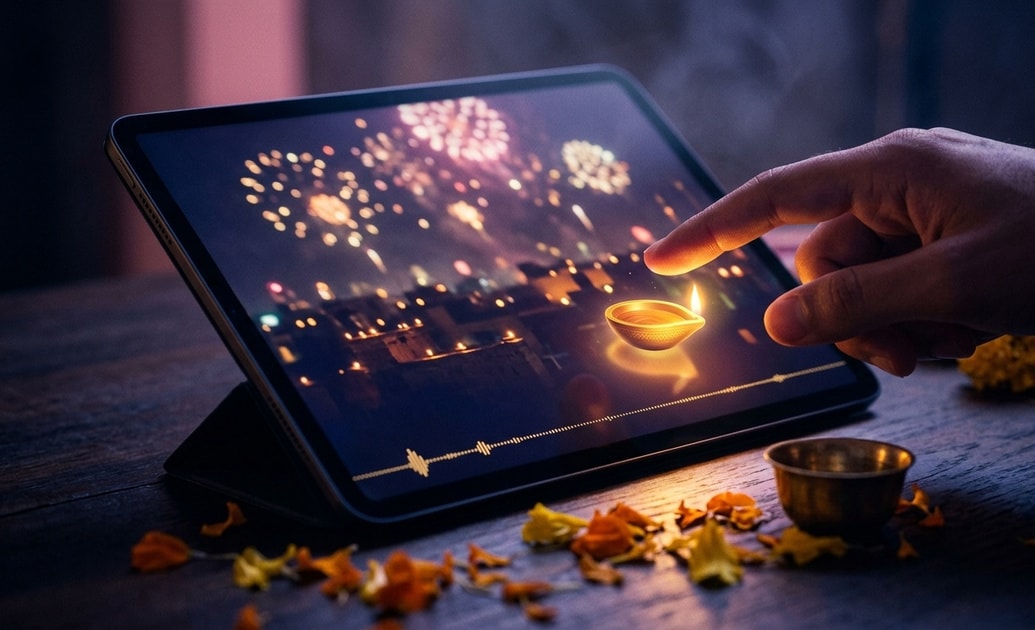
Generate Custom Diwali Graphics with AI
When the available library does not match a specific idea, use Filmora's AI Sticker Generator or AI Image Generator to create supporting festive graphics. Describe the Diwali motif, colors, lighting, composition, and art style clearly, then review the result before adding it to your project.
- Create personalized graphics featuring diyas, rangoli, lanterns, fireworks, floral patterns, or festive sweets.
- Compare multiple generations and refine your wording if the first image does not match the intended style.
- Combine generated graphics with existing stickers, titles, and footage to build a cohesive celebration theme.
Keep Festive Stickers Aligned with Moving Subjects
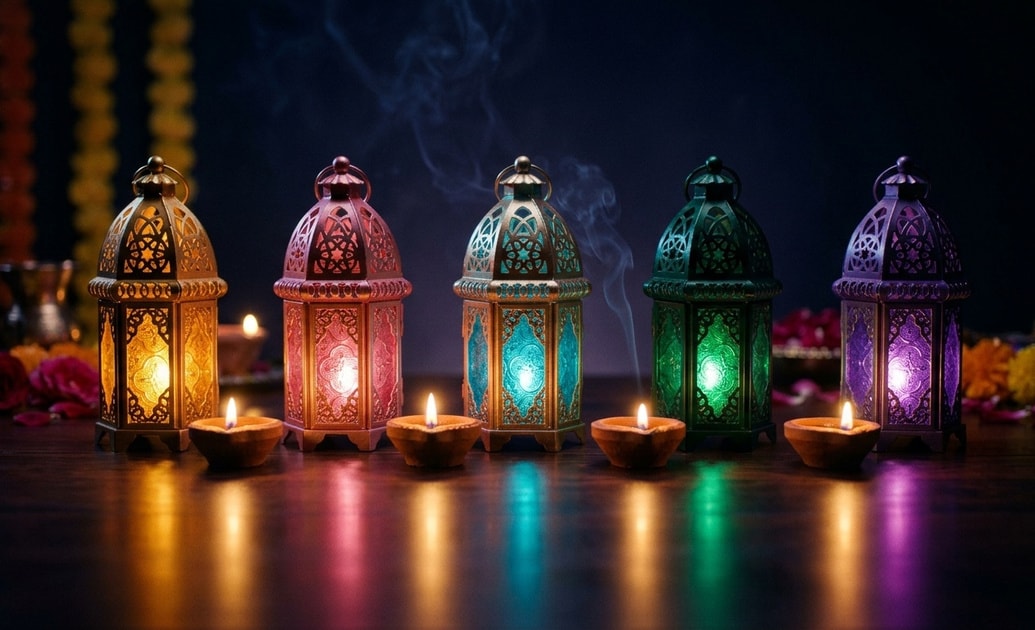
Keep Festive Stickers Aligned with Moving Subjects
A fixed sticker can drift away when the camera or subject moves. Filmora's motion tracking can analyze a visible area and link compatible text, stickers, or media to the resulting track. Clear contrast and limited occlusion generally produce better results, while fast or hidden movement may require shorter tracks or manual keyframes.
- Track a clear subject area before linking a lamp, greeting, sparkle, or other compatible graphic.
- Use keyframes to correct placement when the subject changes direction, turns, or leaves the frame.
- Preview the full sequence to confirm that every tracked decoration stays readable and appropriately positioned.
Frequently Asked Questions About Diwali Video Stickers
How to Add Diwali Video Stickers in Filmora
Follow these three steps to find a suitable festive sticker, place it on the timeline, and adapt it to your video's framing, timing, and visual style.
Step 1 Open the Sticker Library
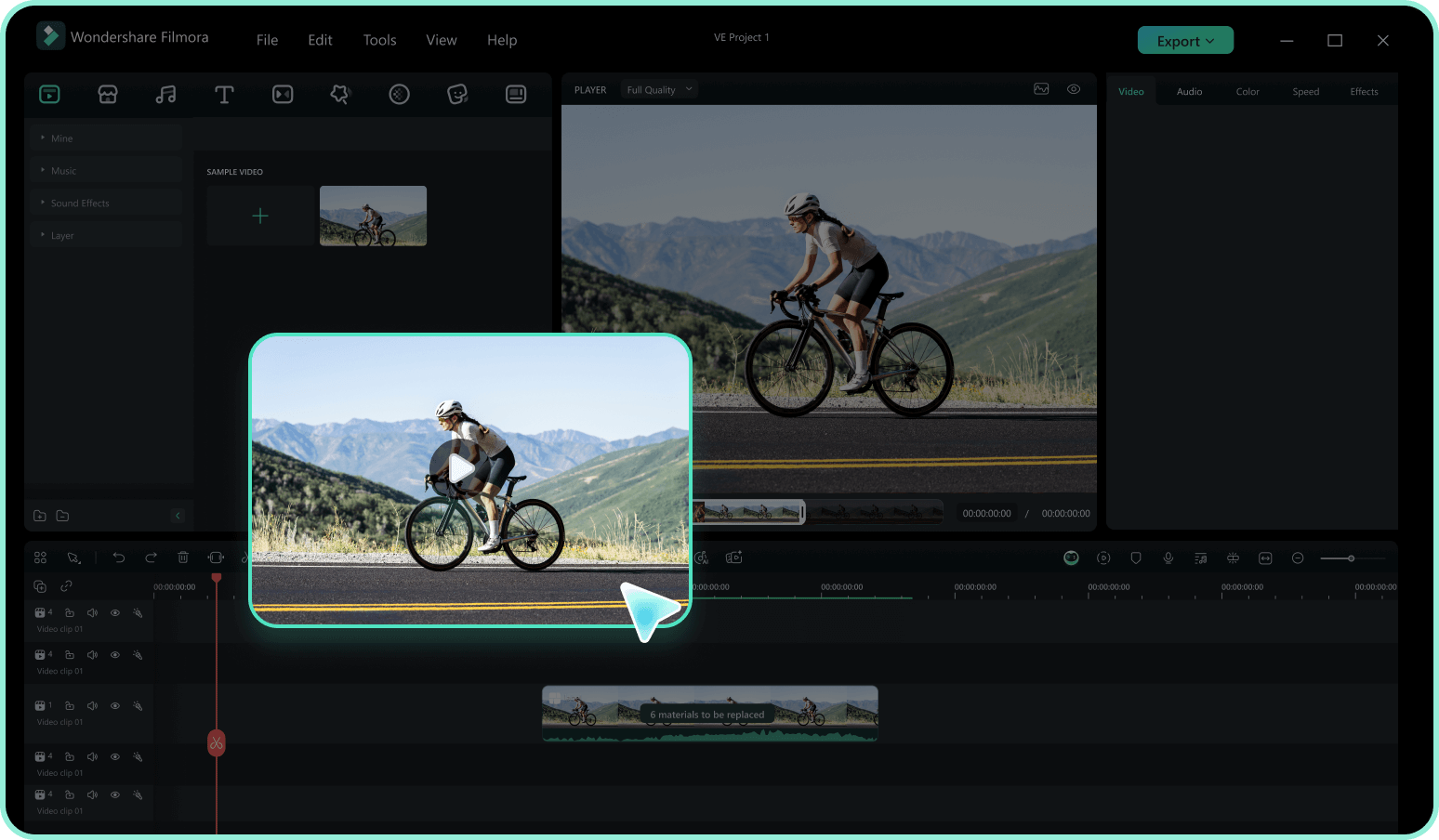
Step 2 Search for Diwali Elements
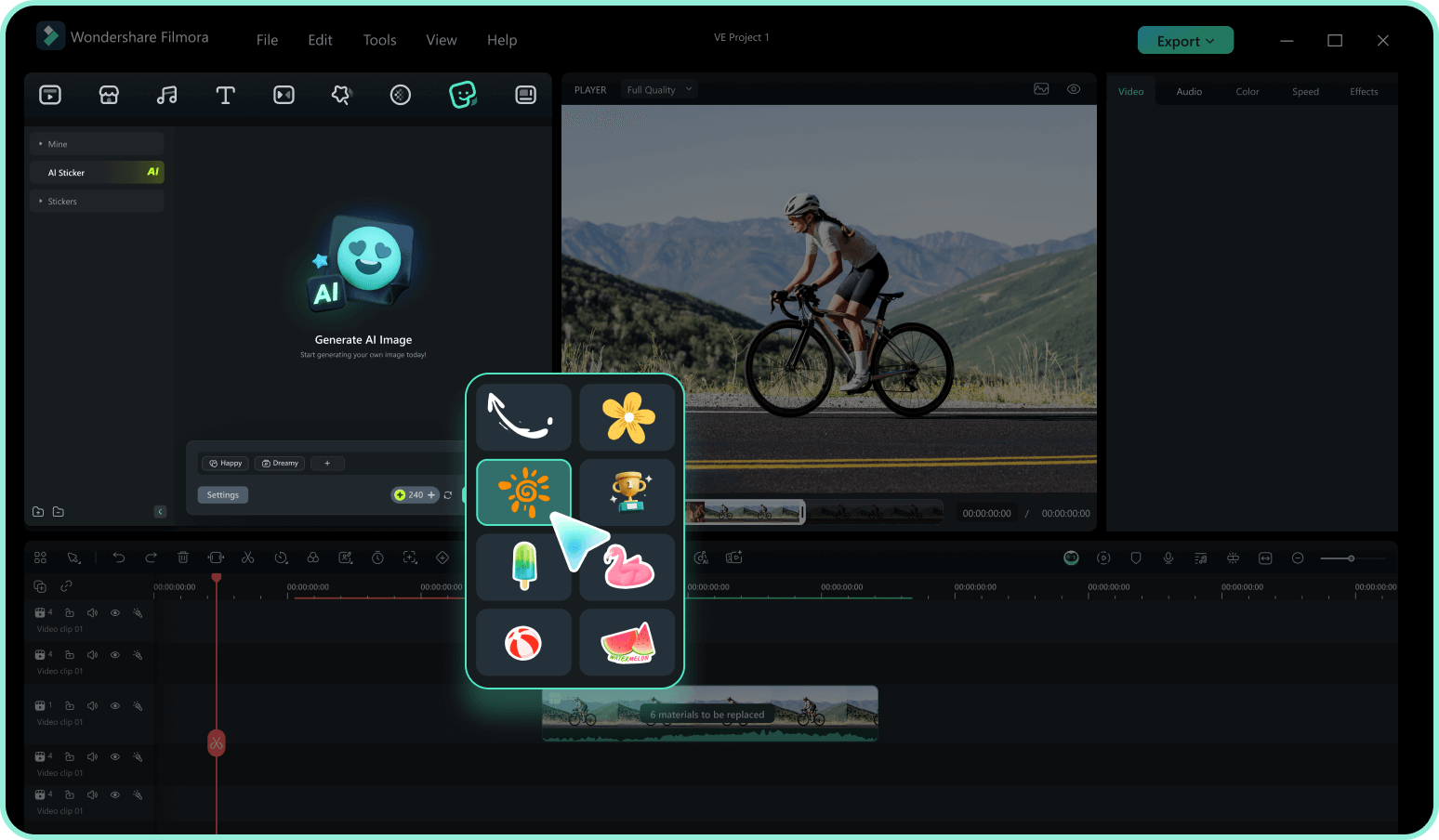
Step 3 Add and Customize the Sticker
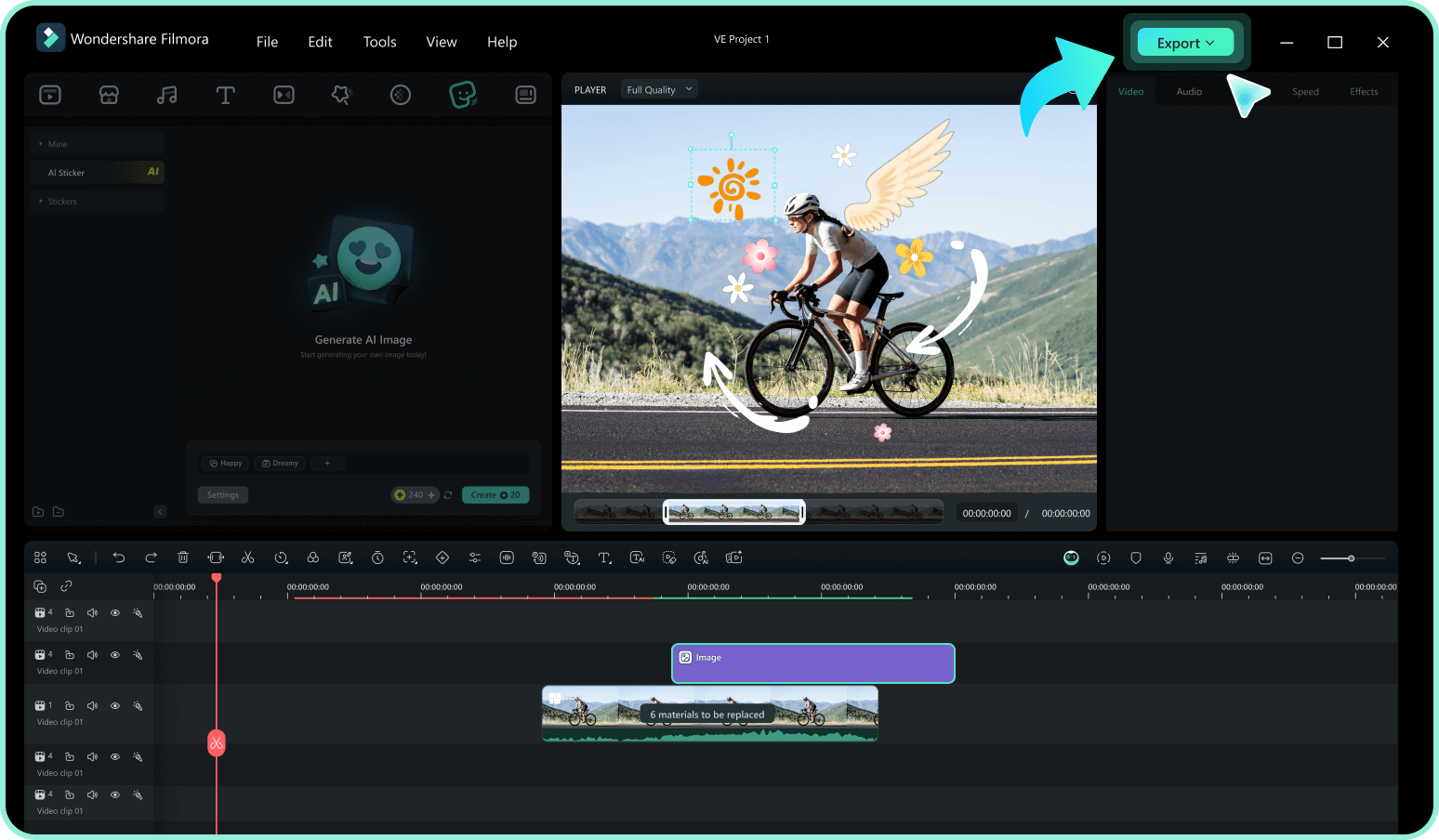
-
1: Open the Sticker Library
Open Filmora, create or load a project, import your footage, and select the Stickers panel to browse the available creative assets. -
2: Search for Diwali Elements
Search with terms such as "Diwali," "diya," "rangoli," "lantern," or "festival." Preview a suitable result and download it when required. -
3: Add and Customize the Sticker
Place the sticker on a track above your video, then adjust its duration, size, position, rotation, opacity, and supported animation settings before exporting.