
Dynamic Caption Examples & Guides
Explore Dynamic Caption styles and practical ways to use them in your videos
Loading more Dynamic Caption assets...
 Category:
 Duration:
 Aspect Ratio:
Everything You Need to Create Dynamic Captions
Filmora's Dynamic Caption tool turns spoken audio into animated captions that are synchronized to speech. It automatically detects language, segments captions around natural speech pauses, and can highlight Active Words and Key Words. After generation, you can refine the caption style and text properties in the editor.
Create Dynamic Captions from Speech
Create Dynamic Captions from Speech
Filmora's Dynamic Caption tool automatically transcribes speech and creates synchronized captions on the timeline. With language detection and automatic sentence segmentation, you can turn spoken content into styled captions without manually creating each caption segment.
- Go to Speech to Text and enable Dynamic Caption to generate captions directly from your video's speech.
- Use automatic speech synchronization and sentence segmentation to keep captions aligned with the spoken content.
- Highlight important words or phrases with Active Words and Key Words, then refine the caption style to fit your video.
Customize Dynamic Caption Styles
Customize Dynamic Caption Styles
After generating Dynamic Captions, use Filmora's property controls to refine how they look and move. Adjust text styling, choose a caption template, and customize animation and other available properties to match your video.
- Choose a Dynamic Caption template and adjust font and text properties to match your video's style.
- Choose animation, Active Words, or Key Words styles to emphasize spoken words and phrases.
- Save a customized caption style as a preset when you want to reuse the same look in future projects.
Refine Dynamic Captions with AI
Refine Dynamic Captions with AI
Dynamic Captions can be combined with Filmora's other AI and editing tools to build complete videos. Generate supporting visuals, add voiceovers, or continue editing the project after your captions are created.
- Create supporting visuals with GPT Image 2 and combine them with your captioned footage.
- Use Text to Speech to add voiceovers when building multilingual or narrated videos.
- Continue refining your project with Filmora's AI video editing tools after generating Dynamic Captions.
Frequently Asked Questions About Dynamic Captions
How to Create Dynamic Captions in Filmora
Import your media, generate Dynamic Captions from Speech to Text, choose and customize a caption style, then preview and export your video.
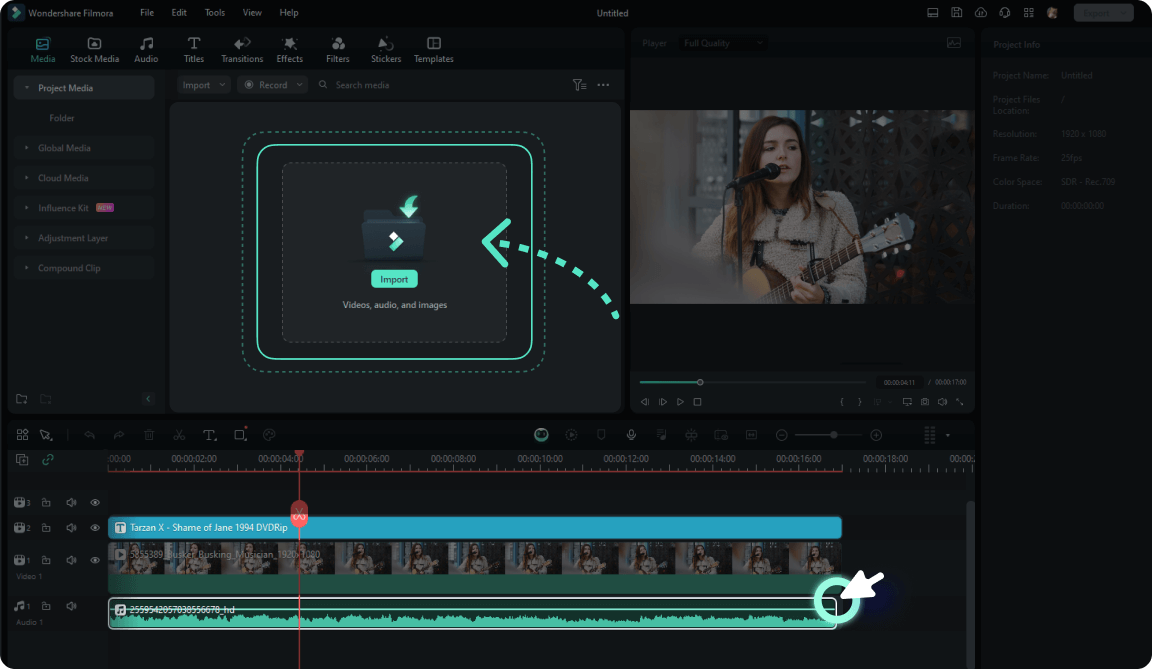
Step 1 Import Your Media into Filmora
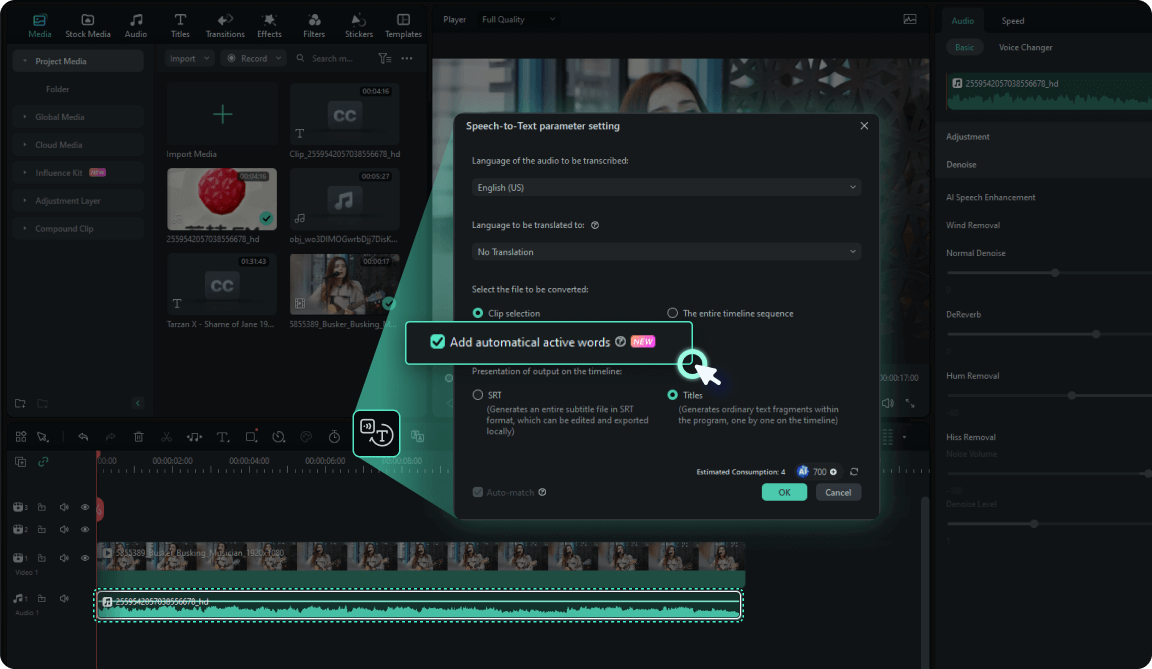
Step 2 Generate Dynamic Captions
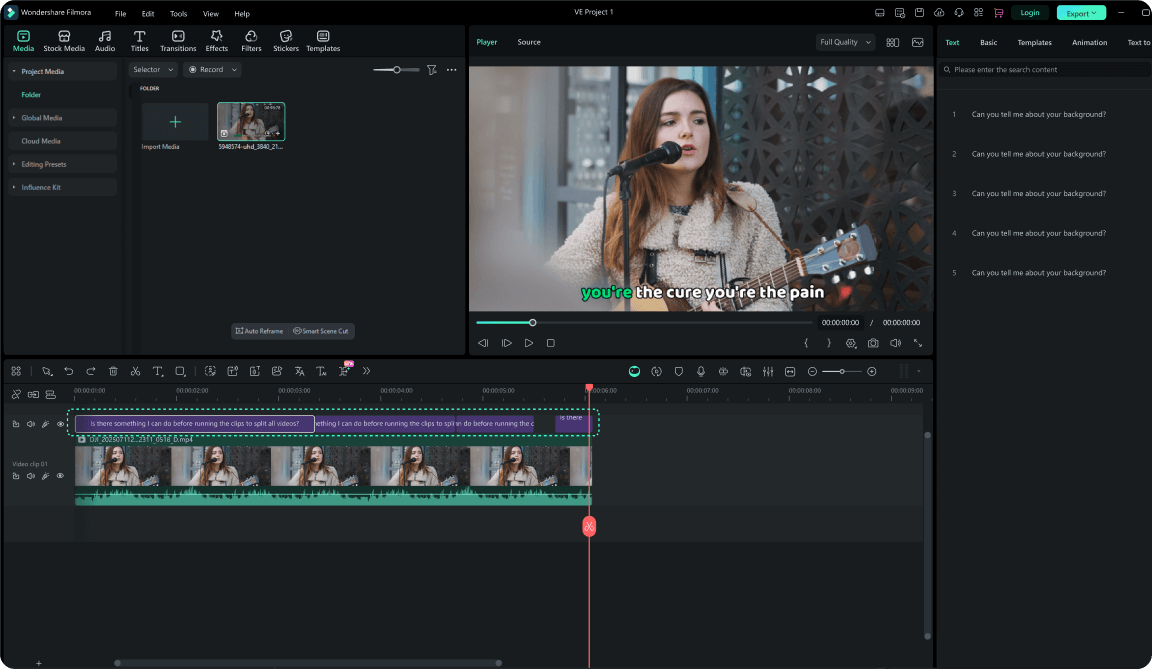
Step 3 Choose a Style, Customize, and Export
-
1: Import Your Media into Filmora
Start a new project and import your video or audio. Add the media to the timeline, then open AI Tools → Speech to Text to access Dynamic Caption. -
2: Generate Dynamic Captions
Enable Dynamic Caption, choose the language settings, and click Generate. Filmora transcribes the speech, segments the captions, and creates styled Dynamic Captions directly on the timeline. -
3: Choose a Style, Customize, and Export
Choose a caption template, animation, Active Words, or Key Words style. Refine the text and available properties in the property panel, preview the result, and export your finished video.
