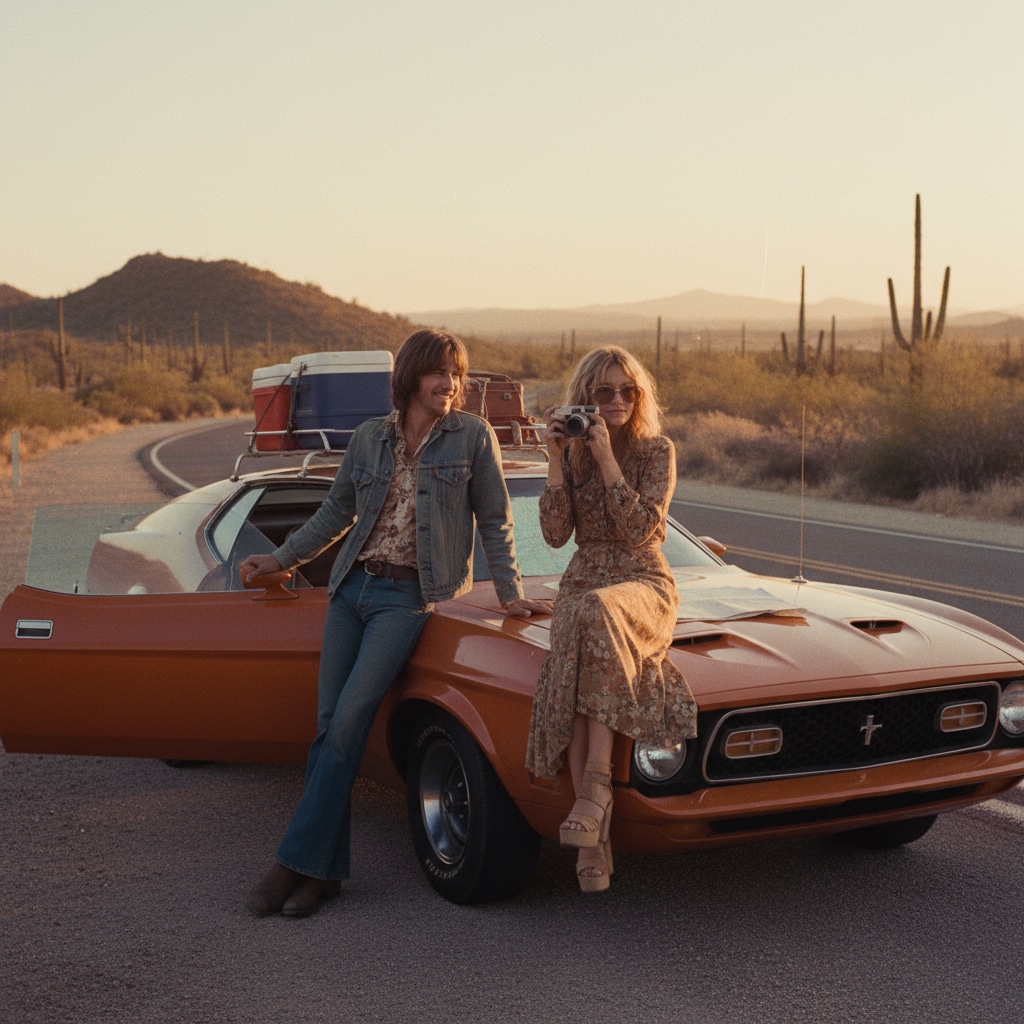
Retro Text Templates And Title Packs
Browse neon script, comic bursts, graffiti lettering, and vintage poster titles, then drop them into your next edit.
Loading more retro text resources...
 Category:
 Duration:
 Aspect Ratio:
Make Retro Titles Feel Alive
A chalkboard welcome, a buzzing neon script, or a comic POW can set the tone for the whole clip before a single line of dialogue lands. Use these title packs with animated text, video templates, and ready-made cinematic titles to keep the lettering loud, readable, and easy to recut.
Drop Vintage Type On Fresh Footage

Drop Vintage Type On Fresh Footage
Start with school-board letters, a glowing welcome line, or tube-style neon script and let the title do the greeting. Pair the look with social media titles when you need a faster hook for Reels, Shorts, and channel bumpers.
- Place the title over a clean pause so the lettering can land before the cut.
- Mix chalkboard, neon script, and poster type without rebuilding the design from scratch.
- Keep the first second readable even after you crop for vertical export.
Let Comic And Poster Type Steal The Frame
Let Comic And Poster Type Steal The Frame
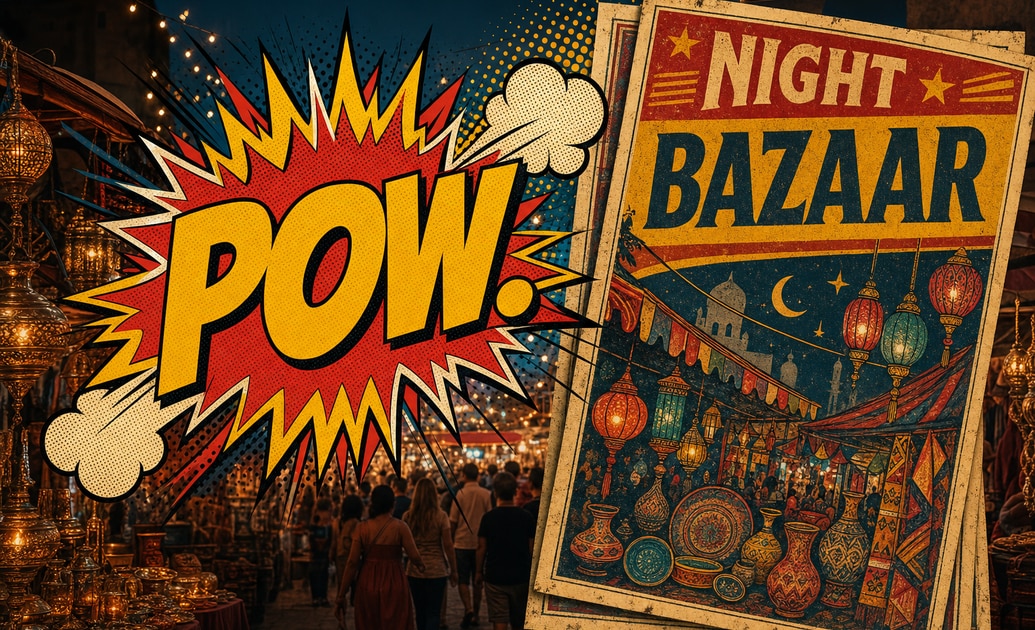
Comic bursts, retro comic panels, and bazaar posters work like a punchline you can time. Use them for trailers, recaps, and joke reveals, then stack extra emphasis with YouTube titles when the next scene needs a louder nameplate.
- Time the joke, guest name, or location to the exact frame it becomes obvious.
- Recolor burst panels so they sit on top of night footage without washing out.
- Keep one poster style across a series so the channel feels consistent and collectible.
Finish The Look With Grit And Glow
Finish The Look With Grit And Glow
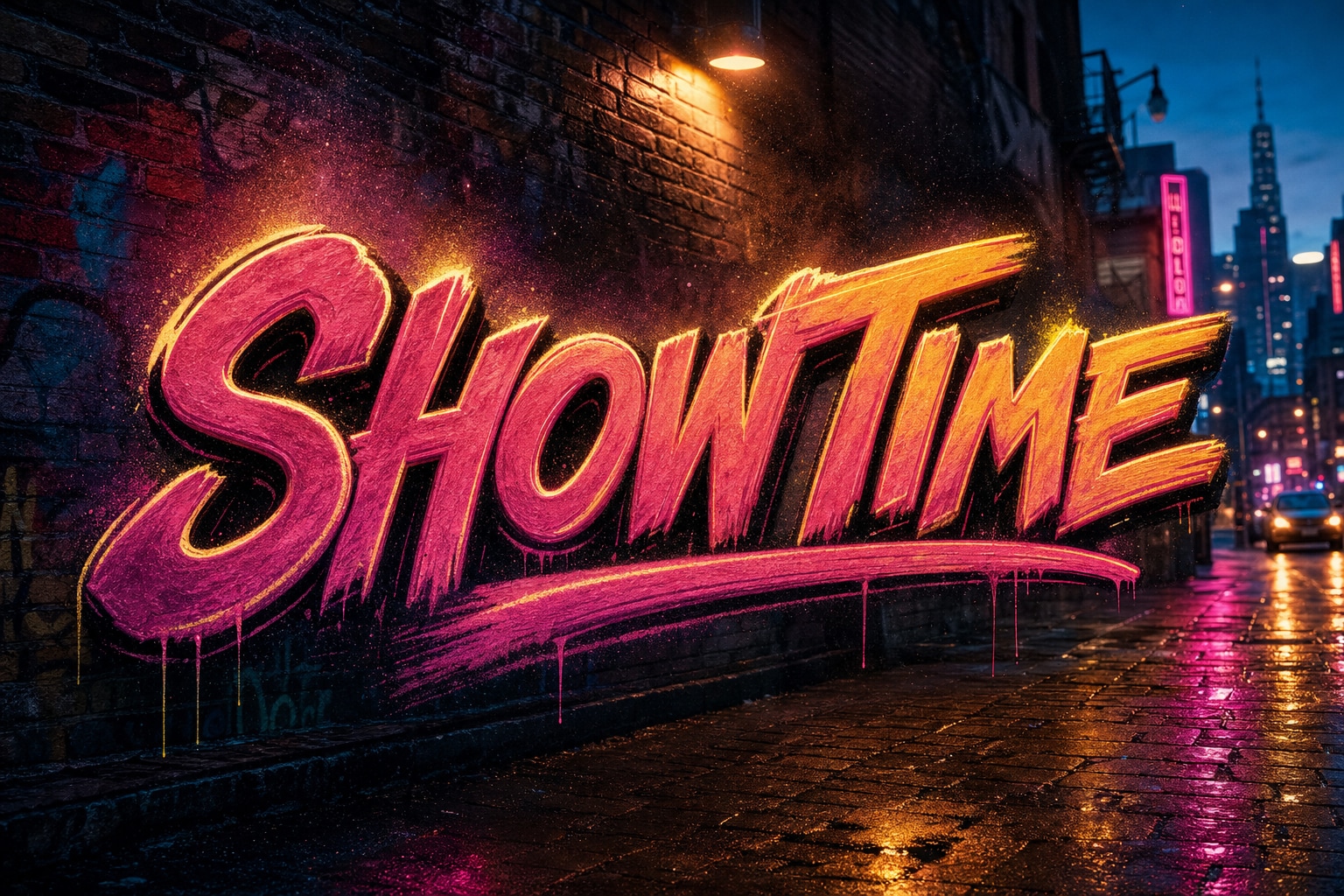
Graffiti tags and comedy titles get sharper once you add grain, glow, and a little street texture. Blend them with graffiti prompt ideas and extra creative assets when you want the lettering to feel painted onto the scene instead of pasted over it.
- Soften edges and add glow so spray-paint type sits inside the footage.
- Use music hits and quick cuts to make each title feel like a beat, not a caption.
- Save a polished preset so the next retro intro takes minutes, not a full redesign.
Questions About Retro Text Titles
Add Retro Text In Filmora
Apply a vintage title in three quick steps, then keep shaping the glow, timing, and soundtrack until the lettering feels native to the cut.
Step 1 Import Your Footage
Step 2 Open The Titles Library
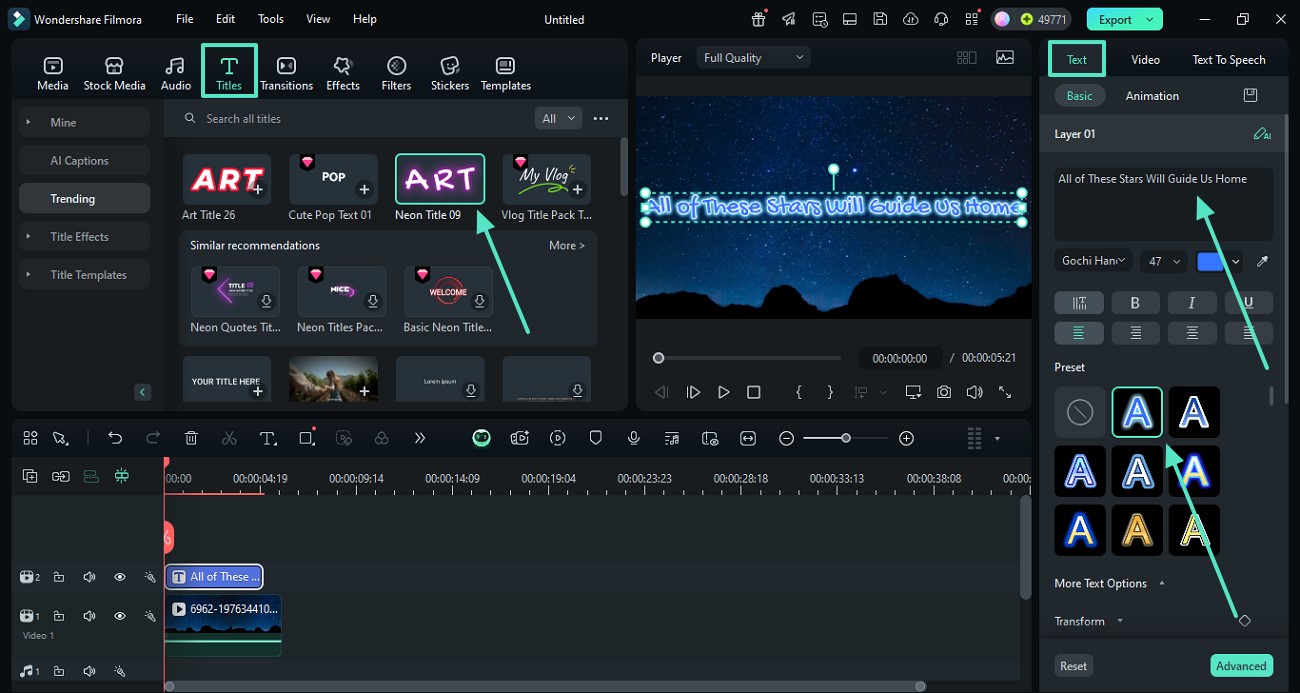
Step 3 Customize And Preview
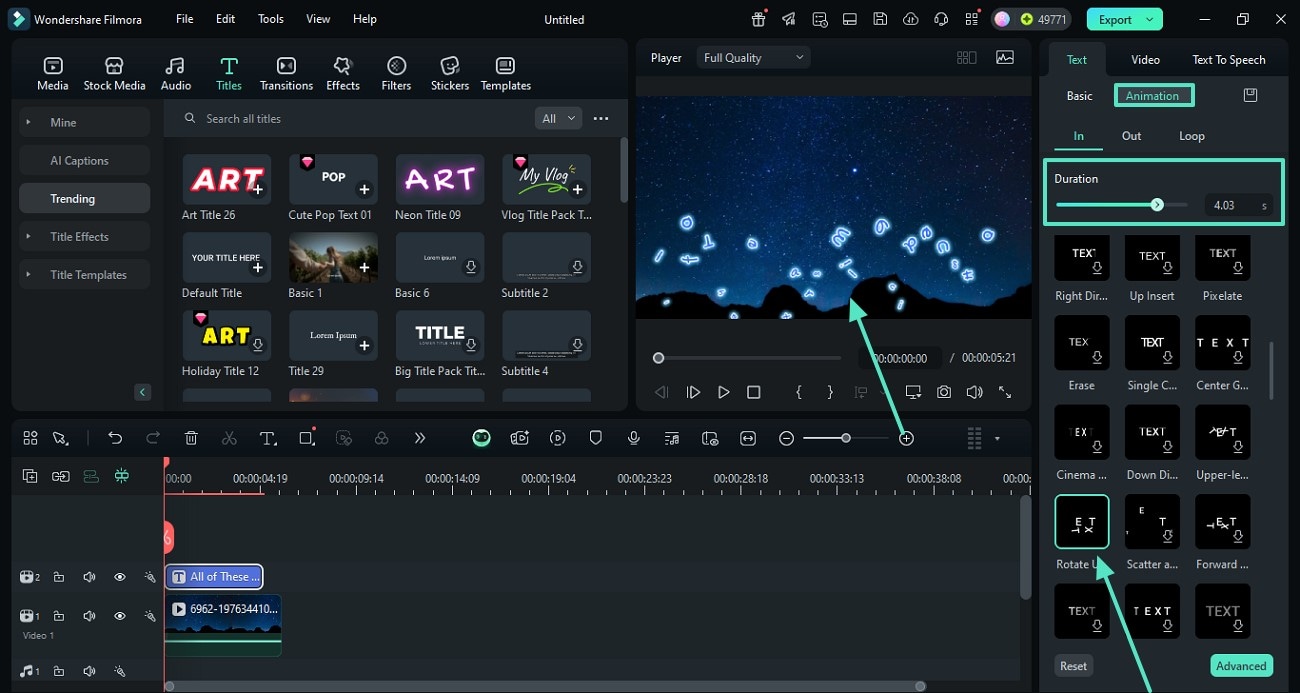
-
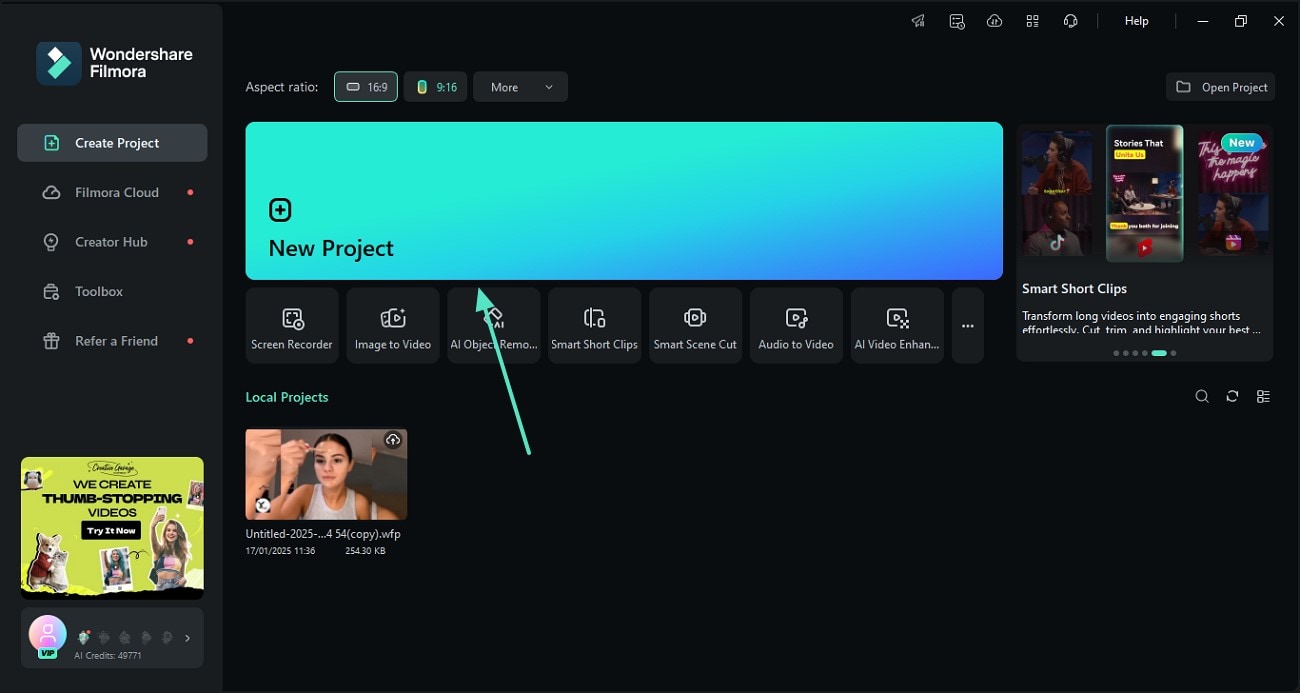
1: Import Your Footage
Bring your clips into Filmora and line them up on the timeline so the title has a clear beat to land on. -
2: Open The Titles Library
Browse the titles collection, pick a retro text preset, and drop it above your clip at the moment you want the graphic to appear. -
3: Customize And Preview
Replace the words, refine duration and color, then play back the scene to check readability before you export.