Gold Transitions For Smoother Story Flow
Browse metallic wipes, luminous flares, elegant reveals, and polished motion bridges, then shape the rhythm of your edit.
Loading more gold transition resources...
 Category:
 Duration:
 Aspect Ratio:
Turn A Cut Into A Signature
A well-timed gold transition effect can make a product reveal, wedding montage, or fashion sequence feel more expensive without adding visual clutter. Filmora gives you the timing control and video templates to keep the movement aligned with the story.
Bridge The Shots Without Losing The Mood

Bridge The Shots Without Losing The Mood
Use a soft metallic wipe or light sweep when two clips belong to the same visual world. The effect should carry the eye forward, while cinematic titles can handle the information layer above the sequence.
- Place the transition exactly where the motion or lighting naturally changes.
- Choose a restrained gold finish when the footage already contains reflective highlights.
- Keep the duration short enough that the story never feels paused by the effect.
Match Gold To The Edit's Real Rhythm

Match Gold To The Edit's Real Rhythm
The same transition can feel elegant or distracting depending on its timing. Let music, camera motion, and the subject's entrance decide the cut, then use social media titles to reinforce the most important beat.
- Preview the transition with the final soundtrack instead of editing in silence.
- Use direction and speed that agree with the movement in the incoming clip.
- Repeat one signature transition sparingly so it becomes part of the brand language.
Create A Finish That Feels Designed

Create A Finish That Feels Designed
Filmora lets you adjust duration, preview the result, and build a consistent treatment across a sequence. Add a small amount of texture or glow from the creative assets library when the transition needs to feel integrated rather than pasted on.
- Keep the brightest highlight away from faces, logos, and key product details.
- Use the same color family across the transition and title treatment.
- Export a short test clip to confirm the effect survives compression and mobile playback.
Questions About Gold Transitions
Add Gold Transitions In Filmora
Import your clips, choose a luxury motion bridge, place it between the right shots, and refine the timing until the transition follows the edit's natural pulse.
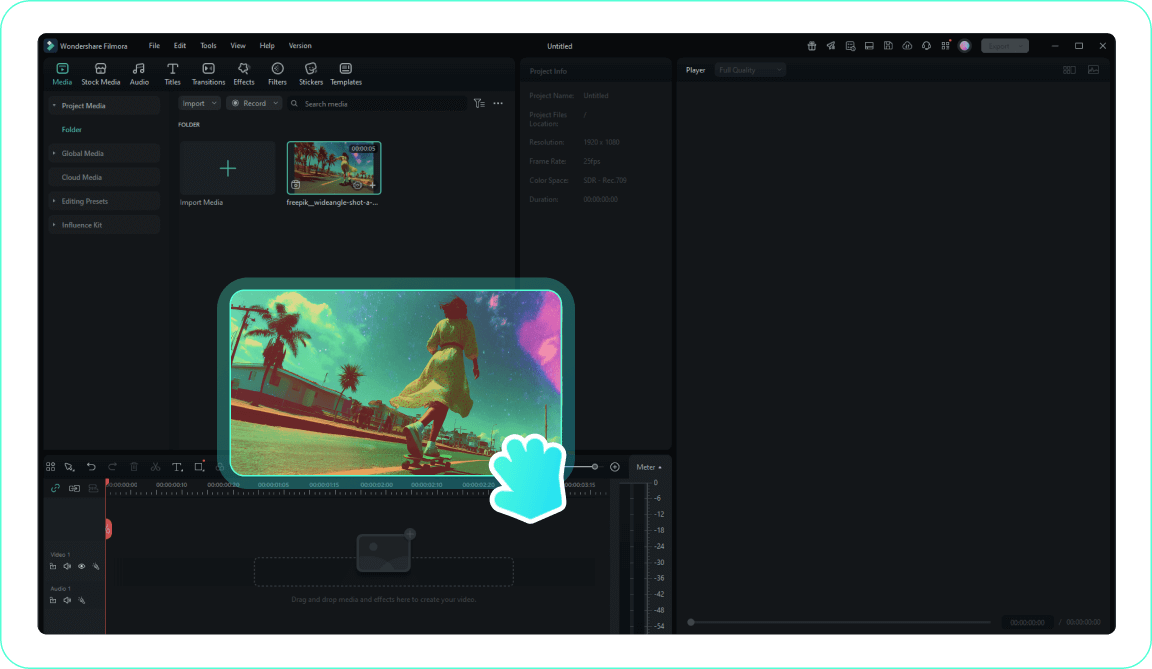
Step 1 Import Your Video
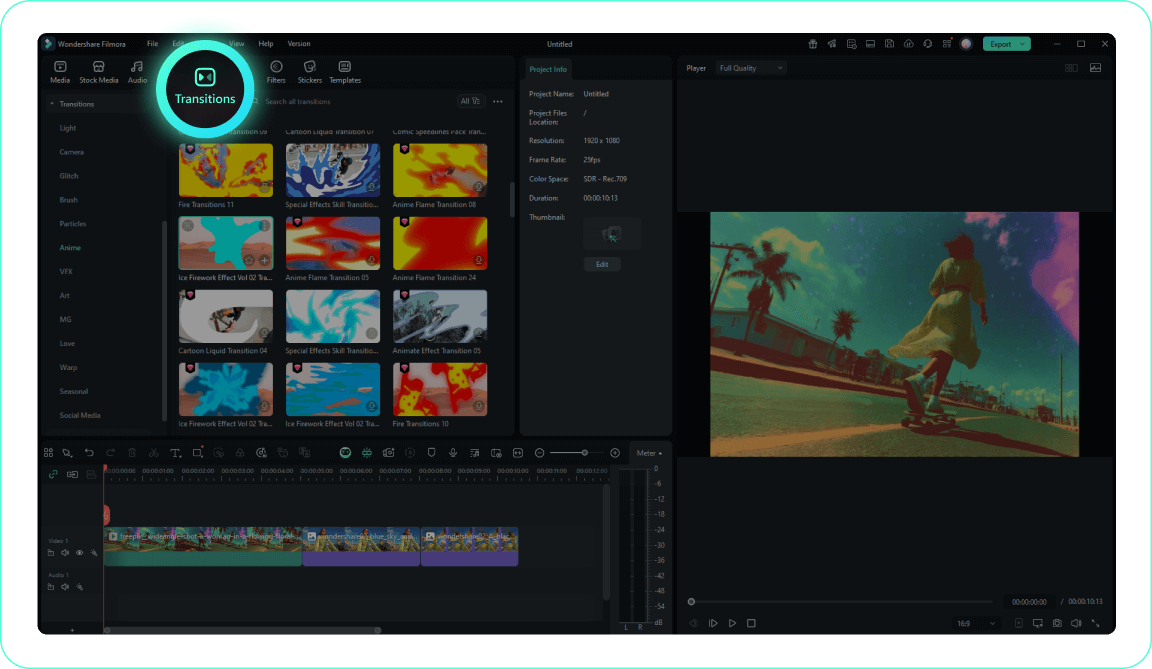
Step 2 Open The Transitions Tab
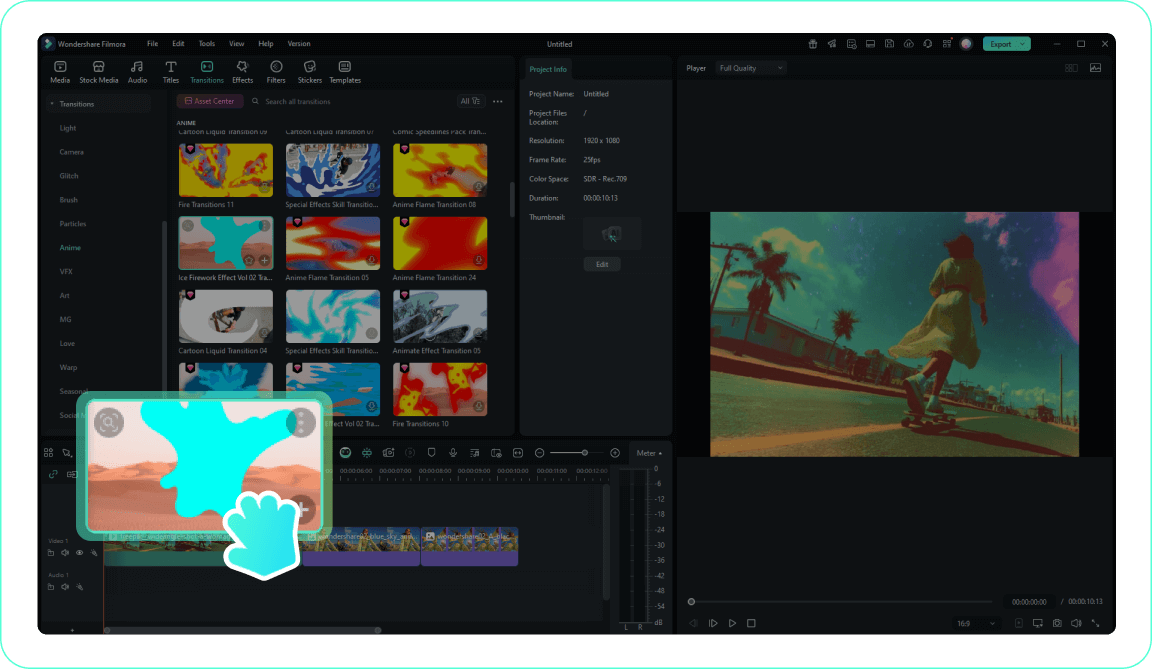
Step 3 Apply The Transition
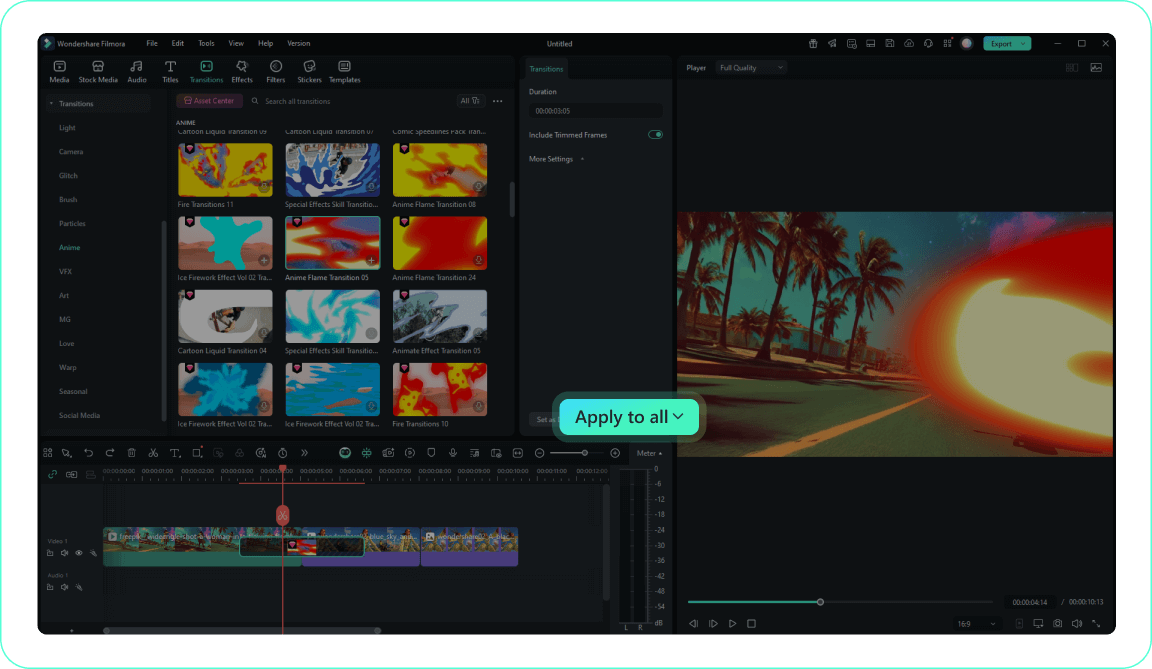
Step 4 Customize And Preview
-
1: Import Your Video
Import your clips into Filmora and arrange them sequentially on the timeline so the transition has a clear visual beat. -
2: Open The Transitions Tab
Browse the transitions library and compare movement, direction, and finish before choosing the bridge that matches your footage. -
3: Apply The Transition
Drag the chosen transition between two clips, then adjust its duration so the motion connects the shots without delaying the story. -
4: Customize And Preview
Preview the cut with music, refine speed and blending, and use Apply to All only when the same visual language belongs across the sequence.