Grunge Effects For Rawer Visual Stories
Explore analog film textures, horror grain, torn poster layers, and modern noise surfaces, then turn clean clips into a deliberate visual world.
Loading more grunge effect resources...
 Category:
 Duration:
 Aspect Ratio:
Make Clean Footage Feel Lived In
The best grunge effect supports the emotion already present in the footage. Filmora makes it easy to layer texture and keep the final image readable instead of simply making it noisy.
Choose Texture That Has A Reason

Choose Texture That Has A Reason
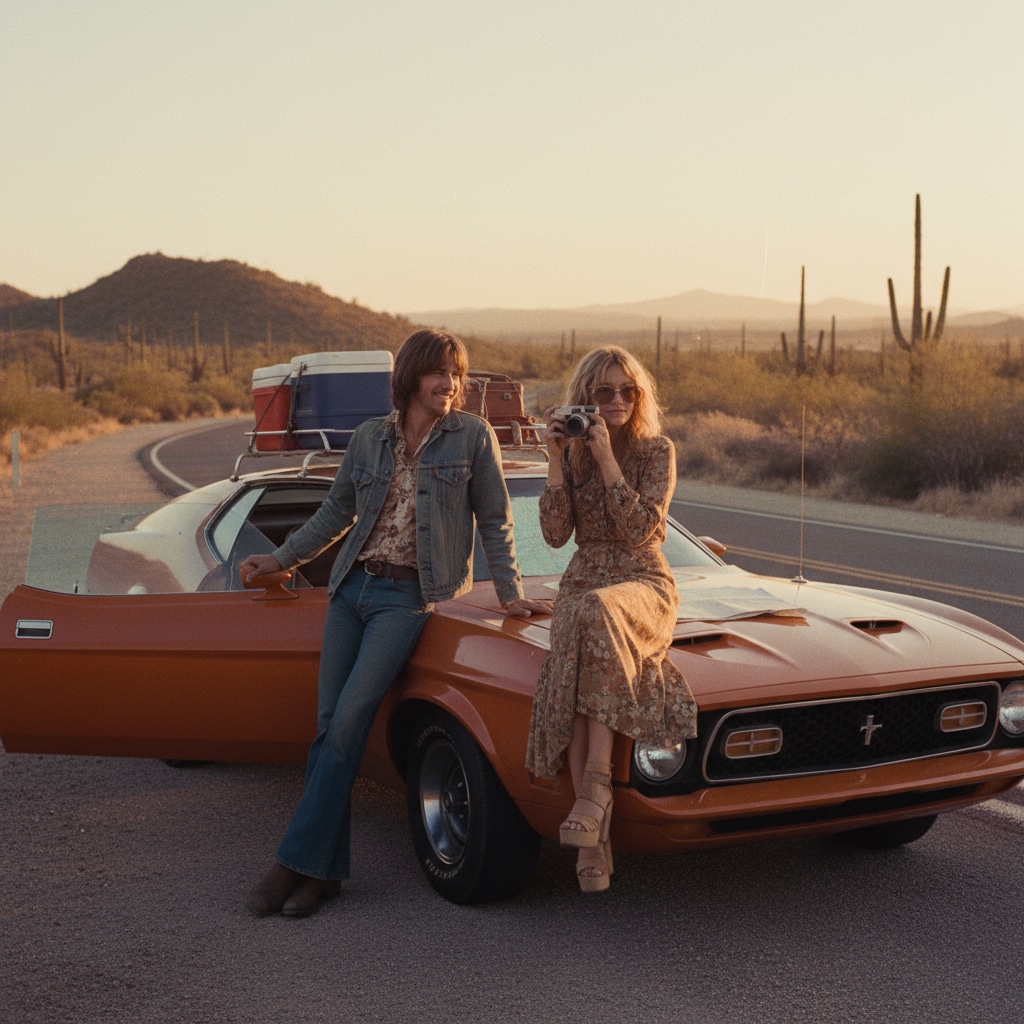
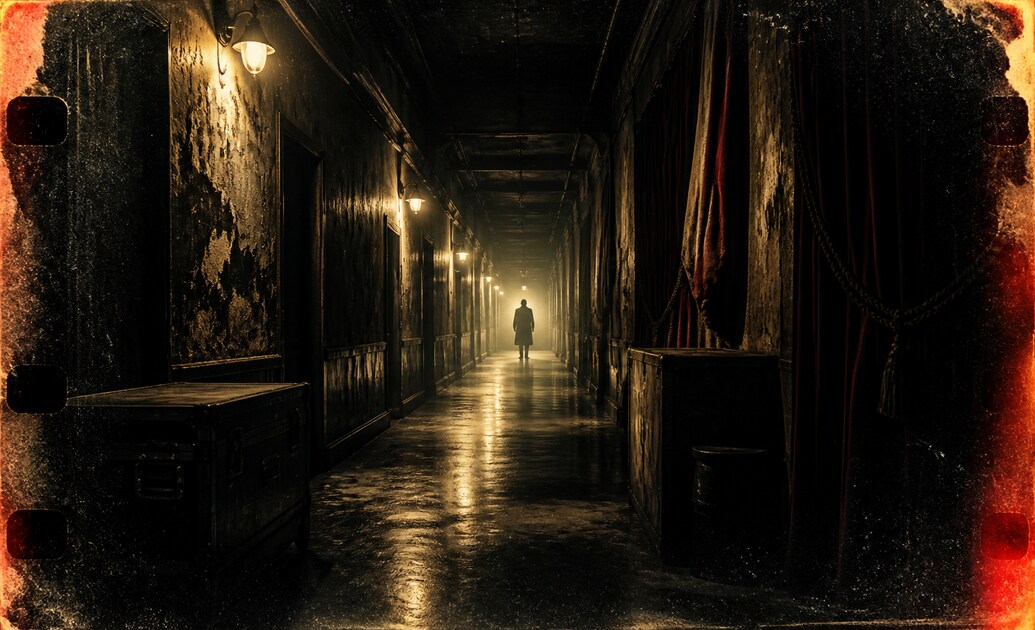
Film grain can suggest memory, print wear can support a street story, and burn marks can push a horror beat. Start with the feeling you want, then use cinematic titles to make the graphic language feel complete.
- Match the texture to the era, location, or genre suggested by the footage.
- Keep faces and important product details cleaner than the surrounding frame.
- Use one dominant surface treatment instead of stacking every texture at full strength.
Let Imperfection Follow The Motion
Let Imperfection Follow The Motion
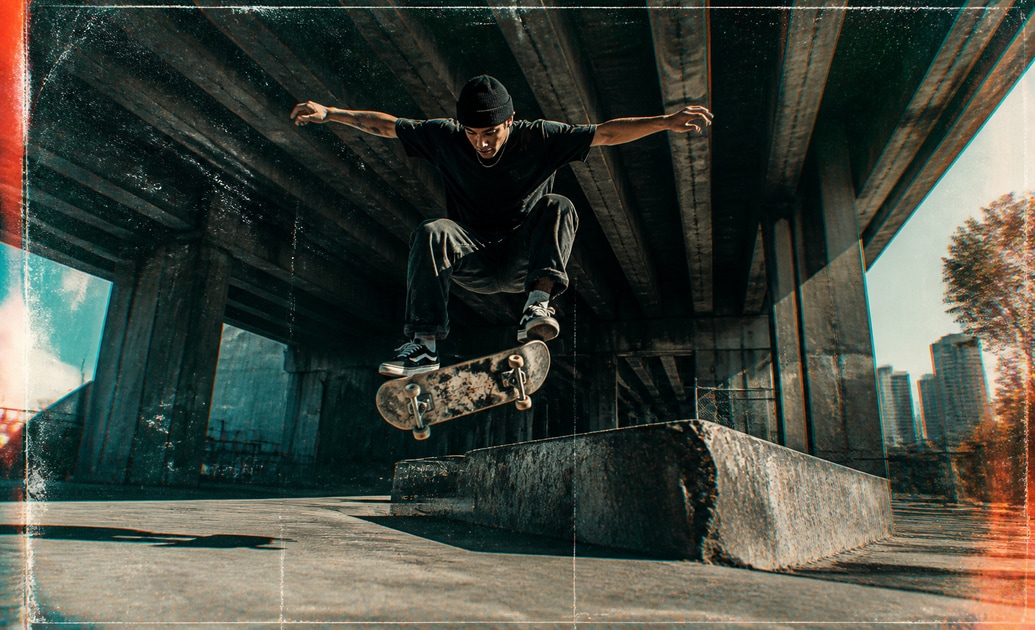
A distressed layer feels more convincing when it moves with the shot and responds to the edit. Use visual essentials to keep the supporting titles clean while the texture carries the atmosphere.
- Cut or keyframe the effect so a major scene change has its own visual breath.
- Use edge marks and noise more strongly on transitions than on dialogue close-ups.
- Preview in motion because a still frame can make a subtle texture look stronger than it is.
Keep The Final Grade Under Control
Keep The Final Grade Under Control
Grunge is most useful when it leaves room for contrast, skin tone, and readable text. Adjust the effect beside the final color grade, then use graffiti prompt inspiration when the edit needs a more graphic direction.
- Lower the intensity before export if the texture starts to flatten the image.
- Use warmth or coolness to make the surface agree with the story's color palette.
- Test the clip after compression so fine grain does not turn into distracting blocks.
Questions About Grunge Video Effects
Add Grunge Effects In Filmora
Bring your footage into Filmora, open the effects library, layer a texture with intention, and preview the result before you commit to the final grade.
Step 1 Import Your Footage
Step 2 Open The Effects Library
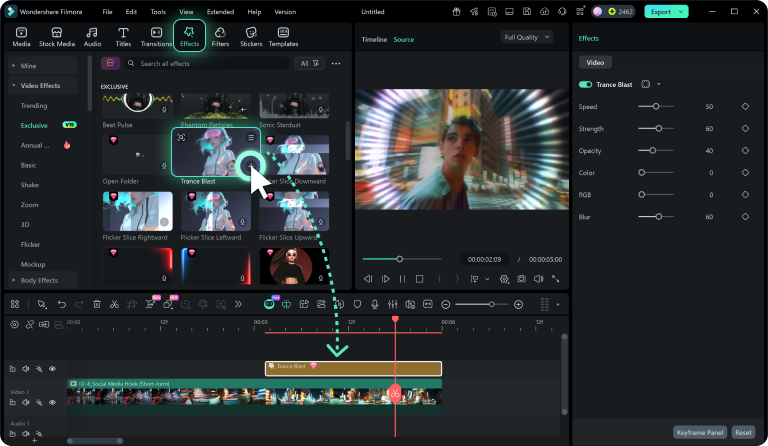
Step 3 Customize And Preview
-
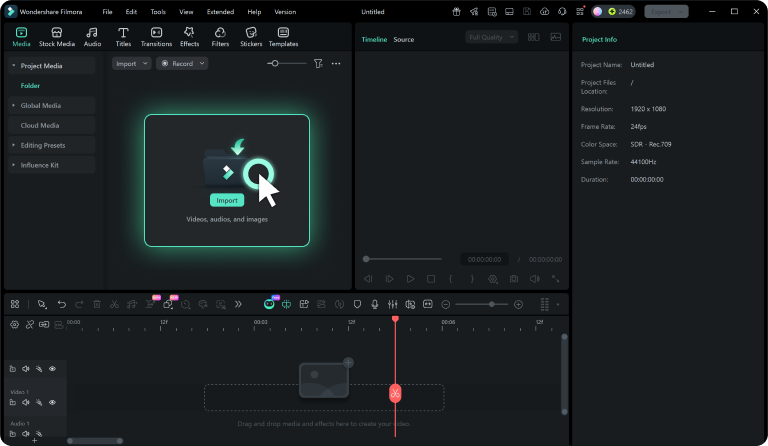
1: Import Your Footage
Bring your clips into Filmora and place the key action or texture moment on the timeline before choosing an effect. -
2: Open The Effects Library
Browse the effects collection, choose a motion or texture treatment, and apply it to the clip that needs more visual emphasis. -
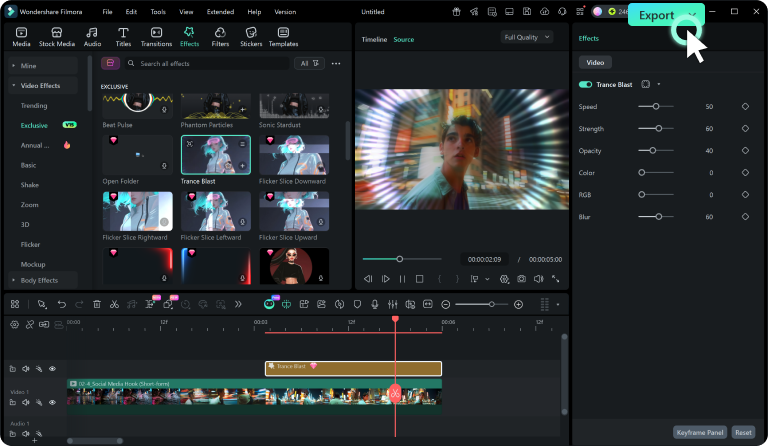
3: Customize And Preview
Refine intensity, duration, and placement, then play the full scene to confirm the effect supports the subject before export.