SFX Transitions For High-Impact Cuts
Find fast zooms, wipes, flashes, slides, and dissolves that connect scenes with a clear beat, then build a more decisive edit with Filmora templates.
Loading more SFX transition resources...
 Category:
 Duration:
 Aspect Ratio:
Make The Cut Land On Time
An SFX transition is most effective when movement, sound, and story change at the same moment. Filmora helps you audition the cut, refine the duration, and combine the effect with video templates for a repeatable editing rhythm.
Give Fast Footage A Clear Downbeat

Give Fast Footage A Clear Downbeat
Zooms, flashes, and wipes can turn a simple change of shot into a moment viewers feel. Pair a directional transition with YouTube titles when the next scene needs a sharp label or chapter beat.
- Place the strongest transition on a real action, impact, or music accent.
- Use direction that follows the subject instead of fighting the camera movement.
- Keep repeated effects consistent so the edit feels fast rather than random.
Use Sound To Make Movement Believable

Use Sound To Make Movement Believable
A visual flash or warp feels more complete when the audio reinforces it. Let the cut breathe around the sound hit, then use social media titles to keep the message readable through the motion.
- Preview the transition with the final music or sound effect, not a placeholder track.
- Shorten the visual when the audio hit is sharp and lengthen it for a deliberate sweep.
- Protect dialogue and key product sounds from being buried under a dramatic cut.
Keep Impact Without Losing Clarity

Keep Impact Without Losing Clarity
Filmora makes it easy to compare a clean cut with a stylized one and choose the version that serves the story. Add supporting polish from creative assets without letting motion hide the subject.
- Use one hero transition for emphasis and simpler cuts for the surrounding sequence.
- Check the first and last frames so the incoming shot begins cleanly.
- Export a short test to confirm flashes, zooms, and fine details survive compression.
Questions About SFX Transitions
Add SFX Transitions In Filmora
Import the clips, open the transition library, choose a motion that matches the beat, and preview the cut with sound before you export.
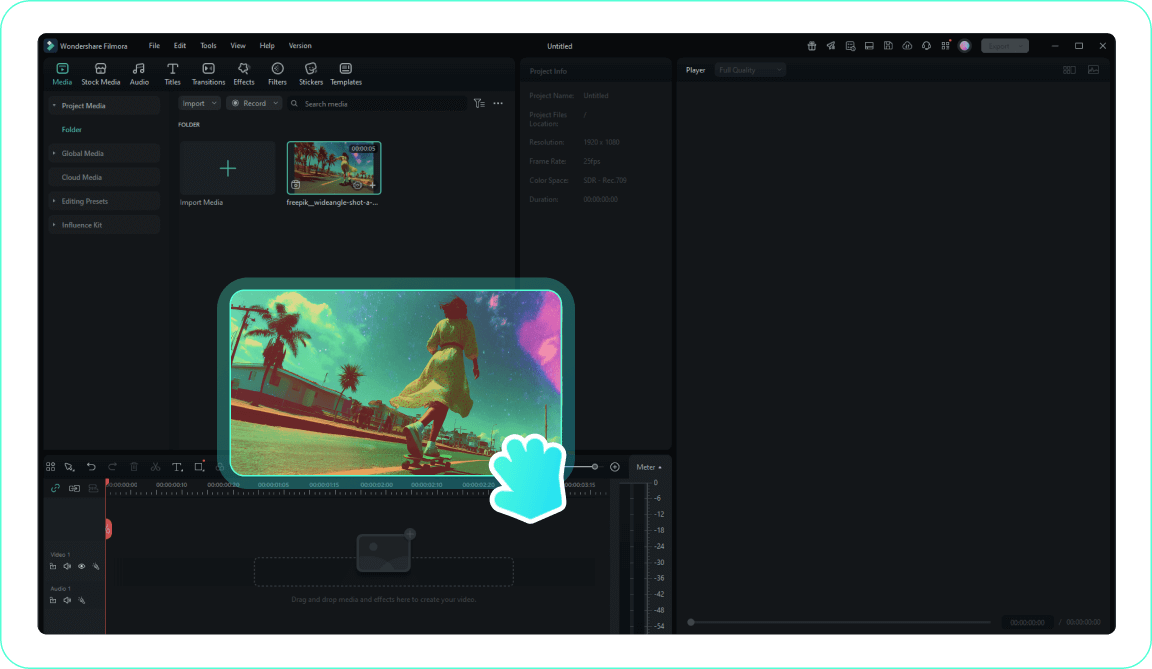
Step 1 Import Your Video
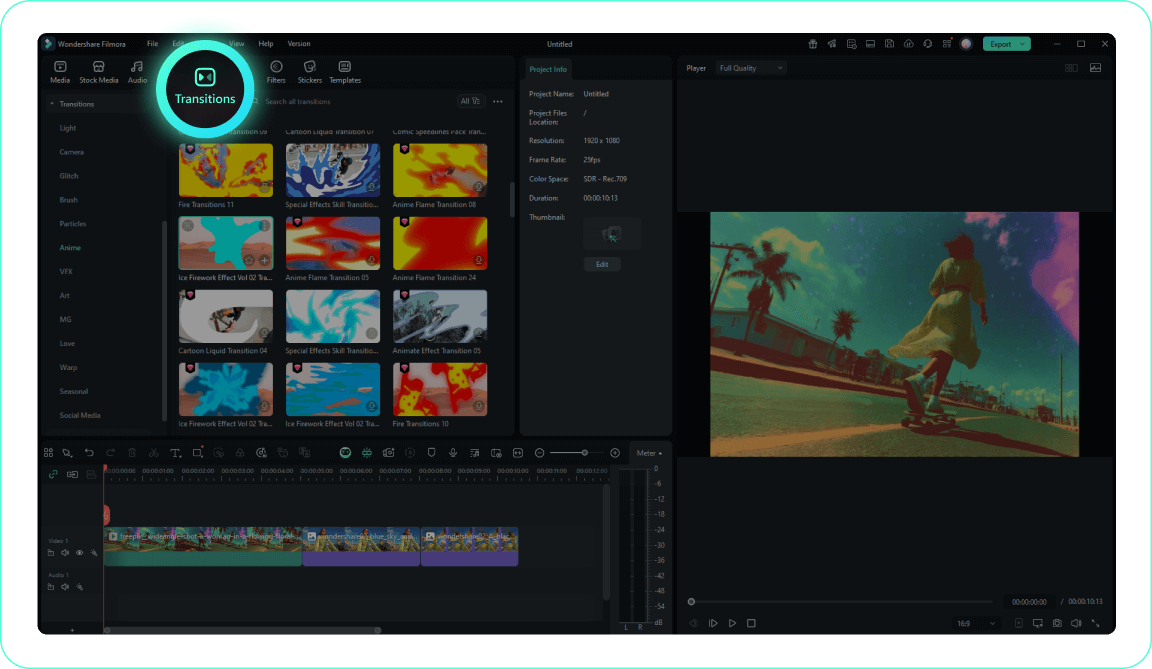
Step 2 Open The Transitions Tab
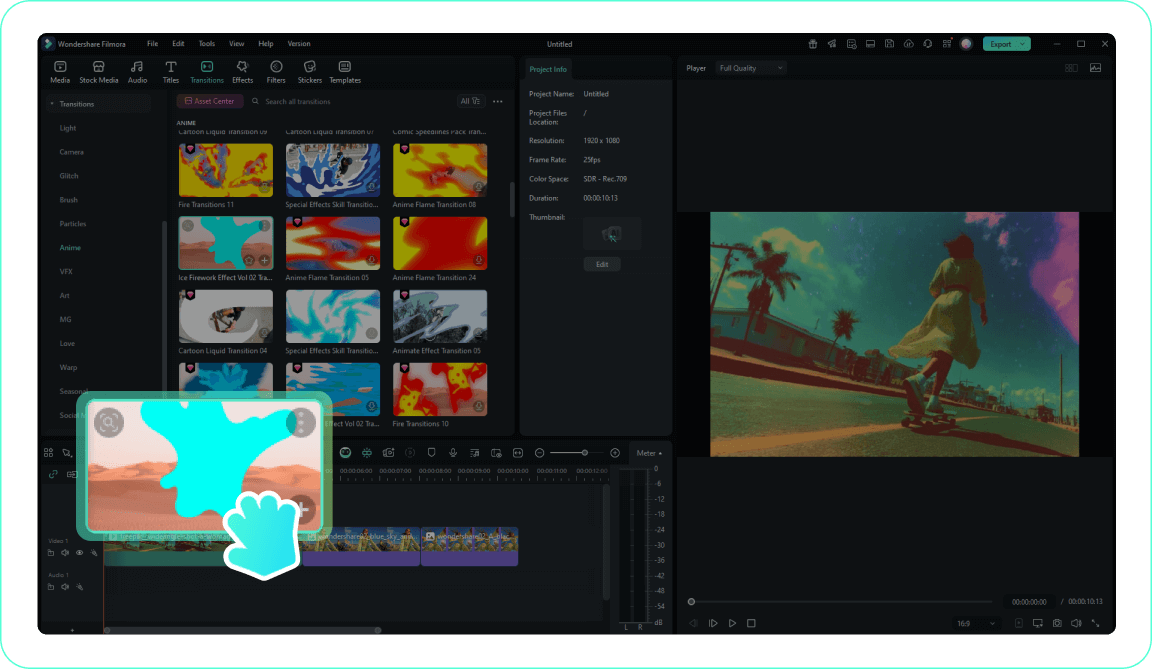
Step 3 Apply The Transition
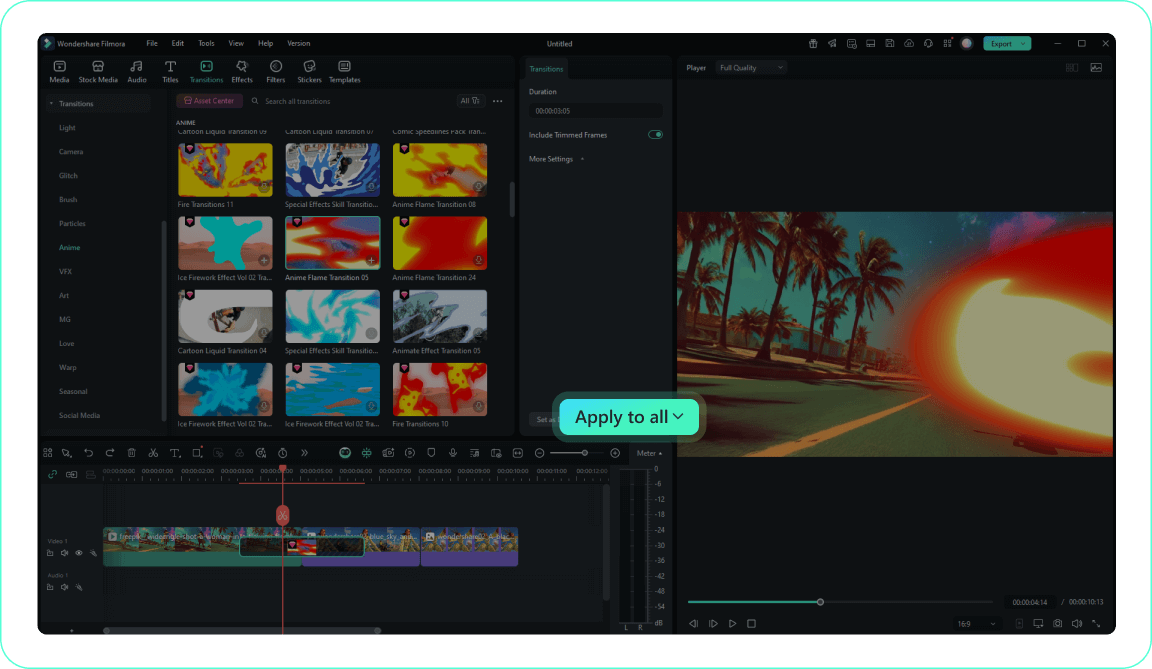
Step 4 Customize And Preview
-
1: Import Your Video
Import your clips into Filmora and arrange them sequentially on the timeline so the transition has a clear visual beat. -
2: Open The Transitions Tab
Browse the transitions library and compare movement, direction, and finish before choosing the bridge that matches your footage. -
3: Apply The Transition
Drag the chosen transition between two clips, then adjust its duration so the motion connects the shots without delaying the story. -
4: Customize And Preview
Preview the cut with music, refine speed and blending, and use Apply to All only when the same visual language belongs across the sequence.