Velocity Effects For Motion-Led Stories
Browse glow, flash, blur, speed, color shift, and shake treatments, then turn quick movement into a controlled visual beat with Filmora templates.
Loading more velocity effect resources...
 Category:
 Duration:
 Aspect Ratio:
Give Movement A Point Of View
A strong velocity effect does not simply make a clip faster. It tells the viewer where the impact is, how the motion changes, and what detail deserves another look. Filmora combines timeline control with video templates for a faster route from raw action to finished sequence.
Make Speed Changes Feel Deliberate
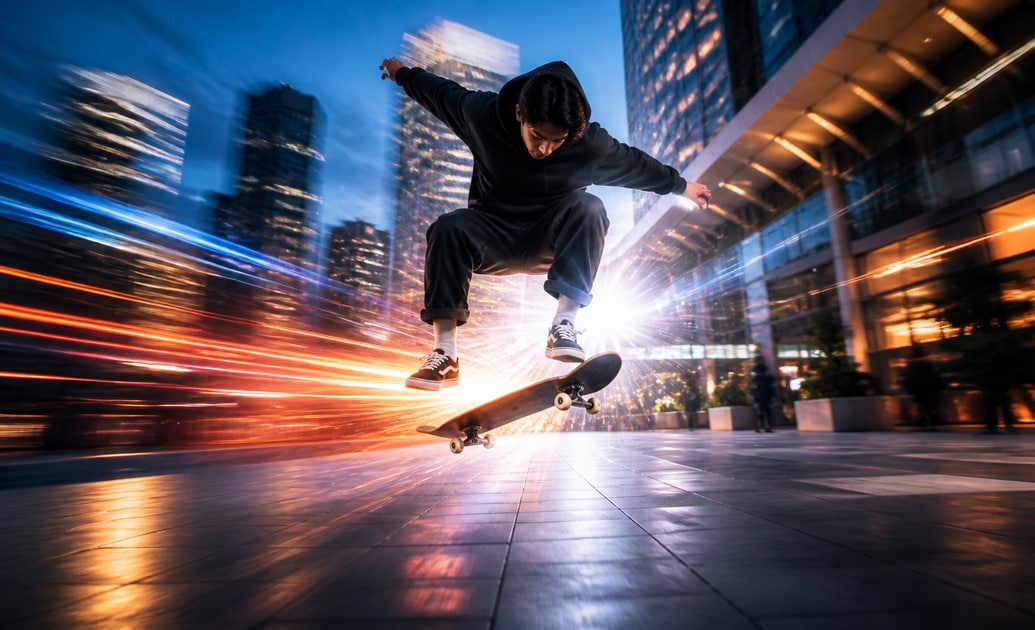
Make Speed Changes Feel Deliberate
Use glow, flash, or blur to mark the exact instant a move accelerates, lands, or changes direction. Pair the effect with cinematic titles when the story needs a strong opening or impact label.
- Choose one clear speed moment instead of applying motion treatment to every frame.
- Keep the subject readable as the effect reaches its strongest point.
- Use the soundtrack to decide when a flash, shake, or blur should peak.
Shape Square And Social-Friendly Motion
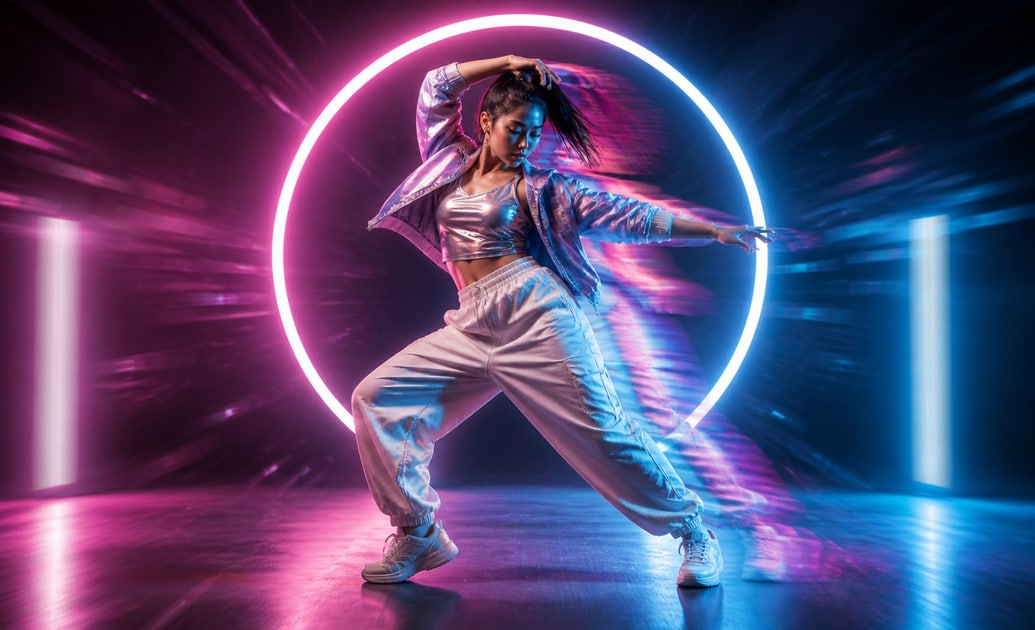
Shape Square And Social-Friendly Motion
These resources are useful for square edits, short-form clips, and highlight loops where the subject needs to stay central. Use social media titles to add context without pulling attention away from the action.
- Keep the main subject inside the safe center when the canvas is cropped square.
- Use blur and color shift around the edges so the focal action remains legible.
- Preview the effect on a phone-sized frame before building a longer version.
Finish The Sequence With Control
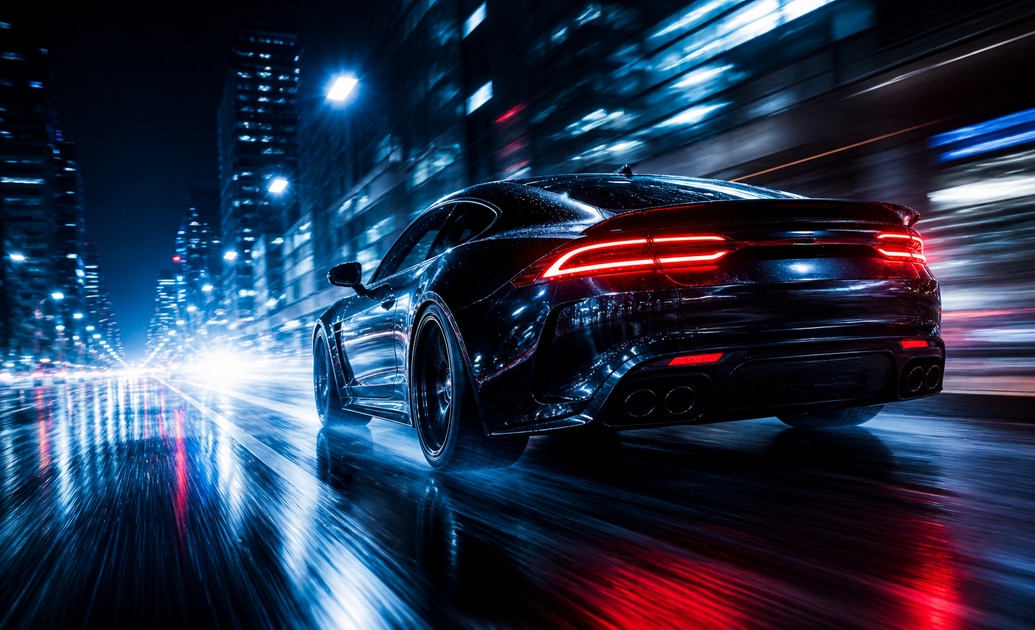
Finish The Sequence With Control
Filmora lets you compare the raw shot, the speed treatment, and the final grade in one timeline. Add supporting texture from creative assets only after the movement reads clearly on its own.
- Use color shift or retro treatment to support the mood rather than hide weak timing.
- Lower intensity when blur begins to erase the action you want viewers to remember.
- Export a short test so motion detail and square framing survive platform compression.
Questions About Velocity Effects
Add Velocity Effects In Filmora
Bring the action into Filmora, choose a motion treatment, tune its peak, and check the result in the same square or widescreen format you plan to publish.
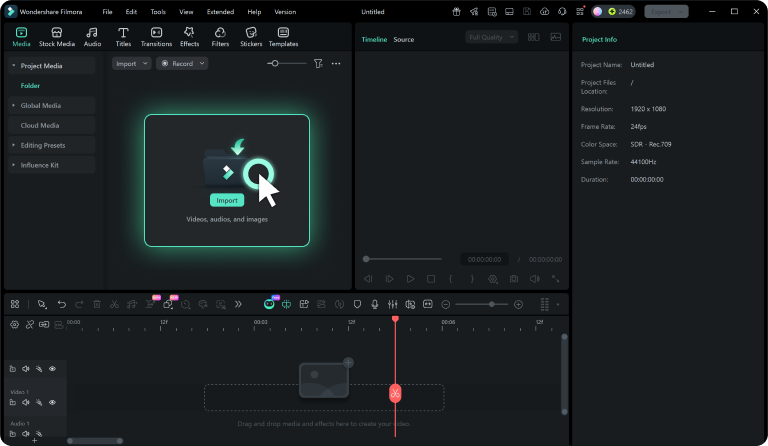
Step 1 Import Your Footage
Step 2 Open The Effects Library
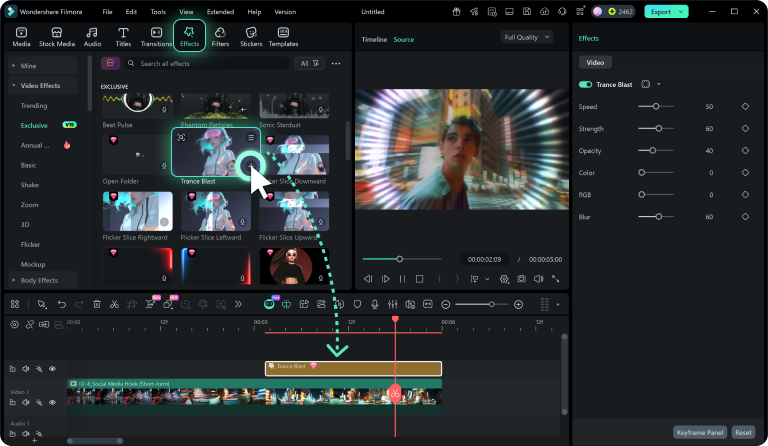
Step 3 Customize And Preview
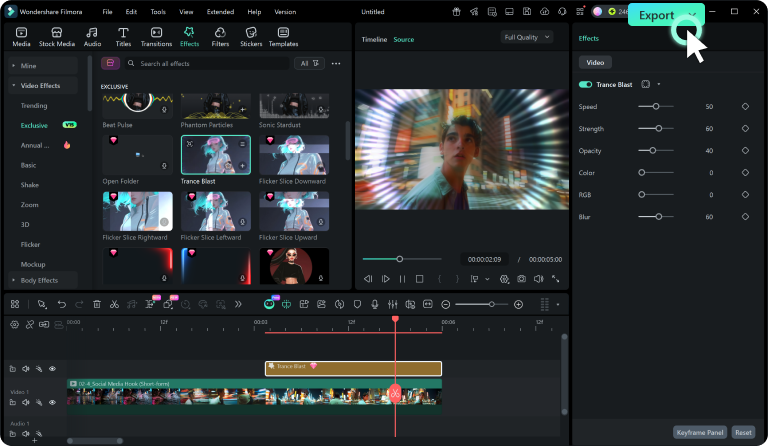
-
1: Import Your Footage
Bring your clips into Filmora and place the key action or texture moment on the timeline before choosing an effect. -
2: Open The Effects Library
Browse the effects collection, choose a motion or texture treatment, and apply it to the clip that needs more visual emphasis. -
3: Customize And Preview
Refine intensity, duration, and placement, then play the full scene to confirm the effect supports the subject before export.