

 TL;DR:
You can successfully leverage the 2026 TikTok ugly filter trend by manually searching for hidden effects and executing seamless "Ugly to Beauty" transitions using timeline controls in tools like Wondershare Filmora.
● TikTok prioritizes trending effects over a static list, meaning you must manually search keywords like "ugly filter TikTok" to locate specific viral options like Shook, Distorted, or Stretch Face.
● The "Ugly to Beauty" transition requires recording two clips from the exact same facial angle and combining them using custom Dissolve or Warp effects, speed shielding, and motion blur.
● To prevent algorithmic suppression and low views, you must position the most exaggerated filtered expression within the first two seconds and set a custom cover image that clearly displays the ugly effect.
Ask AI for a summary
 ChatGPT
 Perplexity
 Gemini
 Claude
 Grok
Grok
The TikTok ugly filter trend didn't go viral by accident. In a world of perfection, these funny ugly face filters offer a breath of comedic fresh air. Whether you're looking for the Ugly to Beauty transition or a distorted face effect, this 2026 guide covers how to find, use, and edit the best TikTok ugly face filters to boost your engagement.
Part 1. How to Find and Use the Viral TikTok Ugly Face Filter
Before you can create a viral ugly filter video, you need to know where to find the effects that many people are using. Many of the TikTok ugly face filters don't appear on the main effects page, which is why some creators think they're "hidden." In reality, TikTok simply prioritizes trending effects based on searches and usage.
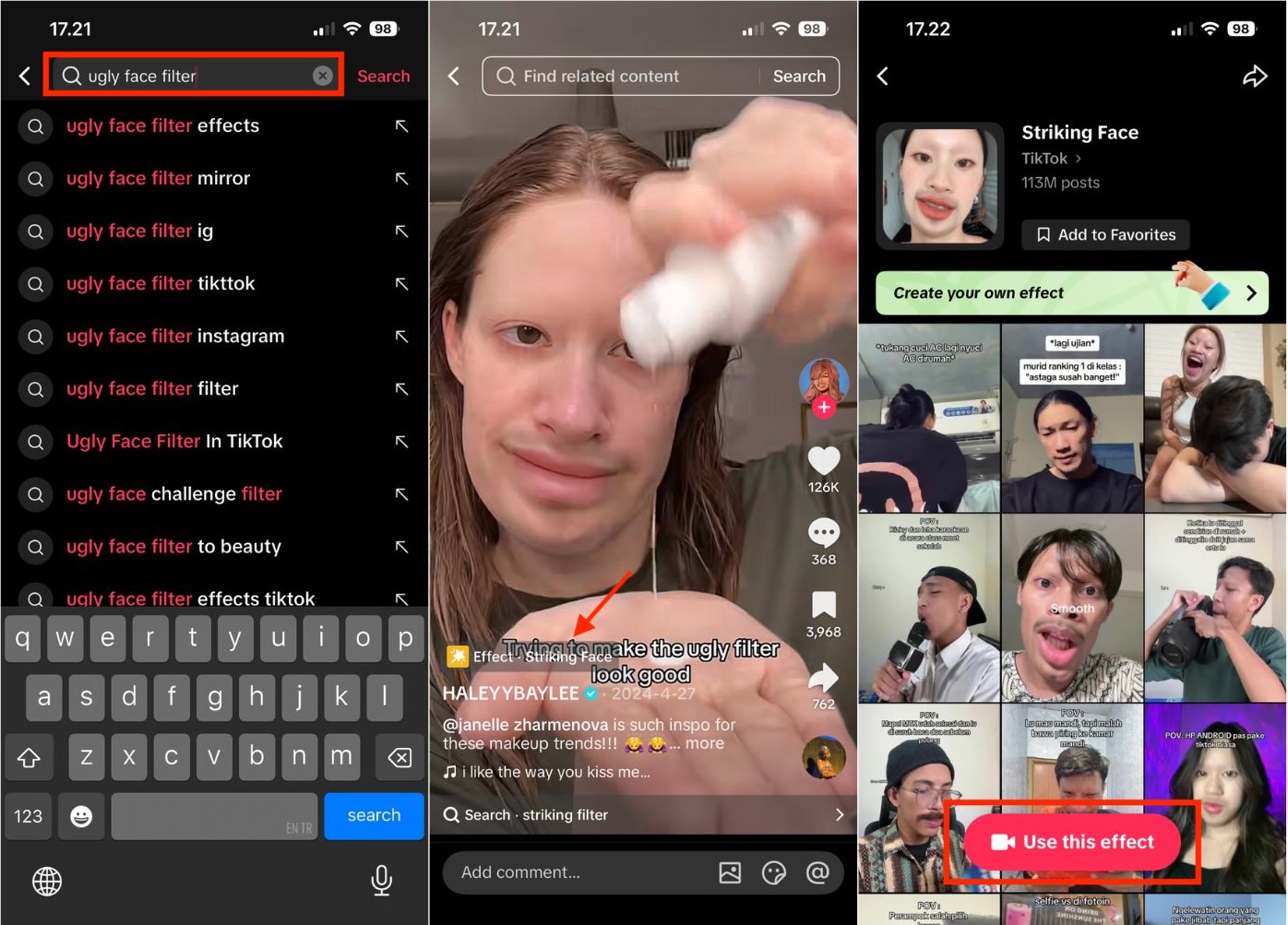
Step-by-Step: Finding the Viral TikTok Ugly Face Filter
Switch to the Effects tab to see filters currently being used in viral videos. Tap "Use This Effect" to try the filter right away and start recording your video.
You can also open the Effects Collection while recording, then scroll through Funny, Trending, or Face Effects to discover popular ugly filter creators are using right now.
Part 2. Top 5 Funniest Ugly Filters on TikTok You Must Try
Once you know where to find them, the next step is to choose the right filter. Not all ugly filters work the same way. Some work best for reaction videos, while others are perfect for pranks or "Ugly to Beauty" transitions. Below are five must-try ugly face filters on TikTok that consistently get laughs and engagement.
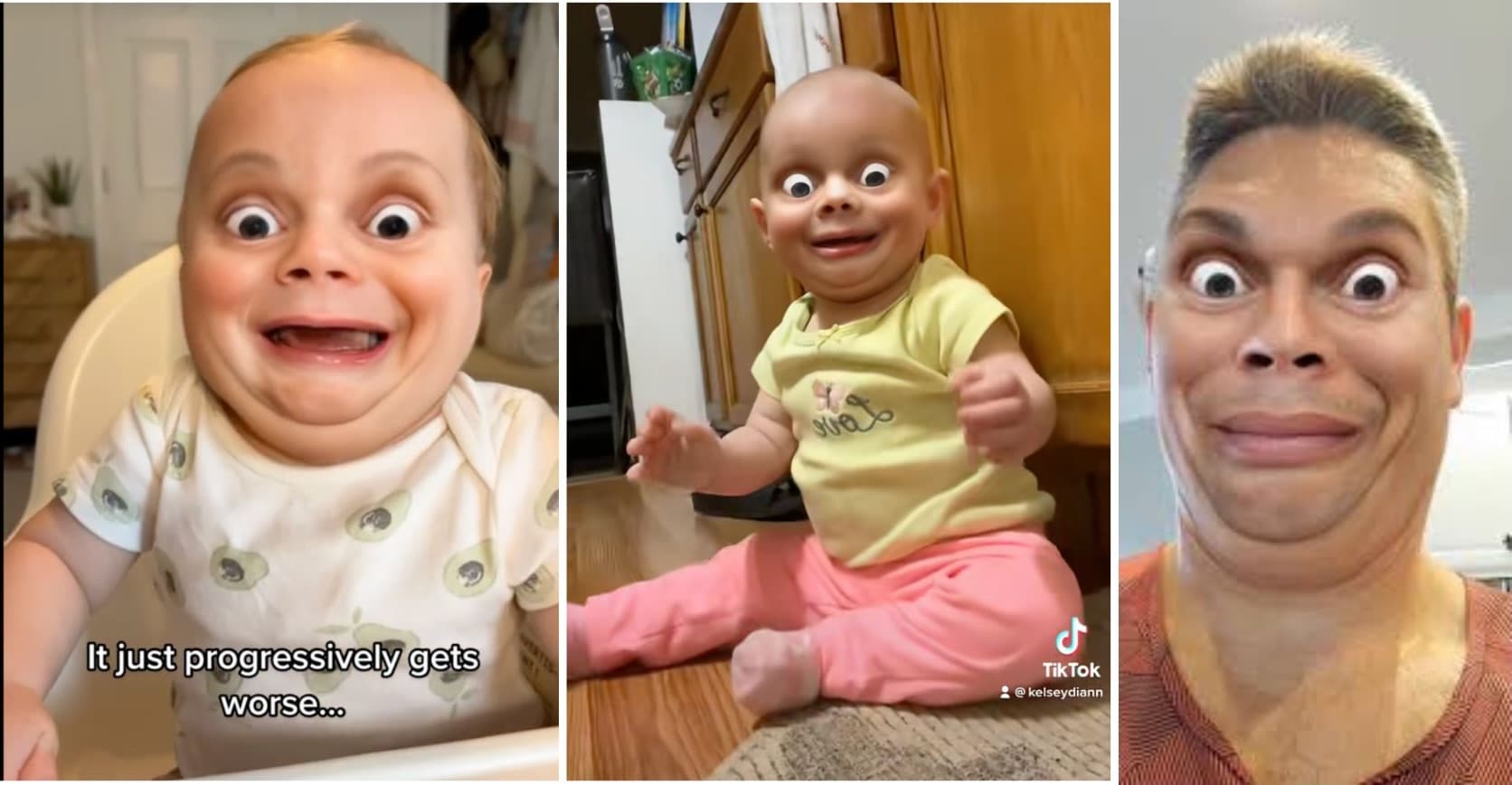
1. Shook
This filter exaggerates your eyes and facial expression, giving a permanently shocked look. It works best for reaction content, unexpected reveals, and sarcastic storytelling.
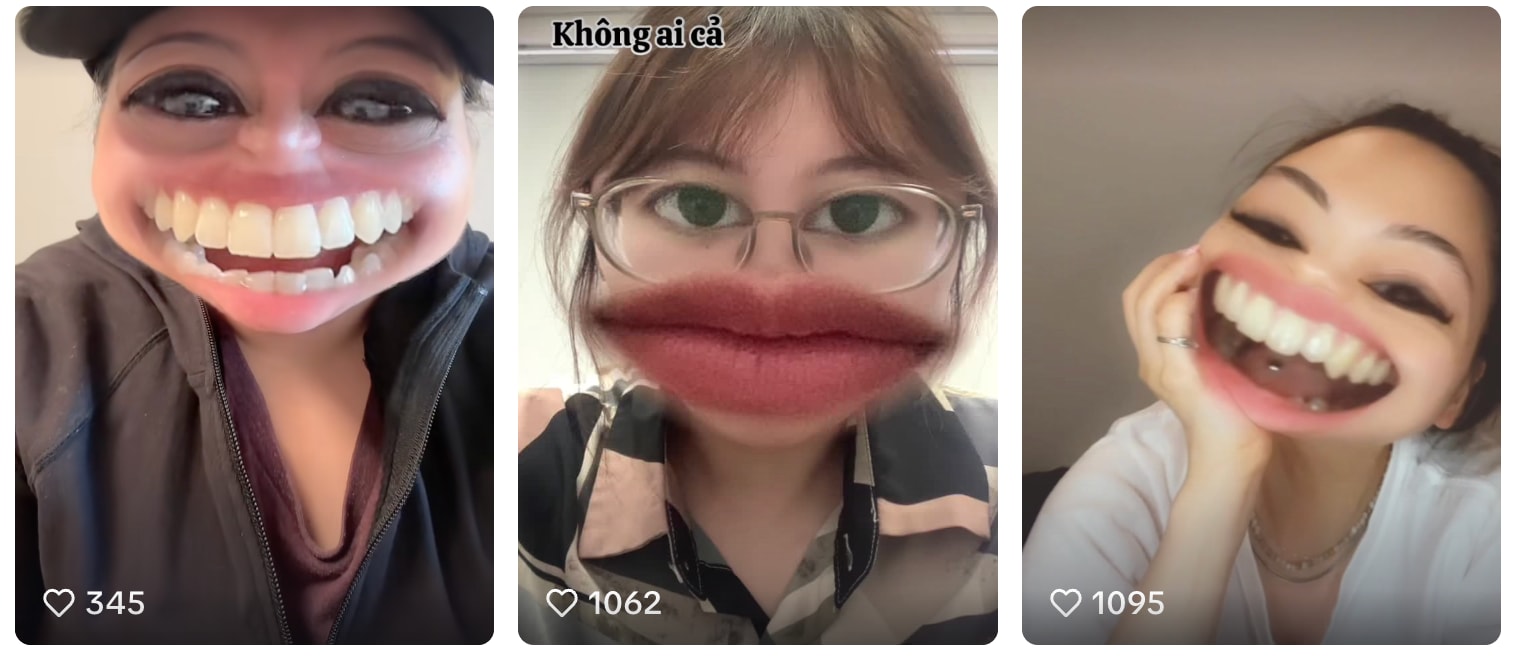
2. Big Mouth
As the name suggests, this filter stretches your mouth into an oversized shape. It's ideal for lip-sync videos, dramatic talking scenes, and playful roasts.
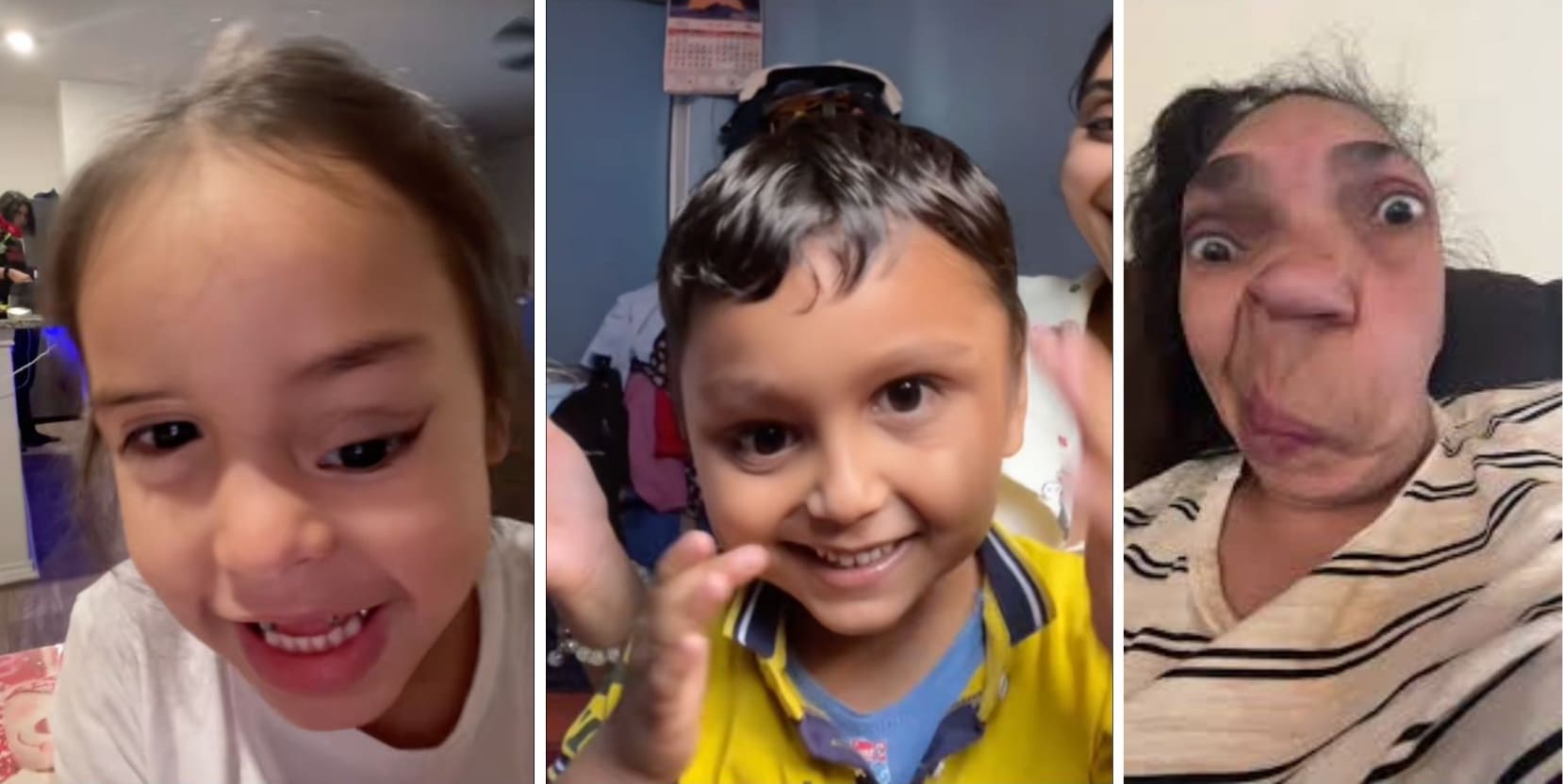
3. Distorted
The Distorted filter warps your face in uneven ways, producing awkward, unpredictable results. It's perfect for prank videos and sudden transformation edits.
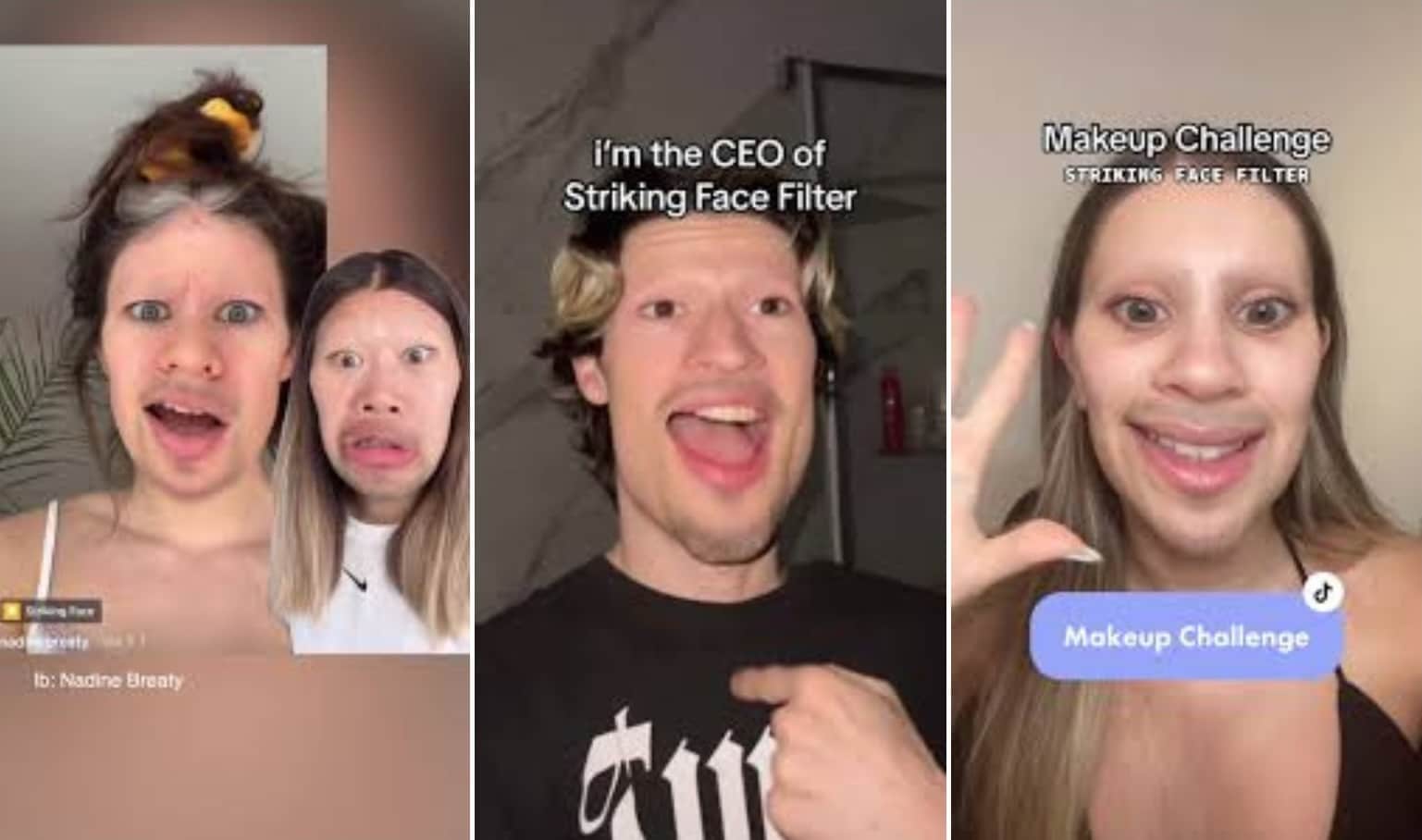
4. Striking
Striking exaggerates facial angles and sharpens expressions, giving your face an oddly intense and hilarious look. It works well for dramatic pauses and punchline moments.
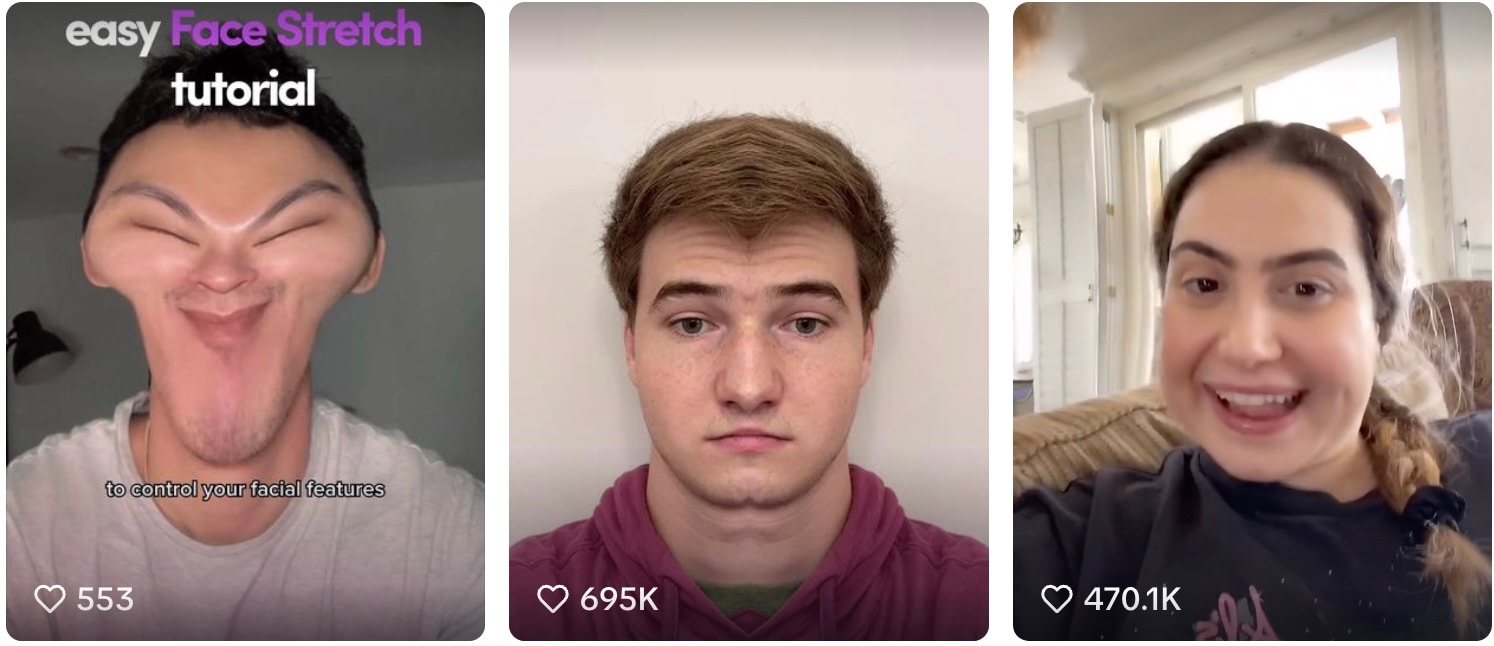
5. Stretch Face
Stretch Face pulls and elongates facial features, turning normal expressions into exaggerated comedy. This filter works well with fast cuts and trending audio.
Part 3. Step-by-Step: How to Edit a Viral "Ugly to Beauty" Transition
The "Ugly to Beauty" transition is the most impactful format in the TikTok ugly filter trend. It combines humor, surprise, and visual contrast, which makes viewers stop scrolling and watch until the end.
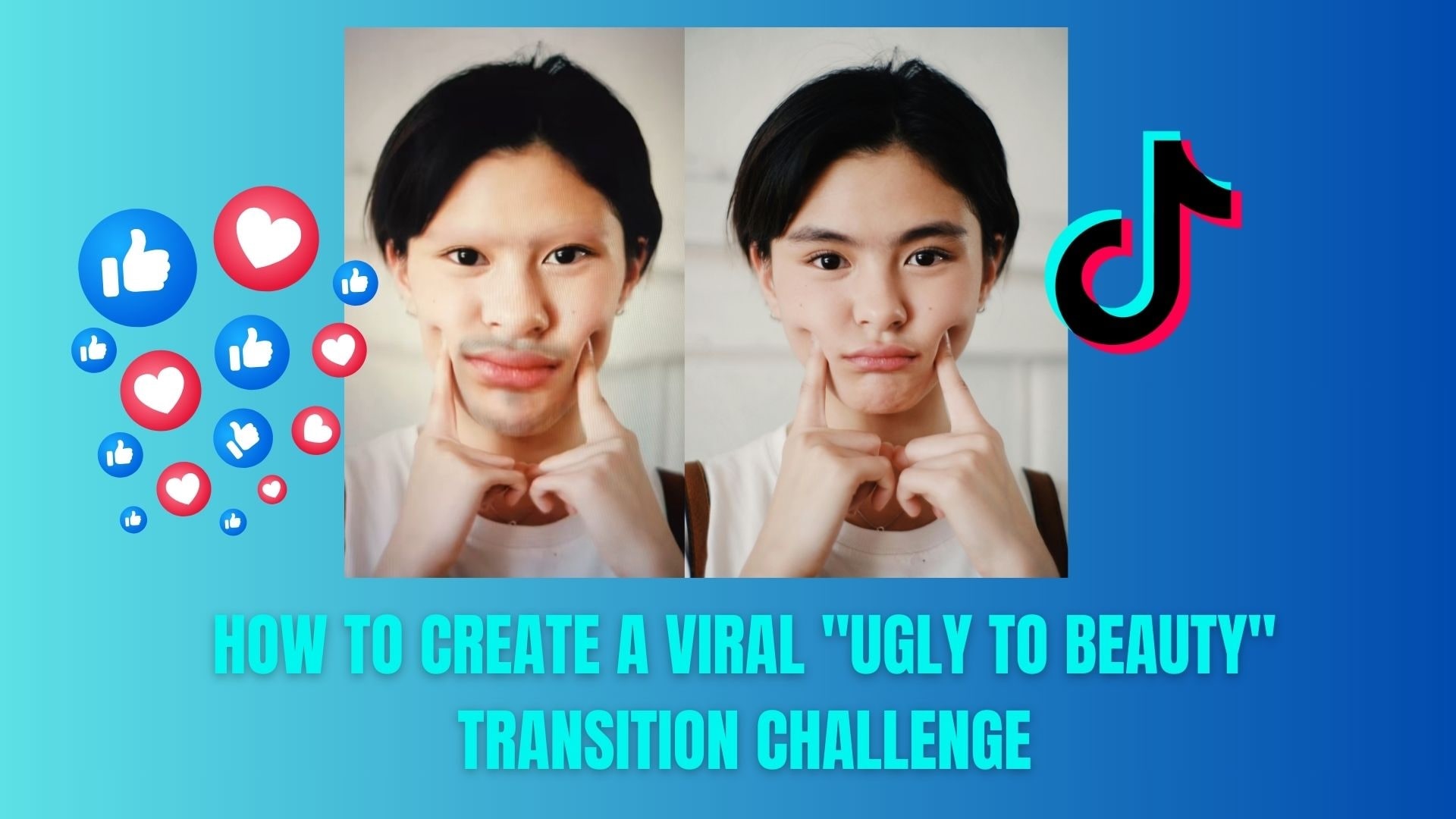
When performed correctly, this transition feels effortless but delivers a strong payoff that keeps people replaying and sharing the video.
How to create the "Ugly to Beauty" transition
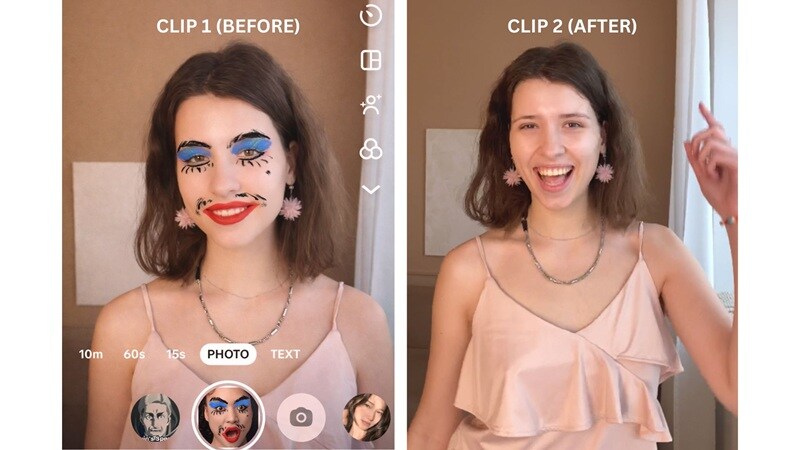
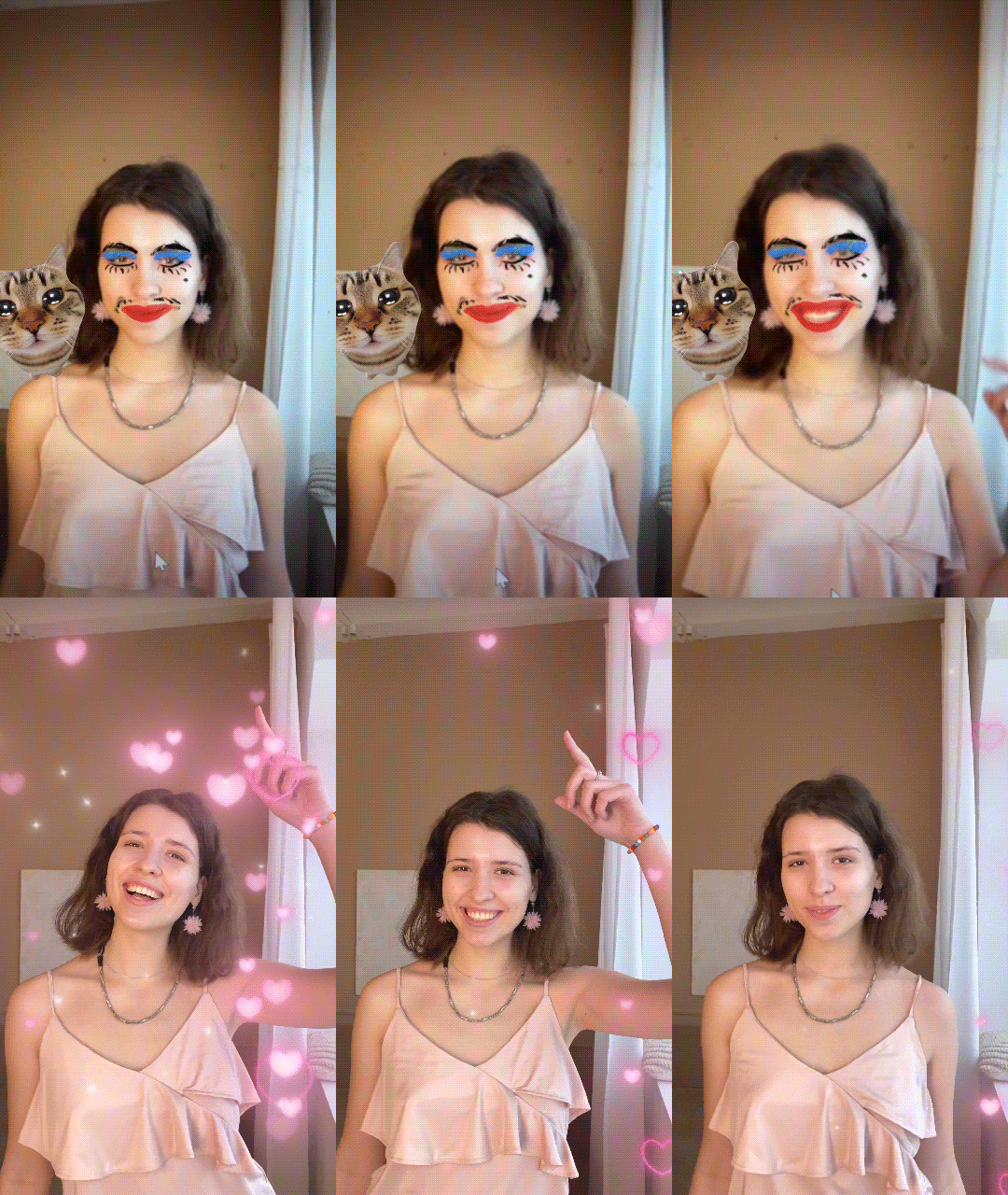
For this trend, you need to prepare two clips:
- One clip with the ugly filter — this is your "before" look.
- One clip without the filter — this is your "glow up" shot.
Keep your face centered and maintain the same angle for both clips. Record a few seconds longer than needed for editing flexibility.
Next, combine both clips smoothly. We recommend using Wondershare Filmora as it offers precise timeline control and many built-in transition effects that make blending clips quick and easy.
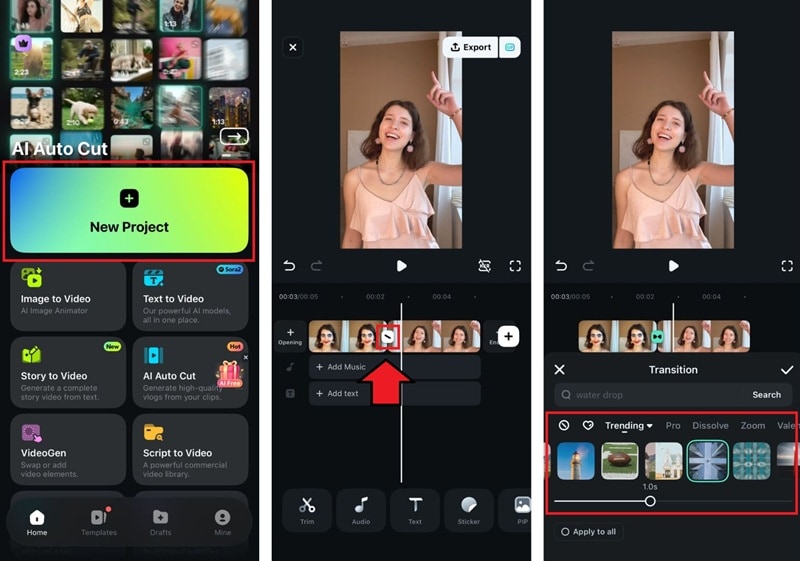
To do it:
- Create a new project in Filmora and import both clips to the timeline.
- Tap the "/" icon between them to browse the transition.
- Select one that fits your scene and tap the checkmark to apply the changes.
After finalizing the transition, you can add motion blur to soften the cut and sync the transition with trending TikTok audio or sound effects to help improve watch time and reach.
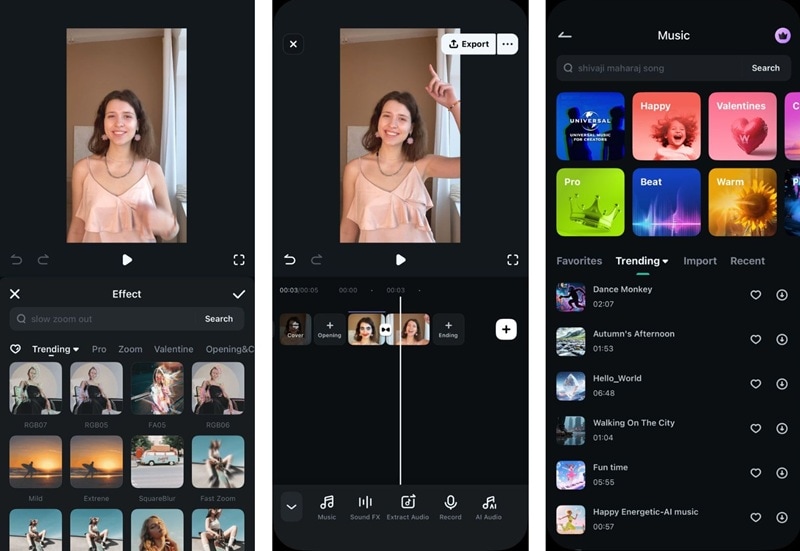
Filmora is available on both desktop and mobile devices. If you need more advanced editing features, you can install and use the desktop version for greater control and deeper tools.
Part 4. Why Your "Ugly Filter" Video Isn't Getting Views
Even the funniest TikTok ugly filter video can flop if people never click on it. Video views don't just depend on filters. TikTok's algorithm also considers relevance, clarity, and engagement signals in the first few seconds.
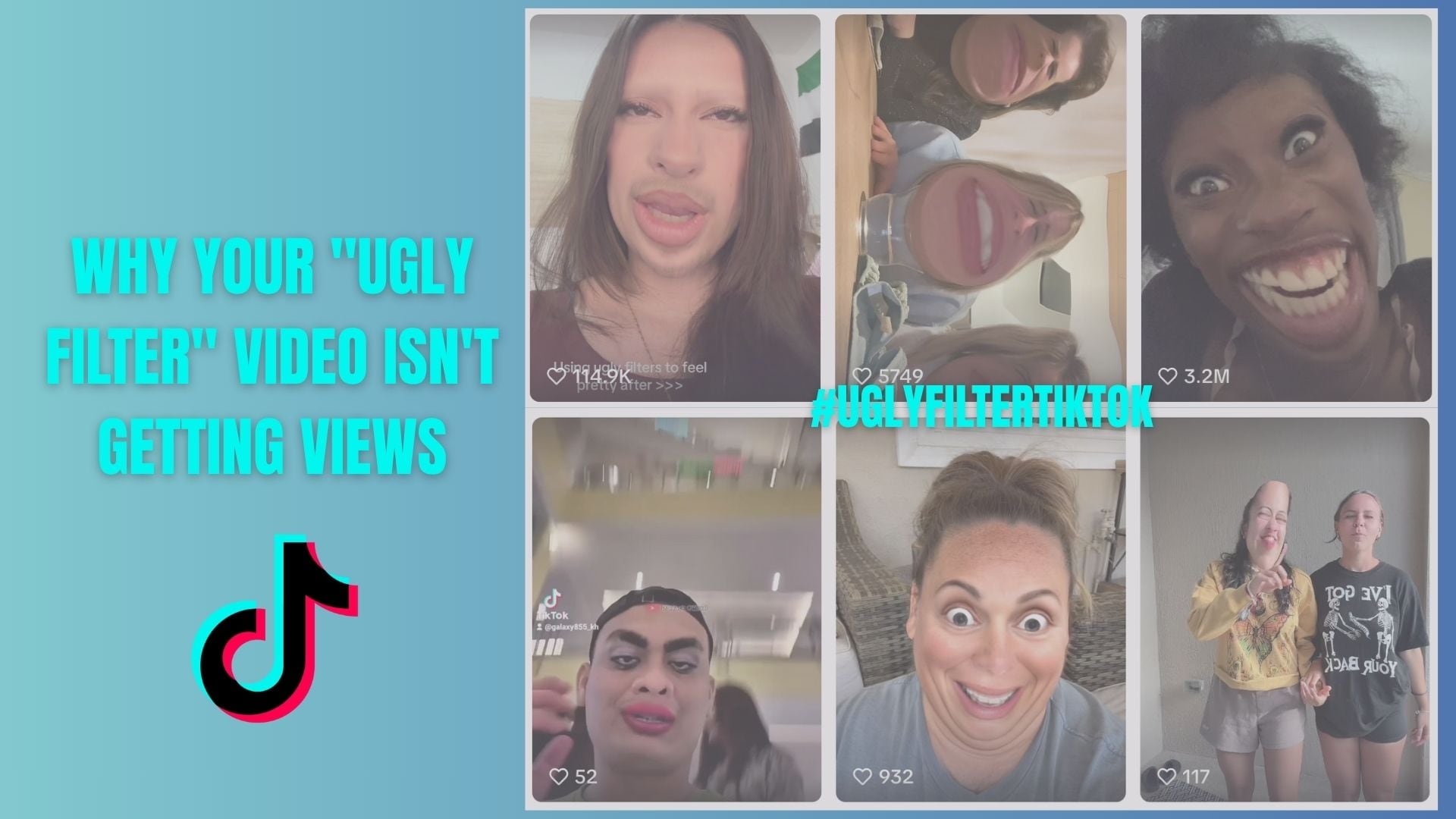
To improve reach, focus on these key SEO basics:
- Use searchable hashtags: Mix broad and specific tags such as #uglyfiltertiktok, #uglyfacefilter, #uglytobeauty, and #tiktoktrend instead of random viral hashtags.
- Write a clear, keyword-based caption: Let TikTok know what your video is about. Simple captions like "Ugly filter to glow up" help the algorithm categorize your content.
- Design a clickable cover image: Choose a frame where the ugly filter is obvious. Striking expressions and contrast make users stop scrolling.
- Hook viewers in the first 2 seconds: Start with the ugliest or funniest moment first to boost watch time.
Conclusion
The TikTok ugly filter trend proves that going viral isn't always about looking your best. It's more about grabbing attention, telling a quick visual story, and making people laugh. From finding the trending ugly face filters, picking the funniest effects, to nailing the "Ugly to Beautiful" transition, small creative choices can make a big difference.
Adding smooth edits, motion blur, and trending audio can instantly elevate your content's quality, while smart hashtags and cover images help your content reach the right audience. With pranks, reactions, and transformation reveals, ugly filters offer a fun and effective way to get noticed on TikTok.

 Secure Download
FAQs
-
Why can't I find the TikTok ugly filter?
Some ugly face filters are not always visible on the main effects page. Search keywords like "ugly filter TikTok." -
Can I edit ugly filter videos outside TikTok?
Absolutely. Many creators use editing apps like Filmora to improve transitions, timing, and video quality before uploading. -
Do ugly filter videos actually go viral?
Yes. When combined with strong hooks, smooth transitions, and the right hashtags, ugly filter videos perform well on TikTok.
