
Flash Video Maker: Easily Create Your Own Flash Video

Oct 29, 2026• Proven solutions
 TL;DR:
You can use Wondershare Filmora to directly author Flash videos by organizing your raw media on a timeline and applying basic edits alongside over 300 visual filters, transitions, and animations.
● The software supports importing most popular video, audio, and photo formats directly into the project without requiring prior file conversion, preventing quality loss before editing begins.
● Completed videos can be exported directly to YouTube and Facebook or saved locally as FLV/SWF files with customizable parameters to ensure a highly compressed, smaller file size for viewers with slow internet connections.
Ask AI for a summary
 ChatGPT
 Perplexity
 Gemini
 Claude
 Grok
Grok
Nowadays, Flash video seems very common on the internet. One of the reasons for this is because sites like YouTube, Vimeo, Hulu, Facebook, etc. make video sharing a pretty easy thing. Also want to create a flash video to upload YouTube or your own website? You just need this Flash authoring software: Wondershare Filmora.
What makes this flash video maker special? First, it includes all basic video edits you’ll need: Trim, Crop, Rotate, Cut and Paste, Split, Record Voiceover, Capture video frame, Add background music, and more. Aside from that, it offers 300+ special filters, transitions, titles, intro/credit, animations to take your video to the next level. Lastly, when you finish making a flash video, simply export to a standard FLV format that's compatible with almost all sites, or upload it to YouTube directly from this app. Amazing, isn’t it? Try it for free now.
1. Import your media files
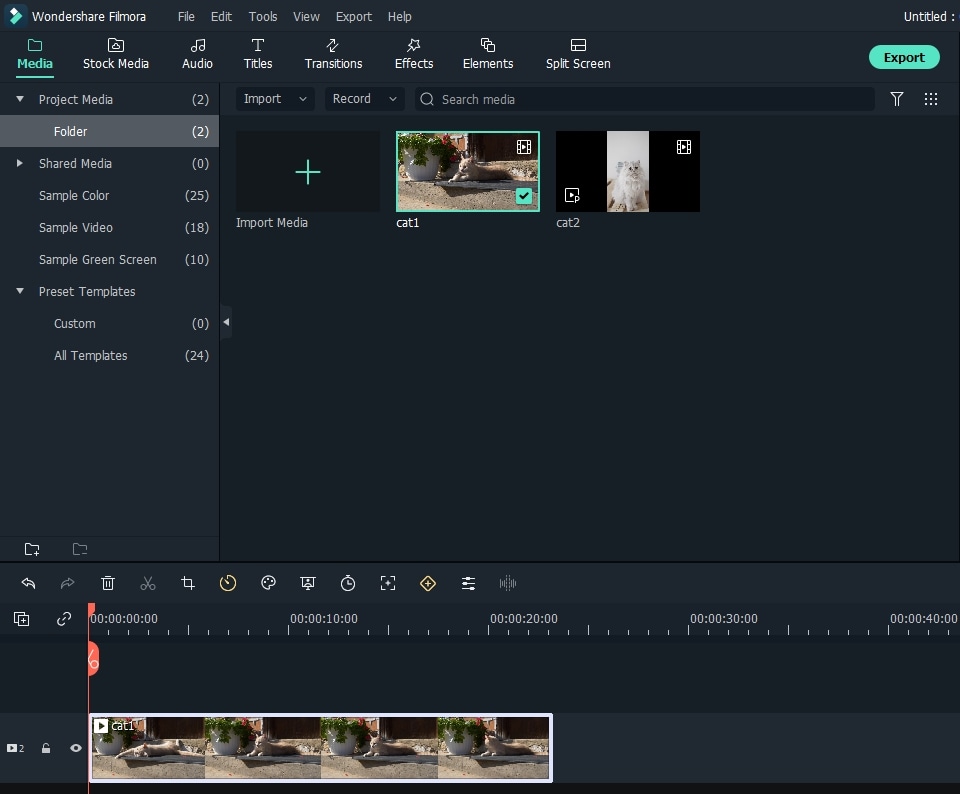
Launch this flash video creator and click "New Project" to enter the main editing interface. When you come to the primary window, click "Import" to browse your file folder and add all files need to create a flash video.
All imported files will show as thumbnails in the User's Album. Since almost all popular video, audio and photos are supported, you don't need to do any conversion in advance, thus bear no quality loss.
2. Organize your video clips on Timeline
Now drag them to the video/audio Timeline respectively. When they come in place, go ahead easy flash making using the Timeline and editing panel. Here, you can:
- Rotate, Trim, Crop, Split, Cut, Paste your videos to get it well organized.
- Fine-tune the brightness, contrast, playing speed, audio volume, pitch, set audio fade in/fade out effect.
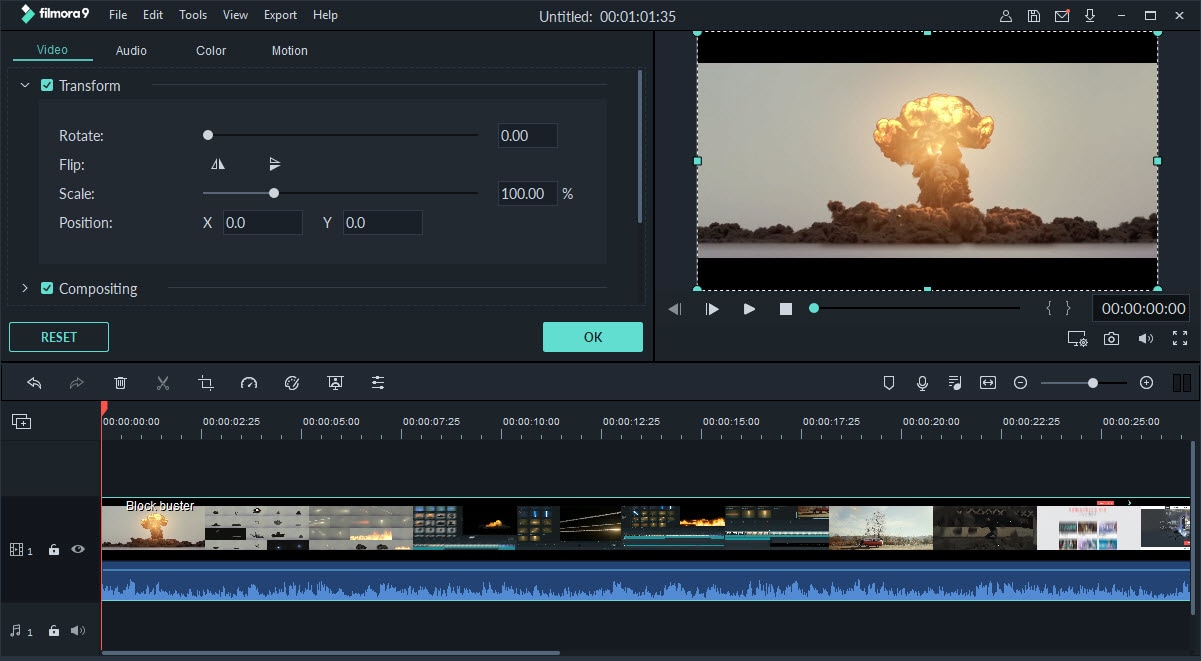
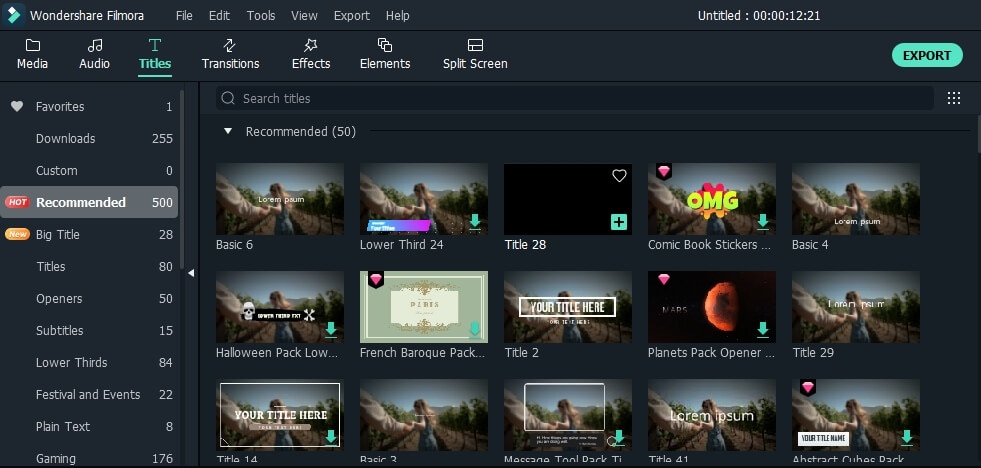
- Increase its charms by applying fancy visual filters, transitions, titles, and intros/credits.
3. Share your flash video
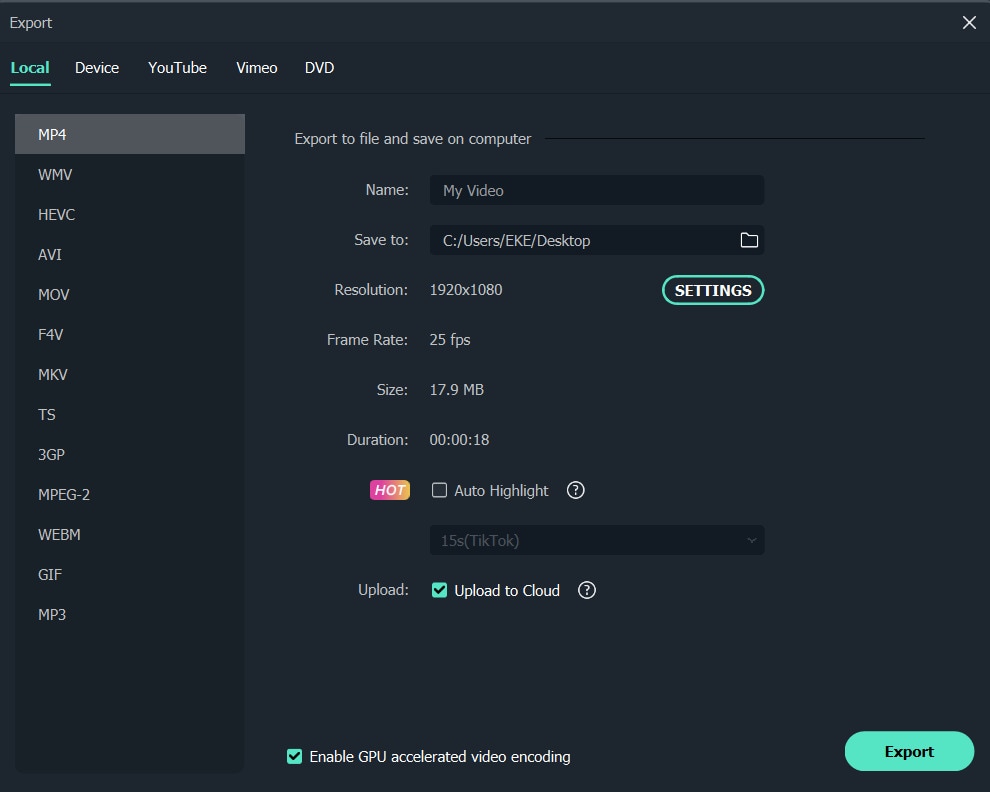
When you finish flash video editing, simply click "Export" to access the output window. Wondershare Filmora saves your time to upload it directly to YouTube, Facebook to share with your friends and family. If you want to tailor your video for target viewers that has a slow internet connection, you can save it an FLV/SWF video, and then further customize its parameters to create a smaller size and highly compressed video.
Simple step-by-step instructions with screenshots on how to burn video to DVD on Mac. Find out the best way to burn video to DVD.
by Liza Brown Nov 01, 2026 07:02 AM
Learn how to enhance a video with Filmora9.
by Liza Brown Oct 23, 2026 11:29 AM
Liza Brown
chief Editor
