Simple video tutorials to get you started.
Creative techniques for filming and editing.


Apart from all kinds of basic editing features, Filmora also provides you with some more advanced editing tools such as Tilt-shift, Mosaic, Faceoff, Freeze Frame, etc. In this guide you will learn:
To enter these advanced editing features, first, you will need to import media files to the media library of Filmora, and then drag it to the video track on the timeline. Click Effects at the top, find and click Utility. Then the video Power Tool will be opened.
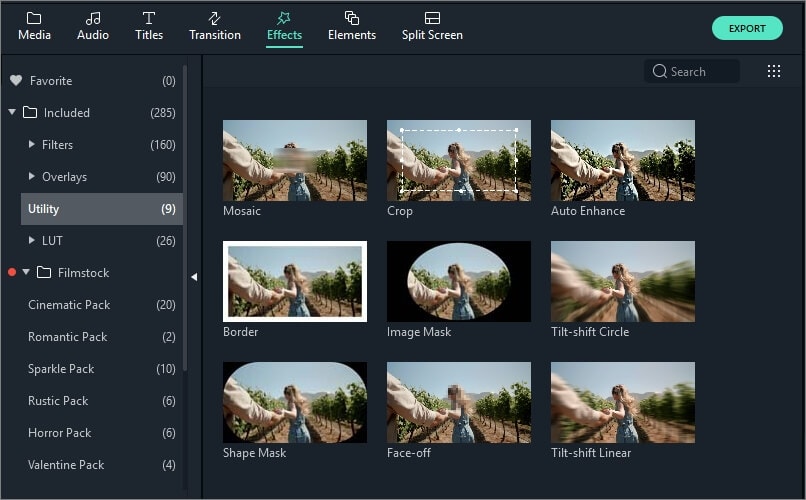
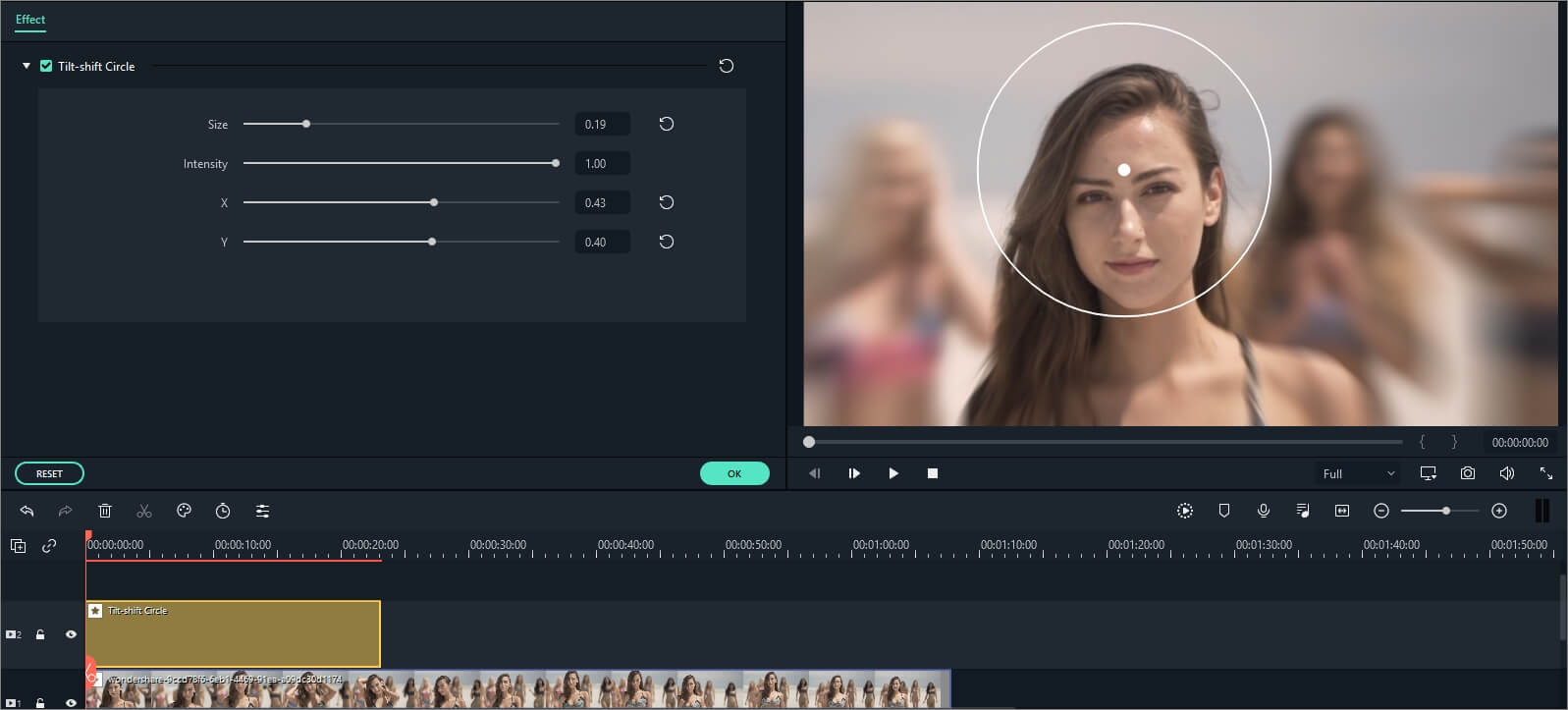
If you can't afford to buy expensive tilt-shift lens to record one, you are still able to make a tilt-shift effect with Filmora easily. The Tilt-shift effect is often used to blur some part of your video clip, bringing an illusion of miniaturization to your video. Here is how to do it with Filmora.
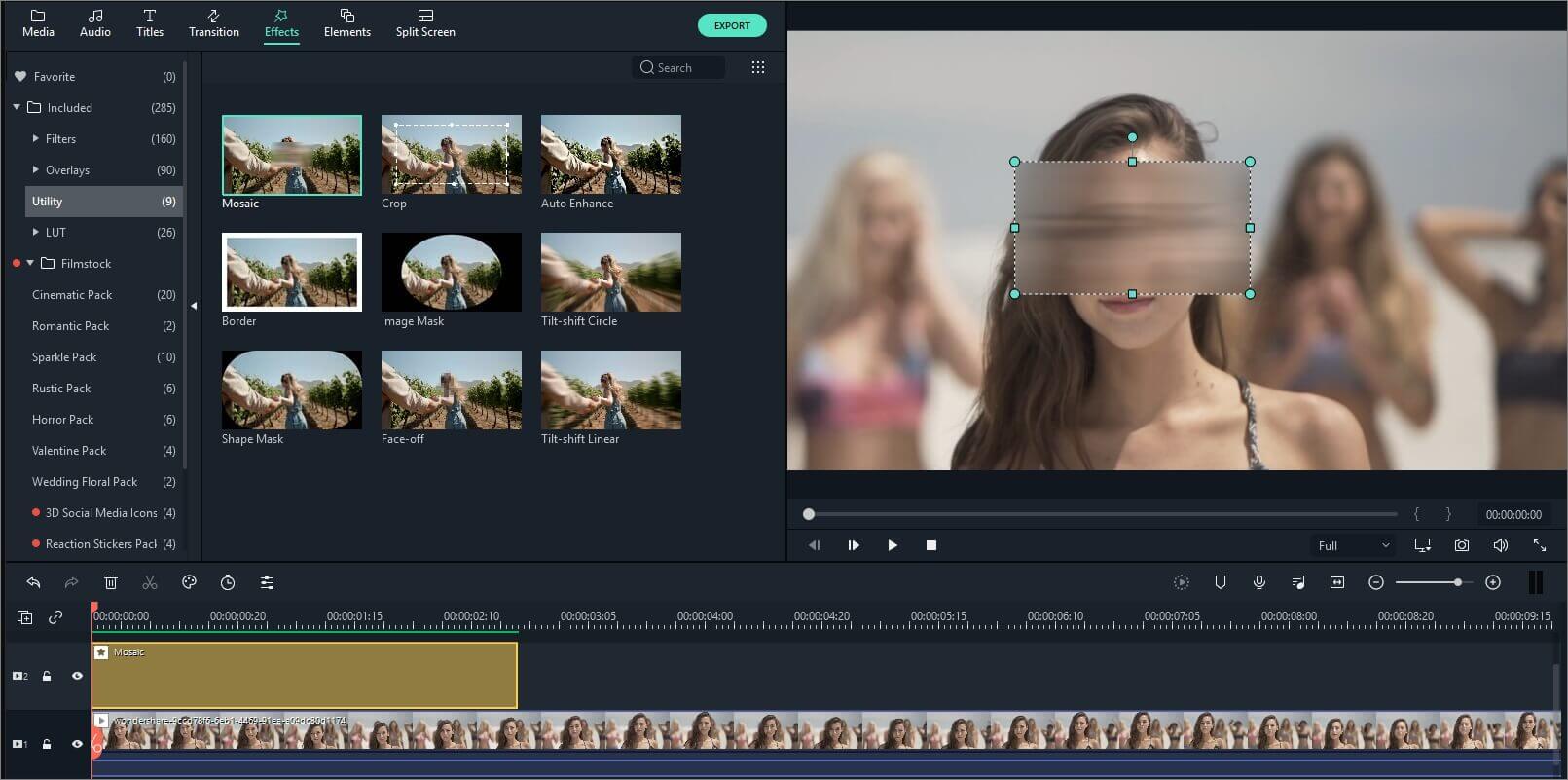
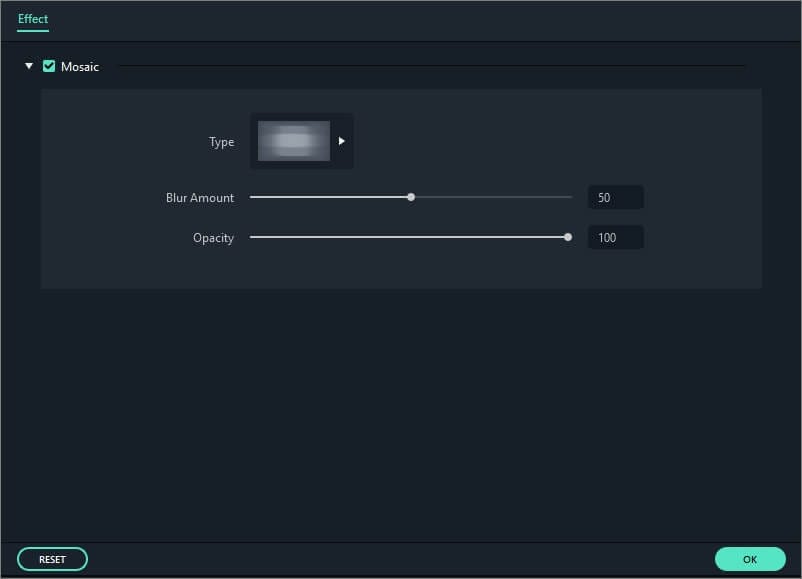
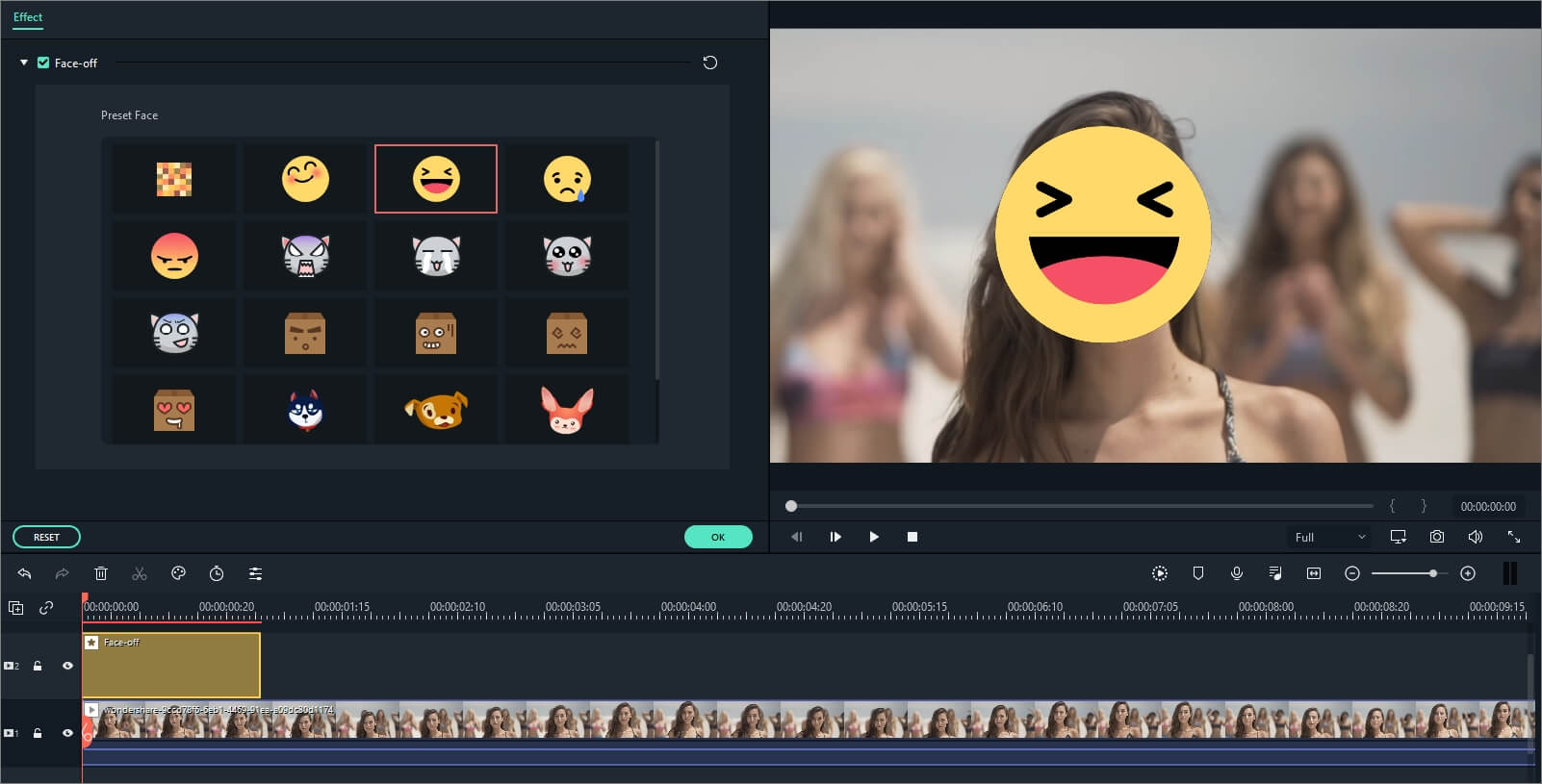
The difference between Mosaic effect and Face-off effect is that, with Mosaic, you will be able to blur any area in the video clip and the area won't move around while your video plays, whereas, with Faceoff, you will be able to cover moving faces. Here is how.
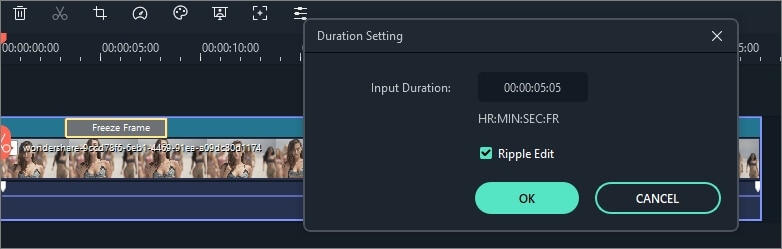
With this technique, directors can show the tiny details, such as the expressions on the main character's face, or some intricate activity within their hands, therefore to distinguish or focus on the major characters or scenes. With Filmora, you don't need any professional shooting lens to get this effect. Here is a detailed guide on how to create Freeze Frame in Filmora.