


 TL;DR:
You can smoothly adjust your video's frame rate by using Wondershare Filmora for cross-platform AI frame interpolation, HandBrake for precise offline manual control, or Neural.Love for web-based AI motion enhancement.
● Converting a 30FPS video to 60FPS or 120FPS uses interpolation to artificially generate in-between frames, which increases the file size but cannot improve resolution or capture the true motion data of natively recorded high-FPS footage.
● Free offline tools like HandBrake and VLC lack AI frame interpolation, making them highly effective for precise manual downscaling and compression but unsuitable for generating smooth motion when increasing a video's frame rate.
● Online AI-powered converters such as Media.io, Neural.Love, and Videobolt strictly limit advanced frame generation, higher frame rate exports, and longer clip durations to users on paid subscriptions or credit systems.
Ask AI for a summary
 ChatGPT
 Perplexity
 Gemini
 Claude
 Grok
Grok
Have you ever experienced your videos looking choppy, lagging, or outdated? All these problems can be due to the wrong frame rate. If your recording was shot at 30FPS or another setting that feels too choppy, there's no need to re-record.
With the right video frame rate converter, you can adjust the frame rate of your video, converting 30 FPS to 60 FPS or even upgrading the motion to 120 FPS to make your video look cleaner. Many tools now are capable of changing the frame rate of your video while maintaining quality.
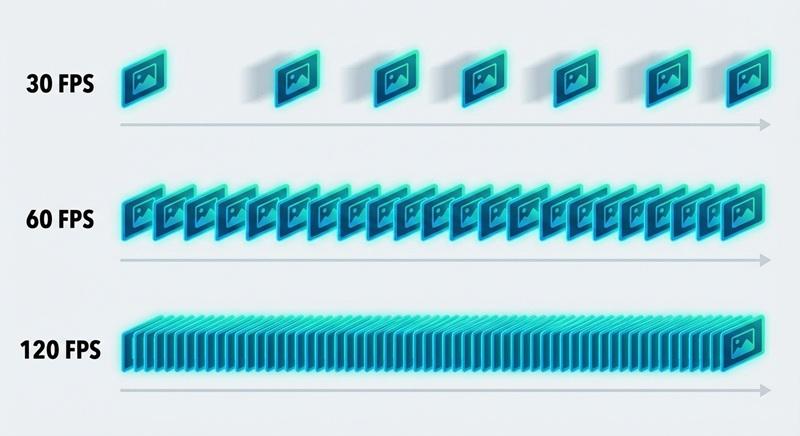
How Different Frame Rates Change the Way Your Video Looks
Before using a video frame rate converter, let's go down with the basics: What is frame rate? Frame rate, measured in FPS (frames per second), refers to the number of individual images that appear every second in a video. For example, 30 FPS means the video shows 30 individual frames every second.
There are different frame rates commonly used in video, and they don’t all look or behave the same. The higher the FPS, the smoother the motion looks.
When you’re working with footage you recorded at one frame rate but need it to match a different format or platform, you may need to change a video’s FPS to keep motion looking natural and consistent.
Which Frame Rate Should You Use? 30FPS vs 60FPS vs 120FPS

Instead of blindly converting FPS, choose based on how and where your video will be watched. A 30FPS to 60FPS converter can help improve smoothness, but not every video needs it. Sometimes, higher FPS adds realism. Other times, it removes the cinematic feel you want.
| 30FPS | 60FPS | 120FPS | |
| Best For | Cinematic videos, talking heads, storytelling | Tutorials, vlogs, gaming, action footage | Sports, slow motion, high-action scenes |
| Visual Smoothness | Standard, natural | Smooth | Ultra-smooth |
| Motion Detail | Moderate | High | Super high |
| File Size | Small | Medium | Large |
| Ideal Platform | Films, interviews, social media videos | YouTube, streaming, gameplay | Professional editing, slow-motion content |
To ensure that each video frame rate converter delivers smooth and reliable results, we evaluate it using the most important real-world criteria for content creators:
- Frame rate accuracy when converting 30FPS, 60FPS, and 120FPS videos
- Motion smoothness and how natural the interpolation looks after changing the FPS
- Video quality retention, including sharpness and artifact control
- Ease of use, especially for beginners who just want to change video FPS quickly
- Platform support, covering desktop, online, and mobile workflows
- Export flexibility, such as MP4 1080p 60 FPS and higher frame rate presets
- Processing speed and stability on longer or high-resolution clips
Our Top 3 Picks of the Best Video Frame Rate Converters


10 Best Video Frame Rate Converters
Choosing the right video frame rate converter can save you hours of re-editing and help your footage look smoother without sacrificing quality. If you want to convert video FPS from 30 to 60, adjust 60 FPS to 120 FPS, or simply change the frame rate of video for different platforms, each tool offers a different balance of control, convenience, and output quality.
Below is a quick comparison to help you identify which frame rate converter fits your workflow best before diving into detailed reviews.
Frame Rate Converters Comparison Chart
| Platform | Frame Rate Options | Free / Paid | Best For | Rating | |
| Wondershare Filmora | Windows, Mac, Android, iOS | Up to 120 FPS | Free and paid plans are available | High-quality FPS conversion & editing | ⭐⭐⭐⭐⭐ |
| HandBrake | Windows, Mac, Linux | Up to 60FPS | Free | Manual FPS control & compression | ⭐⭐⭐⭐ |
| VLC | Windows, Mac, Linux | Up to 60FPS | Free | Simple frame rate tweaks | ⭐⭐⭐ |
| Media.io | Online | 2–4X | Free and paid plans are available | Fast online FPS conversion | ⭐⭐⭐⭐ |
| Videobolt | Online | Up to 60FPS (for paid plans) | Paid | Template-based video content | ⭐⭐⭐ |
| VEED | Online | Up to 60FPS | Free and paid plans are available | Social media video editing | ⭐⭐⭐⭐ |
| MiniWebTool | Online | Up to 60FPS or custom input | Free | Quick one-off FPS changes | ⭐⭐⭐ |
| Neural.Love | Online | Up to 120FPS | Paid | AI 60 FPS converter & enhancement | ⭐⭐⭐⭐ |
| Video Converter | Android | Up to 60FPS or custom input | Free and paid plans are available | Mobile FPS conversion | ⭐⭐⭐ |
| Video Converter and Compressor | iOS | Up to 60 FPS or custom input | Free and paid plans are available | FPS change + file compression | ⭐⭐⭐⭐ |
|
Show More
Show Less
|
|||||
 Secure Download
1. Wondershare Filmora (Windows, macOS, Android, iOS)
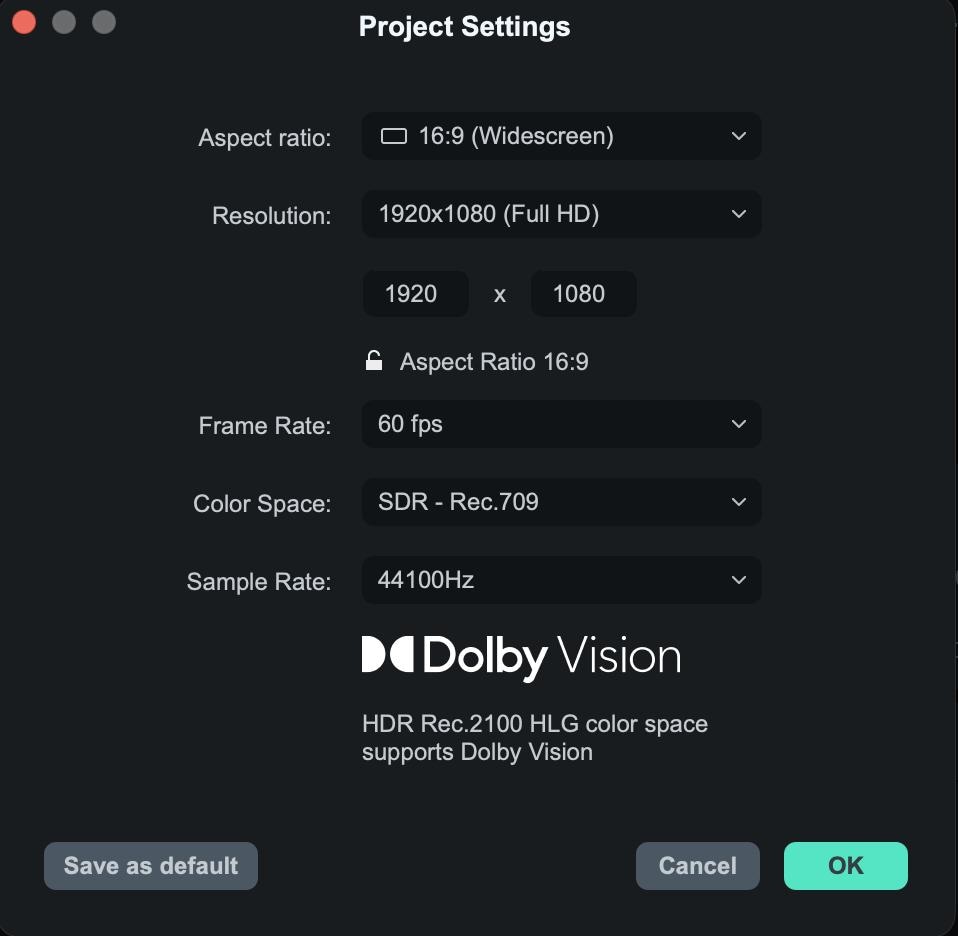
Wondershare Filmora is a full-featured editor with a built-in video frame rate converter that lets creators change video FPS with precision. It supports converting 30 FPS to 60 FPS, 60 FPS to 120 FPS, and exporting smooth MP4 1080p 60 FPS using intelligent motion processing.
And since a simple frame rate change can sometimes make your videos look choppy instead, you can use its AI frame interpolation to make sure movement stays natural. Filmora is popular among creators who want to convert video to 60FPS without dealing with technical complexity. You can learn more about how to convert video to 60FPS using Filmora.
Free version with watermark, paid plans available.
- Timeline-based FPS control for accurate frame rate conversion
- Optimized presets for YouTube, social media, and high-frame-rate playback
- Stable performance for long videos and large files
- Built-in AI Frame Interpolation for smoother motion and fewer choppy frames during frame rate conversion
- Smooth frame interpolation when increasing FPS
- Works across desktop and mobile platforms
- Combines FPS conversion with full editing tools
- Free exports include a watermark
- Advanced interpolation still depends on source quality
You can change FPS either in project settings before editing or during export by selecting a custom value, such as 60 FPS or 120 FPS, for the final output.
Secure Download2. HandBrake (Windows, macOS, Linux)
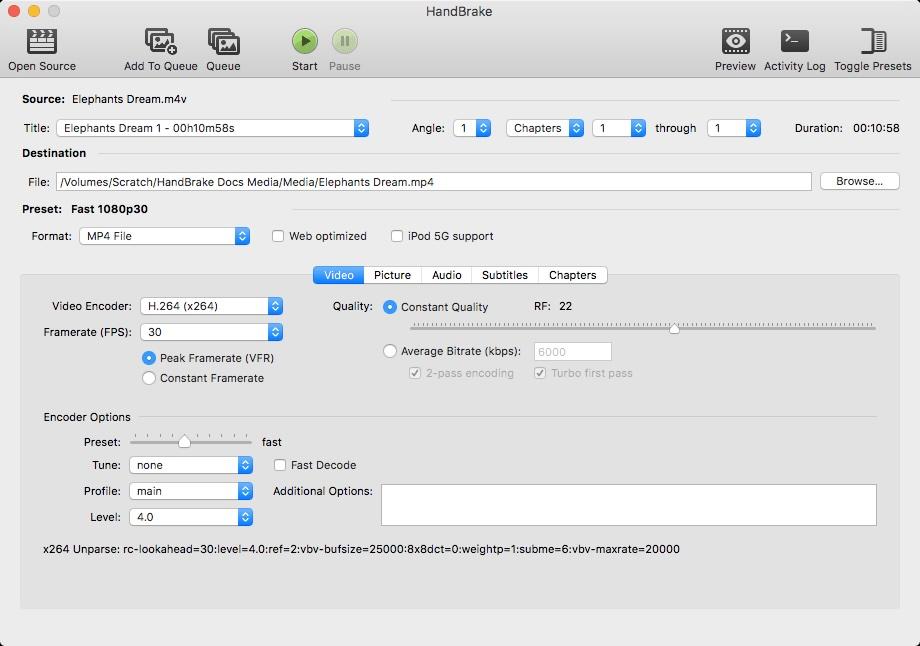
HandBrake is a popular open-source video fps converter designed for manual control. This app allows users to precisely change the frame rate of video, so it’s useful for technical users who want consistent FPS across devices.
Free
- Constant and variable frame rate options
- Strong codec and compression control
- Reliable for batch conversions
- No watermark or usage limits
- Excellent format compatibility
- Precise FPS control
- No AI interpolation for smoother motion
- Interface can feel technical for beginners
The FPS is adjusted during the export process by selecting the target frame rate and choosing a constant or variable frame rate output.
3. VLC (Windows, macOS, Linux)
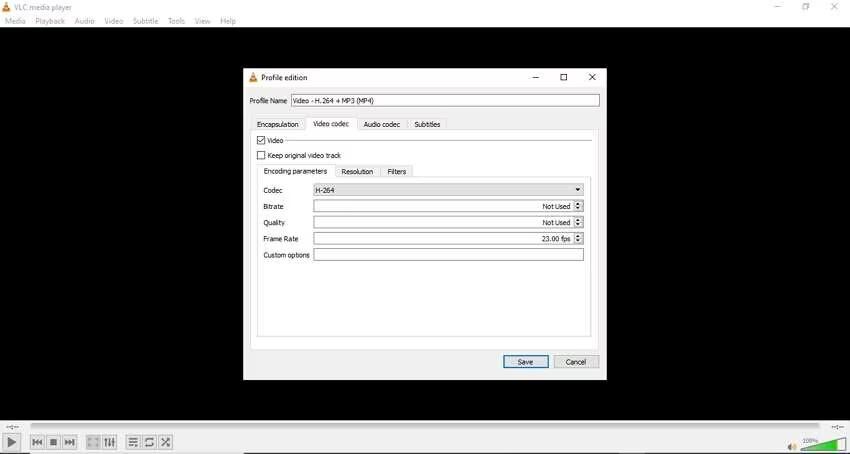
VLC is mainly a media player, but it also functions as a basic video frame rate converter for simple tasks such as changing FPS for better compatibility. You can use VLC if you just need a quick format tweak, though it doesn’t offer advanced controls or motion smoothing like a full video editor.
Free
- Lightweight and widely available
- No installation extras
- Works offline
- Completely free
- Supports many video formats and codecs
- Useful for quick conversions
- Limited FPS options
- Can be a bit too technical to navigate
- No preview or motion optimization
Frame rate is adjusted through advanced conversion settings when exporting a file.
4. Media.io (Online)
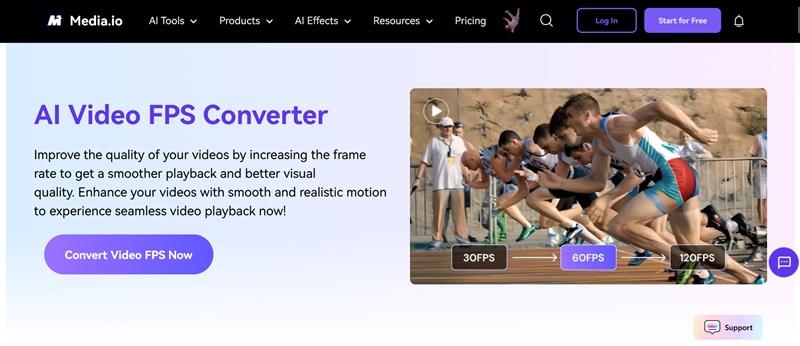
Media.io is an online video frame rate converter that helps users change video FPS directly in a browser. It’s ideal for quick FPS upscaling using an AI enhancer. The tool creates new in-between frames to smooth out motion and reduce jitter.
Paid plans start from $17.99/mo.
- 2X and 4X FPS increaser
- Fast processing for short clips
- Enhance your clip for smoother motion
- Beginner-friendly interface
- Works on any device with a browser
- Compatible with many video formats
- Less control over advanced motion handling
- No detailed FPS presets for specific frame rates
- Requires AI credits
Upload your clip, open AI Tools, choose Video Enhancer, and select a 2X or 4X FPS boost to make your video smoother.
5. Videobolt (Online)
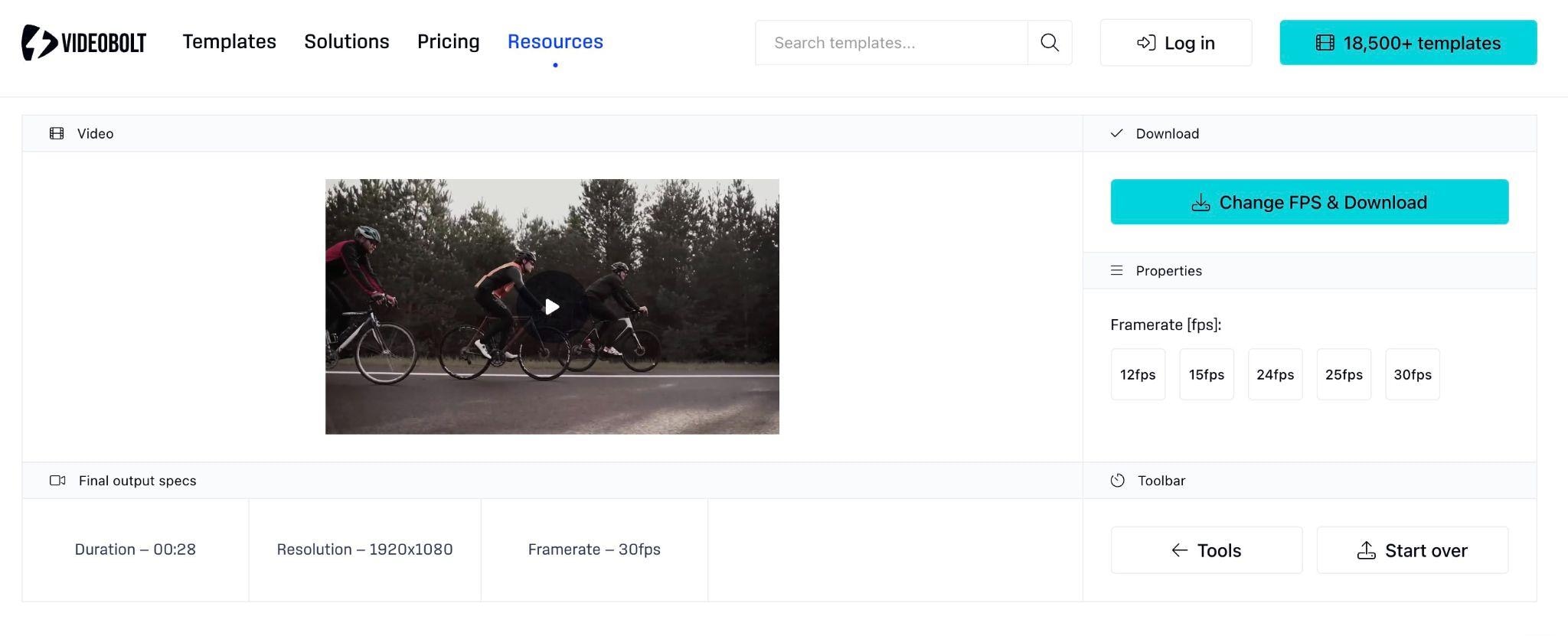
Videobolt provides a simple online FPS converter tool, which is primarily focused for quick adjustments. Free users can only change the frame rate from a dropdown below the video and are limited to shorter clip durations. If you want to export longer videos or convert up to higher FPS options, you’ll need to upgrade to one of the paid plans.
Free with limited FPS options and video duration. Paid plans start from $14.99/mo.
- Clean UI
- Fast preset-based processing
- Downscale frame rates for smaller file sizes
- Easy to use for non-technical users
- Suitable for short videos
- Free plan has no watermark and doesn’t require registration
- Limited customization
- Not ideal for high-FPS motion accuracy
After uploading your video, choose an FPS preset during export to adjust the frame rate. You can also explore other simple editing tools if you need quick trims or basic tweaks besides FPS conversion.
6. VEED (Online)
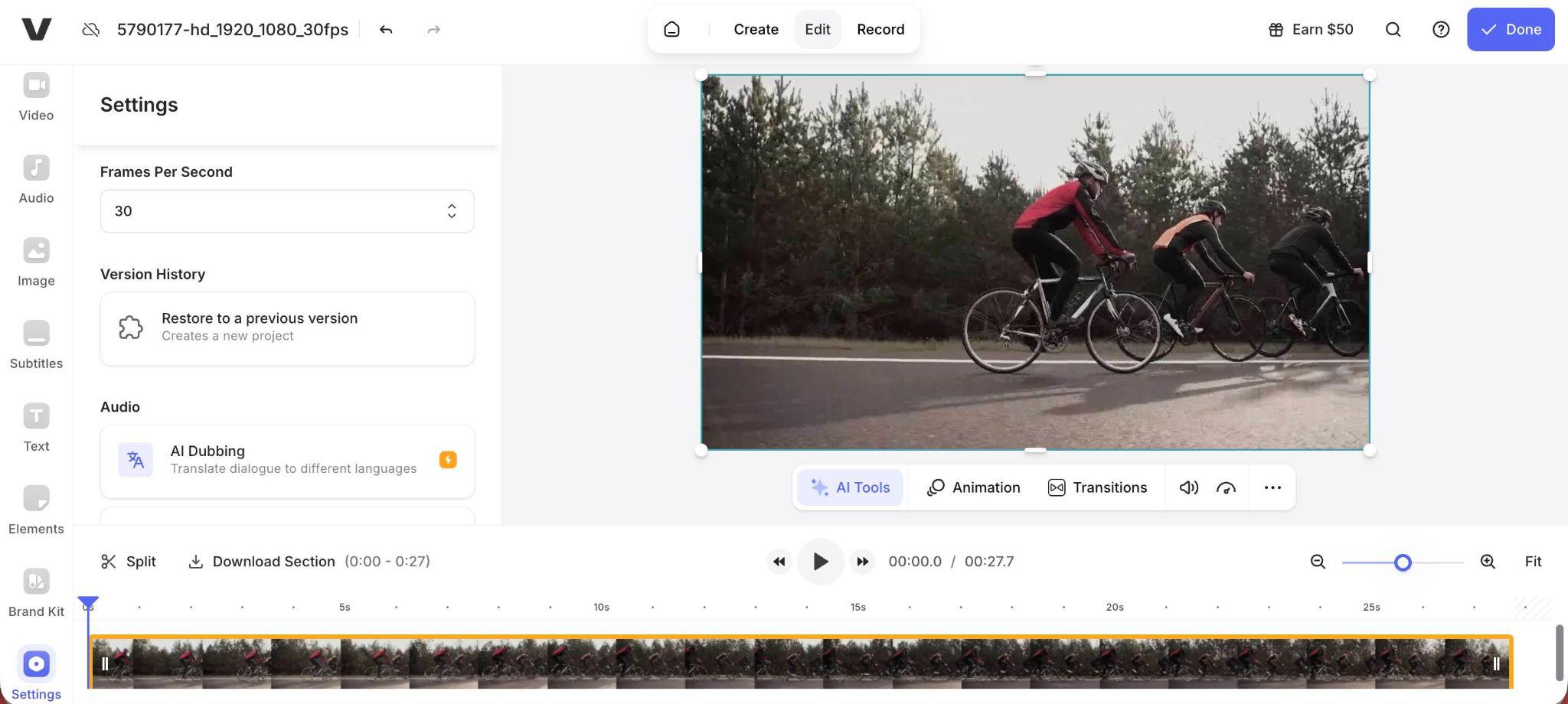
VEED combines online editing with a built-in video frame rate converter that can help you change the frame rate of video while working on things like captions or layouts. You can adjust the frame rate settings of the video canvas and then export the clip with your new FPS.
Free version with watermark, paid plans start from $19/mo.
- Integrated editing tools
- Social media presets
- Cloud-based storage
- Good balance of editing and FPS control
- Easy sharing options
- Modern interface with many editing tools
- Free exports include a watermark
- No frame interpolation, so it’s better for downscaling than upscaling
- Limited FPS range compared to desktop tools
FPS is adjusted during export using preset output settings. Keep in mind that the maximum FPS depends on your original file.
7. MiniWebTool (Online)
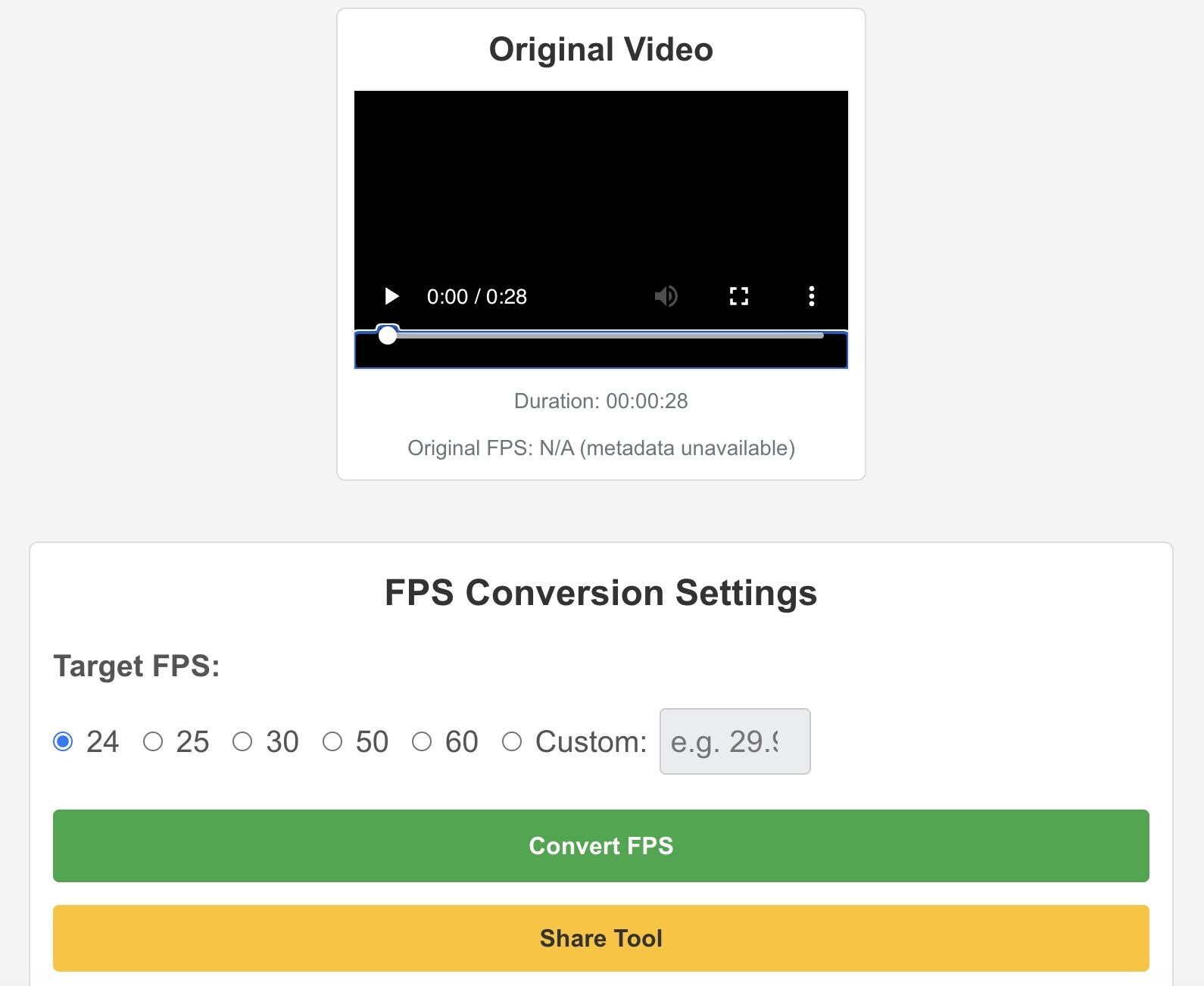
MiniWebTool is a lightweight online video frame rate converter meant for one-time FPS changes. It’s enough if you just need to switch frame rates quickly without creating an account or installing any software, though it doesn’t offer advanced controls or other motion smoothing features.
Free
- Extremely simple interface
- Shows an estimated original frame rate when available.
- Set any FPS within a supported range
- Compare the original and converted videos after processing
- Track conversion status in real time
- Completely free
- No account required
- Fast for small files
- Works with common formats
- Limited control
- Not suitable for large or high-quality videos
Upload a video, choose a frame rate, and download the converted file.
8. Neural.Love (Online)
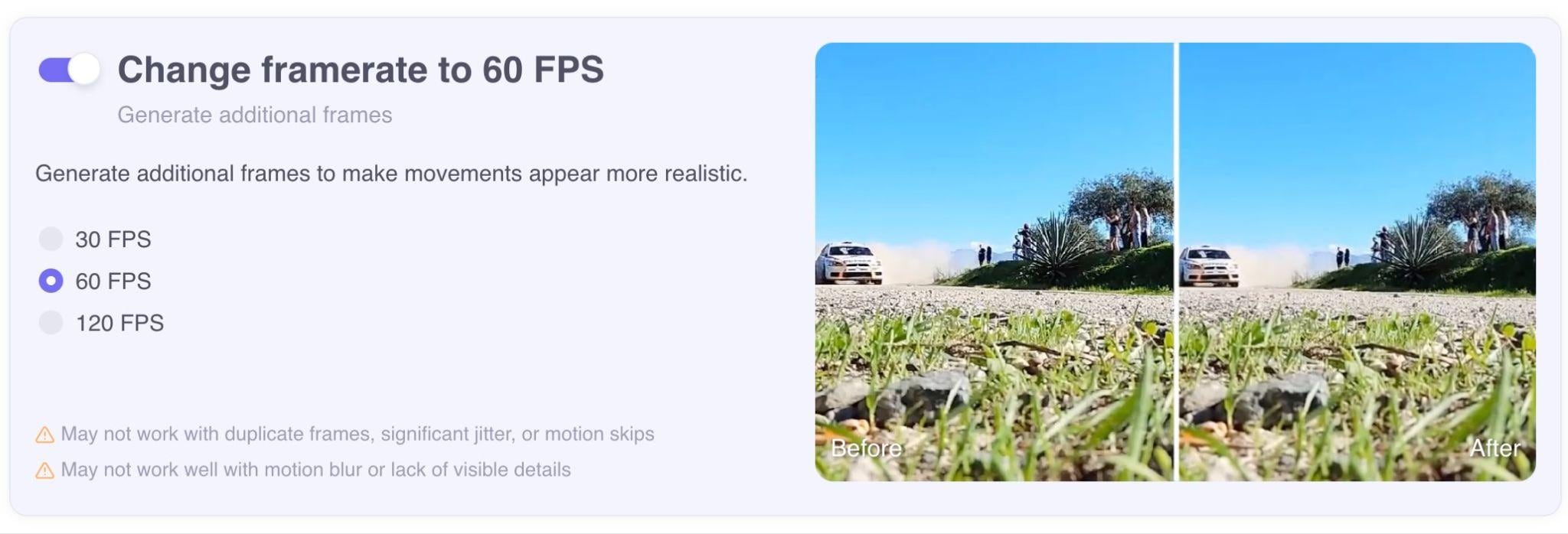
Neural.Love is an AI-powered 60 FPS converter that focuses on improving motion using machine learning. This tool is often used to convert videos up to 120 FPS for smoother playback. The tool uses advanced frame interpolation to analyze your footage and intelligently generate new frames.
Free version with limited access; paid credits system (starts from $0.08/Credit).
- AI-based frame interpolation
- Designed for motion enhancement
- High-quality output focus
- Better smoothness than basic FPS changers
- Good for restoration projects
- Minimal manual setup
- Convert video to higher FPS is for paid plans only
- Processing time can be longer
AI generates intermediate frames to increase FPS before exporting the final video.
9. Video Converter, Compressor (Android)
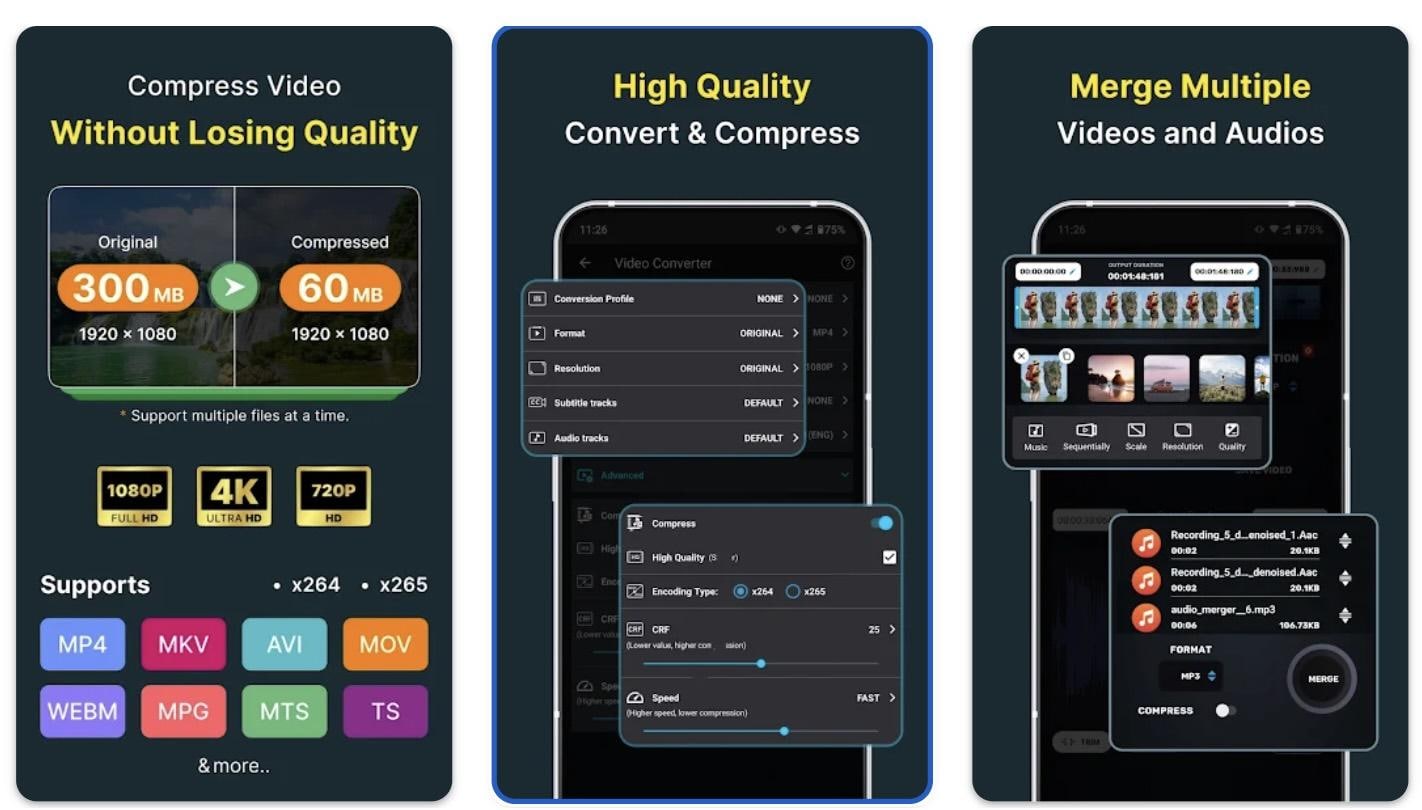
This app works as a mobile video FPS converter for Android users who want to change video FPS directly on their phone. It also includes basic tools for converting formats and compressing videos.
Free with an in-app purchase for $0.99 - $49.99.
- Choose from common FPS presets or set a custom frame rate.
- Supports codecs like H.264, MPEG-1/2/4, VP8, VP9, FLV1, and more.
- Built-in compression to control file size.
- Queue multiple files and process them all at once across all tools.
- Convenient for quick edits on mobile
- Supports common FPS presets
- Balance between speed and quality
- Limited advanced motion smoothing
- Ads in the free version
FPS is selected during conversion alongside resolution and bitrate settings.
10. Video Converter and Compressor (iOS)
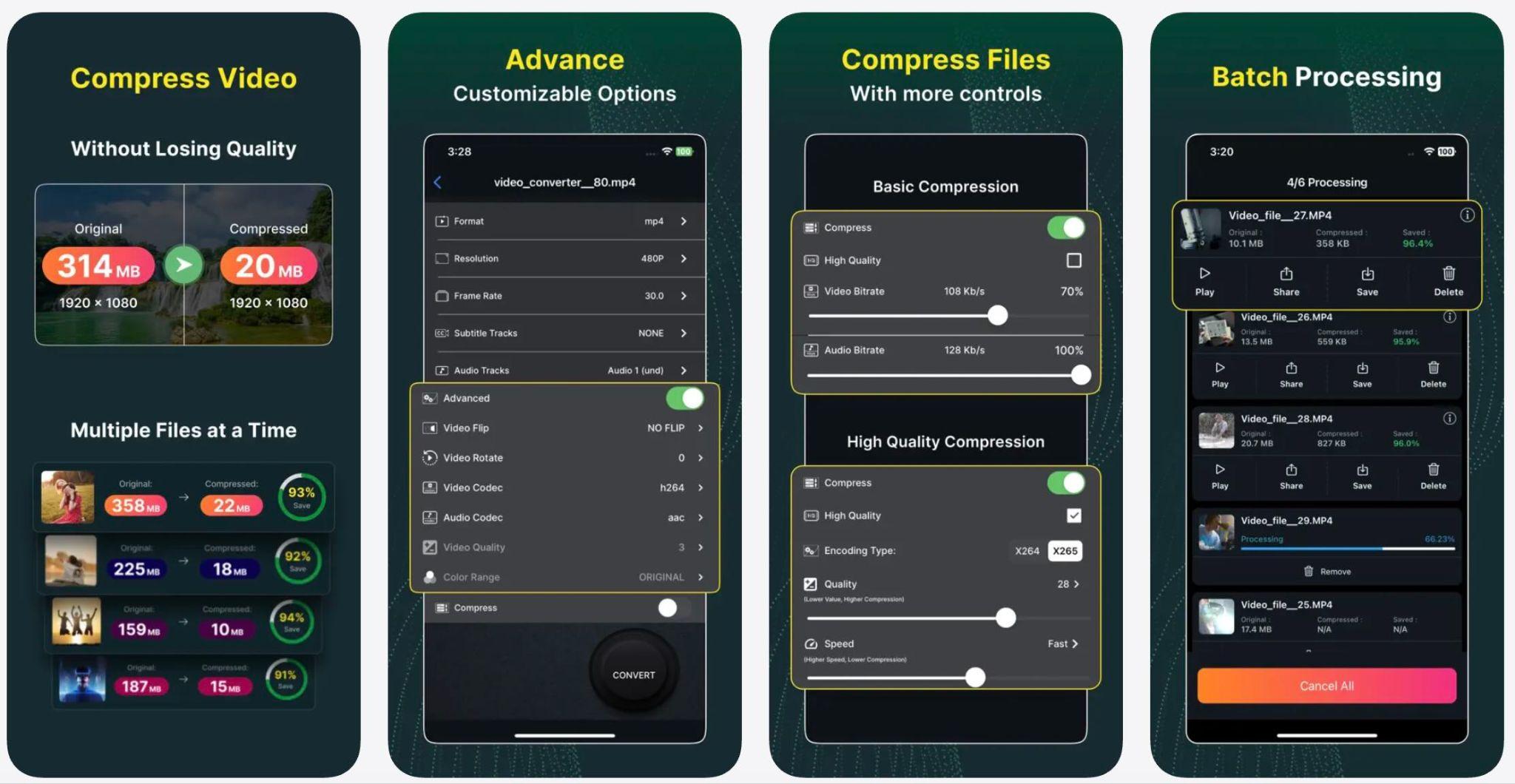
This iOS app offers a practical FPS video converter solution for creators editing on iPhone or iPad. It also includes basic editing tools like trimming, merging clips, adjusting audio, and compressing videos, on top of its conversion tool.
Free with an in-app purchase starts from $2.99
- Choose from any predefined frame rate or put any custom frame rate
- Support many video format and codec
- Built-in compression and basic editing tools
- Smooth mobile workflow
- Simple UI
- Reliable for social media exports
- No AI interpolation
- Limited customization options
Users select the target FPS before exporting the converted video to their device or cloud storage.
Conclusion
The key to choosing the most suitable video frame rate converter isn't just about making your footage look smoother; you also need to match the motion, quality, and platform expectations. If you want to convert 30 FPS to 60 FPS for cleaner playback, experiment with 120 FPS for action scenes, or simply change the video frame rate for compatibility, the best tool depends on your workflow.
Among the options, Filmora offers deeper control. You can fine-tune FPS right on the timeline, use AI frame interpolation to keep motion smooth, and export in specific formats and resolutions without guesswork. You can also use its mobile app if you want to convert videos on the go.
Secure DownloadFAQs About Video Frame Rate Converters
-
1. Is converting 30FPS to 60FPS the same as recording in 60FPS?
No. Recording in 60FPS captures real motion data at a higher frame rate. Converting 30 FPS to 60 FPS uses interpolation to generate additional frames, which improves smoothness but cannot fully match the original 60 FPS footage. -
2. Does increasing FPS improve video quality?
Not always. Higher FPS makes motion smoother, but it does not increase sharpness or resolution. Visual quality still depends on lighting, focus, bitrate, and the original recording quality. -
3. Does converting video to a higher FPS increase file size?
Yes, in most cases. A higher FPS means more frames per second, which usually results in larger file sizes unless the compression settings are adjusted. -
4. Does FPS affect the video speed?
No, changing FPS does not change playback speed when done correctly. The video length stays the same; only the motion smoothness changes.
