
A single prompt can generate a video, but what if you want to turn a product photo into an ad or add music to a visual without switching between several tools? That’s the kind of flexibility that AIVideo aims to offer. It brings together AI models for video generation, including tools for images, audio, and promotional content.
Beyond its feature list, there are other things worth checking, including output quality, credit usage, and which features you can access for free. Here’s a closer look at what AIVideo can do, its pricing, and its main drawbacks.
Part 1. An Overview of AIVideo
A product photo that needs movement, a song that needs visuals, or a rough ad idea can all serve as starting points for a project on AIVideo. AIVideo is a browser-based platform that offers AI tools to create videos, generate and edit images, make music, and produce sound effects. It also includes a simple video editor, so you can work on generated content without switching to separate editing software.
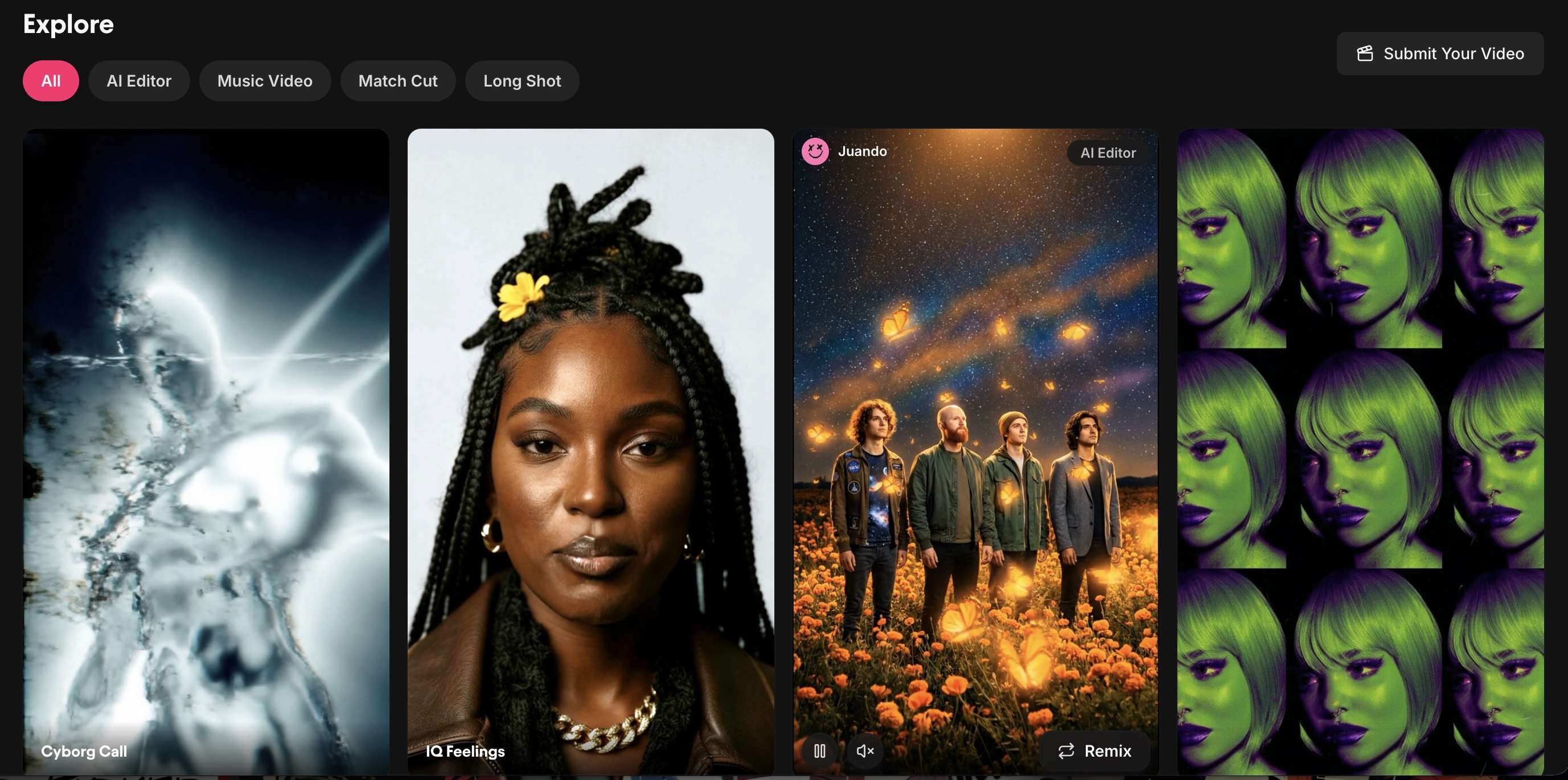
Depending on the project, AIVideo is mostly used for:
- Social media videos: Generate clips from text prompts, images, or audio for short-form content.
- Music videos: Create lyric videos, visualizers, looping visuals, and other music-related content.
- Product promotions: Use formats such as product reviews, before-and-after videos, and 3D-style product presentations.
- Advertising: Develop video ads and promotional concepts with tools such as Script to Ad and Poster Ad.
- Images and audio: Generate or edit images, remove backgrounds, create music, and produce sound effects.
To give you control over the results, AIVideo offers several AI models to choose from, depending on the type of content you want to create. In the next section, we’ll break down the tools by what they create, the inputs they accept, and how useful they are for different projects.
Part 2. AIVideo Features and Capabilities
AIVideo.com has three workspaces to start from, and inside them you can find a video generator, a library of AI models, image and audio tools, and templates for music videos and ads. Below is how each workspace works and what you can make with the features inside.
AIVideo Workspace
AIVideo splits its workspace into three areas: Editor, Playground, and Canvas.
1. Editor
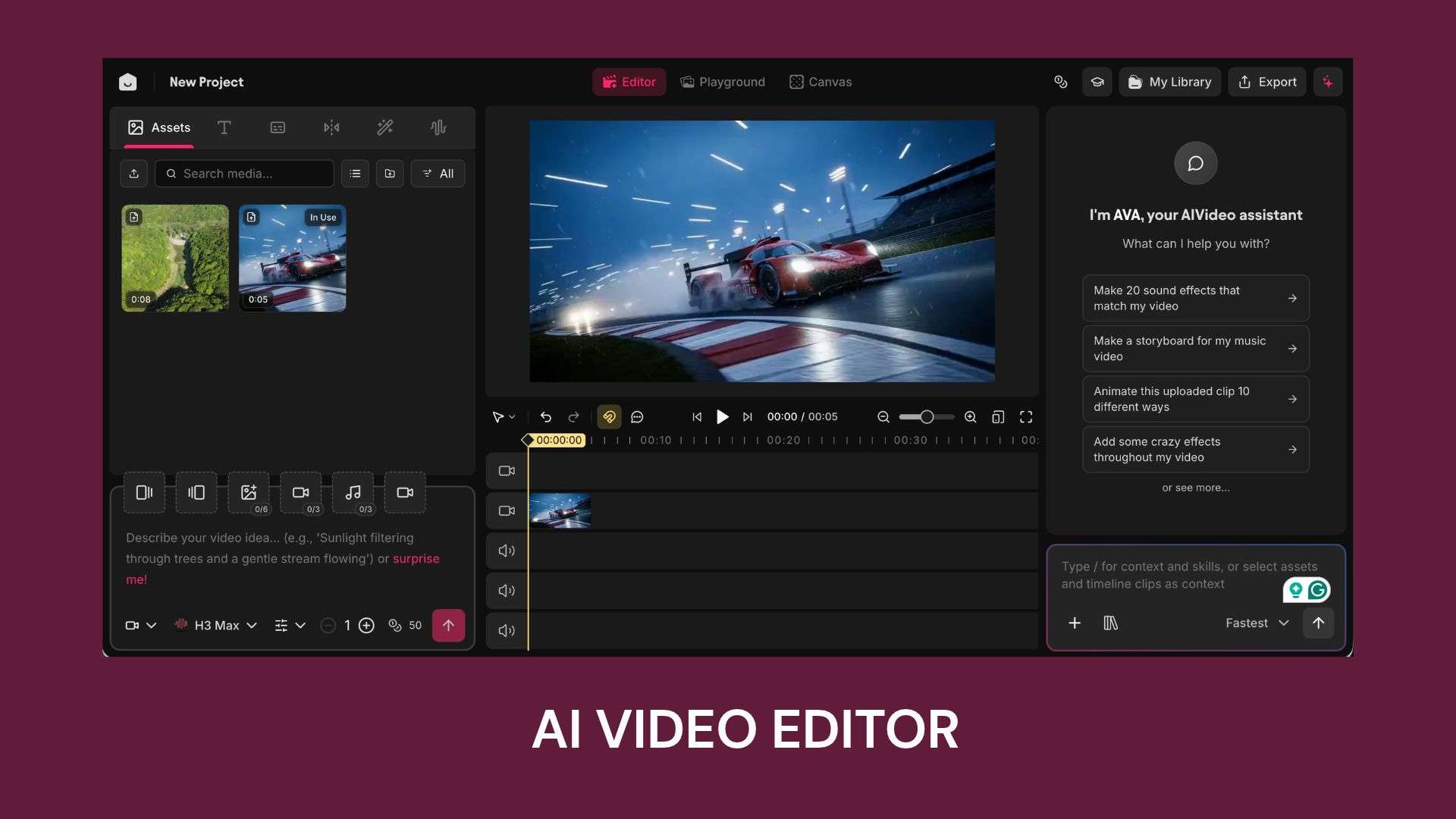
The AI Editor lets you generate clips, images, and audio inside your project, then make basic changes on a simple timeline. Its editing tools aren’t as advanced as a dedicated video editor’s, but you can still add text, captions, transitions, effects, and visualizers by hand. For quicker changes, AVA, AIVideo’s AI assistant, takes instructions through chat.
2. Playground
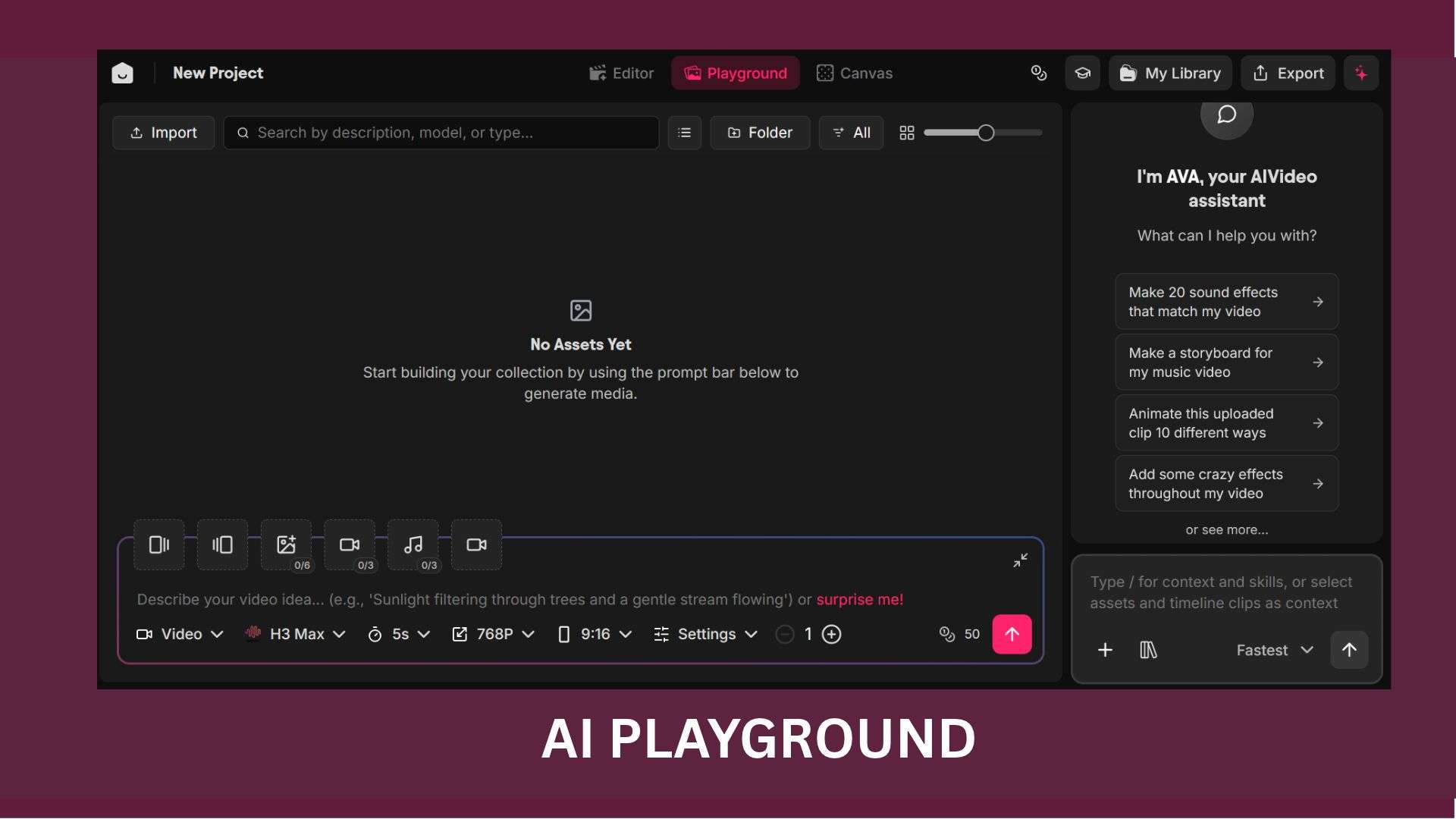
The AIVideo Playground is built for generation only. You can test the same prompt on different models and compare the results, but there are no editing tools like in the Editor workspace. Once you get a clip or image you like, you can save it or move it into a project.
3. Canvas
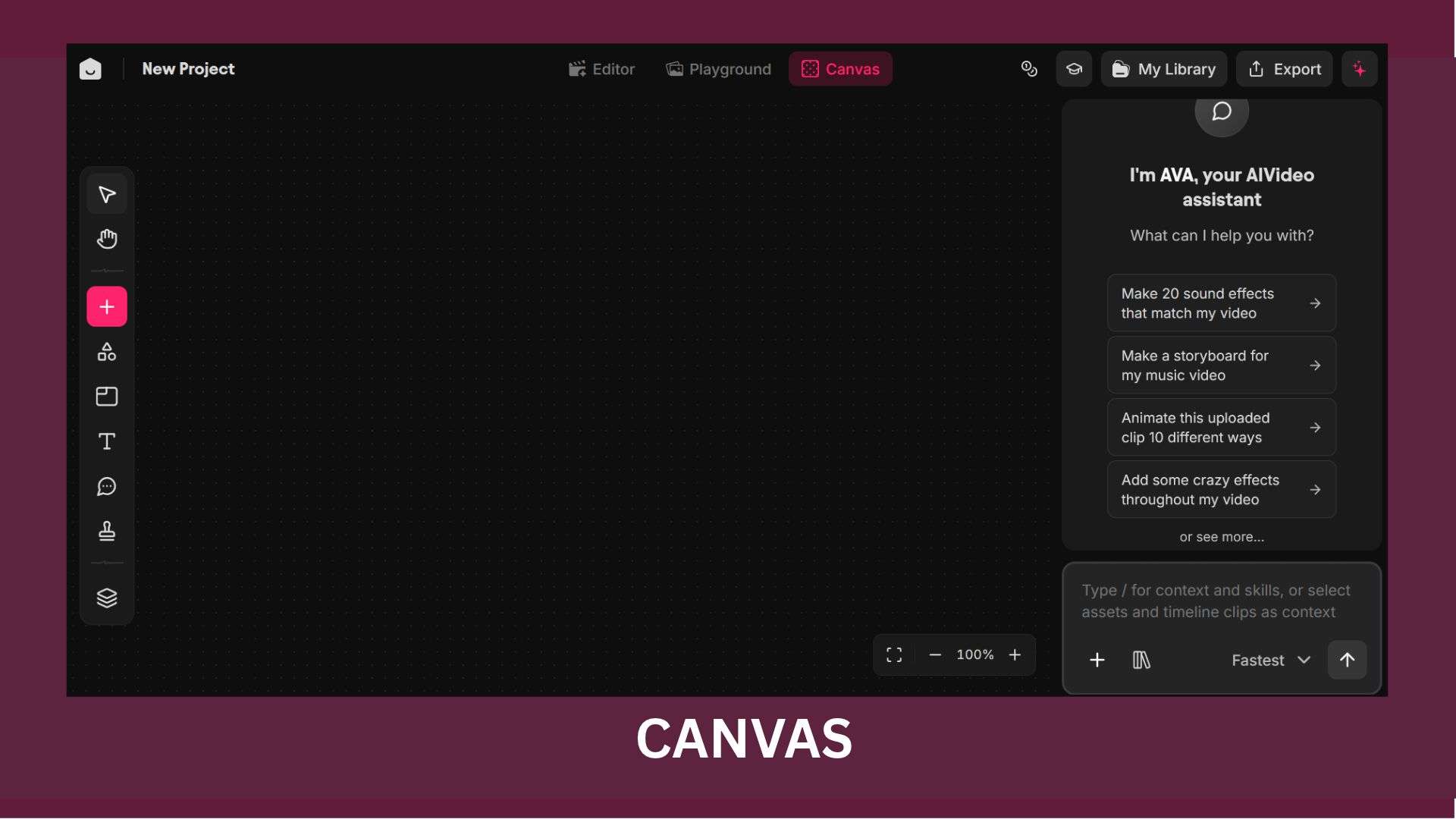
The Canvas gives you a visual workspace to organize your generated assets and plan a multi-scene video. It supports comments for notes, and you can apply different frames, such as a Twitter post or an Instagram Story, to check how the video looks on each platform.
AIVideo Video, Image, and Audio Features
Inside the workspaces, AIVideo’s features cover video generation, model selection, and image and audio creation.
1. AI Video Generator
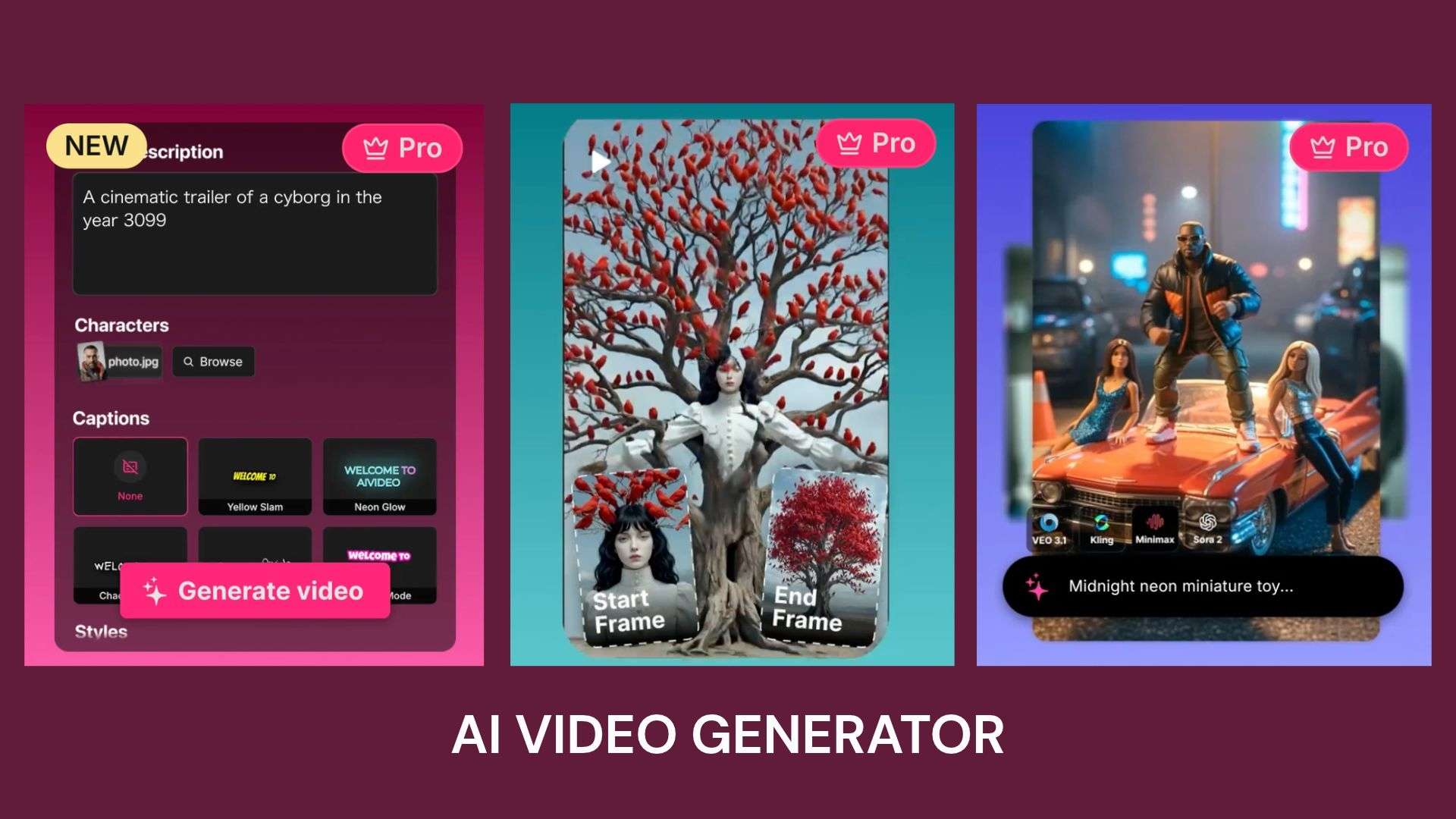
AIVideo supports different ways to generate video, depending on the input.
- Text-to-video: Turn a prompt about a coffee shop on a rainy evening into a video scene.
- Image-to-video: Animate a still image, such as a perfume bottle against a softly lit background.
- Audio-to-video: Combine a voiceover about skincare tips with supporting visuals for a social media post.
- Script to Video: Convert a written product launch script into a video draft.
2. AI Model Library
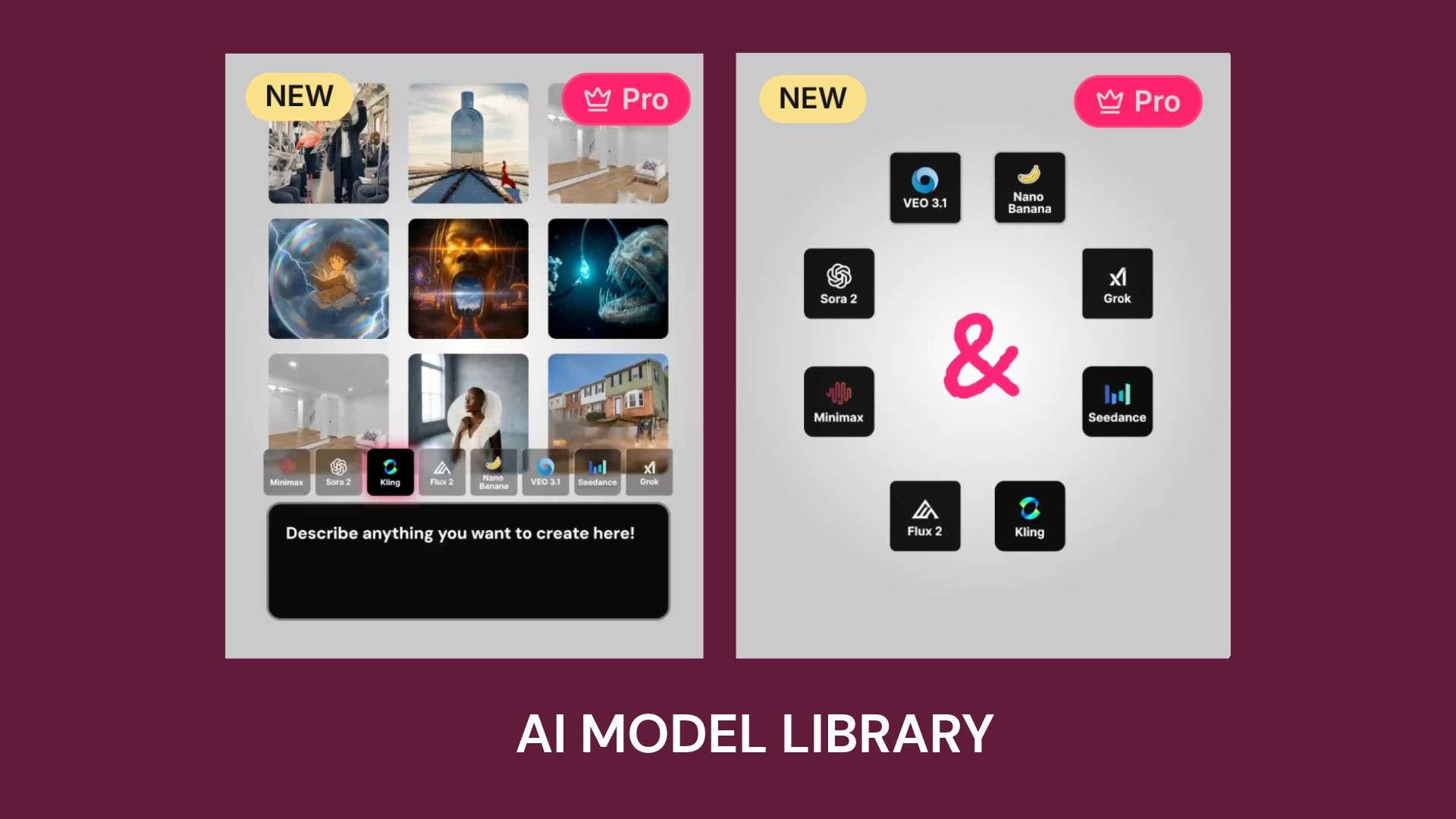
AIVideo doesn’t rely on a single engine. It mainly pulls from third-party providers. You pick the one that fits the job, whether that’s video, images, audio, upscaling, or lip-sync.
| Models | |
| Video | H3 Max, Flux, Wan, Grok Imagine Video, Seedance, Runway, Pixverse, Google Veo 3.1, Gemini Omni, Kling, LTX, Luma Ray, Creatify Boreal, Minimax Hailuo |
| Image | GPT Image, Nano Banana, Grok Imagine Image, Wan, Seedream, Krea, Flux, Recraft, Ideogram, Birefnet |
| Audio | Seed Audio, Eleven, Voice Changer, ElevenLabs Music, Lyria, Sonilo Music, ElevenLabs SFX, Sonilo SFX |
| Upscale | Bria Video/Image Upscaler, SeedVR Video/Image Upscaler, Topaz, Topaz Starlight Precise, Topaz Astra, Topaz Wonder, Topaz Bloom |
| Lipsync | HeyGen Lipsync, Pixverse Lipsync, Sync Audio |
|
Show More
Show Less
|
|
3. AI Image and Audio Tools
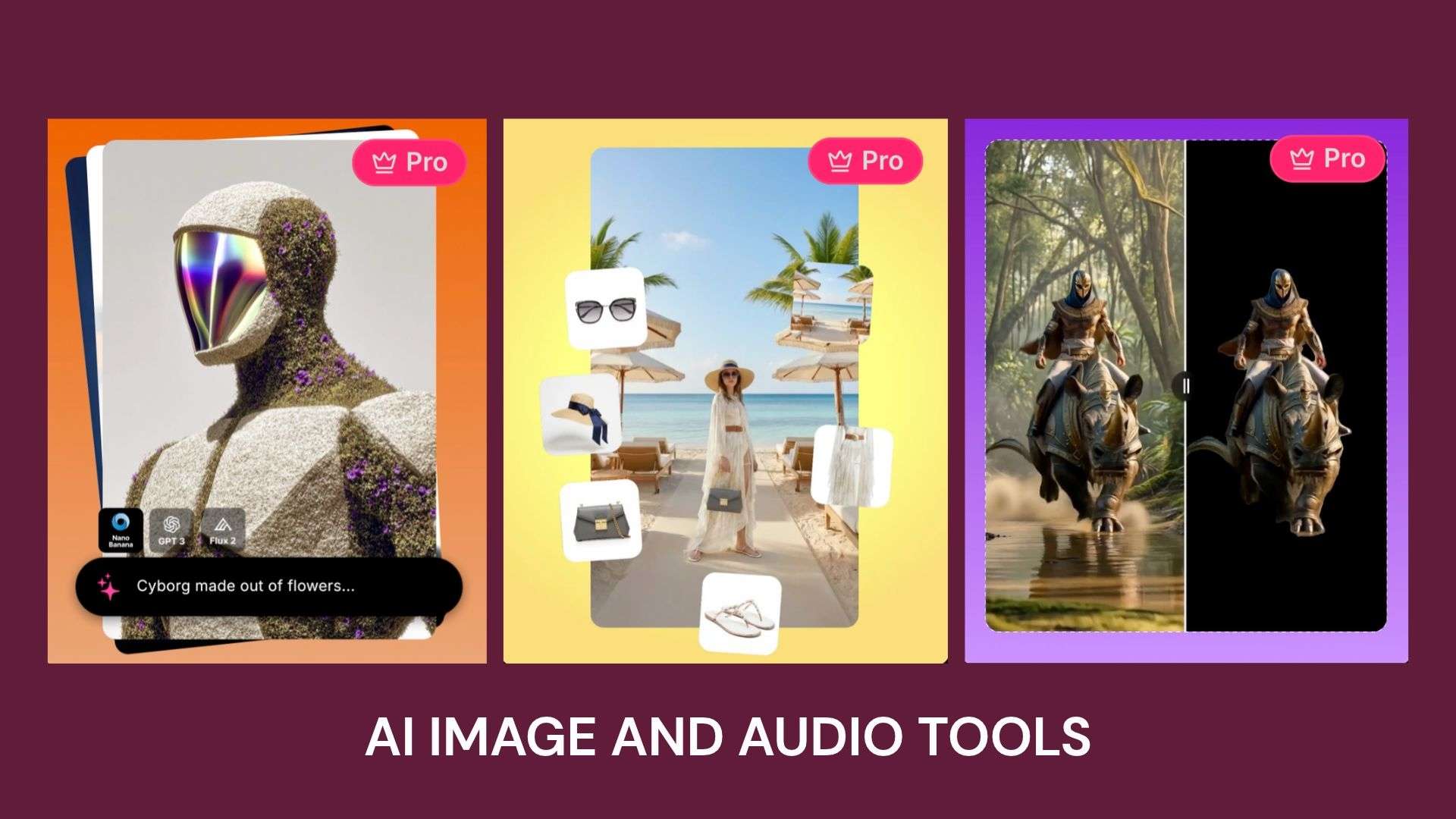
AIVideo also provides tools for image generation and editing, background removal, music creation, and sound effects.
- Text to Image: Generate a thumbnail concept for a home coffee brewing tutorial.
- Edit Image: Change the background of a product photo for an online store.
- Remove Background: Isolate sneakers from their original setting for a promotional graphic.
- Music Generator: Create a background track for a product showcase.
- Sound Effects: Add rainfall, footsteps, or a closing door to a scene.
AI Music Video, Real Estate, Ad Creation Templates
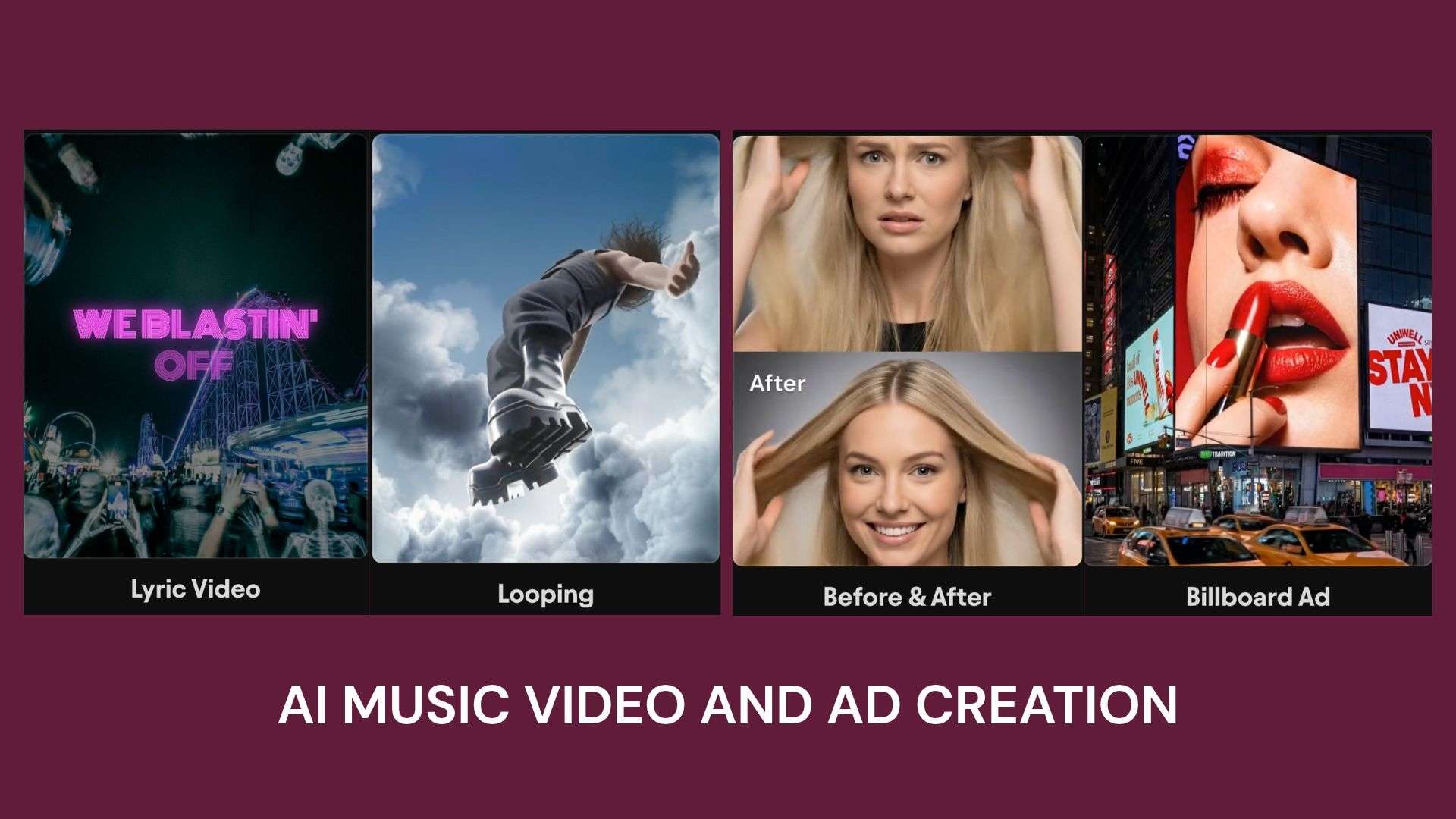
If you need a quick way to create content, AIVideo also offers ready-made templates for music videos, real estate promotions, and ad creation. These templates provide a starting point for different types of projects. You just need to choose the type of content you want to create from the library and customize it to match your needs.
Part 3. AIVideo Pricing: Free Plan, Credits, and Subscription Costs
AIVideo offers paid plans with monthly credit allowances. Each generation uses credits based on the model and settings you choose, so complex video projects may use up an allowance faster than simpler tasks.
Higher-tier plans offer more credits and additional benefits, such as priority support, scheduled tasks, and integrations. Check out the AIVideo pricing below.
| Plan | Monthly billing | Annual billing | Monthly credits | What’s included |
| Starter | $19 | $14 | 1,800 | AI video editor, custom characters, community support |
| Creator | $39 | $29 | 4,100 | AI video editor, custom characters, community support |
| Director | $99 | $74 | 12,200 | Priority support, scheduled tasks, integrations, non-expiring bonus credits |
| Studio | $299 | $224 | 42,000 | Dedicated support, scheduled tasks, integrations, non-expiring bonus credits |
|
Show More
Show Less
|
||||
Can You Use AI Video for Free?
Unfortunately, no. AIVideo doesn’t provide free credits or a free trial. You need to purchase credits before you can generate videos or use its AI tools.
Part 4. Is AIVideo Legit and Safe? Reviews, Privacy, and Limitations
AIVideo’s users have praised its video tools and customer support, while others have reported inconsistent results, wasted credits, and billing or cancellation issues. These experiences suggest checking credit usage and subscription terms carefully before committing to a paid plan.
Pros and Cons
- Offers a wide selection of AI models for video, image, audio, and other creative tasks.
- Includes dedicated workflows for music videos, lyric videos, visualizers, and product ads.
- Provides selected free tools to try without a paid subscription.
- Supports a range of creative projects, from product promotions to music visuals.
- AI-generated characters, facial details, and movements may not always match the prompt.
- Repeated generations can use up credits without producing a usable result.
- The free credit offer may not be clearly explained during signup.
- Generated videos and images may need further editing before publication.
Privacy and Commercial Use
According to AIVideo’s privacy policy, AIVideo may collect personal information, including your name, email address, and payment details. It also collects usage data, such as your IP address, browser type, and pages visited to operate and maintain the service, provide customer support, monitor usage, improve its platform, and address technical issues.
Regarding content ownership, AIVideo's Terms and Conditions state that users retain the rights to content they create, while granting AIVideo permission to use uploaded materials to provide the service.
Part 5. Filmora: Best AIVideo Alternative for AI Video Creation and Editing
AIVideo can generate videos, images, and other creative assets. If you want to edit your footage after generation, Wondershare Filmora seamlessly integrates AI video tools with a multitrack editor. You can create video drafts from prompts or ideas, then rearrange scenes, add music and captions, and fine-tune the pacing in the same project.
AI Video Generation
Filmora provides AI tools to turn text prompts, images, and creative ideas into video drafts, powered by advanced AI models like Veo 3.1, Seedance 2.0, HappyHorse 1.0, and ToMoviee.
- AI Text-to-Video: Generates video content based on written prompts.
- AI Image-to-Video: Animates still images and turns them into video clips.
- AI Idea-to-Video: Turns an idea into a script and video draft.
Filmora also offers AI templates for creating videos with pre-designed styles and effects, so you can customize the content without building every detail yourself.
AI Video Editing Tools
Filmora includes AI features that help refine footage and prepare it for different platforms, such as:
- AI Video Extender: Adds generated footage to lengthen an existing clip.
- Auto Captions: Automatically generates subtitles from spoken audio.
- Auto Reframe: Adjusts video framing to fit different aspect ratios.
These are just a few of the many AI editing tools available in Filmora. Explore more AI features and try them for free to see how they can improve your video editing experience.
Multitrack Timeline Editing
Filmora's multitrack timeline gives users more control over the final edit, from scene arrangement to audio.
- Clip Arrangement: Trim clips, rearrange scenes, and adjust pacing.
- Text and Music: Add titles, captions, background music, and other audio elements.
- Transitions and Audio: Apply transitions and fine-tune audio levels for a more polished result.
Filmora suits creators who want to turn AI-generated clips into final videos, with control over scene timing, transitions, captions, and audio for YouTube, social media, tutorials, or product promotions.
 Secure Download
Conclusion
AIVideo covers a wide range of creative needs, including video generation, image creation, music visuals, and product ads. The results may not always match your expectations, so you may need to use credits to try out different versions before finding one that works. Pay close attention to the credit costs and usage terms before committing to a plan.
If you want to work on the footage after generating it, Filmora provides tools for the next editing step. You can arrange clips, adjust pacing, add captions and music, and fine-tune transitions on a multitrack timeline. You can shape the final cut to match your content style and the platform you're publishing on.
FAQs
-
1. What is AIVideo used for?
AIVideo features AI tools for generating videos, images, music visuals, and product ads. Available models and workflows vary by content type. -
2. Does AIVideo include a built-in video editor?
AIVideo focuses on AI generation and content creation. While it does offer a basic built-in editor for making simple adjustments, it may not provide all the tools needed for detailed editing. For timeline editing, scene arrangement, and advanced audio adjustments, you may need a separate video editor like Filmora. -
3. Can you create AI video without a login?
Login requirements depend on the tool. For AIVideo, you need to create an account and sign in before you can access its AI generation tools and use credits to create content.