


Among creators, Artlist is a name that's no stranger. What used to be a royalty-free music library is now a full production suite covering AI image, video, voiceover, and music generation, alongside its original stock catalog.
But that growth comes with a more layered pricing structure and a few trade-offs you should know before you subscribe. We break down what Artlist actually offers, what it costs, and whether it’s worth it in our review below.
Part 1. What is Artlist at a Glance
Artlist is a web-based platform for creative assets and AI production tools built by Artlist Ltd. It’s accessible at https://artlist.io/, and there's no software to download. Once you're subscribed, everything from music tracks to AI-generated video is licensed for use as long as your plan stays active.
The platform started as a royalty-free music library back in 2016, aimed at YouTubers and independent filmmakers who needed tracks without having to worry about copyright claims. Since then, Artlist acquired Motion Array (bringing in stock footage, templates, and presets) and built out its own AI suite by adding image, video, and voice generation to the catalog.
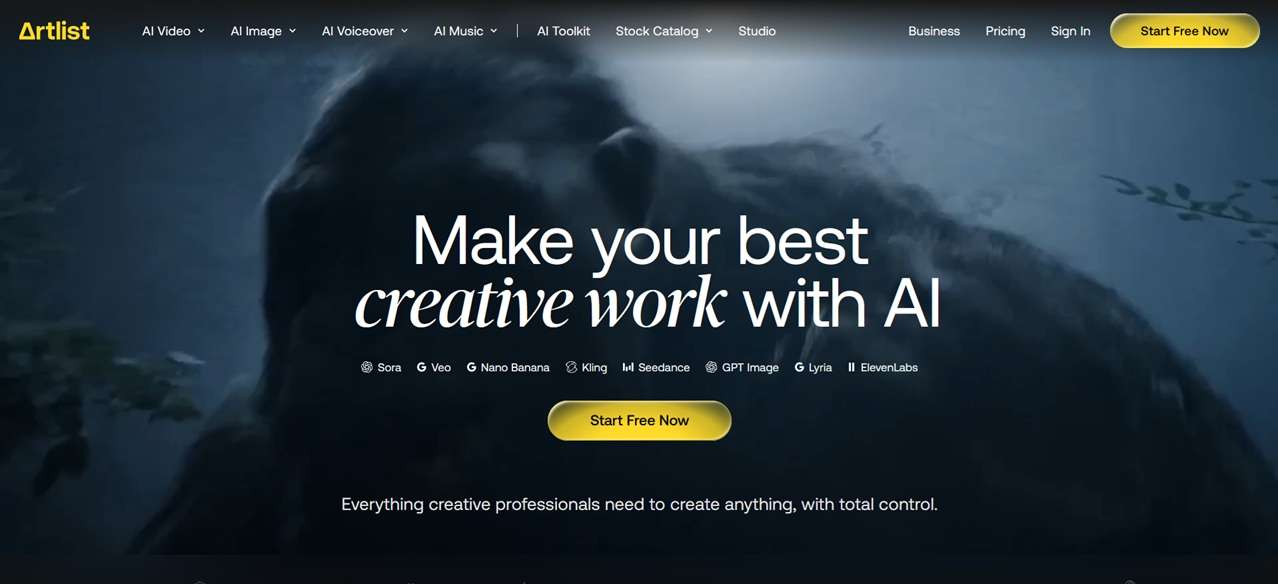
Specification Table
| Feature | Details |
| Platform | Web-based |
| AI Tools | AI Video, AI Image, AI Voiceover, AI Music |
| Stock Assets | Royalty-free music, sound effects, footage, video templates, LUTs, tools (extensions, plugins) |
| AI Video Models | Seedance 2.0, Gemini Omni Flash, Veo 3.1, Sora 2, HeyGen AI, Kling O3, Kling 3.0, Kling 2.6 Pro |
| AI Image Models | Nano Banana, Nano Banana Pro, Nano Banana 2, Artlist Original 1.0, Grok Imagine, Wan AI, Seedream 5.0, Flux.2 Pro, Flux.2 Dev |
| AI Audio Models | ElevenLabs, Cartesia, MiniMax, Lyria 3 Pro |
| Free Plan | Available (2 images, 1 video, 3 voiceovers, 2 songs) |
| Starting Price | $19.99/mo (AI Suite); $9.99/mo (Music & SFX only) or $39.99/mo (Stock Catalog) |
|
Show More
Show Less
|
|
Part 2. Get Started with Artlist: AI Toolkit, Studio, & Stock Catalog
If we simplify how Artlist works, it splits its features into two main functions. You can:
- Generate visuals with the AI Toolkit and Artlist Studio
- Download music, footage, and templates with the Stock Catalog
Together, they cover most of what a creator needs to produce content faster.
AI Toolkit
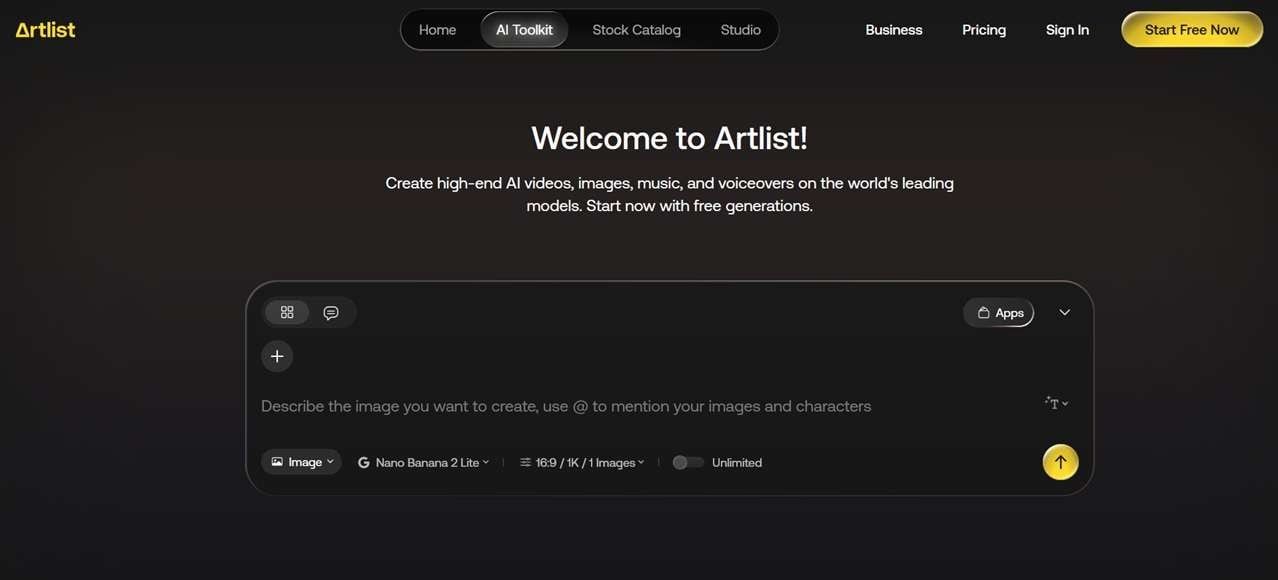
Artlist AI Toolkit is a workspace for generative tools, pulling from over 100 AI models including Veo, Kling, Seedance, and Nano Banana. It's organized into four generators:
- AI Image Generator: Creates images from text prompts or reference images.
- AI Video Generator: Turns prompts (text-to-video) or still images (image-to-video) into video clips.
- AI Voiceover Generator: Generates narration in multiple voices and styles, along with dubbing and lip-sync tools.
- AI Music Generator: Built on Google's Lyria 3 models, it generates full original tracks with lyrics, genre, and tempo control.
On top of these four generation capabilities, Artlist also offers over 70 specialized AI apps for one-off jobs, accessible from within the same Toolkit. You can check Artlist YouTube for tutorials and updates.
Artlist Studio
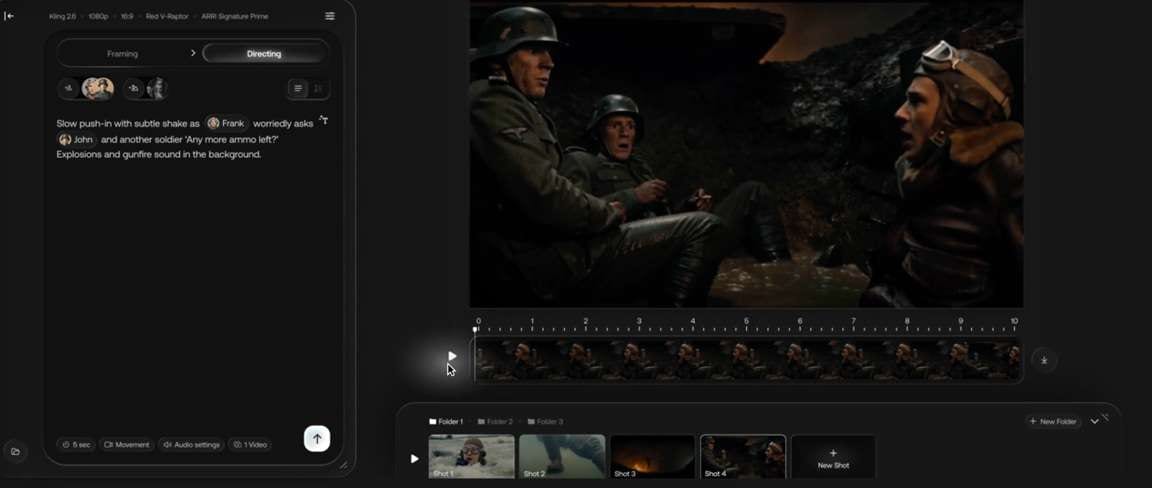
Artlist Studio is designed to actually assemble a video, not just generate clips. It gives you a simple timeline where you can arrange, trim, and manage each generated clip in sequence, plus tools for consistent characters and scenes across shots. Full access to Artlist Studio requires the AI Professional plan or higher, while lower tiers get limited functionality.
Stock Catalog
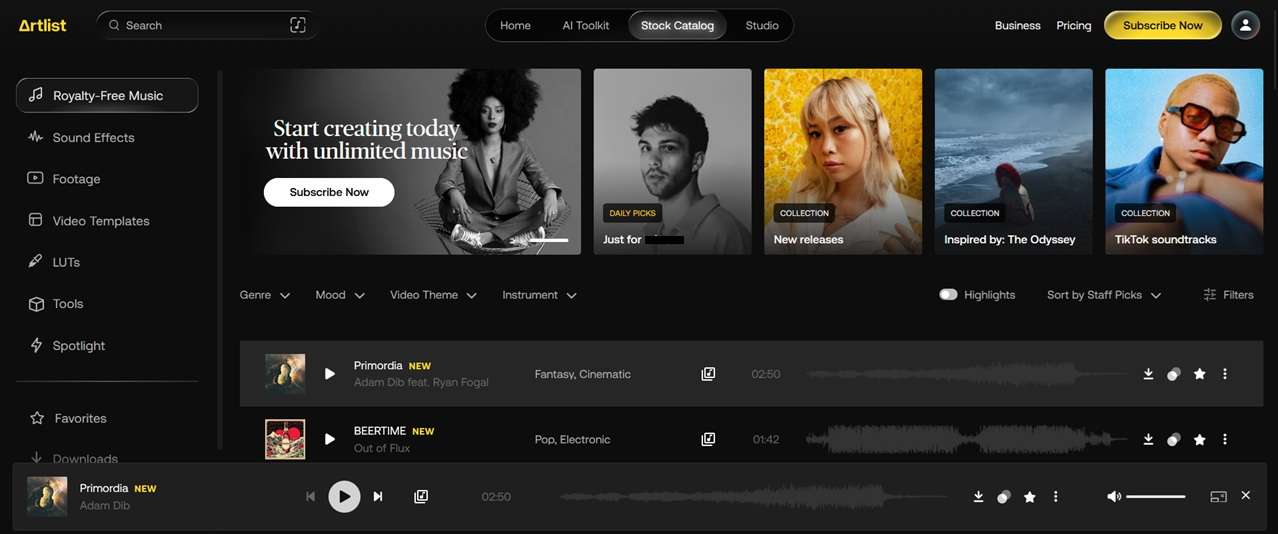
The Stock Catalog is Artlist's original library that you can download and use anywhere you wish for your content. But for templates, they are built for specific editing software, mainly Premiere Pro, After Effects, DaVinci Resolve, and Final Cut Pro. Make sure to check which software each template supports before downloading.
Everything in the Artlist Stock Catalog comes under a single commercial-use license that you get once subscribed. There’s no need to download and pay for each asset separately.
Part 3. Artlist Pricing Breakdown
If you are a new user, you get to generate 2 AI images, 1 video, 3 voiceovers, and 2 songs for free on selected models. There's no Artlist free trial in the traditional sense, and that limited set of generations is the only way to try the AI tools at no cost.
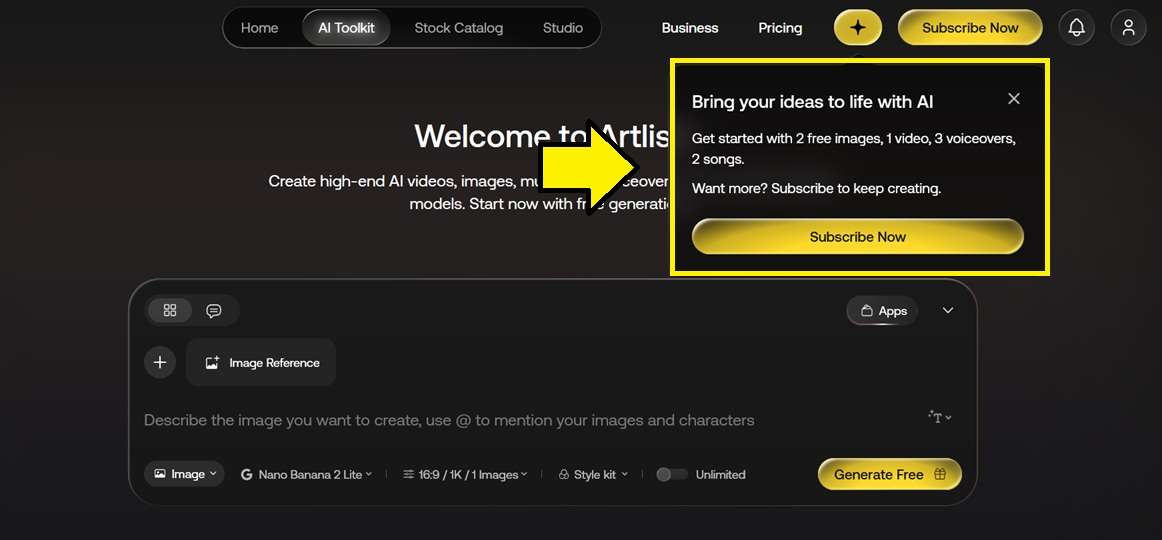
For Artlist pricing, the plans are split into two types:
- AI Suite: for using its AI Toolkit and Studio for image, video, voice, and music generation
- Stock Catalog: for downloading royalty-free music, SFX, footage, templates, and LUTs.
If you wish to access both AI generation and the stock library, you need to pay for both separately, unless you go with Artlist Max, which bundles everything into one plan.
AI Suite
| AI Starter | AI Creator | AI Professional | |
| Pricing* | From $19.99/mo or $11.99/mo (billed annually) | From $69.99/mo or $41.67/mo (billed annually) | From $399.99/mo or $239.99/mo (billed annually) |
| Credits | From 16,500 | From 80,000 | From 500,000 |
| User(s) | 1 user | 1 user | Up to 3 users |
| AI Toolkit | |||
| Artlist Studio | |||
| Unlimited Generation | Yes, across 13 models for yearly plans | Yes, across 18 models | |
|
Show More
Show Less
|
|||
*) Pricing varies based on the credit pack you choose and may change due to ongoing promotions.
Stock Catalog
| Music & SFX | Max | Max Business | |
| Pricing | $9.99 | From $39.99/mo, billed annually (7,500 credits) | From $399/mo, billed annually (180,000 credits) |
| Music & Sound Effects | |||
| Footage, Templates and LUTs | |||
| Plugins and Extensions | Extensions for Premiere Pro | ||
| AI Toolkit | |||
| Artlist Studio | |||
| Team Collaboration | |||
| Unlimited Generations | |||
|
Show More
Show Less
|
|||
Note: For businesses, you can also purchase a custom plan by contacting the sales team directly.
Managing Your Subscription
You can manage your Artlist subscription from the Billing section of your account, including switching plans, updating payment details, or stopping the renewal entirely.
How to cancel your Artlist subscription?
- Head to the Artlist login page, log in to your account, and go to the My Account page.
- Click Plan & Billings.
- Next to your payment info, click the three-dot icon and select Subscription details.
- Choose Cancel renewal and follow the on-screen steps to confirm.
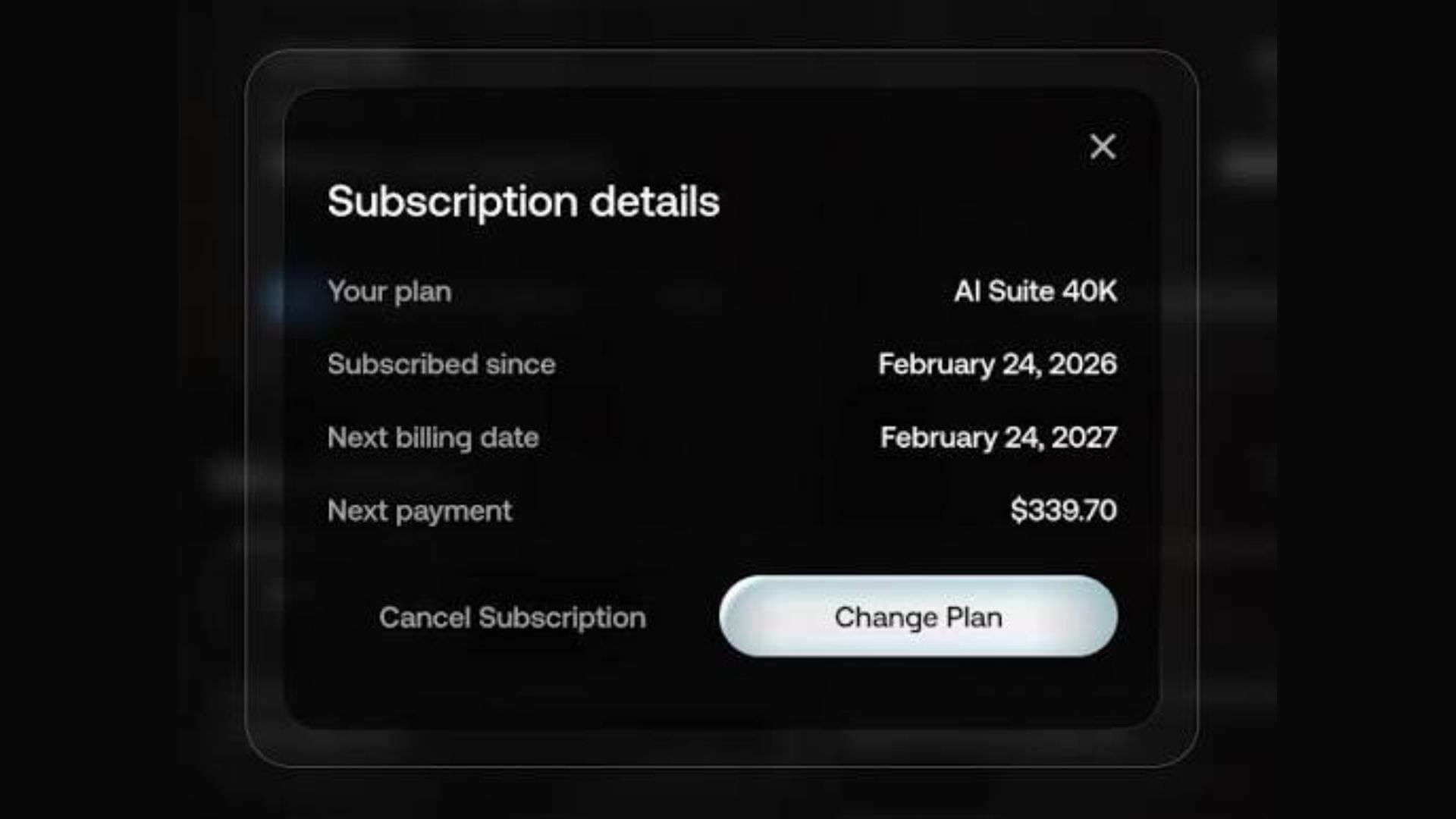
Once it's processed, you'll get a confirmation email. Artlist cancel subscription doesn't delete your account or cut off access right away. Your plan remains active until the end of the current cycle, and any assets you have already downloaded retain their commercial license even after you cancel.
Part 4. Is Artlist Any Good? Hands-on Review
Depending on how you work, Artlist.io can "level up" your game if you're already comfortable directing AI tools. You can direct multiple assets (images, video, music, voiceover) and manage them together in Studio, layering them into something more polished than what any single generator could produce on its own.
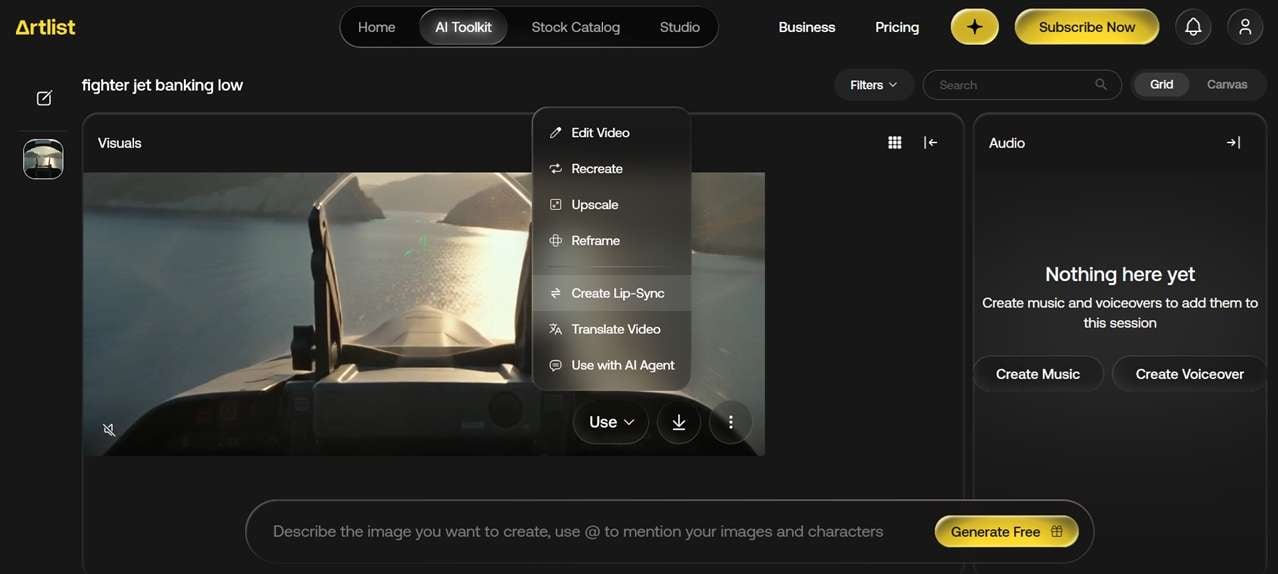
Artlist AI's unlimited generations on some plans also have real appeal if you're a heavy AI creator who runs through credits fast elsewhere, and the range of AI models gives you options for the output quality you're after.
But behind the “unlimited” label, a Reddit user shares a few limits that only show up after you've paid:
- A usage limit kicks in after just a handful of generations, with no clear daily or monthly reset
- Aspect ratio is locked to Auto
- Unlimited mode doesn't accept video references
- None of these restrictions are clearly explained in the plan details before you subscribe
Meanwhile, the credit cost per generation, especially for Artlist AI video generators, can run higher than using the same AI model directly on its native platform. You could burn through thousands of credits for just a few seconds of video, with no refund if the output turns out unusable.
Sample Video Generated with Seedance 2.0 Mini on Artlist (Free):
On the stock catalog side, Artlist's music and footage library is still a strong reason to consider it. But the newer additions aren't what they used to be. Some longtime users note they don't sound distinct enough from earlier tracks, which makes it harder to find something that stands out for a specific project.
| Features | Rating |
| Interface and Ease of Use | Easy and beginner-friendly |
| AI Output Quality | ★ ★ ★ ★ ✰ |
| Editing Experience | ★ ★ ★ ✰ ✰ |
| Performance | ★ ★ ★ ✰ ✰ |
| Value for Money | ★ ★ ★ ✰ ✰ |
|
Show More
Show Less
|
|
Pros and Cons
- Combines music, footage, templates, and AI generation in one subscription
- Clean, beginner-friendly interface across both stock and AI tools
- Access to multiple AI models through one platform
- High-quality, well-curated stock library with commercial licensing
- Studio's editing tools are basic compared to dedicated editing software
- AI Suite and Stock Catalog are billed separately unless you go with Max
- Credit-based AI pricing can get expensive with heavier use
- Free tier is generation-limited, with no downloadable trial content
Part 5. Filmora: Best Artlist Alternative with AI and Editing Combined
If you want something like Artlist but with AI generation and editing built into the same app, Wondershare Filmora can be a good alternative. It runs AI generation and a full desktop editor in the same application, so a generated clip doesn't need to leave the app to get trimmed, layered, and finished. You can also access a library of its creative assets that includes footage, images, music, and more.
The main difference with Artlist is that Filmora runs as desktop software and a mobile app. Everything, from AI generation to the final export, stays within the same workspace instead of being split across separate web tools. You get a similar range of AI tools and stock assets, but with more room to actually finish a project than Artlist offers.
Why Consider Filmora?
- Full desktop video editor with a multitrack timeline. You're not limited to arranging clips in sequence like Studio's simpler timeline.
- AI tools built into the same app. Video generator, image generator, auto-caption, smart cutout, and even music generation sit right alongside your editing tools.
- Works well for creators who want to generate and refine AI content manually. You can generate a base asset, then adjust color, pacing, audio, and composition by hand instead of settling for whatever the AI output gives you.
- Lower learning curve than most professional NLEs. The interface is more approachable than most advanced editors, while still giving you more editing depth than a browser-based tool like Artlist Studio.
Artlist vs Filmora: Which Platform Is Better for You?
| Artlist | Filmora | |
| Platform | Web-based | macOS, Windows, iOS, Android |
| Core Product | Stock asset library and AI generation suite | Desktop and mobile video editor with built-in stock library and AI tools |
| Editing Tools | Basic timeline via Artlist Studio | Full multi-track NLE with transitions, color grading, audio mixing, and more |
| Stock Assets | Music, SFX, footage, plugins/extensions, templates, LUTs | Footages, images, music, SFX, plugins, templates, LUTs, stickers, filters, charts |
| AI Generation Tools | Image, video, voiceovers, music | Image, video, voiceovers, music, sound effects |
| Free Trial | ||
| Best for | Creators who want a large stock library alongside standalone AI generation | Creators who want AI generation and full editing in one app |
|
Show More
Show Less
|
||
 Secure Download
Conclusion
Artlist can be a solution for AI creators who want access to multiple AI models and a stock library without juggling different platforms. It gives you more range beyond what most standalone tools offer.
But if you need something more toward hands-on editing, Filmora might be more fitting, as it keeps AI generation, stock library, and a full timeline in one app. Artlist suits creators chasing breadth across models, while Filmora suits creators who want to generate and finish a project in the same place.
FAQs
-
Can I share my Artlist account with my team?
Only if you are on Artlist’s AI Professional plan (supports up to 3 users), or Max Business, which includes team collaboration on the Stock Catalog side. -
Can I use Artlist music after my subscription expires?
Yes, for tracks you've already downloaded. Artlist states that assets downloaded while your plan was active keep their commercial license even after you cancel. Anything you haven't downloaded yet becomes inaccessible once the subscription ends. -
Is Artlist.io safe?
Artlist has been running since 2016 and is backed by Artlist Ltd., with an established track record including the Motion Array acquisition. It's a legitimate platform.
