


 TL;DR:
Fliki AI automates the conversion of text prompts and scripts into fully narrated videos, serving as a rapid production tool that contrasts with the traditional manual editing environment of Wondershare Filmora.
● The platform operates exclusively on a scene-based structure rather than layered timelines, meaning it lacks keyframes, advanced color tools, and motion controls required for complex visual edits.
● Free plan usage is restricted to non-commercial testing, 720p export resolution, a 50-scene limit, and 10-minute maximum lengths, while commercial rights and 1080p outputs require paid tiers starting at $28 monthly.
● Creators should choose the Wondershare Filmora alternative when a workflow demands multi-track video manipulation, masking, custom speed adjustments, or direct social media uploading alongside AI generation features.
Ask AI for a summary
 ChatGPT
 Perplexity
 Gemini
 Claude
 Grok
Grok
Need an AI tool that can help you turn text into videos? Fliki AI aims to simplify video creation for people who want to generate videos without video editing skills. Many creators use the Fliki AI video generator to produce content from text prompts.
This article breaks down its features, workflow, and cases where a stronger alternative may work better. If you want to know if Fliki AI’s free or paid plans can cover your content needs, let’s get into the review.
Part 1. What is Fliki AI?
Fliki AI is an AI-powered platform with Text-to-Video and Text-to-Speech tools that let you turn text into videos. You paste your text into the Fliki AI video generator, and the system builds the video with visuals, narration, and captions.
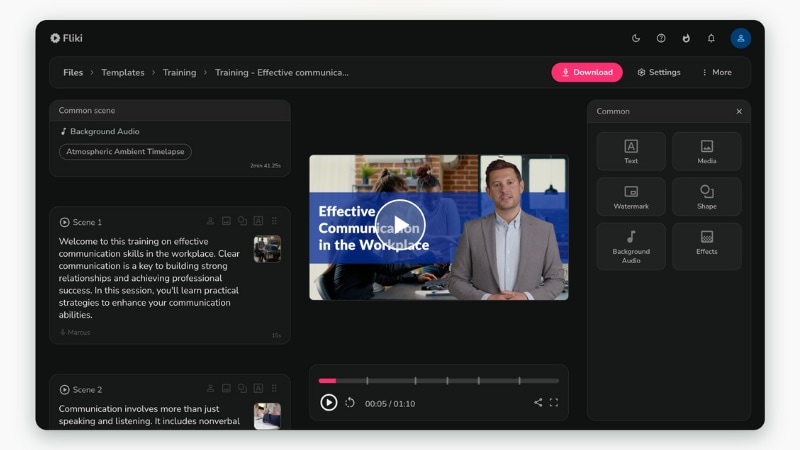
The Fliki AI tool offers AI voices across many accents and languages, with natural pacing and clear pronunciation. It also aligns captions with the narration and adds background music, so the final video feels structured.
Who It’s Made For
Fliki AI video generator works best for:
- YouTubers creating faceless or voiceover videos.
- Bloggers repurposing articles into video content.
- Marketers who are producing promo and explainer clips.
- Educators sharing lesson summaries in video form.
- Short-form creators posting on social platforms.
Key Highlights
- Generate video from script: Its Text-to-Video tool lets you turn written content into videos.
- AI voice narration: Use the Fliki AI voice generator to add narration in various languages and accents.
- Scene-based structure: Create videos one section at a time, where each scene includes its own text, image/clip, and voice.
- Caption generation: Create subtitles that follow the narration with basic layout options.
- Web browser access: Use Fliki AI through a web browser without installing software.
What’s New
In January 2026, Fliki AI introduced a new Playground area. It lets users test AI image and video generation without tying experiments to active projects. This space helps users compare outputs across different models before spending credits.

This update also expanded the list of supported video and image models. It gives users more options across quality levels and credit budgets.
For supported premium models, Fliki AI added First Frame and Last Frame controls. These options allow users to define how a video starts, ends, or transitions between two images.
How to Access Fliki AI
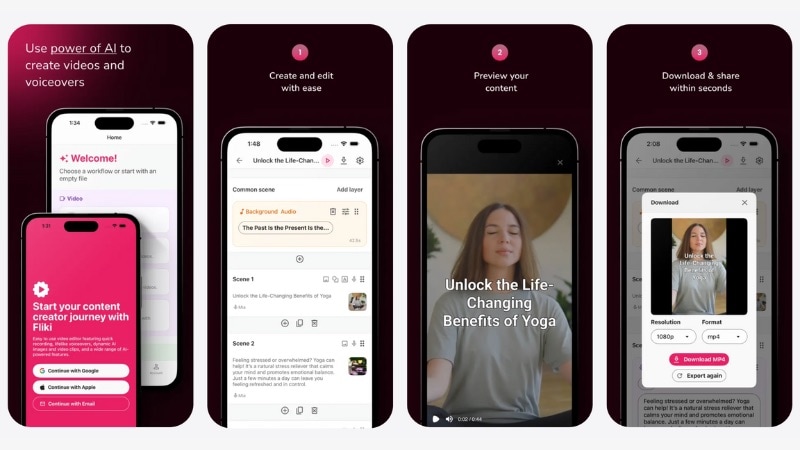
You can access Fliki AI through a web browser on your computer or use the mobile app version. The browser version gives more room for writing and editing, while the mobile apps suit quick text-to-video tasks.
Follow the instructions below to access Fliki AI through its web platform on your desktop:
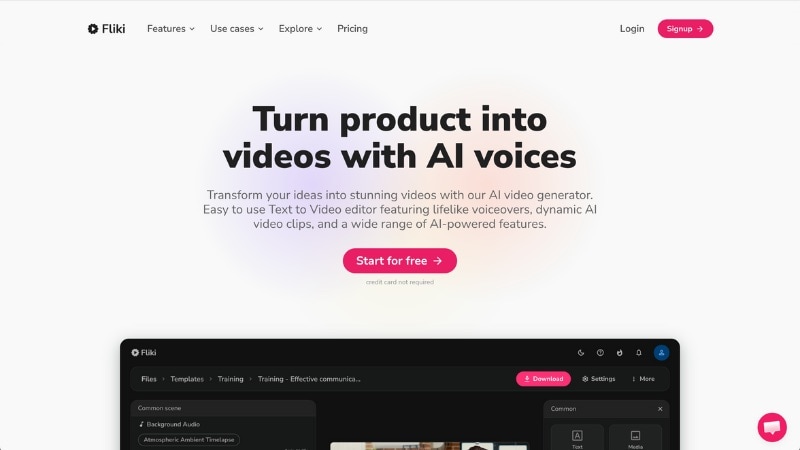
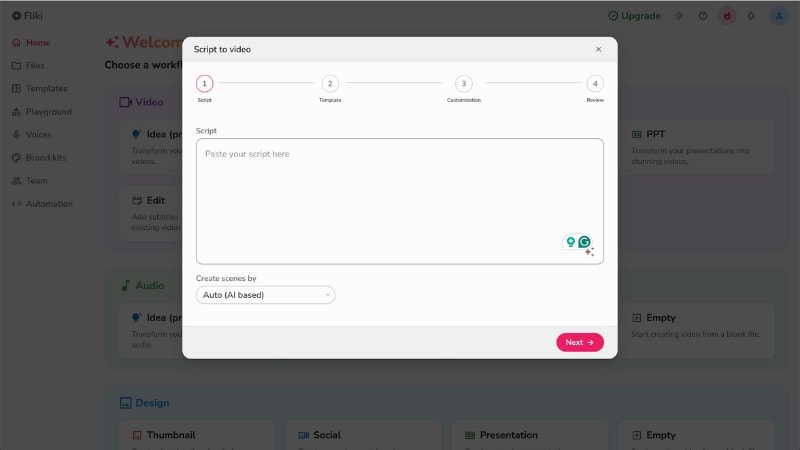
For the mobile version, you can download Fliki AI on Android and iOS devices. The Fliki AI app supports quick text-to-video creation, which works well for short edits and drafts on the go.
Part 2. Key Features and Capabilities of Fliki AI
The Fliki AI video generator helps you create videos from text without filming or recording footage. Its features support fast video production, which handles narration, visuals, and captions in one workflow.
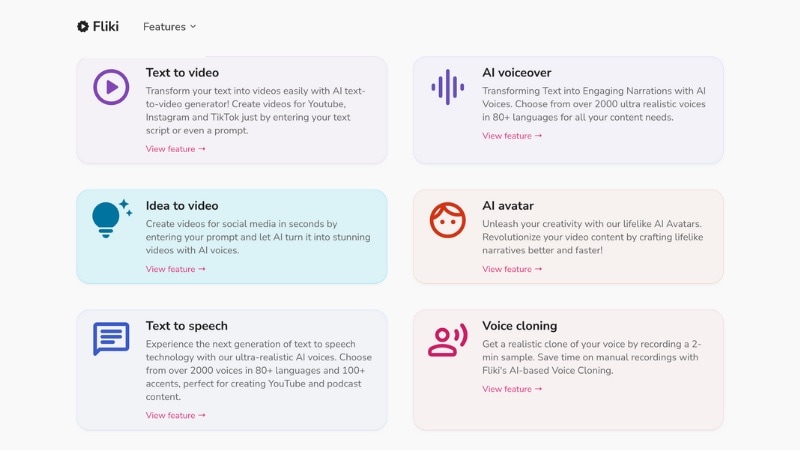
Here are the main features that shape how Fliki AI works in practice:
Part 3. Fliki AI Pricing Plans
Fliki AI pricing uses a tiered subscription model that scales based on usage, export limits, voice access, and stock assets. Start with a free plan to test the platform, then move to a paid plan for higher quality or more credits.

Below is an overview of Fliki AI pricing plans and what each tier offers.
| Feature | Free Plan | Standard Plan | Premium Plan |
| Billing | Free | Monthly / Annual | Monthly / Annual |
| Price | $0 | $28/month or $252/year | $88/month or $792/year |
| Export Resolution | Up to 720p | Up to 1080p | Up to 1080p |
| Max export length (per video) | Up to 10 minutes | Up to 15 minutes | Up to 40 minutes |
| AI Voice Features | Limited voice options | Expanded voice options | Wider voice options |
| Scene Limits | Up to 50 scenes | Up to 100 scenes | Up to 150 scenes |
| Stock media access | Limited | Broader access | Broader access |
The free plan lets you try Fliki AI and get familiar with its workflow, but it limits export quality and feature access. Paid plans suit creators who need higher output quality, broader voice options, and fewer restrictions when publishing videos.
Part 4. User Experience and Workflow
Fliki AI follows a text-first layout that keeps the interface easy to navigate, even for users without video editing experience. Instead of working inside a timeline, you move through writing, scene setup, and preview in a straightforward flow.

- Getting started
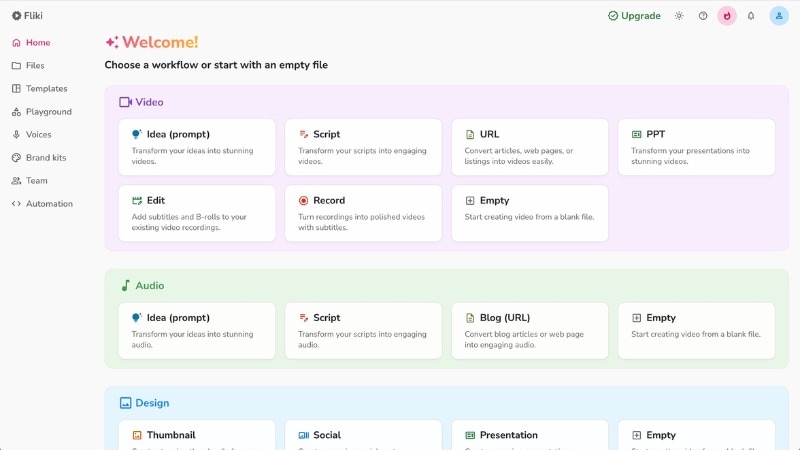
After login, the dashboard presents several starting points. You can begin with an idea, paste a script, import a URL or PPT, or open a blank project. Once you add text, Fliki AI breaks it into scenes and assigns visuals, voices, and captions as a starting structure.
- Editing flow and scene control
Each scene includes its own text, image or clip, and voice. You can reorder scenes as needed, adjust the on-screen text, and change the AI narration separately. This approach gives you more control over how information appears versus how it sounds.
- Performance during use
Scene edits update without noticeable delay. Export time depends on video length and plan tier, but short videos finish within a reasonable timeframe. The browser version handles longer scripts more comfortably than the mobile app.
- Workflow limits
The scene-based layout keeps things simple, but it also sets clear boundaries. There are no layered timelines, keyframes, or advanced color tools. This works for explainers and social clips, while complex edits call for a full video editor.
Overall, the workflow leans toward speed and predictability. It fits creators who want to turn text into videos without dealing with traditional editing tools.
Part 5. Fliki AI Alternative for Advanced Video Editing
Fliki AI works well for quick script-to-video projects and AI voice content. For creators who need more control than Fliki AI offers, using a Fliki AI alternative becomes necessary.
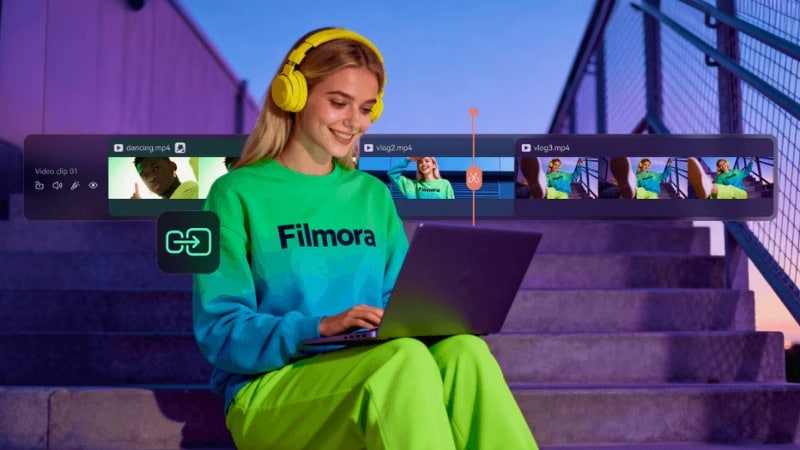
Wondershare Filmora fits this role by combining manual video editing tools with AI-assisted features in one workspace. You can edit videos using your own footage while also using AI tools, such as text-to-video, when you need to generate content from written text.
 Secure Download
Here are the main features in Filmora that support more advanced editing and flexible workflows.
Basic Video Editing Tools
Filmora includes essential video editing tools such as trimming, splitting, cropping, and arranging clips on a timeline. You can work with many video and audio tracks, add text overlays, insert transitions, and adjust timing with precision.
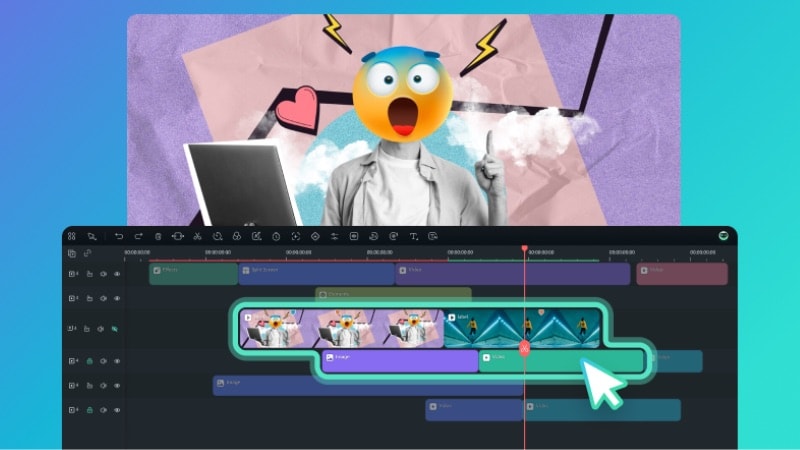
Advanced Video Editing Tools
For more detailed edits, Filmora offers features like keyframes, masks, speed controls, motion effects, and color adjustment tools. These tools help when working on longer videos or videos with complex pacing.
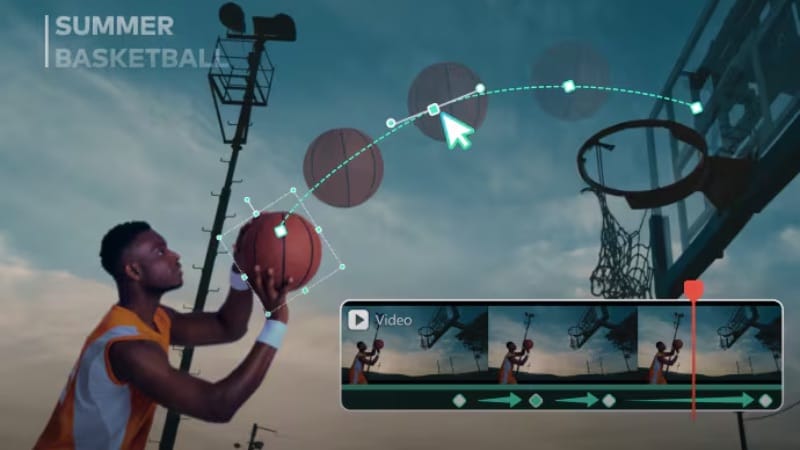
AI Features
Filmora also includes AI-powered tools that support faster creation when assets are limited. You can generate videos from text, create AI images, convert speech to text, use text-to-speech, and remove backgrounds, all within one workspace.
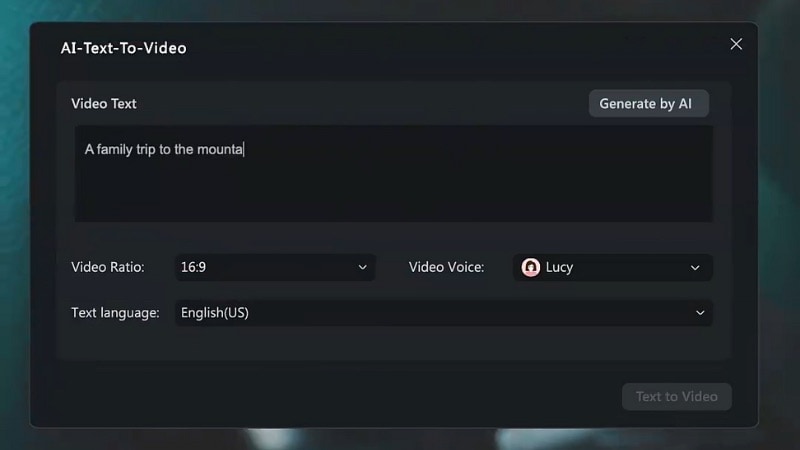
Direct Upload to Social Media
Once editing is complete, Filmora supports direct export and upload to YouTube, TikTok, and Vimeo. This feature reduces extra steps between editing and publishing content.
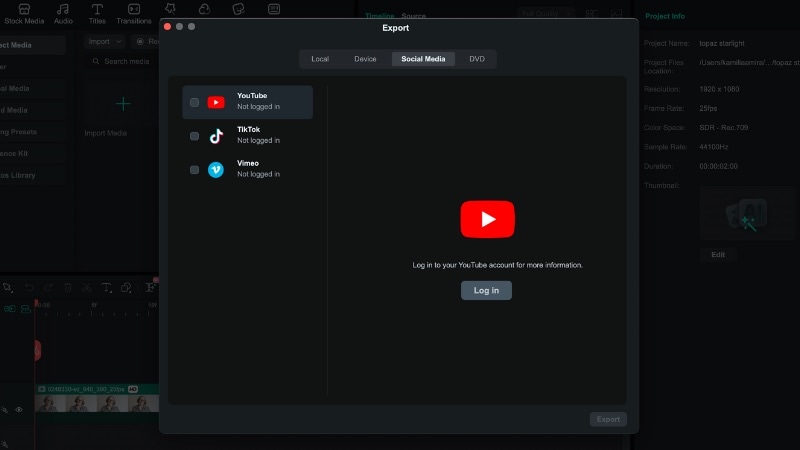
Watch the video below to see how Filmora handles AI-generated content alongside traditional video editing tools.
Secure DownloadConclusion
Fliki AI works best for creators who want a fast way to turn text into video without complex editing tools. The Fliki AI video generator uses a simple workflow that suits explainers and short-form content.
When choosing between Fliki AI free or paid plans, the decision comes down to output needs and control. The free plan works for testing the platform, while paid plans unlock higher export quality and longer videos.
Users who need deeper edits, timeline control, or support for their own footage may prefer a Fliki alternative. Try Filmora if you want more flexible editing tools and AI features in one editor.
FAQs
-
Can I use Fliki AI voices for commercial projects?
Yes, Fliki AI allows commercial use of its AI voices on paid plans. The free plan is better suited for testing and personal projects, while commercial use requires a subscription. Always review Fliki AI’s license terms before publishing client or monetized content. -
What editing limitations should I expect when using Fliki AI tools?
Fliki AI uses a scene-based editor rather than a full timeline. You can reorder scenes and adjust text, visuals, and voices per scene, but you won’t find tools like layered tracks, keyframes, detailed motion controls, or advanced color editing. -
Does Fliki AI support custom uploads like my own images or video clips?
Yes, Fliki AI allows you to upload your own images and video clips and assign them to scenes. You can replace stock assets with your own files when needed.
