


 TL;DR:
Lucy Edit AI is an instruction-guided video editing model optimized for generating quick visual transformations like outfit swaps and scene replacements using text prompts, but it lacks the timeline and audio capabilities required for finalized video production.
● The model successfully preserves original camera flow and subject identity during simple edits, but fast motion can cause inserted objects to drift, and unconstrained text prompts may unintentionally alter the original faces or backgrounds.
● Users can access the tool via the official website (ranging from a free trial to 2,000-credit monthly paid tiers), verified third-party platforms like Imagine.art and AIOmnigen.com, or locally using the September 2025 Hugging Face open-weight release, but must avoid unverified APK downloads.
● Because Lucy Edit AI exclusively modifies visual layers, creators must export their generated clips into a comprehensive editor like Wondershare Filmora to handle audio denoising, multi-track structuring, and Auto Reframe formatting for social media publication.
Ask AI for a summary
 ChatGPT
 Perplexity
 Gemini
 Claude
 Grok
Grok
Most AI video editors still bury you in timelines, tool panels, and manual steps, but not with Lucy Edit AI. After uploading a clip, you just need to type what you want to change, and let the AI edit the video. You don’t need complex controls to change an outfit, replace an object, or edit a scene.
For creators who want fast results, this is something that can make editing feel much easier. If you are curious about how it actually works, this review covers the Lucy Edit AI video editor, its main features, limits, and whether it is good enough for a serious video workflow.
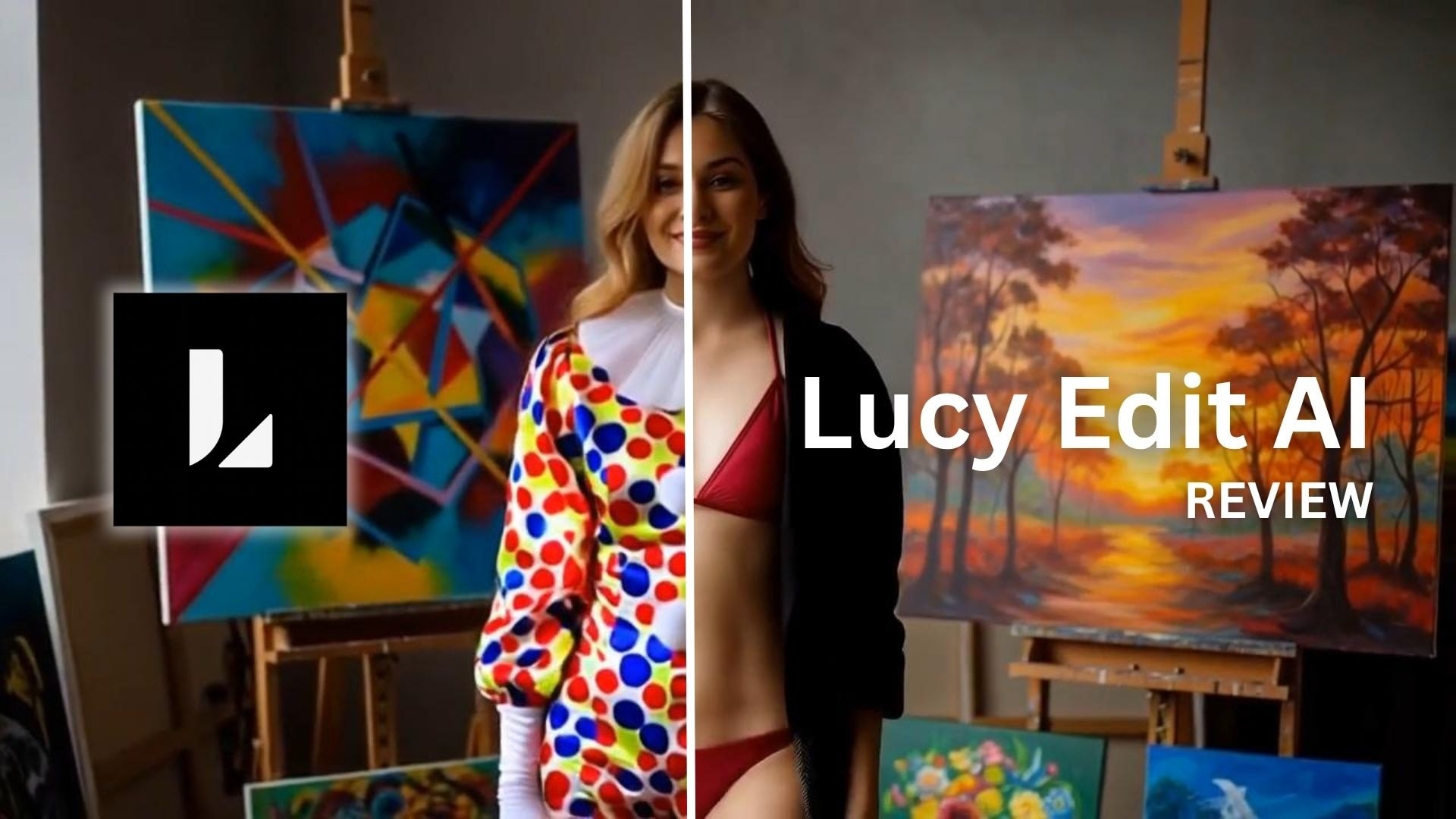
Part 1: What is Lucy Edit AI?
Lucy Edit AI is an instruction-guided video editing model that lets you upload a video and describe the desired change in text. It focuses on editing visuals, including clothing, characters, objects, and scenes.
You can use prompts like “replace the train with a rocket” or “make the scene snowy". The tool then tries to apply that change across the full clip while keeping the original motion and camera flow.

Lucy Edit AI is known for balancing four key areas:
- Prompt accuracy: edits should match the written request.
- Identity preservation: people, faces, and objects should remain identifiable.
- Temporal consistency: no flicker, frames should remain stable.
- Realism: new content should reflect the lighting, angle, and scene movement.
Part 2: Where Can You Access Lucy Edit AI?
There are a few different ways to use it, depending on how much control you want:
- https://lucyeditai.ai/ is the main site. It has a free trial and is the most straightforward starting point if you just want to test the tool without any setup.
- Hugging Face is where the official open-weight model lives for developers and researchers. The initial weights and reference code were released in September 2025.
- Lucy Edit Dev (Local) is the option for running the model on your own machine. It takes more work to set up, but it gives you full control over privacy and offline processing once it's running.
- Third-party browser platforms, like Imagine.art and AIOmnigen.com, also provide web-based Lucy Edit access for uploading, editing, and exporting clips.
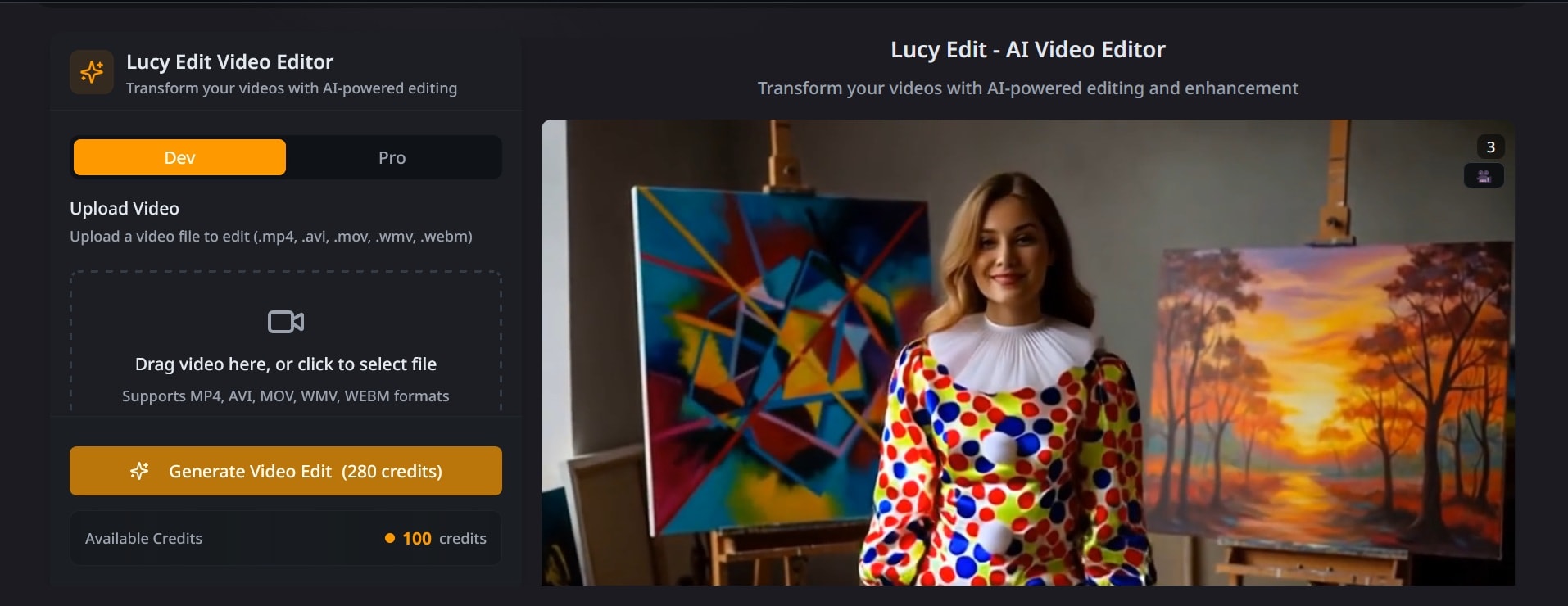
⚠️ Access note: Avoid unofficial “Lucy Edit AI app,” APK, or mod download pages unless verified from official sources. Stick to the sources listed above to avoid anything unverified.
Part 3: LucyEdit AI Features Breakdown
Access options may differ, but the real value comes from its editing features. Lucy Edit AI features are built around prompt-based video editing, where you describe the visual change you want and let the AI apply it to your clip.
1. Outfit & Accessory Changes
Lucy Edit AI can change someone's look in a clip. You can use it as an outfit swapper to swap outfits or even clothing style, and keep stuff like glasses, hats, earrings & other accessories. It’s a useful feature for fashion ideas, product previews, social media posts, and character styling tests.

2. Character Transformation
Lucy Edit AI can also change a person into a new character. For example, it can turn a subject into an animal, a fictional being, or a new persona. The important part is motion. The tool aims to keep body movement and scene placement natural, so the result does not feel like a still image pasted onto the video.
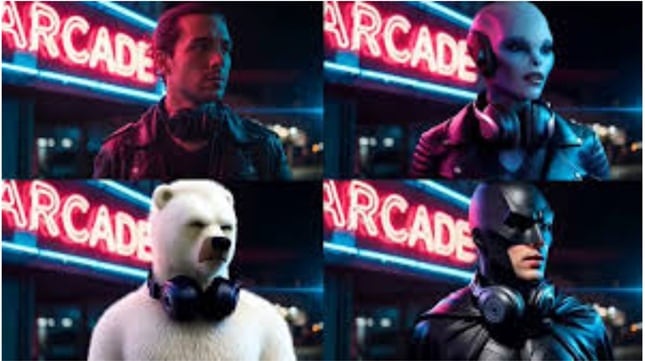
3. Object Insertion & Scene Replacement
Lucy Edit AI can edit more than one person. It can replace objects, change backgrounds, move a subject to a new location, or turn a real scene into an animated style. This is useful when you want a quick concept video without having to reshoot.

4. Motion and Composition Preservation
This is the feature that makes Lucy Edit AI different from many basic AI video tools. It tries to keep the original timing, camera movement, character actions, and scene layout while applying the edit. It also tracks facial details, body posture, and frame changes to reduce flicker and motion breaks.
Part 4: Lucy Edit AI Review: Our Honest Take
For this review, we looked at how Lucy Edit AI handles prompts, keeps the same person consistent across multiple frames, and performs common visual edits. What we found is that Lucy Edit AI works best when the prompt is short and clear.

Ease of Use: ⭐8.5/10
The workflow is simple: upload, prompt, generate, preview, and tweak. Beginners can use Lucy Edit AI video editor without learning masks, layers, or keyframes. Still, it feels more like a prompt-testing tool than a full editor.
Output Quality: ⭐7/10
Simple edits gave the best results. Outfit changes looked convincing, and accessories worked well when motion was slow. In faster movement, small items like a wristwatch could drift slightly. Bigger style changes need careful prompts. If you do not set limits, the tool may change the face, background, or overall look more than expected.

Speed & Performance: ⭐7.5/10
The browser process was smooth with a 1080p MP4 file. However, clean results may take more than one attempt. Lucy Edit AI video is fast for testing ideas, but the final quality depends on prompt clarity.
Value for Money: ⭐7/10
The free trial is useful for testing basic edits. Paid access makes more sense if you need more runs, higher output quality, or repeated use. Its value is strongest for short creative clips, outfit swaps, object edits, and social media tests. It is less useful for long-form videos or complex cinematic edits.
To Sum Up
Lucy Edit AI is exciting as a creative AI assistant, not as a full replacement for editing software. It works best for quick transformations, testing concepts, and social-ready clips. Serious creators will still need a professional editor to finalize content.
Part 5: Pros and Cons of Lucy Edit AI
After testing Lucy Edit AI, one thing is clear: the tool is useful for quick visual edits, but it still has limits. Here is a quick look at where it performs well and where it may disappoint.
- Fast editing for outfit, object, and background changes
- Easier learning curve than traditional editors
- Strong concept for creators who want rapid visual experiments
- Helpful for short-form content and social media ideas
- Not ideal for long-form video production
- Limited control compared with manual editors
- Audio tools are absent
- Results can vary depending on prompts and source footage
Part 6: Smarter Workflow: Why Filmora Complements Lucy Edit AI Better
From this review, Lucy Edit AI is best at handling visual AI transformations. It can swap outfits, replace scenes, add objects, and test ideas quickly. That is useful for creators who want speed.
The best video is not only about its visuals. It also requires fine sound, smooth pacing, attractive captions, appropriate framing, and social media platform-friendly settings for export. Wondershare Filmora fulfills this need, as only text-based tool left. It gives creators the editing control needed after the AI transformation is done.
 Secure Download
Why Filmora Is the Better Finishing Tool
1. Turn AI Edits Into Full Videos
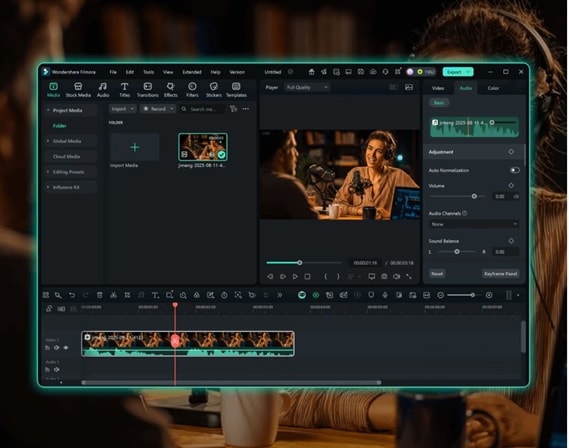
You can make a clip more interesting by shaping that clip into a real video with a proper start, middle, and ending. After using Lucy Edit AI, Filmora helps you structure clips with intro/outro scenes, titles, and motion text, multi-track timeline editing, and smooth transitions. Editing on the Filmora timeline makes the video more complete and appealing to watch.
2. Fix the Missing Audio Layer
Lucy Edit AI only handles visuals. If your clip needs voice cleanup, narration, balanced music, or background noise removal, you will need a separate audio tool for that before publishing. Filmora covers all of that and works well as a companion editor for the audio side.
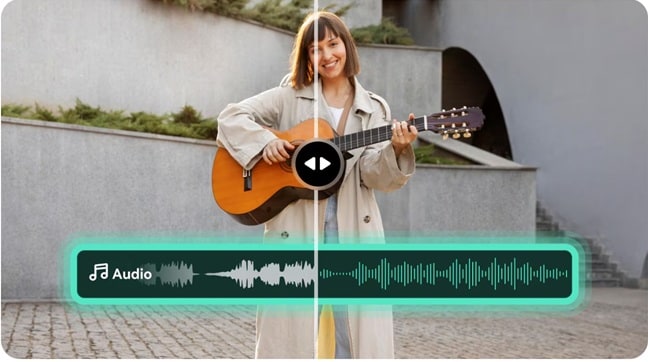
Filmora offers audio editing enhanced by AI Voice Enhancer, text-to-speech, audio ducking, and audio denoise features. Now you can create fine-tuned speech, minimize background noise, include a voiceover, and balance background music by preventing it from overlapping with the original voice.
3. Publish Faster for Social Media
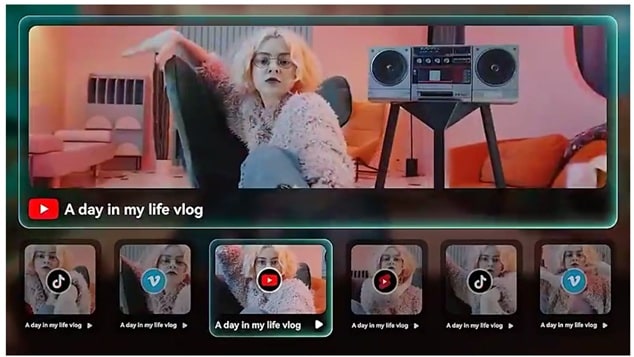
Once your edit is done, you still need the right format for Reels, Shorts, or TikTok. Filmora handles this with Auto Reframe, auto captions, and Smart Short Clips that cut a longer video into shareable segments automatically. One edited clip can become multiple pieces of content ready to export across platforms.
4. Desktop + Mobile Flexibility
Filmora is compatible with both desktop and mobile. This makes Filmora unique from the Lucy Edit AI tool. You can initiate your video editing journey on your mobile phone from anywhere and complete it on your PC.
Secure DownloadConclusion
Lucy Edit AI proves that prompt-based editing can be fast, creative, and useful for short visual changes. It handles outfit swaps, scene edits, and quick concept testing better than many people expect. At the same time, it still depends on clear prompts and works best on simpler clips.
If your goal is polished content, the AI edit is only one step. Sound, pacing, captions, and export quality still matter. That is why creators pair these tools with a full editor. Filmora helps video makers and editors to turn a rough idea into a video that feels ready to publish.
FAQs About Lucy Edit AI
-
Is Lucy Edit AI free?
There is a Lucy Edit AI free tier you can start with. It comes with basic features and limited credits, which is enough to test the workflow and try a few edits. Paid plans go up from there, with the mid-tier offering 500 credits per month and priority queue, and the higher tier giving you 2,000 credits per month with the fastest generation speed. -
What is Lucy Edit AI best used for?
It works best for visual changes such as outfit swaps, background replacement, object insertion, and short-form creative edits. -
Can Lucy Edit AI replace video editors?
No. Lucy Edit AI can speed up visual edits, as it is not a full video editor. It does not facilitate the same level of control over timeline editing. After making your first transformation, give the final touch to your video in Filmora for structure, sound, captions, and polish. -
Does Lucy Edit Audios?
Lucy Edit AI is mainly focused on visual video editing. Audio editing is not its main feature. For audio work, Filmora is the more practical tool. It offers text-to-speech for voiceovers, AI audio denoise for background noise removal, and audio ducking to lower music when someone speaks.
