


Magix, a Berlin-based software company with roots going back to 2001, now comes with a unified MAGIX Video Deluxe 2026 lineup that absorbed its old Movie Studio and Movie Edit Pro branches. The video editor targets hobbyists and semi-pro creators who want more editing tools without stepping up to professional software.
What has changed under the new name, and what should you actually expect if you install it today? This article will break down Magix Video Deluxe 2026 and give you a balanced answer on whether it's worth your money.
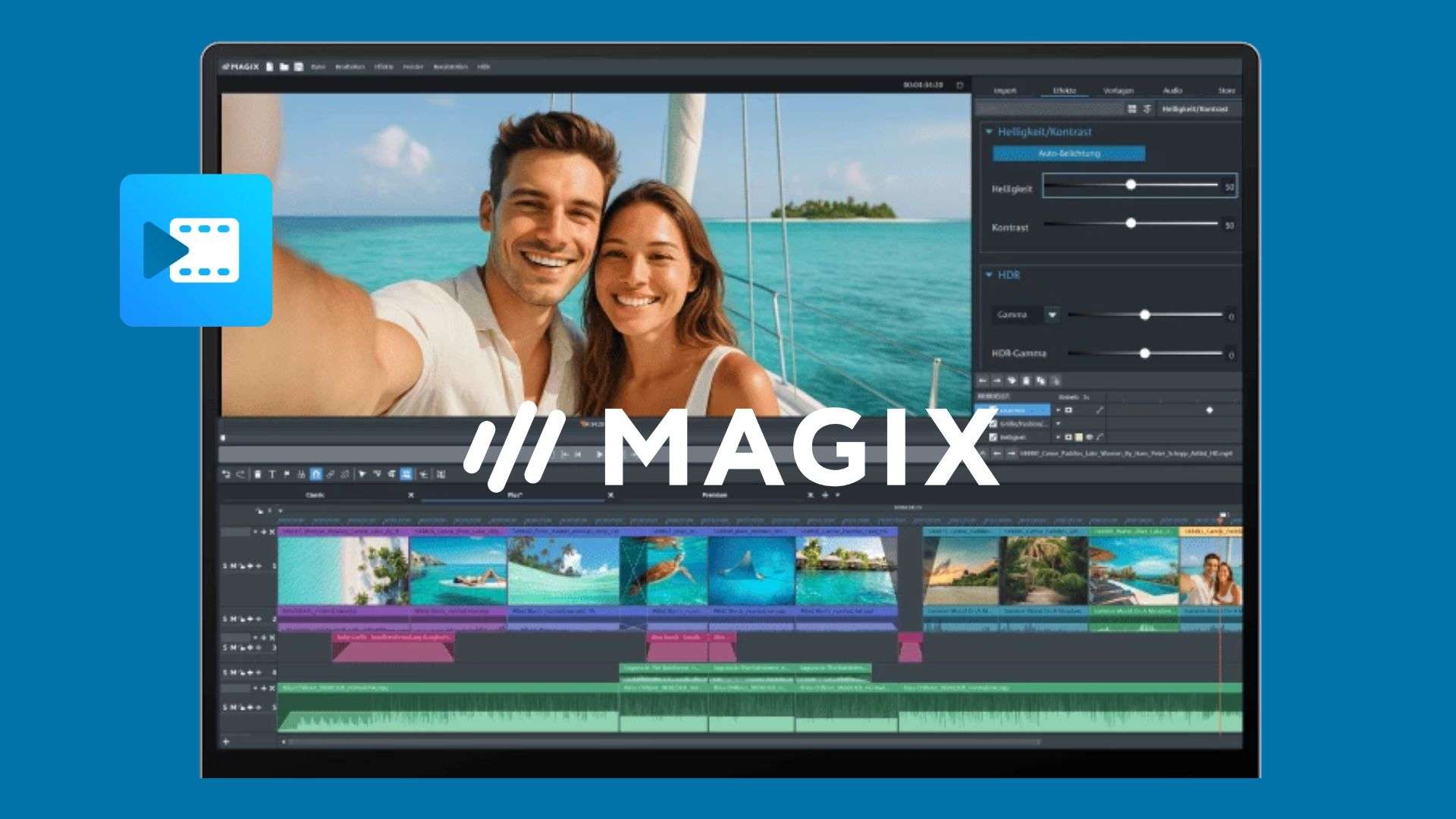
Part 1. About MAGIX Video Deluxe
Before it was known as MAGIX Video Deluxe, it started life as Movie Edit Pro. Magix later acquired the Sony/Vegas Movie Studio line and ran it as a separate product for years, before deciding that keeping two nearly identical editors under different names didn't make sense.
In 2021, Movie Studio was rebuilt on the same underlying technology as Video Deluxe, and by 2026, MAGIX Movie Studio is now sold worldwide under the MAGIX Video Deluxe name, both inside and outside the EU. If you see “Movie Studio video editor,” “Movie Edit Pro,” or “Video Deluxe” mentioned somewhere, they're all pointing at the same current product.
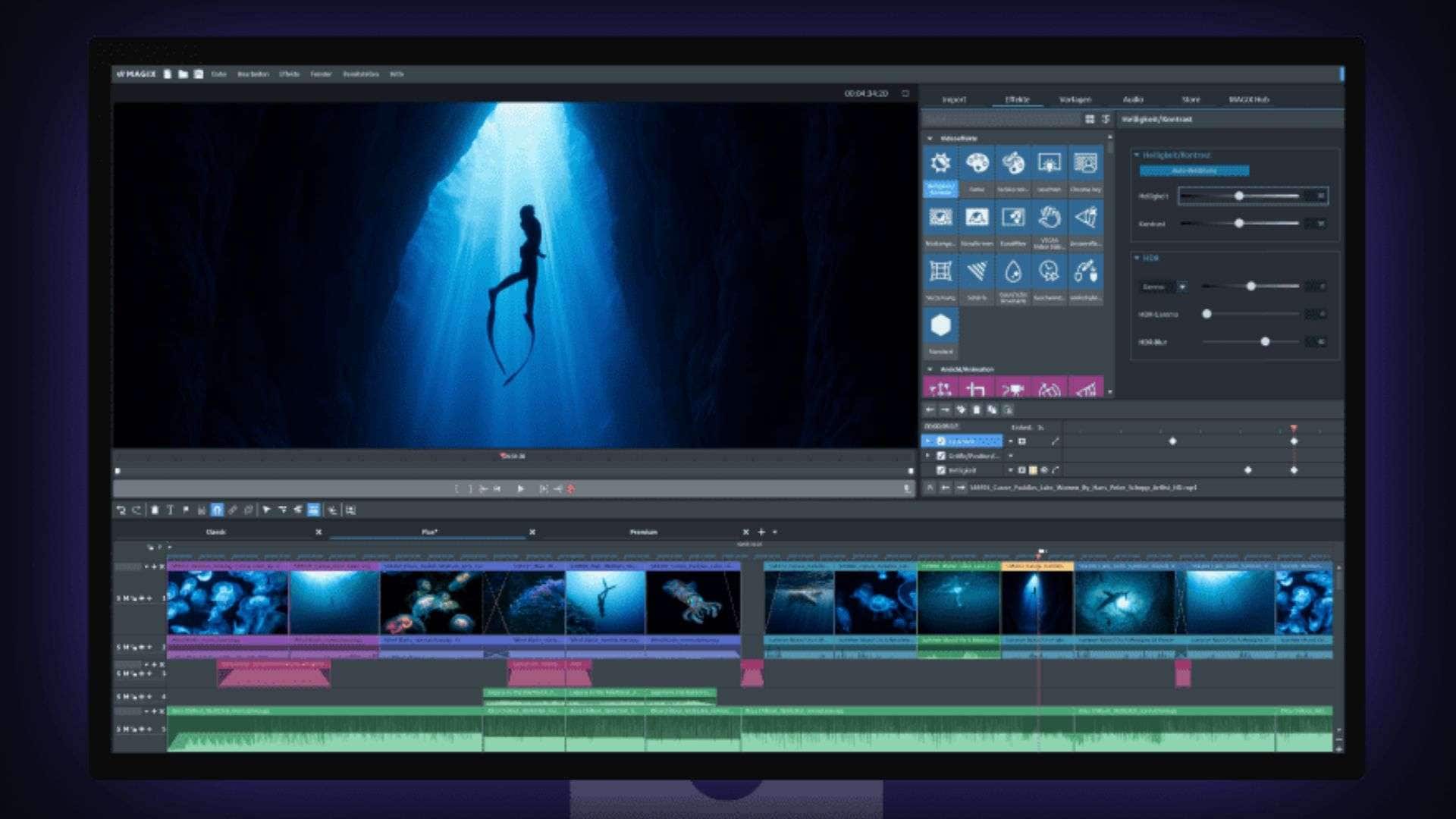
Who’s It Built for?
The MAGIX Video Deluxe software is built for hobbyists, semi-pro editors, and DIY content creators rather than full-time professionals. It's most known for how beginner-friendly it is, and how well it renders without crashing mid-export, which used to be a real weak spot for Magix back in the early 2010s.
Video Deluxe 2026: What's New
- AI media management that automatically sorts your footage into categories like "Person" or "Nature," so you're not digging through folders to find a clip
- AI-generated subtitles with highlighting and timing, plus the ability to export subtitles as TXT or SRT files
- Faster clip categorization for organizing longer projects
- Speech-to-text improvements, now covering more than 100 languages and styles
- AI Style Transfer and AI Colorize, letting you apply artistic looks or add color to black-and-white footage in one click
- Text-to-speech for generating voiceovers from a script
- New proDAD effects bundles and a Boris FX Chroma Key plugin for green screen
Part 2. Key Features Breakdown
Video Deluxe covers the basics you’d expect (cutting, trimming, titles, etc.) plus a handful of tools that go further than most entry-level editors bother with. Check out the breakdown by category, based on Magix's own feature list.
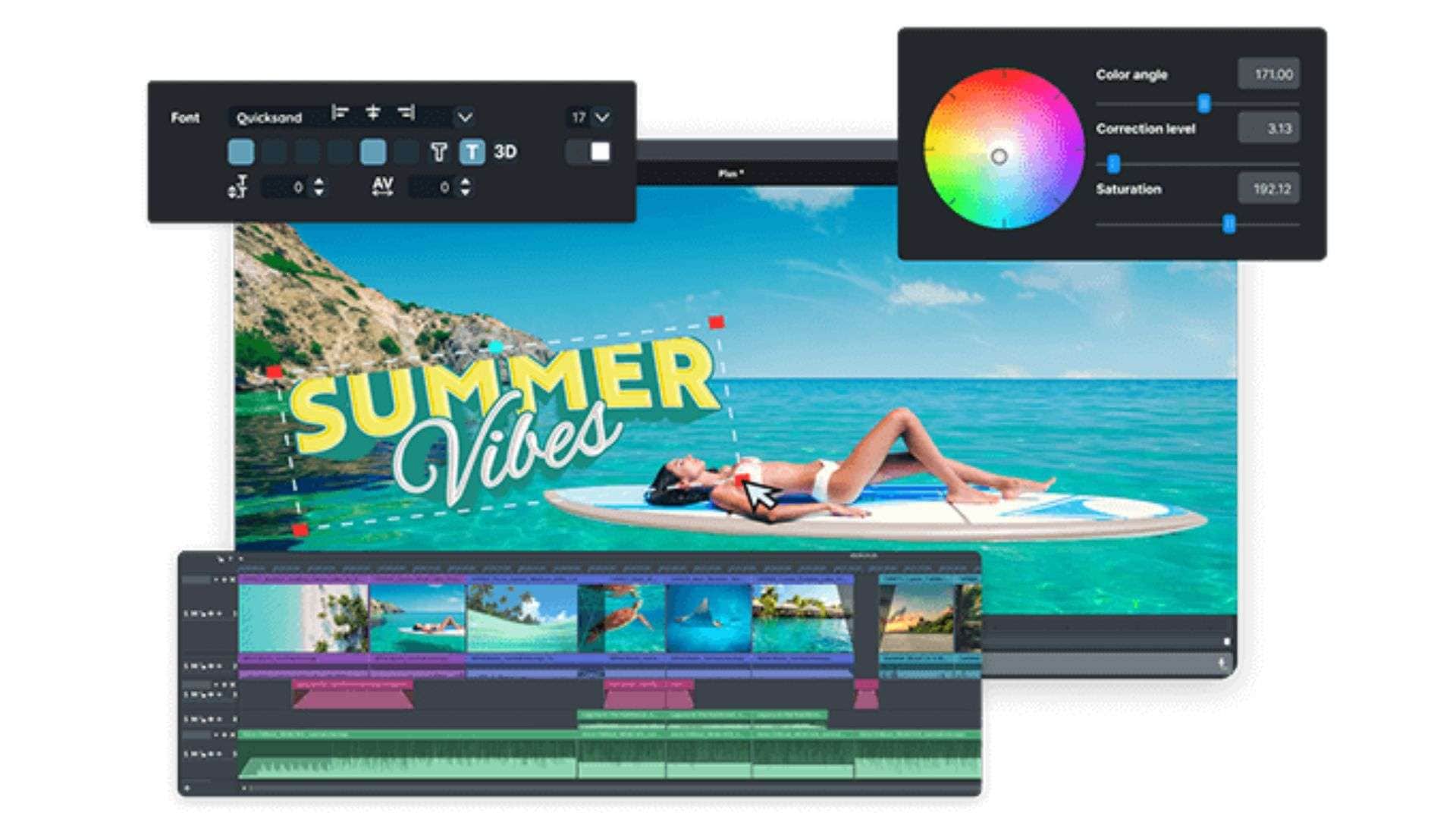
Editing Features (Storyboard/Timeline)
- Multicam editing, syncing footage from up to 4 camera angles automatically
- Layer masks for compositing and selective effects
- 360° video workflow support
- Full track handling, so you can sort, duplicate, rearrange, or delete tracks freely
- Frame-precise keyframes for fine motion and effect control
- Wizards that automate common tasks, fully hands-off or with manual adjustments
Optimization Tools
- Professional video stabilization to fix shaky handheld or action footage
- Color grading tools with lookup table (LUT) handling
- Deep color correction for finer adjustments than basic brightness/contrast sliders
- Automatic shot match, which evens out color and exposure differences between clips from different cameras
Effects/Transitions/Template library
- Around 1,500 effects, titles, and transitions in the Plus edition (Premium and Ultimate add more through proDAD plugins, pushing the total past 2,000)
- Dynamic, animated title templates
- “Movie look” presets that apply a cinematic grade in one click
Part 3. MAGIX Video Deluxe Review: Performance and Interface
The spec sheet is impressive, but what happens once you're actually cutting a project? By gathering user feedback online alongside information from Magix's own product pages, below is what we found on export stability and how easy the software is to pick up.
Render/Export Stability
Video Deluxe runs on Magix's INFUSION Engine 3, which is built to take advantage of modern GPUs from Intel, NVIDIA, and AMD for real-time preview and export acceleration. Magix lists support for editing and exporting up to 8K resolution, though realistically that depends heavily on your hardware. Check out the recommended system requirements.
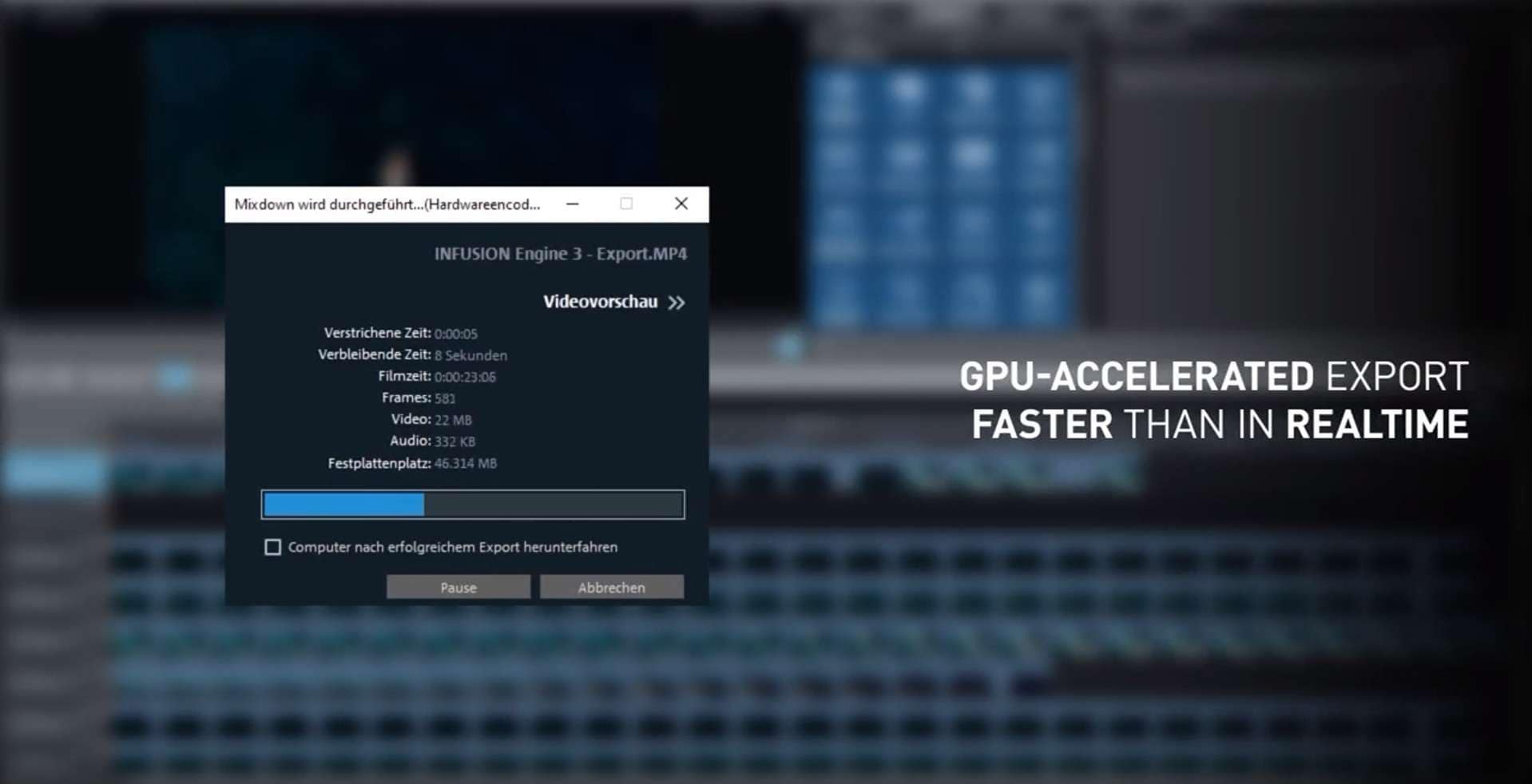
In daily use, most current reviews describe exports as noticeably faster than older Magix versions, and stability has improved a lot. However, there's also a recurring thread of complaints about crashes, especially from users running heavy multi-track projects or those who upgraded from a Sony-era Vegas Movie Studio version and found some familiar tools (like fade transitions or audio waveform display) harder to access after the interface changes.
Learning Curve for Beginners
The core selling point for MAGIX Video Deluxe is how easy it is to use. For the interface, your clips, effects, and tools all live in one place instead of scattered across floating panels. You get a choice between:
- Storyboard mode, which lays your video out like a sequence of scenes for quick drag-and-drop editing, and
- Timeline mode, which gives you the frame-by-frame control that more experienced editors expect.

And thanks to its built-in wizards and templates, someone with zero editing background can put together a decent video within an hour of installing it. The tradeoff is that once you want deeper color control, advanced audio mixing, or plugin-level customization, you'll start bumping into the ceiling of what a consumer-tier editor is designed for.
Part 4. MAGIX Video Deluxe Pricing and Licensing (2026)
MAGIX Video Deluxe 2026 comes in three tiers: Plus, Premium, and Ultimate, with pricing split between a new license and an upgrade version. A new license is the full package, while an upgrade license only works if you can show you already have a qualifying older version registered to your name.
MAGIX Video Deluxe Pricing 2026
| Plus | Premium | Ultimate | |
| New License | € 34,99 | € 44,99 | € 79,99 |
| Upgrade | € 19,99 | € 29,99 | € 59,99 |
| Cloud Storage | 1 GB | 2 GB | 5 GB |
| MAGIX Content | 120 content items/year | 180 content items/year | 580 content items/year |
What each tier adds is:
- Video Deluxe 2026 Plus covers the core editor, including 2,000+ effects, fades, and templates, AI subtitles and voiceovers, image optimization, precise color grading, and royalty-free stock content.
- Video Deluxe 2026 Premium adds the proDAD VitaScene V5 Pro plugin with 1,700+ additional effects, more advanced color correction, and more AI voiceover/subtitle credits.
- Video Deluxe 2026 Ultimate adds several more proDAD add-ons, AI stabilization and object removal, plus bundled content packages like extra transitions, stock content downloads, and music collections.
Part 5. Pros and Cons of MAGIX Video Deluxe
Pulling everything from the sections above into one quick list, we've summarized the pros and cons of MAGIX Video Deluxe in a list below.
- Beginner-friendly for the range of capabilities it offers
- Multicam editing and 360° support at a price point where most competitors don't offer either
- Large effects and template library, especially once you add Video Deluxe Premium or Ultimate
- AI tools (subtitle generation, style transfer, colorize, text-to-speech) are useful time-savers
- Rendering and export speed have improved meaningfully since the INFUSION Engine rework
- Crash reports still show up regularly in user reviews, particularly on older hardware or heavy projects
- Several users report slow or unhelpful responses from customer service on their support tickets
- Pricing structure across Plus/Premium/Ultimate plus frequent sales makes it hard to know what you’re “supposed” to pay
- Long-time users of the old Sony Vegas Movie Studio interface report some workflows (like fade transitions and audio waveform syncing) feel less intuitive after the merge
- Not built for professional-grade color grading or audio mixing; you'll outgrow it if your projects get complex
Part 6. MAGIX Video Deluxe vs Alternatives
Not quite sold after reading everything about Video Deluxe? Wondershare Filmora is the alternative that comes up most often alongside MAGIX Video Deluxe for some specific reasons. First, Filmora works on Mac as well as Windows, which makes it an option for Apple users since Video Deluxe only runs on Windows.
Secondly, Filmora’s AI features also cover more ground than Video Deluxe's focused set of subtitles, voiceovers, colorization, and style transfer. For the core editing tools, its timeline-based editor also includes color grading, auto subtitle generation, multicam editing, and keyframe animation, and can handle most everyday editing tasks without much of a learning curve.
Video Deluxe vs Filmora
| Video Deluxe | Filmora | |
| Platform | Windows only | Windows, macOS, Android, iOS |
| Pricing Model | Perpetual license (new or upgrade) | Free version with watermark, plus monthly/annual subscriptions or a one-time perpetual license, with AI features metered by credits |
| Editing modes | Storyboard and Timeline | Dual-timeline supported |
| AI Tools | AI subtitles, AI voiceovers, AI Colorize, AI Style Transfer, AI image enhancement, AI Media Management | AI copilot, AI video, AI image, AI music, AI thumbnail creation, auto beat sync, smart cutout/background removal, speech-to-text and text-to-speech, and more |
| Effects and transitions | 2,000+ (more with Premium/Ultimate proDAD plugins) | 14K+ video effects and 10K+ video transitions |
| Multicam Editing | Up to 4 cameras | Up to 16 camera angles |
| Best fit | Windows editors who prefer a fixed yearly AI allowance over a credit system | Mac and Windows users who want a wider, more experimental AI toolset |
|
Show More
Show Less
|
||
 Secure Download
Conclusion
After the rebrand from Movie Studio and Movie Edit Pro, MAGIX Video Deluxe 2026 is essentially the same editor with faster rendering and a stronger set of AI tools. It's built for people who want software that doesn’t fight them while they're learning, with enough AI assistance to speed up your work.
If you're upgrading from an old copy of MAGIX Movie Edit Pro Plus sitting on your PC, you'll find most of what made that version usable is still here. But if Mac support or a deeper AI toolset matters more to you, Filmora is worth trying first. You can try it for free before committing to a purchase.
FAQs
-
Is Movie Studio the same as Video Deluxe now?
Yes. Movie Edit Pro was the original name, Magix later ran Movie Studio as a separate product line for years, and as of 2026 both have been fully merged into Video Deluxe worldwide. -
What's the difference between Video Deluxe Plus, Premium, and Ultimate?
Core editing tools (timeline, storyboard, multicam, 8K support) are identical across all three. What makes each tier different are AI usage limits, Magix content, effects count, cloud storage, and plugins. -
Is Video Deluxe available for Mac?
No. Video Deluxe is Windows-only. If you need a Mac-compatible editor with a similar capability, Wondershare Filmora can be a good alternative. -
Does Video Deluxe 2026 include AI subtitles?
Yes. Speech-to-text generates subtitles automatically and supports over 100 languages, with new highlighting and TXT/SRT export options added for 2026. -
Is Video Deluxe worth it compared to Filmora?
It depends on your device and priorities. Video Deluxe is Windows-only but sells at fixed tiers with a predictable yearly AI allowance, while Filmora works on both Mac and Windows and offers a broader AI toolset, though its AI features run on a credit system.
