


 TL;DR:
Pixa (formerly Pixelcut) is a freemium web and mobile AI photo editor optimized for e-commerce sellers and content creators who prioritize rapidly generating clean product visuals over complex manual photo manipulation.
● The Free plan provides basic background removal, but users must upgrade to Pro ($10/month) or Business ($30/month) to unlock high-resolution exports, batch editing, watermark removal, and up to 3,600 monthly AI credits.
● Because the platform operates strictly online, it requires an active internet connection and lacks the deep multi-layer controls necessary for professional high-end retouching or advanced graphic compositing.
● To convert static e-commerce images into short-form video ads for social media, users can import their polished Pixa exports directly into Wondershare Filmora to apply AI-powered templates, transitions, and text overlays.
Ask AI for a summary
 ChatGPT
 Perplexity
 Gemini
 Claude
 Grok
Grok
Pixelcut built its reputation on being a fast, one-click background remover that has helped millions of users edit product photos, social media visuals, and more. Now, the platform has rebranded to Pixa, and the scope has grown significantly.
With Pixa, the platform expands into image generation, video creation, and prompt-based editing workflows designed to help users create and publish content faster. With this review, we’ll take a closer look at what Pixa actually offers today, what has changed from Pixelcut, how its features perform in real use, and whether it still stands out among AI photo editors.
Part 1. What Pixa Actually Does (Beyond Background Removal)
Even with the new name, many users still search for “Pixelcut,” showing just how strong its reputation remains.
Pixa (previously Pixelcut) has grown far beyond the simple tool many people remember. While its background remover is still a major highlight, the platform now focuses on helping users create complete visual content from start to finish, not just edit a single image.
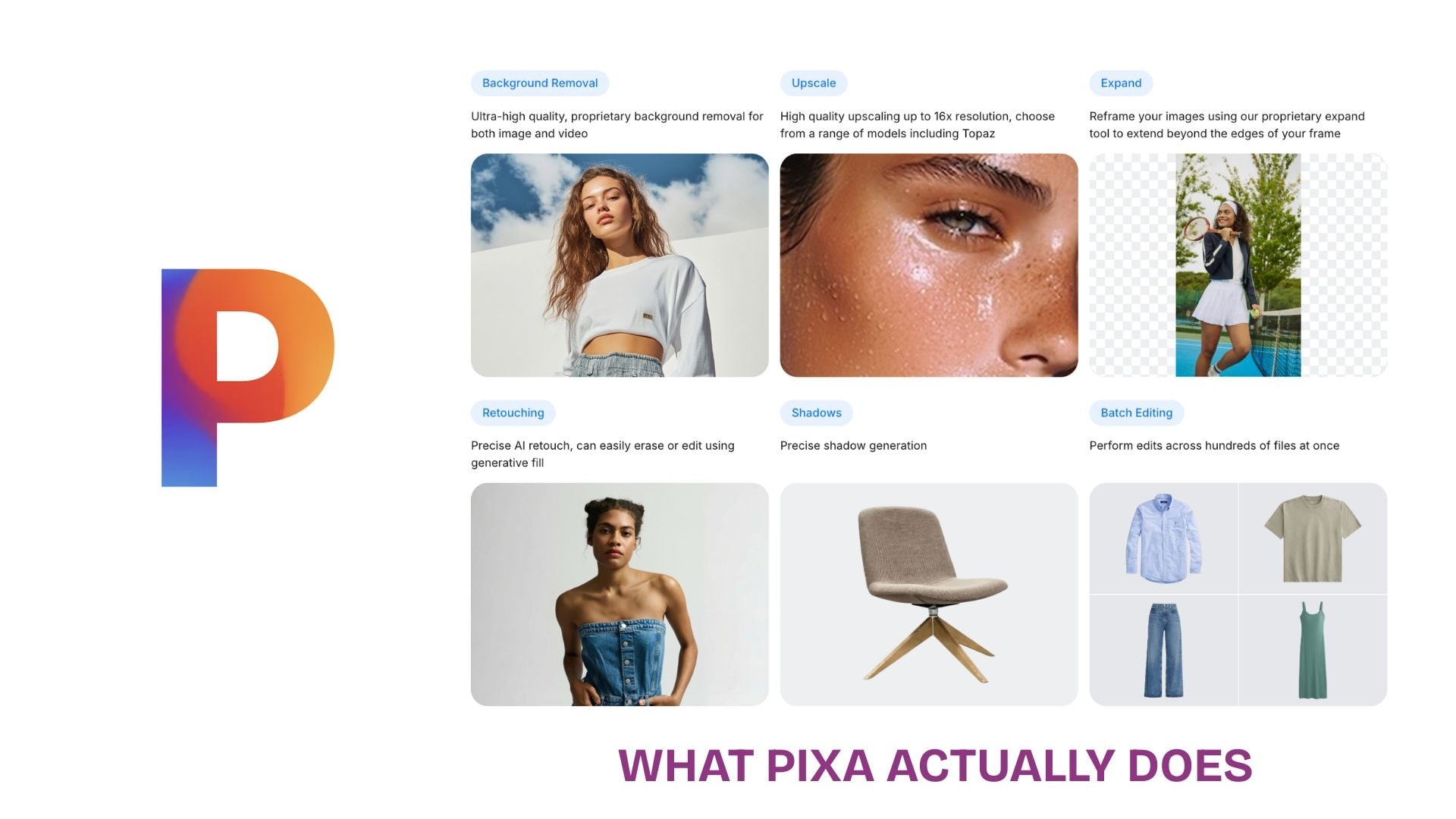
Here’s how Pixa can be used today:
- Removing image backgrounds: Instantly cut out subjects from photos for clean, transparent images, especially useful for product shots and profile images.
- Creating product photos for online stores: Turn basic images into studio-quality visuals with white backgrounds, shadows, or AI-generated scenes for marketplaces like Shopee or Etsy.
- Generating marketing visuals: Design ads, thumbnails, and social media posts using ready-made templates and AI-assisted layouts.
- Enhancing and retouching images: Remove unwanted objects, fix imperfections, and improve overall image quality with tools like Magic Eraser.
- AI image and video creation: Generate visuals from prompts, saving you the hassle of starting from scratch.
In short, Pixa combines editing, generation, and design into a single, efficient, and integrated workflow, specifically designed for modern content creation.
Part 2. The Core AI Tools That Make Pixa Stand Out
Pixa builds on what made Pixelcut popular, but now every feature is integrated into a faster and more comprehensive content creation workflow. Instead of using separate tools, everything works together to help you go from raw image to polished visual in minutes.
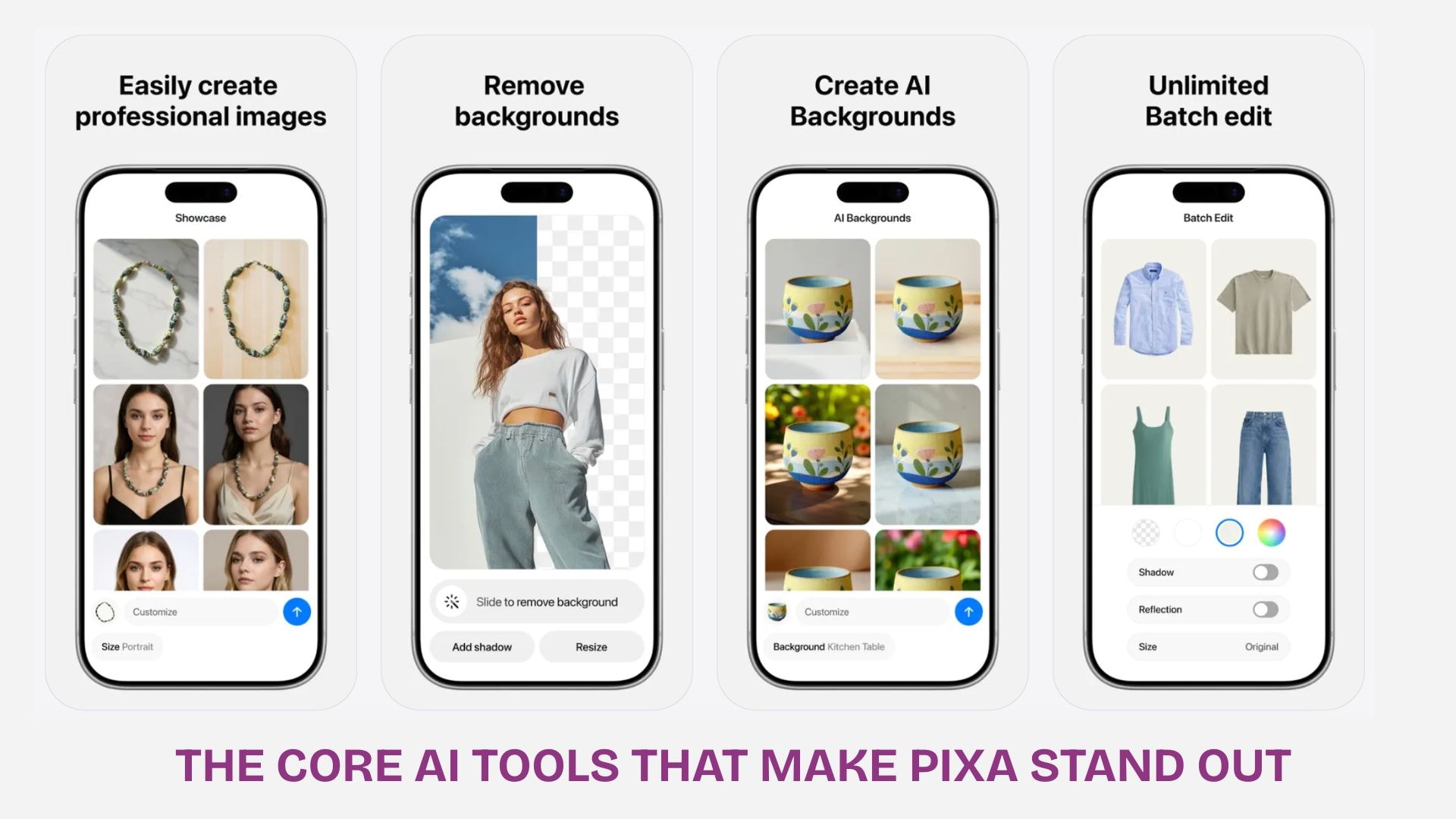
One-Click Background Removal
This is the feature that originally made Pixelcut go viral. It remains one of the fastest and most reliable ways to isolate a subject without manual editing, serving as the primary starting point for most projects.
- Instantly detects and removes backgrounds in one tap
- Handles fine details like hair and edges with solid accuracy
- Exports clean, transparent images for flexible use
- Ideal for product photos, profile pictures, and quick edits
AI Background Generator for Product Photos
After removing the background, Pixa makes it easy to completely transform the image. Instead of leaving it blank, you can generate a new environment that looks intentional and professionally styled.
- Replace backgrounds with clean white or studio setups
- Generate AI scenes like lifestyle or aesthetic environments
- Add depth with shadows and lighting effects
- Perfect for e-commerce listings and promotional images
Magic Eraser for Cleaning Up Images
Not every edit needs a full transformation. Sometimes small fixes make the biggest difference, and this tool is designed to quickly remove distractions without overcomplicating the process.
- Remove unwanted objects from photos
- Clean messy or cluttered backgrounds
- Removing minor distractions like wires, spots, or random elements
- Improve overall image clarity with minimal effort
AI Image Creation and Content Tools
This is where Pixa moves beyond traditional editing. Instead of only improving existing images, it allows you to generate entirely new visuals, turning it into a more complete creative platform.
- Create AI-generated images from simple prompts
- Design marketing visuals for ads and promotions
- Generate ready-to-use social media graphics
- Combine templates with AI for faster content creation
Part 3. Testing Pixa: What the Editing Experience Is Actually Like
Features are one thing, but the real question is how Pixa performs when you actually start using it. The overall experience is clearly designed for speed, with a clean interface and minimal learning curve, even if you have never used an editing tool before.
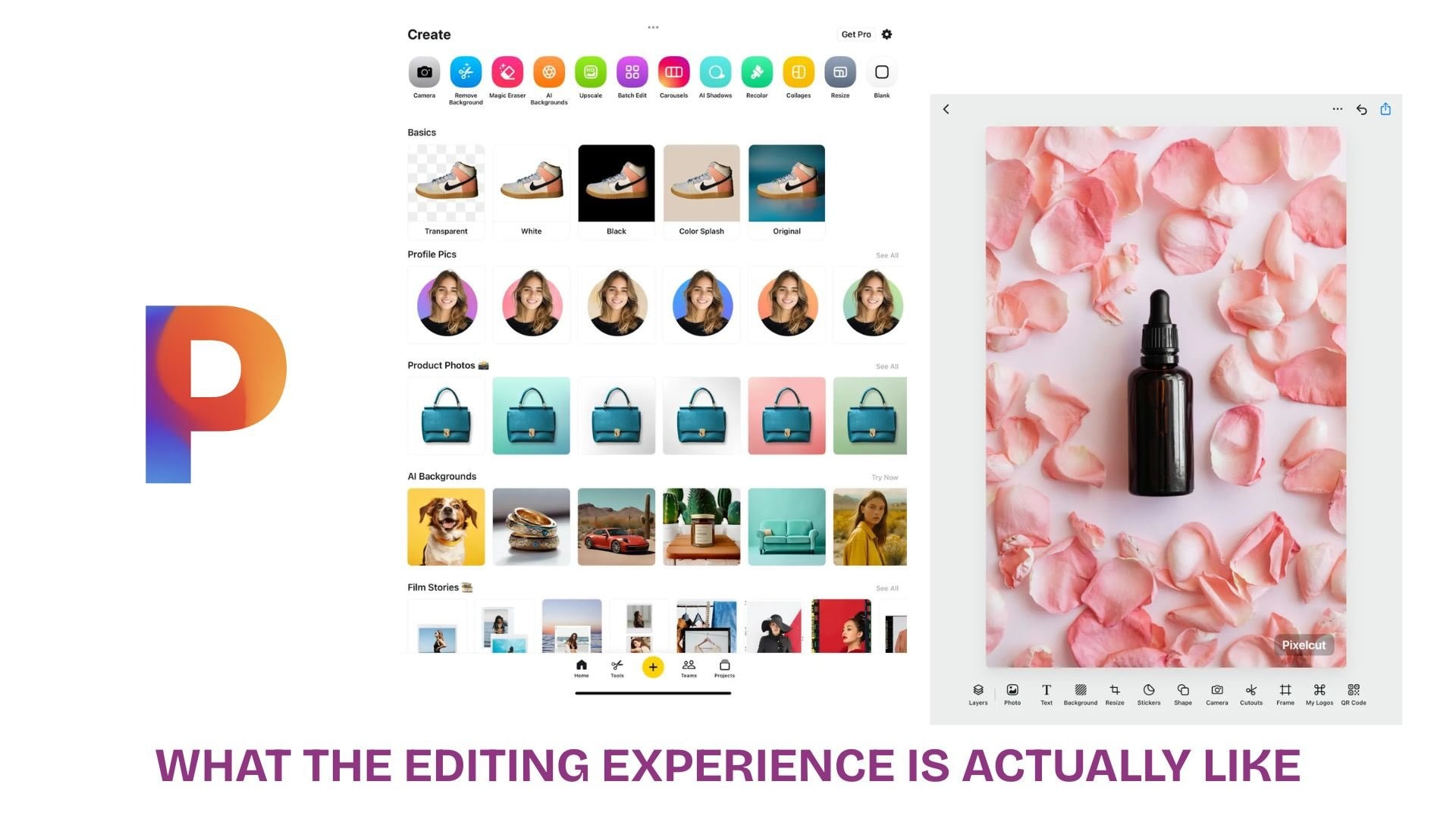
Interface Layout: Clean and Beginner-Friendly
The layout feels simple and focused, which makes it easy to jump straight into editing without confusion.
- A clean dashboard with clear tool categories
- Drag-and-drop upload for quick start
- Tools like Background Remover, Eraser, and Templates are easy to find
- The clean layout makes it beginner-friendly
Background Removal Speed and Accuracy
Pixa’s background remover tool still delivers its strongest first impression.
- Backgrounds are removed within seconds after upload
- Results are usually clean, even on complex edges
- No manual tracing required
- Works well for both products and people
AI Preview and Editing Flow
One of the more noticeable upgrades is how smoothly AI previews are generated.
- Instant preview when applying backgrounds or edits
- Easy switching between different AI-generated scenes
- Real-time adjustments without re-uploading images
- Streamlined workflow from edit to final output
Export Options and Output Quality
Once editing is done, exporting is quick and flexible.
- Download images in high resolution
- Supports transparent backgrounds (PNG)
- Suitable for e-commerce platforms and social media
- Pro version unlocks higher quality and more export options
Overall, the editing experience feels fast, intuitive, and efficient. Pixa focuses less on complex controls and more on helping users get polished results quickly, which is exactly what most creators and online sellers need.
Part 4. Can You Use Pixa on PC, Mobile, or Both?
One of the reasons Pixa is so easy to use is its flexibility. You’re not limited to a single device, which makes it convenient whether you’re editing on the go or working from a desktop.
Mobile Apps
Pixa is fully optimized for mobile users, meaning quick edits are incredibly accessible.
- Available on iPhone (iOS) and Android
- Smooth, touch-friendly interface for fast editing
- Ideal for social media creators and quick product photo updates
- Syncs well with camera uploads and gallery images
Desktop Access
For users who prefer a larger screen, Pixa also works seamlessly on a desktop through a web browser. It gives several benefits compared to using it on the mobile app, such as:
- No need to download or install software
- Works on both Windows and Mac
- Best for more detailed editing or batch workflows
Unlike traditional editing software, Pixa does not offer a standalone desktop app. Everything runs online, which keeps it lightweight and easy to access from anywhere.
Pixa Pricing: What You Get for Free vs Pro
Pixa offers a free plan to get started, but most of its advanced AI features are part of the Pro subscription. The difference becomes noticeable as you start working on more detailed or frequent projects.
Free vs Pro Comparison
| Feature | Free Plan | Pro Plan |
| Pricing | $0 | $10/month (Pro) or $30/month (Business) |
| Monthly Credits | - | 600 (Pro) and 3.600 (Business) |
| Background removal | Limited | Unlimited |
| AI backgrounds | Limited | Full access |
| Magic Eraser | Limited use | Unlimited |
| Templates | Basic | Premium library |
| Export quality | Standard | High resolution |
| Watermark | ||
| Batch editing |
What the Pricing Means in Practice
- The free version is enough for casual use and quick edits.
- The Pro version is better suited for creators, businesses, and anyone producing content regularly.
Overall, Pixa follows the standard freemium model, but the upgrade is well worth it if you rely on it to consistently produce high-quality visuals.
Part 5. Where Pixa Works Best (And Where It Does Not)
By this point, it’s clear that Pixa is designed for speed and convenience. But like any tool, Pixa excels in certain situations and falls short in others. Understanding this helps you decide whether it fits your workflow or not.

Best for
Pixa works best when you need quick, polished visuals without a complicated editing process.
- Product photos ✅ A great fit for creating clean, professional images for e-commerce listings without a full photoshoot.
- Social media graphics ✅ Quick creation of posts, thumbnails, and promotional visuals using templates and AI tools.
- Marketing content ✅ Useful for ads, banners, and branded visuals that need to be produced quickly.
- Content creators and small businesses ✅ Ideal for users who want high-quality results without advanced design skills.
- Quick edits and batch workflows ✅ Efficient for handling multiple images in a short time.
Not ideal for
Pixa is not designed to replace more advanced, professional editing software.
- Detailed photo manipulation ❌ Limited control for complex edits like compositing or advanced layer work.
- Professional retouching ❌ Not as accurate for high-end skin retouching or fine detail adjustments.
- Complex graphic design projects ❌ Lacks the depth needed for multi-layer design or branding systems.
- Offline editing workflows ❌ Since it is web-based, it depends on an internet connection.
Part 6. Turn Your Product Photos Into Videos With Filmora
Once your images look polished in Pixa, the next step is turning them into content that actually grabs attention. Static visuals are great, but short-form videos for Reels, TikTok, or YouTube Shorts tend to perform much better, especially for product marketing.
Wondershare Filmora pairs well with Pixa for exactly this reason. You can import your cleaned-up product images and quickly turn them into engaging video content, eliminating the need to start from scratch.
Filmora is designed to make video creation simple, even if you have no editing experience. You can:
- Drag and drop your product images directly into the timeline
- Add smooth transitions, motion effects, and text overlays
- Use built-in music and sound effects for a more dynamic feel
- Export in formats optimized for social media platforms
Many of the features in Filmora are designed with content creators and small business owners in mind.

AI Templates for Fast Marketing Videos
One of Filmora’s biggest advantages is its AI-powered video templates, which help you create professional-looking ads in minutes. Each template comes pre-built with layouts, transitions, and animations, so you just swap in your own images and Filmora builds a full video around them.
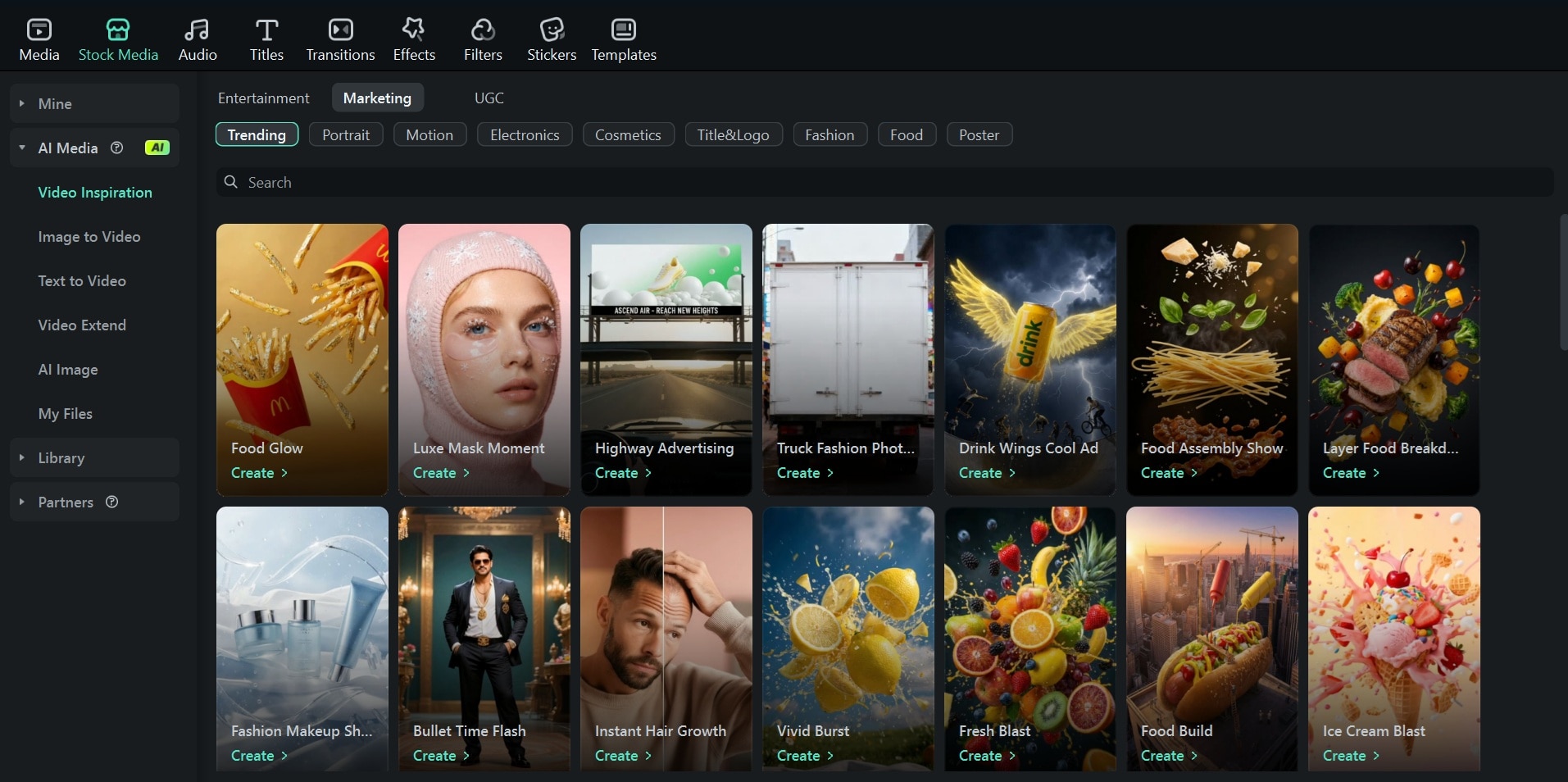
Once the video is ready, you can take it further using Filmora's multitrack timeline and editing tools to make it more polished. Add voiceovers, fine-tune the pacing, layer in background music, or drop in captions to make it more accessible across different platforms.
What the Final Video Can Look Like

With just a few product shots, you can create:
- A short product highlight video with animated text
- Clean, minimal ads with motion backgrounds
- Eye-catching visuals with quick cuts and music
The result feels much more dynamic than static images, which makes your content immediately stand out. By combining Pixa for image creation and Filmora for video editing, you can create → enhance → animate → publish in a single workflow.
 Secure Download
Conclusion
Pixa works best when you stop thinking of it as a traditional editor. The app is designed for speed, not perfection, and that’s exactly why it fits so well into modern content workflows. You can go from a raw product photo to a polished, ready-to-post visual in minutes, without getting stuck in complex tools. That alone makes it valuable for sellers and creators who need consistency more than precision.
Combined with Filmora, the same visuals can easily turn into short-form videos that feel suited to today's platforms. It isn’t the most advanced tool, but for fast, repeatable results, it does its job very well.
FAQs
-
1. What is Pixa (Pixelcut)?
Pixa is the new version of Pixelcut, which has evolved from a simple background remover into a full AI creative workspace. It now combines image editing, background removal, and AI image and video generation in one platform. -
2. Is Pixelcut free to use?
Yes, Pixelcut offers a free plan with core tools like background removal and basic editing. However, advanced features such as premium AI tools, batch editing, and higher-resolution exports are part of the paid Pro plan. -
3. Is Pixa good for product photos?
Yes, this is one of its strongest use cases. You can remove backgrounds, add shadows, and generate clean or styled scenes, so even basic product images look more professional without a full photoshoot. -
4. What is Pixelcut mainly used for?
Pixelcut is mainly used for removing backgrounds, creating product photos, and generating marketing visuals. It’s especially popular among e-commerce sellers and content creators who need to produce professional-looking images quickly.
