Anime has become a popular form of entertainment worldwide. In fact, Netflix reported that more than 50% of its global members watched at least one anime title in 2024. With such a growing audience, it's no surprise that more people are interested in exploring anime beyond watching it.
If you've ever wanted to create your own anime-inspired visuals, PixAI is one platform worth checking out. With PixAI, you can explore different anime styles and create your own images and videos. In this review, we'll take a closer look at what the platform offers, how much it costs, and whether it's worth trying.
Part 1. A Quick Glance at PixAI and What It Offers
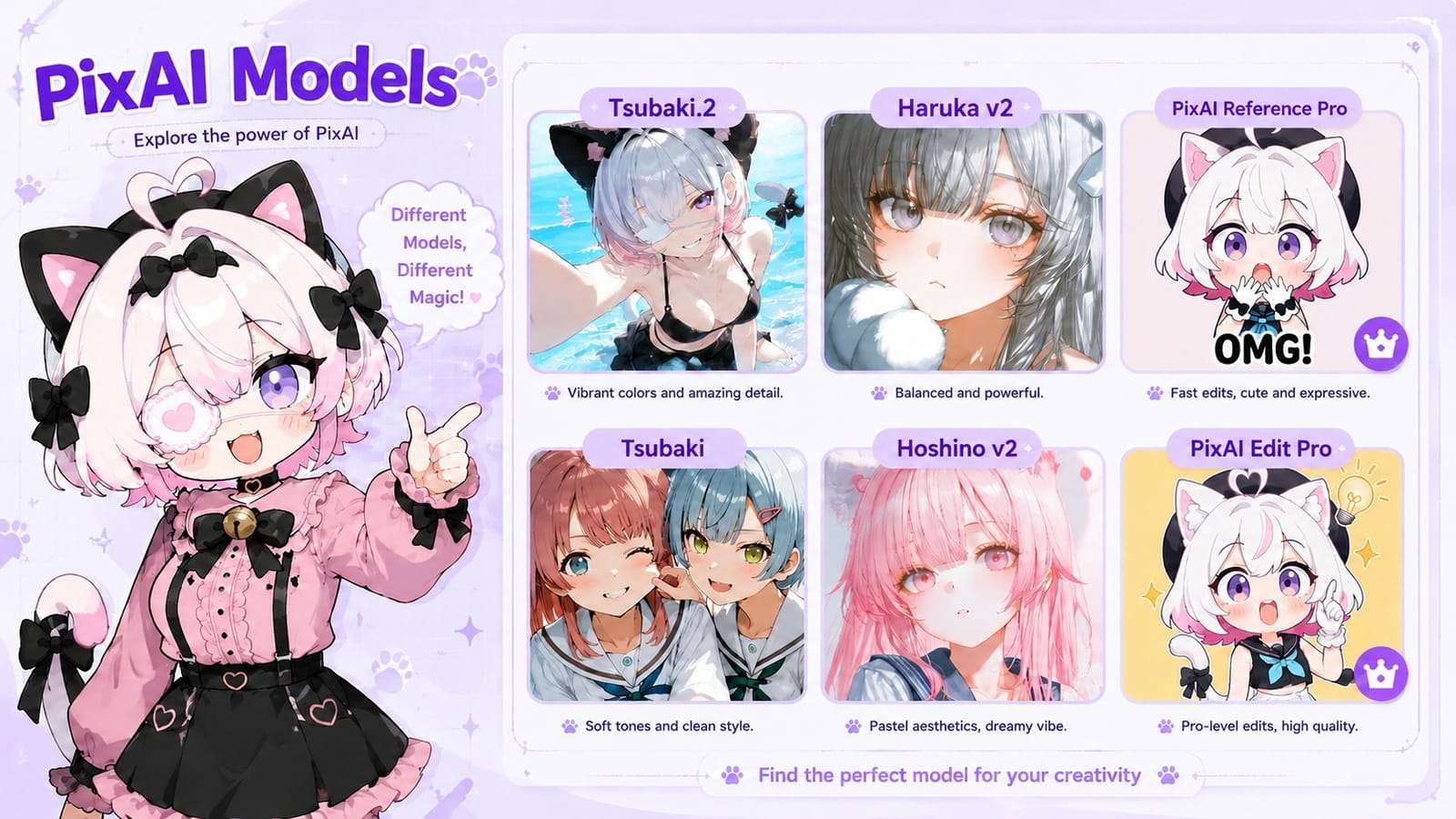
PixAI is designed for people who enjoy exploring different anime art styles and character designs. Its collection of models and LoRAs gives you access to various visual aesthetics. Also, its community features let you discover artwork and resources shared by other creators.
If you're an anime fan who likes creating original characters or exploring different anime aesthetics, PixAI might be worth trying. It can also be useful for artists who want to experiment with new character concepts without having to draw every detail from scratch.
Getting Started with PixAI: Web and App Availability
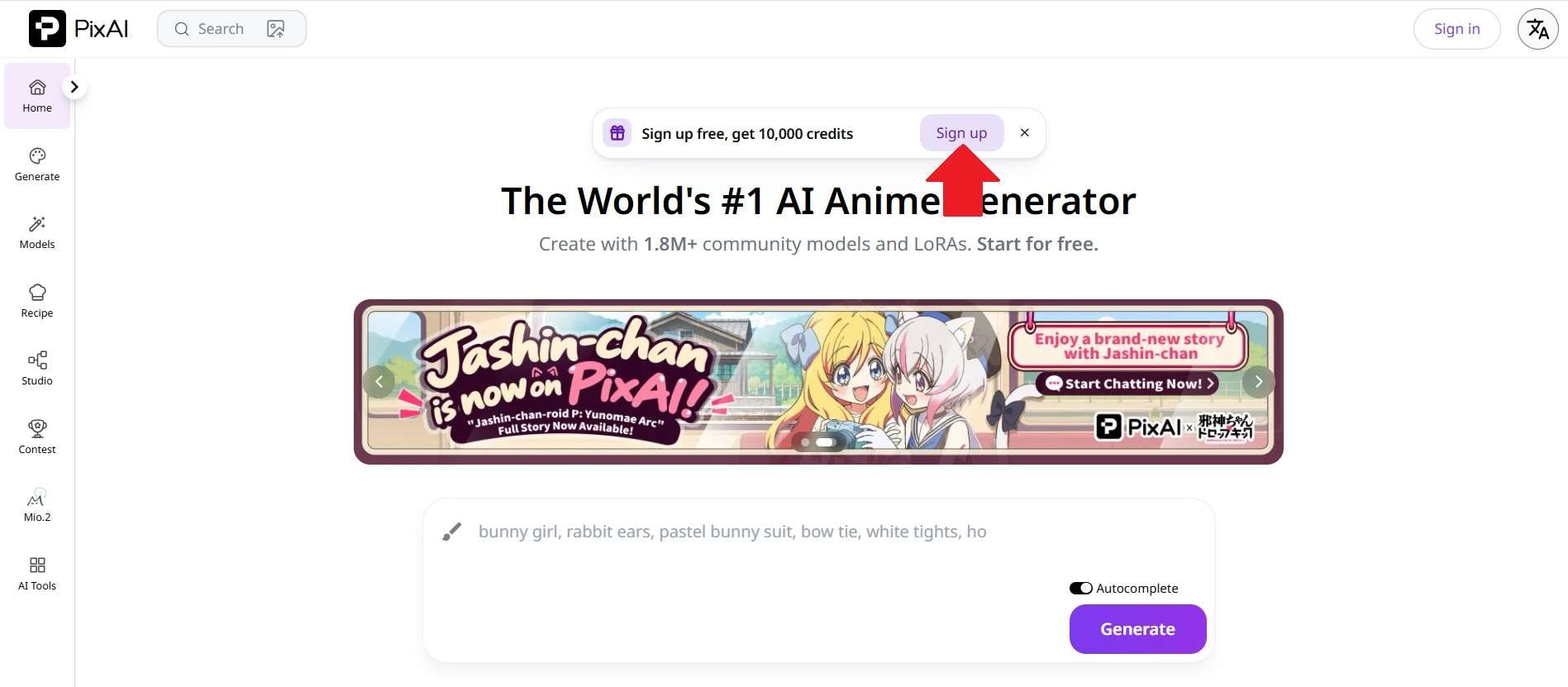
If you're interested in trying PixAI, let's first look at where you can access it. For now, the platform is only available online. Simply visit the official PixAI website. Then, you can click Sign Up to start exploring its features.
But what about the PixAI app? Unfortunately, the official announcements state that the PixAI Android app has been unavailable for download since June 2026. The iOS app also became temporarily unavailable for new downloads as of October 2026.
Part 2. How Much Does PixAI Cost? Explore Its Plans and Benefits
Want to give PixAI a try? You can actually start creating without paying for a subscription. PixAI offers a free plan that gives you 25,000 credits when you sign up. Plus, you get 10,000 daily credits afterward. You can use them to try different image generations, although some models are only available to paid members.
If the free plan isn't enough for your needs, you can upgrade to one of PixAI's three paid memberships. Each plan offers a different number of credits and LoRA-related benefits.
| Aspect | Starter | Plus | Premium |
| Price | $9.99/month or $95.88/year | $29.99/month or $275.88/year | $49.99/month or $431.88/year |
| Monthly Credits | 300,000 | 1,000,000 | 2,000,000 |
| Daily Credit Bonus | 20% extra | 100% extra | 200% extra |
| Top-Up Credit Bonus | 50% extra | 100% extra | 150% extra |
| New Model Access | Early Access | Early Access | Early Access |
| Monthly LoRA Training Limit | 3 | 5 | 10 |
| LoRAs per Task | 5 | 10 | 15 |
| Private Model Slots | Up to 15 | Up to 25 | Up to 35 |
|
Show More
Show Less
|
|||
Part 3. PixAI Features: Generate, Customize, and Create More
PixAI has become a popular platform among anime art enthusiasts, and it's not hard to see why. It offers several tools for creating anime-style images, videos, and other visuals. Let's take a closer look at what you can do with it.
1. Turn Your Ideas into Anime Illustrations
PixAI makes it possible to create anime illustrations based on your own descriptions. PixAI image generator takes text prompts and turns them into visuals, so you can specify everything from character designs to background details. You can even add reference images to give the AI a clearer idea of what you're looking for.
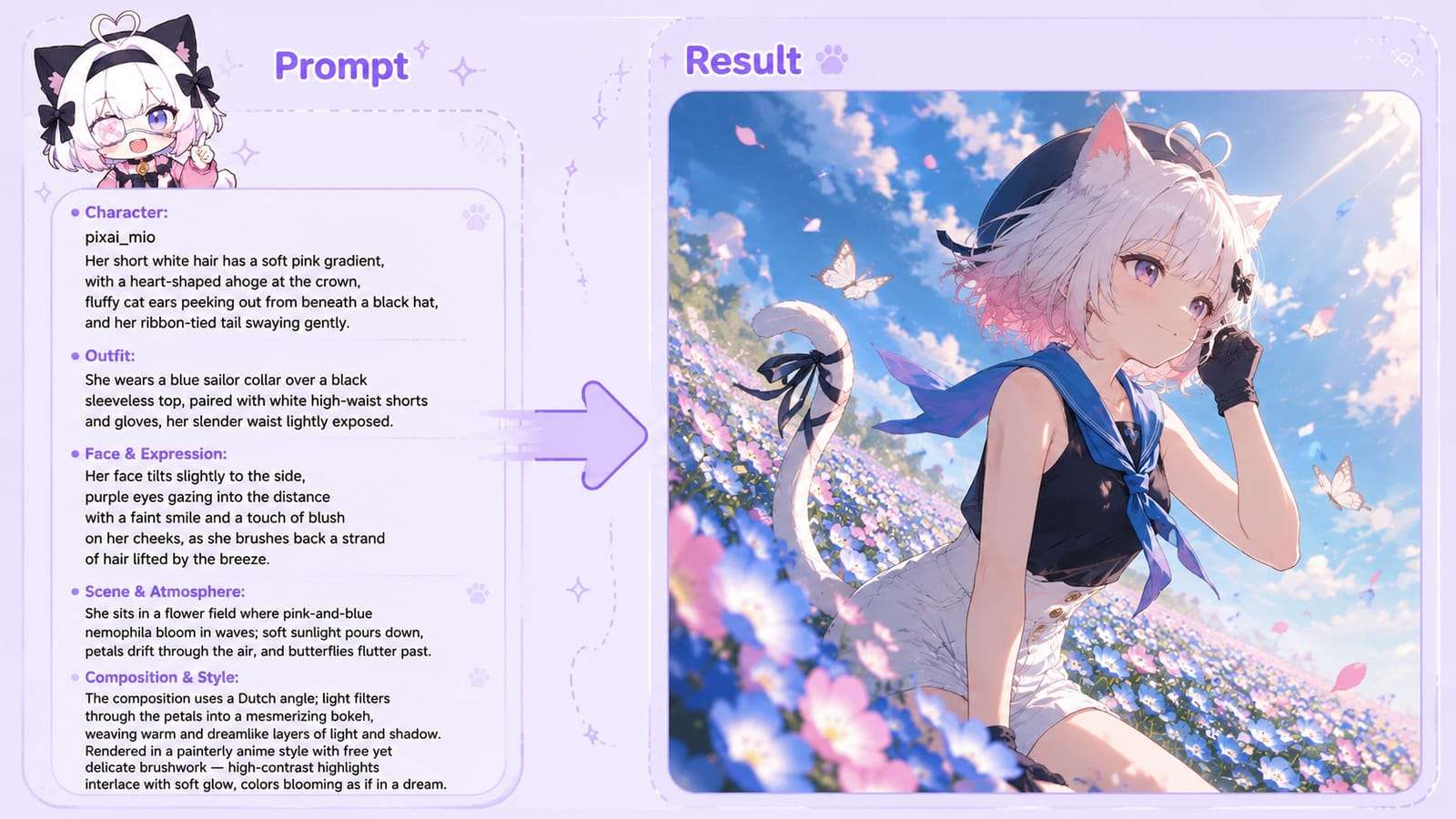
PixAI also offers dozens of models to choose from, along with different visual styles ranging from realistic and colorful to sketch-like. You can further adjust the aspect ratio and image resolution before generating your PixAI art.
2. Generate Short Anime Clips with AI
Want to see your anime characters in motion? PixAI also comes with an AI video generator that can turn still images into short animated clips. You can upload an image as your starting point or describe the video you want directly through a text prompt.
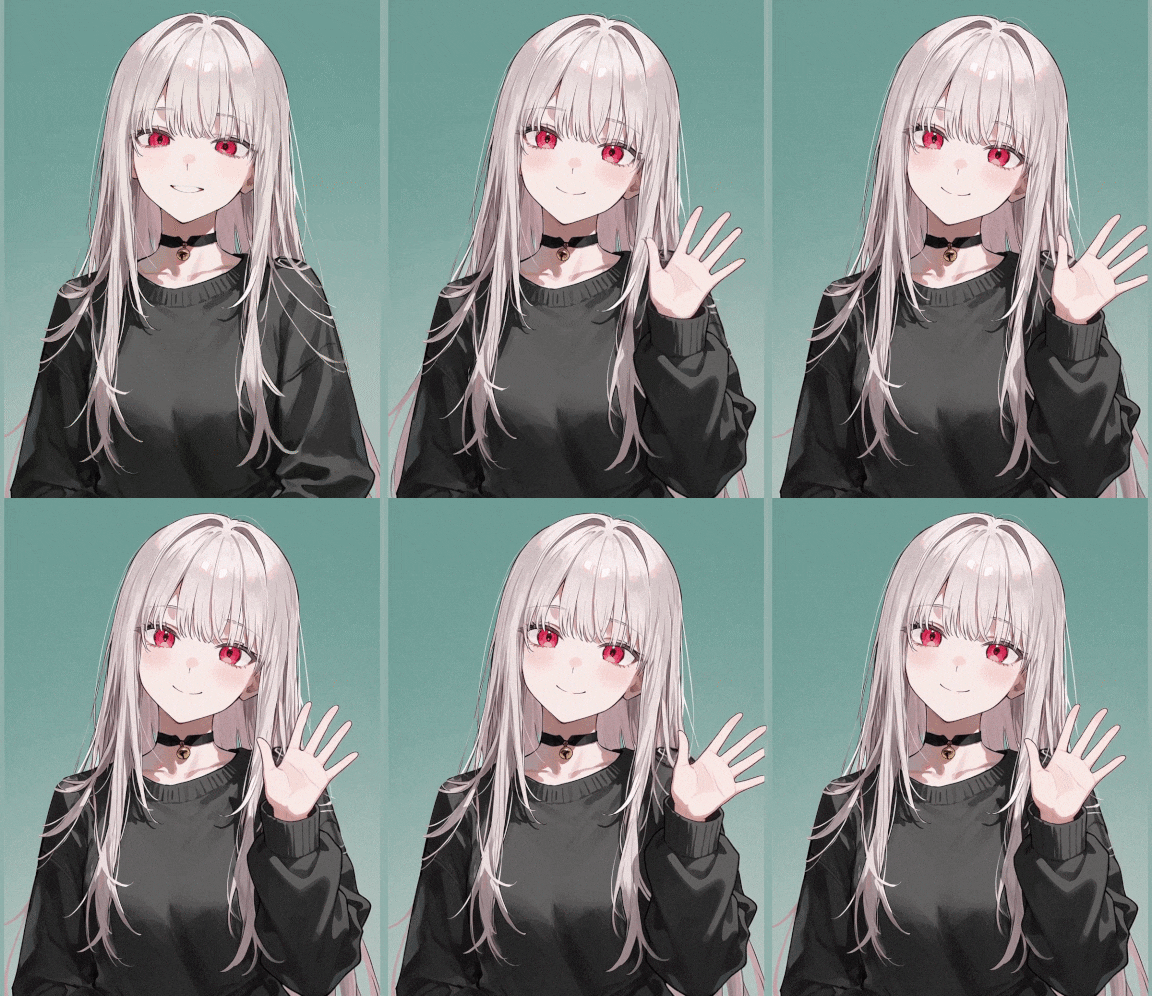
You can create clips lasting between 5 and 15 seconds and choose from six available models. Each model comes with a different credit cost, depending on its generation capabilities. Some options even support audio generation, so you can create videos with sound included.
3. Explore Different Styles with PixAI AI Art Presets
If you're running out of ideas, the Recipe Market is a good place to look around. It brings together art recipes created by the PixAI community, which you can use as starting points for your own generations. You can browse different styles, check out popular creations, and find something that inspires your next project.
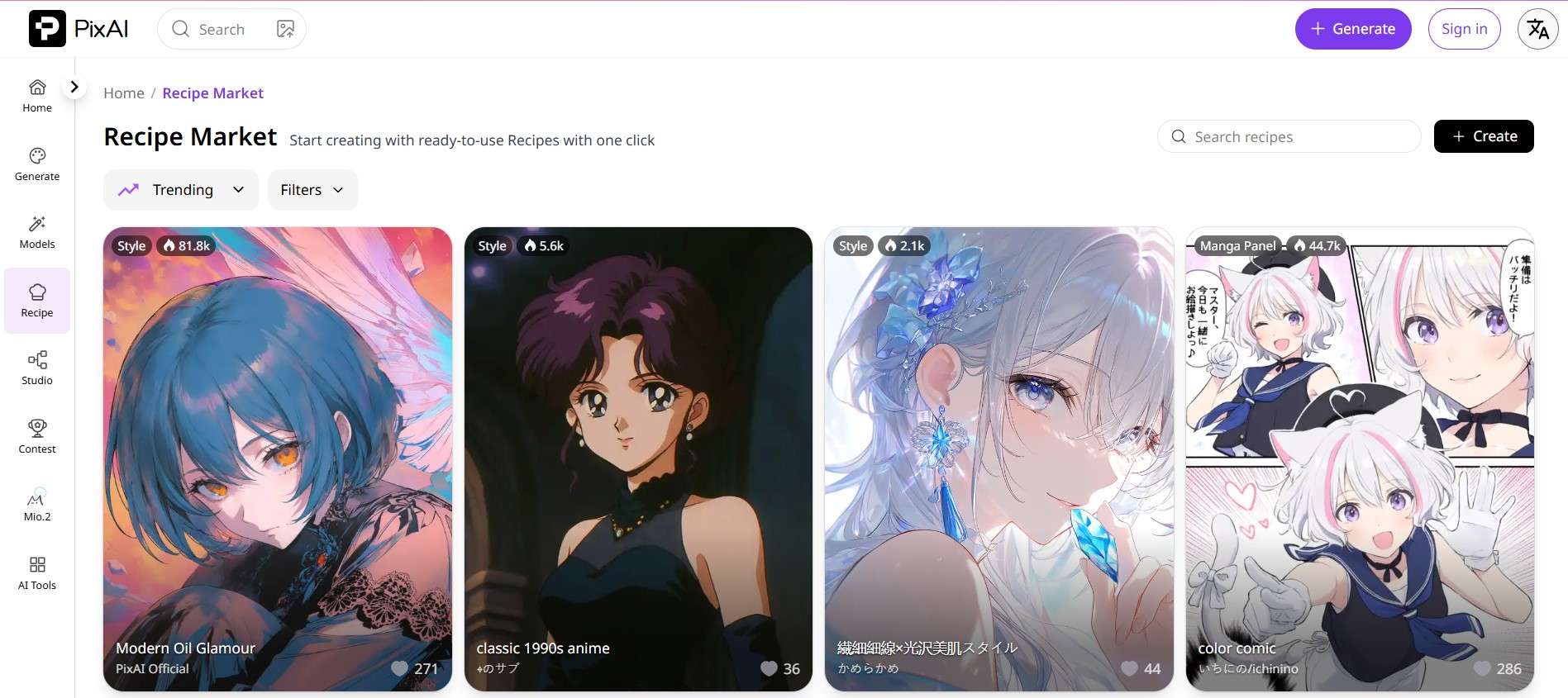
Once you find something interesting, select the recipe and customize it with your own prompt. You can also add a reference image to guide the result. Then, let PixAI generate the image.
4. Connect Your Ideas with PixAI Studio
PixAI Studio works like a large digital canvas for organizing your AI creations. You can add different elements, including text, images, and videos, then connect them to form a custom workflow. This makes it easier to plan your generations and keep everything connected.
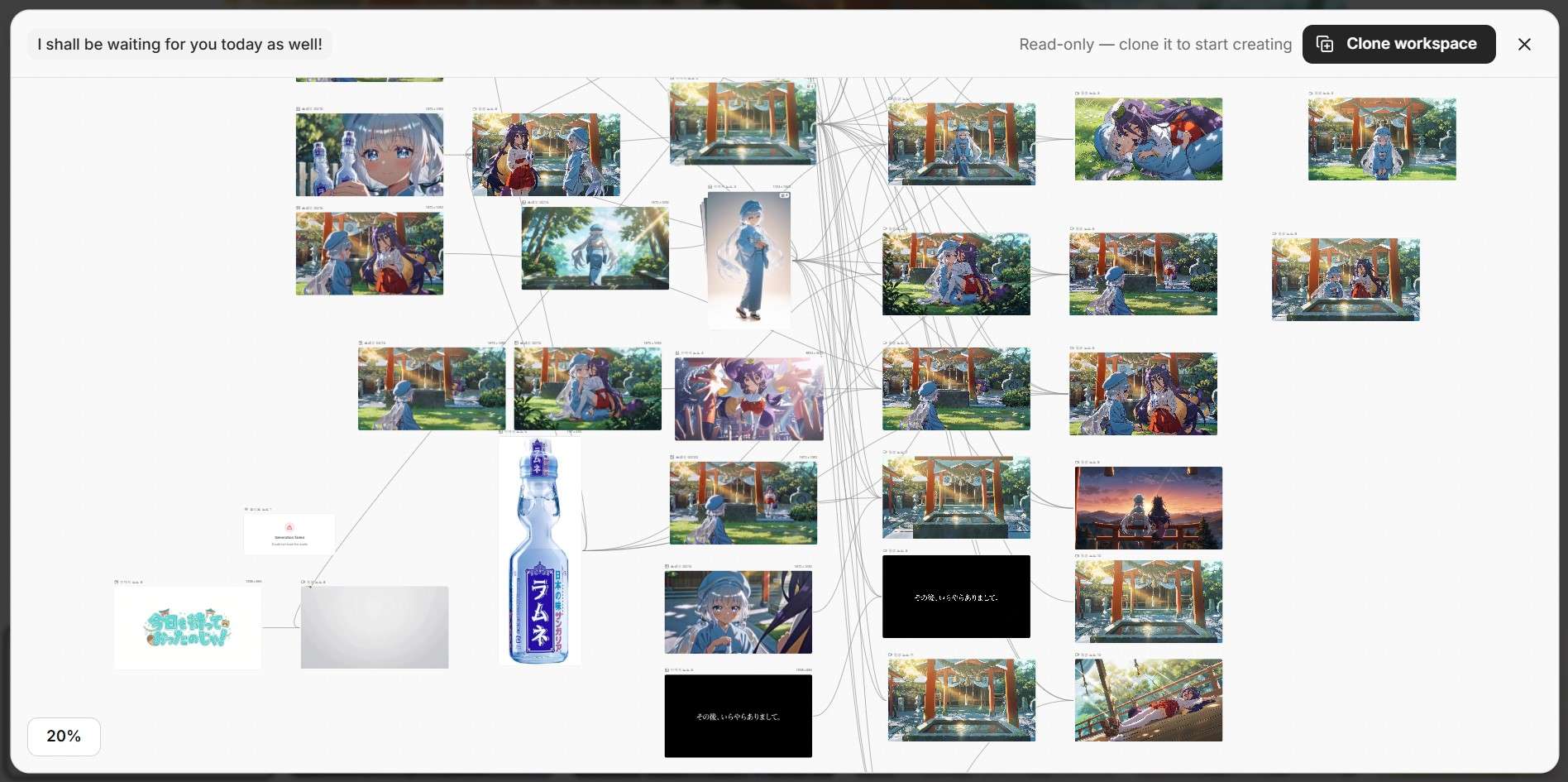
For example, imagine you want to create a short anime story. You can begin by outlining the concept in PixAI Studio, then generate several images to represent the characters and key scenes. From there, turn selected images into short video clips to create animated sequences. This helps keep track of how your story progresses from one scene to another.
5. Turn Your Character Designs into Collectibles
There's more to explore in PixAI beyond its image and video generators. The platform also has an AI Toolbox with several features that let you turn your anime artwork into various accessories and collectibles.
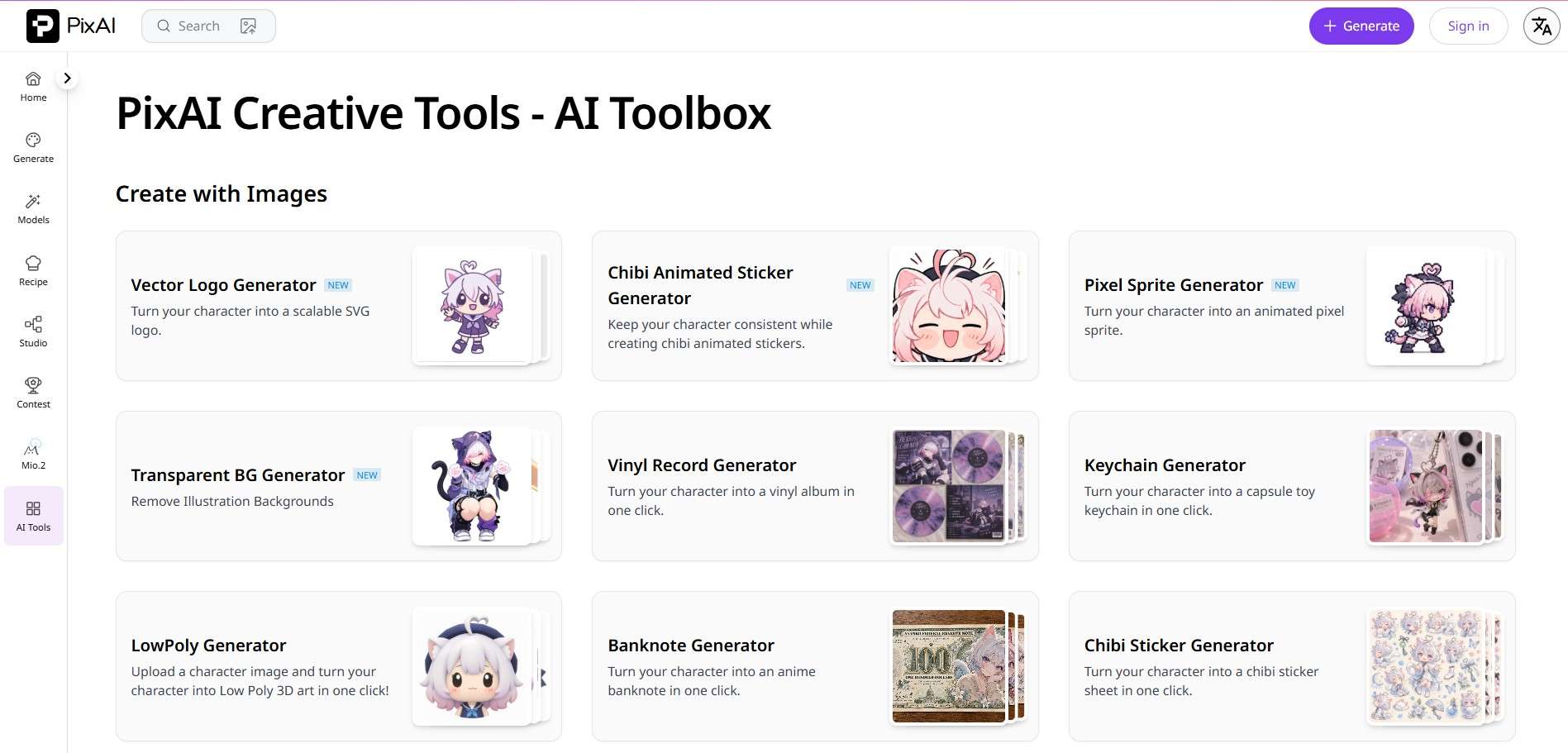
These tools are particularly interesting if you want to see how your character might look as a physical collectible. Here are some of the options available in the PixAI AI Toolbox.
- Sticker Generator: Use your PixAI artwork to create a collection of cute chibi stickers. You can get multiple versions with different expressions and poses, plus additional accessory stickers.
- Keychain Generator: PixAI can turn your artwork into a 3D chibi keychain to hang on your bag or phone.
- Plushie Generator: Turn your anime character into a plush toy to keep on your desk or bed.
- Acrylic Standee Generator: Preview your character as an acrylic standee for your desk or shelf.
Part 4. What Are The Pros and Cons of PixAI?
We've seen what PixAI can do, but how does it actually perform as an AI art platform? While its features give us plenty of creative options, there are also a few things we should keep in mind. Here's what we like and what could be better.
- Easy to Use: The PixAI interface is accessible and easy to understand, particularly for beginners.
- Generous Free Credits: PixAI gives out free credits daily, which is useful for experimenting with different prompts and artwork.
- Creative Flexibility: PixAI allows us to be creative, from generating custom anime artwork to training our own AI models.
- Strict Content Filters: Sometimes, content restrictions and unexpected censorship can get in the way.
- Occasional Platform Issues: We may run into performance or stability problems from time to time.
- Search Limitations: The search function can make it harder to find particular styles, models, or community creations.
Bonus: Create More Complete Anime Videos with Wondershare Filmora
PixAI makes anime image and video generation more accessible. Its range of AI models and creative tools gives you plenty of room to experiment with different characters and visual styles. Still, the platform is primarily designed for generating content, so you'll need another tool if you want to combine multiple clips, fine-tune their timing, or add music and other editing elements.
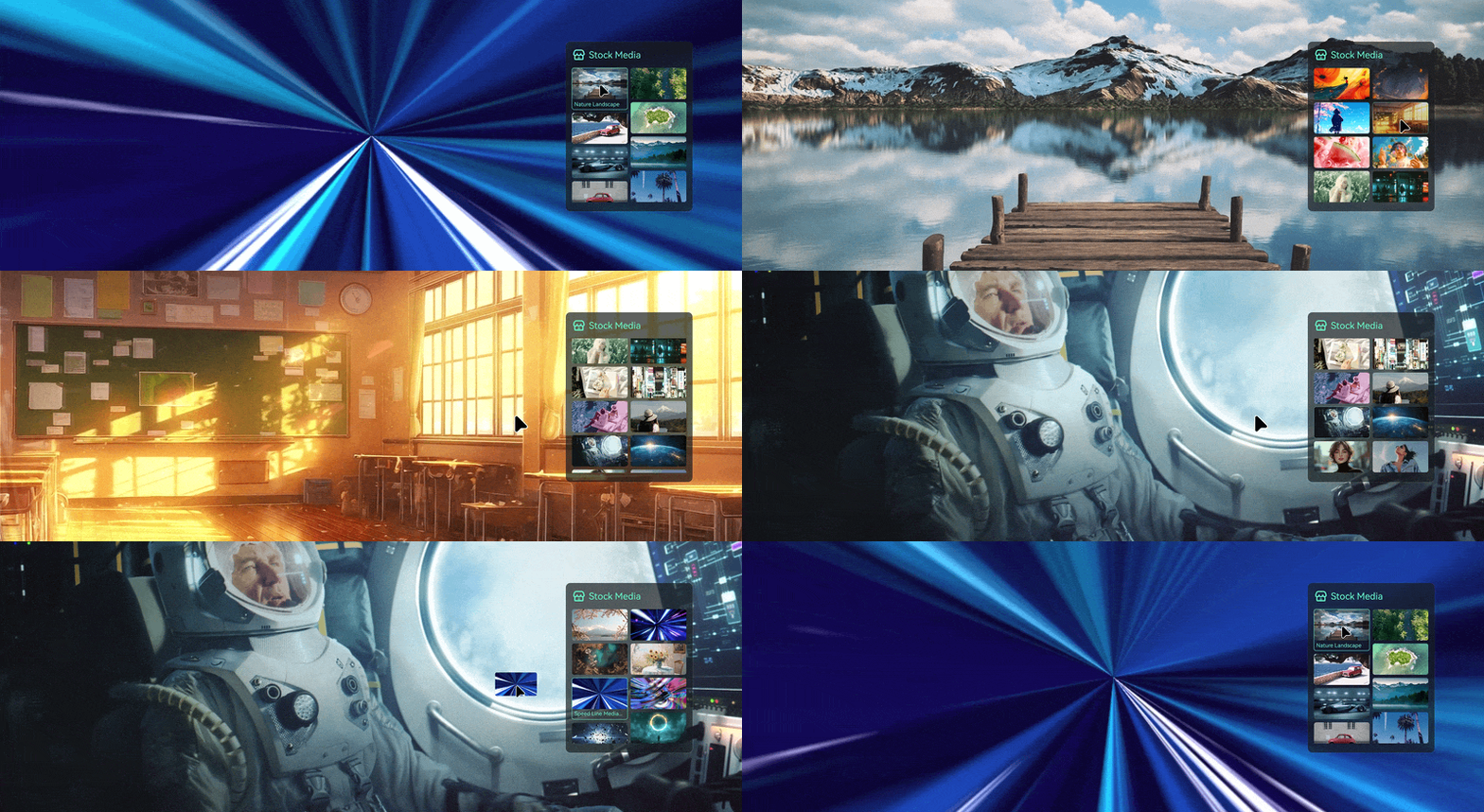
In this case, Wondershare Filmora offers an intuitive timeline that makes it easy to arrange your PixAI creations, trim clips, add transitions, and sync everything with your soundtrack. You can also explore its AI features for additional editing options. The result is a more complete video that you can export and share across your social media platforms.
1. Keep Your Projects in Sync Across Devices
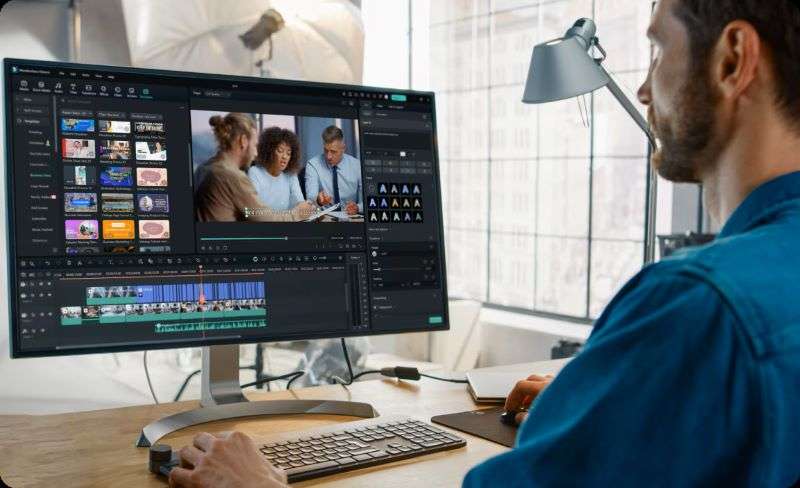
Filmora gives you the flexibility to edit on both mobile and desktop devices. You can use the mobile app when you're on the go or switch to the desktop version when you want to work on a larger screen. With project syncing, you can pick up where you left off without losing your progress.
2. Transform Your AI Creations into Videos
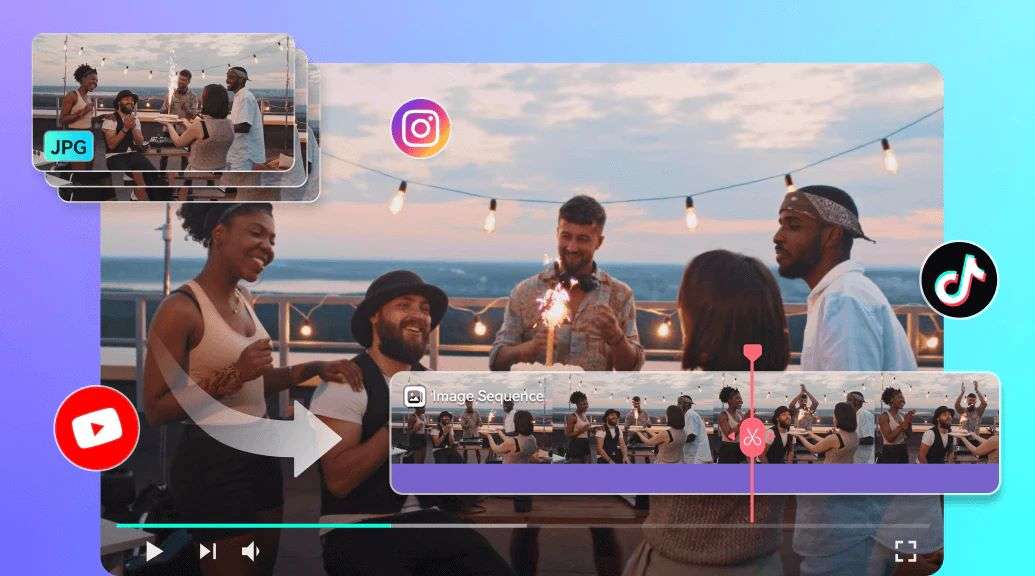
Once you've generated your visuals with PixAI, bring them into Filmora to start building your video. Image Sequence to Video can turn a series of images into a video, while AI Video Extender helps add more length to scenes when needed. You can also arrange and adjust everything on the timeline.
3. Add Creative Touches to Your Videos
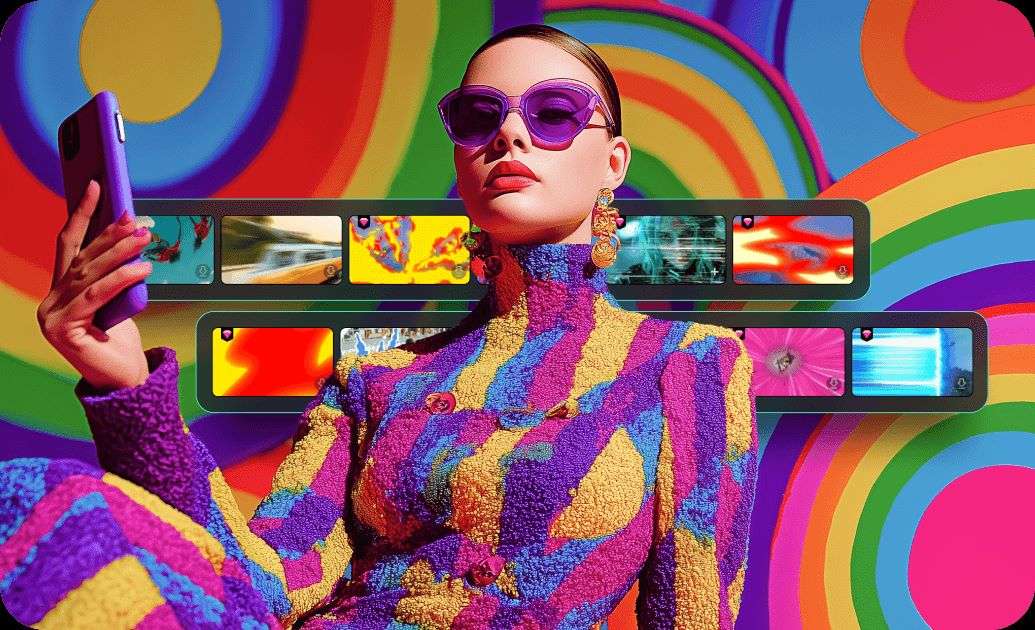
After arranging your clips, you can add transitions, overlays, and effects to give your video more visual variety. Filmora offers a wide selection of creative assets, so you can choose styles that match your content.
4. Share Your Content with a Global Audience
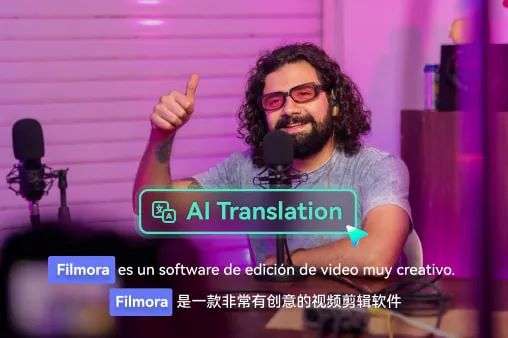
You can also use Filmora's AI Video Translation to make your content available in 23 languages. This gives global viewers more opportunities to understand your videos. What's more, you can customize the subtitle animations to suit your preferred visual style.
5. Prepare Videos for Different Social Platforms
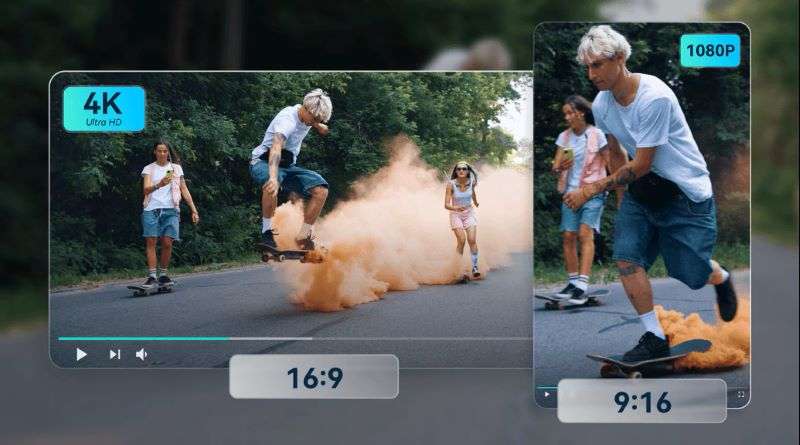
You can also use Filmora's Auto Reframe to adapt your videos for different social media formats. It automatically adjusts the framing and aspect ratio, making it easier to repurpose your content for multiple platforms.
 Secure Download
Conclusion
PixAI is pretty much a paradise for anime enthusiasts. You can use it to create images, videos, or even preview how your favorite characters might look as collectibles. There’s also a large community where you can discover artwork and creative ideas from other users. Even on the free plan, you still get a decent amount of credits to explore its features and experiment with different creations.
Next, you can import the generated visuals into Filmora's timeline editor. You can arrange multiple clips, adjust their timing, add audio, and apply transitions and effects to create a video that fits your vision.
FAQs
-
1. Can I use PixAI-generated art for commercial projects?
Yes. However, it is only available for PixAI paid members. -
2. Do arts generated with PixAI have watermarks?
No. Your PixAI images won't have watermarks, even if you're using the free plan. -
3. Is PixAI free?
Yes, PixAI offers a free plan with 10,000 daily credits. However, if you need a larger credit allowance or access to additional features, you'll need to purchase credits or subscribe to a membership plan.