


 TL;DR:
ToMoviee AI functions as a robust, browser-based generative suite for quickly creating video, image, and audio assets via text prompts, but it fundamentally lacks a frame-by-frame editing timeline and a permanent free tier.
● Accessing the platform requires purchasing a subscription starting at $9.99 monthly for 1,600 credits or buying pay-as-you-go bundles ($1 for 100 credits), as Wondershare does not provide a free daily allowance for testing.
● Native video generation produces short clips that must be manually chained together using the AI Video Extender, making the web platform best suited for marketers and content creators needing rapid, prompt-based asset creation rather than long-form continuous rendering.
● To bypass the web-only interface and gain precise editing control, PC and Mac users can access the ToMoviee 2.5 Pro model directly inside Wondershare Filmora, which unlocks a traditional editing timeline, Audio-to-Video generation, and alternative AI engines like Veo 3.1 and Sora 2.
Ask AI for a summary
 ChatGPT
 Perplexity
 Gemini
 Claude
 Grok
Grok
In a world where 82% of all internet traffic is now video content (Source: Cisco Annual Internet Report), the pressure to produce professional visuals instantly has never been higher. And that's the problem: you might use one tool for video, another for images, and something else for audio, which takes too much time.
But then there's ToMoviee AI, promising an all-in-one experience through its ToMoviee AI studio. But the real question is simple: can ToMoviee AI video generator actually replace your editing tools, or is it just another generator with limits? Let’s break it down properly.
Part 1. What Is ToMoviee AI?
Essentially, ToMoviee AI is an all-in-one creative platform designed to generate all kinds of things from simple prompts.
What gives it immediate street cred is its parentage: it comes from Wondershare, the same tech giant that gave us industry staples like Filmora, UniConverter, and DemoCreator. That parentage is important because it means ToMoviee studio feels like a professional tool rather than a tech experiment. The interface is clean, the feature set is thoughtful, and the output quality reflects a team that actually knows what "good" looks like.
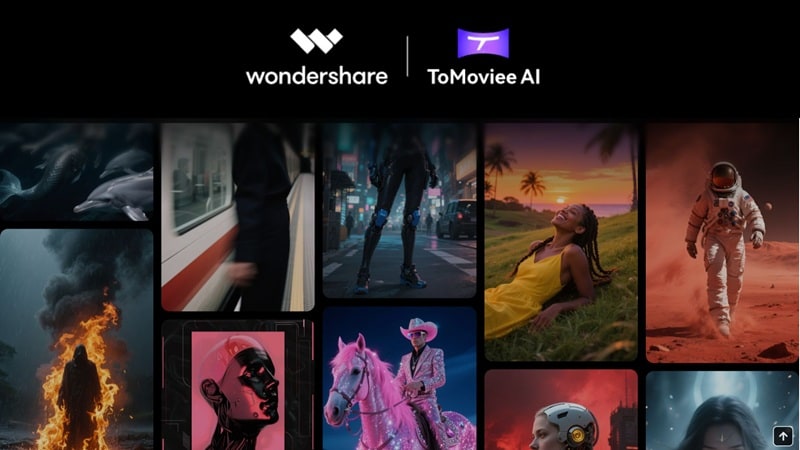
Here's a quick snapshot of what ToMoviee studio AI can create:
| Category | What You Can Make |
| 🎬 Video | AI-generated clips from text and images inputs |
| 🖼️ Image | Text-to-image, image-to-image transformation, style control |
| 🎵 Music | Background tracks, sound effects, genre & mood controls |
| 🎙️ Voice/Audio | Voiceovers, narration, character voices |
Part 2. Getting Started: Where and How to Use ToMoviee
Before you can create anything, you need to know where this tool actually lives and how to access it.
Online Access
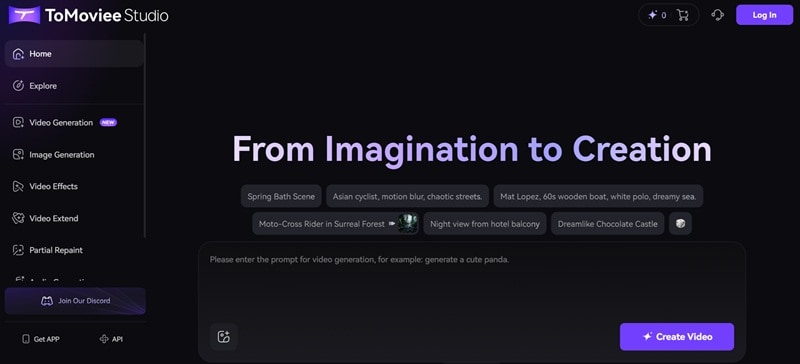
ToMoviee AI is primarily a web-based platform. That means you won't need to download or install any software to run the program. You just need to visit the site (app.tomoviee.ai), complete your ToMoviee AI login, and you're ready to create. This is great for accessibility and keeping things lightweight on your machine.
Mobile Access (App Experience)
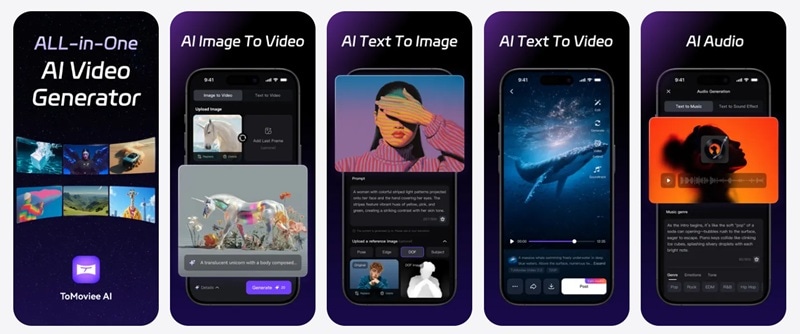
For the social media hustlers, there is a dedicated ToMoviee AI app experience available on:
This makes it easier for social media creators who want to generate content on the go.
⚠️ Important Disclaimer — Read Before You Download
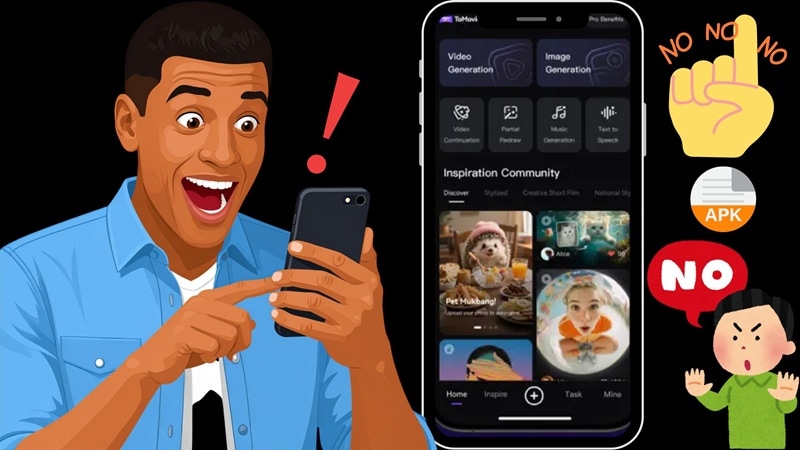
When searching for the app online, you might stumble across shady links offering a ToMoviee AI mod APK. Ignore them completely.
Wondershare does NOT provide any official ToMoviee AI apk download outside of the official App Store and Google Play. Using "modded" versions puts your personal data at serious risk and will almost certainly get your account banned. Stick to official sources to keep your credits safe!
Part 3. Inside ToMoviee AI: Features Breakdown
This is where things get interesting. Instead of focusing on just one feature, ToMoviee AI studio spreads across multiple creative tools. Let's go feature by feature so you know exactly what you're working with.
1. AI Video Generation
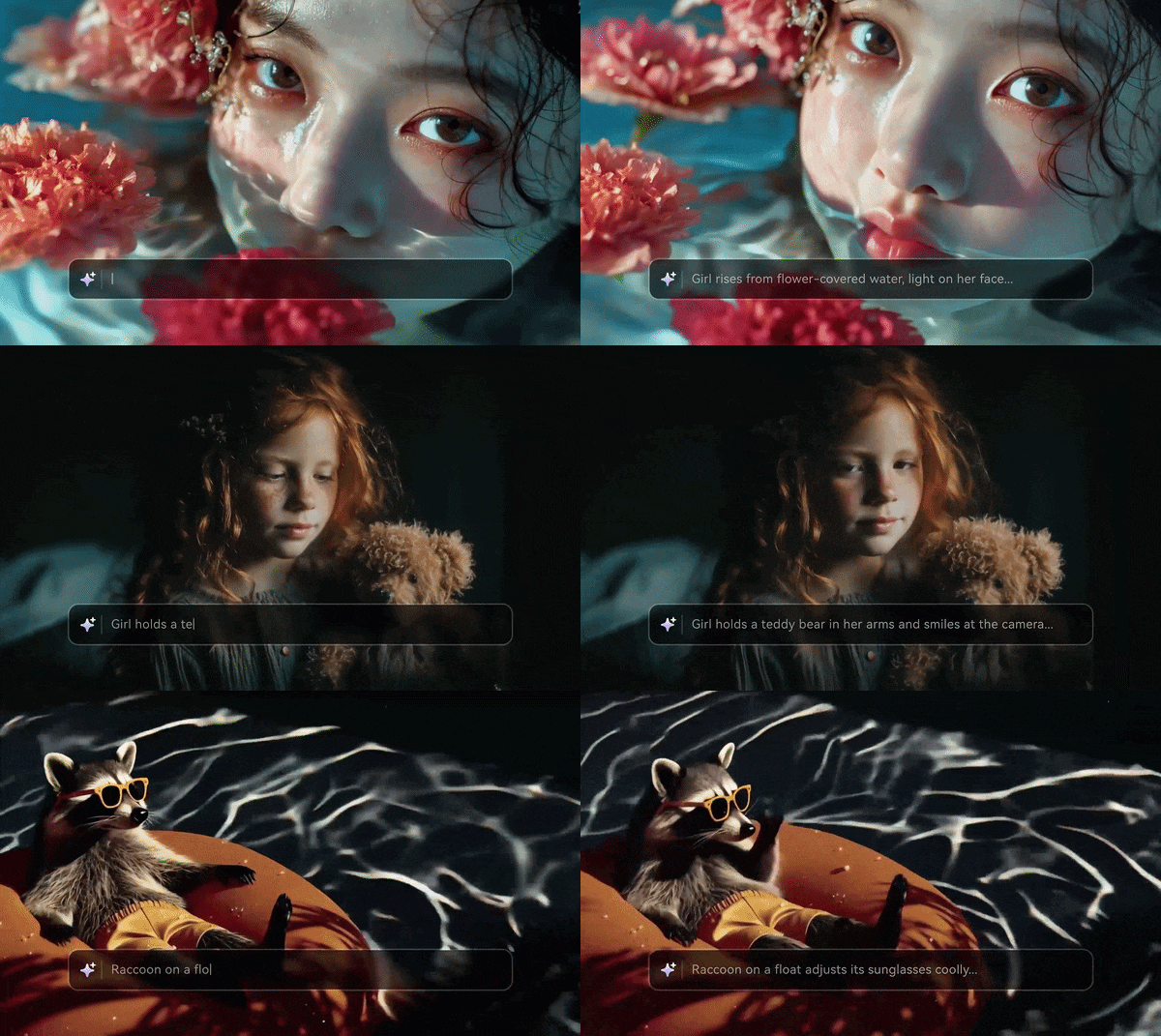
This is the core of ToMoviee AI, and it delivers. You can generate videos from:
- Text prompts: Describe a scene, and the AI builds it.
- Images: Turn a still photo into a moving video.
What makes it genuinely impressive is the multi-shot capability, which allows for consistent character appearances across different scenes. This is huge for storytelling, something most AI video tools completely fail at.
2. AI Image Generator

The ToMoviee AI image generator isn't an afterthought. It's a full creative tool with:
- Text-to-image generation from descriptive prompts
- Image-to-image transformation (upload a reference, get something new)
- Style control to lock in aesthetic consistency
Whether you're building mood boards, ad visuals, or concept art, the image generator holds its own against dedicated tools.
3. AI Music and Sound Effects

ToMoviee's music feature is genuinely flexible. You can generate:
- Background music.
- Sound effects.
- Full audio tracks.
With control over:
- Genre: (Lo-fi, Epic Cinematic, Jazz, etc.).
- Mood: (Suspenseful, Happy, Melancholic).
- Instruments: (Violins, Synths, Heavy Drums).
4. AI Video Extender

The ToMoviee AI video extender is one of the more creative features in the suite. You can:
- Continue a scene seamlessly.
- Expand storylines beyond the original clip.
- Generate follow-up sequences that match the style and setting.
Think of it like a "what happens next" button for your video content. Great for serialized content creators who need consistent visual storytelling across multiple uploads.
5. AI Photo Editing (Prompt-Based)
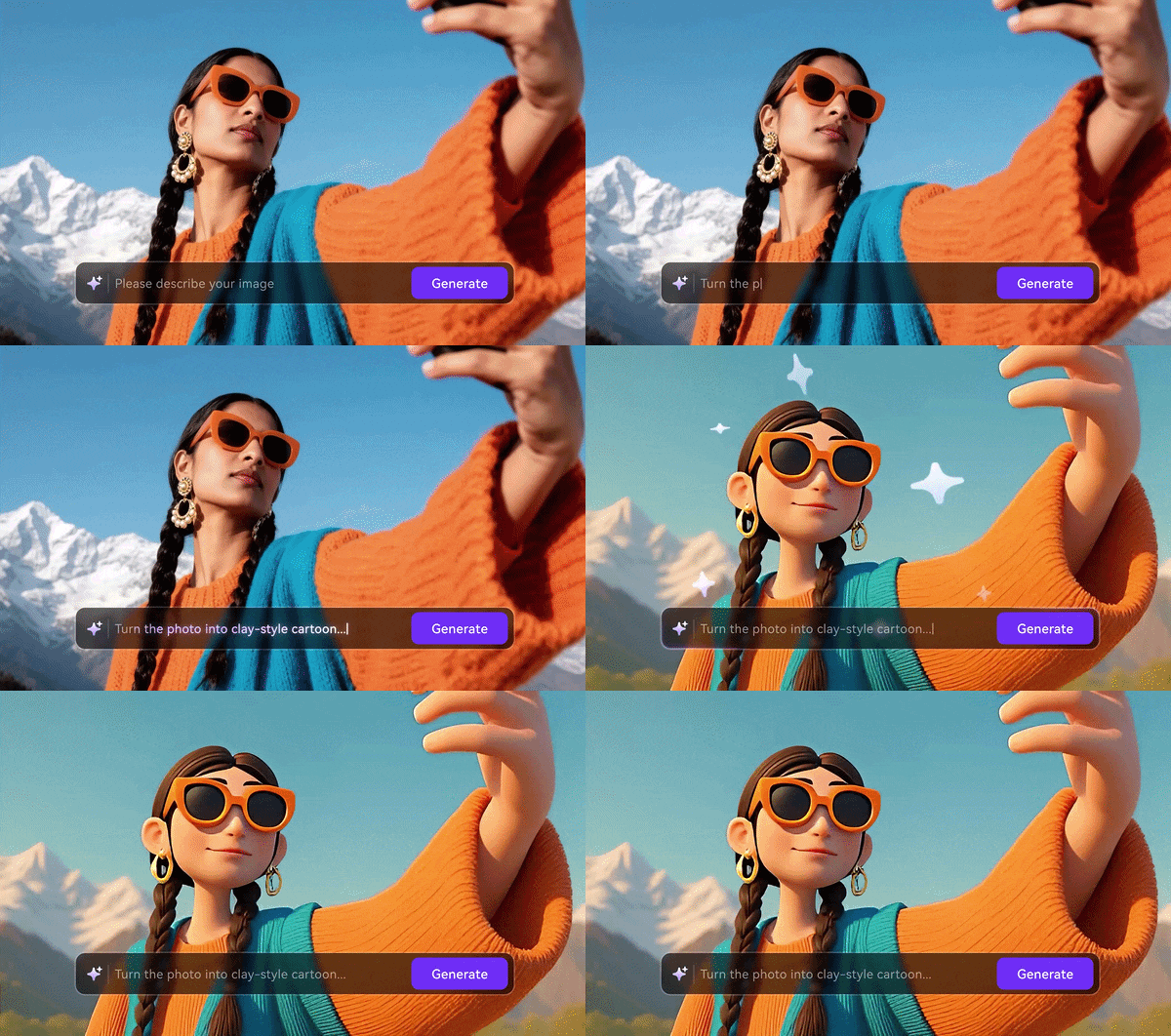
Forget fiddling with sliders and layers. ToMoviee's photo editing is entirely prompt-based, which makes complex edits genuinely accessible. Available editing tools include:
- AI Erase: Remove unwanted objects or people from images.
- Swap Outfit: Change what a subject is wearing via text prompt.
- Swap Hairstyle: Visualize different hairstyles on any portrait.
- Replace Object: Swap out elements in the scene entirely.
- Add Object: Insert new elements naturally into a photo.
6. Creative Templates
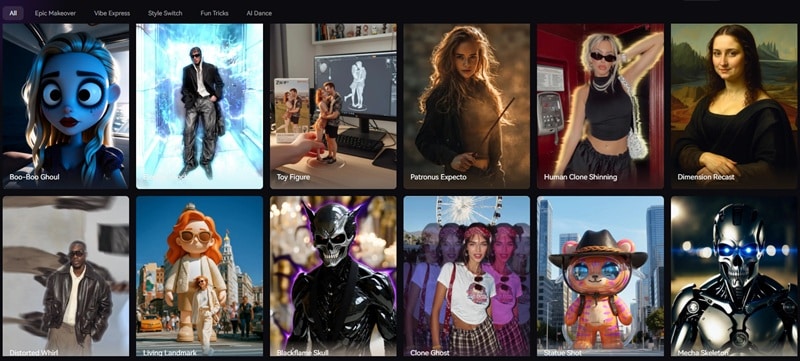
Templates simplify everything. For those who want instant results, the ToMoviee AI-generated template library is a goldmine. Examples include:
- Toy Figure
- Glambot
- Alien Capture Pets
The workflow is dead simple: upload content → AI applies styles automatically → download your result. Zero technical knowledge required.
Part 4. ToMoviee AI Pricing Breakdown: How Much Does It Cost?
Here’s where things get important. ToMoviee AI is a premium service, and unlike some competitors, it does not offer a permanent free tier or "daily free credits" just for logging in. It operates on a strict credit-system.
That said, the ToMoviee AI pricing structure is actually pretty straightforward once you understand it. There are three paid tiers: Basic, Advanced, and Premium, each available on either a monthly or yearly billing cycle.
Subscription Plan Comparison
| Feature | Basic | Advanced | Premium |
| Monthly Price | $9.99 | $25.99 | $129.99 |
| Annual Price | $119.88 | $311.88 | $1559.88 |
| Monthly Credits | 1600 | 5000 | 12000 |
| Key Features | Batch video generation | Early access to new features | Off-peak Mode |
| Best For | Casual users & testing | Active content creators | Teams & agencies |
Pay-As-You-Go Credit Bundles
Not ready to commit to a subscription? No problem. ToMoviee AI also offers standalone credit bundles for one-off projects or occasional use:
- 100 Credits = $1.
- 300 Credits = $3.
- 1000 Credits = 10.
- 3000 Credits = $30.
- 6000 Credits = $60.
- 12000 Credits = $120.
Part 5. Who Should Actually Use ToMoviee AI? (And Is It Worth It?)
Despite having many great features, ToMoviee AI isn't for everyone, and that's perfectly fine. Understanding who it's built for (and where it falls short) will save you a lot of trial and error. Let's break this down into two clear areas: who it's ideal for, and the actual pros and cons.
Who ToMoviee AI Is Ideal For
While anyone can technically use it, certain groups are going to find ToMoviee genuinely game-changing for their workflow:
- 🎥 Content Creators: Perfect for "faceless" YouTube channels or TikTokers who need 10x the output without a camera crew. Generate entire video series from just a script and a concept.
- 📣 Brand & Marketing Teams: Turn ad copy into polished visual campaigns instantly, with consistent branding across every asset. No agency retainer required.
- 🎨 Design Teams: Use the ToMoviee AI image generator and prompt-based editing tools to build high-quality mood boards and key visuals in a fraction of the time traditional workflows require.
- 🎬 Video Editors & Filmmakers: Use the ToMoviee AI video extender and camera control prompts to create 'impossible' shots that would cost thousands to film in real life. Exploding buildings, aerial fly-throughs, crowd scenes, all without leaving your desk.
Pros & Cons at a Glance
No tool is perfect, and ToMoviee AI is no exception. Here's a balanced look at where it shines and where it needs work:
- True All-in-One Creative Suite: Video, image, music, voice, templates, all under one roof. This alone saves creators significant time and money compared to managing multiple subscriptions across competing platforms.
- Backed by Wondershare's Proven Ecosystem: Being part of the Wondershare family means ToMoviee AI benefits from years of professional software development experience, active updates, and reliable customer support.
- Prompt-Based Editing Lowers the Technical Barrier: The ability to edit images using natural language prompts makes advanced visual editing accessible to non-designers, which dramatically widens the platform's practical user base.
- No Dedicated Desktop Software: On PC or laptop, ToMoviee AI is entirely browser-based. There's no standalone desktop app, which means you're always dependent on internet connectivity and browser performance.
- No Permanent Free Tier: Unlike some competitors that offer limited daily credits for free, ToMoviee AI requires a paid plan or credit purchase to use most features meaningfully. This is a barrier for creators who just want to test before committing.
- No Real Editing Timeline: ToMoviee generates content beautifully, but if you need to actually edit that content: cut clips, adjust timing, layer audio, add text, you'll need to take your output elsewhere. There's no frame-by-frame editing timeline built into the platform.
Part 6. Try ToMoviee in Video Editing Software – Filmora
From our ToMoviee AI review, we've established that this platform is a genuinely impressive creative suite. But there's one thing that holds it back on the desktop: it's browser-only. For PC and laptop users, that means you're always tied to a tab, with no dedicated software to call home.
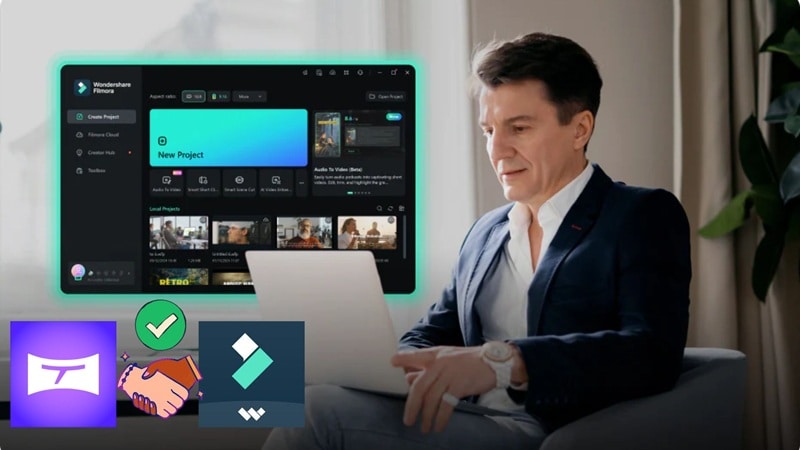
Thankfully, there's a workaround, and it's a good one. ToMoviee AI is deeply integrated into Wondershare Filmora, the professional video editor from the same Wondershare family. This means you can access all of ToMoviee's generation power directly inside a full-featured editing environment. Same AI, but now with an actual timeline, multi-layer editing, and precision controls underneath it.
How to Use ToMoviee AI in Filmora
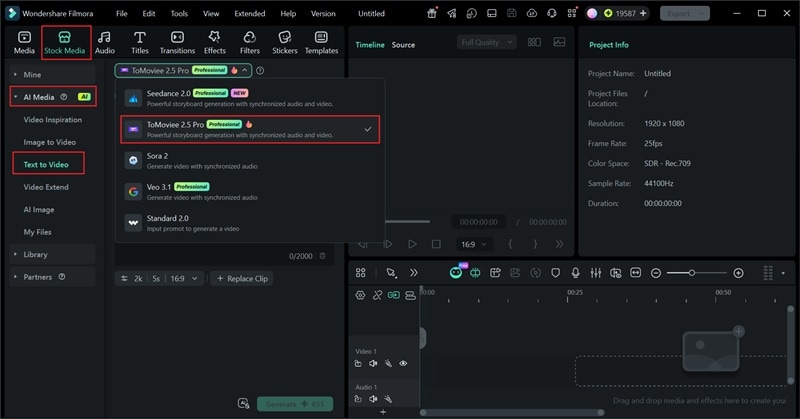
Getting started with ToMoviee AI inside Filmora is straightforward:
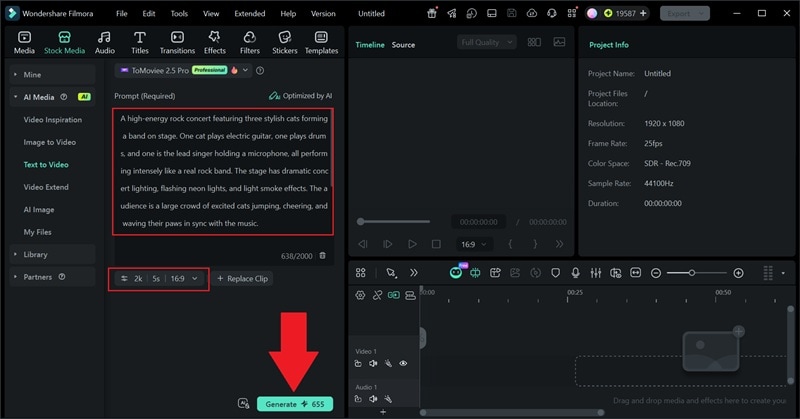
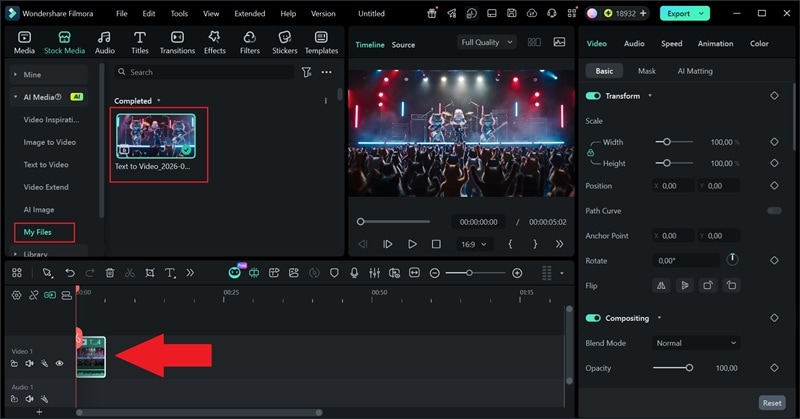
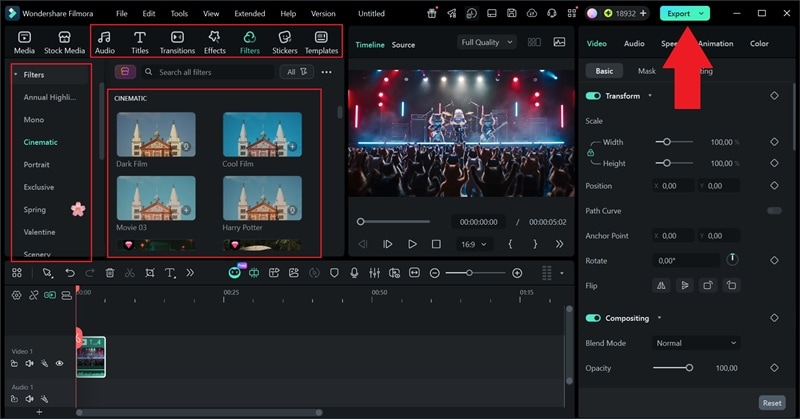
And that’s pretty much it. As you can see, the whole process is simple, and using it with Filmora gives you access to a lot more features to refine your video. Now, let’s take a look at the ToMoviee AI-generated clip you just created.
 Secure Download
What Filmora Adds (That ToMoviee Doesn’t)
Access to More AI Models
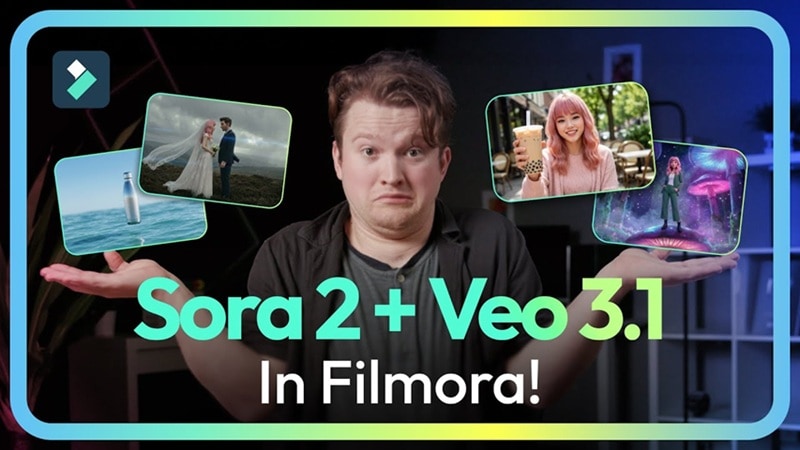
Using ToMoviee AI inside Filmora expands your model library beyond what the standalone web app offers. In addition to ToMoviee's built-in engines, Filmora gives you access to Veo 3.1, Sora 2, and Seedance 2.0 for video generation, plus Nano Banana 2 and Pro for image creation. This means you’re not locked into one style or output quality. You can experiment and choose what works best for your project.
Create AI Videos from Audio

Unlike ToMoviee AI, which mainly supports text and image inputs, Filmora also includes an AI Audio-to-Video feature. This lets you turn music or voice recordings into visuals automatically, so you’re not limited to writing prompts or uploading images. It’s a simple way to expand your ideas and create more dynamic videos from sound alone.
Real Editing Timeline
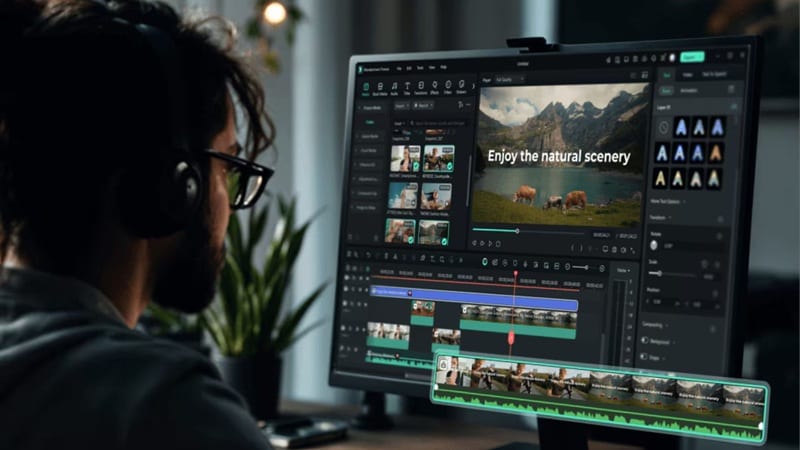
This is the biggest upgrade by far. ToMoviee AI generates content, but Filmora lets you actually work with it. You get frame-by-frame precision, multi-layer editing with separate video, audio, and effects tracks, and the ability to make exact cuts, transitions, and timing adjustments that are simply impossible in a generation-only tool.
Elite AI Features
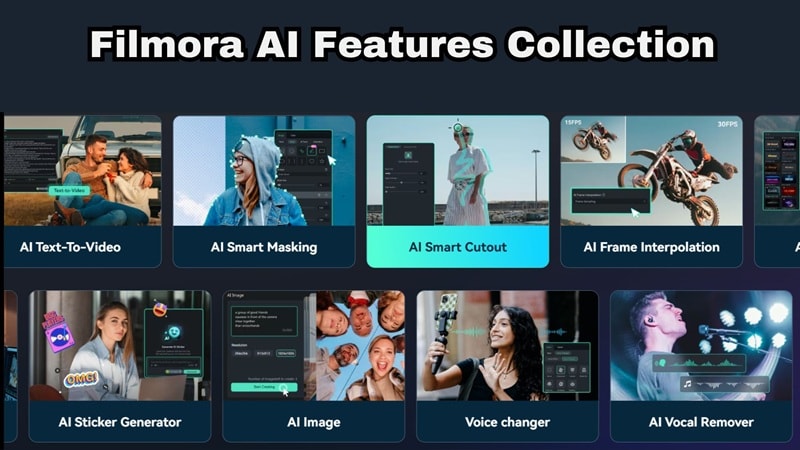
Filmora goes beyond generation. You get advanced tools like:
- AI Captioning: Automatically generates and syncs subtitles to your audio.
- AI Video Translation: Lets you localize content for different markets without ever touching a translation service.
- Motion Tracking: Locks visual elements onto moving subjects in your clip, a feature that would require After Effects-level expertise to do manually.
These tools collectively bring your ToMoviee AI-generated content to a level of polish that demands professional attention.
An Enormous Stock Media Library
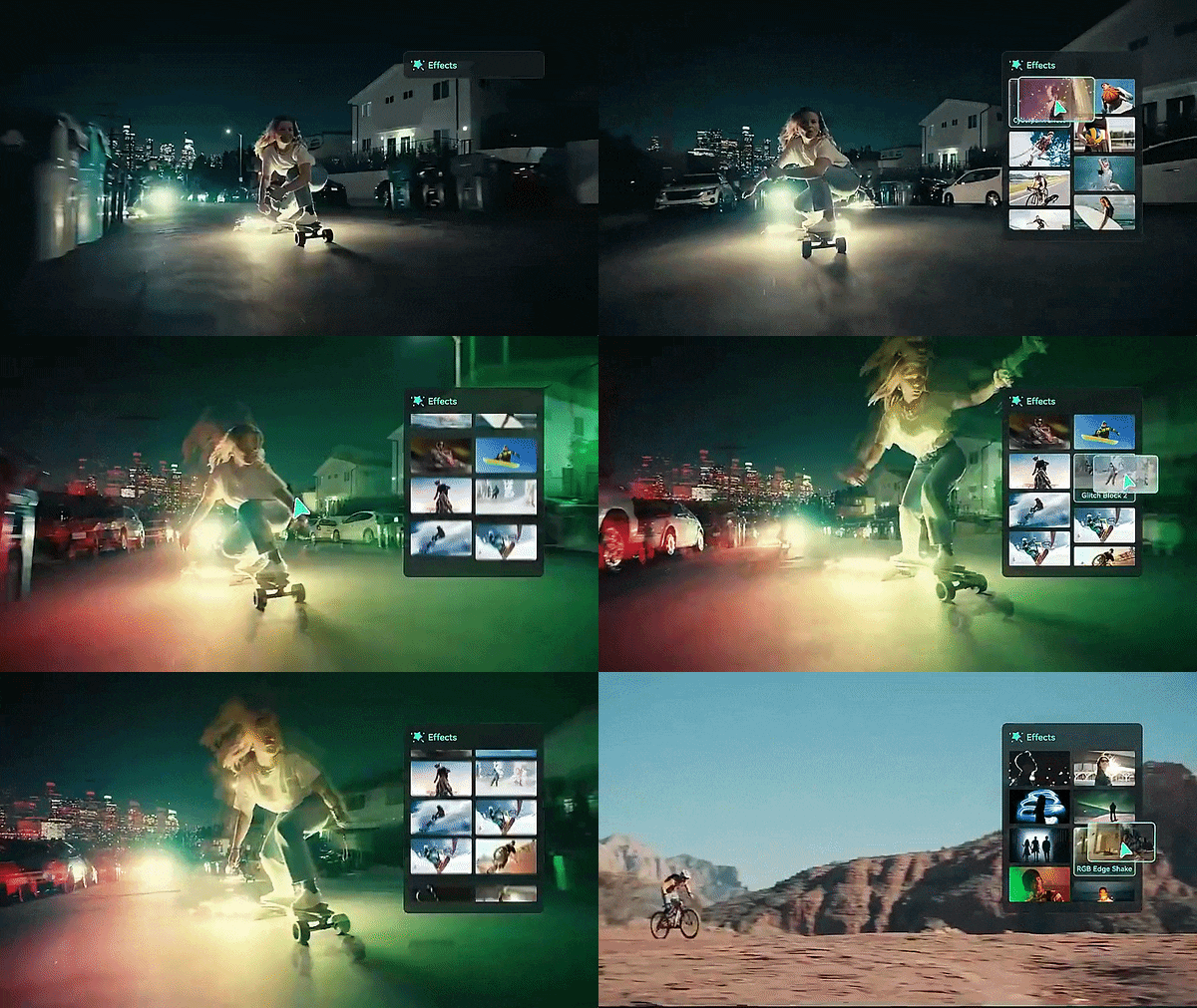
Filmora gives you access to millions of royalty-free music, stickers, filters, templates, and video effects. This means your ToMoviee-generated video isn't starting from scratch in terms of production value; you have an entire library of professional assets to build around it.
Secure DownloadConclusion
ToMoviee AI video generator is a genuinely capable all-in-one creative suite backed by one of the most trusted names in video software. For content creators, marketers, and design teams who need high-quality visual output at speed, the ToMoviee AI studio delivers.
The credit-based model is worth knowing upfront, and the lack of a desktop app is a real limitation on its own. But pair it with Filmora, and that gap disappears entirely. You get the generation power of ToMoviee AI and the editing precision of a professional timeline, all under the same Wondershare roof.
FAQs About ToMoviee AI
-
Does ToMoviee AI support long video generation?
Not really. Most ToMoviee AI-generated outputs are short. For longer content, the recommended approach is to use the ToMoviee AI Video Extender to build and chain multiple scenes together. -
Is ToMoviee AI good for beginners?
Yes. The prompt-based system makes it easy to use, even if you’ve never edited a video before. The template library makes it even more accessible for beginners, with complex creative effects applied automatically after a simple photo upload. -
Can I use ToMoviee AI to generate voices in different languages?
Technically, yes. The platform includes text-to-speech features with multiple voice styles/speakers. It even allows for "Voice Cloning," so you can have the AI speak in your own voice (or a specific character's voice) with emotional nuance.
