


VideoGen AI, as a video generator, promises to compress much of the video creation process into a few prompts. The browser-based platform can turn an idea, script, article, or other source material into an editable video with visuals, voiceover, captions, and music. It also brings several AI video models and creation workflows into the same workspace.
But how much can it really automate, what can you use for free, and when might its simplified workflow become limiting? This VideoGen AI review takes a closer look.

Part 1. First Look at VideoGen: What Is It?
Creating a video from a script usually means handling visuals, narration, captions, music, and editing separately. VideoGen tries to shorten that process by bringing much of the initial production work into one browser-based AI video generator.
VideoGen is an AI video agent that turns an idea, script, or article into an editable video. It generates the visuals, voiceover, subtitles, and background music for you, so you start from a complete draft instead of a pile of separate AI clips. From there, you can adjust the result in the editor rather than regenerating everything from scratch.
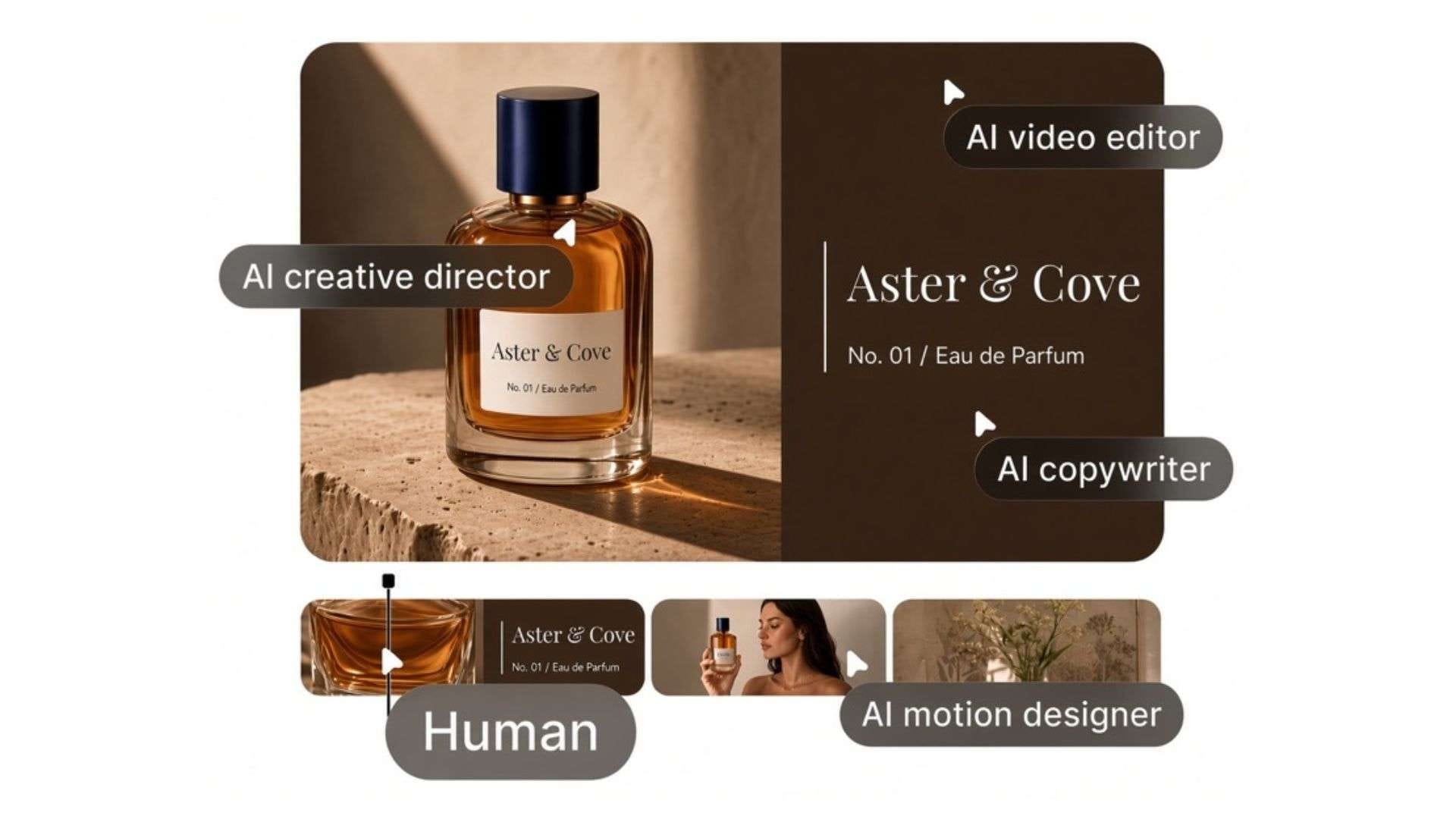
What can you make with VideoGen?
Since VideoGen can build videos around existing text, it works particularly well for content that already has a clear message or story to communicate. For example, you can use it to create:
- Short-form social videos from an idea or script.
- Faceless videos with AI narration and supporting visuals.
- Article-to-video content for repurposing written posts.
- Narrated presentations based on slides or documents.
- Script-based videos with captions, music, and visuals already arranged.
VideoGen AI runs in the browser at http://videogen.io/. There’s no app to download to start using the tool, so you can sign in and begin a project right away.
Who is VideoGen mainly for?
VideoGen is likely to be most useful for creators who need to make videos regularly but don’t necessarily want to edit every element from scratch. That includes:
- Solo creators who want to publish videos more often without editing every element from scratch.
- Marketers who need to repurpose existing content into new videos.
- Small teams producing similar types of videos regularly.
- Beginners who find traditional video editing software overwhelming.
- Faceless content creators who want to handle narration, visuals, subtitles, and music in one go.
The main appeal of VideoGen is to help you get from an idea to a usable video faster. But how much of the production process can it actually handle? Let’s look at the AI features behind that workflow.
Part 2. Inside VideoGen: The AI Features That Do the Heavy Lifting
Most of VideoGen AI’s automation happens before you reach the editing stage. It provides different workflows depending on what you already have, whether that is a script, presentation, voiceover, or just an idea.
Turn an Idea, Script, or Article Into a Video
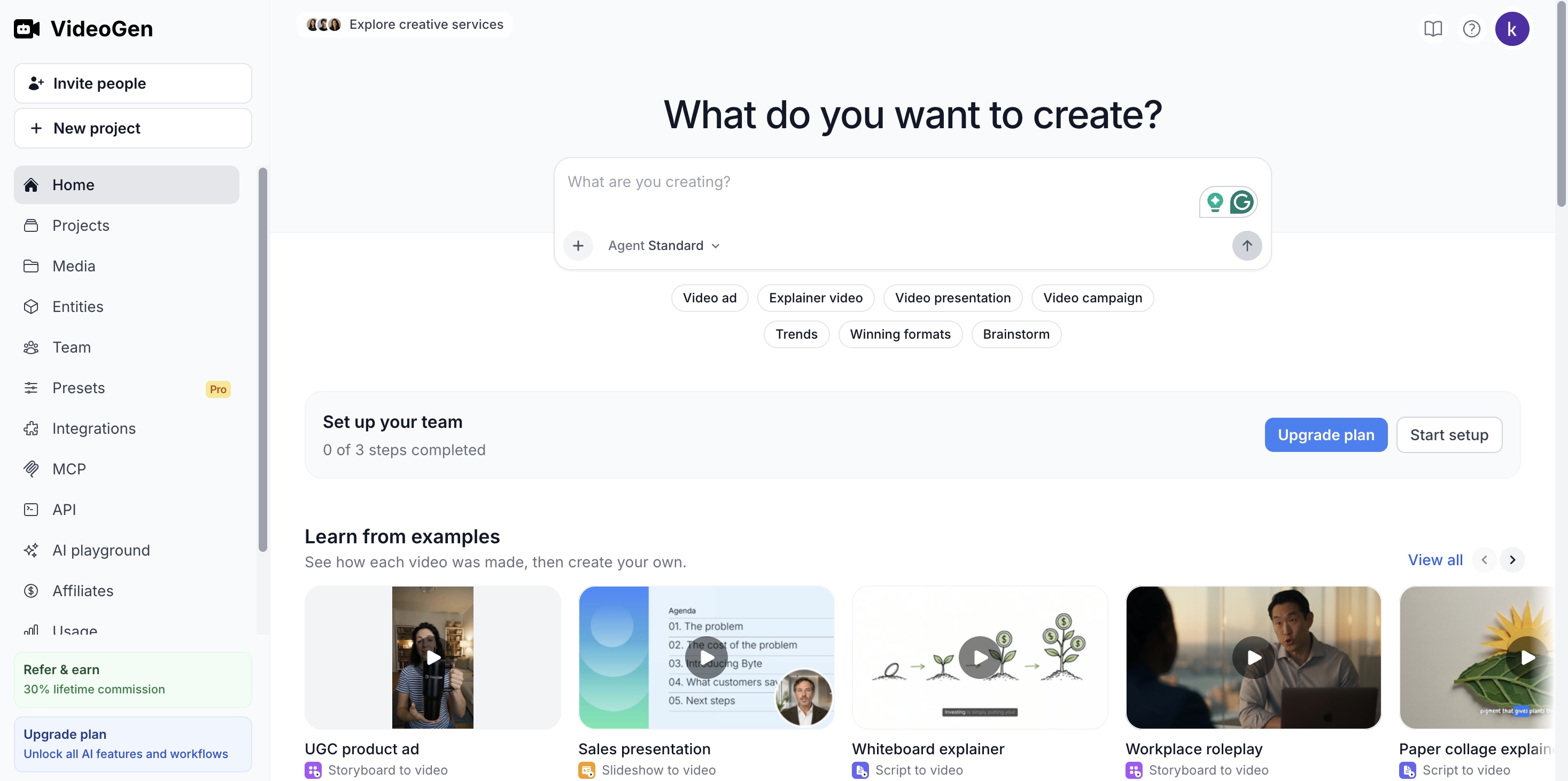
The simplest way to use VideoGen AI is to start with text. You can enter an idea, paste an existing script, or bring in written content such as an article, and VideoGen can build a video with matching visuals, narration, and captions.
For the visuals, VideoGen currently offers models such as Sora, Veo, Kling, Seedance, Wan, Hailuo, and PixVerse in the same workspace. If one result does not fit the scene, you can try another model and compare the clips before choosing which one to keep.
AI Voiceovers, Captions, and Localization
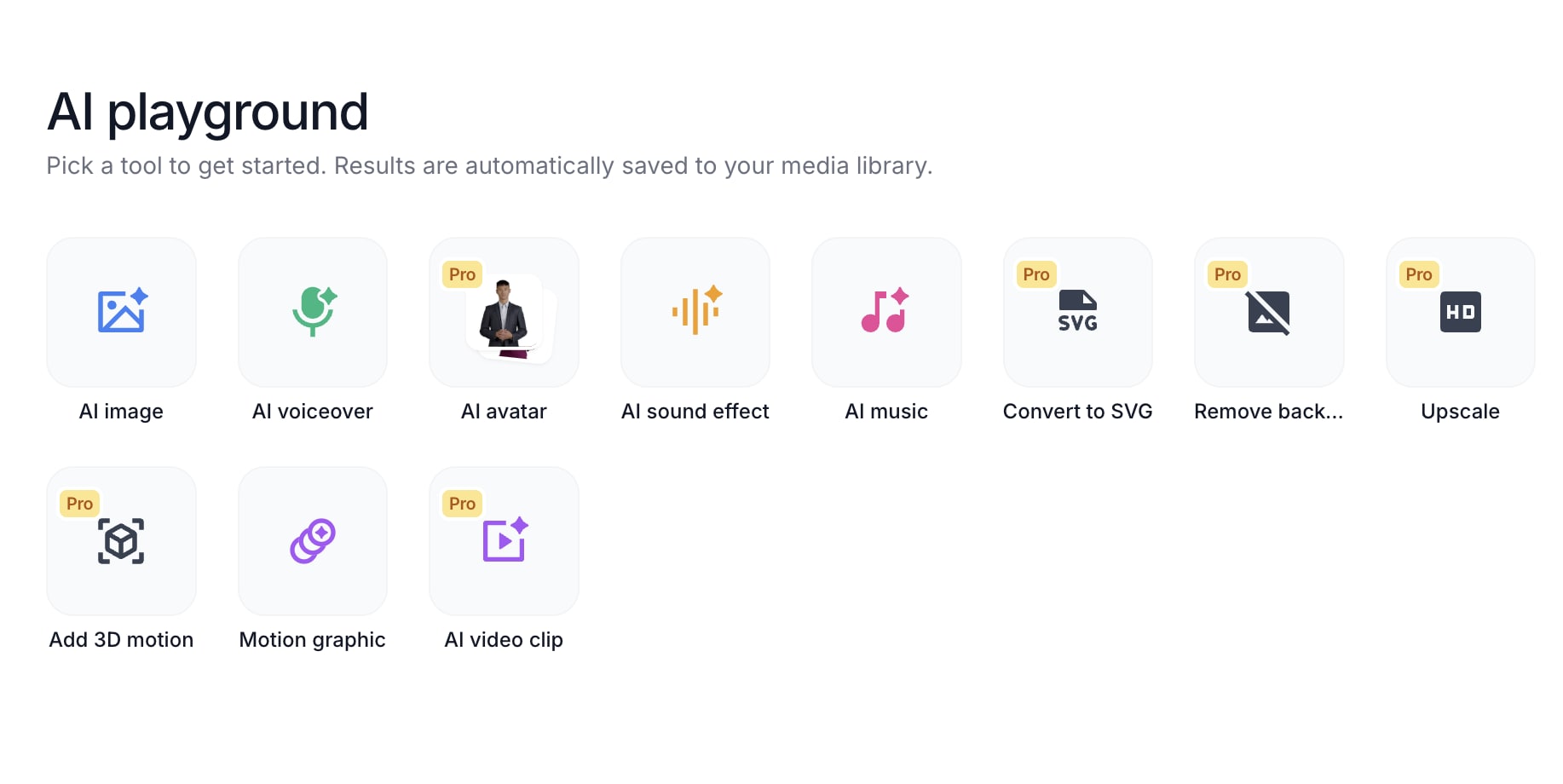
VideoGen lets you choose different AI narrators, while generated projects can include captions timed to the narration. Narration can be changed to a voice that better matches the new language, and supported text inside images can also be translated.
On top of that, VideoGen can also translate a project while keeping its existing structure and timing. These features are particularly useful for faceless videos, explainers, training content, and creators who need several language versions of the same project.
Storyboard and Slideshow Workflows
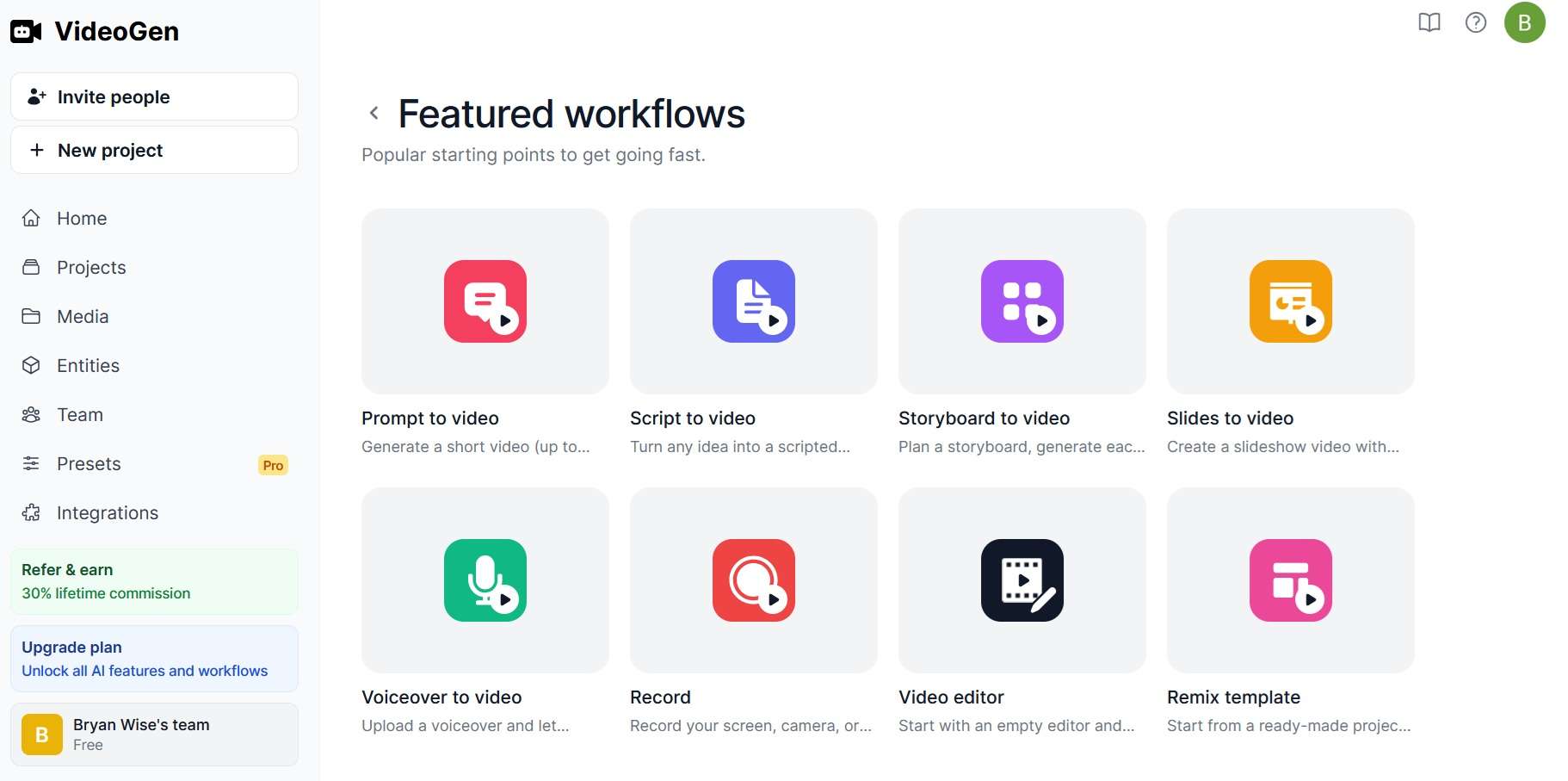
Not every project needs to begin with a prompt. VideoGen includes several workflows depending on how much material or structure you already have.
- Storyboard to Video: You can plan the video scene by scene, including the visuals and narration, before generating the finished project. This is useful when individual shots need more direction or when you want a clearer structure before generation begins.
- Slideshow to Video: You can bring in presentation material such as PowerPoint or PDF files and turn it into a narrated video with pacing, transitions, captions, and other supporting elements.
VideoGen also offers Script to Video and Voiceover to Video, so you can start from an existing script or recorded narration instead of generating everything from scratch.
Team Collaboration and API Access
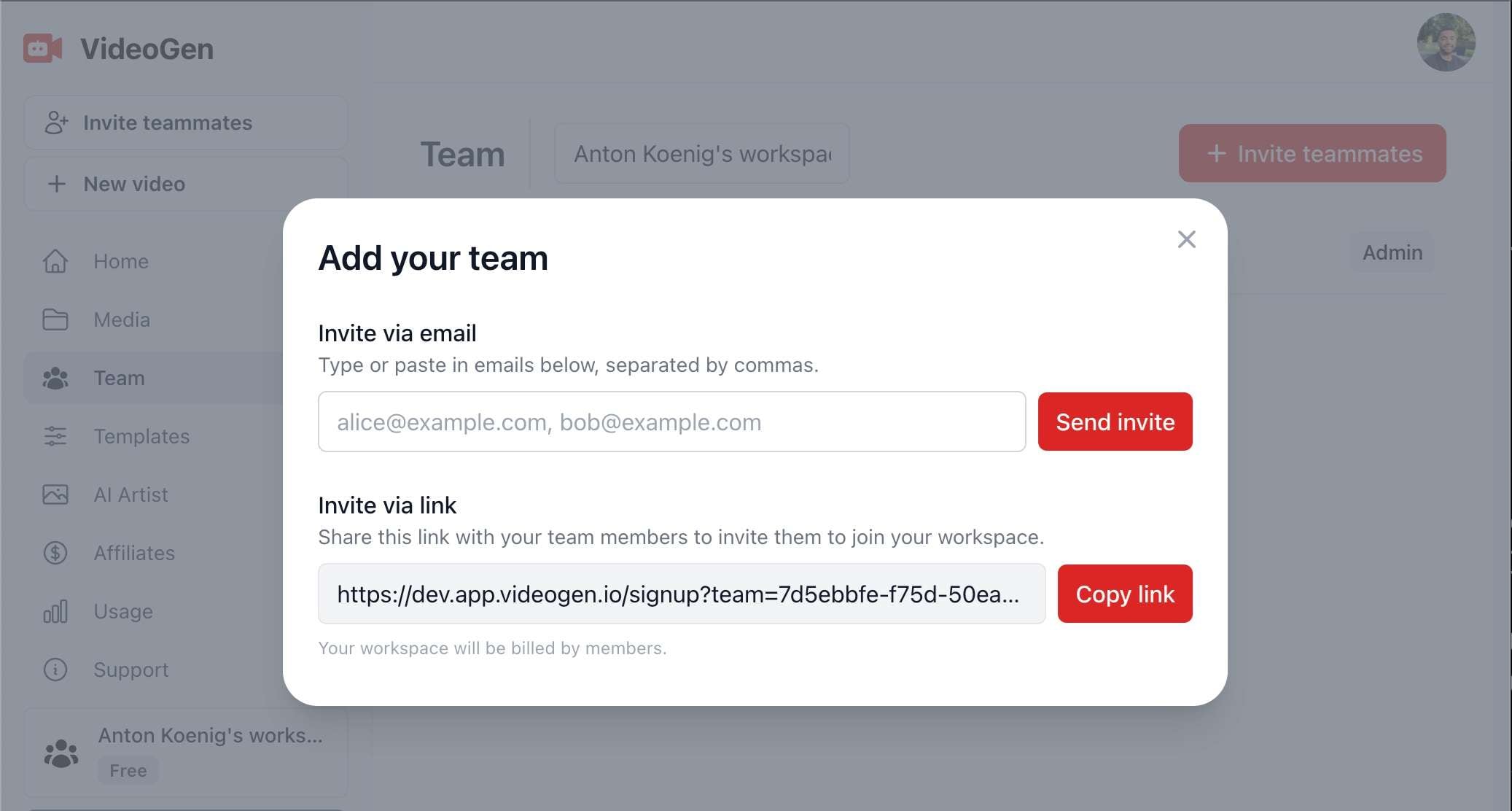
VideoGen supports team collaboration among its features, which suits content teams and agencies where several people work on the same video. For teams that produce videos regularly, VideoGen also offers an API and an MCP server. These let you connect it to tools like Cursor, Claude, and ChatGPT, so videos can be created from an app or an AI agent instead of only from the browser.
Built-In Editing Instead of Generate-and-Leave
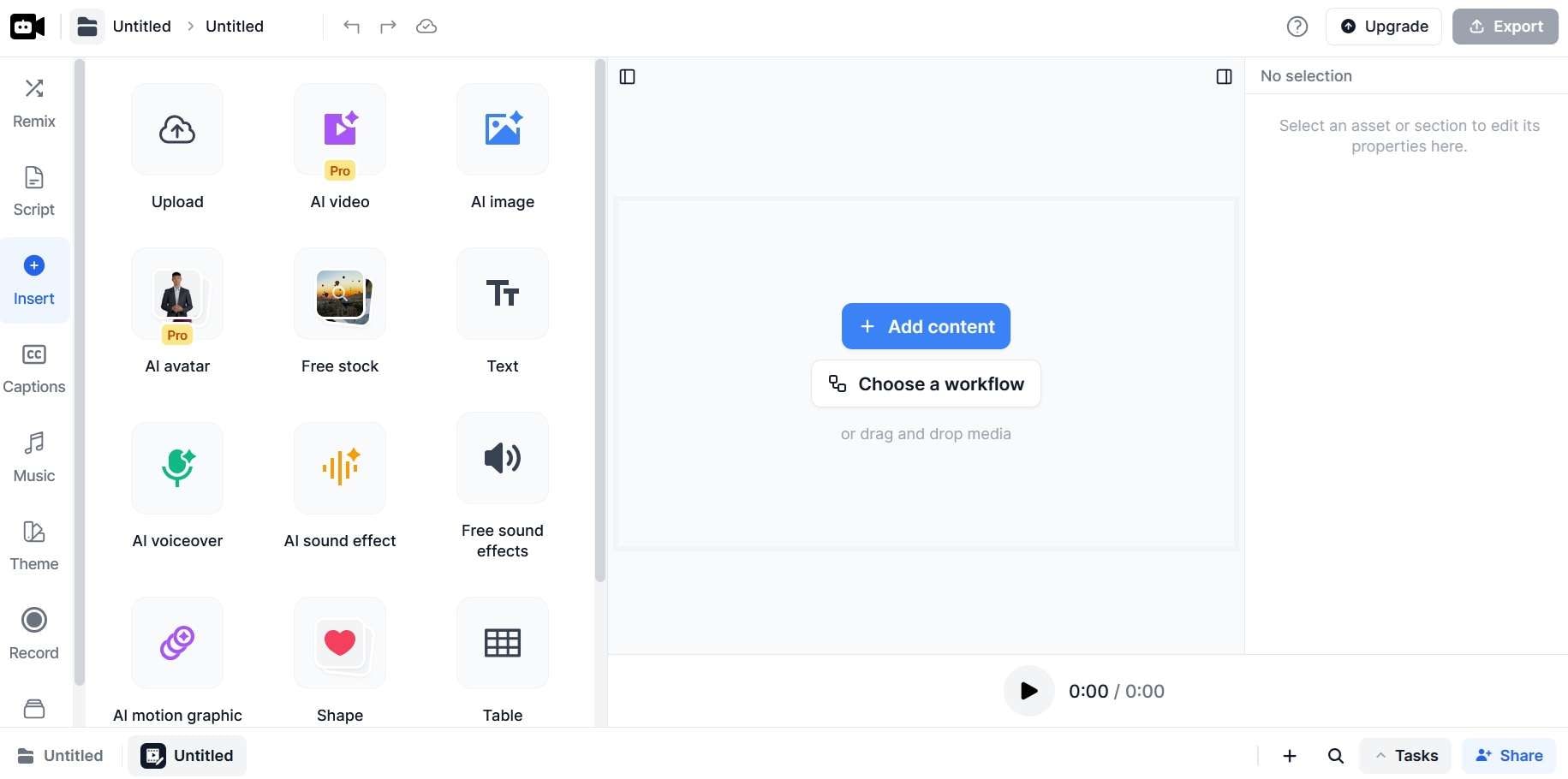
Another useful difference is that VideoGen doesn’t simply generate a video and leave you with a finished file. Its workflows create a project that can still be opened in the editor and adjusted afterward. So, you have room to refine the first result instead of regenerating the entire video whenever something feels wrong.
Part 3. VideoGen AI Pricing and Credit System
You can try VideoGen AI for free, but free access is mainly useful for testing how it works. Paid plans add more credits, storage, exports, commercial-use rights, and broader AI access.
VideoGen AI Pricing (2026)
| Plan | Pricing | Monthly Credits | Key Points |
| Pro | $19/month, billed yearly | 6,000 | 15GB storage, AI generation, voiceovers, exports |
| Advanced | $39/month, billed yearly | 18,000 | 100GB storage, more credits, Max-quality generation |
| Ultra | $99/month, billed yearly | 60,000 | 2TB storage, highest monthly AI capacity |
Is VideoGen Worth Paying For?
VideoGen makes the most sense when automation is saving enough editing time to justify the recurring cost and credit usage.
For occasional creators who mainly want to experiment with AI video, the credit system may feel restrictive. For people repeatedly producing explainers, ads, training videos, or social content, the time saved may matter considerably more.
VideoGen Review: Pros and Cons
- Strong automation for script-led and narration-led content
- Several starting workflows for scripts, slides, storyboards, and voiceovers
- Multiple AI video models available within one platform
- Built-in voiceovers, captions, and localization tools
- Generated videos remain editable instead of being treated as final outputs
- Heavy AI generation depends on available credits
- Higher-quality AI generations can use more credits
- The automated workflow may offer less detailed control than a full traditional editor
- Advanced timeline work, compositing, color adjustments, and effects may still require a broader editing tool
Part 4. Want More Control After AI Generation? Here’s Another Approach
VideoGen works well when the main goal is to turn an idea or script into a usable video quickly. However, AI generation may only be the first part of the process. You may still want to adjust pacing, rearrange scenes, combine generated clips with your own footage, or make more detailed changes to the visuals and audio.
If you prefer to use AI as a starting point but still want to shape the final edit yourself, Wondershare Filmora may suit your taste better. It combines AI-assisted creation with a fuller timeline-based editor, giving you more room to refine the result after generation.
What Does Filmora Offer?
Since Filmora is a full video editor with AI tools built in, you can use it both to generate material and to finish it by hand. Some Filmora features you may want to check out are:
- Multi-track Video Editing: Manually adjust AI-generated content, footage, audio, text, and effects with more control than an automated video generator.
- AI Video Generator: Turn text prompts or scripts into video content with AI-generated visuals and other elements.
- AI Image Generator: Generate visuals from text prompts when you need custom images for a video.
- AI Text-to-Speech: Convert scripts into voiceovers without recording your own narration.
- AI Music Generator: Create background music based on your video's theme, mood, or style.
- Auto Captions: Automatically generate subtitles and customize their appearance with animated styles.
- AI Translation: Translate captions and video content into other languages for different audiences.
- Smart Short Clips: Turn longer videos or online content into shorter clips for platforms such as YouTube, TikTok, and Instagram.
- AI Copywriting: Generate or refine video scripts, titles, and other copy before you start editing.
- Creative Assets: Access stock videos, images, music, stickers, and sound effects to fill out your projects.
So, the difference isn’t simply which platform offers more AI features. VideoGen focuses more on automating the path from content to a first video draft, while Filmora gives you a broader set of tools for shaping and finishing that draft manually.
Part 5. VideoGen vs. Filmora: Which Workflow Makes More Sense for You?
VideoGen and Filmora can both use AI to speed up video creation, but they are built around different workflows. VideoGen focuses more on automating the path from an idea or script to a usable video, while Filmora gives you more control over how that video is edited and finished.
| Area | VideoGen | Filmora |
| Core Workflow | AI-led video creation with more automation | AI-assisted creation with fuller manual editing |
| Best Starting Point | Prompt, script, article, slides, or voiceover | AI-generated assets, existing footage, or a mixed-media project |
| AI Video Generation | Strong focus on quickly building complete videos | AI generation works alongside the editing workflow |
| Voiceover & Captions | Built directly into the automated creation process | Available as part of a broader editing environment |
| Editing After Generation | Good for adjusting the generated draft | More detailed control with timeline editing, keyframes, tracking, effects, color, and audio tools |
| Platform Approach | Browser-based and automation-focused | Full video editor with AI tools integrated into the workflow |
| Best For | Fast explainers, faceless videos, social content, and content repurposing | Creators who want AI assistance without giving up detailed editing control |
|
Show More
Show Less
|
||
Choose VideoGen if your priority is speed and you want AI to handle more of the video creation process. Choose Filmora if you want AI to speed up production while keeping more control over how the final video is edited and polished.
 Secure Download
Conclusion
VideoGen is a practical option for creators who want to move from an idea, script, article, or presentation to a usable video with less manual work. Its strength is automation, especially for narration-led, faceless, and repeatable content.
However, that convenience comes with trade-offs in editing depth and credit usage. If you mainly want speed, VideoGen can be a good fit. If you want AI assistance but still need more control over the final edit, Filmora offers a broader post-generation workflow.
FAQs
-
Can I use VideoGen videos commercially?
Yes. VideoGen’s paid plans include full commercial-use rights, including for marketing, ads, and client projects. -
Do VideoGen videos have a watermark?
It depends on the plan and export method. VideoGen applies branding to exports below the Pro level, while Pro users can remove the VideoGen watermark and end screen. -
Does VideoGen offer API access?
Yes. VideoGen provides API access for its plans, with support for workflows such as video generation, editing, and exporting. API keys can be created directly from a VideoGen account.
