


 TL;DR:
Vidu AI excels at rapidly generating character-consistent video clips up to 16 seconds, but creators requiring full post-production control and diverse generation models are better served by Wondershare Filmora.
● Vidu's standout Reference-to-Video tool maintains scene consistency by processing multiple uploaded reference images, though complex text prompts have an approximate 60% success rate that can quickly consume limited subscription credits.
● The current Vidu Q3 model restricts single generations to a maximum of 16 seconds of native 1080p video with synchronized audio, requiring an external editor to stitch together longer narratives.
● Wondershare Filmora provides a complete post-production alternative by replacing Vidu's prompt-based editing with a professional multi-track timeline, AI audio-to-video generation, and unified access to external models like Veo 3.1 and Sora 2.
Ask AI for a summary
 ChatGPT
 Perplexity
 Gemini
 Claude
 Grok
Grok
AI video tools are getting more competitive as they fight to become the "industry standard" for social media and film. Vidu AI is one of them. Backed by ShengShu Technology, which raised an undisclosed Series A funding estimated between $30M–$125M to scale its multimodal AI, Vidu is clearly pushing hard in this space.
But funding alone doesn’t guarantee performance. The question now: is the Vidu AI video generator actually good enough to replace your current workflow, or is it just another subscription to juggle? We’re breaking it all down today!
Part 1. Meet Vidu AI: What It Is and Why It Exists
As we mentioned previously, Vidu AI is developed by ShengShu Technology, and its goal is simple: remove the complexity of video production and let users generate visuals in seconds.
Because of that, Vidu AI focuses on:
- ⚡ Fast generation: Results in seconds, not hours.
- 🎭 Character consistency: Your subject stays on-model across frames.
- 🧠 Simple inputs: Text prompts, images, or reference uploads.

The Evolution of Vidu (Q1 to Q3)
Like most AI tools, Vidu didn’t arrive fully polished. It evolved quickly across versions. Here is how it evolved into the Vidu AI powerful AI generator it is today:
| Version | Focus Area | Key Features | Best For |
| Q1 | Visual quality | • Strong texture detail• Realistic skin & lighting• Limited motion control | High-quality AI portraits and textures |
| Q2 | Speed | • “Turbo” fast generation• Faster than many competitors• Better prompt understanding | Quick social media clips |
| Q3 | Storytelling | • Up to 16s video length• Native 1080p output• Audio-video sync• Advanced camera control | Full AI-generated storytelling and short films |
Key Takeaways:
- Q1 is great for still-like visuals, but not much movement.
- Q2 has quicker results, easier to experiment.
- Q3 feels more like real video production, not just clips.
Part 2. Where to Get Vidu AI?
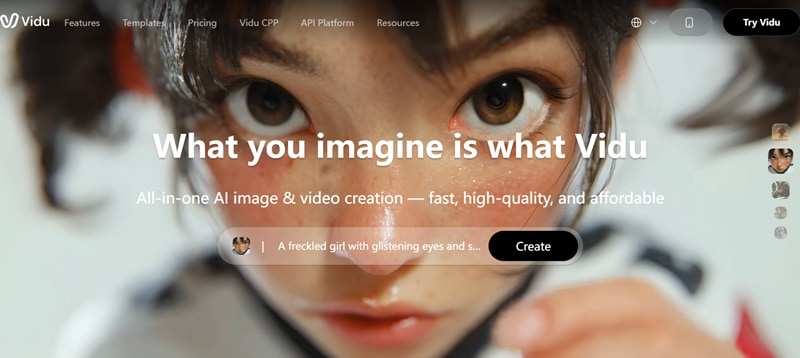
One of the best things about Vidu AI is how accessible it is. The most popular way to access Vidu is through their official web-based studio at vidu.com. It's cloud-powered, so you just need to sign in and you'll be directed to the Vidu AI studio.
Mobile Access (iOS & Android)
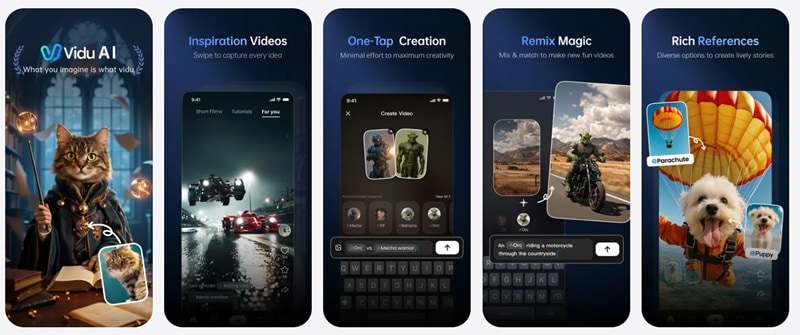
For creators who edit on the go, there is an official Vidu AI app available for both Android and iOS. The mobile version is surprisingly robust, letting you generate and "Remix" community creations with just a few taps.
⚠️ Important Warning About Vidu AI Mod APK
You might stumble across searches for 'Vidu AI mod APK', but avoid them. These unofficial versions are NOT endorsed by ShengShu Technology and come with serious risks:
- They are not official releases and may be outdated or broken.
- They can contain malware, spyware, or hidden data trackers.
- Your account can get permanently banned if detected.
Always download from the official App Store or Google Play only.
Part 3. The Creator’s Toolkit: Vidu AI Features Breakdown
Vidu is a powerful AI generator because it offers granular control over every frame. Let's walk through each tool in the Vidu AI studio and what it actually does.
1. AI Text to Video
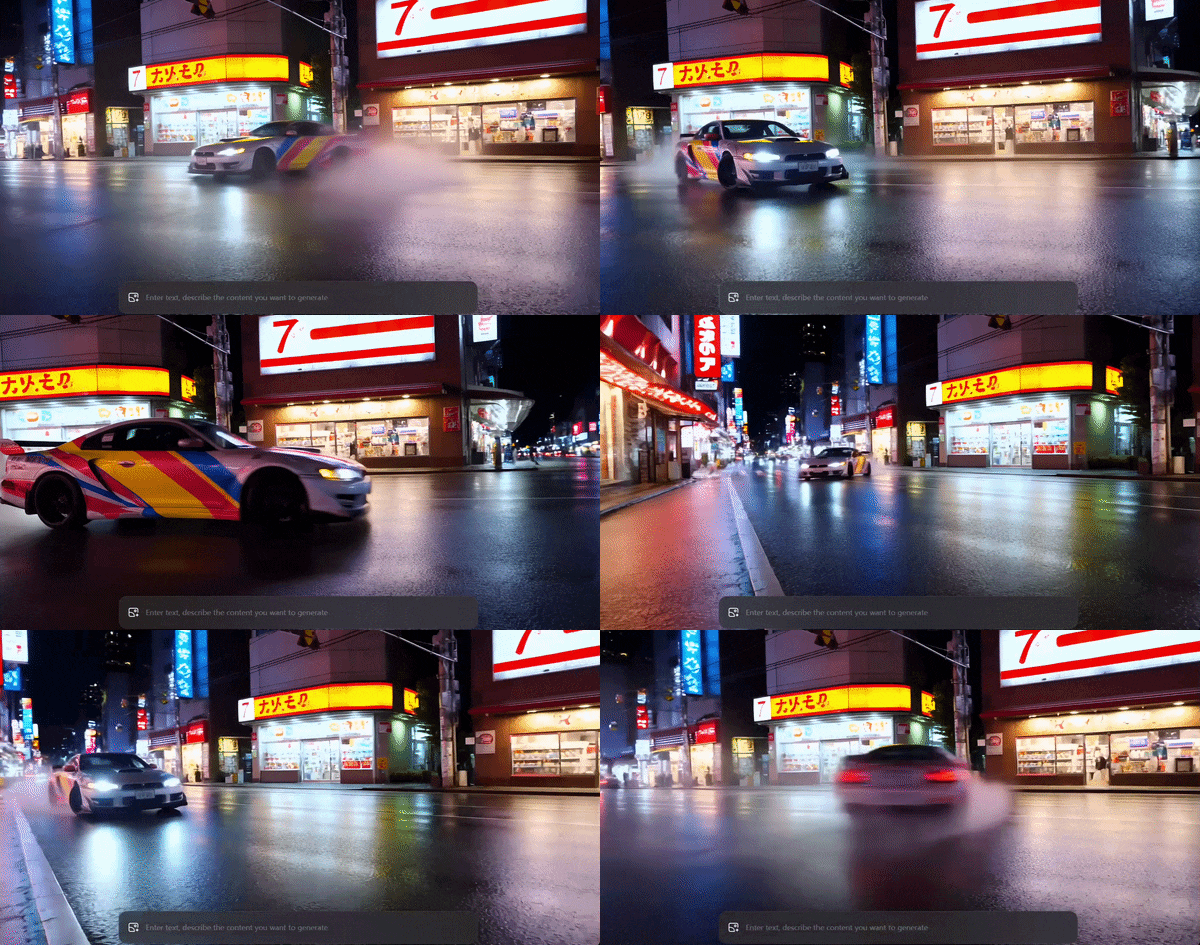
This is the most accessible entry point. You just need to type a description, and Vidu AI generates a short video clip automatically. It works best with clear, concrete prompts like "a red sports car driving through Tokyo rain at night" rather than abstract concepts.
Best For: Quick ideas, social media clips, and rapid iteration.
2. Vidu AI Image to Video

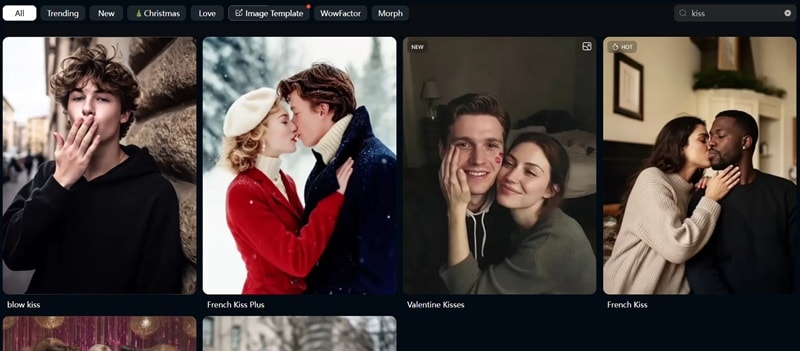
As the name suggests, this feature turns a static image into a short animated clip. You can upload images (like a starting frame or key frames), and Vidu adds motion, camera movement, and simple transitions to bring it to life.
It also comes with ready-made templates, which is why you often see viral trends like Vidu AI hug and Vidu AI kiss. These take a still image of two characters and smoothly animate them into a natural interaction, making the result feel more alive without needing complex editing.
3. AI Reference to Video (The Real Standout Feature)
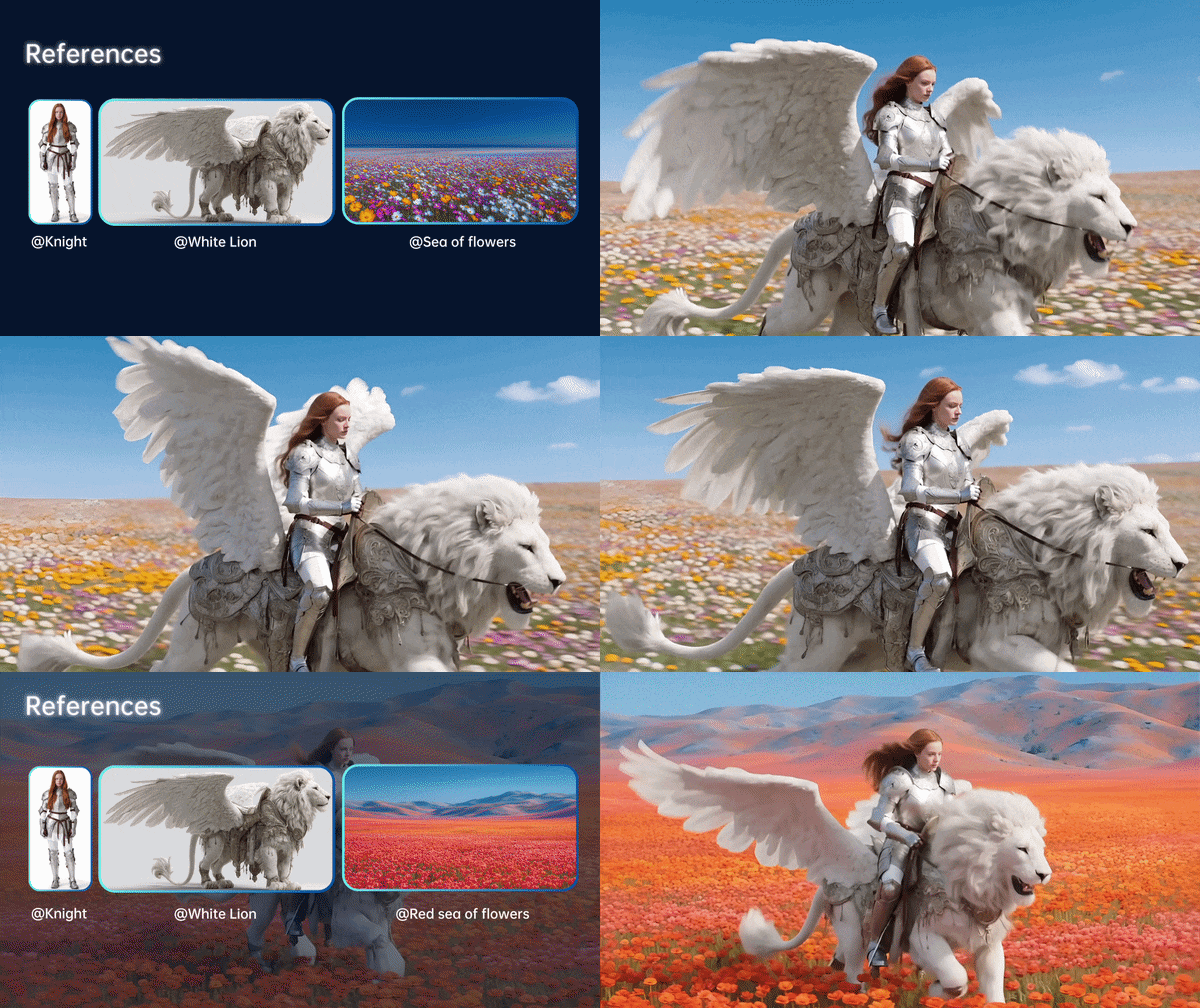
This is where Vidu AI separates itself from the crowd. Instead of animating a single image, Reference-to-Video lets you upload multiple reference images, and the AI builds a scene while keeping all characters and objects consistent across every frame.
See the table below to see the differences between reference-to-video and image-to-video:
| Image-to-Video | Reference-to-Video |
| Animate one single image | Build a scene with multiple consistent elements |
| Single reference image | Multiple reference images uploaded |
| Good for solo character animation | Great for multi-character storytelling |
4. AI Image Generator
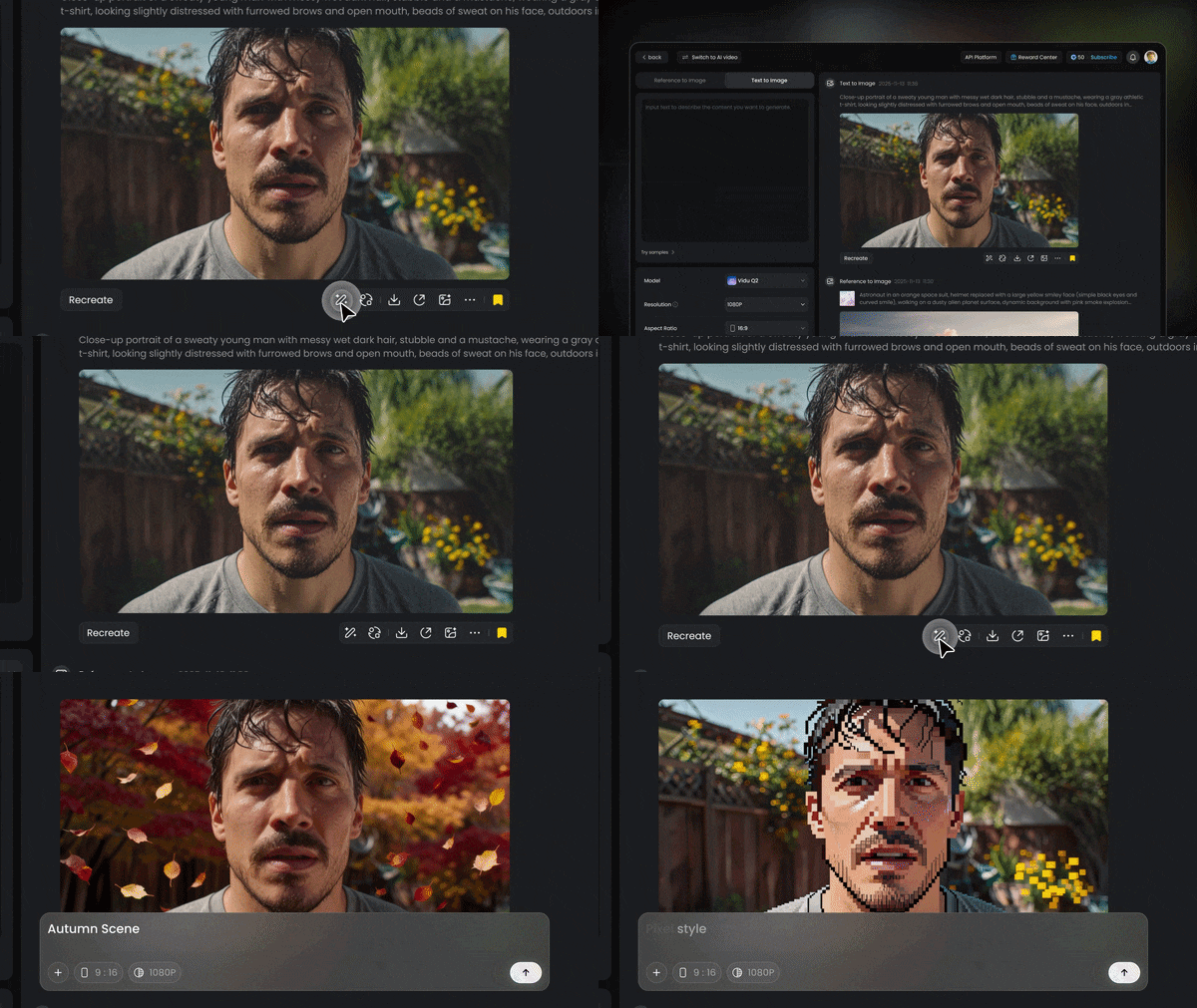
Vidu AI also includes a built-in AI image generator. This is basically a prompt-to-image tool you can use before you even touch video. You can use it to create a character or scene image first, then animate it. You can also use this feature to make edits to your photos using text prompts.
5. AI Video Editor (Prompt-Based Editing)

Instead of a traditional timeline, Vidu AI uses natural language prompts to edit. Want to change the lighting? Type it. Want to change the coffee into tomato juice? Describe it. It's a fundamentally different editing experience, powerful for quick style adjustments, but limiting if you need frame-accurate control.
6. Extra AI Tools Inside Vidu

Vidu AI rounds out its toolkit with a few extra features worth knowing about:
- AI Face Swap: Replace or swap faces in generated clips,
- AI Video Enhancer: Upscale and improve video clarity (basic level).
- AI Sound Effects (Q3): Add automatically synced audio effects to your clips.
Note: These extras are useful for quick finishes but don't replace a dedicated audio or effects suite.
Part 4. Credits and Costs: Vidu Pricing Structure
With a Series A funding that large, Vidu has invested in a massive infrastructure that allows for a tiered pricing model.
While you might see mentions of Vidu AI free version, the reality is that the free version is meant for testing only, you typically get a small handful of daily credits (4 credits on sign-up) that expire quickly.
Paid Plans Overview
As for the paid plans, there are Standard, Premium, and Ultimate. See the difference in the table below:
| Feature | Standard | Premium | Ultimate | |
| Price | $10/month | $35/month | $99/month | |
| Monthly Credits | 800 credits | 4000 credits | 8000 credits | |
| Number of References | 50/month | 300/month | 100/month | |
| Priority Queue | Standard | High | Highest | |
| Best For | Solo Creators | Professionals | Studios |
Team Plans (For Studios)
- Starts around $2999/year.
- Shared credit pool.
- Role-based collaboration.
Built for teams, not solo creators.
Part 5. Vidu AI Review: What Users Are Saying (And Our Honest Take)
Before you drop your hard-earned cash, let's look at the feedbacks from the community. The official Vidu AI app currently holds a strong rating:
- Google Play rating: 4.7/5 from 27,700+ reviews.
- Apple App Store rating: 4.8/5 from 1,900 reviews.
But those are just mere numbers. So, we went through the official app store feedback and tested Vidu ourselves to give you the most balanced picture possible. Here's what the community is saying.
What People Love
- The Vidu AI hug and Vidu AI kiss animations have gone viral for their realistic human interactions.
- The Q3 model's synchronized audio-video output removes the need for a separate audio tool.
What People Don’t Like
- Credits run out faster than expected, especially at Cinema quality or with complex prompts.
- Complex prompts only succeed about 60% of the time, wasting credits on bad generations.
Our Pros and Cons (Based on Testing)
We also tried using Vidu AI too, and from our experience, there are some good and bad.
- Free Credits Available: If you’re using the free version, you can earn extra credits by watching ads. It’s not a lot, but it helps extend your usage a bit.
- Multi-Reference Consistency: Vidu can keep characters and objects consistent across scenes when using multiple reference images. This is something many AI video tools still struggle with.
- No Timeline Editing: No traditional timeline editor makes professional post-production impossible inside Vidu alone.
- Slower Generation on Busy Times: Sometimes the generation process can take longer, especially during peak usage or when using higher-quality settings.
Part 6. Better Alternative: Why Filmora Makes More Sense Long-Term
Vidu AI does its job well for generating clips, and for that specific task, it's hard to argue with the results. But the AI video space is evolving at a breakneck pace, and if you're thinking about long-term production needs, it's worth taking a look at other options.
If you want something more complete, tools like Wondershare Filmora offer a more practical workflow. Filmora is an AI all-in-one video editor that goes far beyond clip generation. It's the kind of platform that replaces multiple tools at once.

 Secure Download
Why Choose Filmora?
Let's go deeper into what makes Filmora a different kind of tool:
Multiple AI Models in One Place
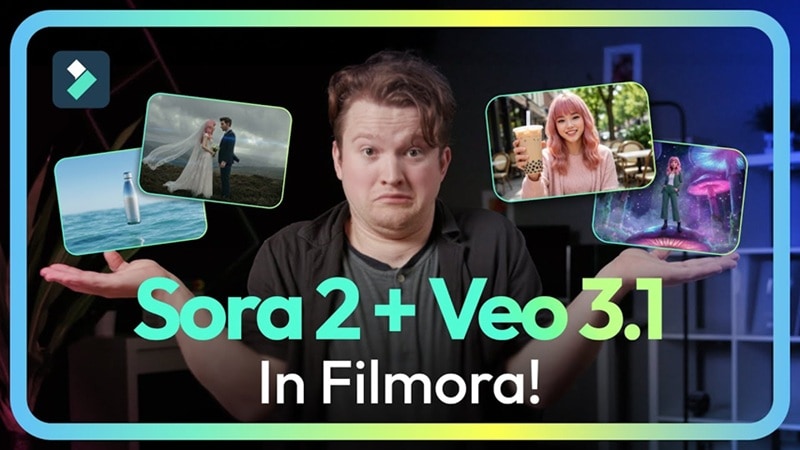
Instead of relying on one system, Filmora gives access to:
- Veo 3.1
- Sora 2
- Seedance 2.0
- ToMoviee 2.5
You can test multiple generation models without switching tools, comparing outputs and picking the best one for every project. That flexibility is a major time-saver.
Create AI Video from Audio

Filmora's AI Audio-to-Video feature is something Vidu simply doesn't have. You can upload a music track and the visuals are generated to pulse and react to the beat of your music. This feature is indispensable for music video creators and audio-driven content.
Complete Soundtrack Creation
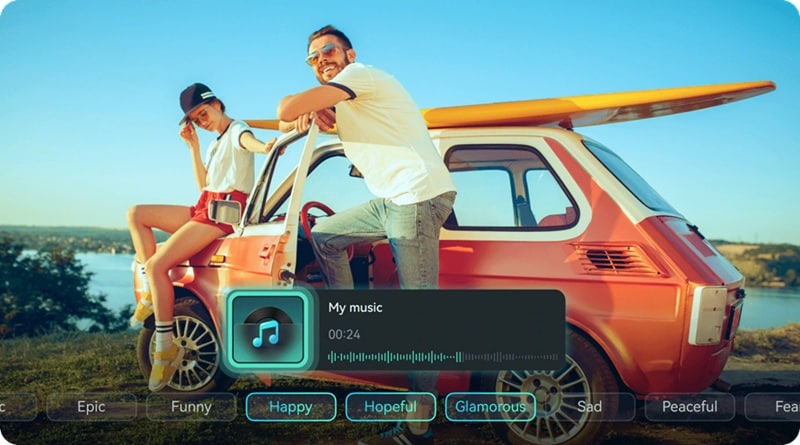
While Vidu Q3 handles basic sound effects, Filmora steps it up with a full AI Music Generator that creates entire royalty-free tracks from scratch based on your mood, genre, and tempo preferences. No more hunting for licensed audio!
Professional Editing Timeline
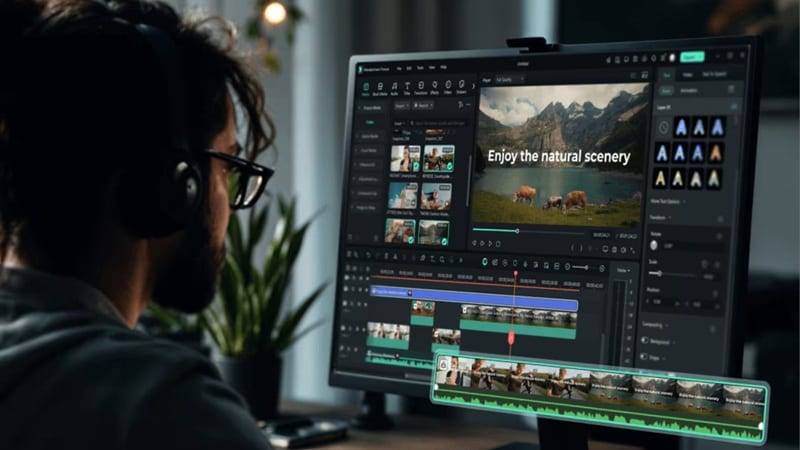
Vidu is mostly 'prompt and pray.' Filmora gives you a professional multi-track timeline where you can frame-accurately trim, layer, and sync clips. For anyone who needs real editorial control, not just generation, this is non-negotiable.
Social Media Ready

Filmora is packed with tools that streamline the creator-to-platform pipeline:
- AI Auto-Captions: Generate perfect subtitles in 20+ languages.
- AI Social Media Planner: Schedule your posts directly from the editor.
- AI Smart Masking: Cut out characters to swap backgrounds in seconds.
- AI Video Beauty Filter: Instantly beautify or stylize human subjects.
Secure DownloadConclusion
Vidu AI video generator is genuinely impressive for what it does: generating fast, high-quality, character-consistent video clips from text or images. The Q3 model's synchronized audio-video output and native 1080p are real differentiators, and the viral success of features like the Vidu AI hug effects proves there's a massive creative appetite for what Vidu delivers.
That said, if your production workflow goes beyond just generating clips, then Wondershare Filmora is the smarter long-term investment. With access to multiple AI video models including Veo 3.1 and Sora 2, a professional editing timeline, AI music generation, and social media publishing tools, Filmora gives you the complete creator stack that Vidu AI alone simply can't match. Think of Vidu as a powerful generator, and Filmora as the full studio.
FAQs About Vidu AI
-
What is Vidu AI best used for?
Vidu AI video generator is best suited for creating short, high-quality video clips from text prompts or images, particularly for social media content, character animations, concept visualization, and viral-style content like the hug or kiss animations. -
Can Vidu AI create long videos?
Not in a single generation. The current maximum output with Vidu Q3 is 16 seconds of synchronized audio-video. For longer content, creators typically stitch multiple generated clips together using an external video editor like Filmora. -
Is there an official Vidu AI Discord?
Yes! Vidu AI has an active community hub. You can access the Discord community through the or by clicking . The server is a great place to get real-time support, share creations, learn prompt techniques, and stay updated on new model releases and feature announcements.
