


More businesses are exploring how AI can support their daily operations, and AI video generators are one example of this trend. These tools support video creation for a range of needs, including social media, marketing, and education. You've probably come across AI-generated videos online yourself.
This time, we'll take a closer look at Vivideo. It’s a platform designed to help you generate videos using AI. We'll walk through its features and pricing, then weigh its pros and cons to give you a clearer idea of what to expect.
Part 1. What Is Vivideo? A Quick Look at Its Capabilities
Vivideo is an online AI video generator. You can turn text and images into videos using different AI models, avatars, and brand elements. It also offers tools to create talking videos, generate voiceovers, and customize content for different needs.
| Category | Overview |
| Platform Type | AI video generation platform |
| Primary Focus | Creating videos with AI models, avatars, and brand assets |
| AI Models | OpenAI, ByteDance, xAI, MiniMax, Vidu, Google, Pixverse, Luma AI, Tencent, Kuaishou, Alibaba, Lightricks, Pika, Moonvalley |
| Platform | Online, iOS, Android |
| Ease of Use | Intuitive interface with a straightforward workflow |
| Best For | Branded videos and social media content |
|
Show More
Show Less
|
|
Part 2. Is Vivideo Free to Use? Here's What to Know
Vivideo uses a credit-based system. And you can't use it to generate videos for free. After signing up, you can discuss your video idea with Vivideo's Agentic AI, which then outlines the scenes for your video. However, you'll need a paid subscription to generate the actual video.
There are two subscription options available on Vivideo AI: Pro and Max. We've summarized the main differences below.
| Category | Pro | Max |
| Price | $9/week or $99/year | $19/week or $199/year |
| Weekly Credits | 30 | 100 |
| Video Generation Limit | Up to 10 videos | Up to 33 videos |
| Maximum Video Duration | Up to 5 minutes | Up to 5 minutes |
| Watermark | None | None |
| Export Quality | High resolution | High resolution |
| Automated Video Creation | Not Available | Available |
| Social Media Publishing | Not Available | Available |
| API Access | Not Available | Available |
|
Show More
Show Less
|
||
Part 3. What Makes Vivideo AI Stand Out?
We've covered the basics of Vivideo AI. But there's more to explore before deciding whether it's the right tool for you. Let's take a closer look at its main features and what you can do with them.
1. Agentic Video Creation
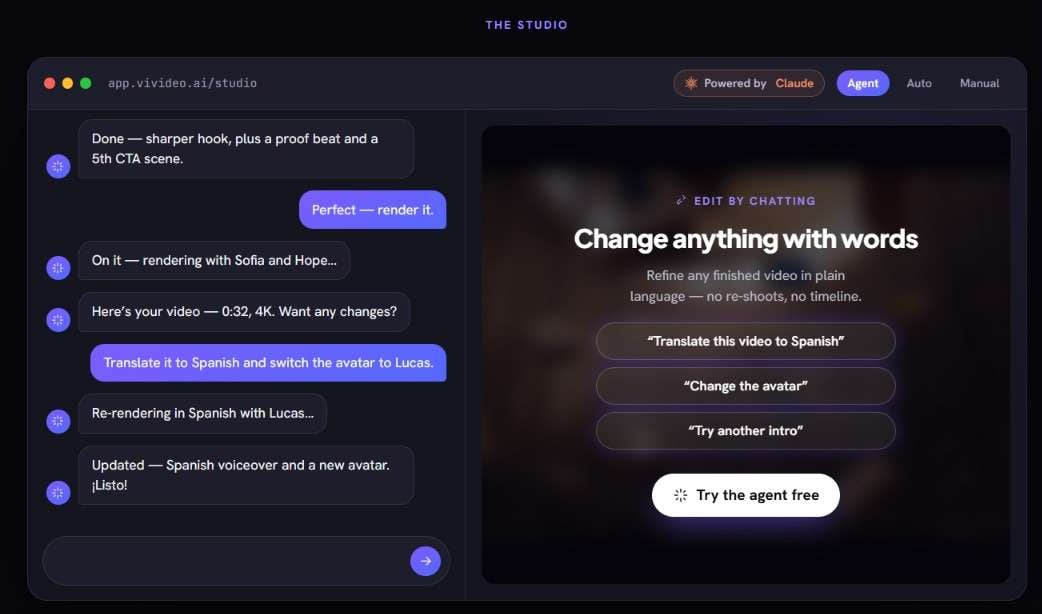
Vivideo AI includes an AI Agent that helps you create videos through conversation. You can simply describe your idea, and it can develop a script, organize the scenes, select an avatar and voice, and apply your brand kit. You can also provide feedback to refine the video.
2. Automatic or Manual Video Creation
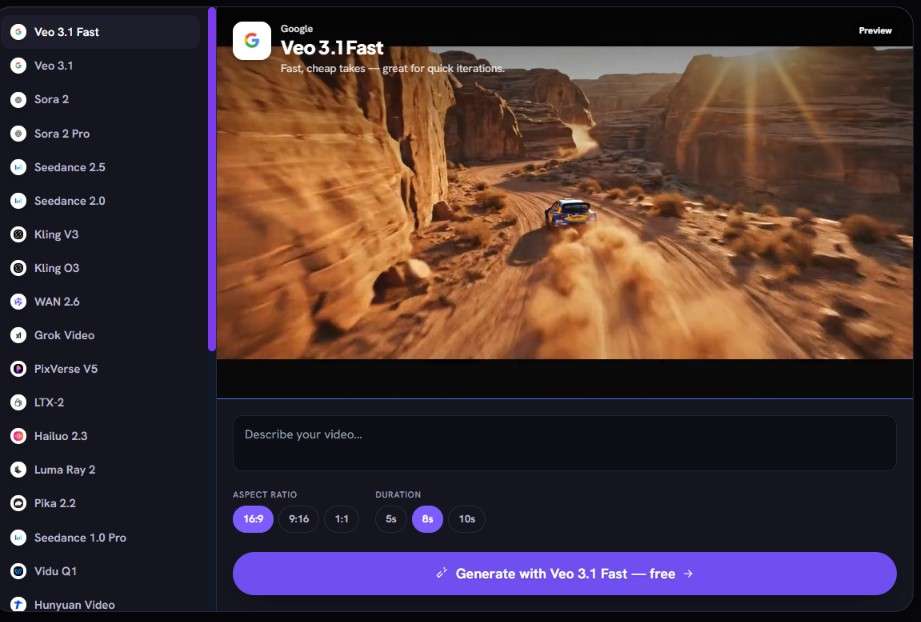
Apart from using the AI Agent, you can choose between automatic and manual video creation in Vivideo. The automatic option is designed to save time by turning a short prompt into a complete video with a script, scenes, voiceover, captions, and music.
The manual option is better suited to projects that need more customization. It allows you to pick the AI model for each shot and adjust the prompts, settings, and source materials as you build your video.
3. Explore a Variety of AI Video Models
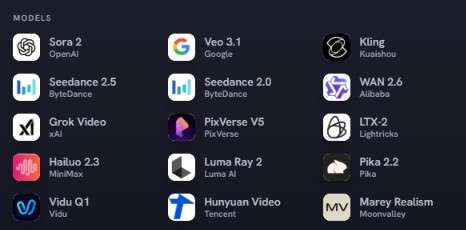
Vivideo AI stands out for bringing a broad selection of AI video generation models together on one platform. It offers more than 30 options for turning text prompts or images into videos, including well-known models such as Veo and Kling. Since each model handles things like motion, realism, and visual styles differently, you can try several options and see which one works best for your project.
4. Get Started Faster With Video Templates
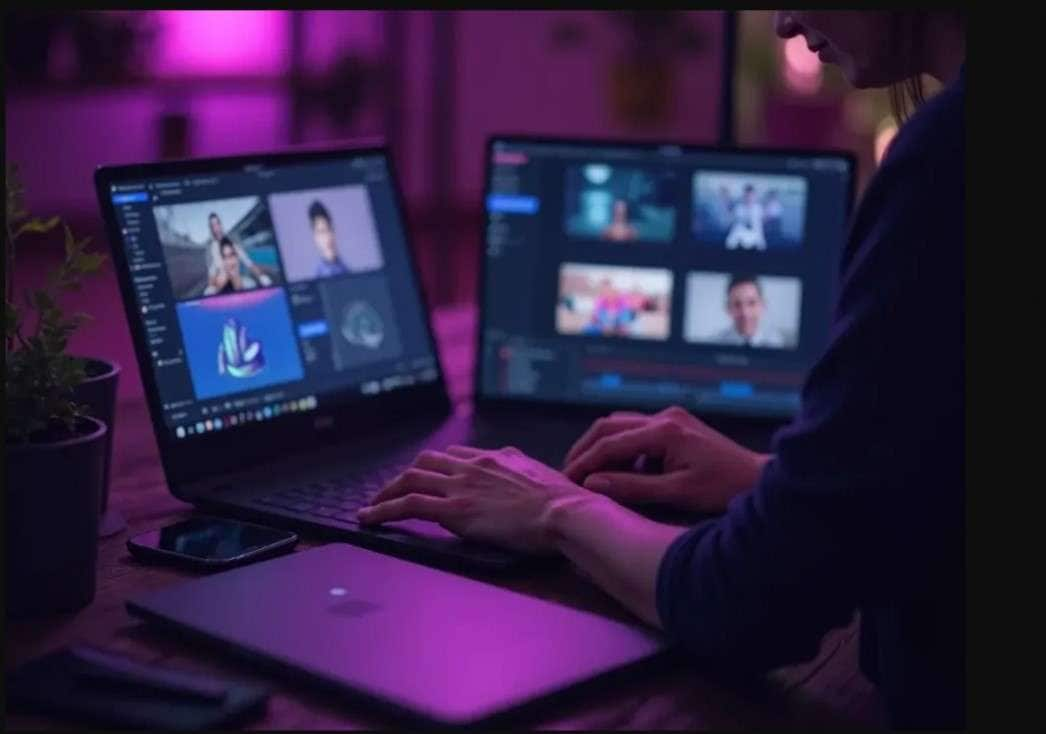
If you're short on time or unsure where to start, Vivideo's video templates can help. You can browse the available options, select a template, and customize it with your own prompt and reference materials. Trying popular templates is another way to find inspiration for your content.
5. Create Multilingual Videos With Vivideo
Besides being a Vivideo AI video generator, it also offers features for creating videos in multiple languages. This can help you adapt your content for audiences who speak different languages.
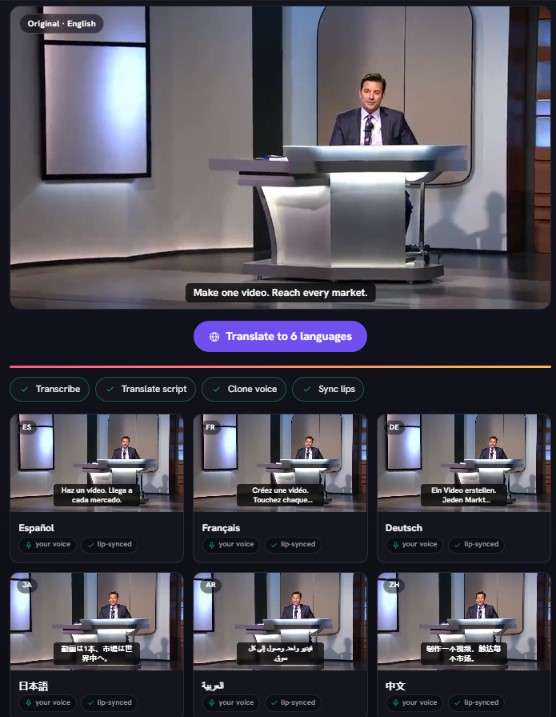
Let's take a closer look at these features.
- AI Voice Generator: Create voiceovers from written scripts or generate speech that sounds like your own voice. With support for more than 30 languages, you can produce narration for different types of videos.
- AI Video Dubbing: Adapt your videos for viewers who speak other languages by replacing the original speech with AI-generated voices. The tool also synchronizes the speakers' lip movements with the dubbed audio.
- AI Video Translator: Make your videos accessible to a wider audience by translating their content into more than 30 languages. The tool can also generate translated subtitles and voiceovers to help communicate your message across language barriers.
Part 4. Vivideo Review: Strengths and Limitations
When looking up Vivideo AI reviews, you'll find user feedback across several review platforms. Overall, the ratings are positive. The platform scored 4.2 on G2, 4.5 on Trustpilot, 4.6 on the App Store, and 5 stars on Google Play.
These ratings are encouraging. However, it's still worth considering what Vivideo AI does well and where it falls short. Here's a closer look at its strengths and limitations.
- High-Resolution Videos: Generate videos in resolutions of up to 4K.
- Helpful Support Resources: Vivideo provides a Help Center where you can find guidance and look for solutions when you run into issues while using the platform.
- Affiliate Program: You can join Vivideo's affiliate program to promote the platform and earn commissions.
- Unpredictable Results: Video generation doesn't always go as planned. Some users have experienced disappointing results, unsuccessful attempts, or generations that show an error after waiting several minutes.
- Avatars and Voices Can Feel Unnatural: AI-generated voices and digital presenters may lack natural expression or sound awkward, which can affect the overall viewing experience.
- Not Ideal for Detailed Editing: Vivideo may feel limiting if you need precise control over storytelling, scene composition, or advanced editing.
Part 5. Who Can Benefit From Vivideo?
Vivideo can be useful for creating videos quickly, but it may not suit every type of project. To help you decide whether Vivideo is a good fit, let's explore some groups that may benefit from it.
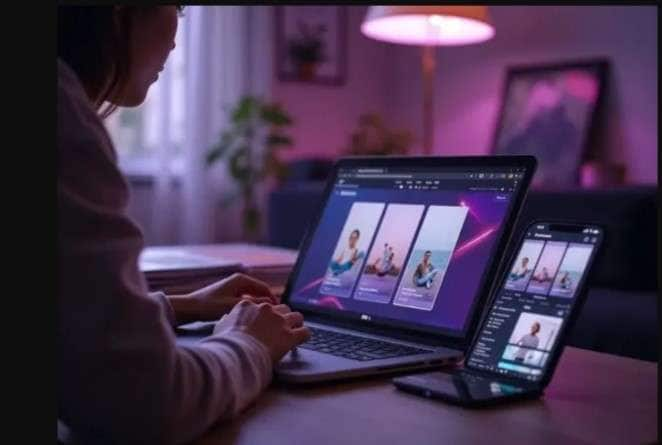
1. Content Creators: Create vlogs, daily life videos, and other short-form content for platforms like TikTok, Instagram Reels, and YouTube Shorts.
2. Marketing Teams and E-commerce Businesses: Develop promotional content, product showcases, and ad videos for online stores and marketing campaigns.
3. Teachers, Trainers, and Educators: Turn lesson plans, training materials, and complex subjects into explainer or instructional videos with AI-generated voiceovers and multilingual captions.
4. Real Estate Agents and Property Marketers: Transform property photos into video tours that showcase homes and other listings in a more dynamic format.
Part 6. Polish Your AI Videos With Wondershare Filmora
Vivideo is a convenient option for generating videos with AI, but making precise adjustments to the results can be challenging when much of the process relies on prompts. If you generate several clips, you may also need a separate editor to combine them into one complete video.
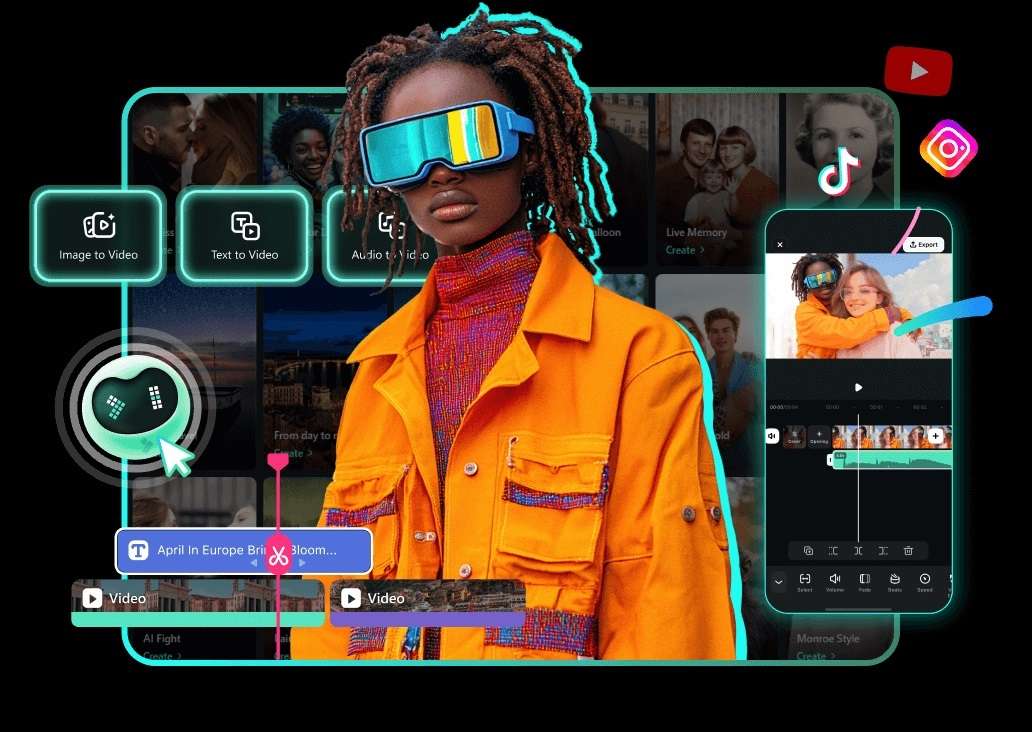
With Wondershare Filmora, you can bring multiple AI-generated clips together in one video. You can arrange multiple clips on the timeline, cut unnecessary footage, and add transitions between scenes. Filmora also includes creative assets and AI tools to help you give the finished video a more polished look.
1. Beyond AI Video Generation
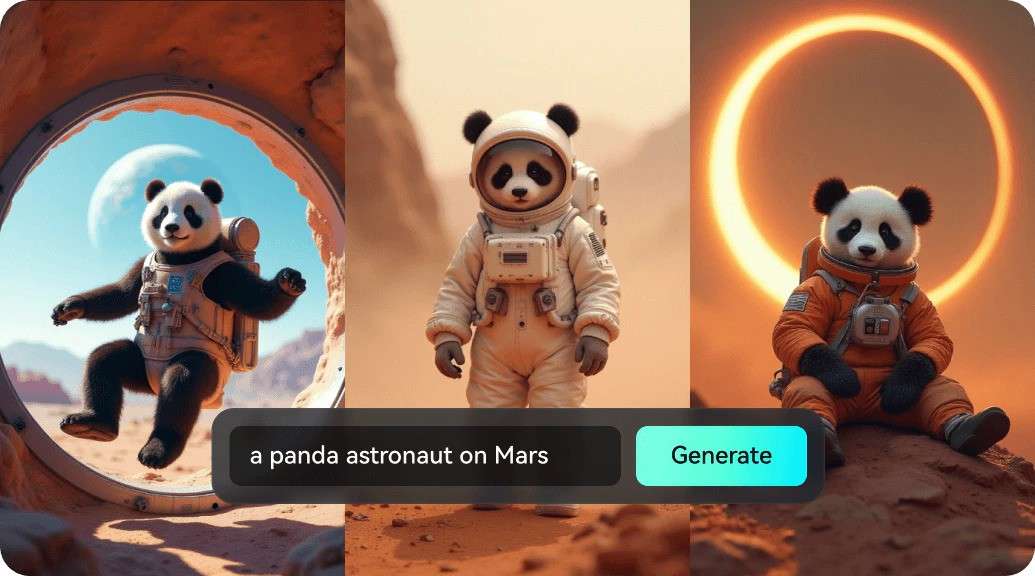
While the Vivideo AI video generator focuses on turning ideas into videos, Filmora lets you create more than video content. Here's what you can try:
- Create AI Images: Turn written descriptions or reference images into new visuals. You can choose from different AI models, including GPT Image and Nano Banana, to explore different results.
- Generate AI Videos: Make videos from text prompts, ideas, images, or audio. Filmora supports models such as Seedance 2.0, Sora 2, and Veo 3.1 for AI video generation.
- Produce AI Audio: Create original background tracks with the AI Music Generator or produce sound effects for specific scenes using the AI Sound Effect Generator.
2. Works Seamlessly With Filmora's Video Editor
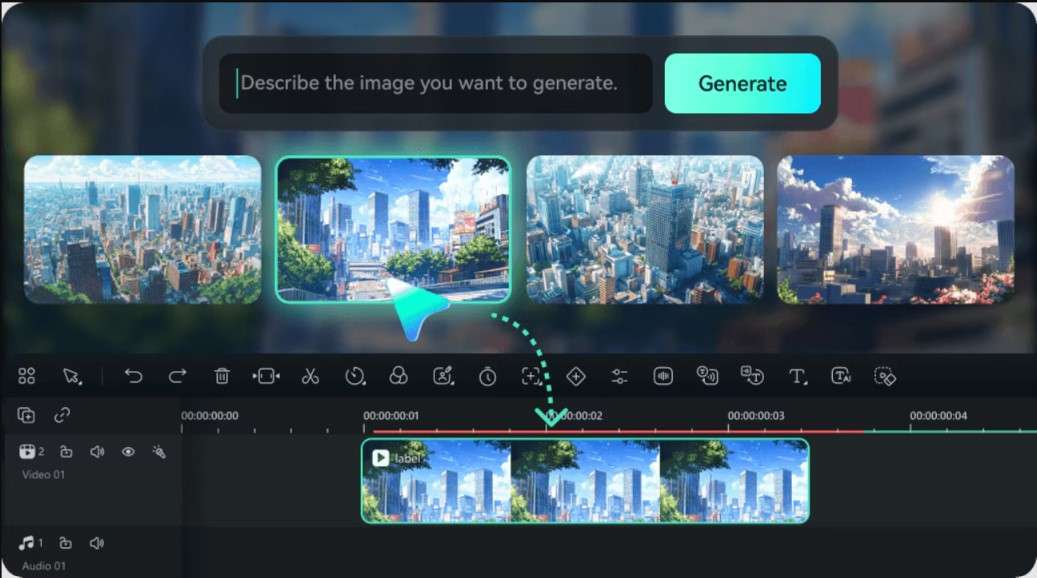
After generating your AI content, you can move straight into editing. Drag your clips onto the timeline to organize scenes, adjust their order, and add text animations or transitions. These editing options help you shape the individual clips into a complete video.
3. Make Video Editing Easier With AI
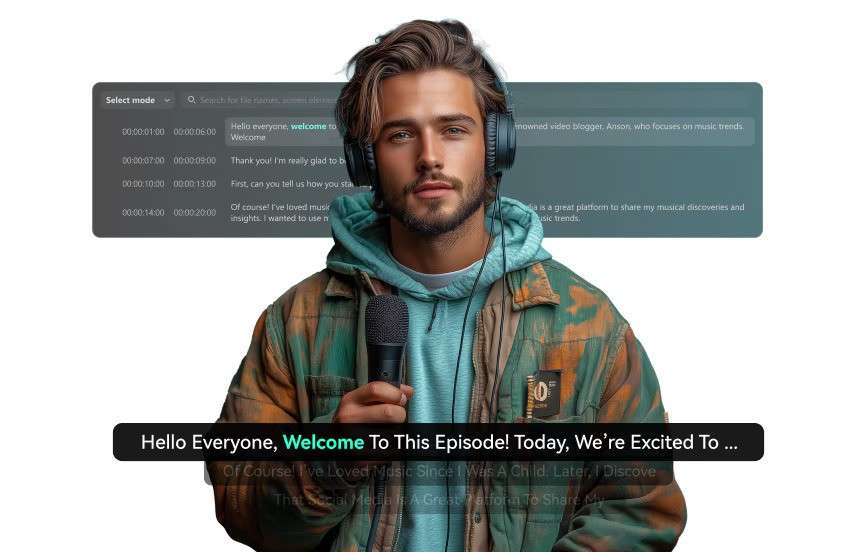
Filmora also includes several AI tools that can help speed up editing. Auto Caption Generator helps you add subtitles. Auto Reframe adapts your video to different aspect ratios while keeping the main subject in focus. Smart Short Clips helps you extract shorter videos from longer recordings for social media.
4. Explore a Vast Collection of Creative Assets
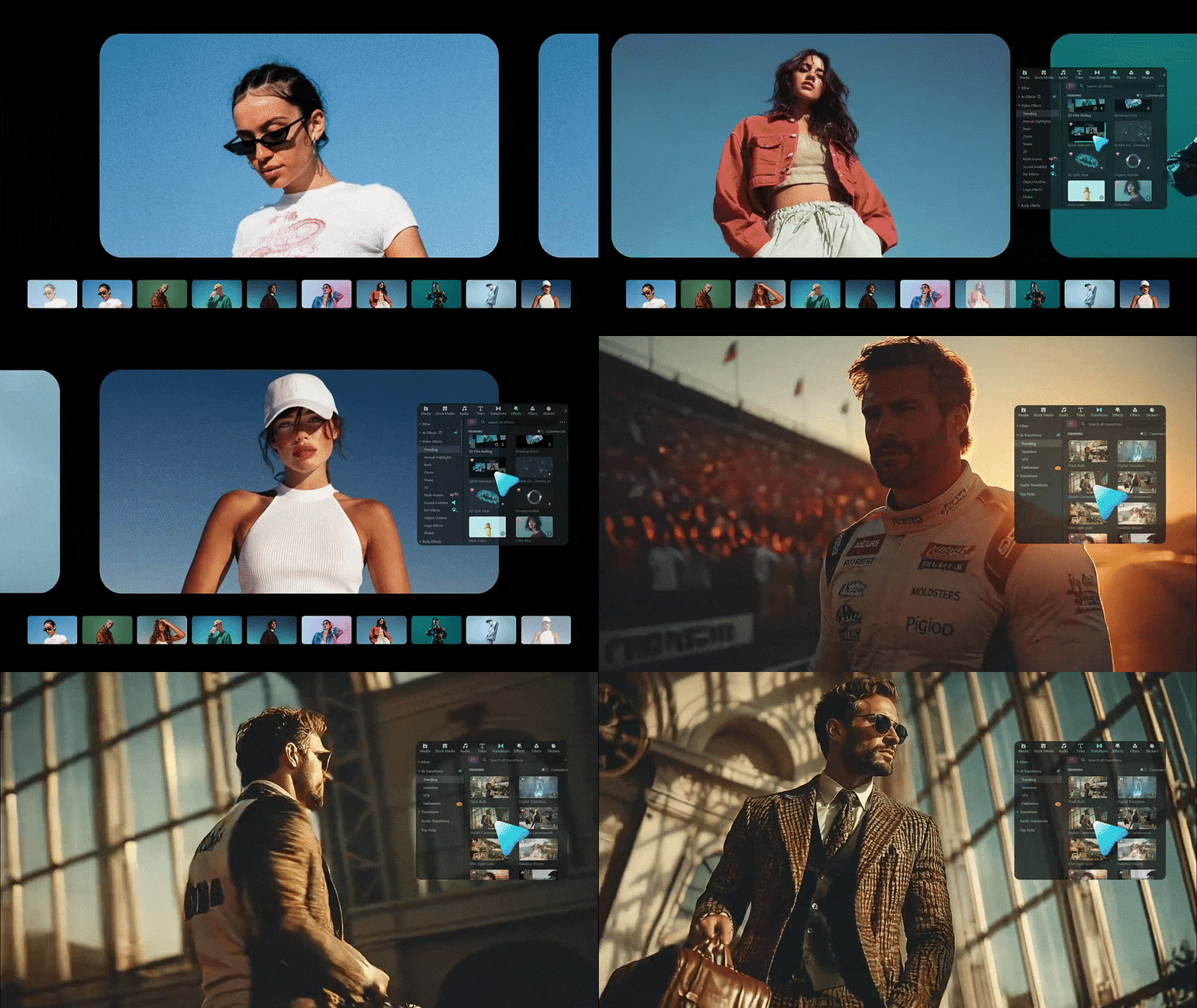
Filmora gives you access to a large library of creative assets, including images, audio tracks, stock footage, stickers, titles, and transitions. Mix and match these resources to add details, fill empty spaces, and give your video a style that suits your project.
 Secure Download
Conclusion
Vivideo AI Video Generator makes it possible to create videos with a variety of AI models and simplify the process with its AI agent. By handling tasks such as scriptwriting and scene planning, the platform can help you get a video started without having to build everything from scratch.
Still, prompt-based generation may not provide enough control for projects that require detailed adjustments. Filmora offers another approach by combining AI generators with a full video editor. Its timeline editing features, additional AI tools, and creative asset library give you more options for refining your footage and bringing all the elements together in one video.
FAQs
-
1. Is Vivideo legit?
Yes. Vivideo features testimonials and user figures on its website, along with references to well-known organizations such as Adidas, BCG, and several universities. -
2. Do Vivideo videos include a watermark?
No. Videos generated with Vivideo don't include a watermark. However, you'll need a paid subscription to access its video generation features. -
3. Can I use Vivideo-generated videos for commercial purposes?
Yes. Vivideo's paid plans include commercial usage rights, allowing you to use generated videos for commercial projects. Make sure to review its current terms for any specific restrictions.
