
360 Video Editor to Reframe Every Angle
Reframe 360 footage after you shoot. Choose any viewing angle, create tiny planet and fisheye looks, animate smooth camera moves, and continue editing on the Filmora timeline.
 4.7
(15,746 reviews)
4.7
(15,746 reviews)
Windows 10+, Intel Core 8th Gen / AMD Ryzen 3000+, 16GB RAM, GTX 1660+ | System Requirements
macOS 11.0+, Apple M1 or later | System Requirements
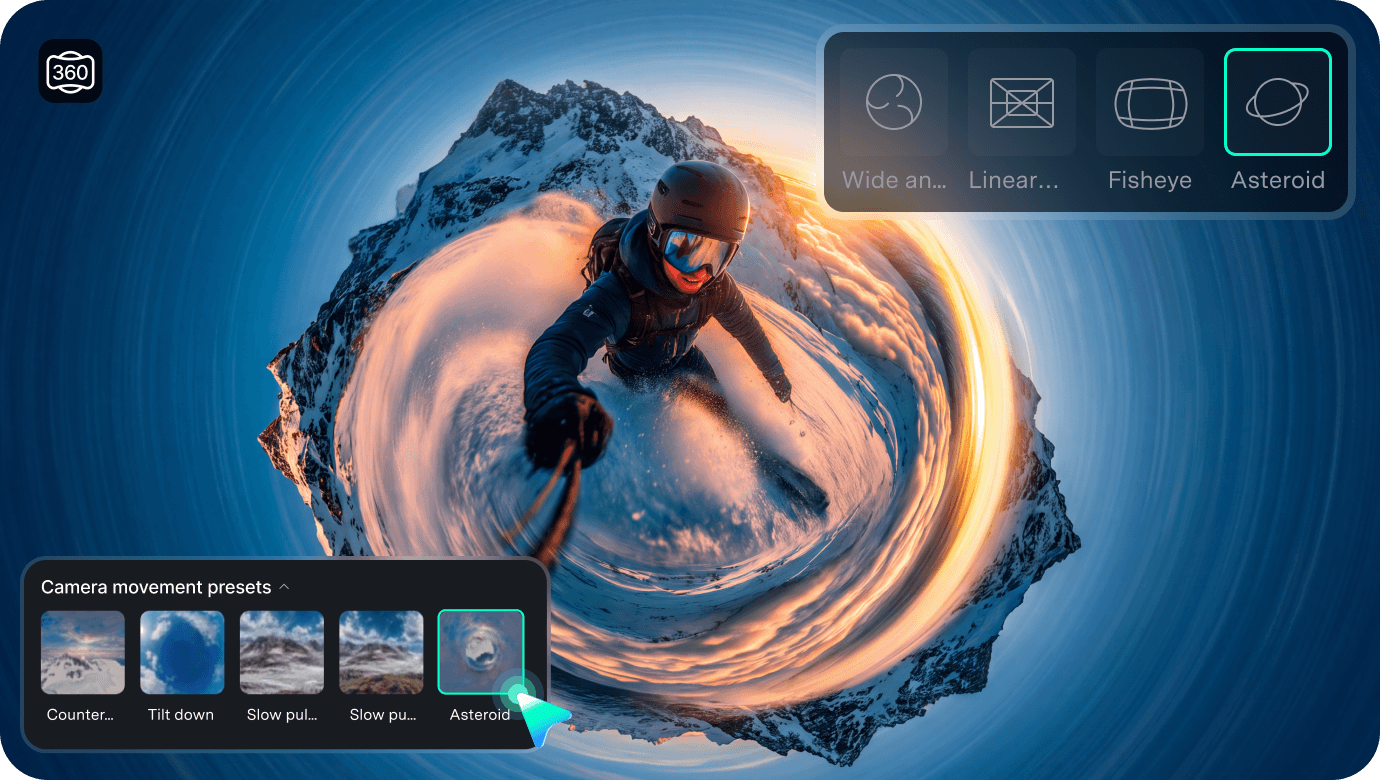
Reframe 360 footage after you shoot. Choose any viewing angle, create tiny planet and fisheye looks, animate smooth camera moves, and continue editing on the Filmora timeline.
Edit 360 Video With More Creative Control
Turn one 360 capture into multiple creative shots with intuitive controls that make 360 video editing easier to explore.
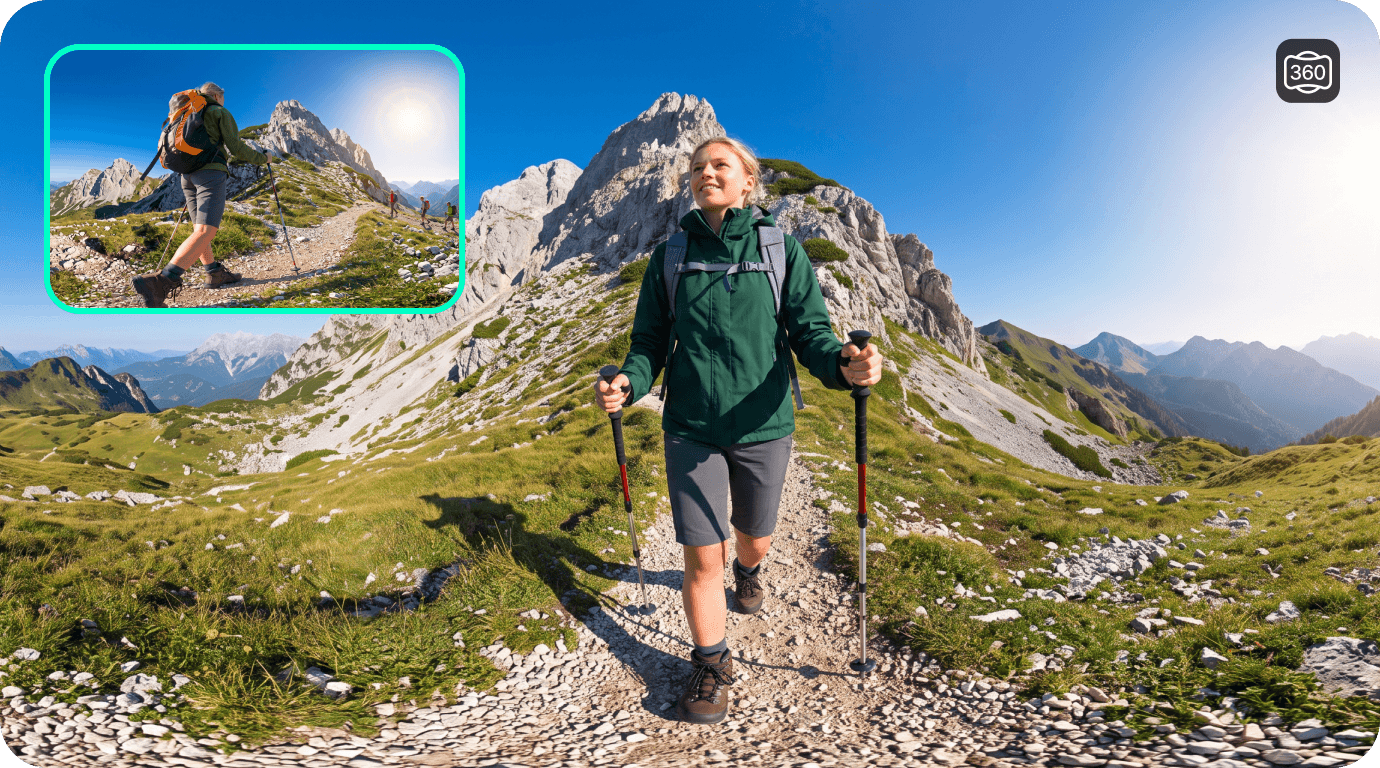
Reframe 360 Video After You Shoot
Drag directly in the player to change the viewing direction, then zoom in or out to find the framing you want. Fine-tune the field of view, viewing direction, and orientation when you need more precise control.
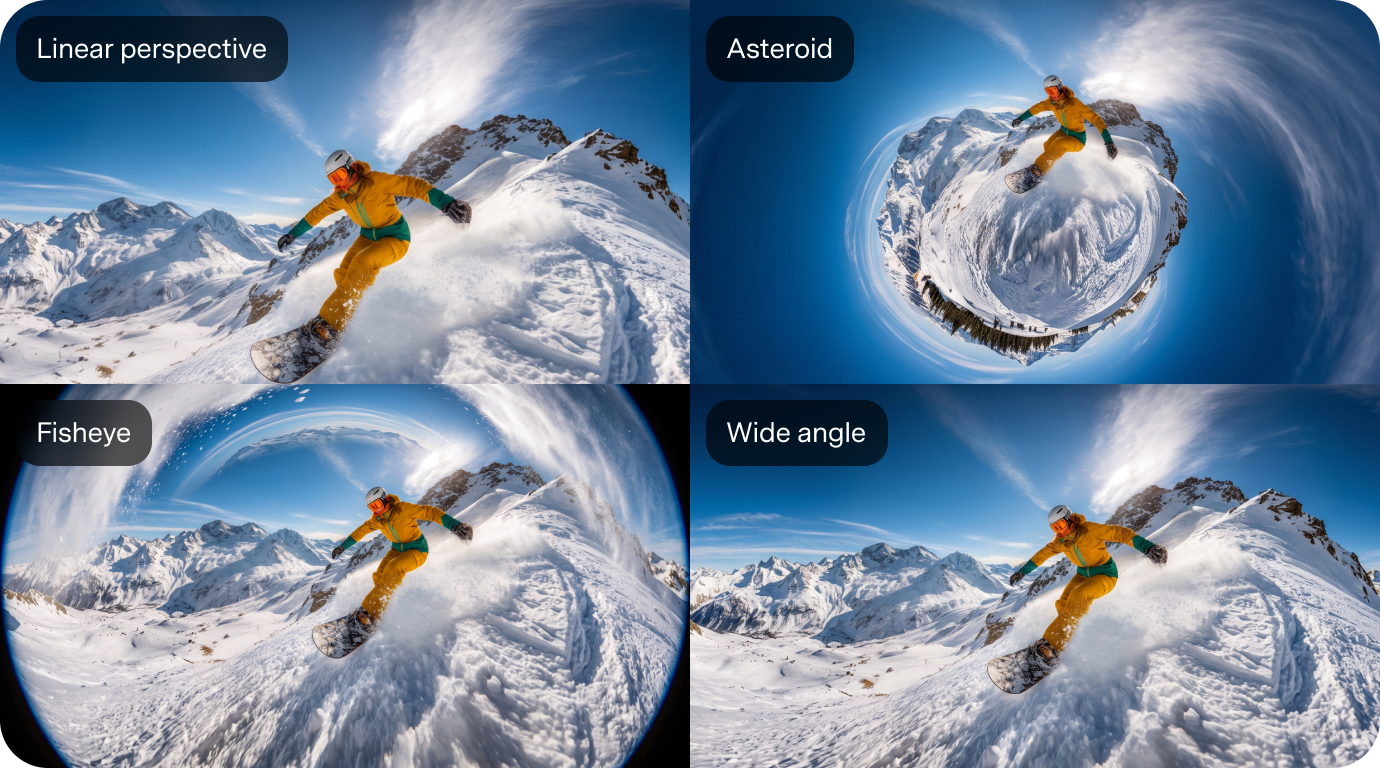
Create Tiny Planet, Fisheye, Wide Angle, and More Views
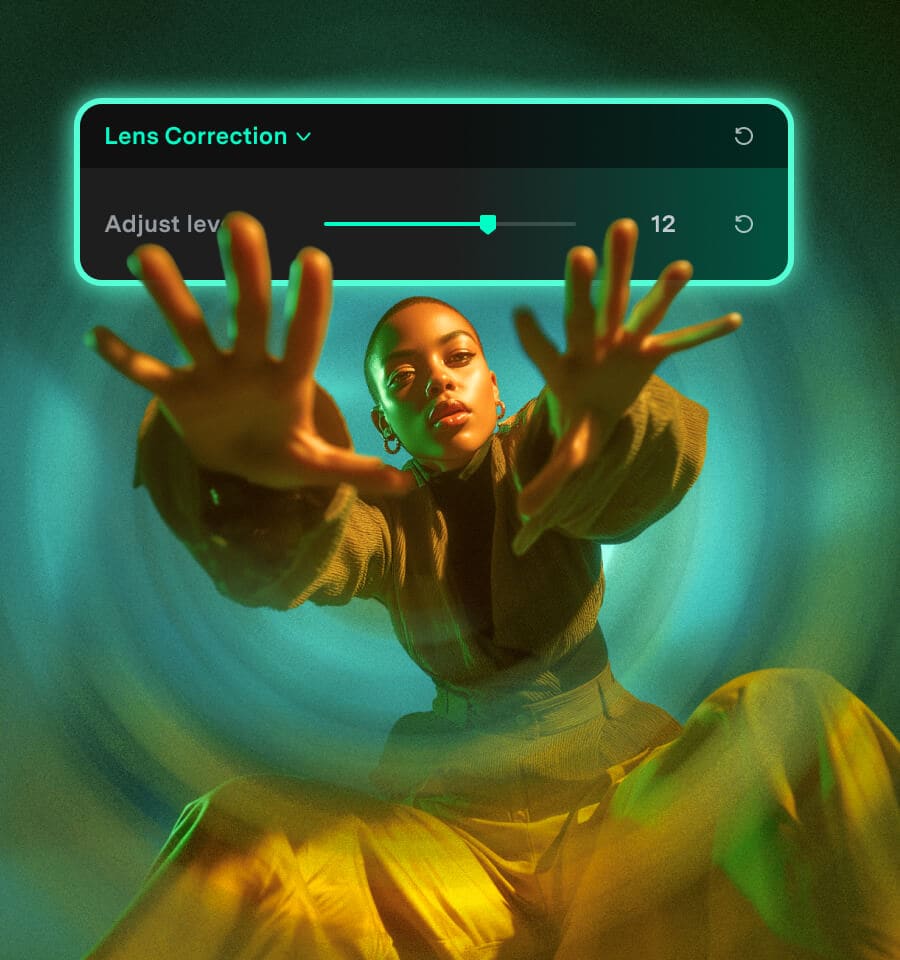
Give the same 360 footage a completely different look with ready-made view presets. Switch between Asteroid, Fisheye, Wide angle, and Linear perspective without manually adjusting complex projection settings.
Create Smooth 360 Camera Moves With Presets and Keyframes
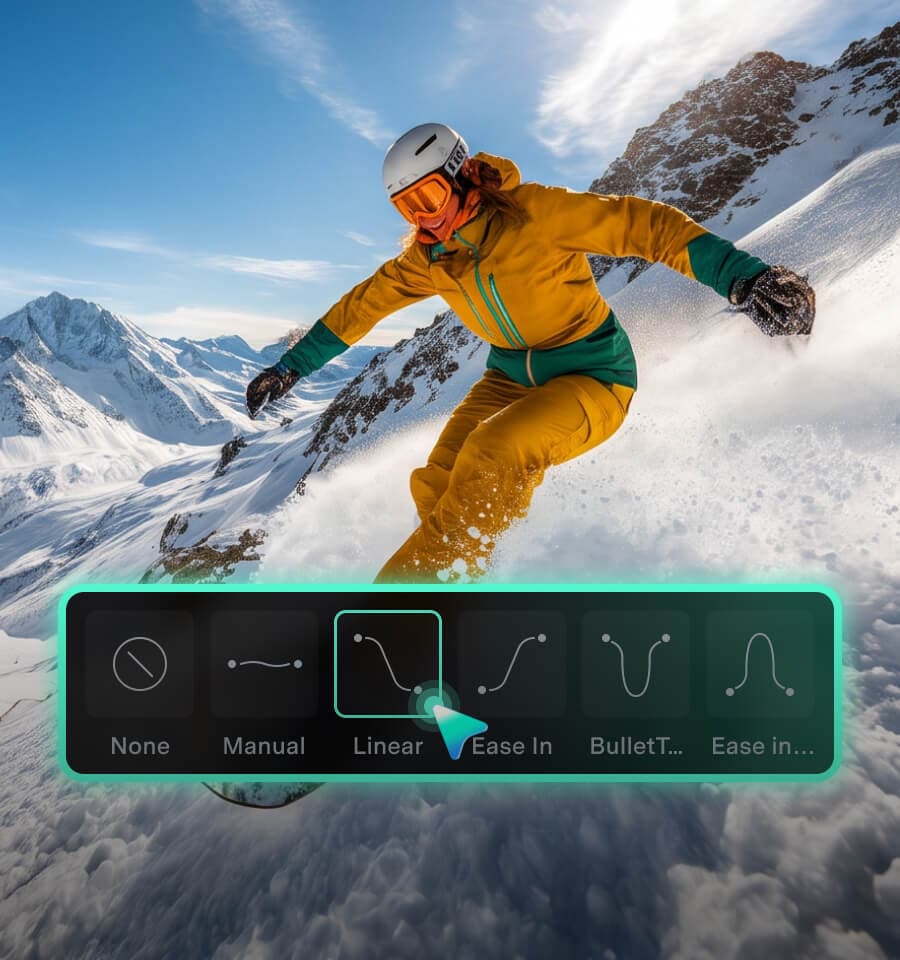
Use keyframes and ready-made motion presets to create slow push-ins, slow pull-outs, clockwise and counterclockwise moves, tilts, and other dynamic camera movements without manually building complex animations.
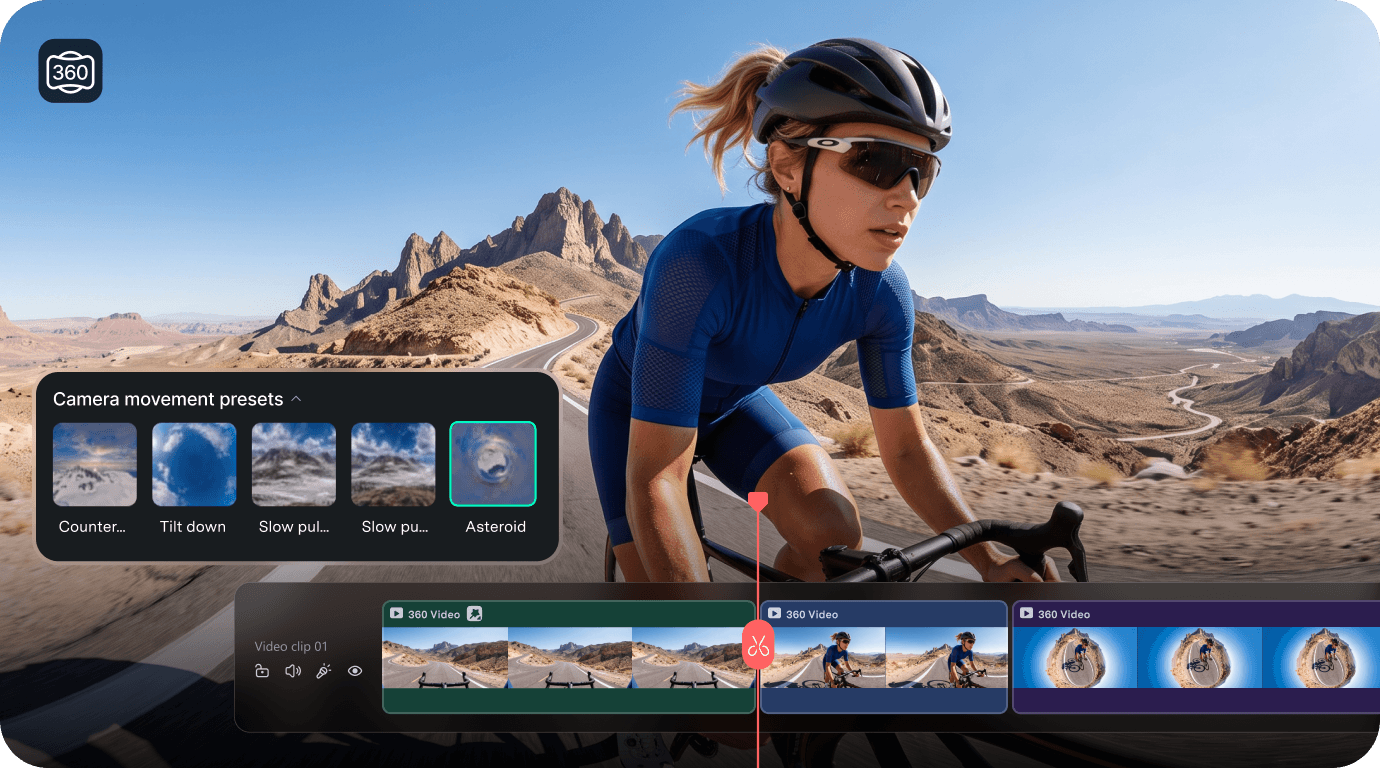
Edit 360 Footage Like Any Other Video
Keep editing your 360 footage with Filmora's familiar timeline tools. Trim and split clips, change speed, create compound clips, add effects, and more—all within the same editing workflow.
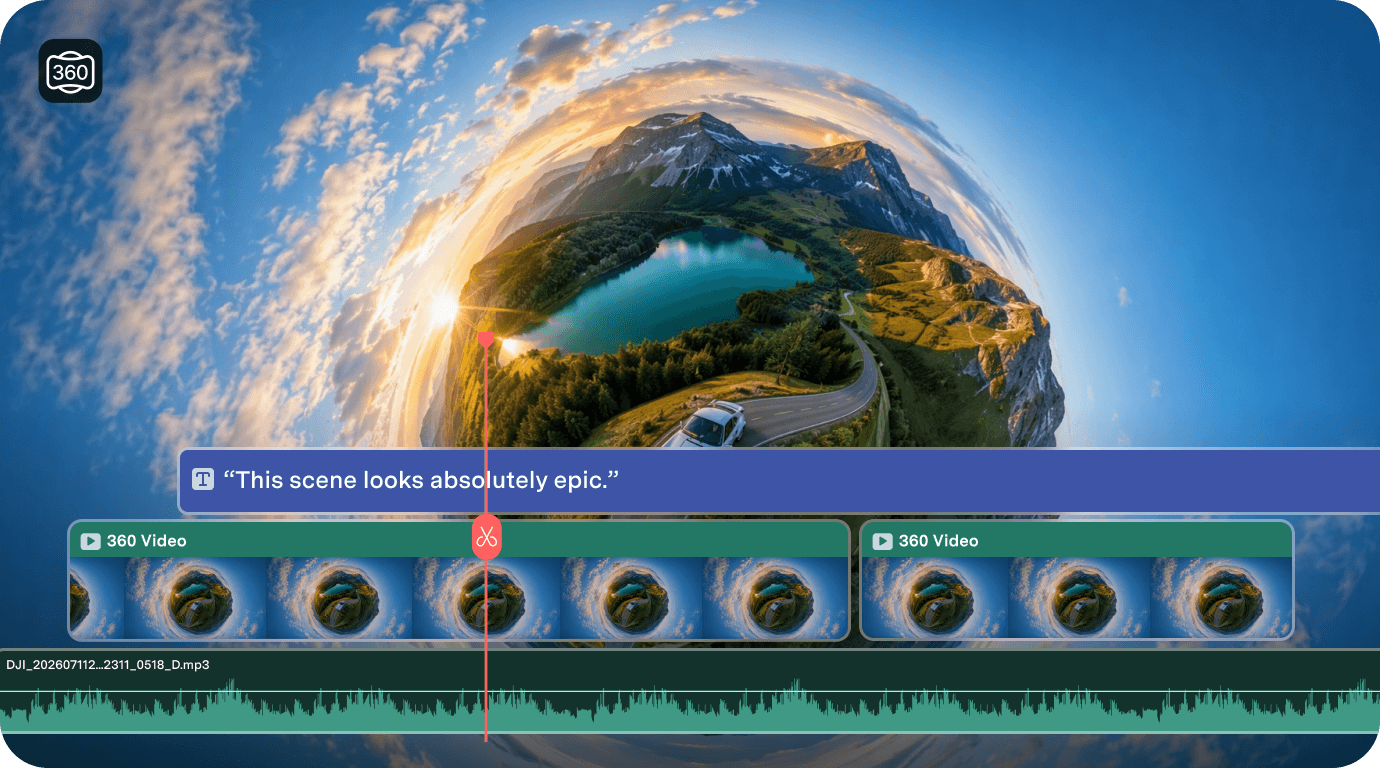

Works With Popular 360
Camera Footage
Edit compatible 360 MP4 footage in Filmora, with support for Insta360 INSV on Windows and DJI Osmo 360 footage exported as MP4.

Keep 360 Video
Editing Simple
Make creative adjustments to 360 footage with intuitive visual controls that keep technical complexity out of your workflow.

Export Share-Ready
Standard Videos
Turn your edited 360 footage into standard videos ready for YouTube, TikTok, Reels, Shorts, and more.
How to Edit and Reframe 360 Video in Filmora
Import your 360 footage, choose the view you want, and finish your video on the Filmora timeline in just a few steps.
Step 1. Import Your 360 Footage
Import your compatible 360 footage into Filmora and drag it onto the timeline. Compatible 360 MP4 footage is automatically recognized so you can start editing right away.
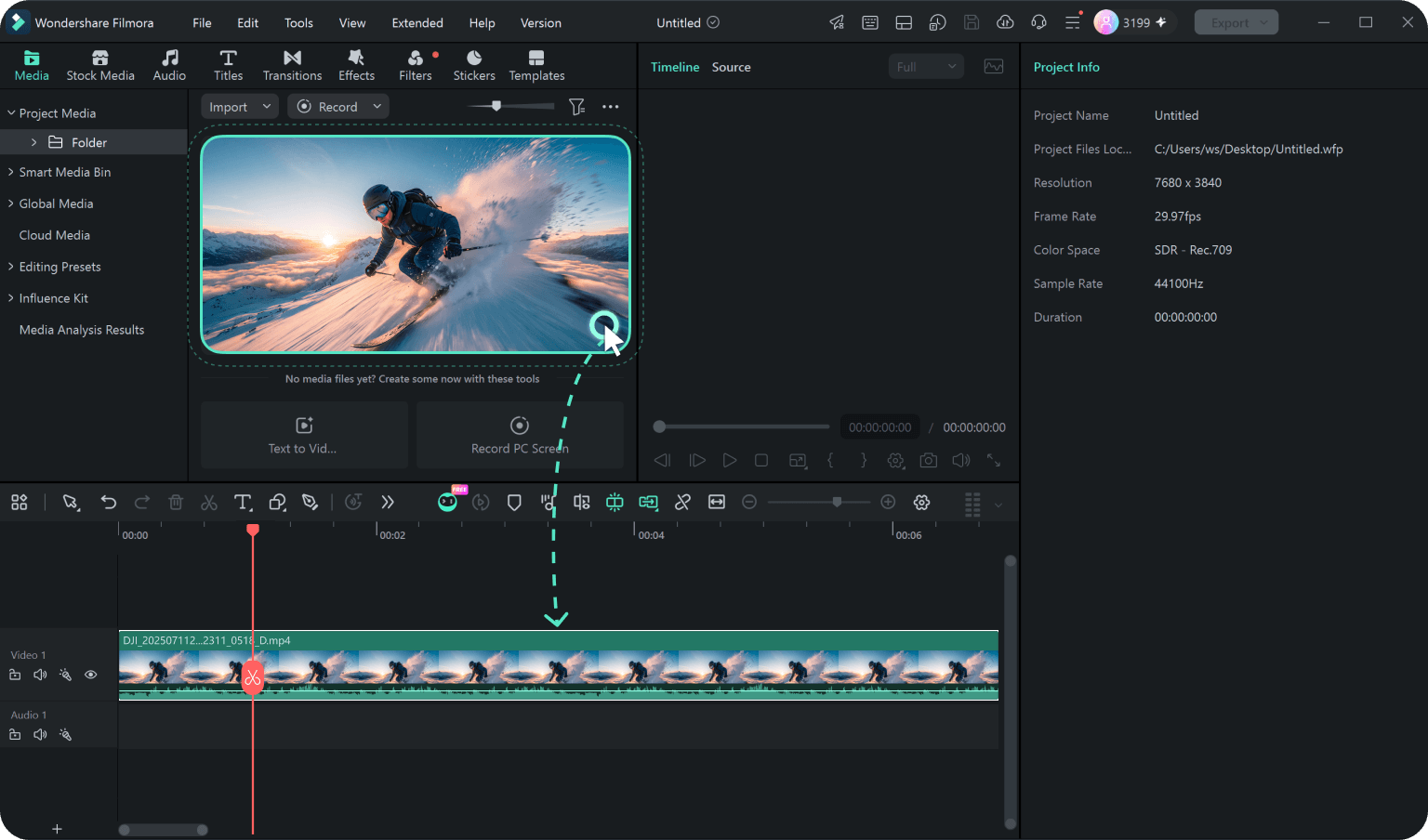
Step 2. Reframe and Adjust Your View
Select the 360 clip, then drag in the player to choose your viewing angle and scroll to zoom in or out. Adjust the perspective or add camera movement for more creative control.
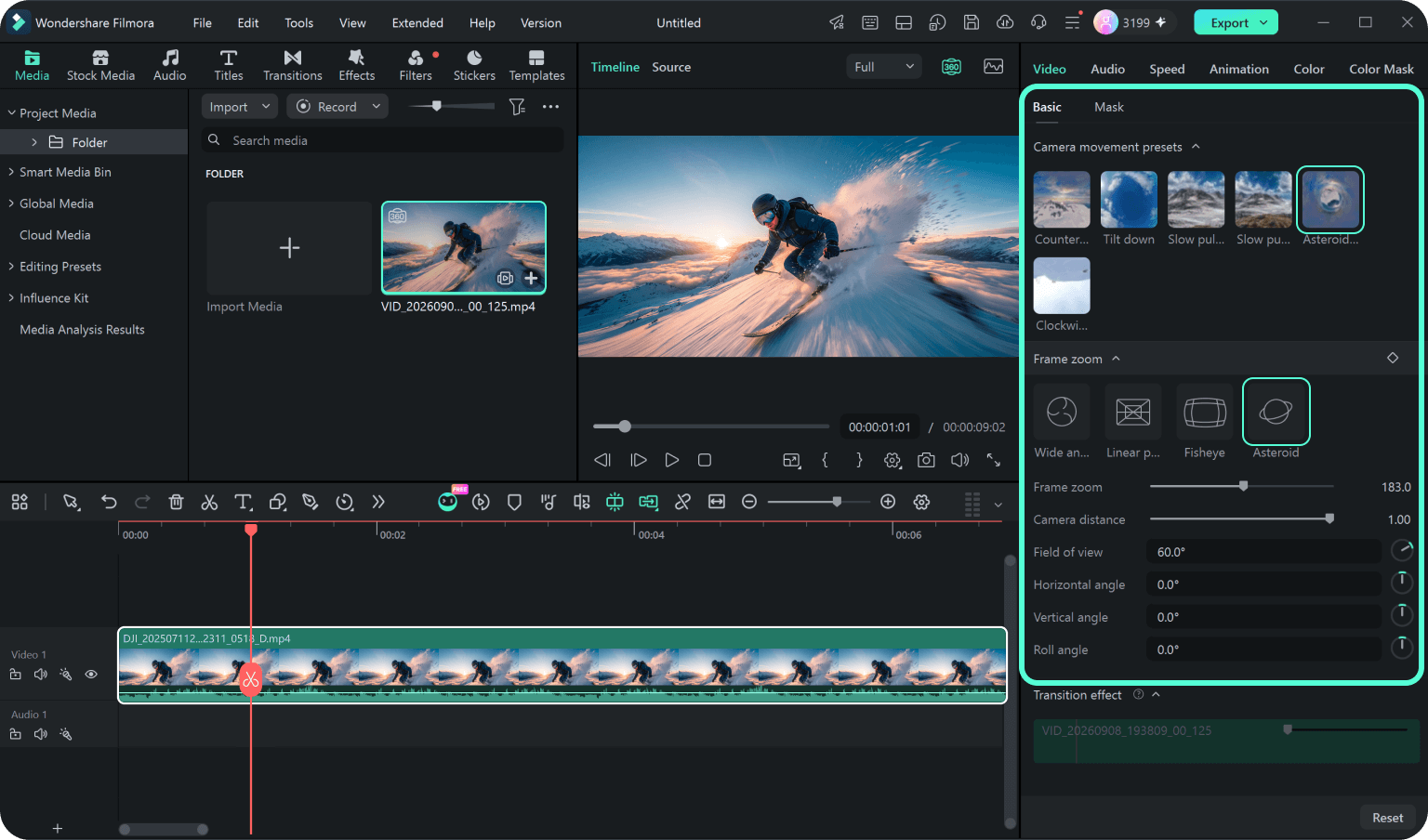
Step 3. Edit and Export Your Video
Finish editing your clip as needed, then export the reframed 360 footage as a standard video ready to share.
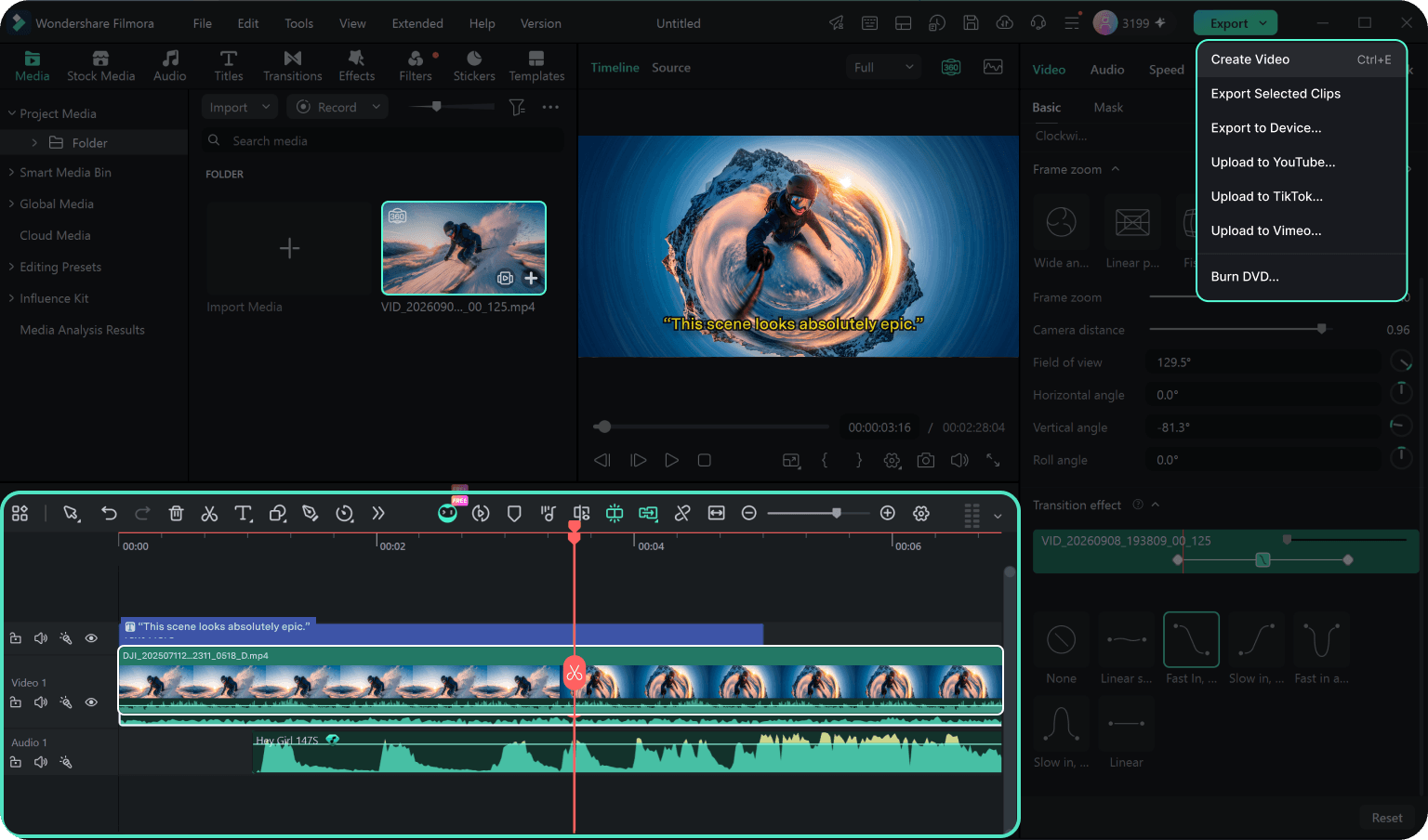
-
Step 1: Import Your 360 Footage
Import your compatible 360 footage into Filmora and drag it onto the timeline. Compatible 360 MP4 footage is automatically recognized so you can start editing right away.
-
Step 2: Reframe and Adjust Your View
Select the 360 clip, then drag in the player to choose your viewing angle and scroll to zoom in or out. Adjust the perspective or add camera movement for more creative control.
-
Step 3: Edit and Export Your Video
Finish editing your clip as needed, then export the reframed 360 footage as a standard video ready to share.
Create More With Your 360 Camera Footage
Turn travel and action footage into focused stories, dynamic highlights, and eye-catching short-form videos.
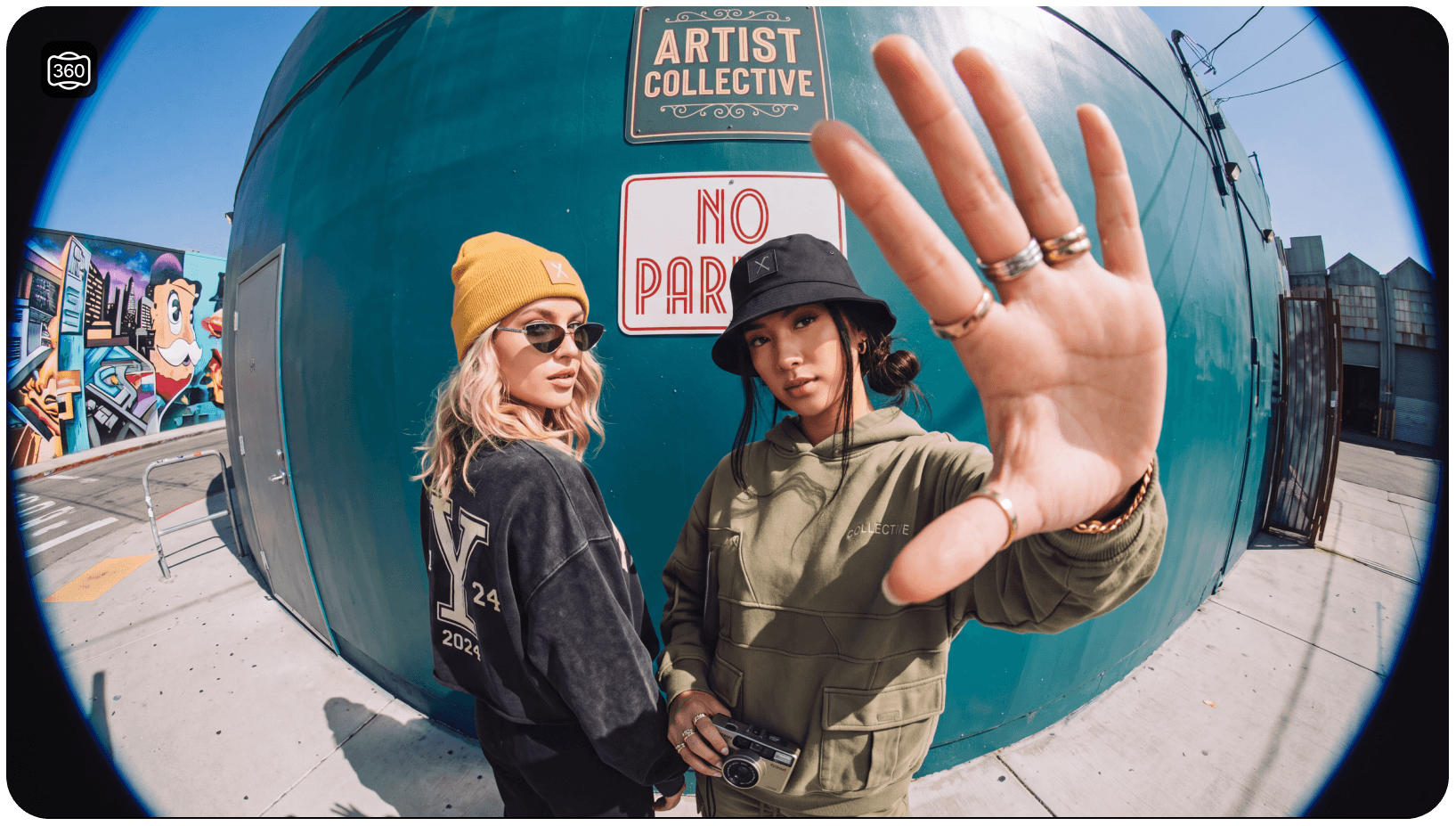
Find the Best Frame After the Journey
Capture the whole scene on road trips, city walks, camping trips, and vacations, then choose the best moments from your 360 footage when you edit. Keep the traveler, scenery, or unexpected moments in frame without having to lock in the final framing while shooting.
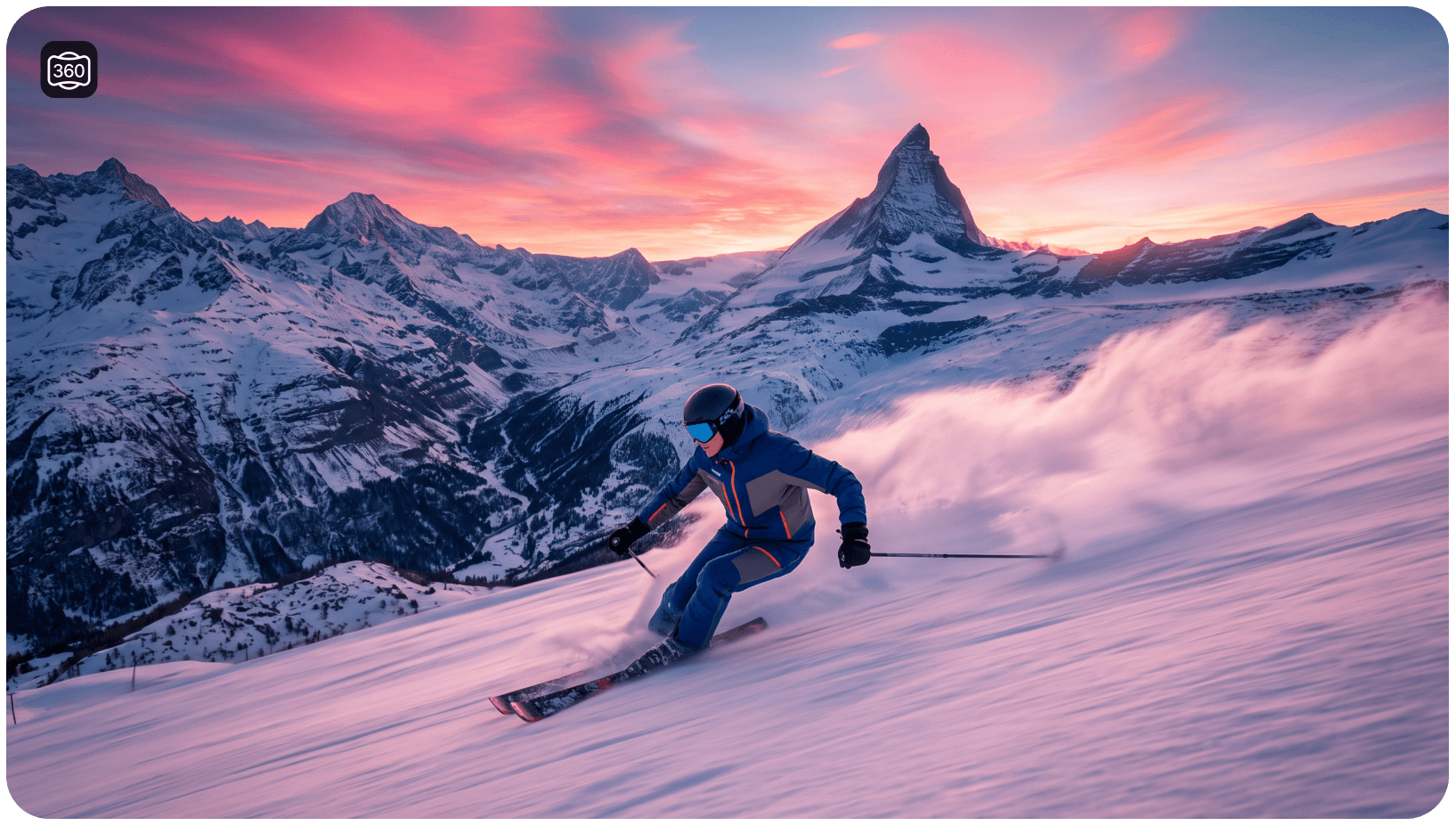
Keep Fast-Moving Action in View
Reframe 360 camera footage from cycling, skiing, motorcycling, surfing, and other outdoor adventures to keep the action where you want it. Turn hard-to-frame moments into dynamic action shots and highlight the most exciting parts of every ride or run.
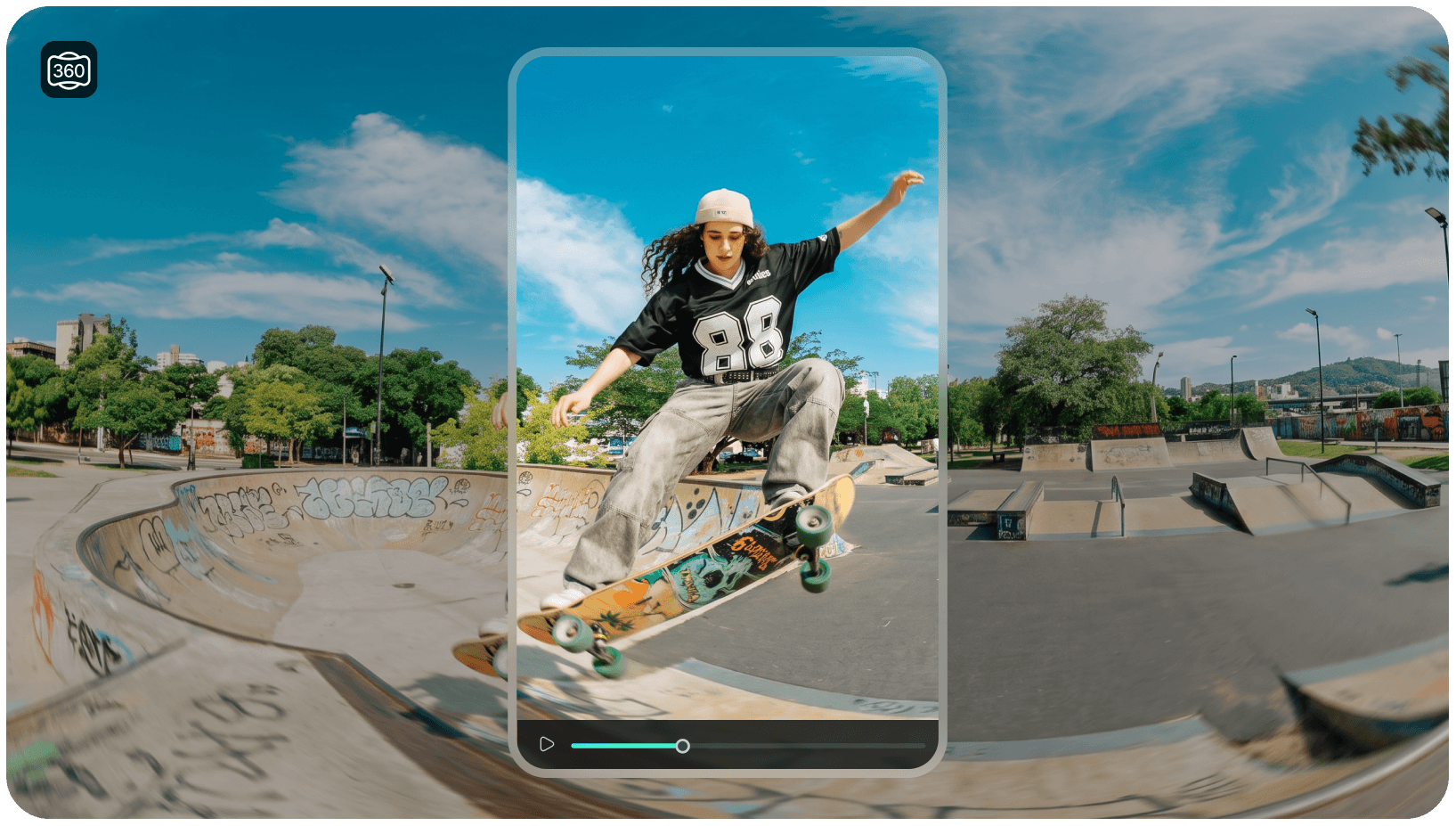
Turn Every Angle Into a Visual Hook
Use 360 footage to create bold perspectives, dramatic reveals, and unexpected camera angles for short-form content. Give TikTok, Reels, and Shorts a more distinctive look with shots that are difficult to capture with a traditional camera.
More 360 Video Editing Guides
What to Know About 360 Video Editing
- What is 360 video editing?
-
360 video editing lets you choose what viewers see from footage captured in every direction. In Filmora, you can reframe 360 footage after shooting, adjust the viewing angle and perspective, animate camera movement, and continue editing it on the timeline like a regular video clip.
- How do I edit and reframe a 360 video?
-
Import your compatible 360 footage into Filmora, add it to the timeline, and select the clip to start reframing. Drag directly in the player to change the viewing direction, scroll to zoom in or out, and fine-tune the view with panoramic controls. You can then add camera moves, effects, titles, music, and other edits before exporting.
- Can Filmora edit Insta360 videos and INSV files?
-
Yes. Filmora supports compatible Insta360 footage. On Windows, INSV files can be converted through the supported Insta360 workflow and then edited in Filmora. Compatible 360 MP4 footage can also be recognized automatically when it contains supported panoramic metadata.
- Can Filmora edit DJI Osmo 360 videos?
-
Yes. For DJI Osmo 360 OSV footage, first export the video as MP4 using DJI's official software, then import the MP4 into Filmora for reframing and editing.
- Can I create tiny planet and fisheye effects from 360 footage?
-
Yes. Filmora includes ready-made view presets for 360 footage, including Asteroid, Fisheye, Wide angle, and Linear perspective. You can switch between these looks without manually configuring complex projection settings.
- Can I animate camera movement in a 360 video?
-
Yes. Filmora supports keyframes and motion presets for 360 video, making it easy to create smooth camera movements with presets such as Slow Push, Slow Pull, Clockwise, Counterclockwise, Tilt Down, and more.
- What video can I export after editing 360 footage in Filmora?
-
Filmora lets you export your reframed 360 footage as a standard video based on the viewing angle, perspective, and camera moves you create. You can then share the finished video on YouTube, TikTok, Instagram Reels, Shorts, and other platforms.
- What are the system requirements for 360 video editing?
-
On Windows, 360 video editing requires Windows 10 or later, an Intel Core 8th Gen or AMD Ryzen 3000-series processor or newer, at least 16 GB of RAM, and a GTX 1660-class GPU or better. On Mac, macOS 11.0 or later with an Apple M1 chip or newer is required.
See How Creators Use Filmora for 360° Editing
Explore More Filmora Editing Features
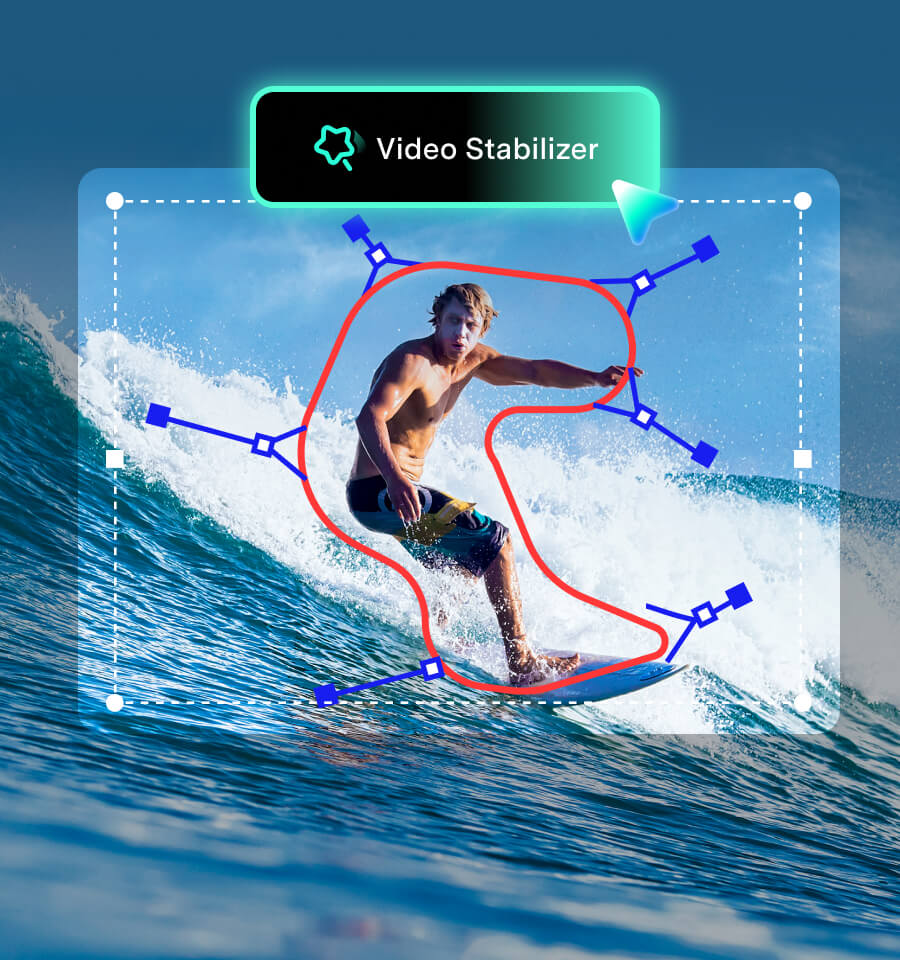


Content Creator
Action Sports Creator
Short-Form Video Creator