

 100% Security Verified | No Subscription Required | No Malware


 ChatGPT
 Perplexity
 Gemini
 Claude
 Grok
Grok
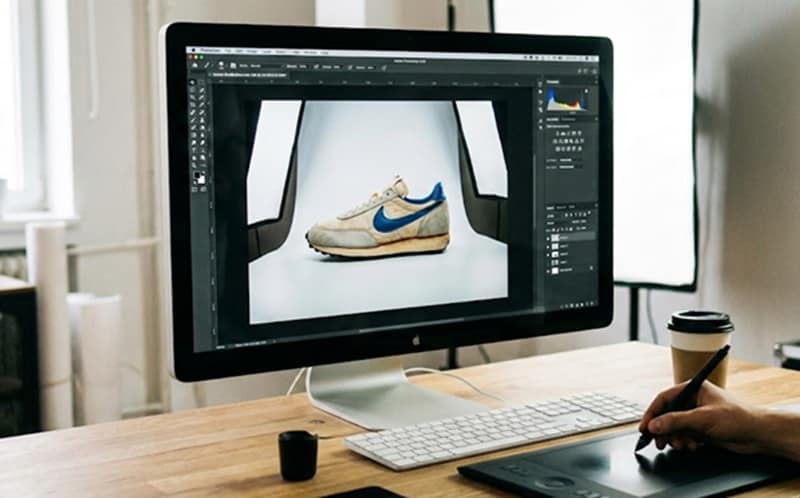
When people see your product online, the photo usually does the talking first. If it looks good, it can help convince them to buy it. If not, it’s easy to scroll past. First impression sells, even in online shopping.
But since studio photoshoots can cost a lot, many brands now use AI tools. In 2025, 76% of small businesses that tried AI product photography reported saving over 80% on costs. If you want to understand how this works and try it yourself, this guide breaks down the basics of AI product shots and walks you through a simple process to create them yourself.
In this article
Part 1. AI Product Photography vs Traditional Photography
Traditional product photography usually means hiring a photographer, booking a studio, and waiting days or weeks for the final edits. There’s practically nothing wrong with that, but it’s slow and often expensive.
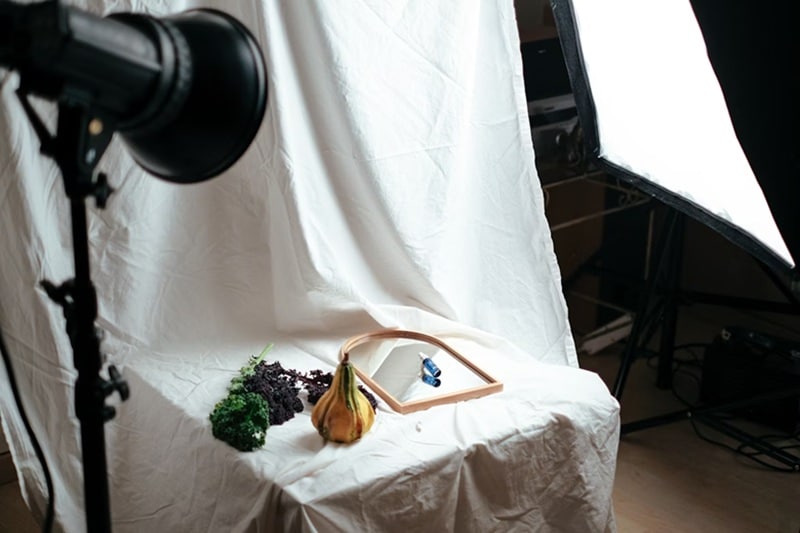
For small business owners, especially, these costs can add up fast. Meanwhile, they need good-quality product photos to attract customers and support sales. This is why many turn to AI for product photography as a practical alternative. You can:
- Create studio-style product photos in minutes
- Start with just one product image
- Let the tool handle lighting for a consistent look
- Get multiple angles and variations from a single shot
It’s a much easier way to keep your product photos looking fresh without extra time or expense.
|
AI Product Photography |
Traditional Photography |
|
|
Duration |
A few seconds to minutes |
Days or weeks |
|
Cost |
Low cost |
High cost for photographer, studio, and equipment |
|
Turnaround Times |
Almost instant edits and revisions |
Long wait for edits and re-shoots |
|
Flexibility |
Easy to change backgrounds, lighting, and styles |
Limited once the shoot is done |
|
Skill |
Beginner-friendly |
Requires skill |
|
Setup |
One product image is enough |
Full studio setup required |
Part 2. The Best AI Tool for Product Photography (with Built-in Editor)
Even if AI can make great product photos fast, that’s not always enough. You still need space to fix things, tweak the look, or add your own personal touch. That’s why choosing a tool that lets you edit the results afterward matters just as much as the generation itself.
We recommend using an AI product photo generator like Wondershare Filmora. Through its AI Image generator feature, you can create high-quality product images while still having full control to edit the background, color tone, and layout directly inside the editor using its timeline.
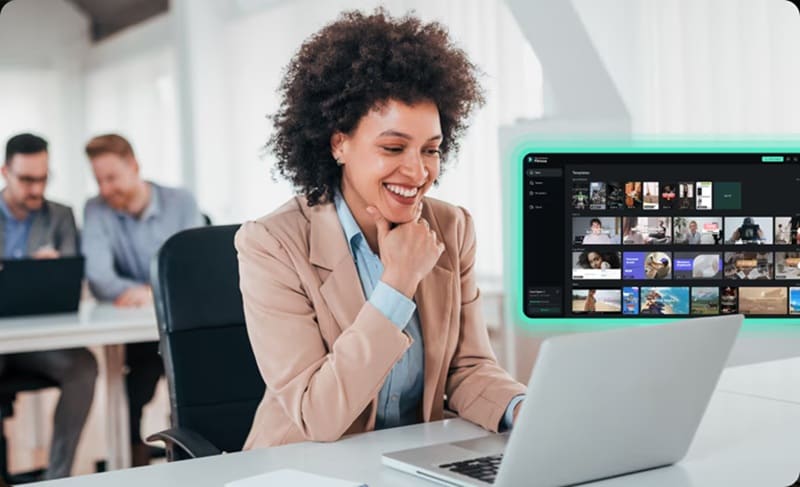
Filmora’s AI Image generator is now powered by Google’s advanced Nano Banana Pro model, which is capable of producing high-quality, realistic images with accurate lighting, shadows, and textures. The AI product photo generator in Filmora is best for:
- Creating quick product visuals
- Testing different backgrounds and styles
- Producing variations for ads and social posts
- Small brands that need fast, affordable content
How to Create Product Photography with AI
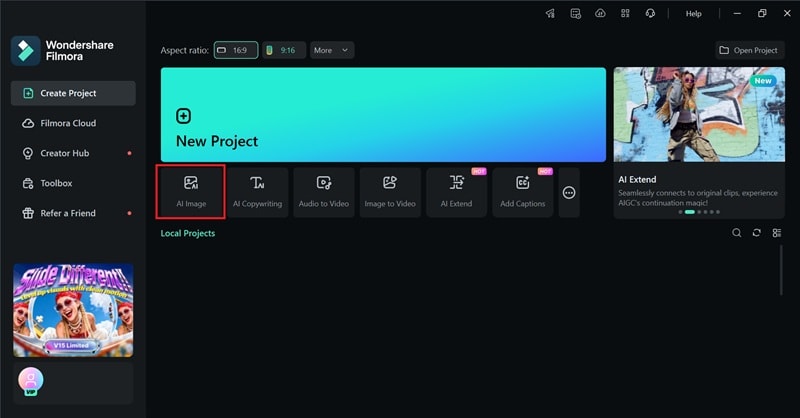
- Step 1: Open the AI Image Generator
Launch Filmora and select the AI Image Generator from the main interface to start creating your image. Or, you can also find it in the Toolbox section.
 secure download

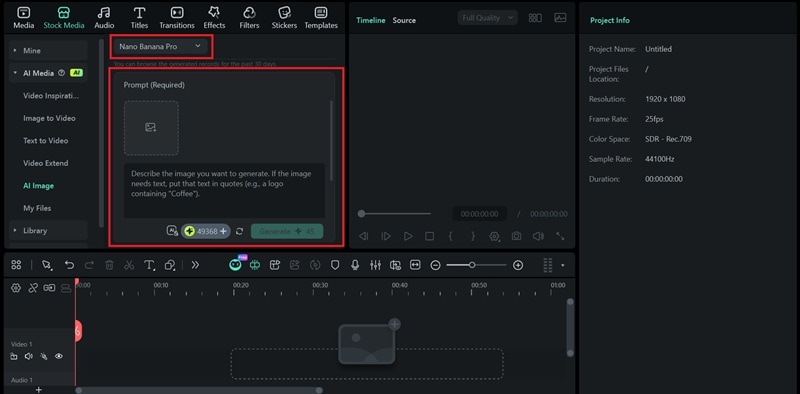
- Step 2: Choose the AI Model and Enter Your Prompt
Select the Nano Banana Pro model, then upload your product image as a reference. After that, type a prompt describing the style, background, and overall look you want for your AI product photo.
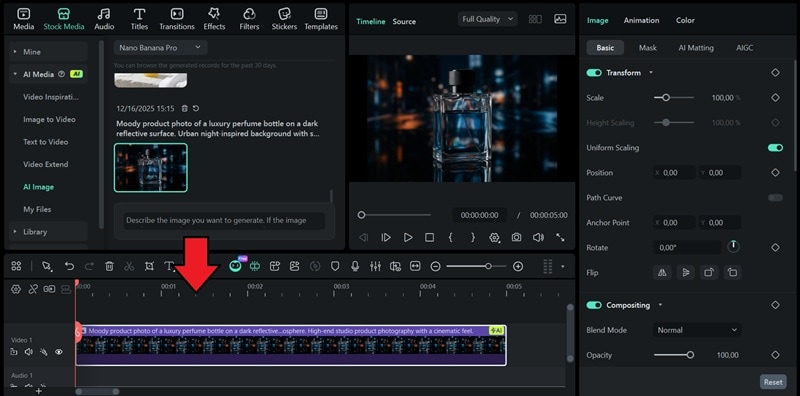
- Step 3: Refine the Image in the Timeline
Add the generated image to the timeline for editing. You can add captions, apply filters and effects, or include extra graphics for decorations.
Part 3. Prompt Tips for Better AI Product Shots
The heart of every AI tool, including an AI product photo generator, lies in its prompt. Bad prompts mean bad results. So if your product shots don’t look the way you expect, the first thing to check is the prompt itself.
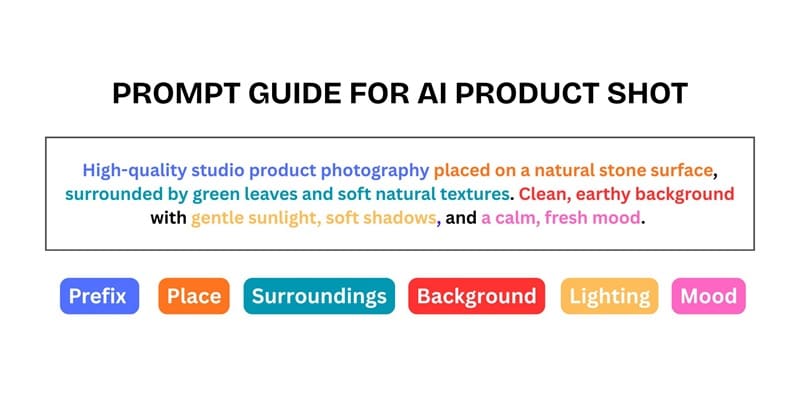
Focus on building a clear prompt that tells the AI exactly what you want to see. The two essential elements for creating a good AI product shot are:
- Place (Surface): Describes where your product is placed. It could be a table, marble slab, wooden desk, fabric surface, or even a reflective base.
- Background: Sets the broader scene around your product, be it a simple studio backdrop, a soft gradient, or a specific real-world setting.
After that, expand your idea by adding these details to build a stronger prompt:
- Prefix – Use words like product photo, studio shot, or commercial photography to guide the AI toward the right style.
- Surroundings – Add small elements around the product, such as props, textures, or natural details, to give the image more context without clutter.
- Lighting – Describe the light clearly, for example, soft studio lighting, natural window light, or dramatic side lighting. Good lighting is always the key to a good shot.
- Mood – Set the overall feel of the image, like clean, premium, cozy, or modern, so the result matches your brand tone.
Bringing It All Together: Example Prompts and Results
Once you understand these prompt elements, you can combine them into a single clear description. Below are a few example prompts you can try in Filmora to get better AI product photography for your business.
1. Nature-inspired
Best for: skincare products, organic items, wellness brands.
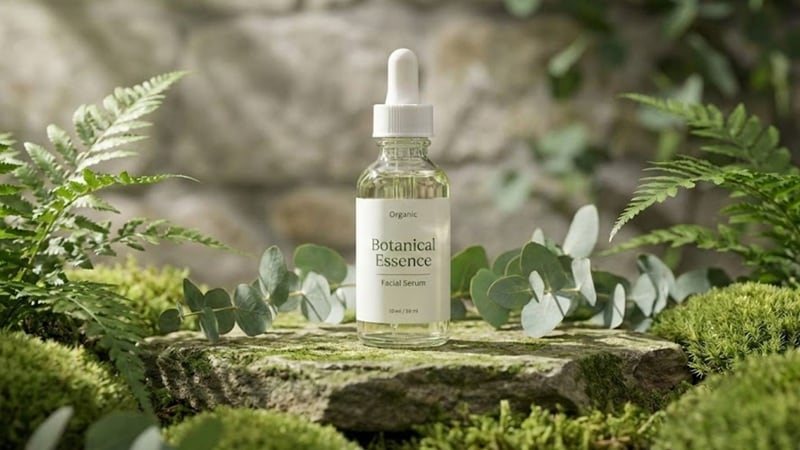
Prompt:
Product photo of a [product name] placed on a natural stone surface, surrounded by green leaves and soft natural textures. Clean, earthy background with gentle sunlight, soft shadows, and a calm, fresh mood. High-quality studio product photography.
2. Modern Minimalist
Best for: tech gadgets, accessories.
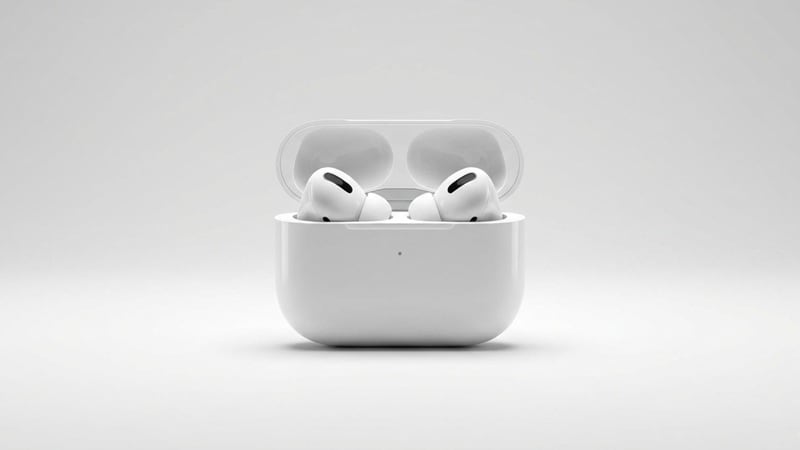
Prompt:
Studio product photo of a [product name] on a smooth white surface with a simple, minimal backgrounds. Soft studio lighting, subtle shadow beneath the product, clean composition, modern, and premium look. High-resolution commercial product photography.
3. Rustic
Best for: handmade goods, craft items, home decor.
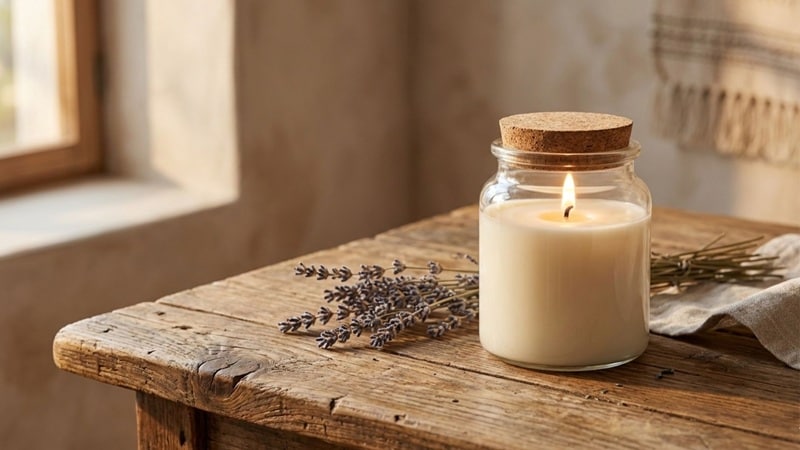
Prompt:
Product photo of a [product name] placed on a wooden table with natural grain texture. Warm lighting, soft shadows, neutral background, cozy and handcrafted feel. High-quality product photography with a natural, authentic mood.
4. Coastal Breeze
Best for: summer products, beverages, lifestyle items.
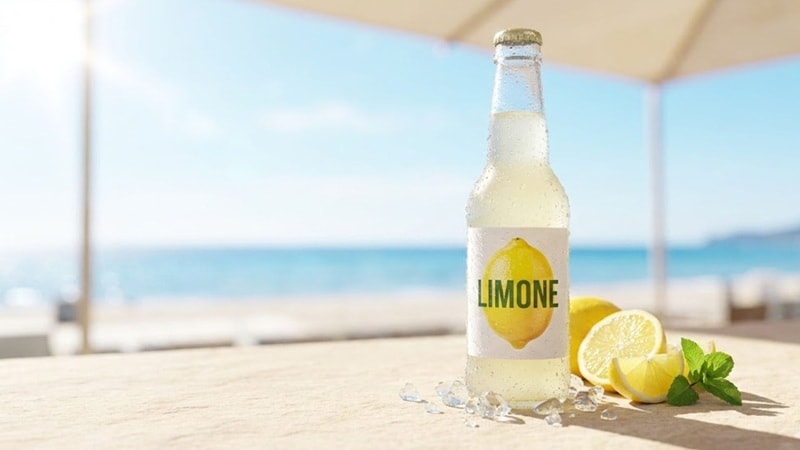
Prompt:
Product photo of a [product name] on a light surface with a bright, airy background inspired by the seaside. Soft daylight, fresh colors, gentle shadows, relaxed and refreshing mood. Clean commercial product photography.
5. City Nights
Best for: perfumes, fashion pieces, edgy modern brands.
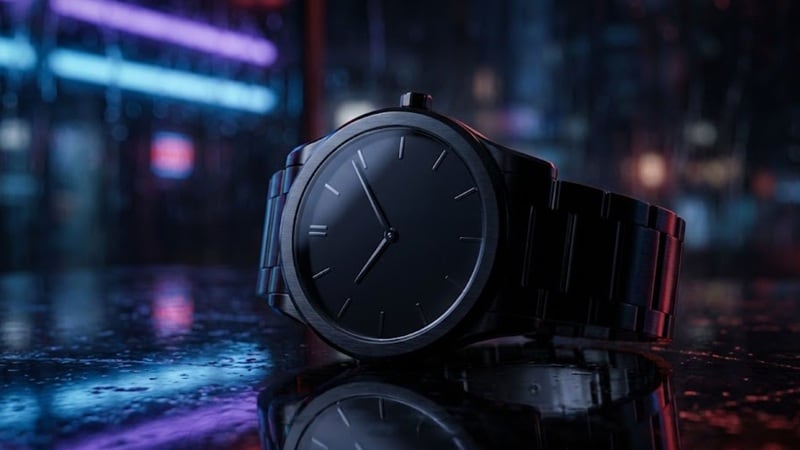
Prompt:
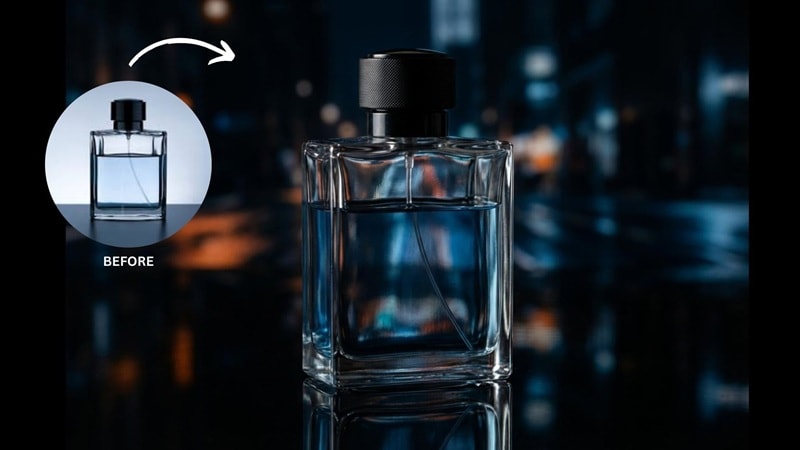
Moody product photo of a [product name] on a dark reflective surface. Urban night-inspired background, dramatic lighting, deep shadows, modern and bold atmosphere. High-end studio product photography with a cinematic feel.
You can also check the prompt template for food photography here.
Bonus: Make a Complete Ad for Your Product Photography
AI isn’t just for creating product photos. You can also use it to make a short video commercial from a single image. The process is still as simple as generating the product shot itself. You only need to upload your AI product shot and add a short prompt to describe how you want it to look.
Filmora offers this capability through its Image to Video feature. Aside from generating animation and visual effects with a prompt, it also provides many AI templates designed for marketing purposes. These animations apply automatically to your photo, which makes them useful when you’re not sure what kind of motion or style to use.
Conclusion
Creating professional product photos no longer has to mean expensive studio setups or long production timelines. Many business owners can now use AI product photography to produce clean, high-quality visuals in minutes, test different styles quickly, and keep their content fresh without overspending.
One of the best options to help you with that is Filmora. Its AI Image Generator and Image to Video feature give you the flexibility to refine your images, add branding elements, and even turn a single product photo into a short promotional video.

