Explore AI Action Transformation Prompts
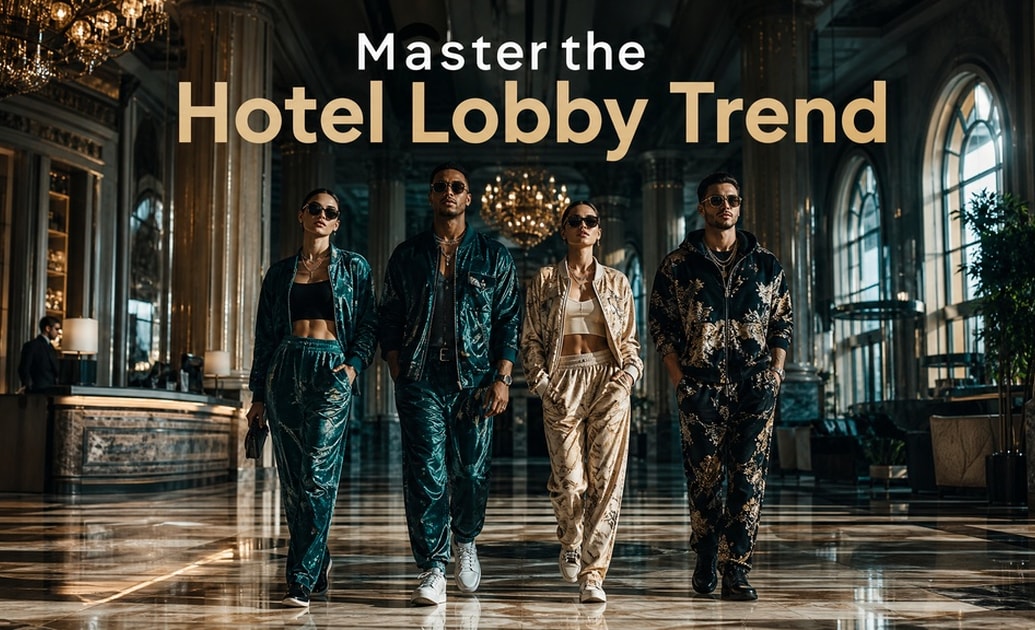
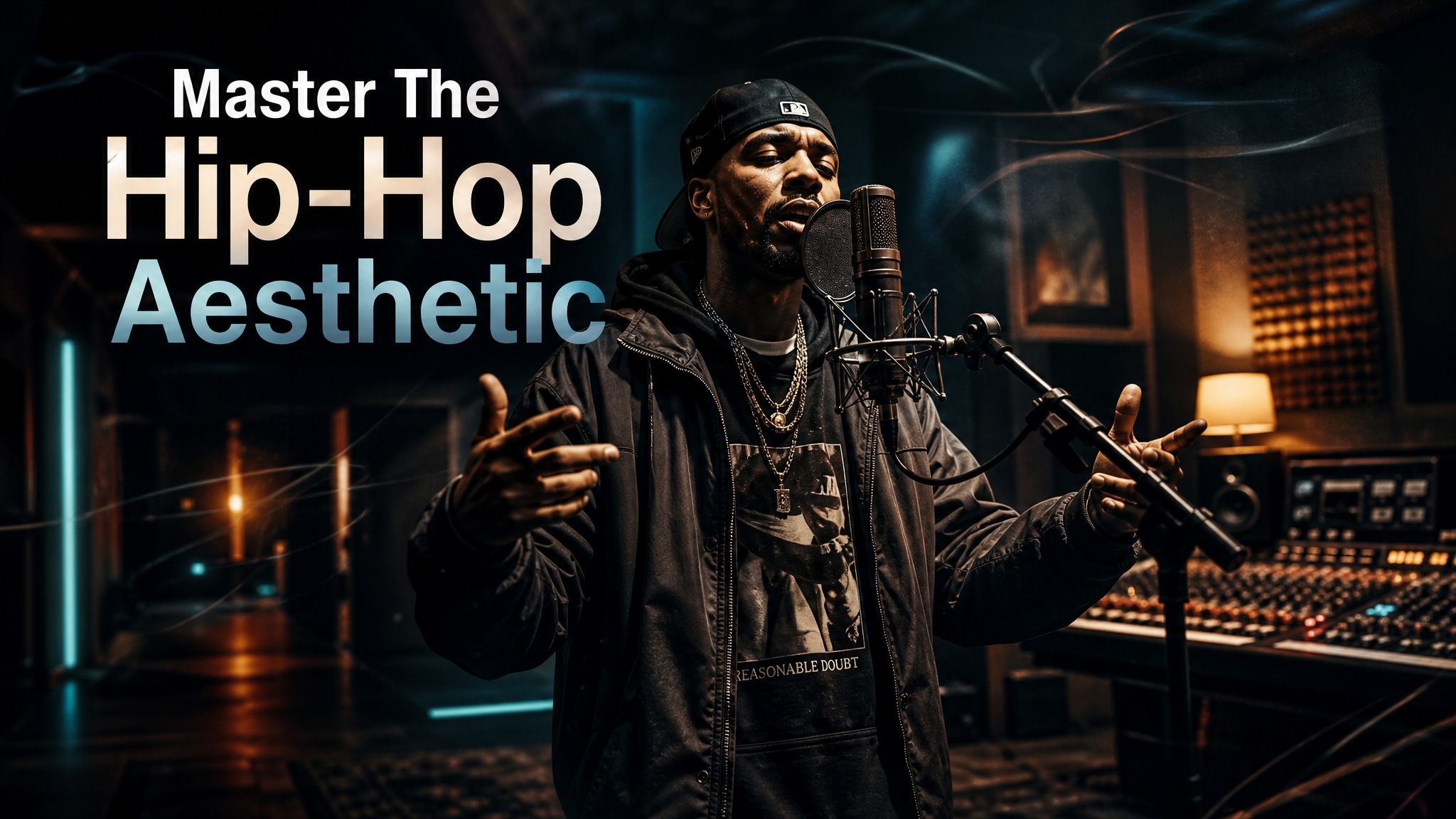
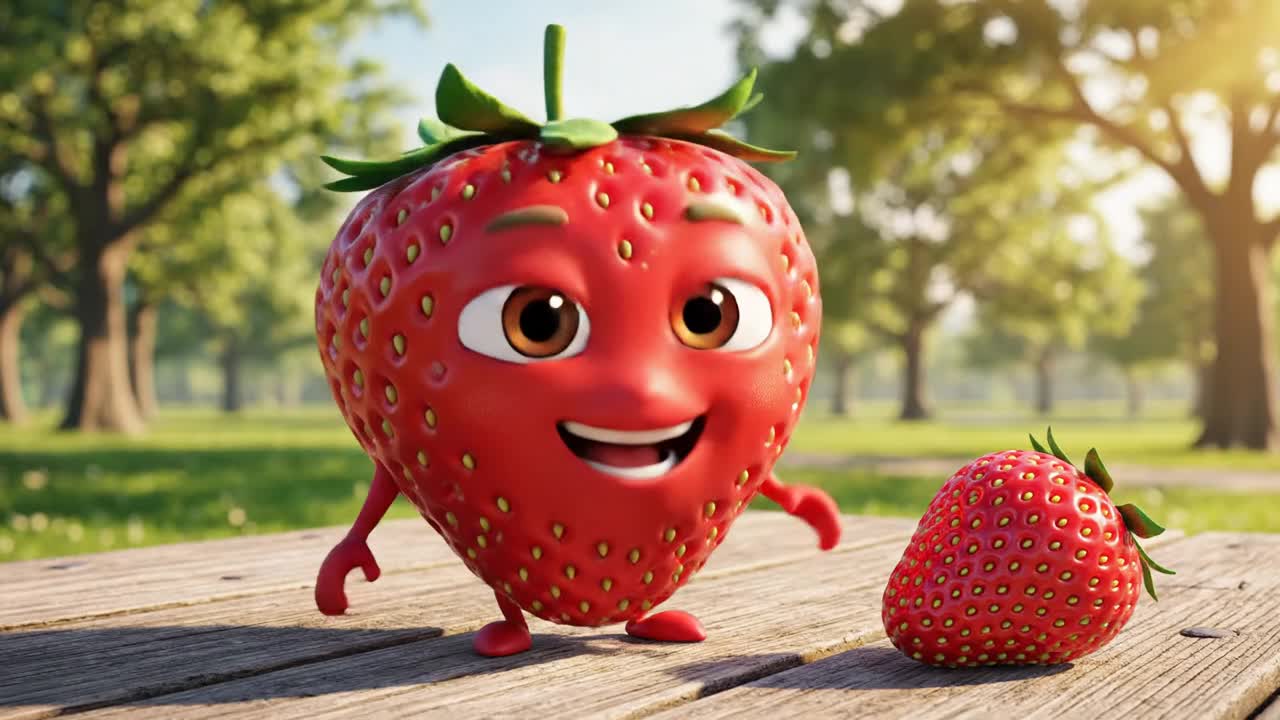
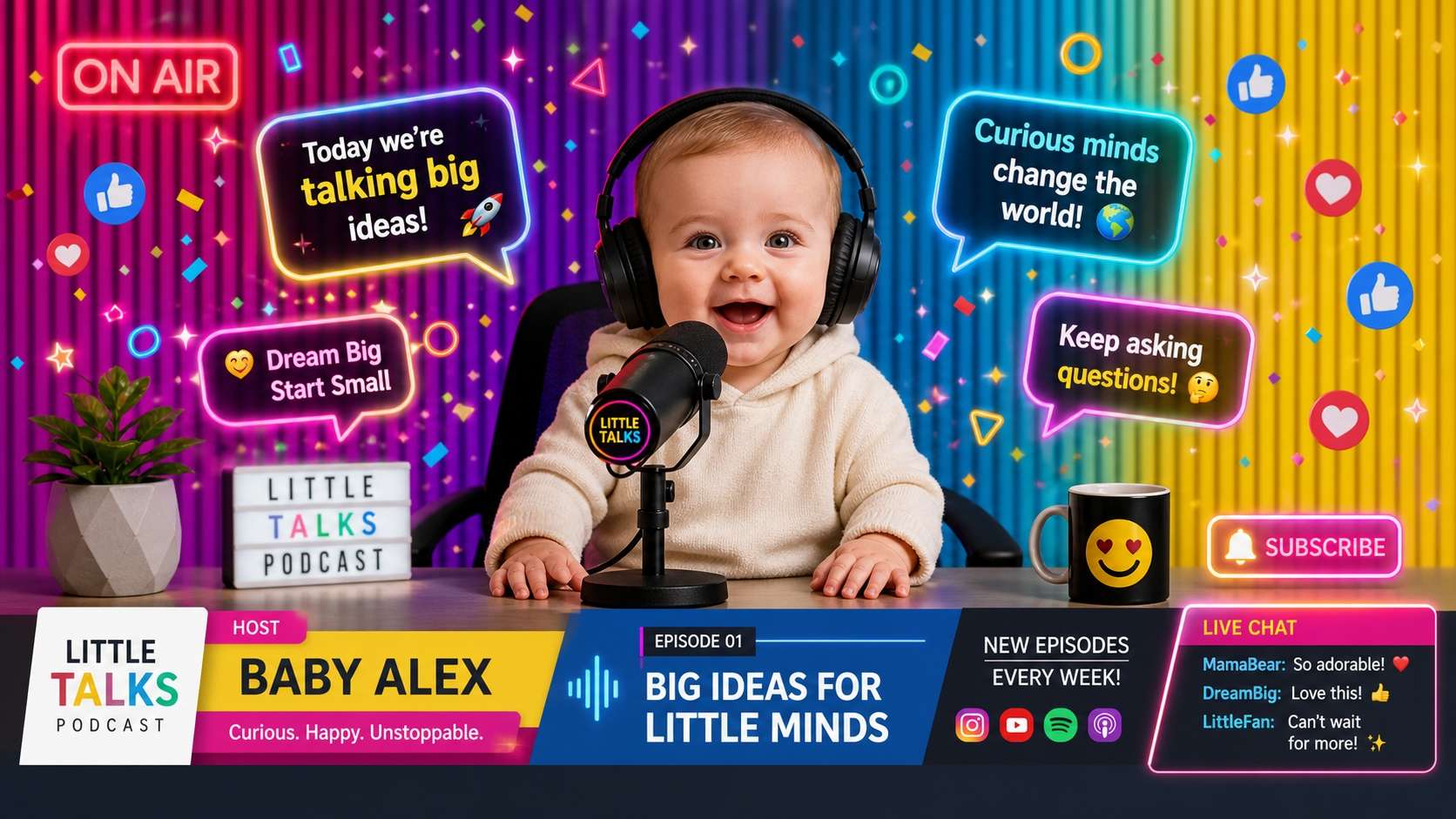
Discover text-to-video prompts for creating continuous character changes, environment morphs, and action-matched transitions without reference assets. From seamless video transitions to cinematic motion effects, find everything you need to build a polished transformation video.
Loading more AI action transformation prompts...
 Category:
 Duration:
 Aspect Ratio:
Create AI Action Transformation Videos From Text With Filmora
Bring your AI action transformation video idea to life with Filmora's AI Text to Video. Generate a motion-matched transformation clip from a descriptive prompt, or use AI Idea to Video on desktop to build a story across multiple scenes. Filmora combines AI video generation with timeline editing, sound, transitions, and effects so you can create and refine the entire video in one workspace.
Create Action Transformations With AI Text to Video
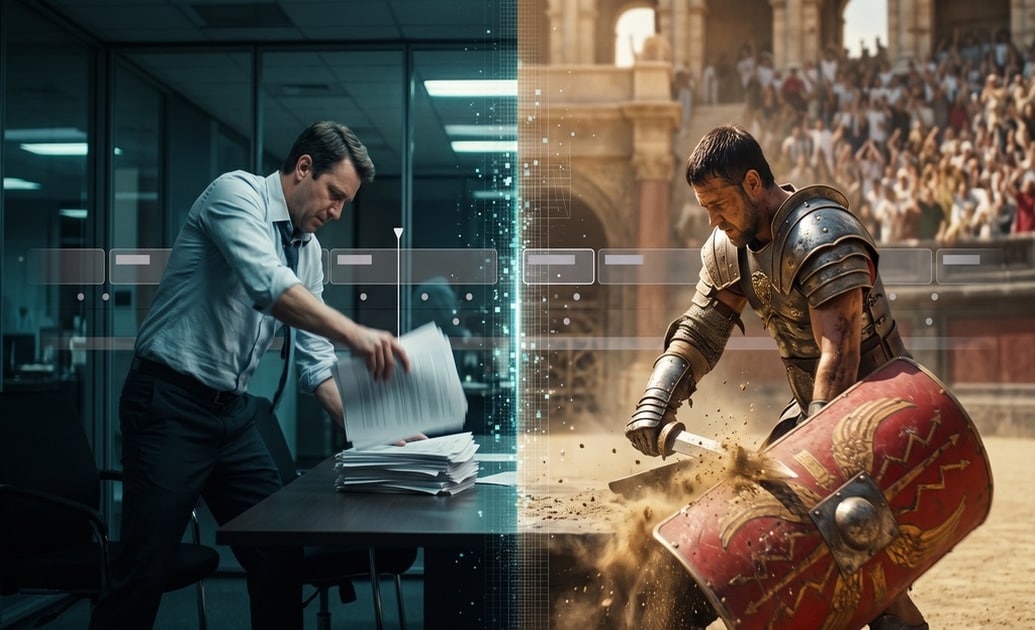
Create Action Transformations With AI Text to Video
Start with a descriptive text prompt. Filmora's AI Text to Video turns your action transformation concept into a moving video clip that you can preview and edit—without requiring a reference image or video.
- Describe the starting character, continuous action, transformation point, final identity, environment, and camera movement.
- Choose an available video generation model and experiment with realistic, cinematic, or stylized character transformations.
- Add the generated clip to the Filmora timeline to refine motion continuity, transition timing, sound, and visual effects.
Build a Story With AI Idea to Video
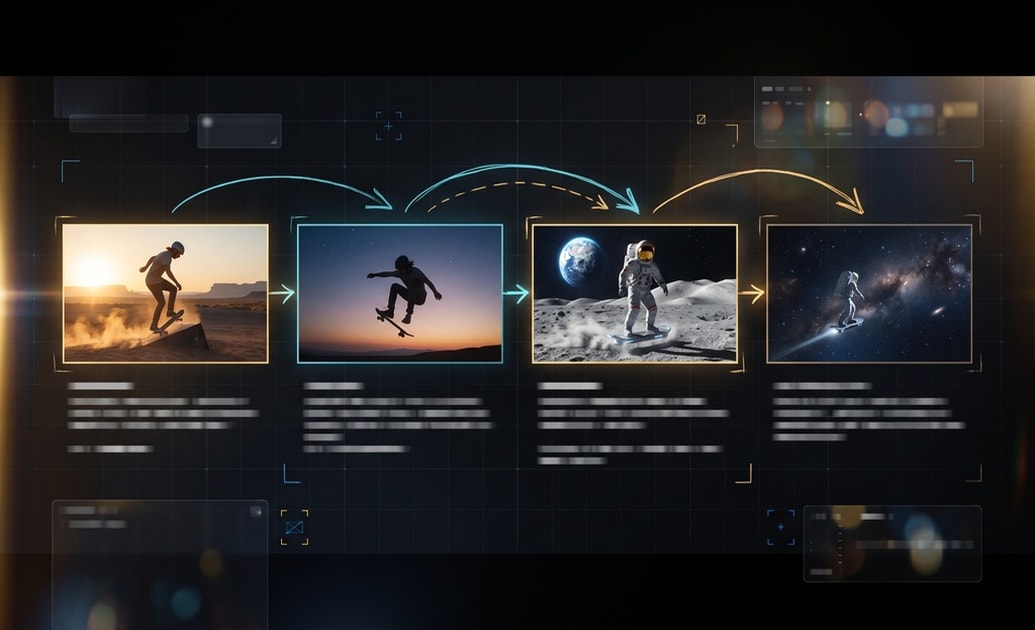
Build a Story With AI Idea to Video
Want more than a single transformation clip? Use Filmora's AI Idea to Video on desktop to expand a short transformation concept into a script and storyboard, then generate scenes for a story-driven video.
- Enter your story idea and review the AI-generated script and storyboard before creating video scenes.
- Customize characters, actions, transformation points, and scene descriptions to develop a coherent visual narrative.
- Regenerate individual clips and refine the sequence on the timeline without starting the whole project again.
Match Sound With Every Transformation
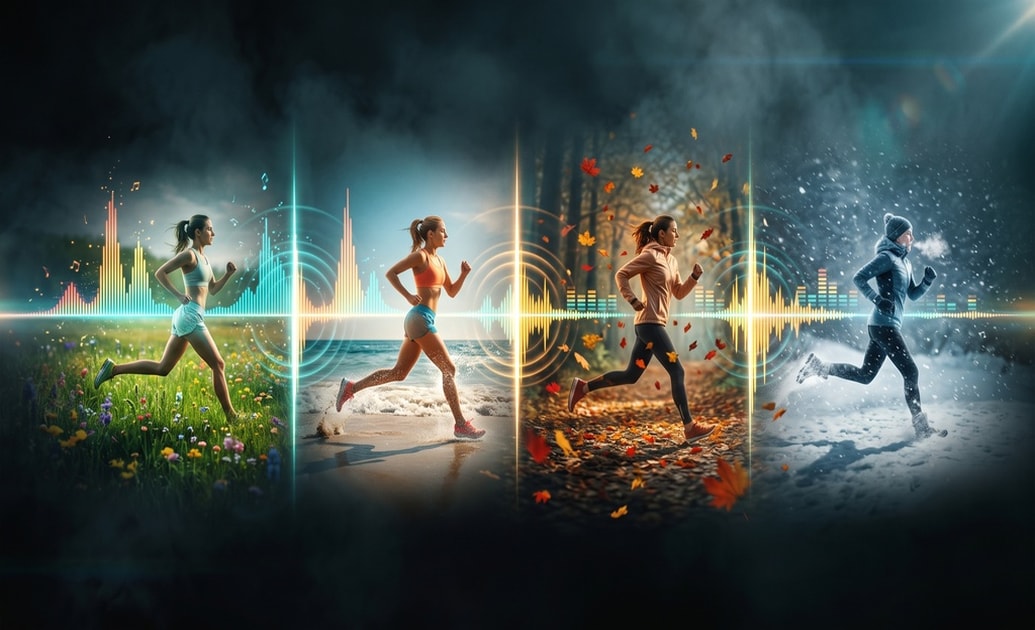
Match Sound With Every Transformation
Give your generated action transformation video a rhythmic finish with Filmora's audio and timeline tools. Preview each identity or scene change alongside your chosen track, then align transformation points with key beats and sound effects.
- Trim and arrange generated clips so each transformation lands precisely on a beat drop or sound cue.
- Use audio ducking to keep music, transition sounds, and any narration balanced throughout the sequence.
- Utilize the integrated AI music generator to produce royalty-free beats that reinforce the pace and mood of your generated transformations.
Explore More Transformation Concepts
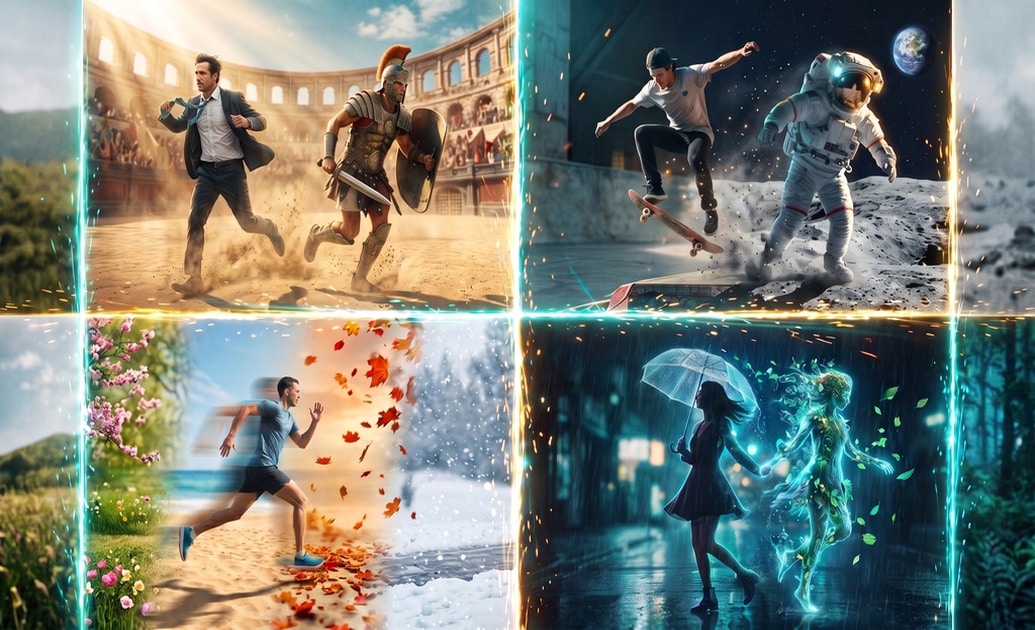
Explore More Transformation Concepts
AI action transformation prompts support endless variations without reference assets. Change the character, destination identity, action, environment, visual style, or hidden transition point while keeping the movement continuous.
- Generate concepts such as an office worker becoming a gladiator, a skateboarder turning into an astronaut, or one runner moving through four seasons.
- Apply stunning video filters to give the final sequence a consistent, cinematic look across every transformation.
- Export your finished masterpiece in high resolution optimized for all major social media platforms.
Frequently Asked Questions About AI Action Transformation Videos
How to Create an AI Action Transformation Video From Text
Create a seamless transformation clip with AI Text to Video, or develop a multi-scene concept with AI Idea to Video on desktop. Then use Filmora's editing tools to refine motion continuity and prepare the video for sharing.
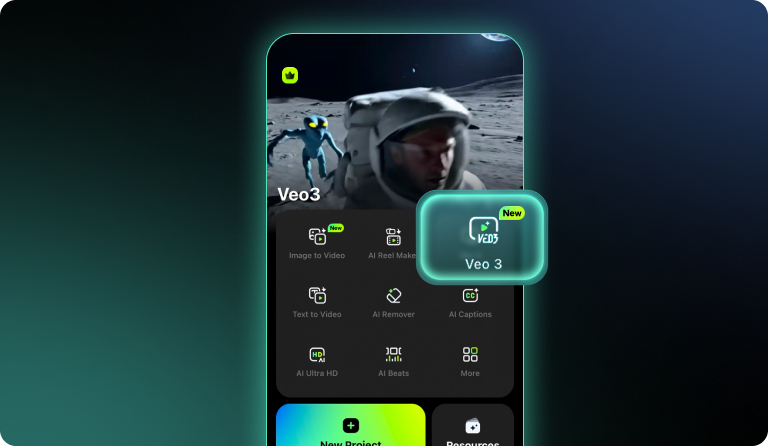
Step 1 Write Your Action Transformation Prompt
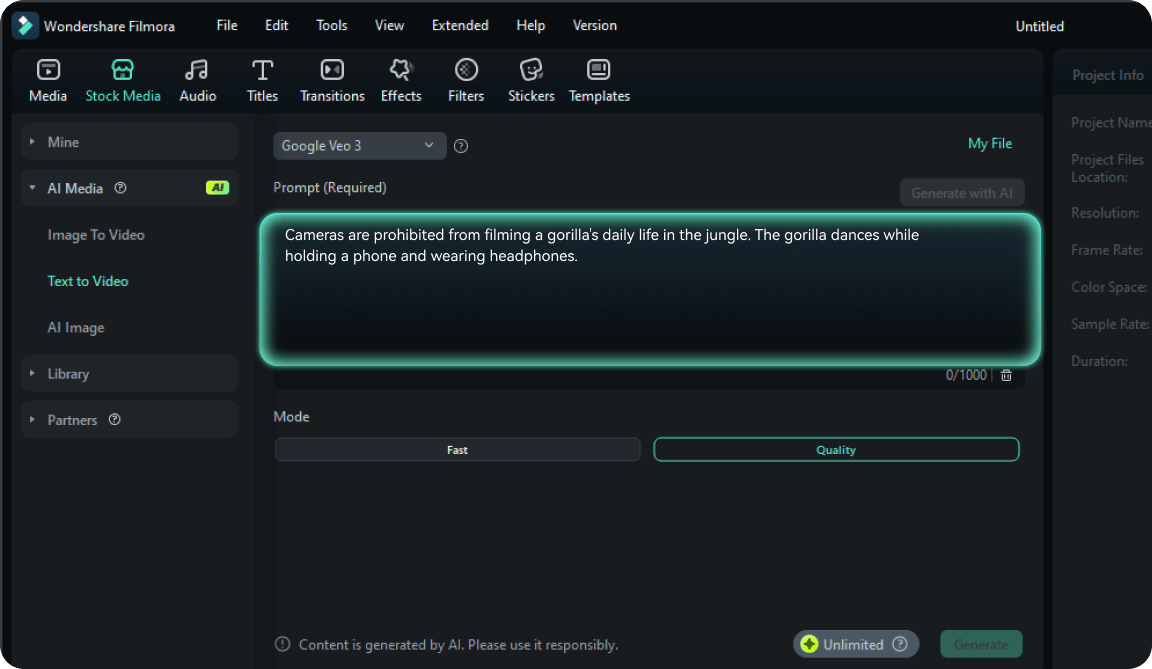
Step 2 Generate and Review Your Video
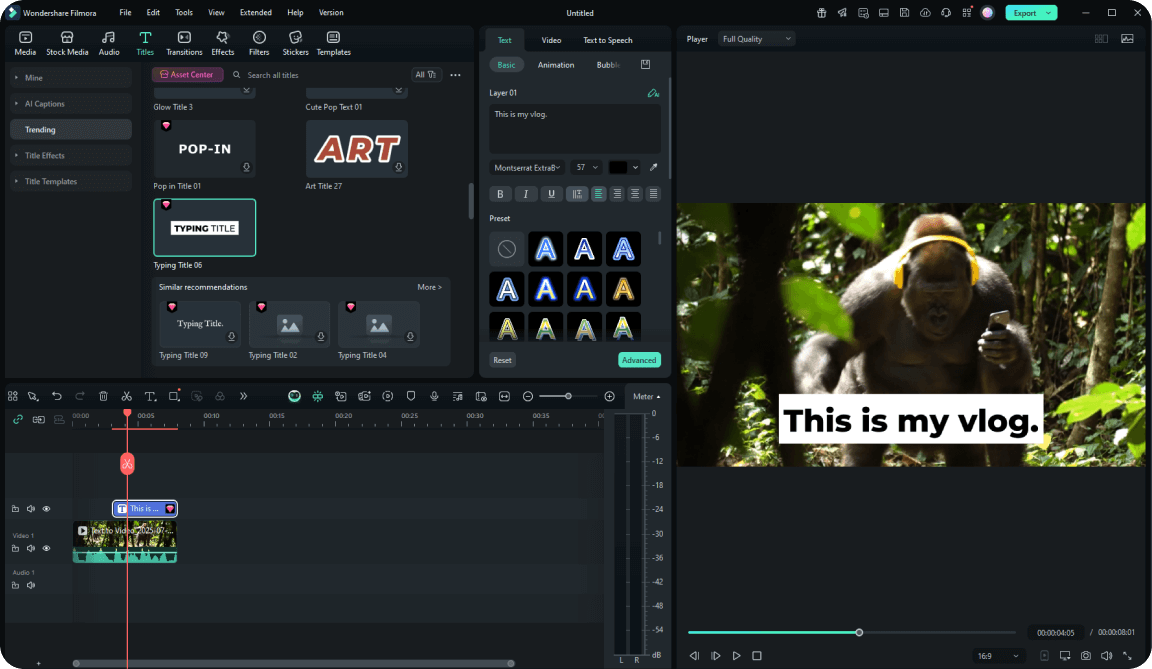
Step 3 Edit and Export Your Viral Clip
-
1: Write Your Action Transformation Prompt
Open Filmora's AI Text to Video tool and enter your prompt. Describe the starting character, continuous action, transformation trigger, final identity, environment, lighting, and camera motion, then choose an available video generation model. -
2: Generate and Review Your Video
Generate your video, preview the motion, and refine the prompt if needed. For a multi-scene story, use AI Idea to Video on desktop to review the script and storyboard before generating scenes. Add your chosen clips to the timeline. -
3: Edit and Export Your Viral Clip
Trim and arrange your clips on the timeline, add music you have permission to use, apply consistent cinematic color grading, and choose an export format and aspect ratio suited to TikTok, Instagram Reels, or YouTube Shorts.