20+ Car AI Video Prompts:
Instant AI Copy & Paste
Skip the blank-page problem. These AI prompts are built for the shots car creators actually need—night city cruises, wet-asphalt reflections, low-angle hero reveals, and aerial highway flyovers. Pick a car AI video prompt, paste it into Filmora, and generate footage that looks directed, not random. Perfect for Reels, YouTube intros, dealership ads, and cinematic B-roll.
Loading more templates...
 Category:
 Duration:
 Aspect Ratio:
Create Cinematic Car Videos
with AI Prompts in Filmora
A great car clip isn’t one static render—it’s motion, timing, and sound working together. Start with a precise car AI video prompt, generate the shot, then shape it like a trailer: ramp the speed through the apex, drop in engine texture, and grade the paint until it looks expensive. Filmora keeps generation and finishing in one workflow so your footage is ready for ads, Reels, and YouTube.
Generate Trailer-Ready Car Clips with AI Text to Video
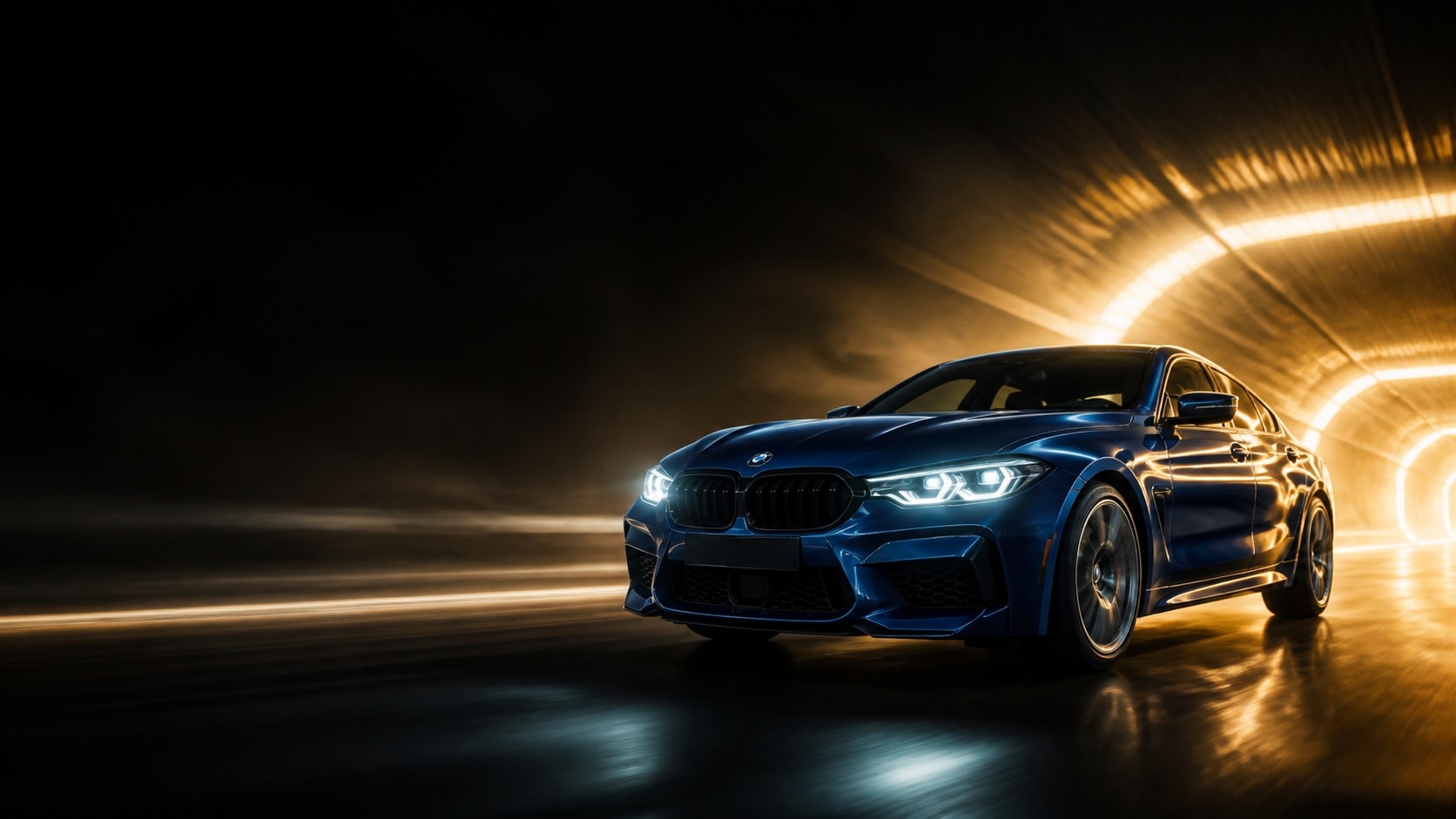
Generate Trailer-Ready Car Clips with AI Text to Video
Skip the location scout, the weather delay, and the camera rig. Describe the body style, the road, the lighting, and the camera move—then let AI text to video build a polished driving sequence from that car AI video prompt. It’s the fastest way to prototype commercials, channel intros, and social car edits without a single real-world take. Generate in Filmora, refine the look, and export in the aspect ratio your platform wants.
- On-Model Vehicle Control – Lock paint, wheels, and proportions into the prompt so the car stays consistent from first frame to last.
- Director-Level Camera Language – Call for tracking shots, low-angle hero reveals, or aerial flyovers instead of generic “car driving” footage.
- Built for Ads and Social – Turn one prompt into widescreen spots or vertical Reels without rebuilding the scene from scratch.
Create Heart-Stopping Motion with Speed Ramping
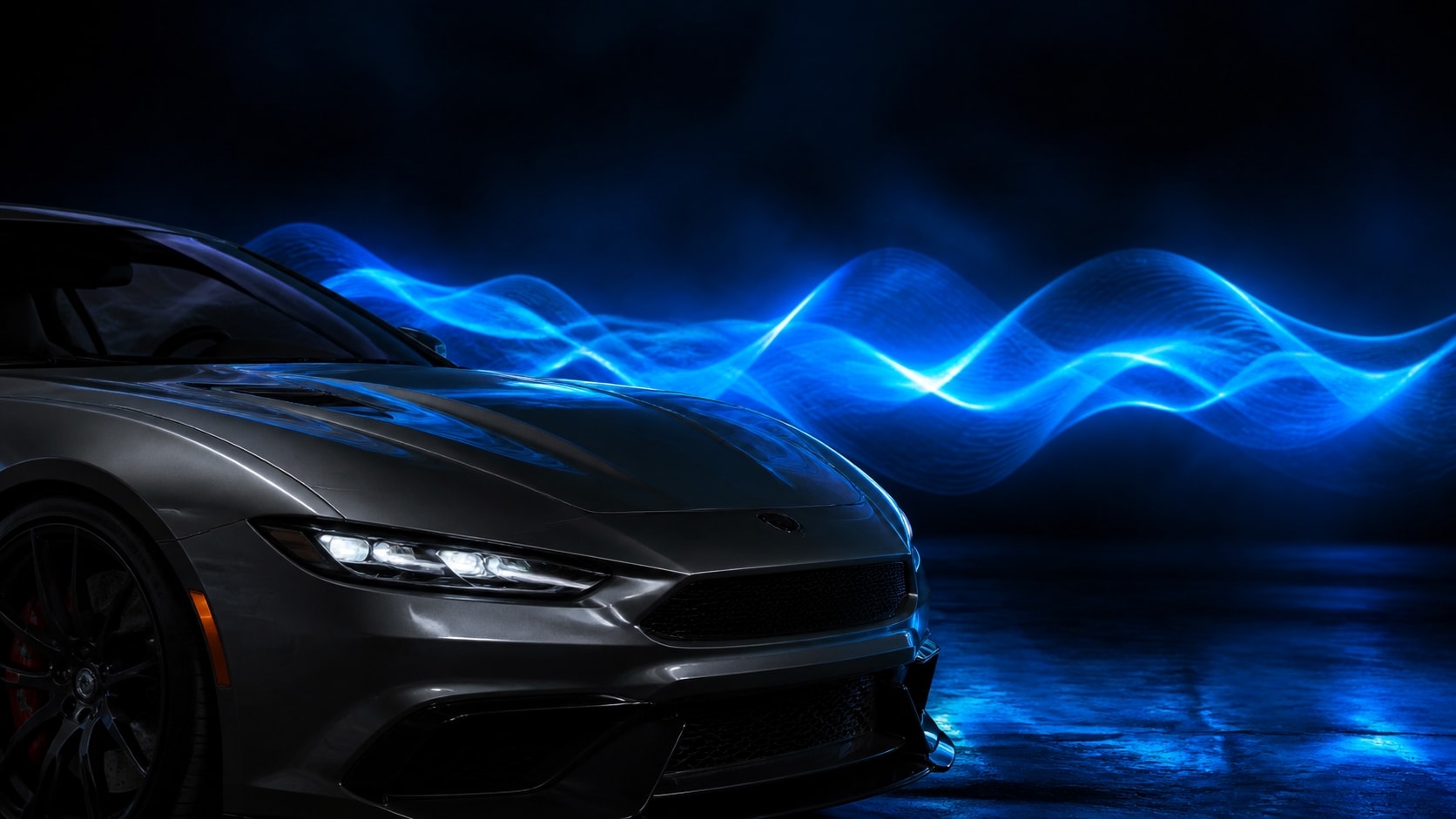
Create Heart-Stopping Motion with Speed Ramping
Raw AI motion can look even, and even looks cheap. Speed ramping is how car videos earn that trailer punch—slow into the badge, snap through the corner, then breathe out on the straight. Filmora lets you shape time after generation so a simple cruise becomes a launch, a drift, or a luxury glide. Pair the ramp with your car AI video prompt and the clip suddenly feels directed.
- Apex-Timed Slow Motion – Hold the frame on paint flare, wheel spin, or a light streak, then accelerate out for a commercial-style hit.
- Launch and Drift Energy – Ramp into takeoffs, gear pulls, and slide exits without reshooting or regenerating the entire clip.
- Rhythm That Matches the Cut – Sync ramps to beats, engine hits, and captions so the edit feels expensive on TikTok and YouTube alike.
Bring the Engine to Life with AI Sound Effects
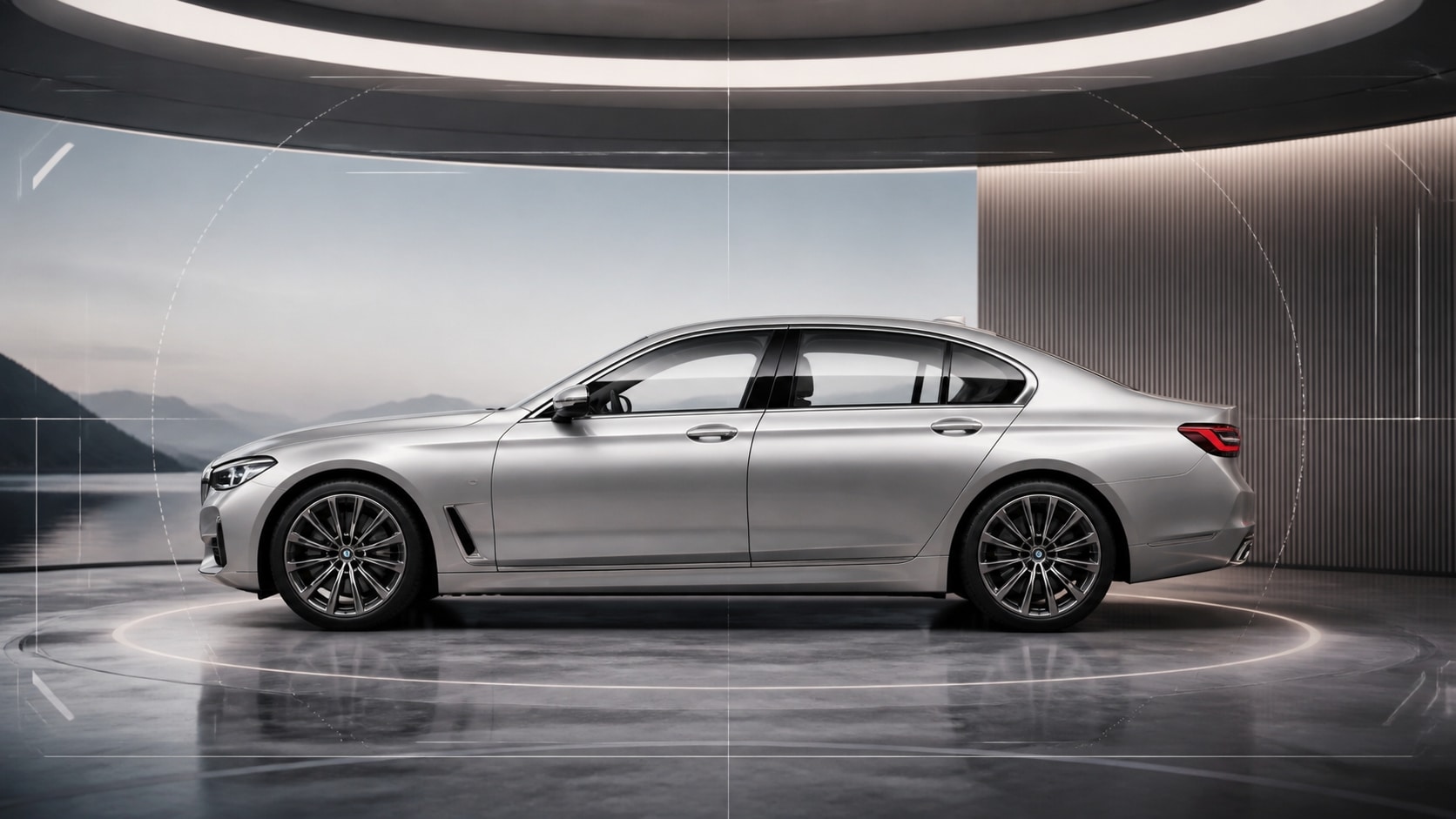
Bring the Engine to Life with AI Sound Effects
Silent car footage never sells the fantasy. AI sound effects add the missing physical world—intake growl, tire grit, whoosh on a pass-by, and the wet hiss of rain on metal. Layer them under your generated clip in Filmora so the picture and the audio feel like they were captured together. That’s the difference between an AI demo and a finished car video people actually watch to the end.
- Engine and Exhaust Character – Match a refined EV hush, a V8 rumble, or a turbo spool to the vehicle your prompt described.
- Road Texture That Sells Motion – Add tire roar, gravel tick, wind rush, and city reflections so speed reads instantly on mute-off playback.
- Mix-Ready for Social and Ads – Balance SFX with music and voiceover, then export loud, clean audio for Reels, Shorts, and YouTube.
Stay On-Model with a Smarter Car AI Video Prompt
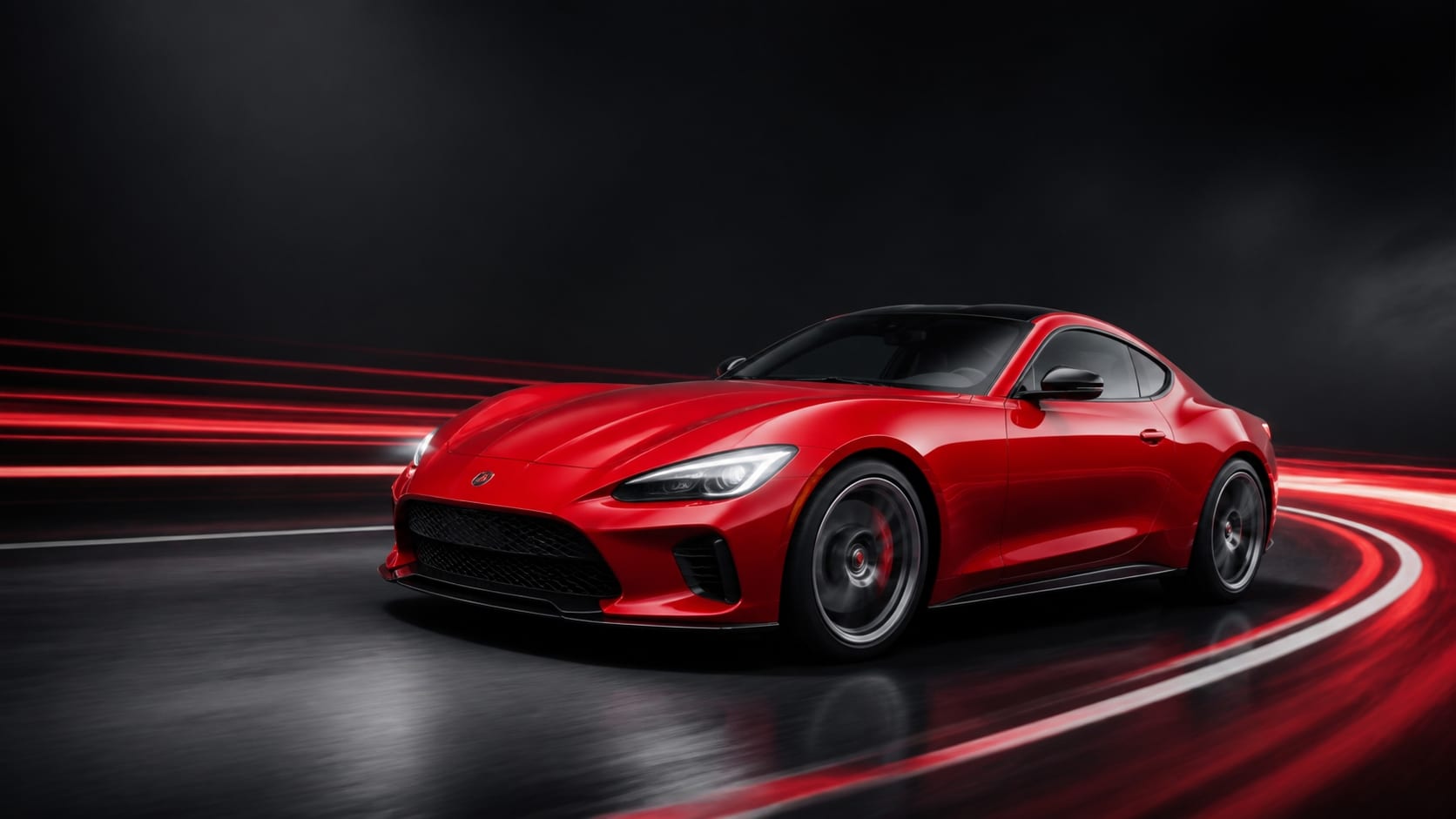
Stay On-Model with a Smarter Car AI Video Prompt
Most warped wheels and melting badges come from vague instructions, not “bad AI.” A strong car AI video prompt specifies make, body lines, camera path, and what must not change—so panels stay rigid and headlights stay symmetrical. Use Filmora’s copy-paste templates as a starting grid, then swap color, weather, and lens to create a whole campaign from one reliable structure. That’s how you get repeatable, client-safe car footage instead of lucky one-offs.
- Warp-Resistant Prompt Structure – Include proportions, wheel count, and “factory-accurate body panels” so the vehicle doesn’t morph mid-shot.
- Photo or Text, Your Call – Start from a real car still when identity matters, or from text when you need impossible roads and lighting.
- Campaign-Ready Variations – Duplicate one winning prompt and change only time of day, location, or camera height for a matching set.
FAQs About Car AI Video Prompts
How to Create a Car AI Video with Filmora
A strong car AI video prompt plus a few finishing moves is enough to ship cinematic driving clips for TikTok, YouTube, and ads. This walkthrough shows beginners how to generate the shot, then add speed and sound—no film set required.
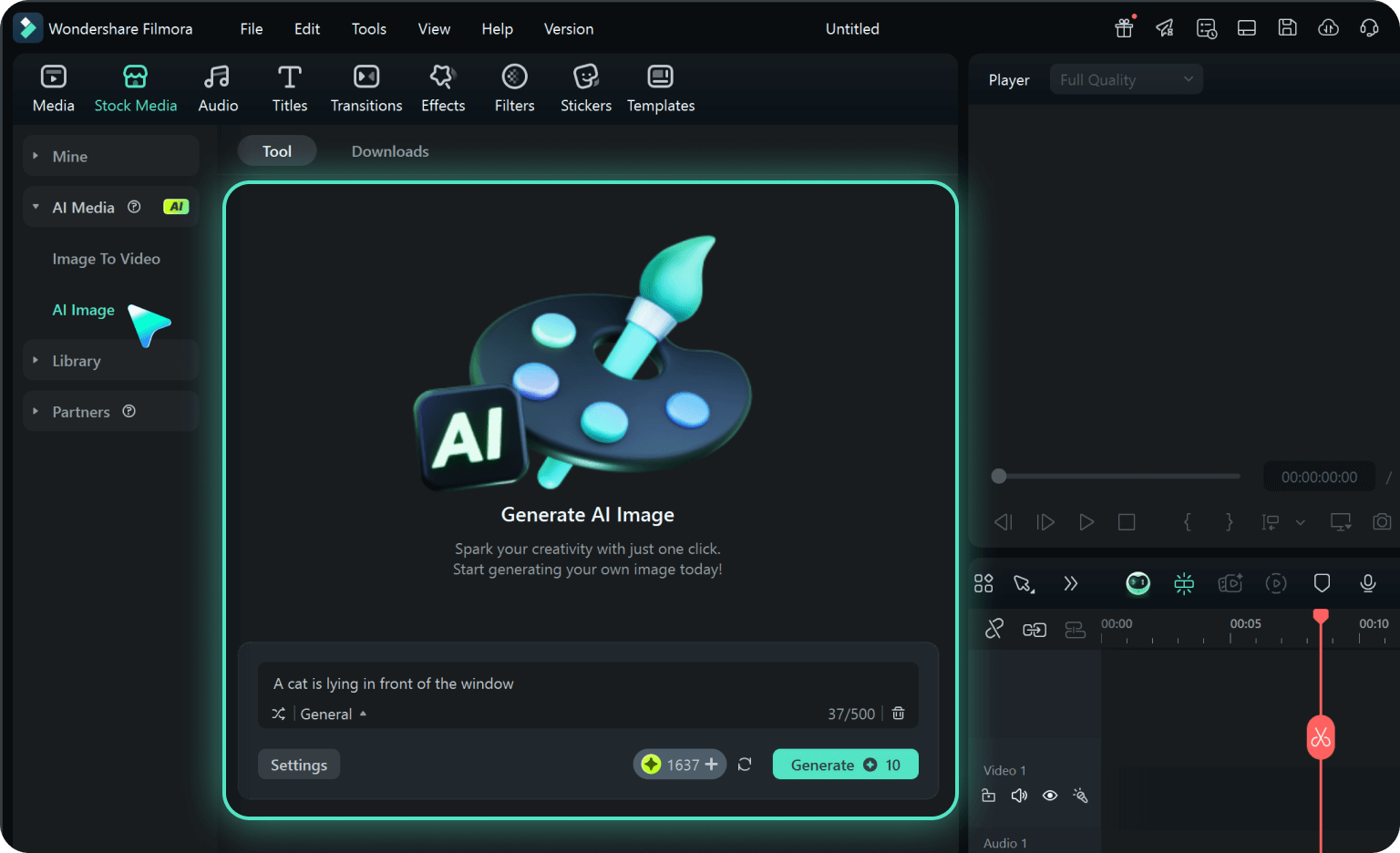
Step 1 Open Filmora’s AI Video Tools
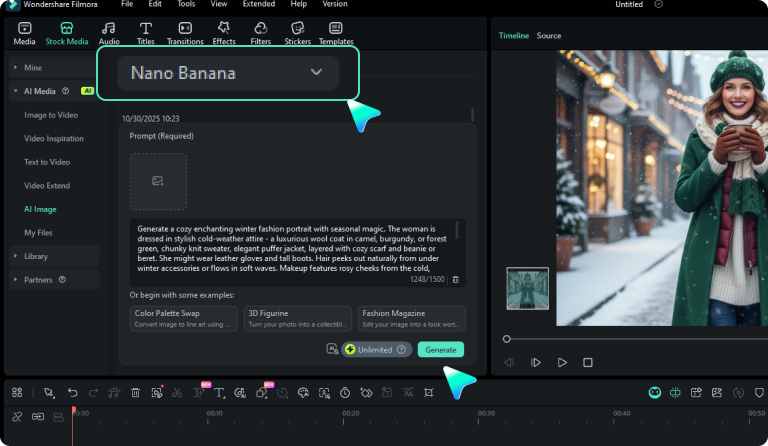
Step 2 Paste Your Car AI Video Prompt
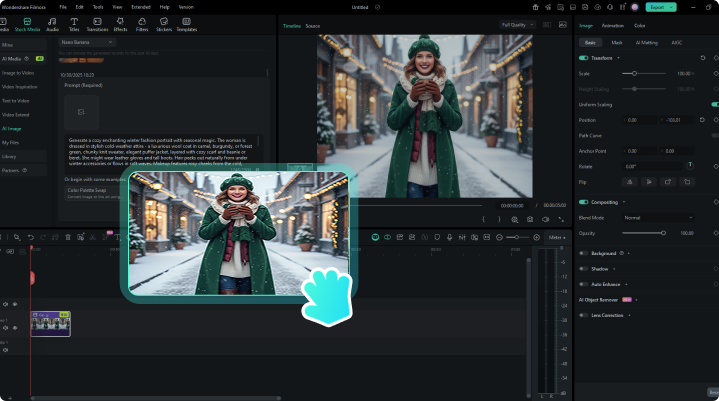
Step 3 Ramp, Mix Sound, and Export
-
1:Open Filmora’s AI Video Tools
Start Filmora, create a new project, and open the AI video or image-to-video workspace to begin. -
2:Paste Your Car AI Video Prompt
Select the AI model, enter a detailed car AI video prompt (or upload a reference photo), and click Generate to create the shot. -
3:Ramp, Mix Sound, and Export
Preview the result, apply speed ramping and AI sound effects, then edit on the timeline or export directly for social and ads.
More Than Just Car AI Video Prompts
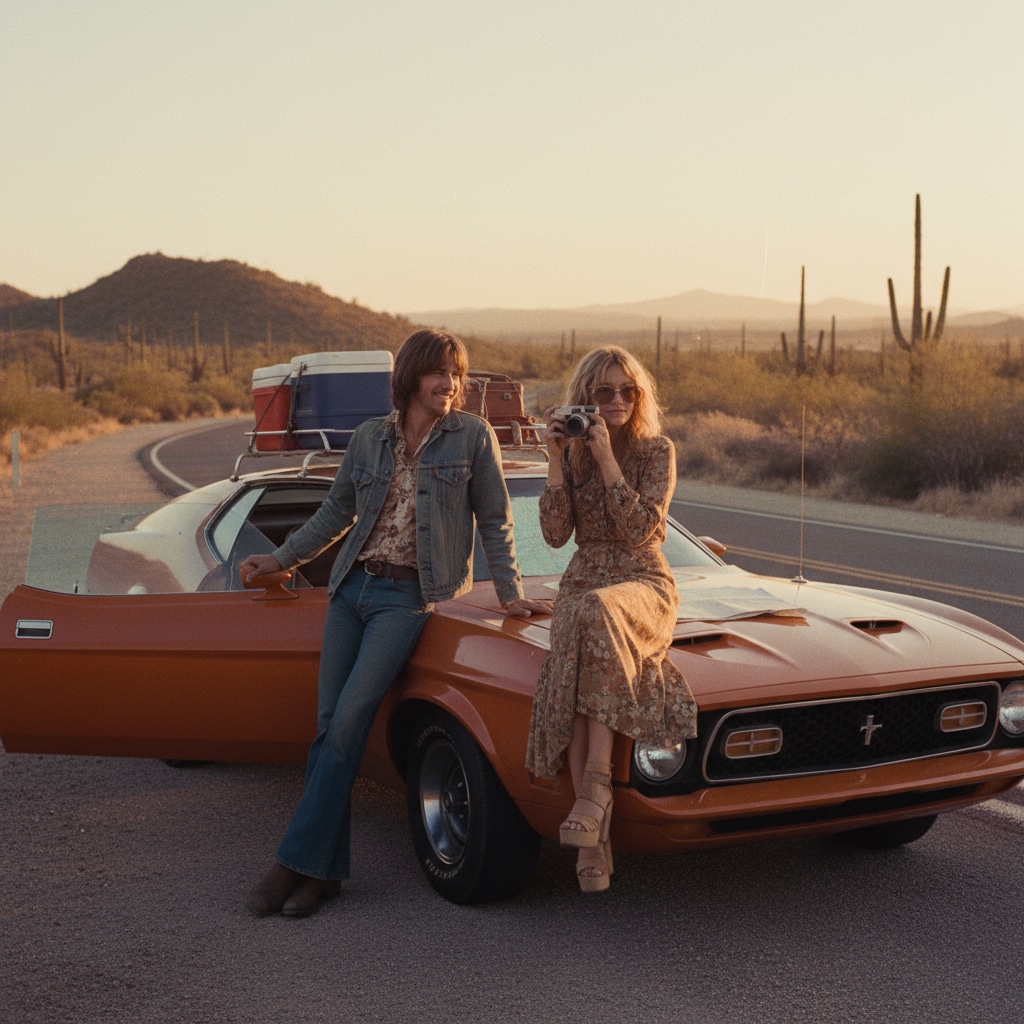
Filmora isn’t only for cinematic car clips—it also generates portraits, seasonal photos, and prompt-to-video campaigns, then lets you edit everything in one place.