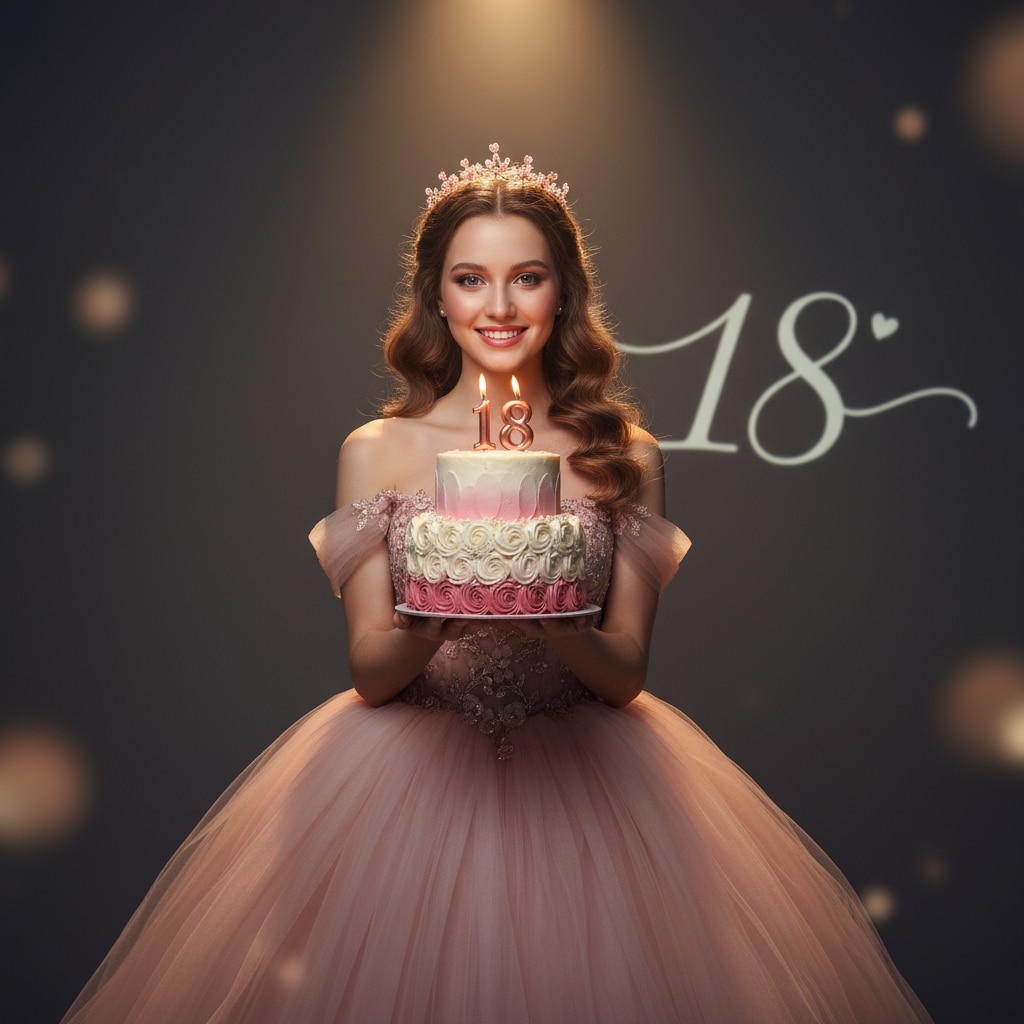
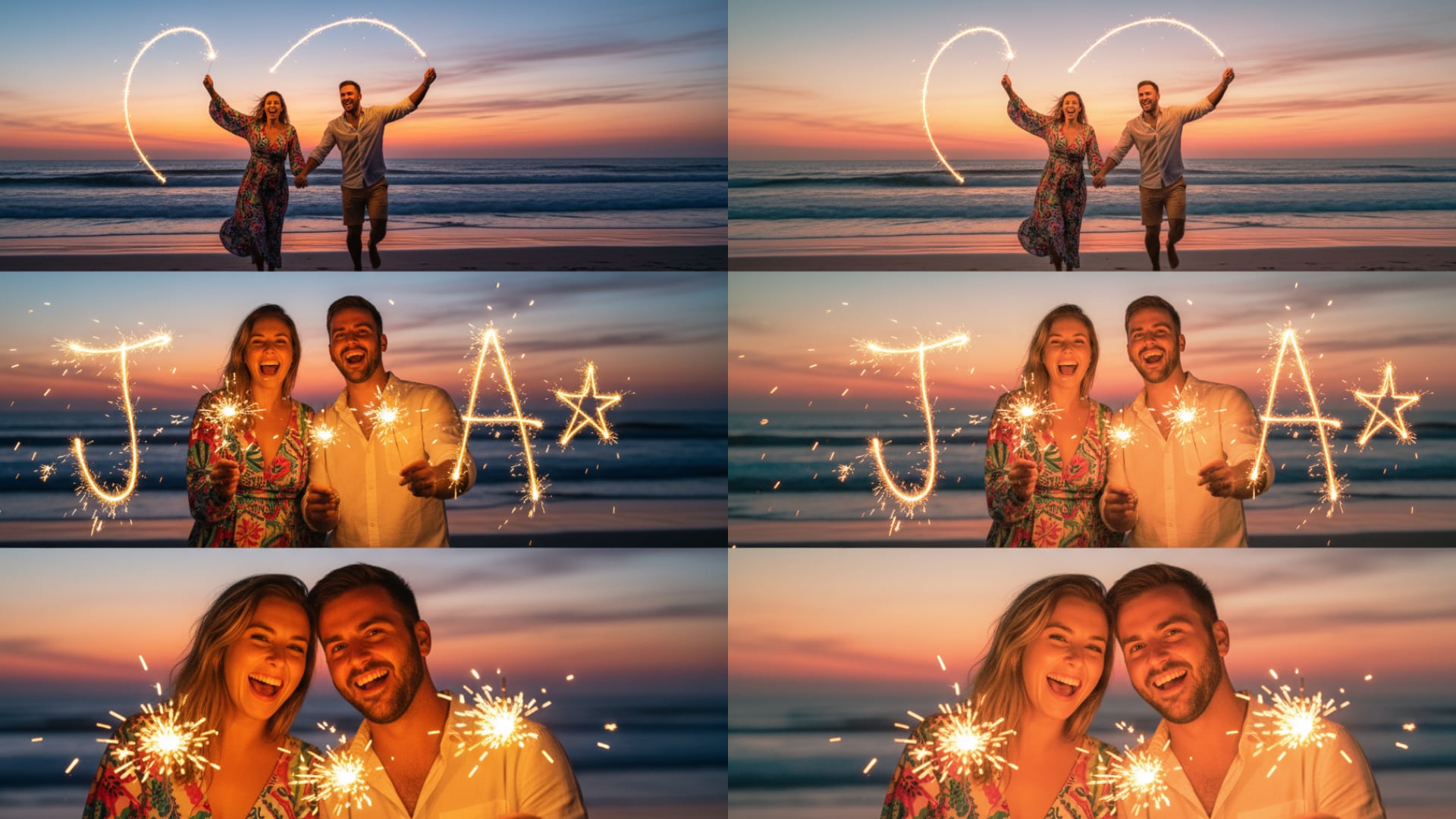
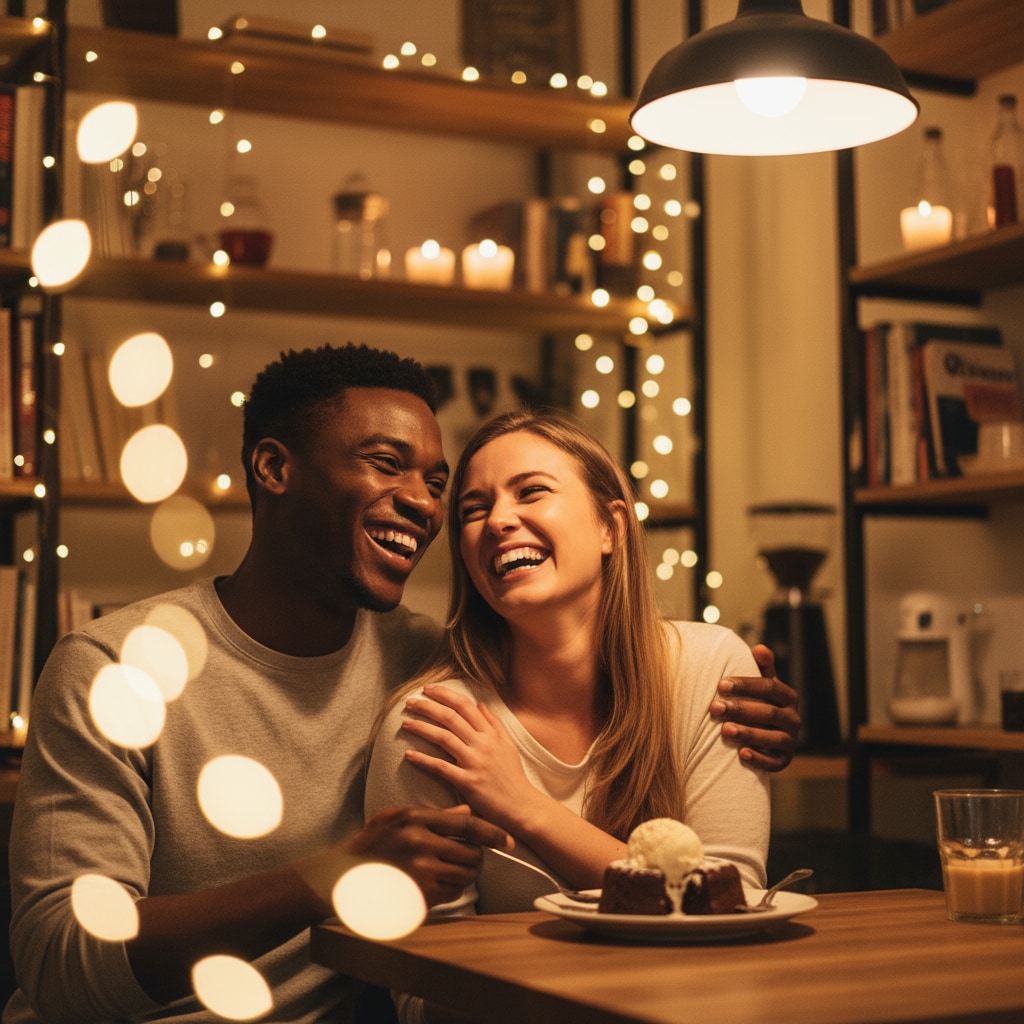
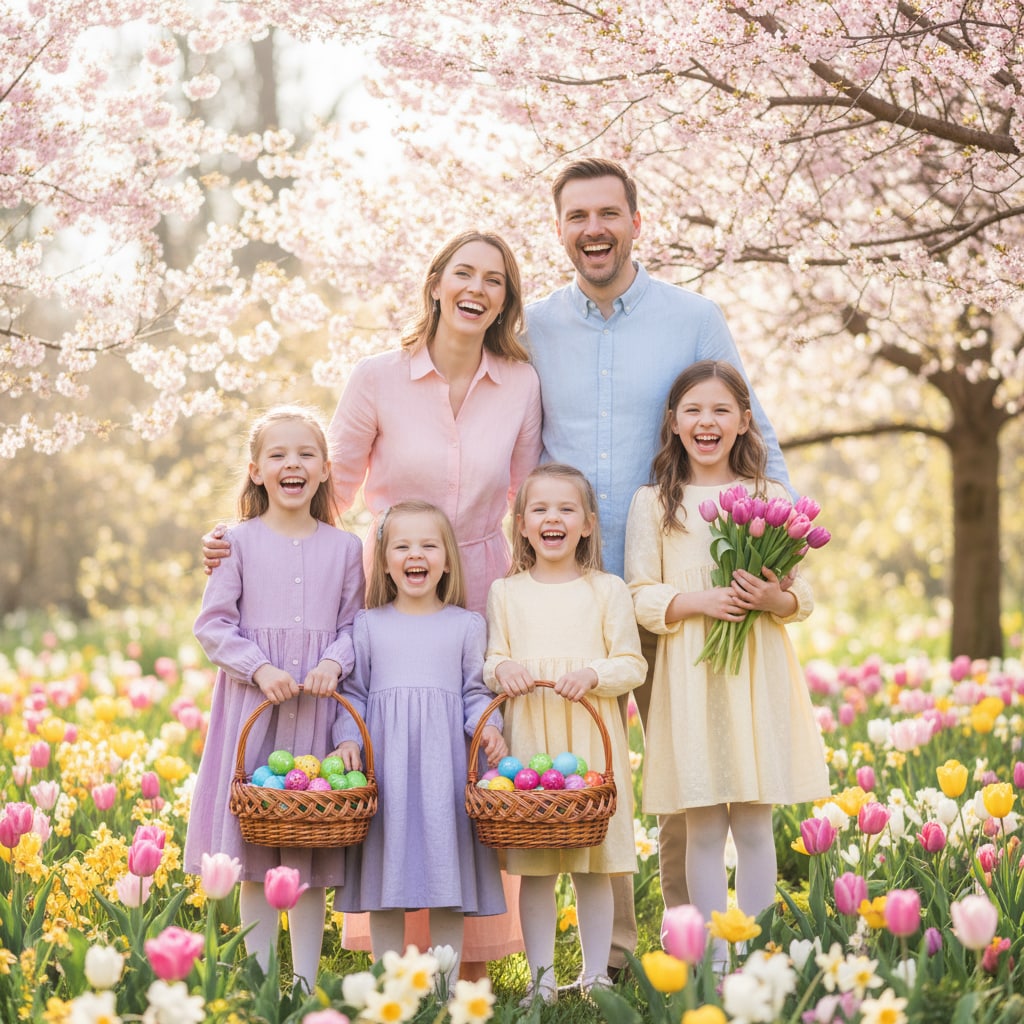
20+ Gemini AI Double Exposure Prompts:
Copy, Paste & Transform
Whether you want to create romantic couple double exposure portraits blended with sunset beaches, nature-infused portraits with blooming flowers and misty forests, cinematic urban silhouettes with city skylines, or vintage nostalgic double exposures with film grain aesthetics — these professional-grade Gemini double exposure photo editing prompts make it effortless.
Simply upload your photo, paste any prompt, and watch as advanced Nano Banana technology seamlessly blends two exposures into one stunning image.
Loading more templates...
 Category:
 Duration:
 Aspect Ratio:
Create Stunning Double Exposure AI Photos
With Nano Banana AI Image Generator
Eager to transform your uploaded photos into double exposure masterpieces using professional Gemini AI photo editing prompt? Our advanced feature - AI image generator, powered by Gemini's Nano Banana model, makes it seamless.
Let's experience the magic of AI double exposure photography that captures genuine emotion, artistic depth, and visual poetry, and create stunning double exposure portraits that tell compelling visual stories and stand out on social media.
Turn Gemini Double Exposure Prompts into Photos with Filmora Nano Banana
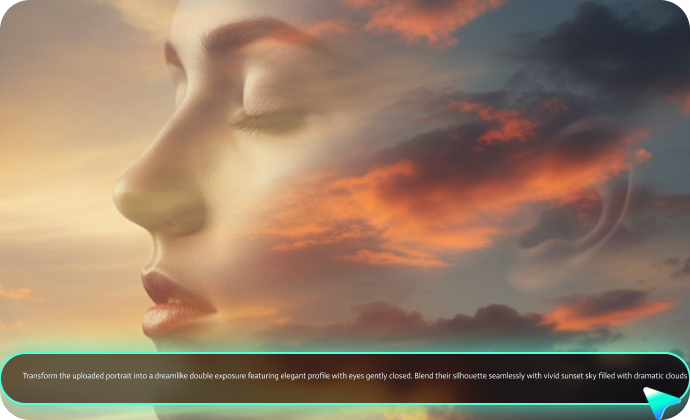
Turn Gemini Double Exposure Prompts into Photos with Filmora Nano Banana
Experience the ultimate double exposure photo editing workflow with Filmora's revolutionary Nano Banana model integration! Simply copy any of our Gemini AI double exposure prompts, paste them into Filmora's AI Image Generator, and watch as it creates incredible portraits in seconds. No technical expertise required—just pure creativity and artistic vision.
- Generate Double Exposure Photos from Prompts: Write detailed 1500-word descriptions to create cinematic double exposure effects with romantic beach sunsets, misty forests, urban cityscapes, or vintage aesthetics at the maximum quality level.
- Upload Reference Images: Transform and edit your existing photos into stunning double exposure artwork. Upload your portrait and let AI seamlessly blend it with nature scenes, city silhouettes, or emotional landscapes.
Edit Double Exposure Photos to Perfect
Edit Double Exposure Photos to Perfect
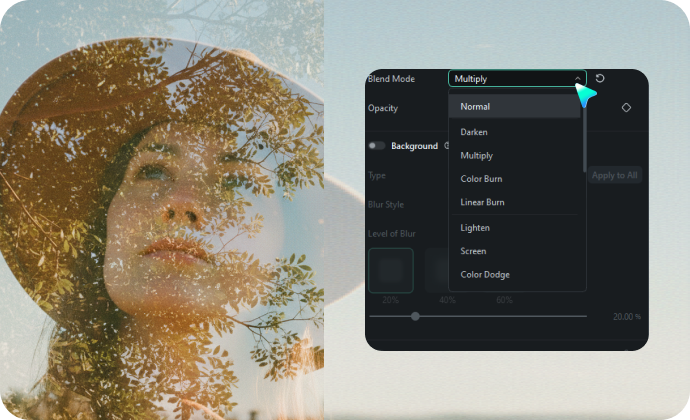
Beyond generating stunning double exposure portraits with Gemini AI prompts, Filmora offers comprehensive editing tools specifically designed to perfect your double exposure photography.
- Precision Blending Tools: Fine-tune the seamless integration between your portrait and overlay elements. Adjust layer opacity, blend modes, and masking for ultra-realistic double exposure effects that rival professional Photoshop work.
- AI-Powered Enhancement: Smart color correction, automatic lighting adjustment, and intelligent noise reduction specifically optimized for double exposure photography to maintain detail in both overlaid images.
- Creative Masks & Overlays: Apply artistic light leaks, film grain textures, dust particles, and vintage scratches to enhance the nostalgic double exposure aesthetic or add dreamy bokeh effects for romantic portraits.
Make Double Exposure Photos More Eyecatching with Animations
Make Double Exposure Photos More Eyecatching with Animations
Static double exposure photos capture emotion beautifully—but they can't compete with video in today's algorithm-driven feeds. While your stunning portrait gets a like, animated double exposure videos get saved, shared, and go viral. The difference? Motion. Add subtle parallax effects where your portrait stays still while misty forests drift behind, or create dramatic zooms into your romantic couple double exposure as sunset colors pulse and flow. It's the same artistic depth, now with the hypnotic power of movement that keeps viewers watching on repeat.
- Motion Blur Effects: Add dreamy motion blur to your double exposure photos, mimicking the analog film aesthetic. Perfect for vintage, nostalgic, and romantic golden hour scenes.
- Parallax Animations: Create depth by animating foreground and background layers separately. Make clouds drift through your subject's silhouette, waves flow across their profile, or city lights twinkle within their portrait.
- Scene Transitions: Smoothly blend between multiple double exposure photos, creating seamless narrative sequences. Perfect for romantic couple love stories, nature journey montages, or urban lifestyle reels.
FAQs for Gemini AI Double Exposure Photo Prompts
- Main subject (e.g., "female portrait, side profile")
- Secondary exposure layer (e.g., "forest silhouette, starry sky, city skyline")
- Mood & style (e.g., cinematic, dreamy, high contrast, soft pastel)
- Technical cues (e.g., "double exposure effect," "blended textures," "fine detail")
The clearer your structure, the more consistent the results Gemini delivers.
- "Gemini double exposure photo prompt for men: strong jawline, urban skyline layered silhouette, high-contrast monochrome style."
- "Gemini double exposure portrait of a woman with floral silhouette overlay, pastel colors, soft dreamy style."
How to Use Gemini AI
Double Exposure Photo Prompts in Filmora?
Never used AI image generation before? No problem. This beginner-friendly guide walks you through transforming photos into double exposure portraits in under a minute.
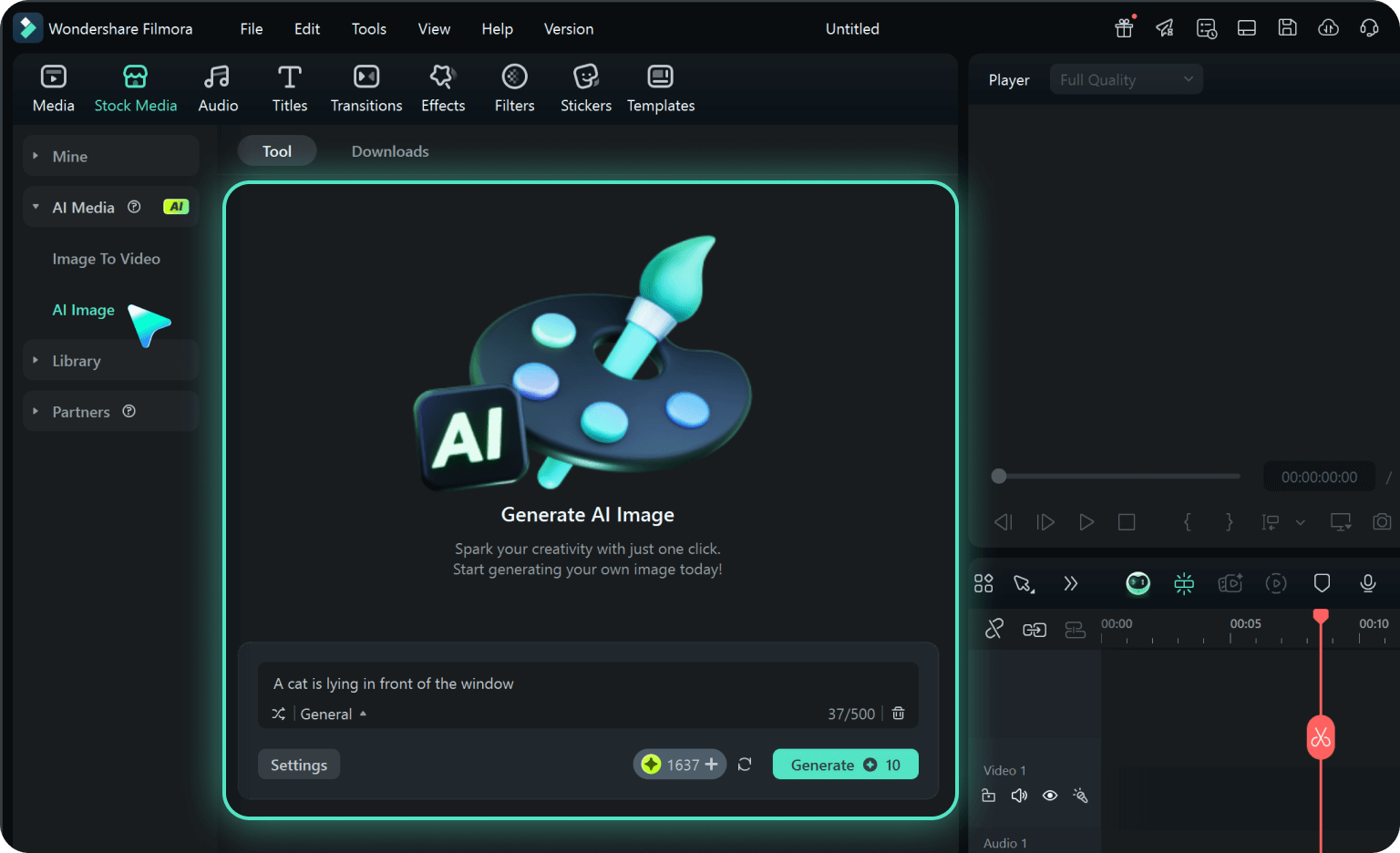
Step 1 Activate AI Image Generator
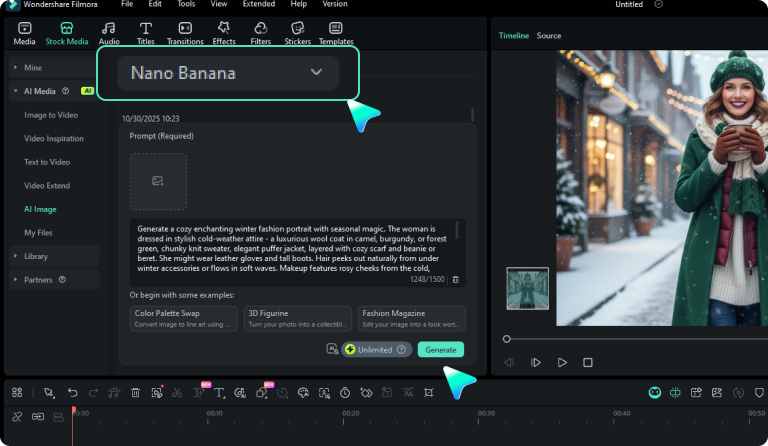
Step 2 Generate Images From Text
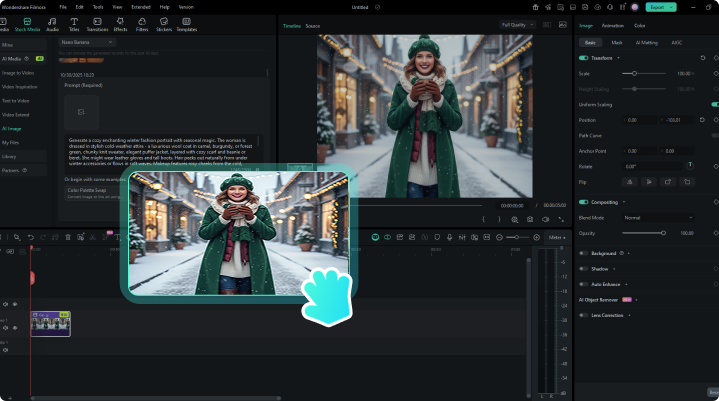
Step 3 Download and Export Your AI-Generated Images
-
1:Activate AI Image Generator
Launch the latest version of Filmora, create a project, and click "Stock Media", choose "AI Image" from the Media panel. -
2:Generate Images From Text
Select the Nano Banana model, then type in your Gemini Double Exposure Prompts for men or women, then click on the "Generate" to start making AI photos. -
3:Download and Export Your AI-Generated Images
After generating the photo, you can preview the image, tap on the download button, and drag it to the timeline, edit it if required, take a snapshot, or export to save the picture.
More Than Just a Double Exposure Photo Maker
Filmora is not just a double exposure photo editor from Gemini AI prompts. You can also generate other style photos, create AI videos from prompts or pictures, and edit them with the most powerful editing features in the same tool.