AI Video Examples With Prompts:
Created with Filmora
Mastering Veo 3.1 starts with mastering the prompt. Explore our prompts library to find the perfect starting point for your project. Each prompt is designed to produce reliable, high-quality results
Loading more templates...
 Category:
 Duration:
 Aspect Ratio:
How to Write Effective Veo 3.1 Prompts?
Want to know how to write good prompts for Veo 3.1? A good prompt is key to "accurate results". Veo 3.1 requires "specific, structured" instructions. We've summarized a "5-element formula" and real-case examples for different scenarios—beginners can use them directly.
The 5-Element Prompt Formula
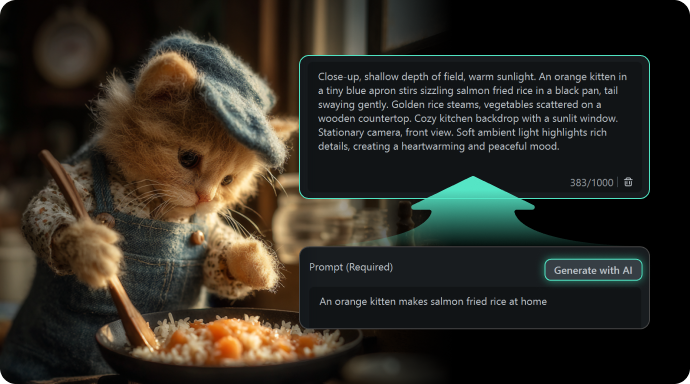
The 5-Element Prompt Formula
(Shot Type) + (Subject + Action) + (Scene + Environment) + (Style + Lighting) + (Audio Elements)
- Shot Type: Specify angle/technique (e.g., "close-up)", "drone shot", "slow motion")
- Subject + Action: Clarify "who is doing what" (avoid vagueness—e.g., instead of "a cat eating", use "an orange kitten in a blue apron stirring salmon fried rice")
- Scene + Environment: Describe time, location, and background (e.g., "cozy kitchen at sunset, sunlit window")
- Style + Lighting: Set the visual tone (e.g., "cinematic lighting", "watercolor animation style")
- Audio Elements: Specify sounds, dialogue, or music (e.g., "background sound: sizzling rice, dialogue: 'This smells good!'")
Pitfalls to Avoid
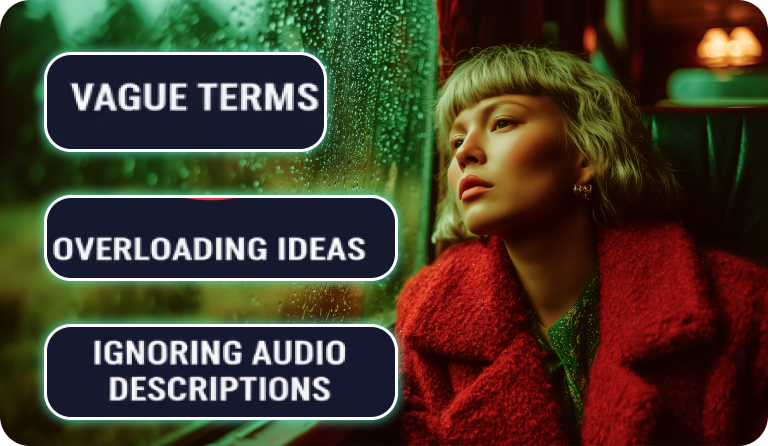
Pitfalls to Avoid
- Vague terms: e.g., "nice scene", "cool video" (AI cannot interpret vague styles)
- Overloading ideas: e.g., "a cat cooking while a dog runs and a rainbow appears" (leads to messy visuals)
- Ignoring audio descriptions: Veo 3.1's audio-visual sync is a core strength—omitting audio wastes this feature
Core Capabilities of Veo 3.1
As an upgraded model launched by Google in 2025, Veo 3.1 enhances "creative controllability" based on Veo 3—turning AI generation from "hit-or-miss" to "precision-driven". Its core capabilities cover three key areas: video, audio, and style.
Higher-Quality Generation
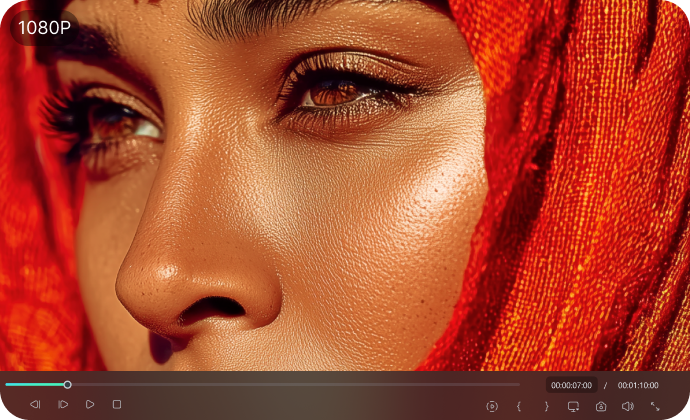
Higher-Quality Generation
- Resolution & Duration: Supports 720p/1080p HD output, with 3 optional durations (4s, 6s, 8s) to fit editing needs across platforms.
- Aspect Ratio Adaptation: Defaults to 16:9 (landscape, ideal for YouTube) and 9:16 (portrait, perfect for TikTok/Reels);
- Scene Understanding: Accurately interprets complex narratives (e.g., "multi-character interactions" or "continuous actions") to avoid frame jumps and improve story coherence.
More Immersive Audio-Visual Synchronization
More Immersive Audio-Visual Synchronization
A key upgrade of Veo 3.1 is audio generation—no extra voiceover needed. You can specify sound elements directly in prompts:
- Ambient sounds: for example, "rain tapping on windows", "waves crashing on the shore"
- Dialogue: Add "dialogue: 'XXX'" to generate natural human voices
- Music styles: Supports "synthwave", "soft piano", "orchestral strings", etc.
More Flexible Creative Control
More Flexible Creative Control
- Image-to-Video Optimization: After uploading a reference image, AI generates animations that align with prompt descriptions (e.g., "Animate the cat in the reference image while preserving its oil-painting style").
- Element Consistency: Use "reference image + prompt" to keep characters/styles consistent across clips (e.g., "All clips follow Studio Ghibli's animation style, with the protagonist being a girl in a red hat").
- Seamless Transitions: The "Start Frame + End Frame" feature lets AI generate transitional videos (e.g., "Transition from an 'empty classroom' frame to a 'classroom full of students' frame, simulating the scene after the school bell rings").
- Element Addition/Removal: Add/remove objects in videos (e.g., "Add a brand logo next to the coffee cup") without disrupting the original composition.
Note: This feature currently uses the Veo 2 model and does not support audio generation.
Create Stunning AI Videos With Prompts in Filmora
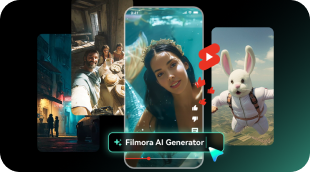
Simply copy and paste your Veo 3.1 prompts into Filmora's AI Text to video generator or AI Image to Video Generator to get stunning AI videos with ease.
* The following section showcases Veo 3.1's video generation capabilities and its former integration with Filmora before the service was discontinued.
Convert Text Prompts and Images to Cinematic Videos with Filmora + Veo 3
Convert Text Prompts to Cinematic Videos with Filmora + Veo 3
Go beyond basic AI video generation. Filmora helps you craft the perfect cinematic prompt for Veo 3 and Veo 3.1, ensuring your initial footage is created with the right composition, mood, and style.
- Prompt Polishing: Use Filmora's built-in AI to refine your text into a detailed director's brief. Get suggestions for shot types, lighting, and aesthetic styles.
- Generate High-Quality Base Footage: Send your polished prompt directly to Veo 3 to produce stunning, coherent video clips that are ready for the next step.
Intelligent AI Sound Effect and Background Music Generator
Intelligent AI Sound Effect and Background Music Generator
Filmora also allows you to turn texts into ethereal background music or stunning sound effects according to the video topic.
- AI Music Generator: Compose a unique, royalty-free score. Simply select your video genre, mood, and music length for a perfect soundtrack.
- AI Sound Effect Generator: Make your world feel real. Describe any action—from a gentle breeze to a roaring dragon—and generate custom, immersive sound effects on demand.
Create AI Videos from Images
Create AI Videos from Images
With the powerful AI image-to-video generator feature in Filmora, you can animate photos and turn them into videos with prompts.
- Keep Characters Consistent: keep the characters in your picture moving and be consistent.
- Make Before-and-After Revealing Video: make a transformation video by uploading two pictures; you can select a preset template or add your customized prompts.
- Blend Multiple Pictures into One Video with AI: make trending and fashion outfit-changing or virtual try-on videos from pictures.
- AI Prompts Video Editor: Add, delete, replace elements in videos with AI like Veo3.1 in Filmora.
A Full Package for AI Video Edits
Full Package for AI Video and Image Edits
By integrating advanced AI tools and rich video editing features directly into every stage of the creative workflow, Filmora allows you to generate, edit, and finish videos and images in a single, efficient platform.
- Seamless Video Transitions: Create a perfect flow with a vast library of transitions like fade, dissolve, wipe, and morph to connect your AI clips professionally.
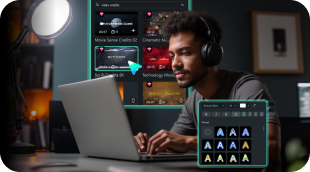
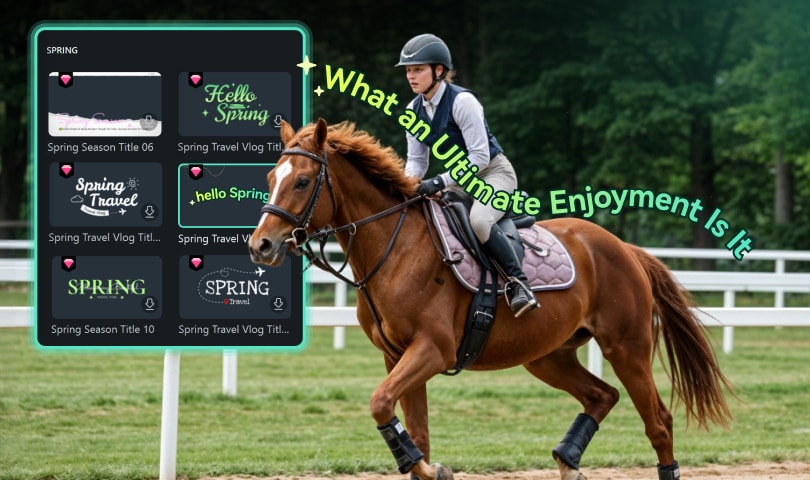
- Massive Assets Library: Elevate your project with thousands of video effects, animated stickers, and title texts designed to complement modern video content.
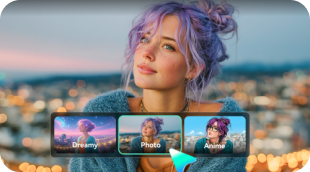
- Integrated AI Image Tools: Generate high-quality images from text prompts using the powerful Nano Banana model, and then edit them further—all without leaving your project.
FAQs
How to Use Veo 3.1 prompts in Filmora? (Archived Guide)
This archived guide documents the previous Veo 3.1 video generation workflows in Filmora. The steps and screenshots below are retained for reference and do not reflect the current Filmora interface.
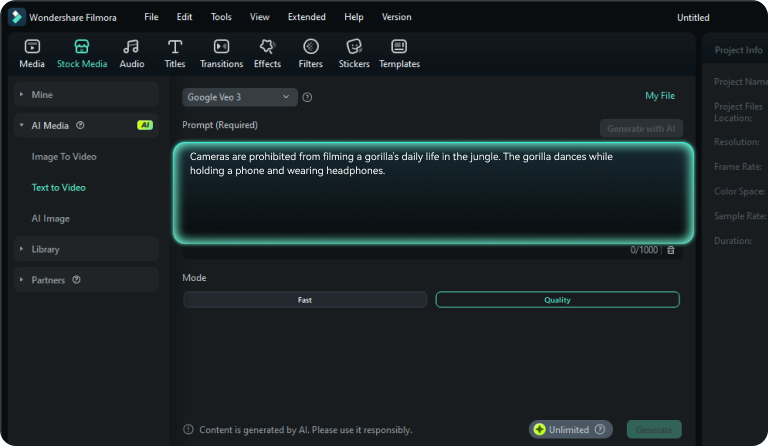
Step 1 Enter or Generate a VEO 3.1 Prompt
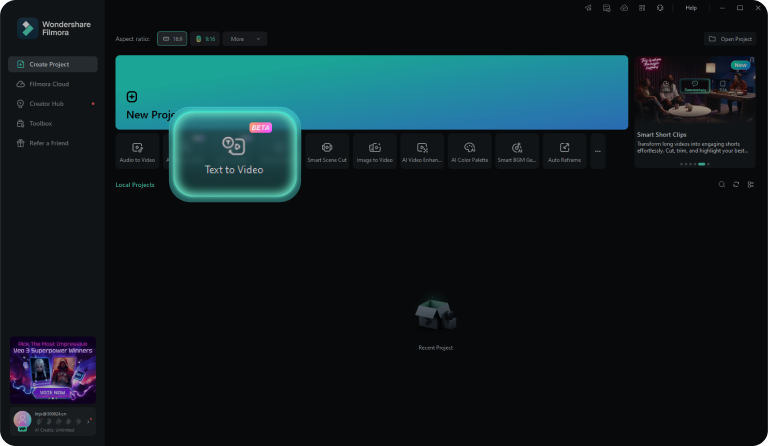
Step 2 Try IT Free
Step 3 Edit & Finalize
-
Step 1: Enter or Generate a VEO 3.1 Prompt
Open Filmora's AI Text-to-Video, type your idea, or auto-generate Veo 3.1 prompts for inspiration. -
Step 2: Try IT Free
Choose Fast or Quality mode and click "Generate" to transform Gemini Veo 3.1 prompts into cinematic visuals instantly. -
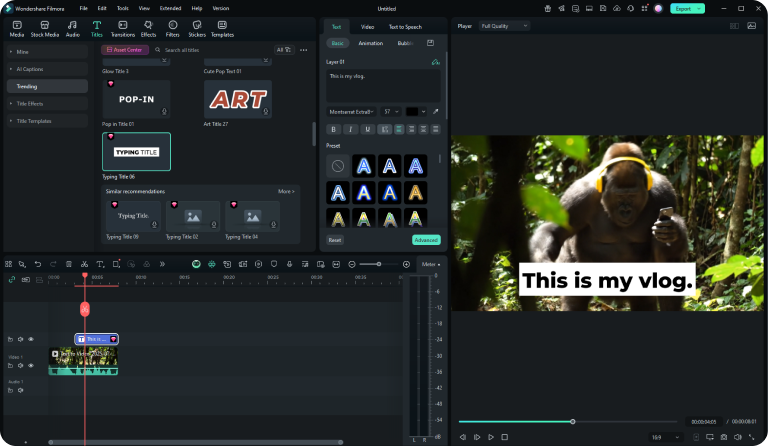
Step 3: Edit & Finalize
Polish your effect with music, captions, and visual effects for a complete cinematic AI video.
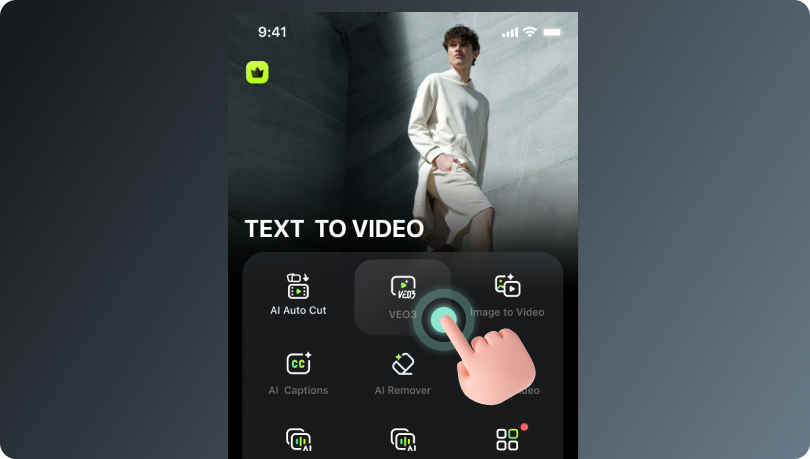
Step 1 Open Filmora mobile app and tap Veo 3
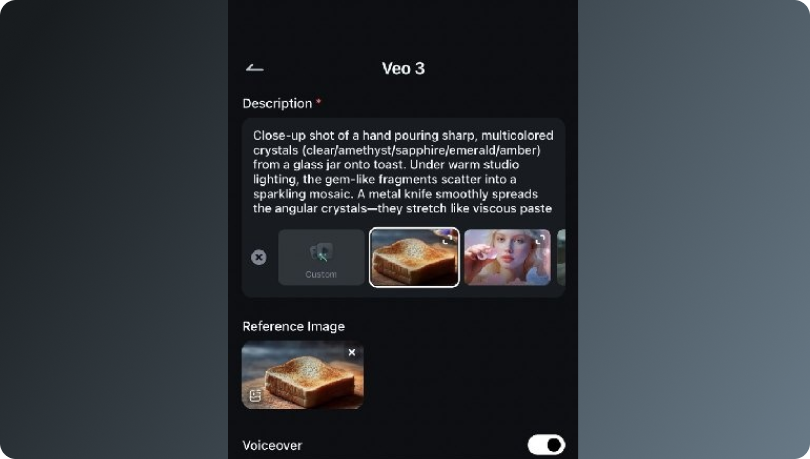
Step 2 Add a Prompt and Upload an Image
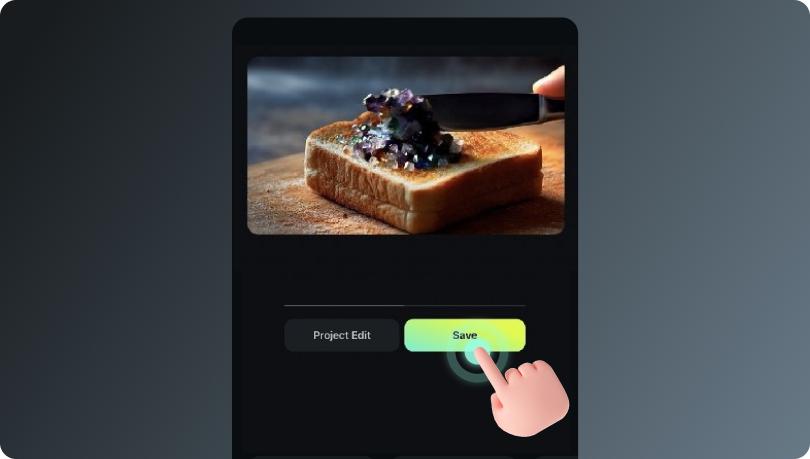
Step 3 Generate and Edit Your Video
-
Step 1: Open the Filmora Mobile App and Tap Veo 3
Launch the app and select Veo 3 from the home screen to start creating videos with Google's Veo 3 model. -
Step 2: Add a Prompt and Upload an Image
You can start with presets, or enter a short descriptive prompt (e.g., "sunrise in the mountains," "futuristic skyline," "stylish product on black background") and upload an image as a visual reference. -
Step 3: Generate and Edit Your Video
Tap Generate to create your AI video. Once it's ready, you can make quick edits, trim clips, enhance visuals, or add background audio, then export and share directly to your favorite platform.
More Than Just a Veo 3 AI Video Generator
Filmora goes beyond simple AI video creation, empowering you to generate and customize videos for every scenario.