GPT Image 1.5 Prompts
Best Templates & Examples for Realistic AI Images
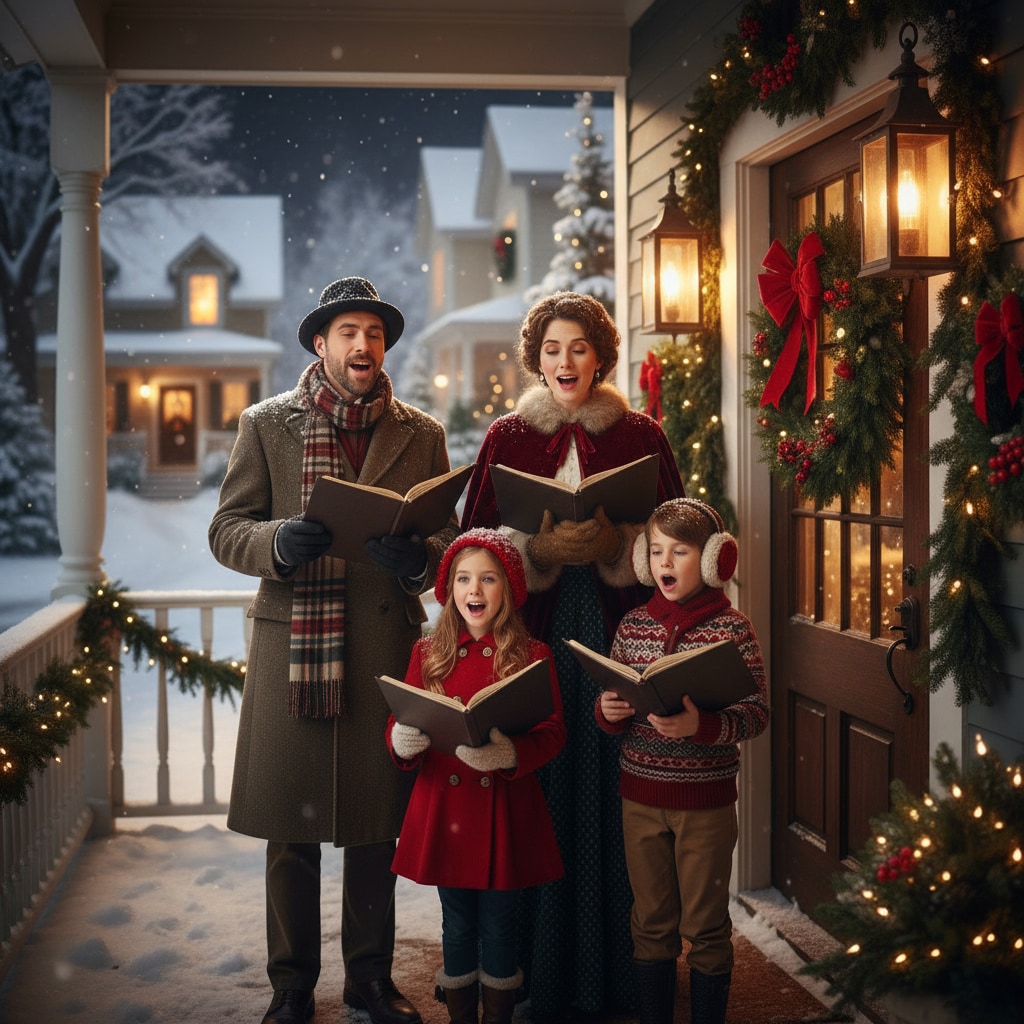
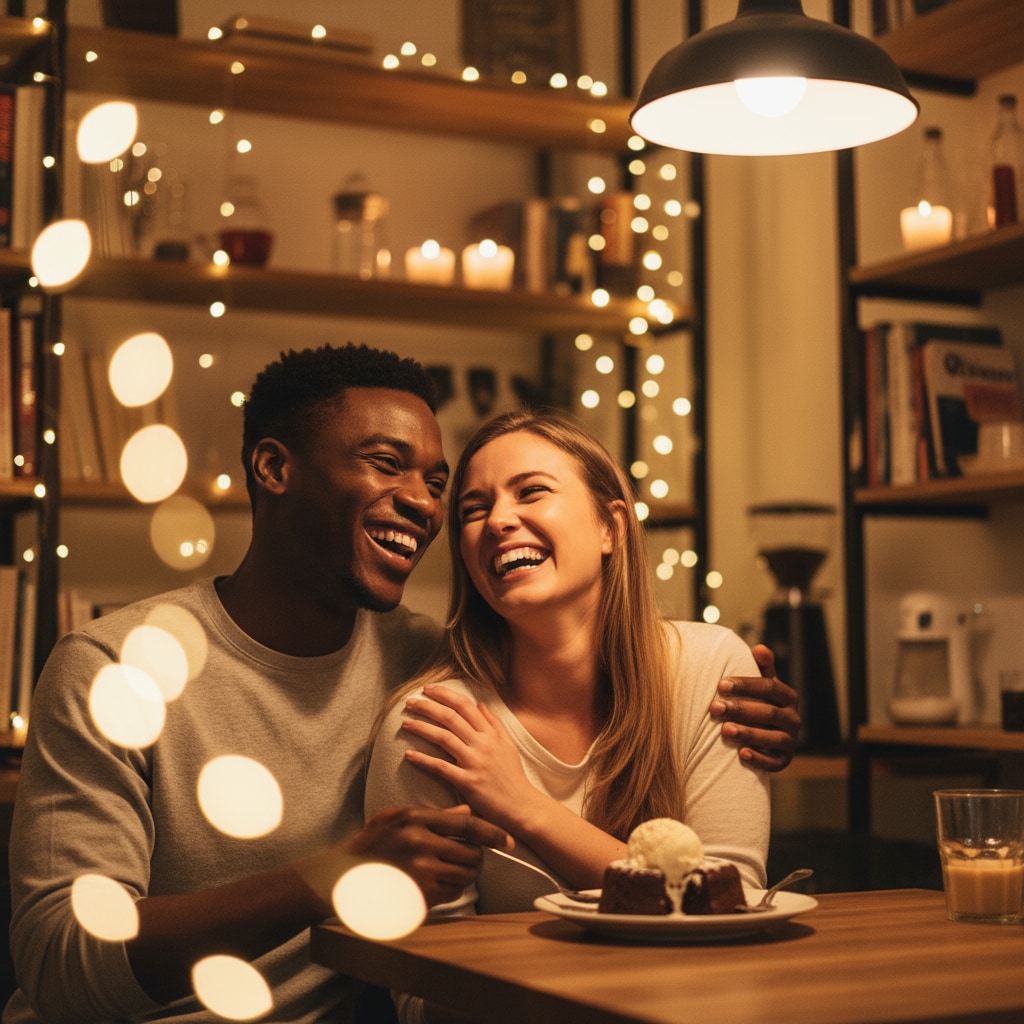
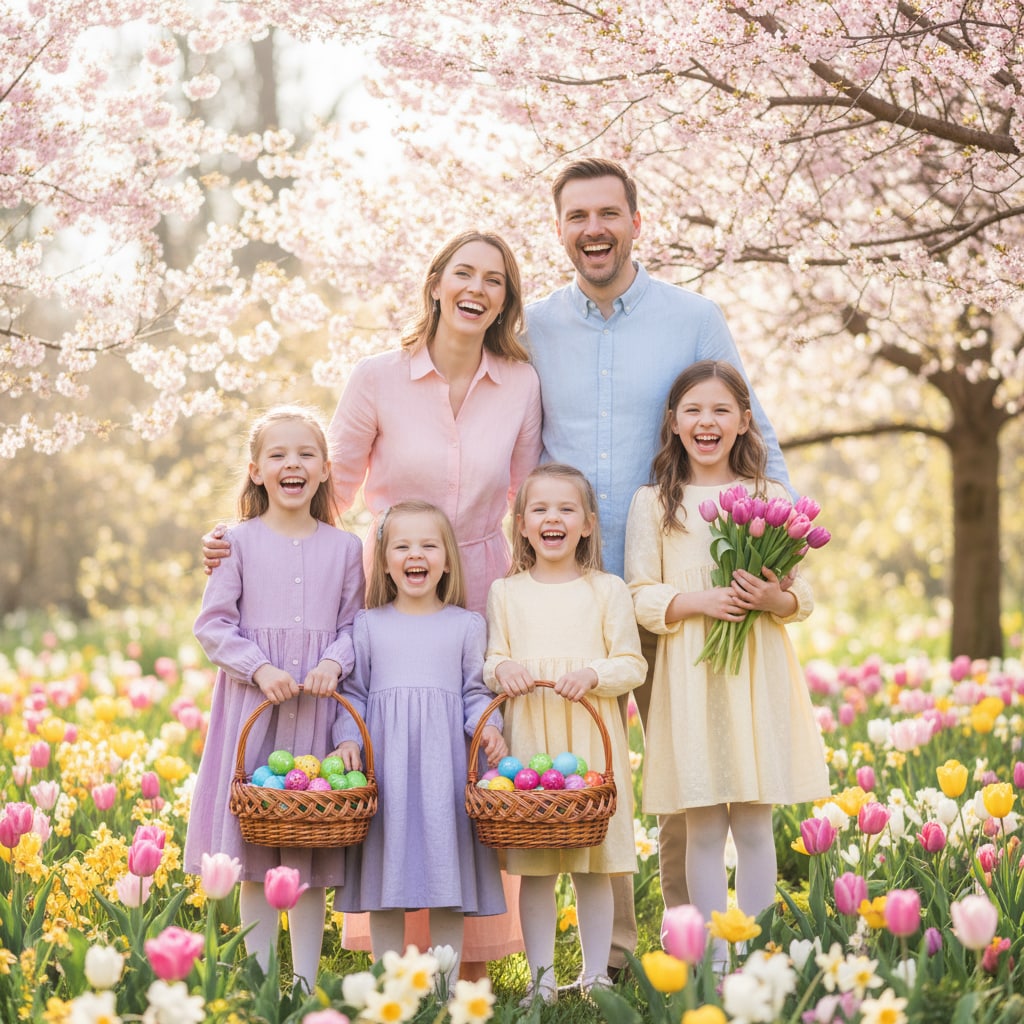
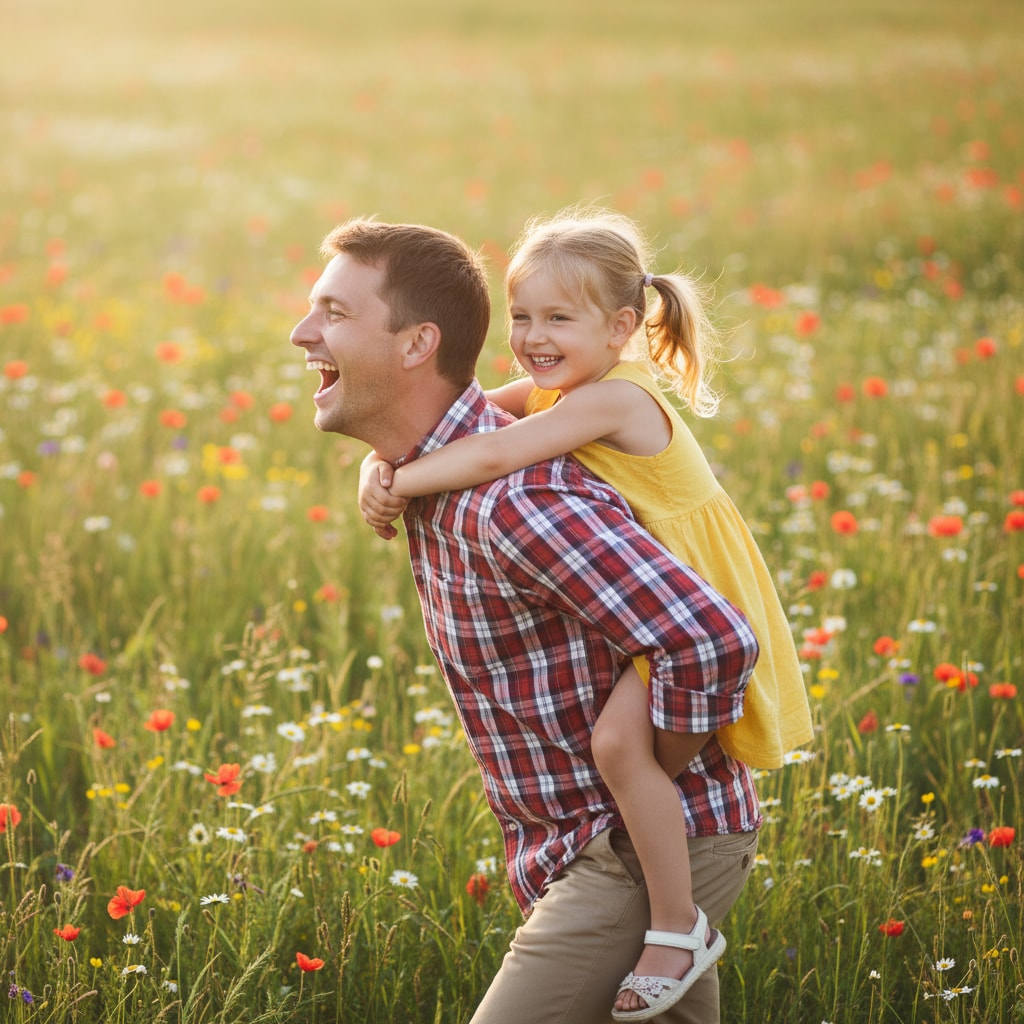
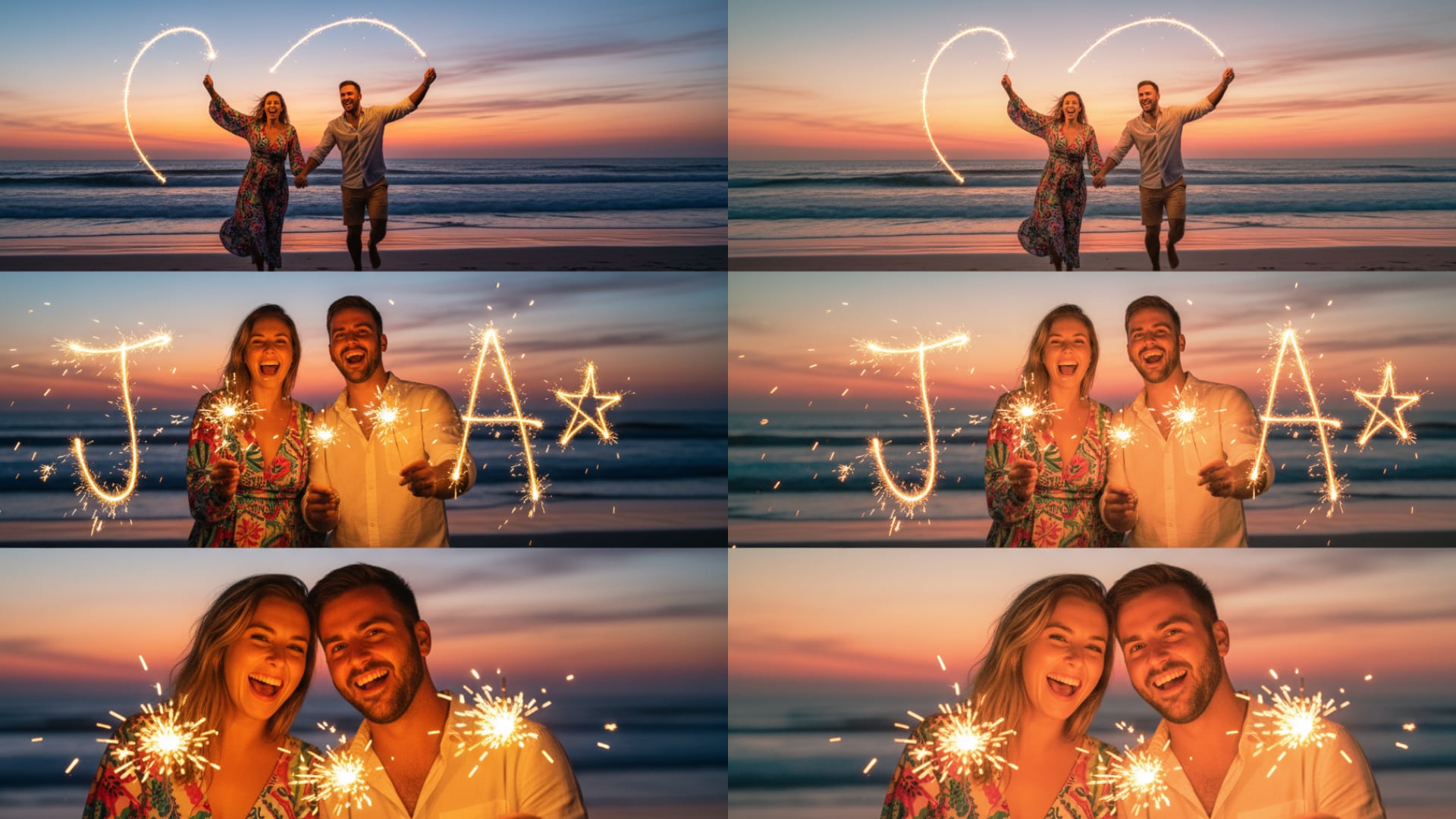
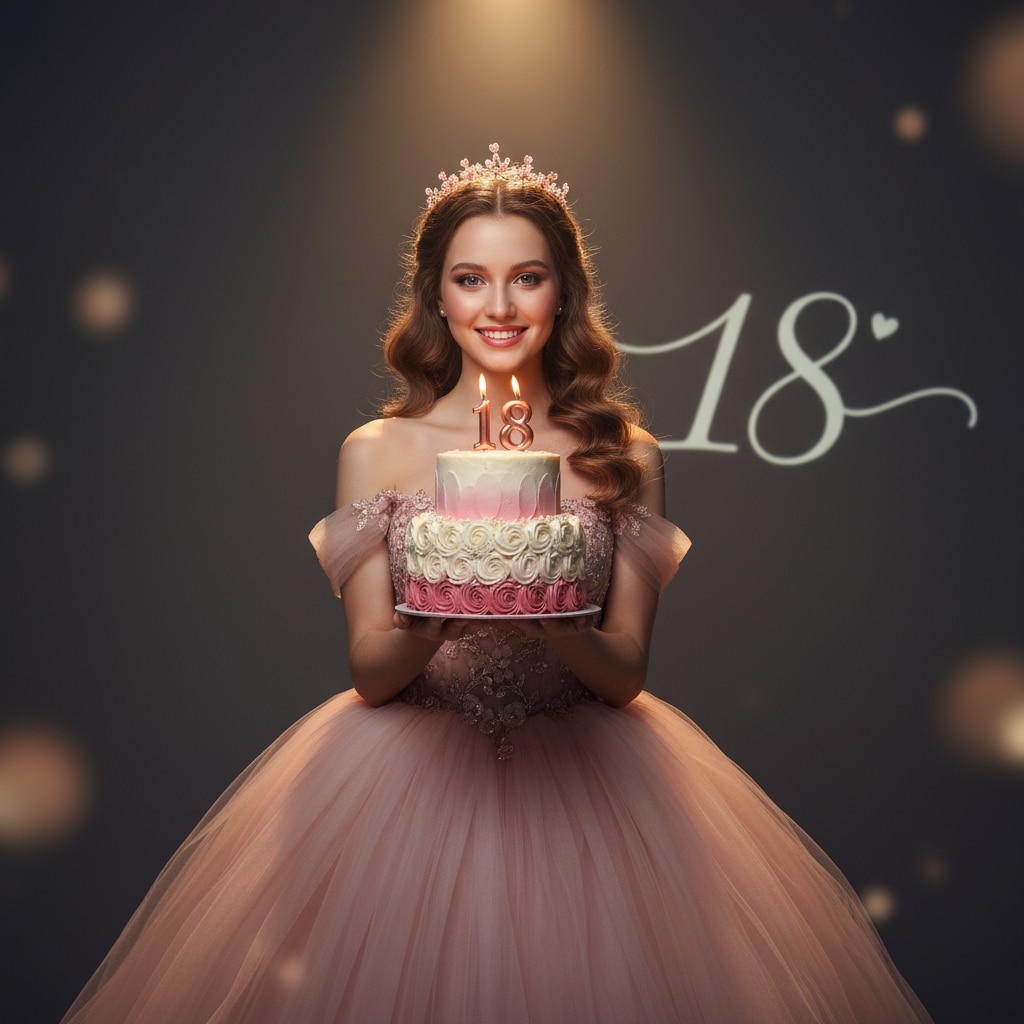
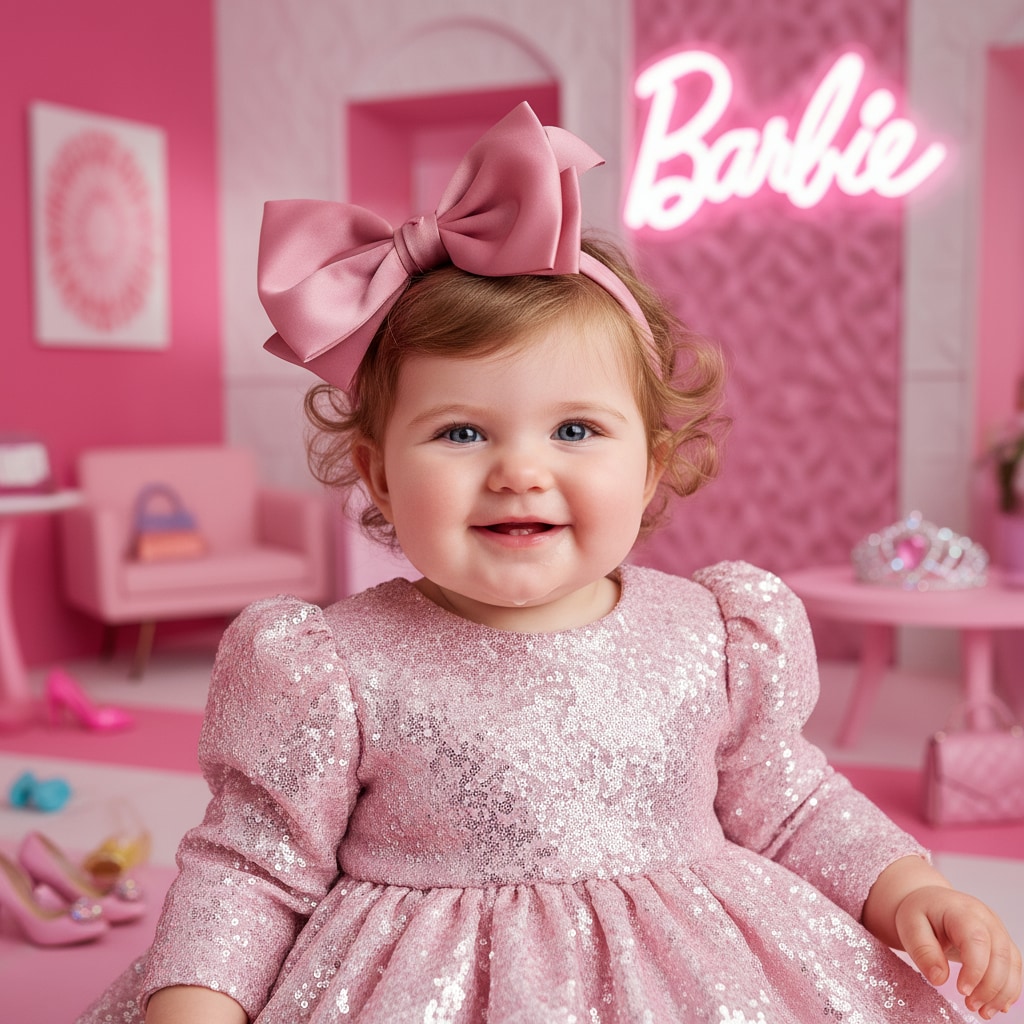
Unlock the full creative power of ChatGPT Image 1.5 prompts to transform ordinary photos into highly realistic, professional-grade visuals. Each prompt in this collection is carefully crafted to leverage Image 1.5's key strengths—precise instruction following, improved photo editing, accurate facial preservation, and clearer text rendering. Whether you're editing real photos, generating lifelike portraits, enhancing product images, or creating social-ready visuals, these ready-to-use prompts help you achieve consistent, photorealistic results with minimal effort.
Loading more templates...
 Category:
 Duration:
 Aspect Ratio:
Create Pixel-Perfect Images
with Prompts for ChatGPT Image 1.5
Loved the highly realistic images created with a ChatGPT Image 1.5 photo prompt? That's no coincidence. Image 1.5 is designed to better understand creative intent—capturing accurate lighting, natural facial details, consistent styles, and even readable text with remarkable precision.
Once you've found a visual style or prompt you love, you're not limited to a single output. You can extend your creations further using tools like Filmora's Nano Banana Pro and Nano Banana models, which offer additional advantages for face consistency, fine details, and creative refinement.
Generate Photos from Prompts with Filmora's AI Image Generator
Generate Photos from Prompts with Filmora's AI Image Generator
Filmora's built-in AI image generator powered by Nano Banana Pro and Nano Banana models solves the exact problems our ChatGPT photo prompts address - with enhanced capabilities:
- Superior Face Consistency: Creating character-consistent content across multiple images (branded mascots, story sequences, comic series).
- Extended Prompt Capacity: Support for prompts up to 1,500 words enables extraordinarily detailed descriptions for complex scenes.
- Seamless Editing Integration: Generate AI images and immediately enhance with animated overlays (snow, particles, light rays), color grading with cinematic LUTs, and multi-layer compositing.
Pro Tip: Use GPT Image 1.5 for text-heavy mockups and rapid concepts, then regenerate face-consistent character shots with Nano Banana Pro in Filmora for final production.
AI Image to Video: Bring Static Images to Life
AI Image to Video: Bring Static Images to Life
While ChatGPT can only turn prompts into photos currently, this is where Filmora's capabilities become truly revolutionary. AI Image to Video, powered by Veo3.1 and Sora 2, transforms your GPT Image 1.5 static outputs into cinematic video sequences.
- Preset AI Templates: Select from hundreds of AI image-to-video templates, upload your photo, and generate animated videos directly.
- Customize Prompts: Advanced users can input custom prompts and describe how they want the photo animated.
- Built-In Music & Effects: Enhance visuals with ready-to-use sound effects and background music for richer storytelling.
Enhance & Perfect Visuals with Filmora's Editing Suite

Enhance & Perfect Visuals with Filmora's Editing Suite
Once you've generated photos from prompts or animated photos, Filmora's editing toolkit ensures professional polish with AI-powered enhancement features.
- Image Upscaler: 1K → 4K resolution with AI detail enhancement in the Filmora app with one click.
- Smart Cutout: One-click background removal for compositing.
- AI Audio Generator: Custom music matching your visual mood.
- Advanced Color Grading: Automatically extract and match your desired colors.
FAQs About GPT Image 1.5 Prompts
Use ChatGPT Image 1.5 if you want tight control over prompts, realistic edits, and precise instruction-guided generation — especially inside ChatGPT or with prompt iteration workflows.
Use Nano Banana Pro if you need high-fidelity outputs, 4K visuals, and grounded image generation with rich context and detail — especially for creative, infographic, or design-heavy use cases.
How to Use ChatGPT AI Photo Prompts in Filmora?
Got a ChatGPT photo prompt ready? Bring it to life in Filmora. Paste your prompt into the AI Image tool, choose the advanced Nano Banana Pro or Nano Banana model, and create realistic photos in seconds—no design skills required. Follow these steps to make AI photos with GPT image 1.5 prompts with ease.
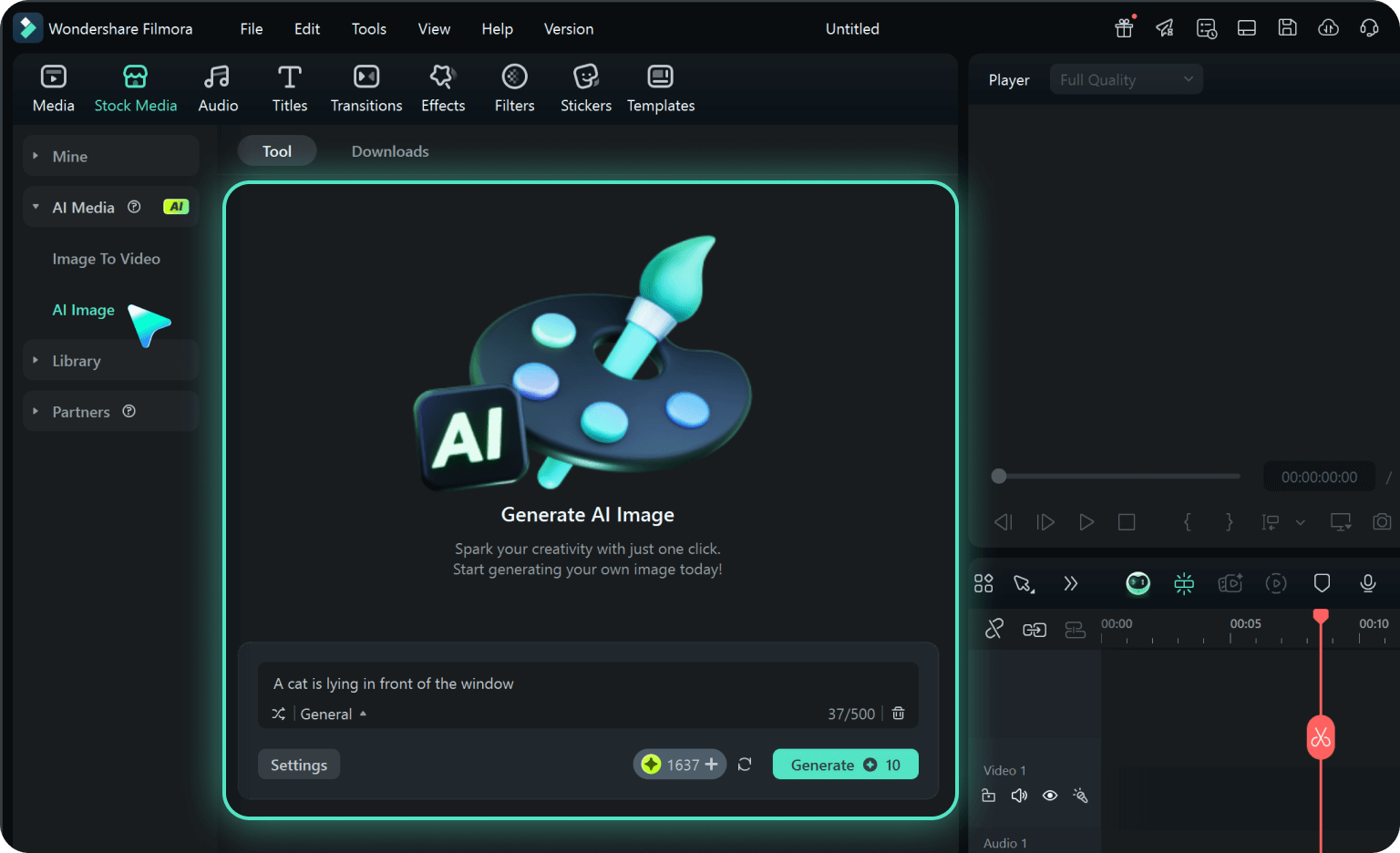
Step 1 Activate AI Image Generator
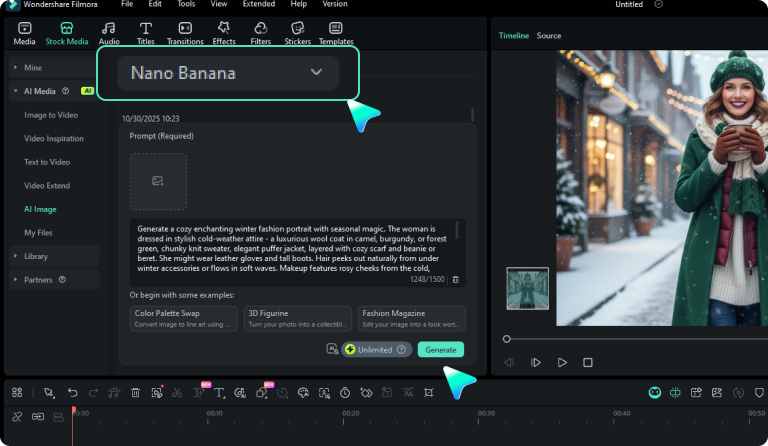
Step 2 Generate Images From Text or Reference Pictures
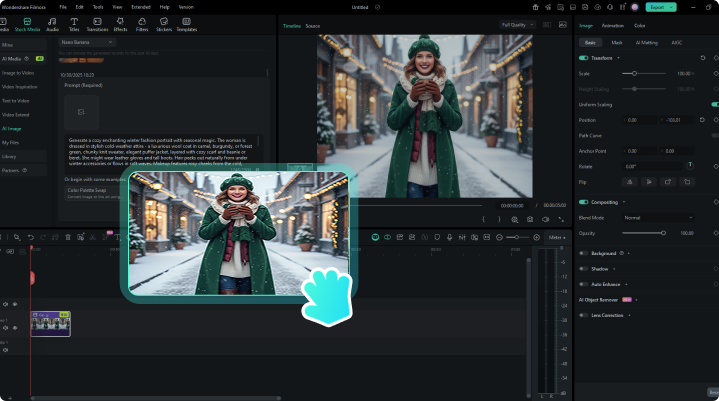
Step 3 Download and Export Your AI-Generated Images
-
1:Activate AI Image Generator
Launch the latest version of Filmora, create a project, and click "Stock Media", choose "AI Image" from the Media panel. -
2:Generate Images From Text or Reference Pictures
Select the Nano Banana pro or Nano Banana model, then type in your ChatGPT AI prompts for photos, then click on the "Generate" to start making photos. You can also upload a reference picture, add a ChatGPT AI photo editing prompt, and finally tap on Generate to edit the photo. -
3:Download and Export Your AI-Generated Images
After generating the photo, you can preview the image, tap on the download button, and drag it to the timeline, edit it if required, take a snapshot, or export to save the picture.
More Than Just a GPT Image 1.5 Prompt to Photo Generator
Filmora extends the power of ChatGPT Image 1.5 prompts beyond single-image generation. You can create multiple styles from different prompts, convert text or photos into AI videos, and polish everything seamlessly with professional editing tools—all in one platform.