30+ Free AI Take Pictures with Santa Prompts
Explore Filmora's collection of AI-generated photo prompts designed for taking pictures with Santa. These prompts help you create realistic Santa photo sessions where kids, families, couples, or adults appear naturally posing with Santa in the same frame. From classic mall Santa chair photos to cozy living-room visits and modern selfie-style shots, each prompt is free to use and includes full scene details—so you can easily recreate authentic "Photos with Santa" moments inside Filmora.
Loading more templates...
 Category:
 Duration:
 Aspect Ratio:
Create Realistic AI Santa Photos
With Filmora's Built-in AI Tools
Want classic mall Santa photos without booking a session? With AI Take Pictures with Santa prompts and Filmora’s AI Image tools, you can build realistic Santa portraits for kids, families, and pets, then refine every detail in one editor. Use these AI Santa photo prompts to create scenes that match your brand, your family, or your holiday story.
Turn Santa Prompts into Photo-Real Santa Pictures with AI Image Generator
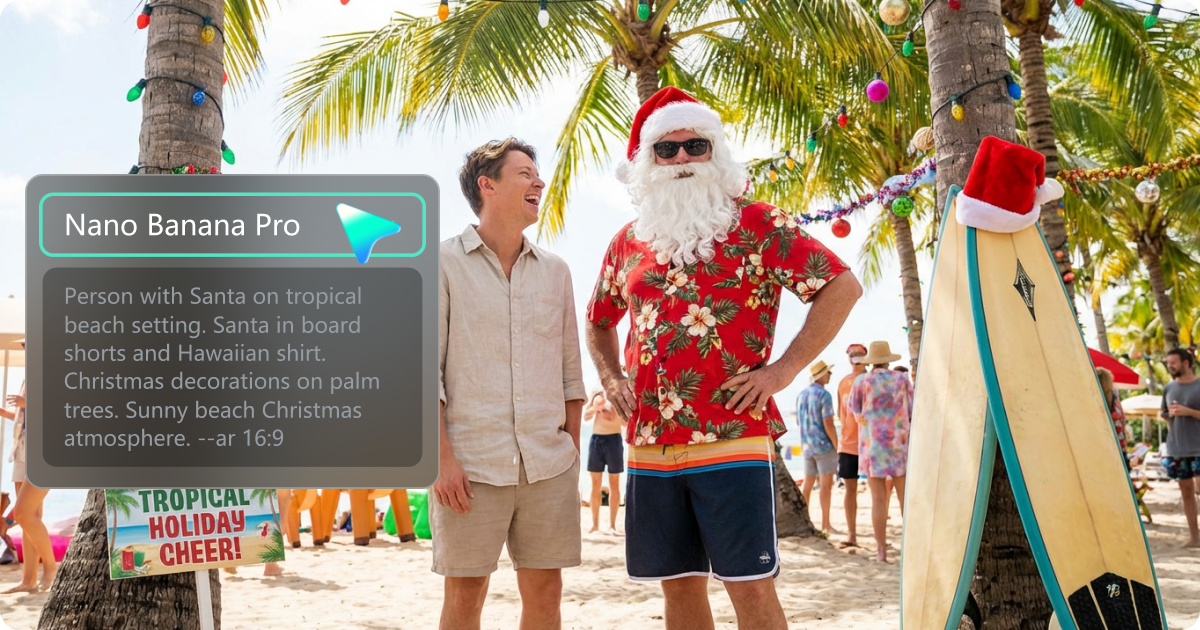
Turn Santa Prompts into Photo-Real Santa Pictures with AI Image Generator
Paste any of our Take Pictures with Santa prompts into Filmora’s AI Image Generator and let AI create classic Santa setups around your text or reference image. Describe the Santa suit, chair, backdrop, decorations, and expressions, then generate AI Santa pictures ready for cards, flyers, and social feeds.
- Generate Santa Photos from Text: Control pose, camera angle, props (gift bags, sleigh, tree), and mood (cozy, comic, cinematic) with detailed prompts.
- Match Real People to Santa Scenes: Upload a reference photo of a child, couple, or family and ask AI to place them next to Santa while keeping faces consistent.
- High-Resolution Santa Pictures: Create sharp AI Santa photos that work for large prints, mall-style posters, and high-quality digital campaigns.
Turn Santa Pictures into Animated Santa Greetings
Bring Your AI Santa Photos to Life with AI Image to Video
Turn your static AI Santa photos into short animated clips. With Filmora’s AI Image to Video, you can create greetings where lights glow, snow falls, and the camera moves slowly across kids taking pictures with Santa.
- Animated Santa Greeting Cards: Add gentle pans, zooms, and glow for modern digital Santa greetings.
- Vertical and Horizontal Santa Clips: Export formats that fit Reels, Shorts, TikTok, Stories, and standard YouTube videos.
- Holiday Motion Effects: Simulate falling snow, sparkling ornaments, and warm light flicker around Santa and the family.
- Ideal for E-cards & Social Posts: Turn your AI take pictures with Santa prompts into looping video greetings you can share everywhere.
Edit and Retouch Your Santa Photos in One Place
Edit and Retouch Your Santa Photos in One Place
After generating AI Santa pictures, refine them directly in Filmora. Adjust colors, soften skin, remove distractions, and add snow overlays to make each Santa session feel polished and consistent with your style.
- Portrait Filters & Color Grading: Give Santa photos a warm, indoor glow, a bright mall look, or a nostalgic film-style grade.
- AI Object Remover: Clean up busy backgrounds, remove logos or random people, and keep the focus on Santa and the child.
- Background & Overlay Effects: Add snow, bokeh lights, text banners, and frames for Santa photo booth prints and social content.
You can also combine AI take pictures with Santa prompts with music, titles, and photo templates to build full Santa recap videos, store promotions, or year-end family slideshows.
FAQs About AI Take Pictures With Santa Prompts
1) People: who is in the photo (toddler on Santa’s lap, siblings next to Santa, whole family behind Santa’s chair, pet and Santa).
2) Location: mall Santa booth, living room with tree, snowy outdoor market, shopping center walkway, school event stage.
3) Styling: outfits (matching pajamas, red-and-white costumes, branded uniforms), lighting, and camera angle (eye level, close-up, wide shot).
4) Mood: cheerful, playful, nostalgic, commercial, or candid.
Combine this into 1–2 clear sentences and include phrases like “realistic Santa photo” or “photo-real portrait” for more natural results.
How to Use AI Take Pictures With Santa Prompts in Filmora?
Not sure how to use AI Take Pictures With Santa prompts to build believable Santa photos? Filmora makes it simple: paste the prompt, add a reference photo if needed, generate, and export—no photo studio booking or complex editing workflow required.
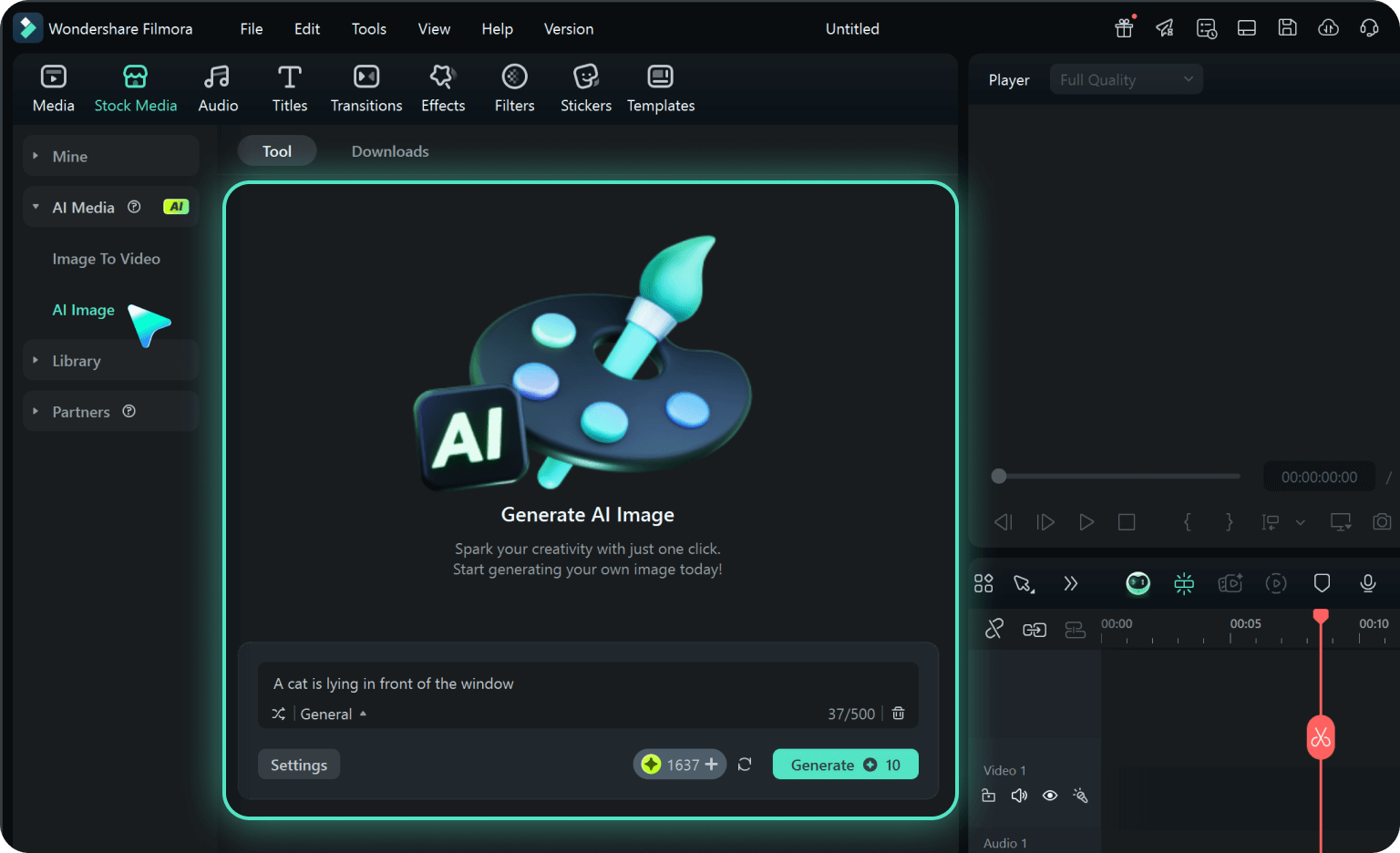
Step 1 Open Filmora and Go to AI Image
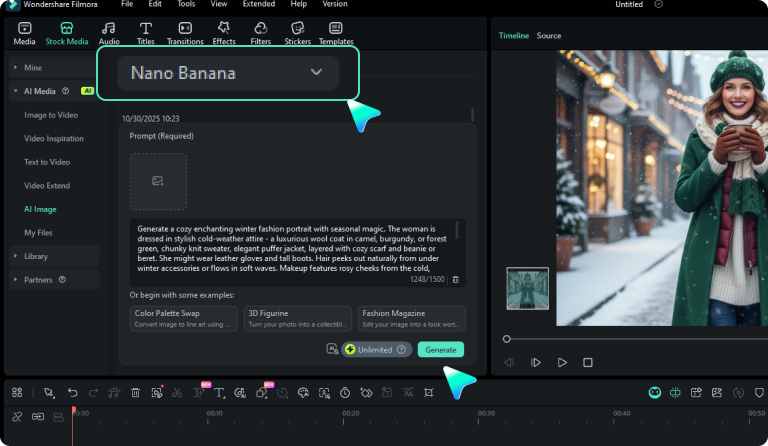
Step 2 Generate Santa Photos from Text or a Reference Photo
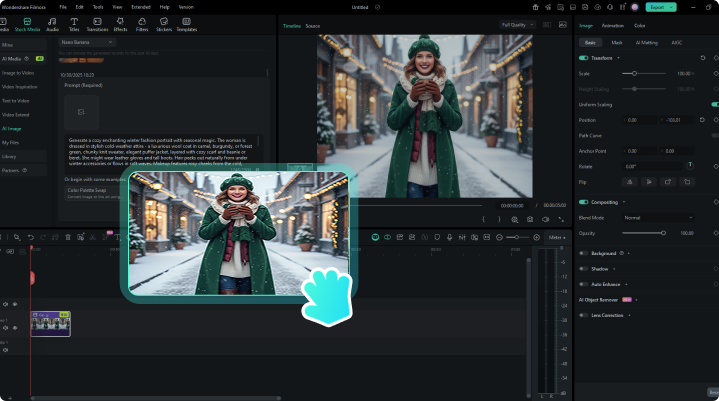
Step 3 Download, Edit, and Export Your Santa Photos
-
Step 1: Open Filmora and Go to AI Image
Download, install, and launch Filmora, create a new project, click “Stock Media”, then choose “AI Image” from the AI Media panel. -
Step 2: Generate Santa Photos from Text or a Reference Photo
Select the Nano Banana Pro model, then paste your chosen Take Pictures With Santa prompt. Optionally, upload a reference photo of the person or family you want in the scene so the AI can keep their faces. Click “Generate” to create AI Santa pictures that match your description. -
Step 3: Download, Edit, and Export Your Santa Photos
Preview the results and pick the Santa photos you like best. Download them or drag them onto the timeline to add color grading, text (for example “Photos with Santa 2025”), overlays, or music. Then export high-resolution images or short Santa clips for printing, sharing, or campaigns.
More Than Just an AI Santa Photo Generator
Filmora is more than an AI Santa photo generator. It helps you turn prompts and reference photos into visual stories across Christmas, New Year, birthdays, and everyday family moments. After working with take pictures with Santa prompts, you can keep the same workflow for holiday portraits, family pictures, and seasonal video projects, all inside one editor.