Explore AI Banksy Stencil Style Prompts
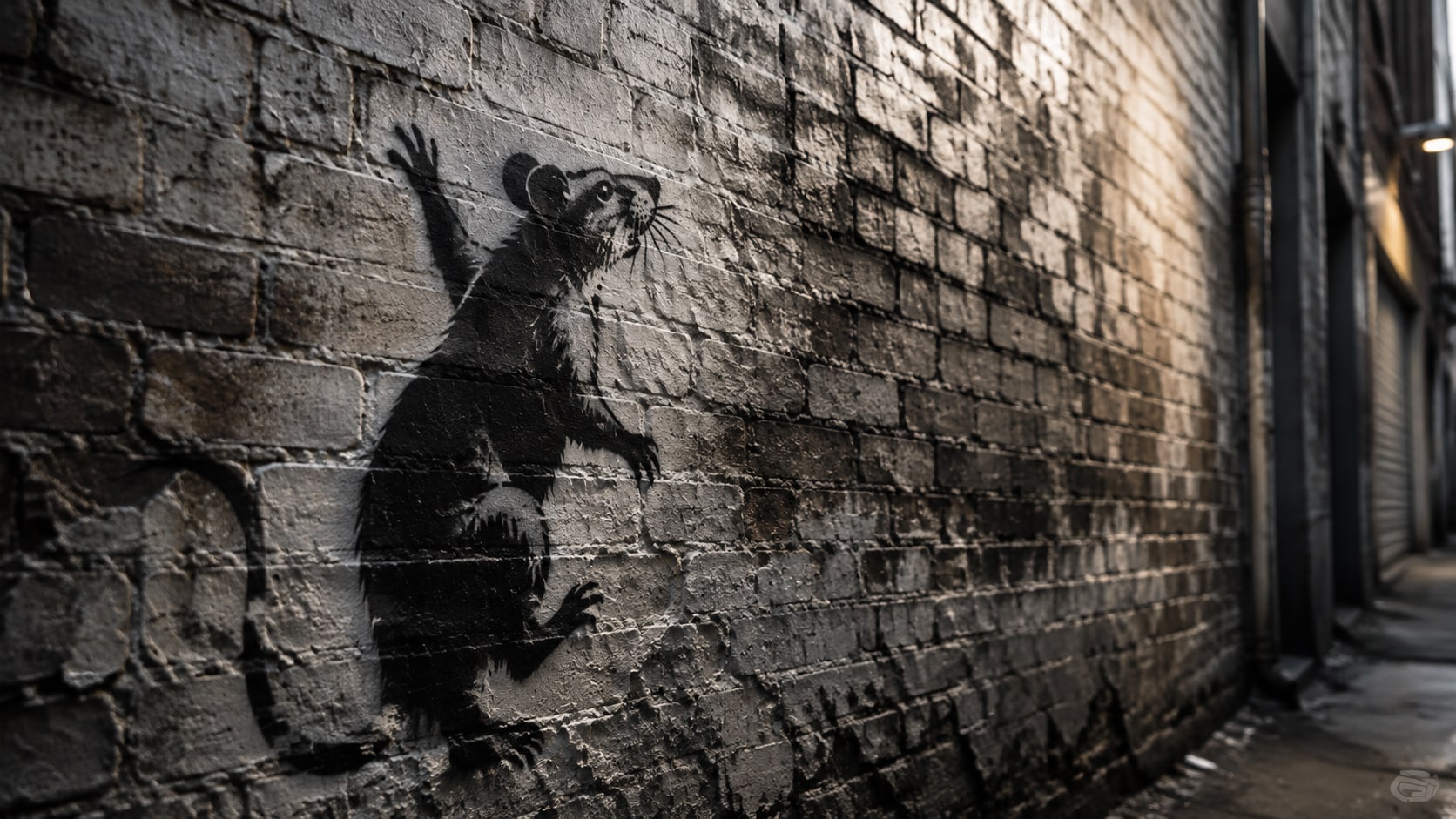
Browse AI Banksy stencil style prompts for rat ladders, balloon walls, protest crowds, shop shutters, and night alleys. Build each still for video templates, mural posts, or stencil-reveal videos.
Loading more AI Banksy stencil style prompts...
 Category:
 Duration:
 Aspect Ratio:
Why Cut Banksy-Style Stencils Inside Filmora?
Stencil images work when the silhouette is razor-sharp, the brick reads as real, and the joke stays visual. Filmora helps you generate the wall, compare model contrast, add overlays, and export a street-ready clip.
Turn Stencil Ideas Into Wall-Ready Stills
Turn Stencil Ideas Into Wall-Ready Stills
Start with a precise Banksy stencil prompt, then use Filmora's AI image generator to hold spray edges, brick grit, and a quiet zone for later captions.
- Silhouette First - Keep rats, balloons, doves, or protest figures readable as hard-cut shapes.
- Real Wall Texture - Let mortar, cracks, and wet brick show around the spray.
- Caption Space - Leave unpainted wall so titles can sit on the image later.
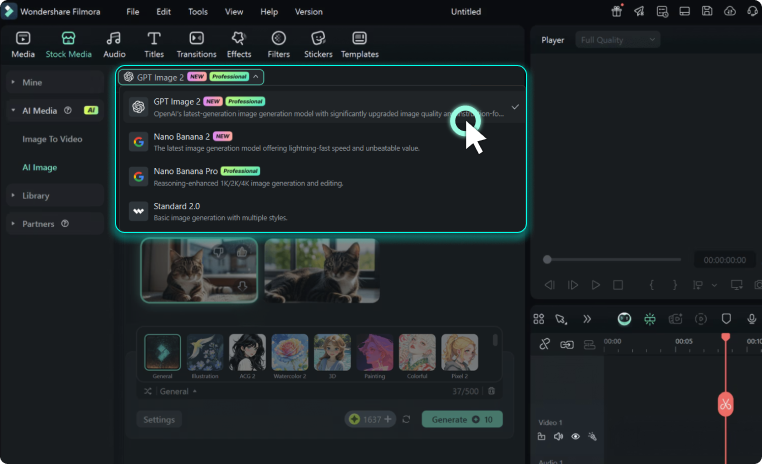
Hold Spray Edges With GPT Image 2
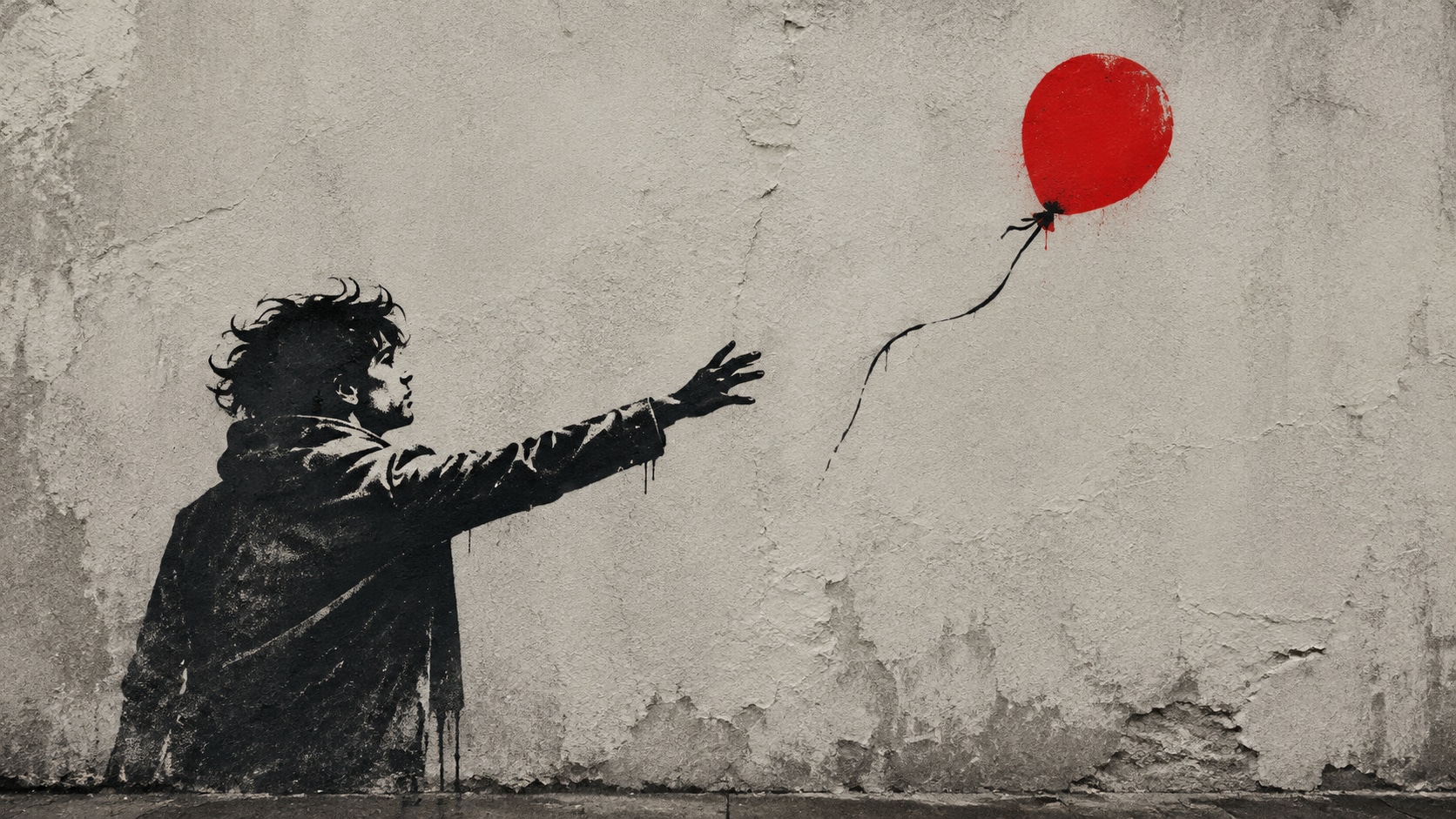
Hold Spray Edges With GPT Image 2
When the stencil starts to blur into a painting, Filmora's GPT Image 2 helps keep the cut sharp and the wall believable.
- Edge Control - Describe spray specks, overspray, and hard black fills in the prompt.
- Brick Scale - Keep mortar lines and concrete stains from swallowing the figure.
- Night Or Day - Switch alley spotlight or overcast daylight without losing the stencil.
Test Alley Moods With Nano Banana
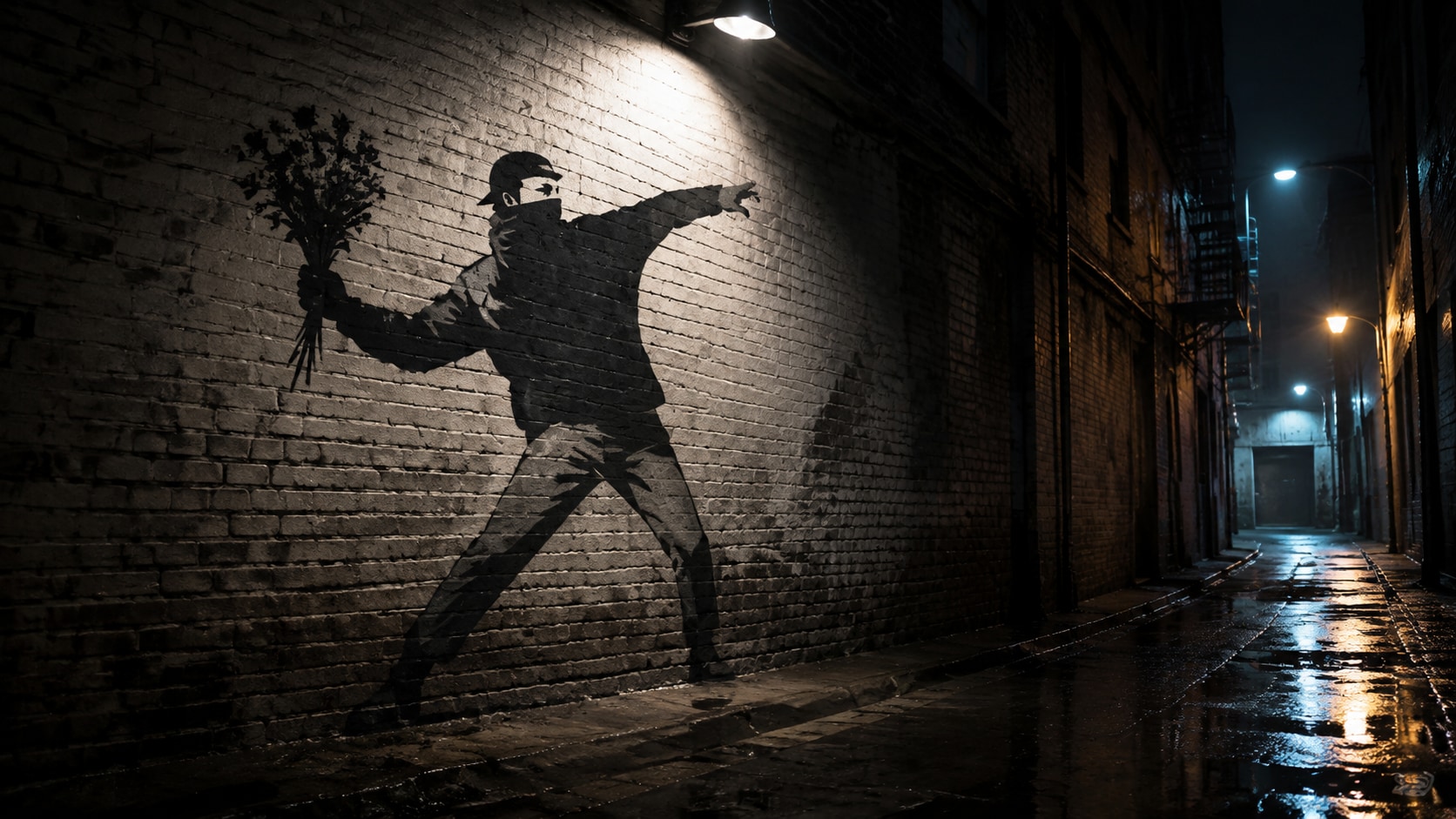
Test Alley Moods With Nano Banana
Use Filmora's Nano Banana to try wetter brick, dirtier concrete, or a tighter portrait crop from the same mural.
- Mood Range - Explore day wall, night alley, shutter, and bridge treatments.
- Quick Variants - Generate a few stencil directions before locking a campaign still.
- One Workflow - Move from prompt to edited mural without extra street-art tools.
Add Spray Reveals In Filmora Video
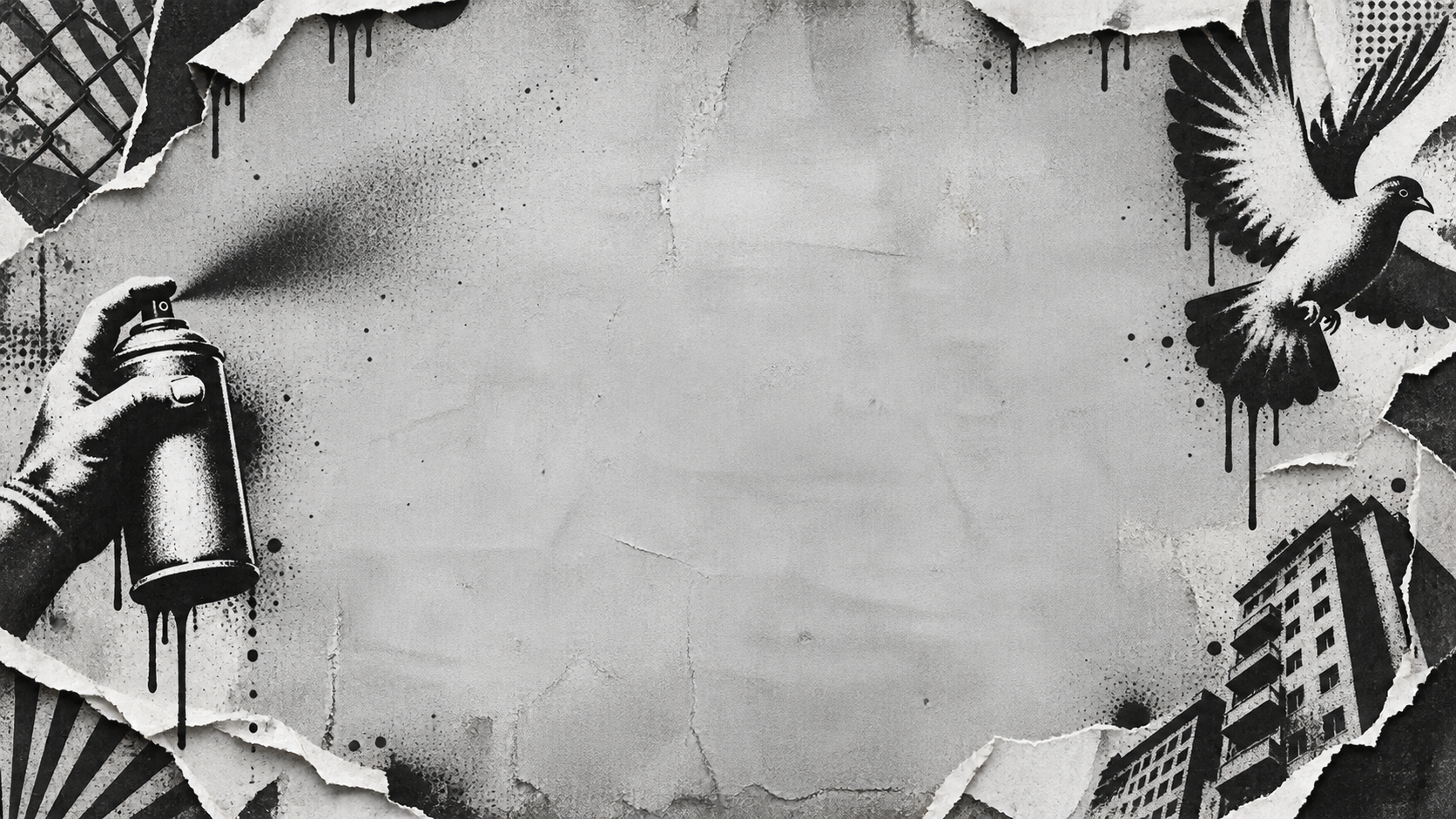
Add Spray Reveals In Filmora Video
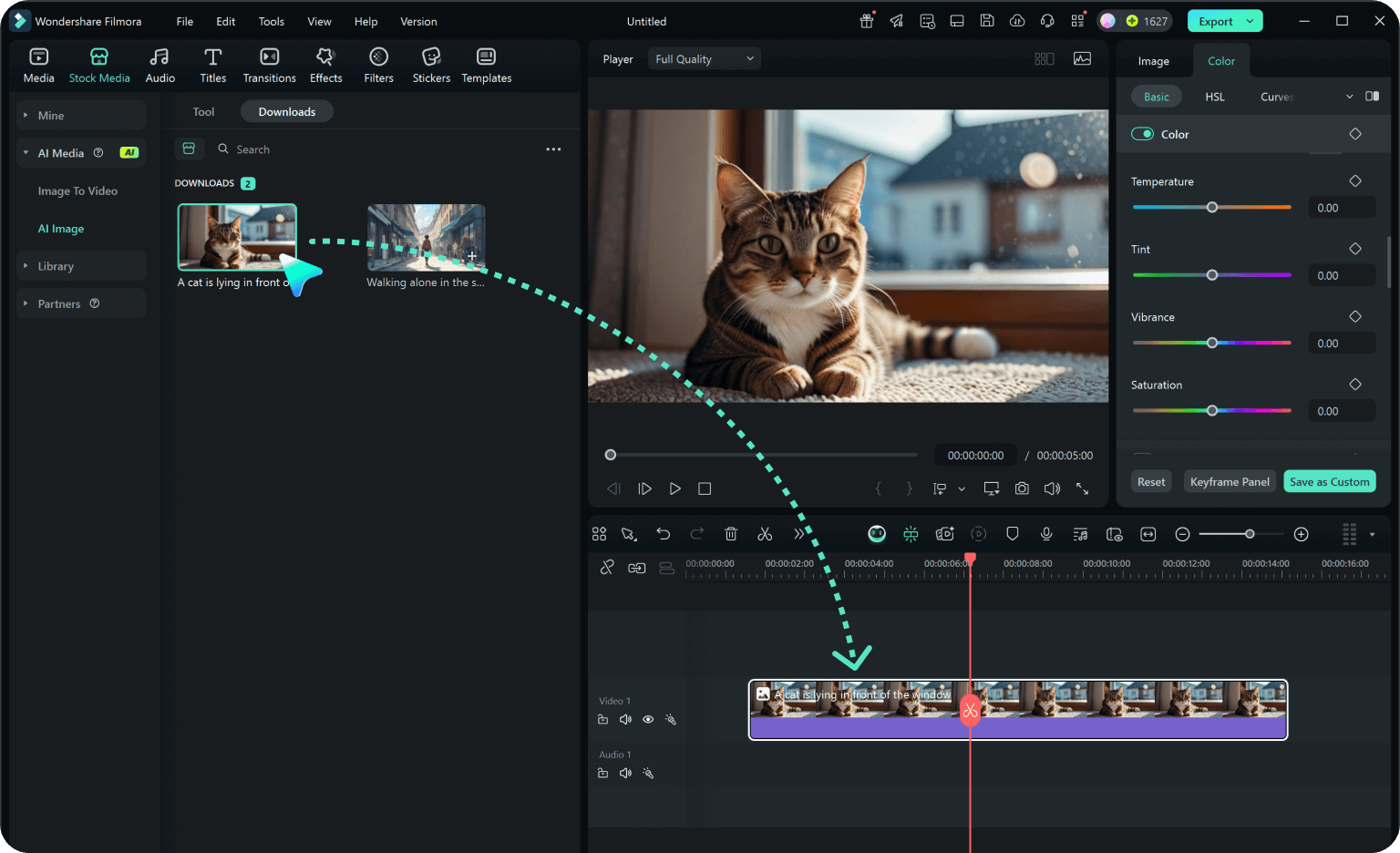
After the wall is generated, use Filmora's AI Image to Video to add spray reveals, passing light, captions, and street audio.
- Motion Ideas - Use stencil wipes, headlight sweeps, poster peels, or slow zooms into the silhouette.
- Format Flexibility - Recut one mural into 16:9, 9:16, and 1:1.
- Final Export - Finish with type, music, and platform-ready output in Filmora.
Frequently Asked Questions About Banksy Stencil Prompts
How to Generate Banksy-Style Stencil Walls
Choose a stencil scene, lock the contrast and wall texture, generate the still, then add motion or captions in Filmora.
Step 1 Choose a Stencil Wall Idea
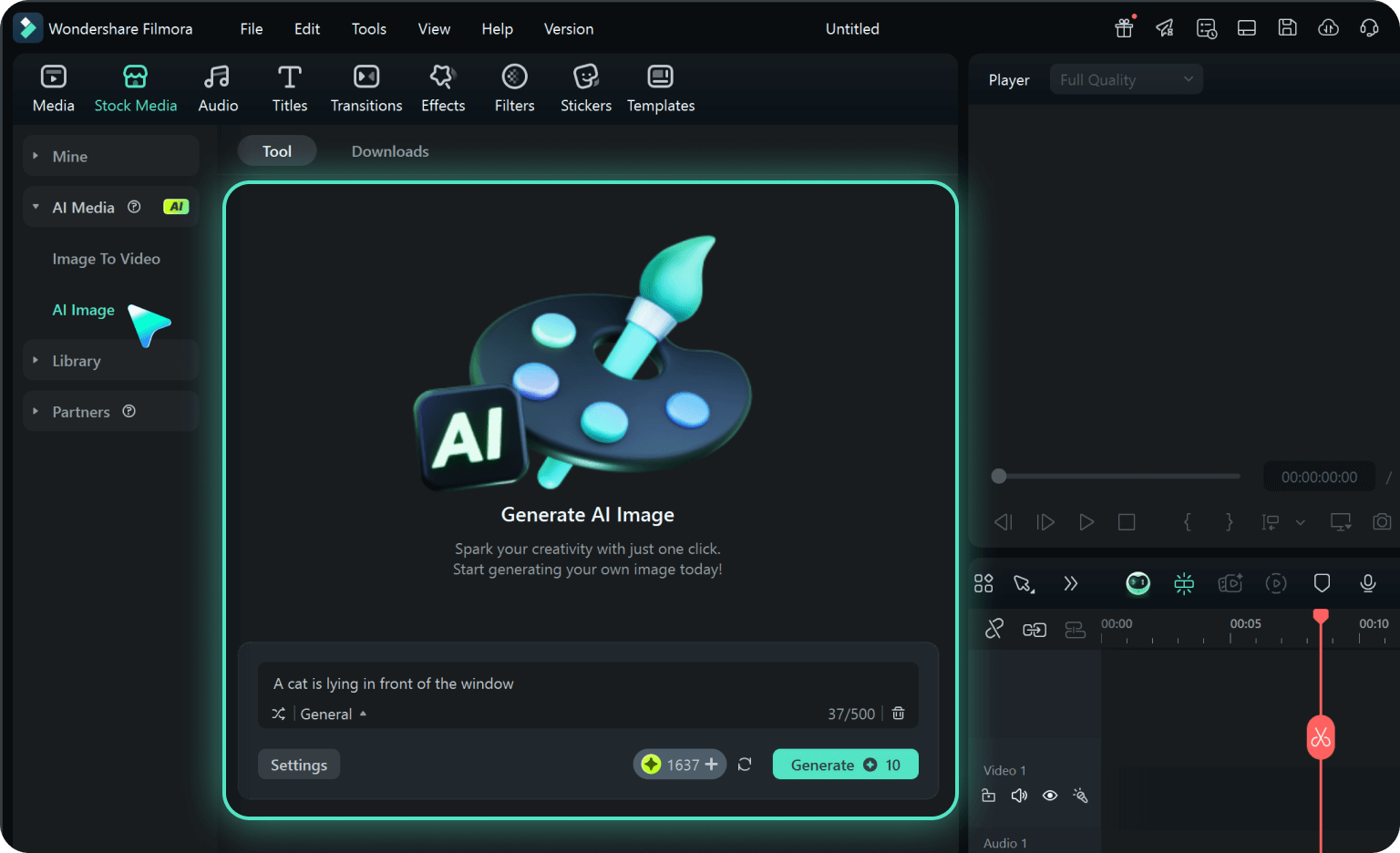
Step 2 Lock Contrast and Wall Texture
Step 3 Generate, Reveal, and Export
-
1: Choose a Stencil Wall Idea
Pick a rat ladder, balloon wall, flower thrower, shutter portrait, or night alley contrast. -
2: Lock Contrast and Wall Texture
Paste the prompt into Filmora's AI Image tool, choose GPT Image 2 or Nano Banana, then refine spray edges, brick scale, and caption space. -
3: Generate, Reveal, and Export
Generate the mural, add motion or type if needed, then export a street post, reel, or cover.
AI Banksy Stencil Style Prompts for Street Murals
Use AI Banksy stencil style prompts to create monochrome murals, spray-shadow portraits, and motion-ready alley covers for Filmora editing.