Explore Luxury Watch AI Prompts
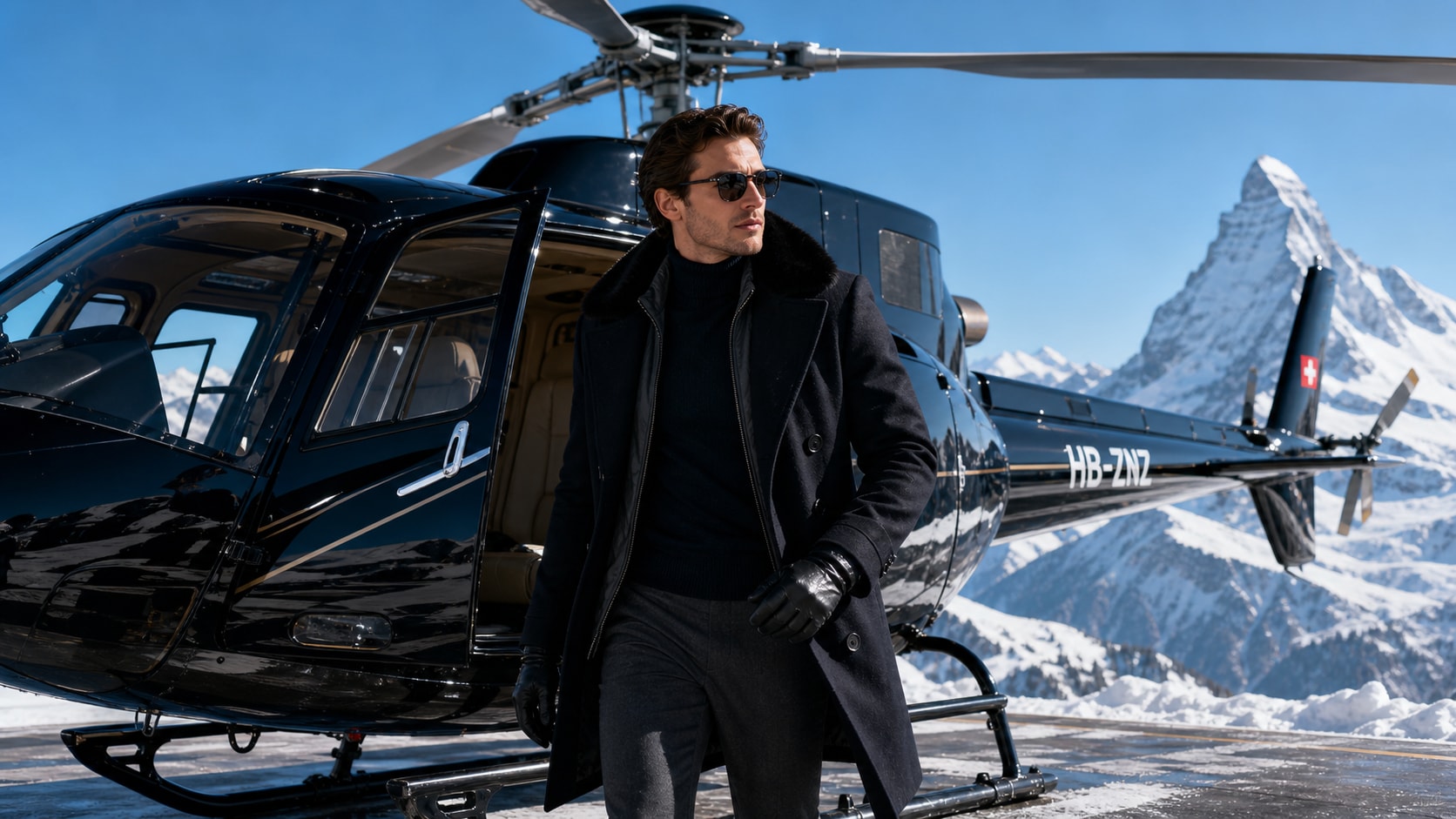
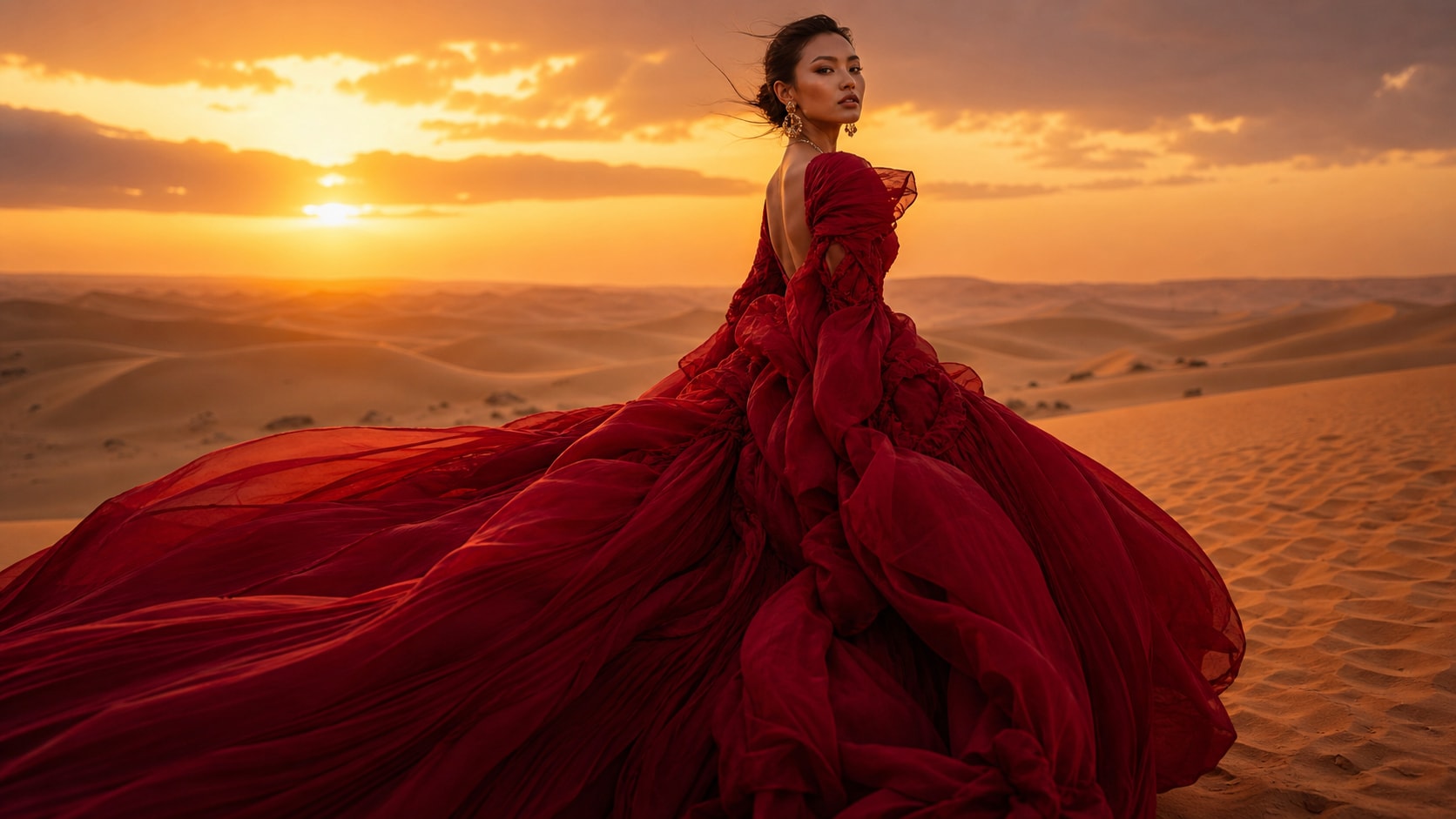
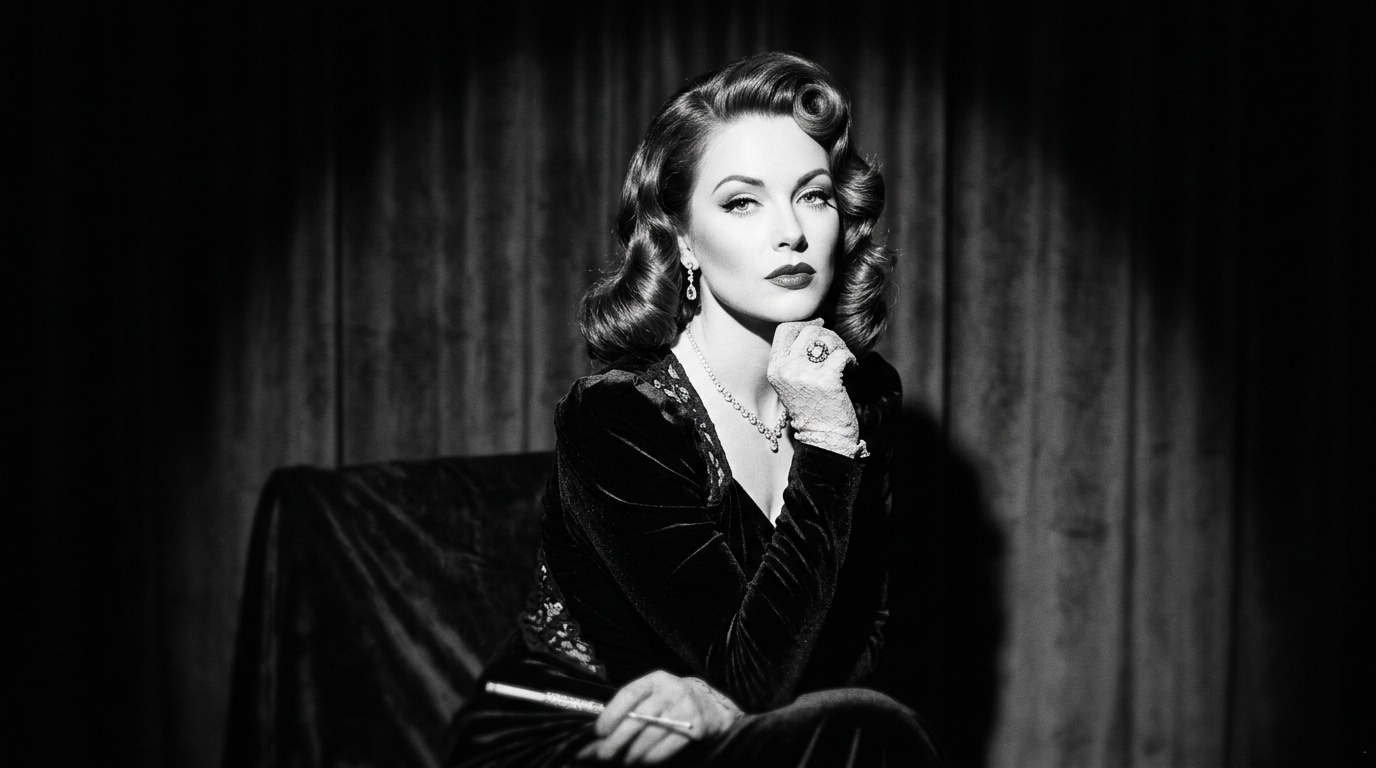
Browse ai luxury watch poster prompts for Swiss watch hero shots, wrist portraits, macro dial studies, travel-lifestyle scenes, and premium advertising layouts. Use each idea to create assets for video templates, reels, social posts, covers, and export-ready visuals.
Loading more luxury watch prompts...
 Category:
 Duration:
 Aspect Ratio:
Why Create Luxury Watch Posters With Filmora?
Luxury watch visuals rely on material accuracy, controlled reflections, precise scale, and a clear focal point. Filmora helps turn those prompt details into polished product stills, campaign covers, and short advertising edits.
Generate Luxury Watch Posters With Filmora
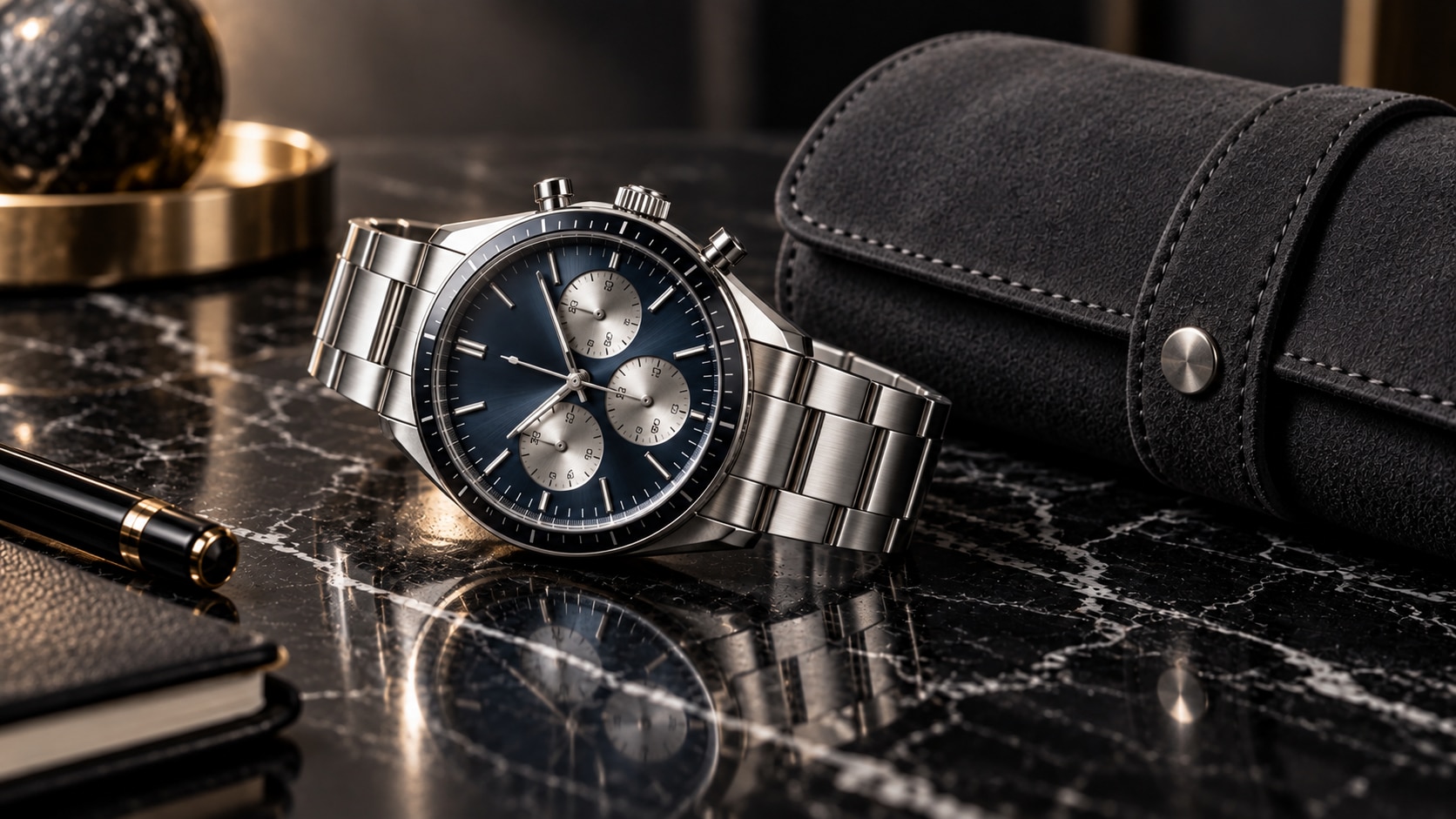
Generate Luxury Watch Posters With Filmora
Start with a precise luxury watch poster prompt, then use Filmora's AI image generator to turn Swiss watch hero shots, wrist portraits, macro dial studies, travel-lifestyle scenes, and premium advertising layouts into clean, edit-ready stills. Use it for Swiss watch hero shots, wrist portraits, macro dial studies, travel-lifestyle scenes, and premium advertising layouts, then continue refining crop, color, overlays, and motion in Filmora.
- Prompt to Image - Turn a product brief into a clean hero image with intentional camera distance and visual hierarchy.
- Clean Visual Structure - Keep metal, glass, leather, fabric, reflections, and shadows believable enough for later editing.
- Fast Iteration - Compare studio, lifestyle, macro, and campaign directions before selecting a final asset.
Use GPT Image 2 for Metal, Glass, and Dial Detail
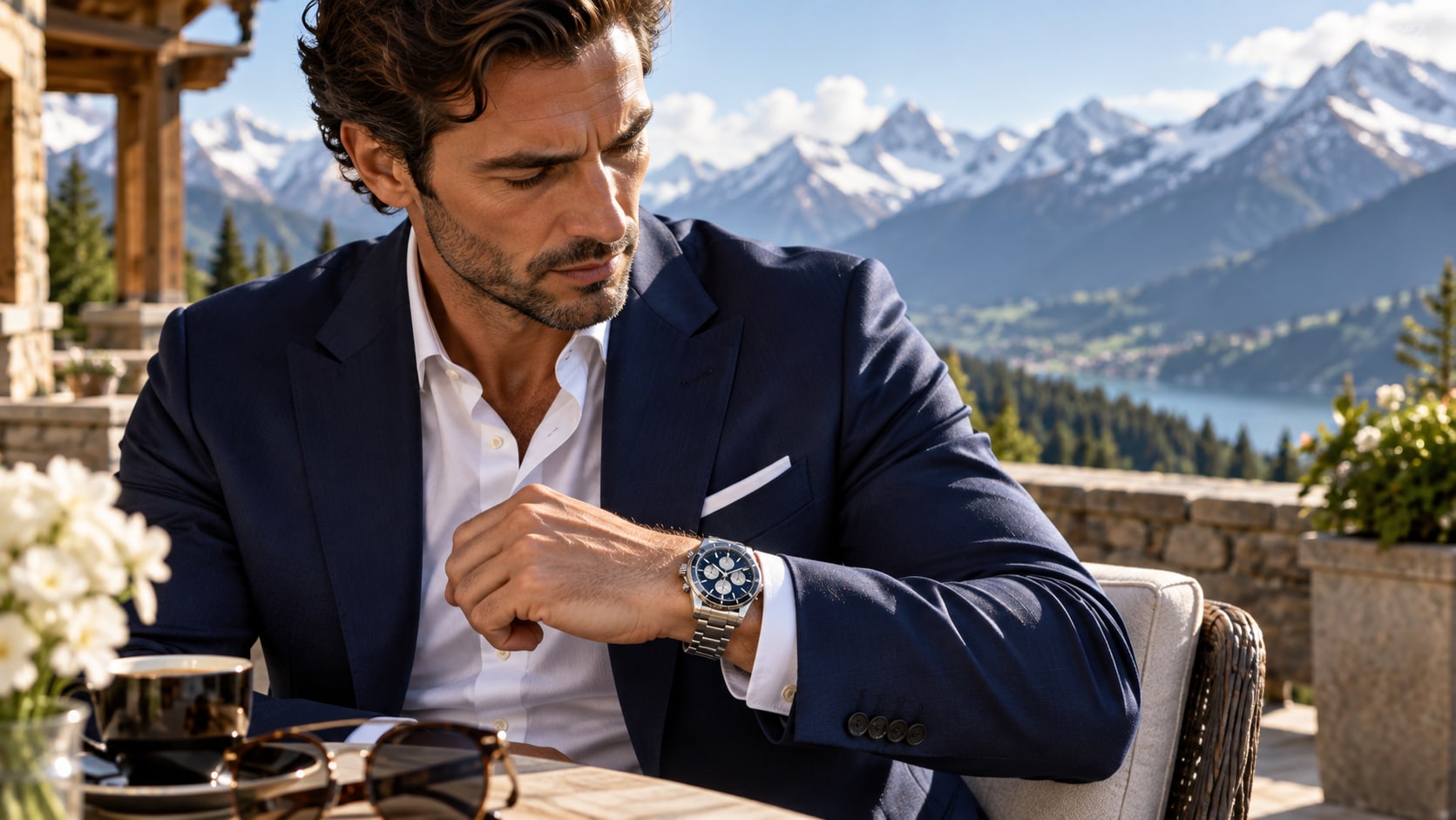
Use GPT Image 2 for Metal, Glass, and Dial Detail
When the scene needs dependable subject detail, texture, or background control, Filmora's GPT Image 2 helps follow a structured prompt. Structured prompts help control case geometry, dial texture, hand placement, crown detail, crystal reflections, wrist anatomy, and clean advertising space.
- Prompt Following - Describe the product angle, surface, light direction, lens feeling, and negative space in one focused request.
- Detail Control - Preserve small details such as hands, watch markers, jewelry, packaging edges, and polished materials.
- Edit-Ready Results - Keep the generated frame free of incorrect copy before adding labels and titles in Filmora.
Try Nano Banana for Campaign and Lifestyle Variants
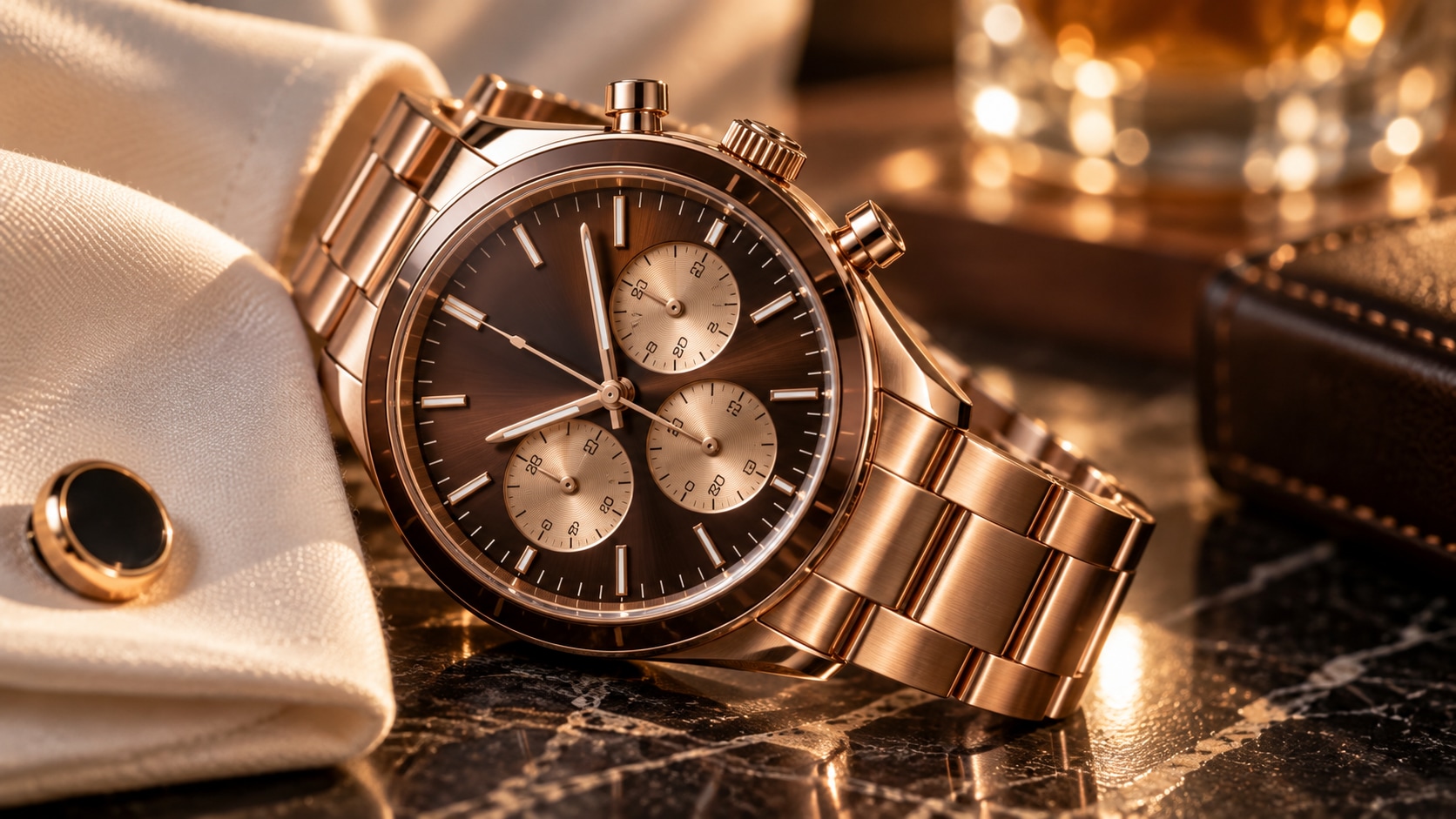
Try Nano Banana for Campaign and Lifestyle Variants
Use Filmora's Nano Banana when one idea needs another palette, mood, composition, or social treatment. Try heritage workshop, alpine travel, black-tie, sports timing, minimalist studio, or urban night treatments while keeping the watch central.
- Style Range - Test luxury, sport, travel, heritage, editorial, and minimalist variants from the same product idea.
- Variant Testing - Switch palette, environment, and camera height while keeping the object visually consistent.
- Creative Flow - Move from generation to crop, overlay, and export without leaving the creative workflow.
Turn Luxury Watch Posters Into Video
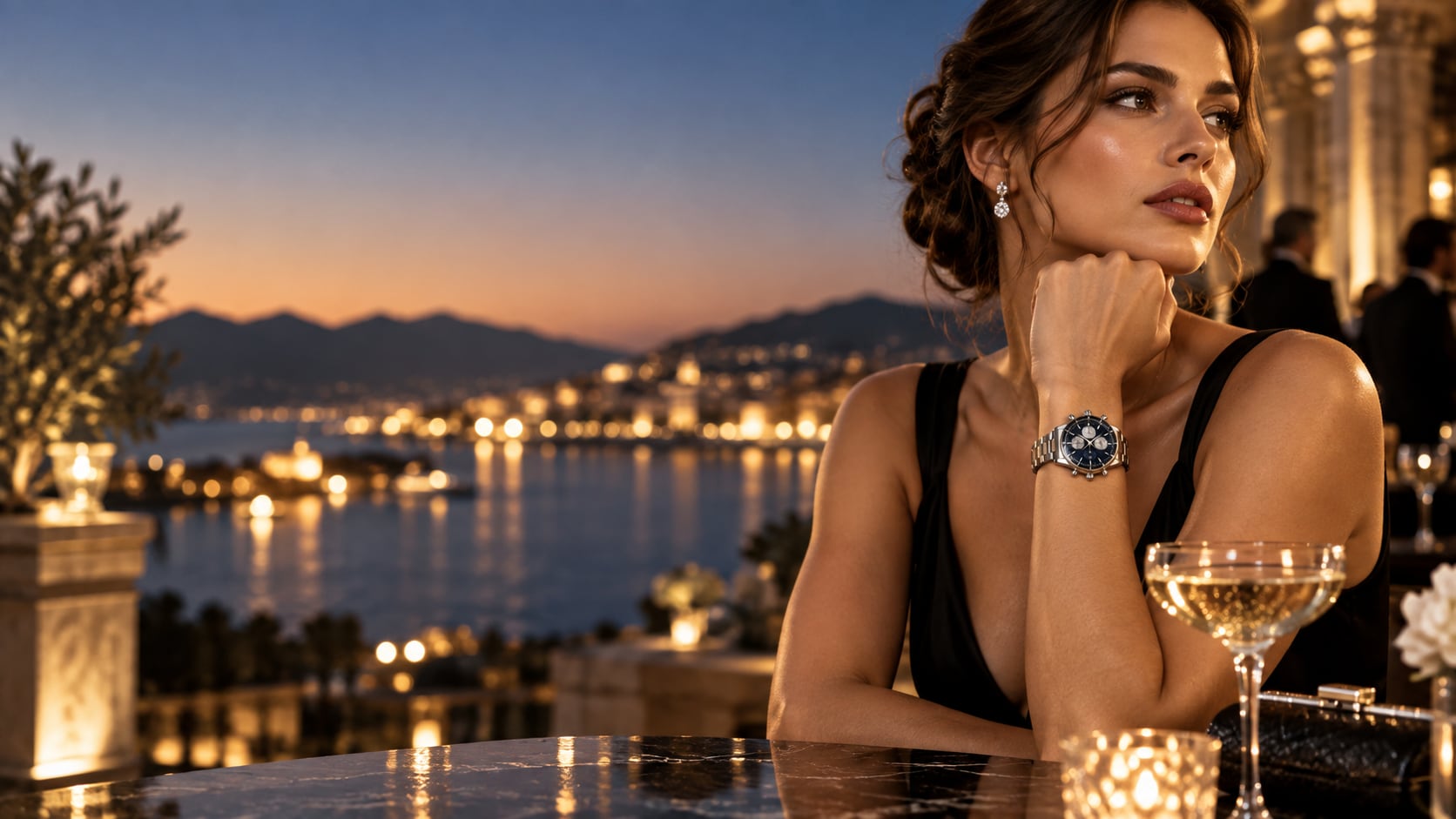
Turn Luxury Watch Posters Into Video
After generating the still, use Filmora's AI Image to Video workflow to add camera movement, overlays, effects, sound, and social-ready exports. Animate a second hand, light sweep across the bezel, moving wrist, city reflections, or a slow camera push toward the dial.
- Motion Ideas - Animate a second hand, light sweep, fabric movement, city reflections, or a slow product push-in.
- Social Formats - Reuse one image for 16:9 ads, 9:16 reels, square posts, and retail thumbnails.
- Final Export - Finish with typography, sound, transitions, and platform-ready exports.
Frequently Asked Questions About Luxury Watch Prompts
How to Generate Luxury Watch Images With AI
Choose a luxury watch setup, define the subject and visual mood, generate the still, then personalize or animate it in Filmora.
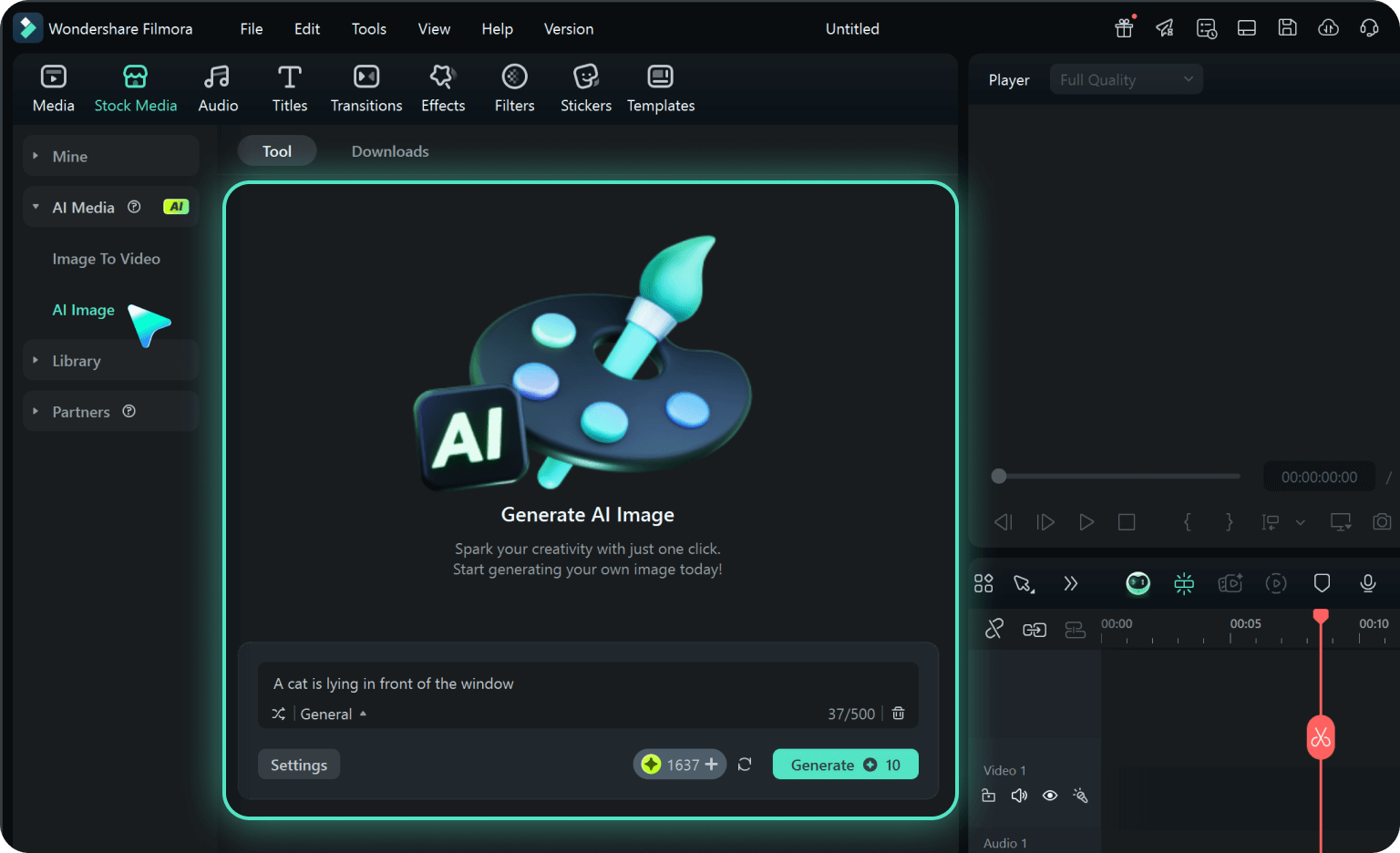
Step 1 Choose a Luxury Watch Prompt
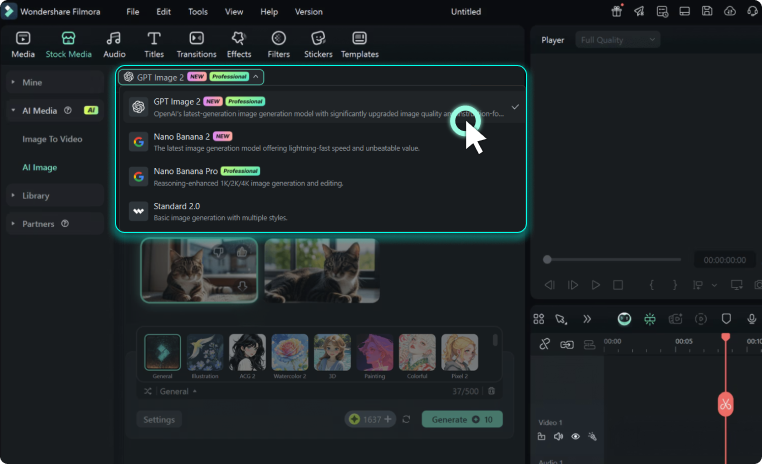
Step 2 Set Style, Model, and Ratio
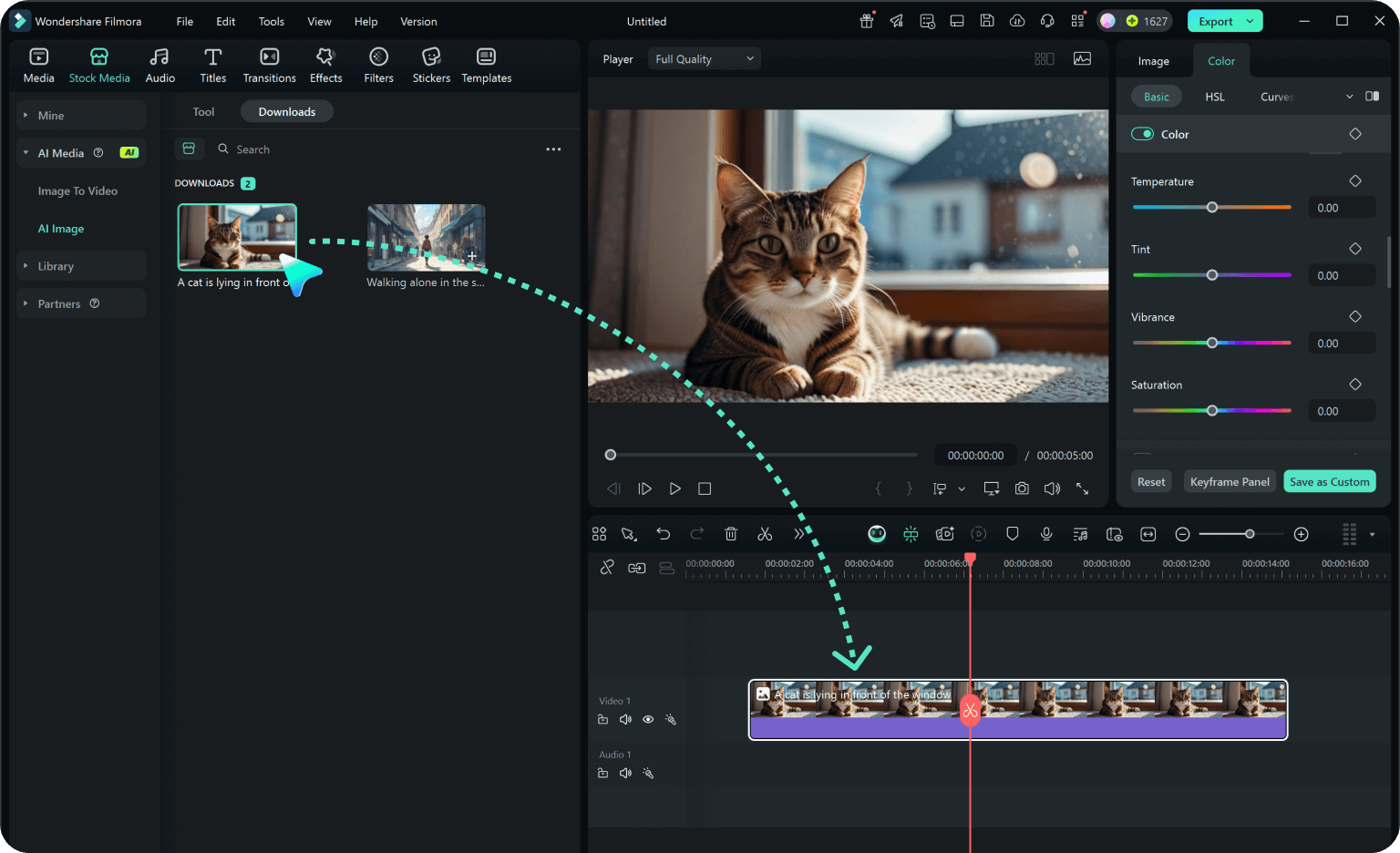
Step 3 Generate, Edit, and Export
-
1: Choose a Luxury Watch Prompt
Pick a luxury watch setup such as a marble product hero, an outdoor wrist portrait, a macro dial close-up, or a campaign-ready watch scene. -
2: Set Style, Model, and Ratio
Paste the prompt into Filmora's AI Image tool, choose GPT Image 2 or Nano Banana, select a ratio, and refine subject detail, lighting, and framing. -
3: Generate, Edit, and Export
Generate the still, adjust crop and color, add motion or overlays if needed, then export it for watch launches, retail banners, social ads, editorial lookbooks, and product videos.
Luxury Watch AI Prompts for Premium Visuals
Use ai luxury watch poster prompts to create Swiss watch hero shots, wrist portraits, macro dial studies, travel-lifestyle scenes, and premium advertising layouts and motion-ready visuals for Filmora editing.