Explore AI Photo Prompts in Italy
Browse ai photo prompts in italy for Venice canals, Tuscan portraits, Roman architecture, Amalfi coast views, vineyard scenes, village streets, and Italian food moments. Use each idea to create assets for video templates, reels, social posts, covers, and export-ready visuals.
Loading more Italy photo prompts...
 Category:
 Duration:
 Aspect Ratio:
Why Use Italy Photo Prompts With Filmora?
Italy travel visuals are strongest when architecture, food, landscape, and human moments share a coherent color story. Filmora helps creators turn those details into polished vacation photos, destination reels, and elegant travel edits.
Generate Italy Travel Photos With Filmora
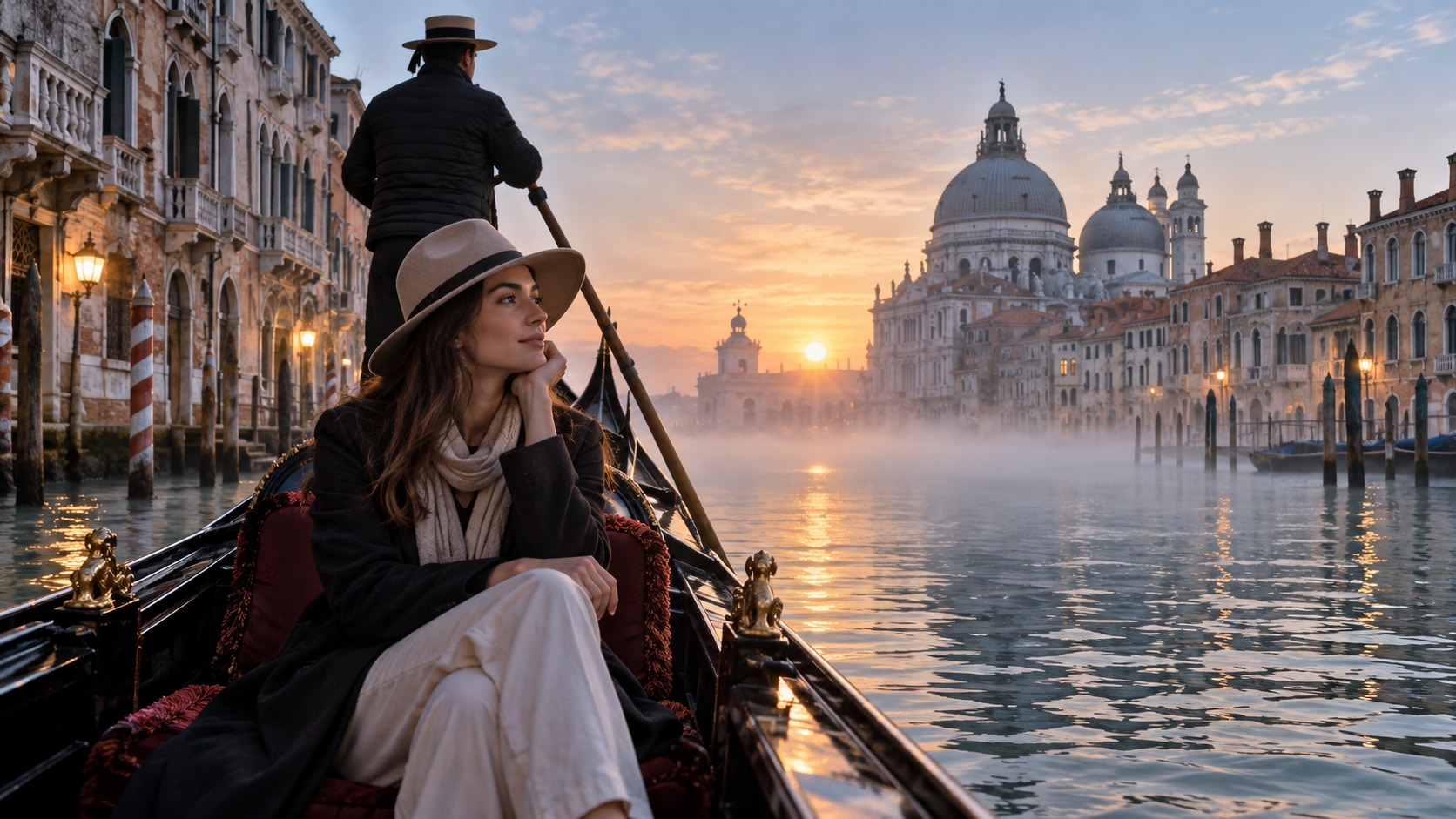
Generate Italy Travel Photos With Filmora
Start with a precise Italy travel photo prompt, then use Filmora's AI image generator to turn Venice canals, Tuscan portraits, Roman architecture, Amalfi coast views, vineyard scenes, village streets, and Italian food moments into clean, edit-ready stills. Use it for artful vacation portraits, regional architecture, countryside roads, coastal light, and food-focused travel content with flexible crops.
- Prompt to Image - Describe region, subject, architecture, food, weather, and camera distance in one focused request.
- Clear Visual Hierarchy - Keep one recognizable setting so stone, water, fabric, foliage, and people support a coherent travel story.
- Fast Iteration - Compare coast, city, countryside, and village directions before choosing a final vacation frame.
Use GPT Image 2 for Architecture, Fabric, and Food Texture
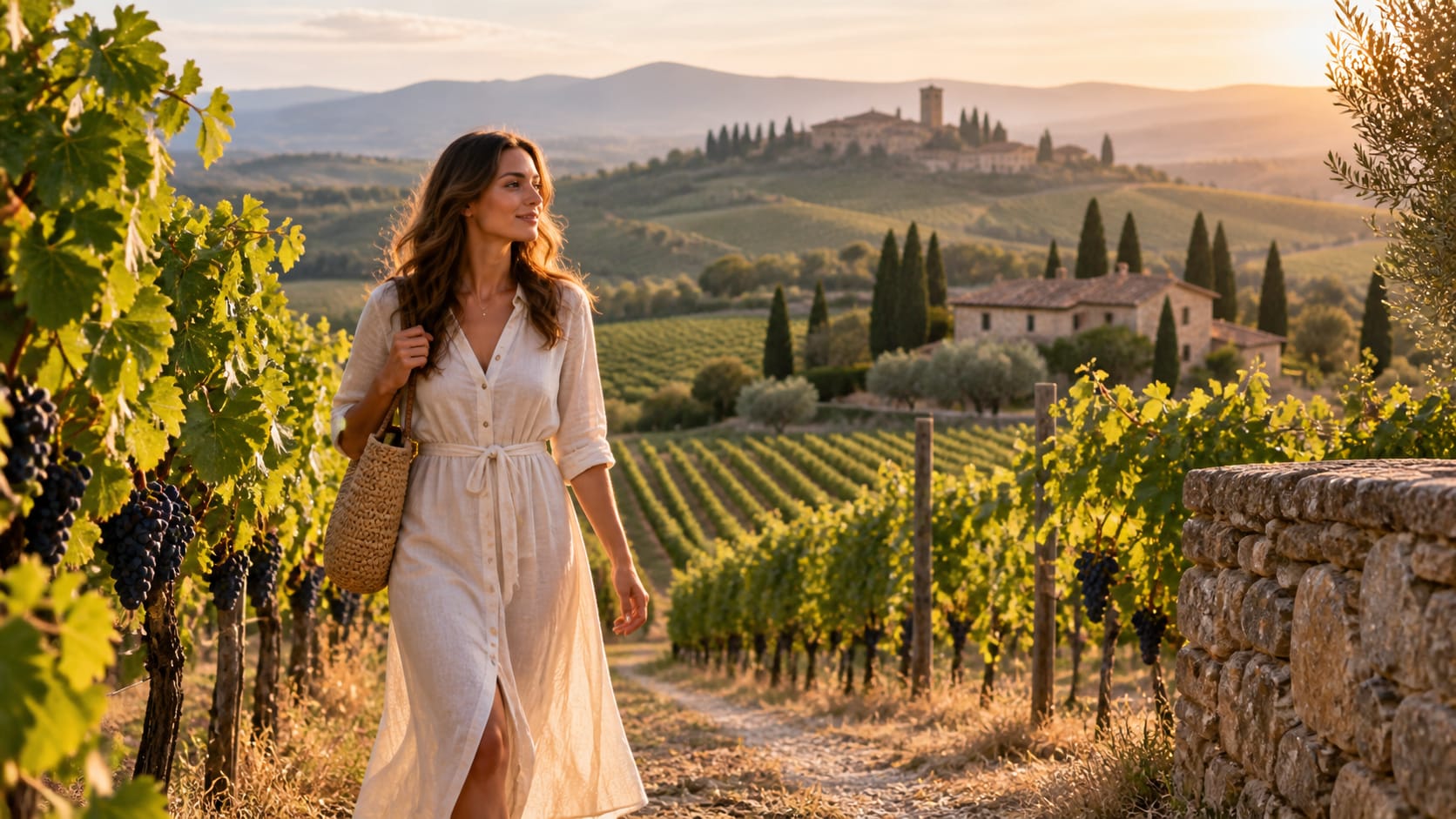
Use GPT Image 2 for Architecture, Fabric, and Food Texture
When the scene needs dependable subject detail, texture, or background control, Filmora's GPT Image 2 helps follow a structured prompt. This helps preserve weathered stone, painted shutters, linen, marble, water reflections, pasta texture, and natural human scale.
- Prompt Following - Name lens feeling, season, surface texture, light direction, and how much space should remain for captions.
- Detail Control - Preserve marble, terracotta, linen, canal reflections, citrus peel, pasta, and aged walls with natural detail.
- Edit-Ready Results - Keep generated signage abstract or unreadable before adding accurate location copy in Filmora.
Try Nano Banana for Italian Travel Colorways
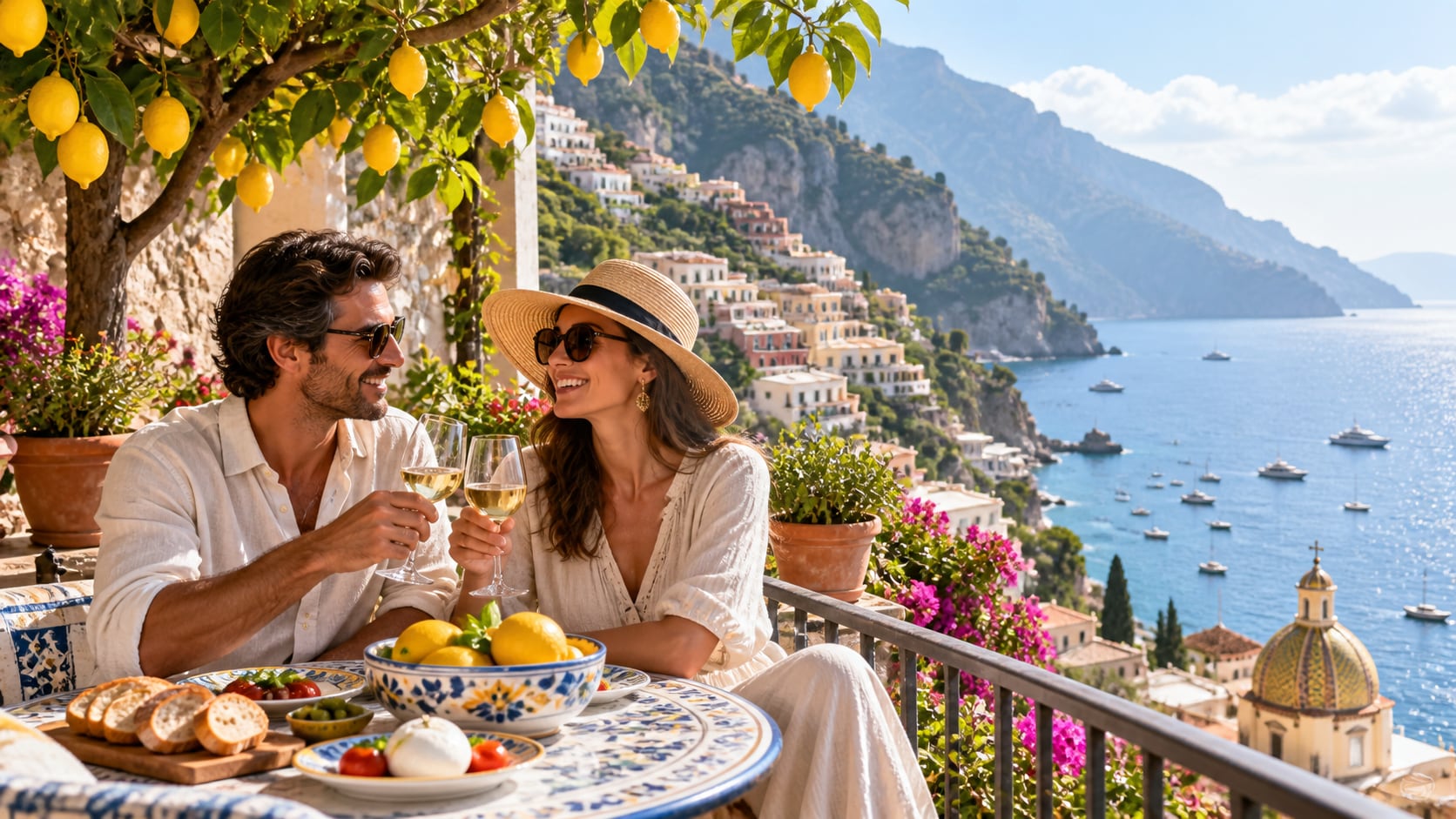
Try Nano Banana for Italian Travel Colorways
Use Filmora's Nano Banana when one idea needs another palette, mood, composition, or social treatment. Try terracotta summer, blue-hour Venice, faded film, lemon-coast brightness, olive-grove calm, or winter Roman moods.
- Style Range - Move between sun-washed coast, faded film, Roman architecture, village documentary, and elegant food editorial styles.
- Variant Testing - Test warm, cool, muted, and saturated treatments without losing the regional identity of the scene.
- Creative Flow - Keep generation, crop changes, title design, and export in one creative loop.
Turn Italy Travel Photos Into Video
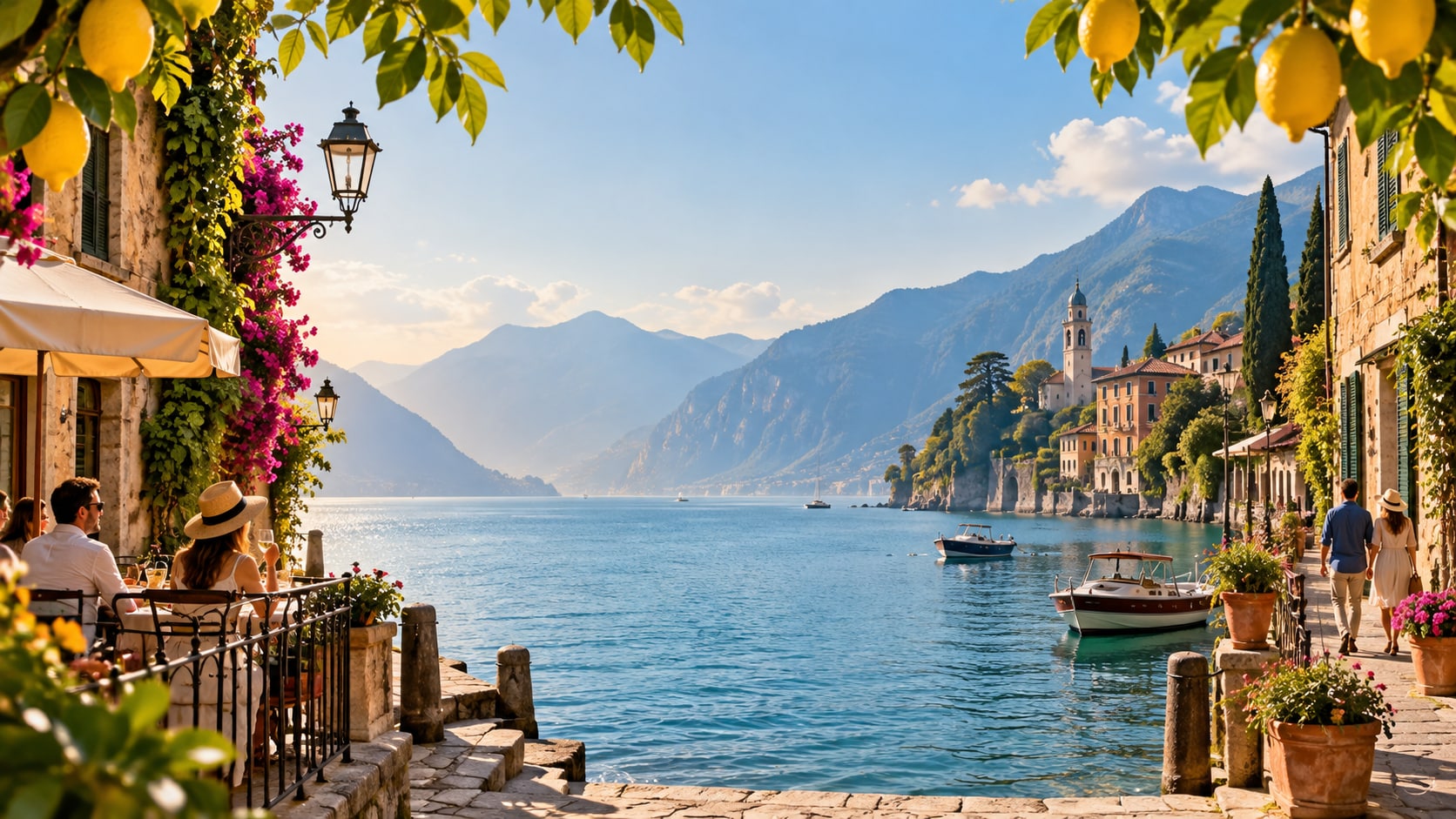
Turn Italy Travel Photos Into Video
After generating the still, use Filmora's AI Image to Video workflow to add camera movement, overlays, effects, sound, and social-ready exports. Animate gondola ripples, curtain movement, vineyard breeze, passing scooters, espresso steam, or a slow camera move along the coast.
- Motion Ideas - Animate water ripples, scooter passes, curtain movement, olive branches, steam, or a gentle coastal push.
- Social Formats - Reframe one travel still for destination banners, vertical reels, and square album tiles.
- Final Export - Finish with music, ambient sound, captions, transitions, and share-ready exports.
Frequently Asked Questions About Italy Photo Prompts
How to Generate Italy Photos With AI
Choose an italy setup, define the subject and visual mood, generate the still, then personalize or animate it in Filmora.
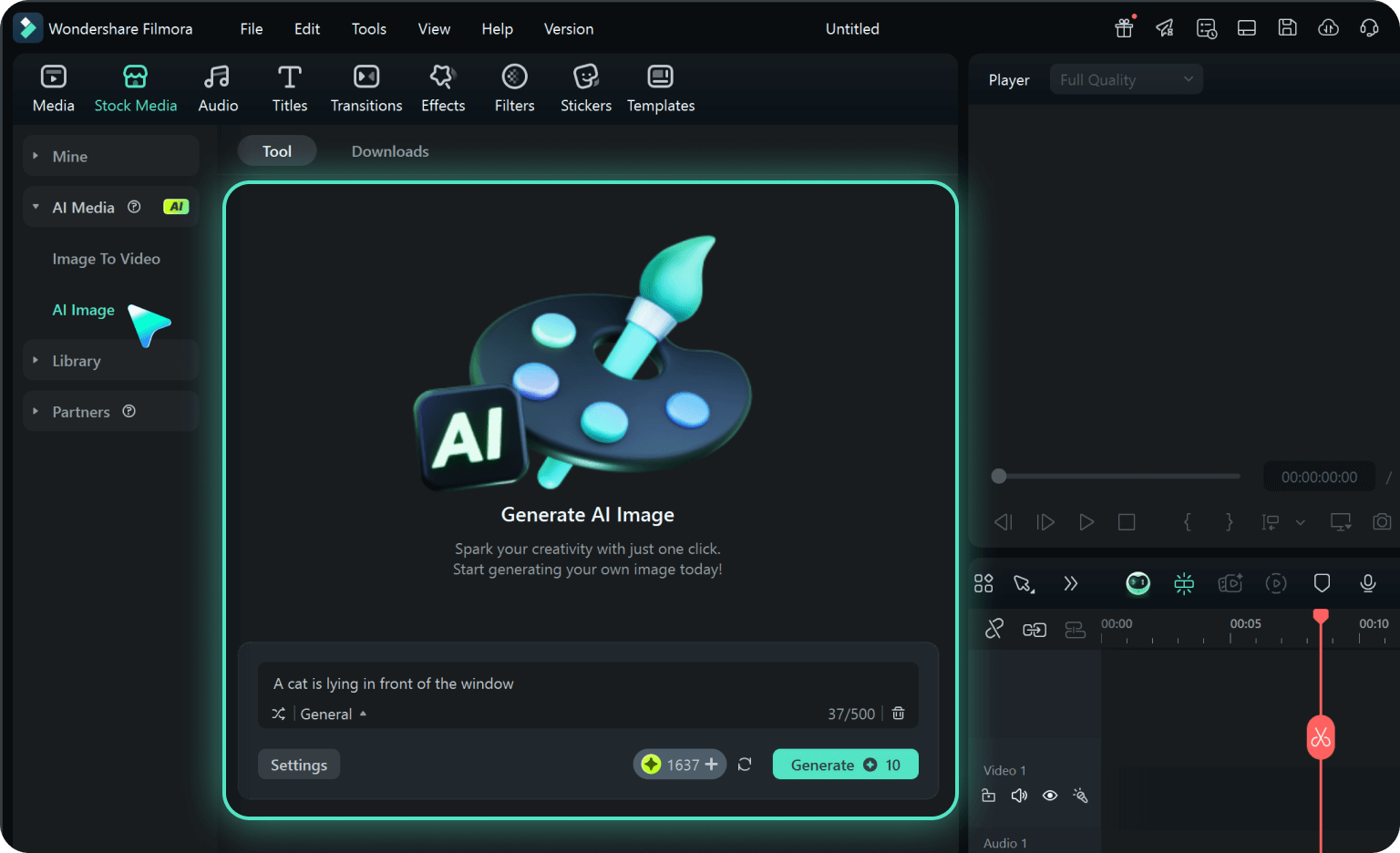
Step 1 Choose an Italy Prompt
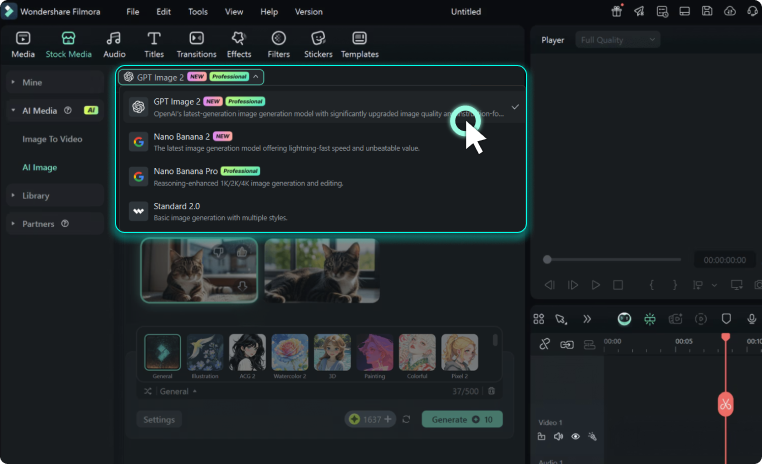
Step 2 Set Style, Model, and Ratio
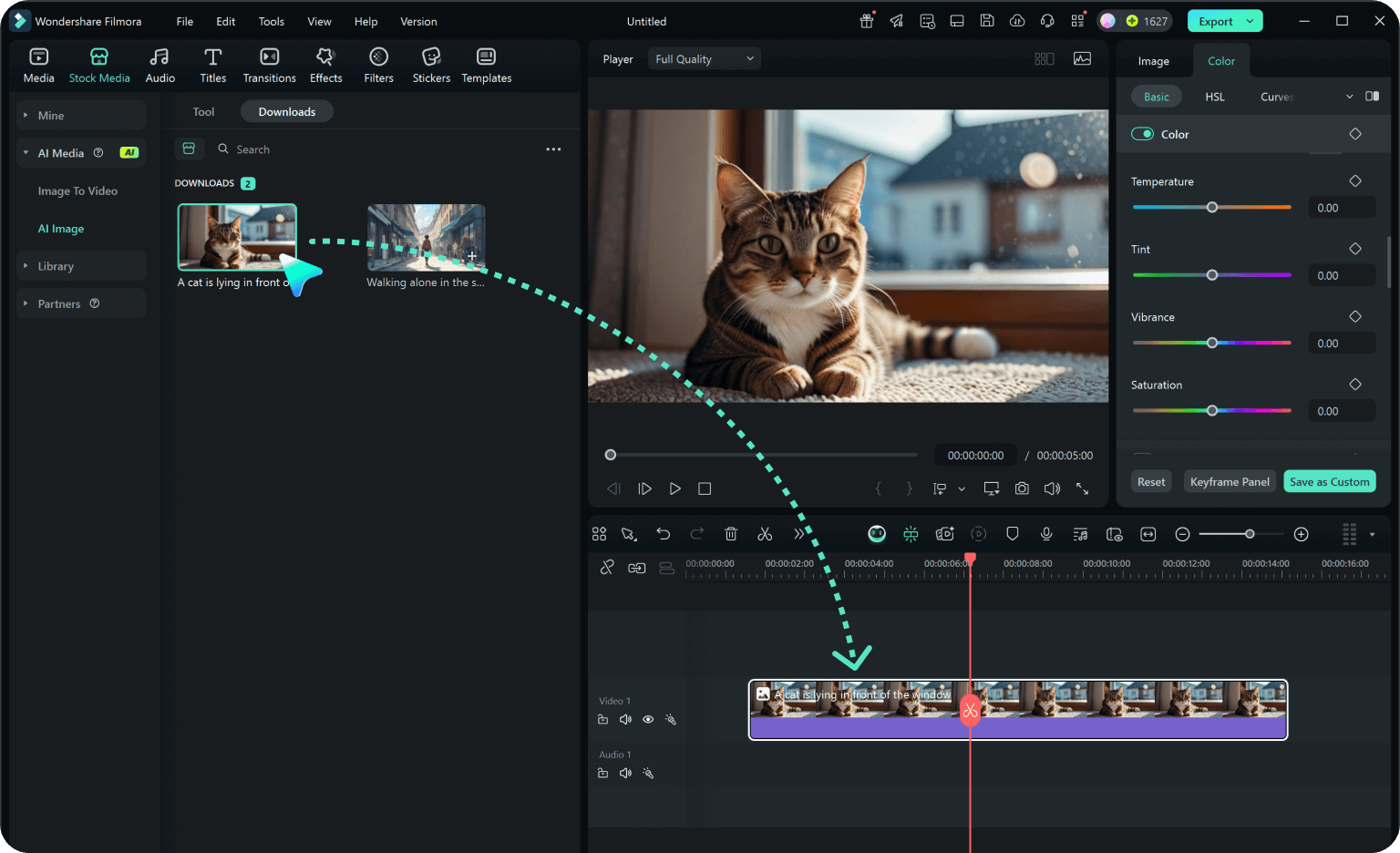
Step 3 Generate, Edit, and Export
-
1: Choose an Italy Prompt
Pick a setup such as a gondola portrait, a Tuscan road, a coastal terrace, or an intimate village cafe. -
2: Set Style, Model, and Ratio
Paste the prompt into Filmora's AI Image tool, choose GPT Image 2 or Nano Banana, select a ratio, and refine subject detail, lighting, and framing. -
3: Generate, Edit, and Export
Generate the still, adjust crop and color, add motion or overlays if needed, then export it for vacation albums, travel reels, destination covers, food stories, and cinematic video backgrounds.
Italy Travel Photos for Cinematic Travel Edits
Use ai photo prompts in italy to create Venice canals, Tuscan portraits, Roman architecture, Amalfi coast views, vineyard scenes, village streets, and Italian food moments and motion-ready visuals for Filmora editing.